
CallHippo lets you switch between the different phone numbers on your account right from the dialer, so you can pick the most relevant caller ID for every outbound call. This guide walks you through changing your active number, explains why it helps, and shows how the Local Presence feature can do it automatically.
Switch between numbers in the dialer
To switch between different phone numbers in your CallHippo dialer, follow these steps:
- Log in to your CallHippo account: Sign in to your CallHippo dialer.
- Access the dialer: Once logged in, open the CallHippo dialer interface.
- Select the desired number: Click the small arrow at the bottom center of the dialer, which displays a country flag icon along with the current number.
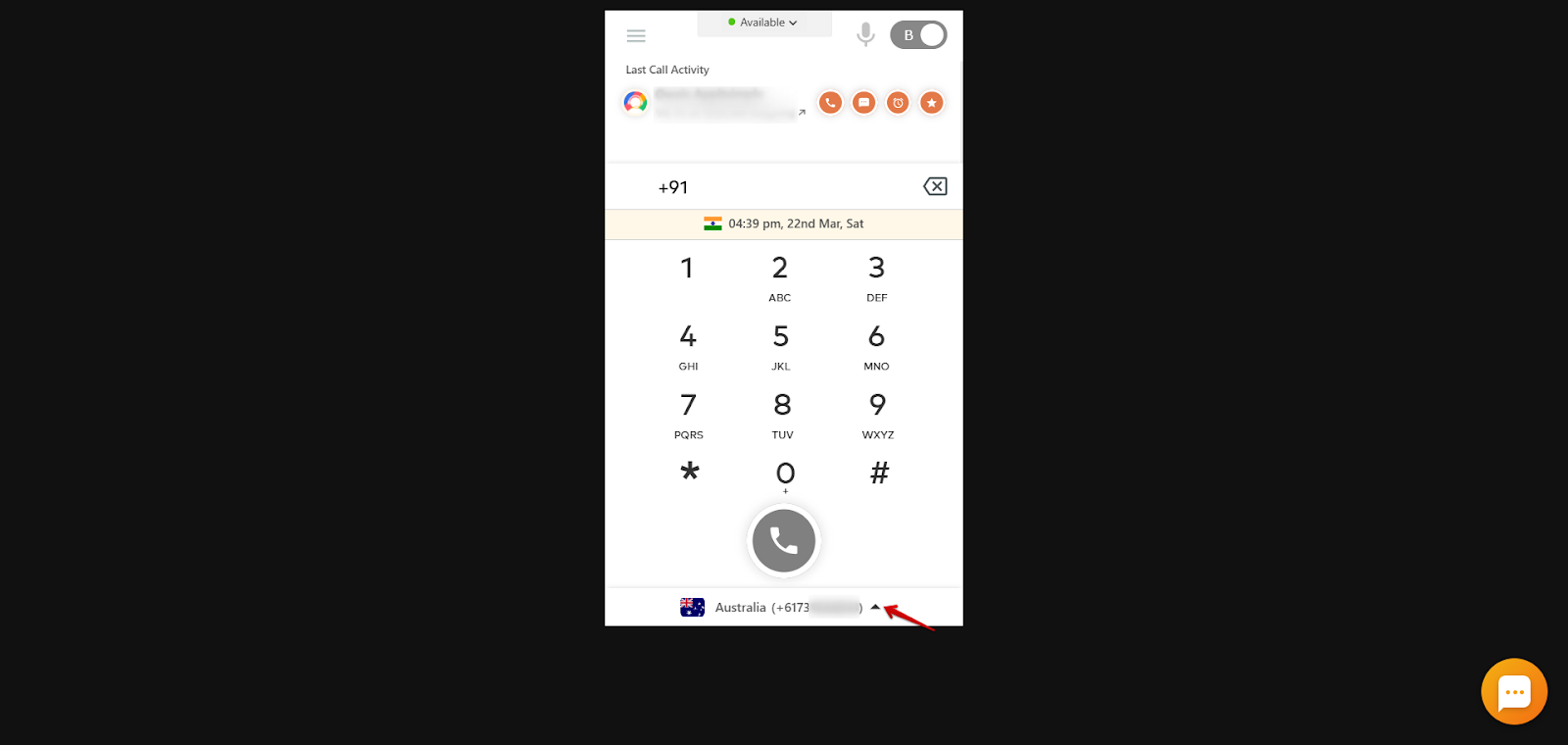
- Choose your number: From the dropdown list, choose the preferred number you wish to use for making calls.
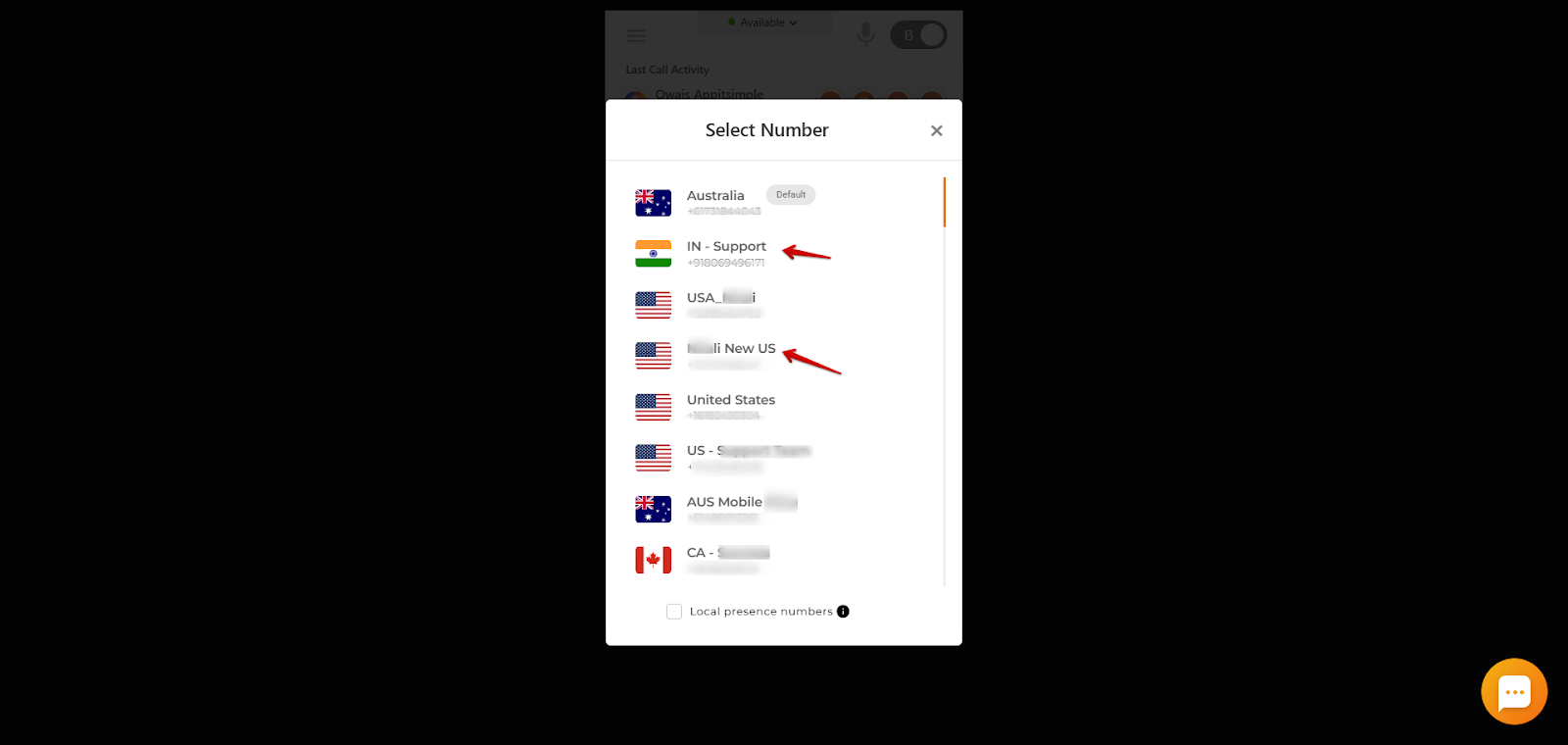
By selecting the appropriate number, you can proceed with your CallHippo dialer actions using the chosen caller ID.
Benefits of switching between numbers
Switching between different numbers in the CallHippo dialer offers several advantages:
- Local presence: Using a local number when calling clients in a specific region can increase the likelihood of your call being accepted, as recipients are more inclined to answer calls from familiar area codes.
- Professionalism: Presenting a local or relevant caller ID enhances your organization’s professional image and credibility.
- Cost efficiency: Using local numbers can reduce call costs, especially for international communications.
Automate caller ID with Local Presence
To automate the process of selecting the appropriate caller ID, CallHippo offers the Local Presence feature:
- Functionality: Local Presence automatically switches your caller ID based on the number you are dialing. For instance, if you have both UK and USA numbers, dialing a +1 number will automatically use your USA caller ID, while dialing a +44 number will use your UK caller ID.
- Increased answer rates: Calls from local numbers are more likely to be answered by recipients.
- Streamlined operations: It eliminates the need for manual switching between numbers, saving time and reducing the potential for errors.
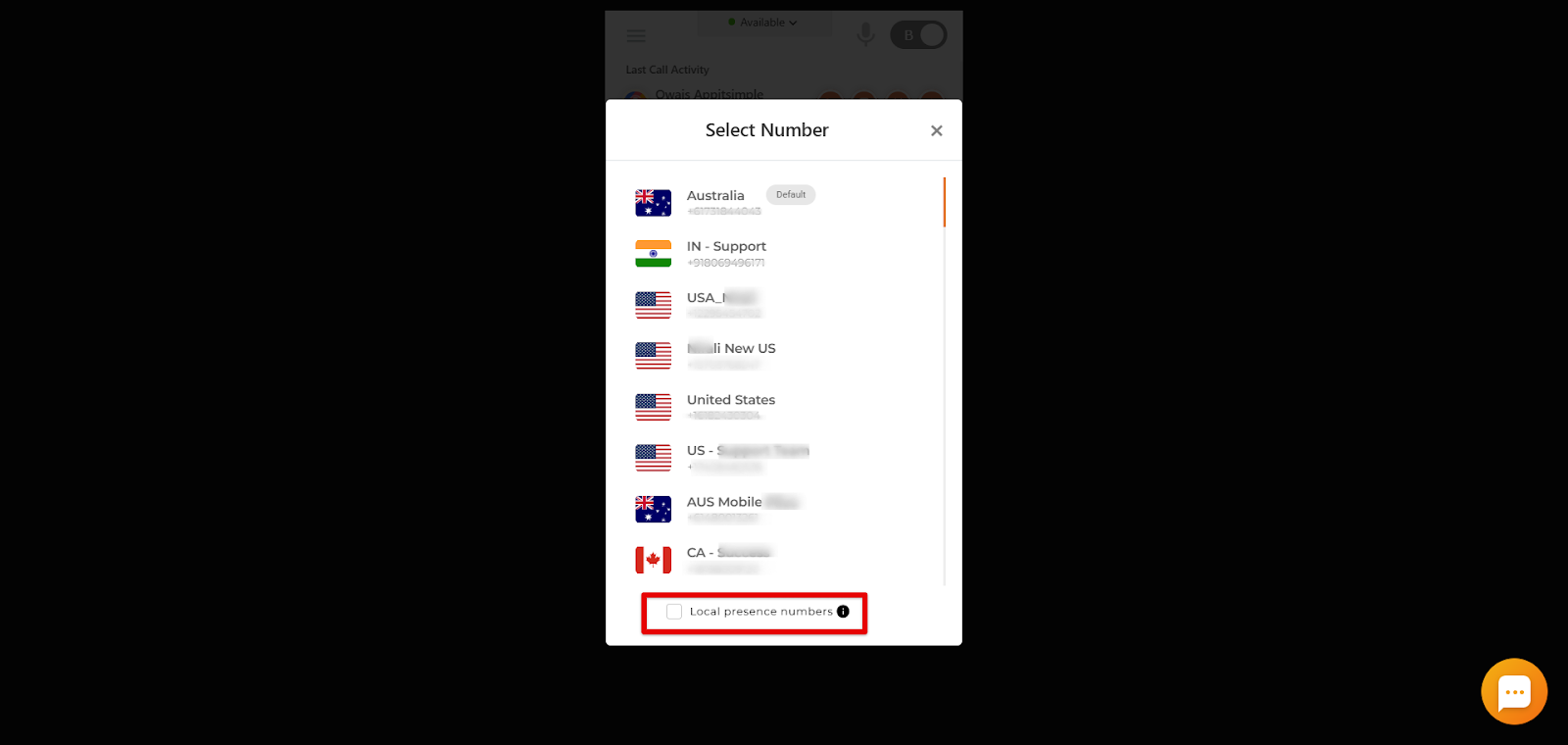
You can turn on Local Presence directly from the Select Number popup using the Local presence numbers option at the bottom.
Frequently asked questions
- How do I enable the Local Presence feature in CallHippo? Navigate to your CallHippo dialer page, select the Local Presence option from the bottom where the number is reflected, and activate it. Ensure you have the relevant local numbers added to your account.
- Can I manually select a different number if Local Presence is enabled? Yes. Even with Local Presence enabled, you can manually choose a different caller ID from the dialer if needed.
- Are there additional charges for using multiple numbers in CallHippo? Charges may apply based on the type and quantity of numbers you add to your account.
- How does using local numbers impact call quality? Using local numbers can improve call connectivity and reduce latency, leading to better call quality.
- Can I use the Local Presence feature for international calls? Yes. Local Presence is designed to work with international numbers, automatically selecting the appropriate caller ID based on the destination number’s country code.
We hope this helps. If you still have questions, feel free to reach out at [email protected].