
Target vs Achievement lets you set performance goals for your users and track whether they’ve met them, giving you a clear view of agent performance.
What You Can Target
You can assign three types of targets to your users:
- Call target: The number of calls a user needs to make.
- Login hours: The number of hours a user needs to be online.
- Talk time: The minimum talk time a user needs to achieve.
How to Set a Target
- Log in to your CallHippo dashboard.
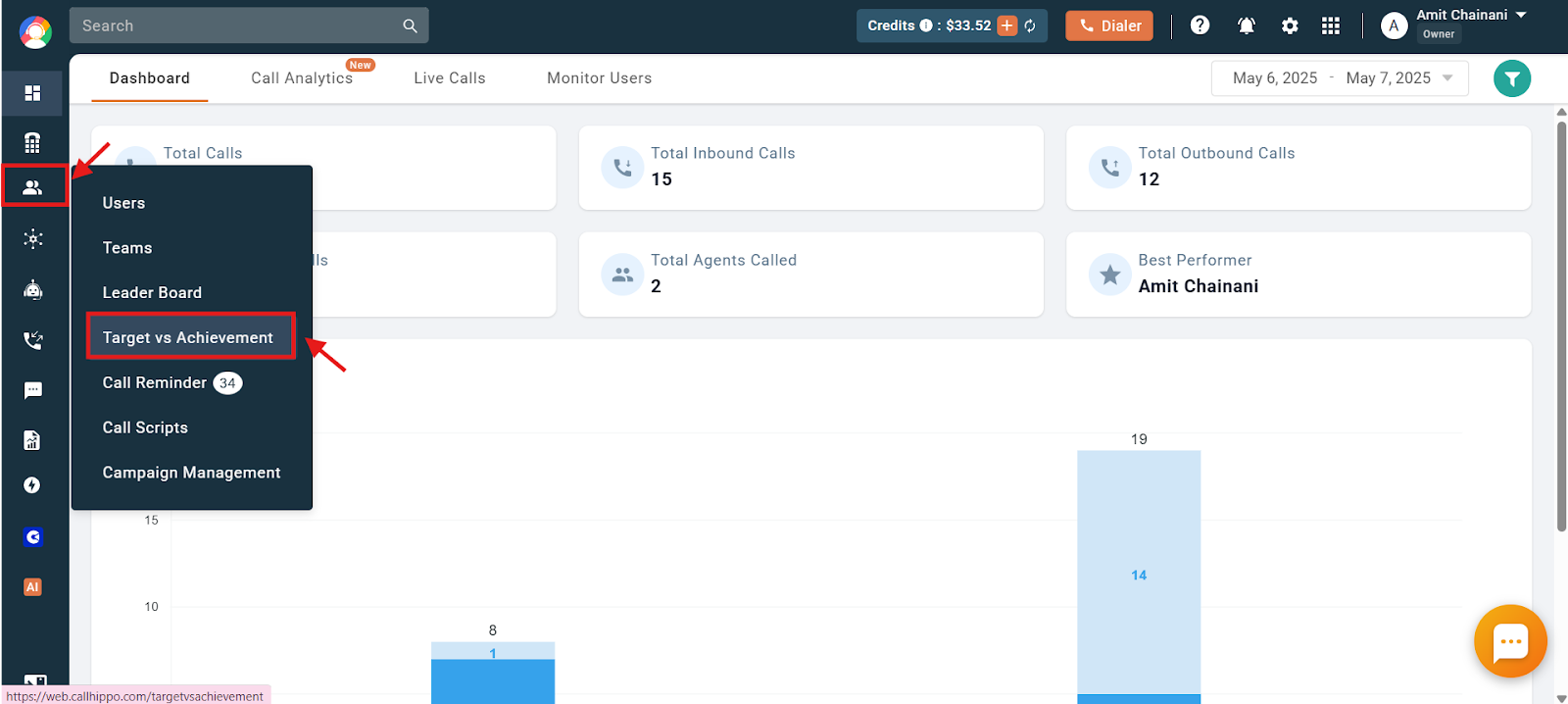
- Open the report: Navigate to the Users and Performance section and click Target vs Achievement.
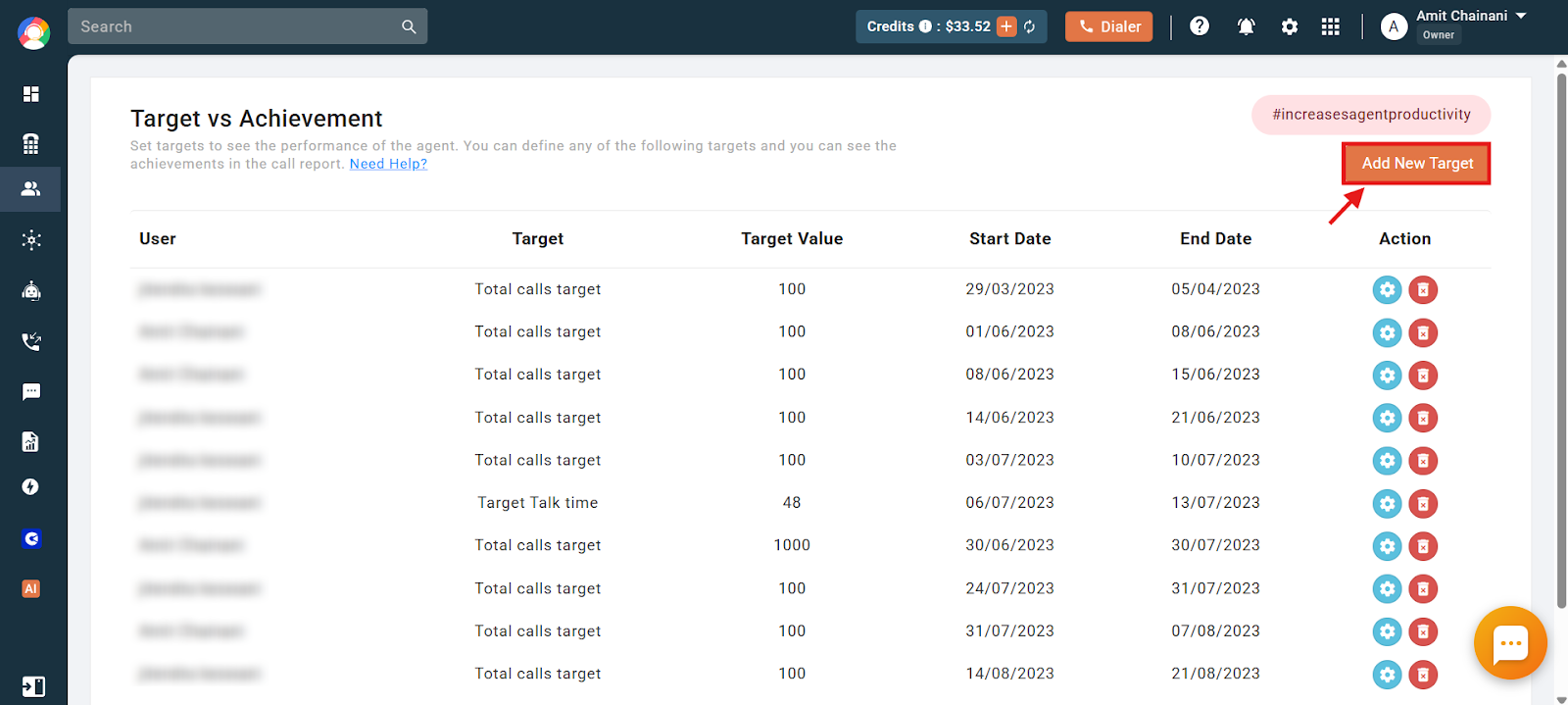
- Add a target: Click the Add New Target button to assign targets to your users.
To remove an existing target, simply click the delete button next to it.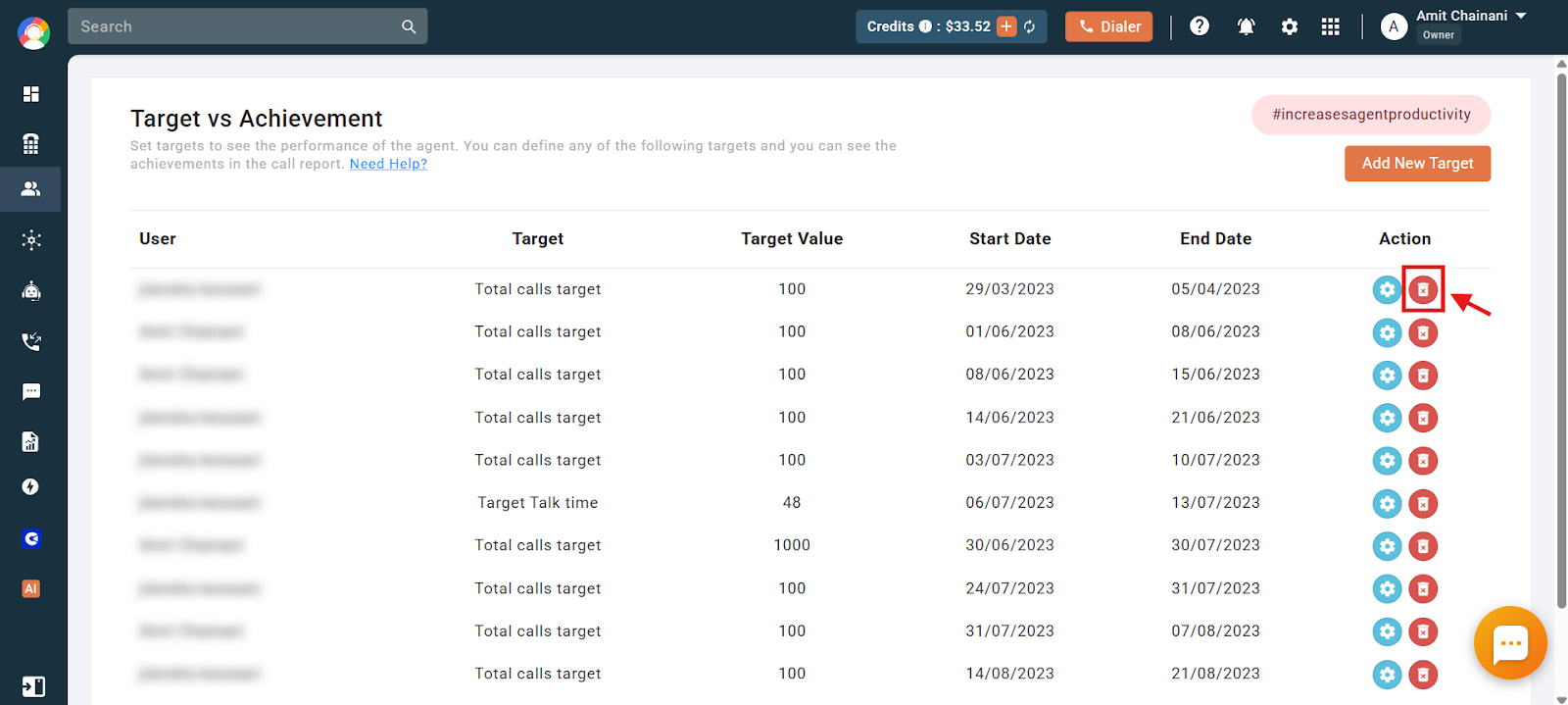
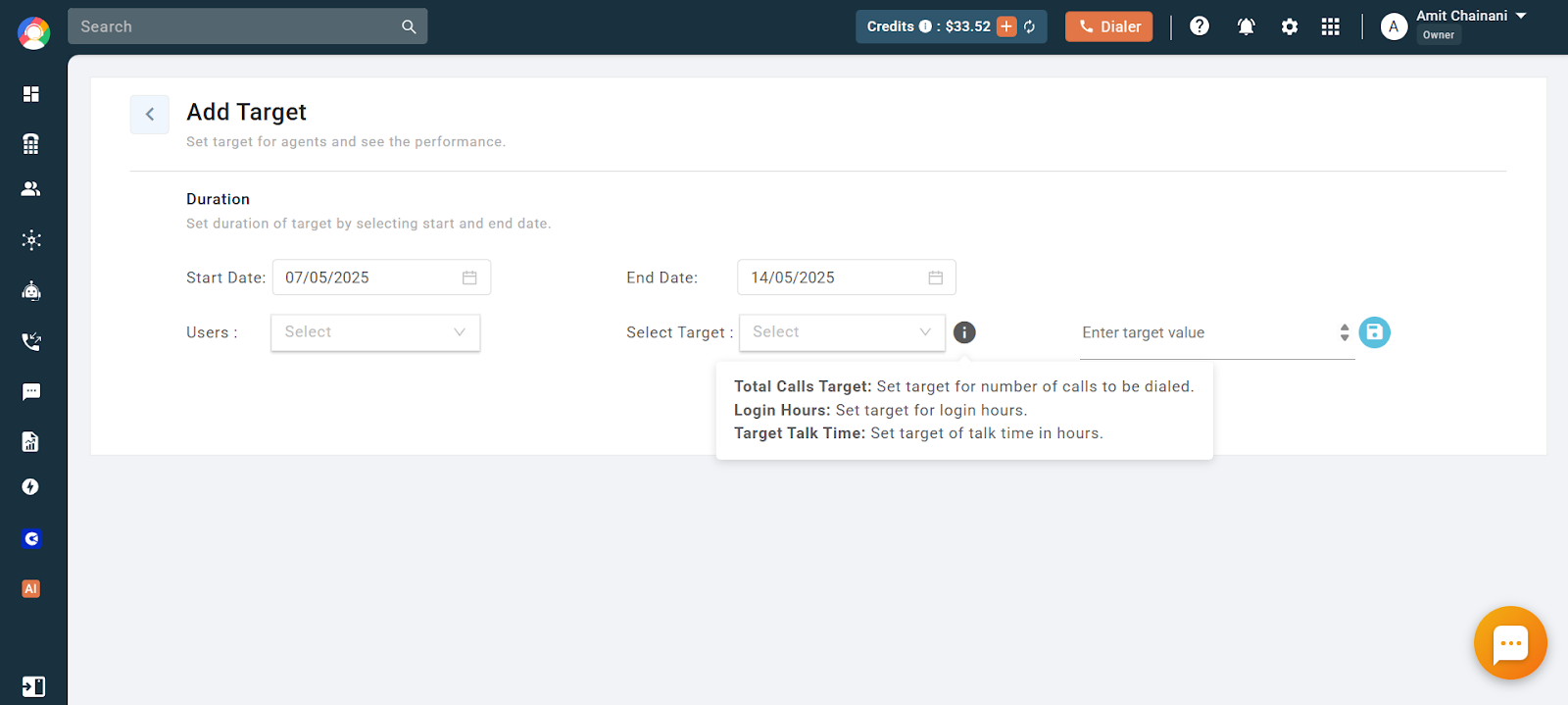
- Configure the target using these parameters, then click Save:
- Users: Select the users you want to assign the target to. Click the plus icon to add more users at once.
- Start Date: When the target should begin.
- End Date: When CallHippo should stop calculating the assigned target.
- Select Target: Choose call target, login hours, or talk time.
- Target Value: Enter the value you want to assign.
How to Check Whether Targets Are Achieved
To see whether the assigned targets have been met, head to the Reports section:
- Open Call Report: Navigate to the Reports section and click Call Report.
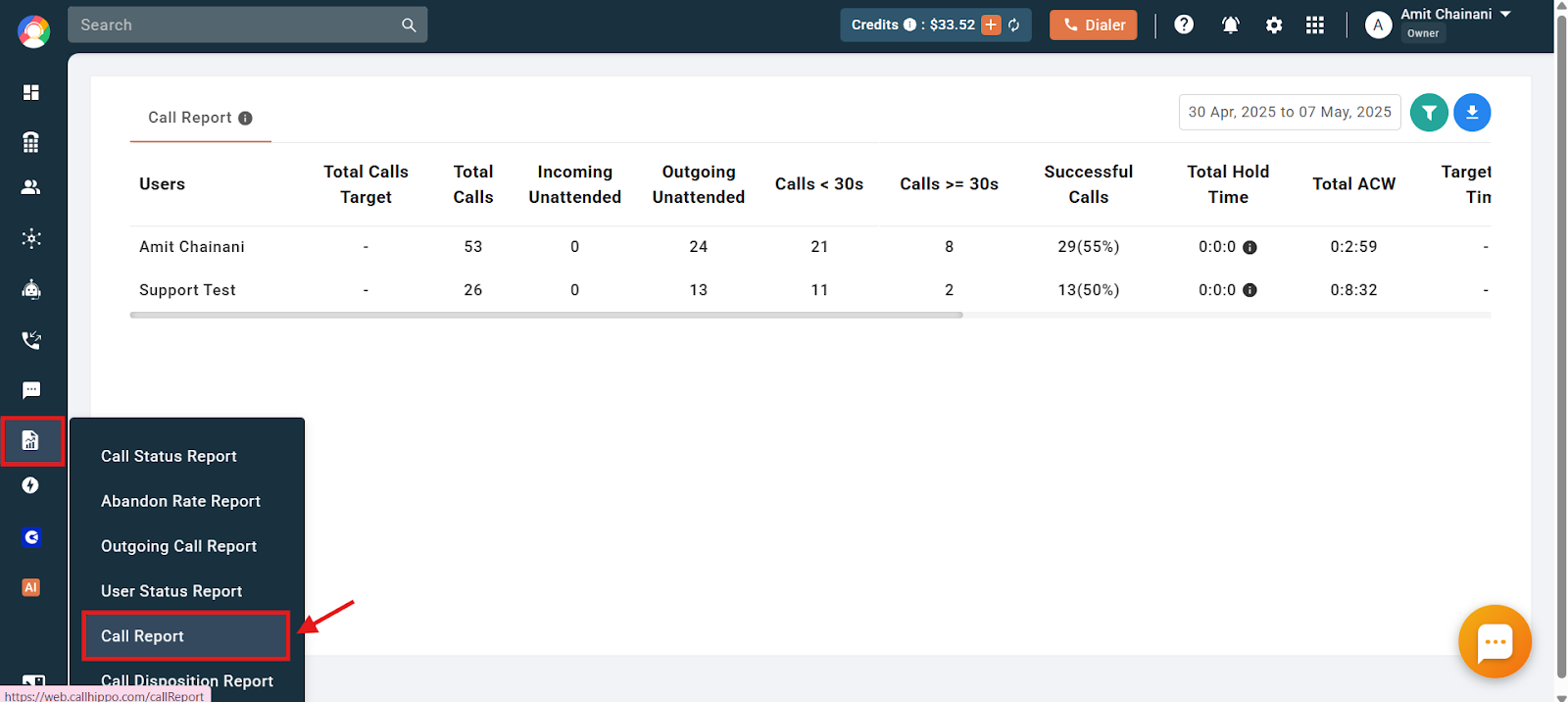
- Scroll right to view the target and achievement columns.
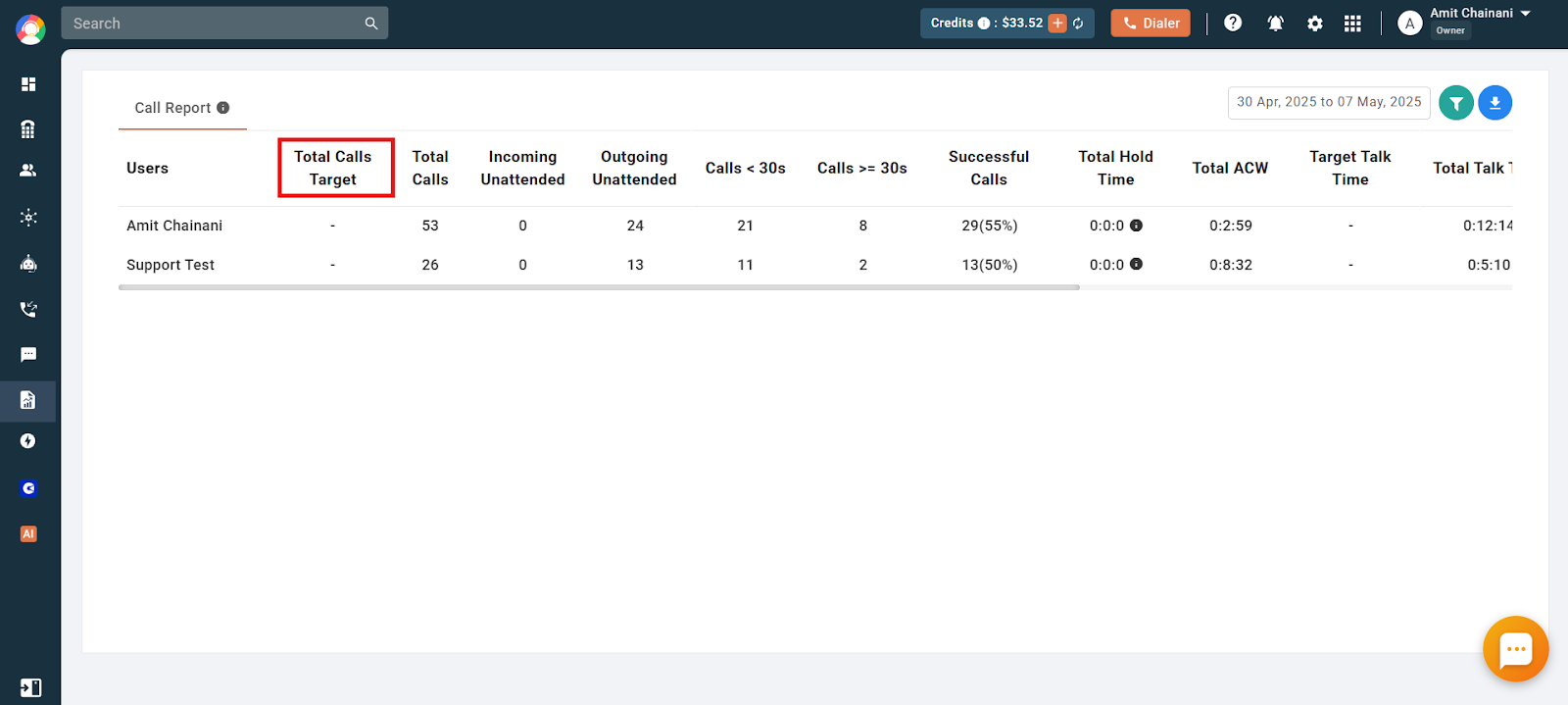
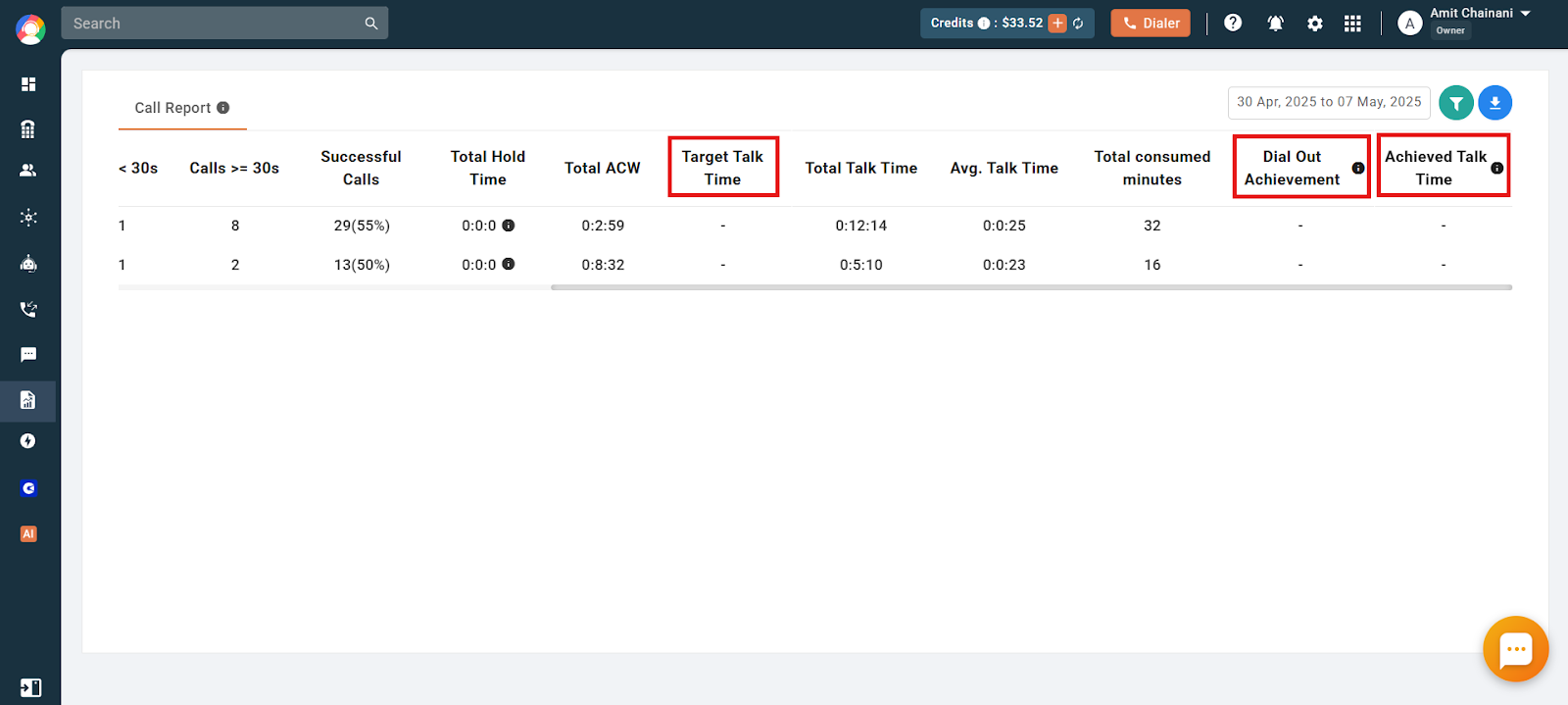
The relevant columns are:
- Target Talk Time: The talk time assigned to the user.
- Total Calls Target: The total number of calls assigned to the user.
- Dial Out Achievement: The percentage of the assigned call target the user has completed.
- Achieved Talk Time: The percentage of the target talk time the user has achieved.
Frequently Asked Questions
I set a target for a user, but it’s not showing any progress. How do I check if it’s being tracked?
To track target progress, go to the Reports section and click Call Report. Scroll to the right to see data such as Dial Out Achievement and Achieved Talk Time. If nothing is showing, make sure the target period is currently active and the user is making calls.
Do I need to repeat the process to assign targets to multiple users?
No. You can assign the same target to multiple users at once by clicking the plus icon under the Users field when creating a new target.
Can I set different types of targets for the same user at once?
Yes. You can assign all three types (call target, login hours, and talk time) to the same user. You’ll set them one by one, but they can all be tracked at the same time within the same performance window.