
Connecting Typeform with CallHippo syncs your form respondents into your dialer, so you can call or text new leads the moment they submit a form.
Step 1: Set Up Your Typeform
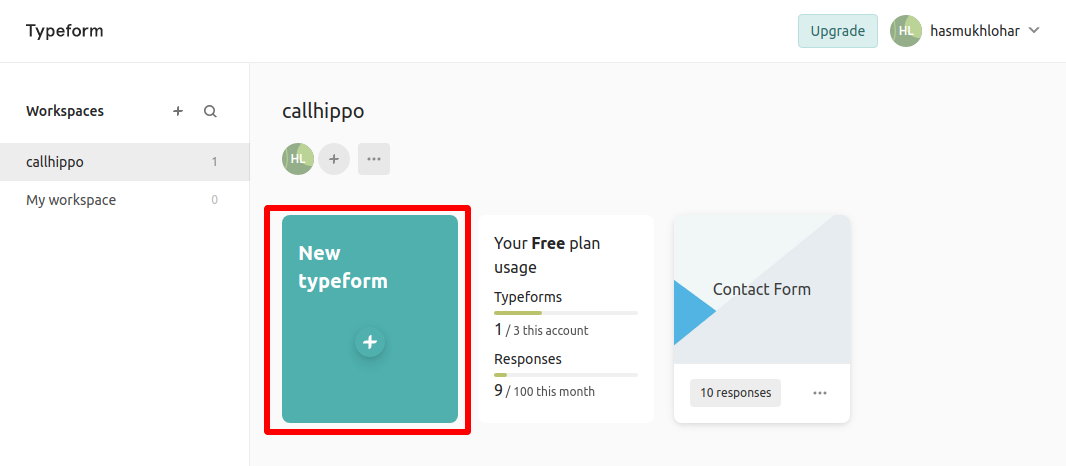
- Log in to your Typeform account, select your workspace, and click the New typeform card.
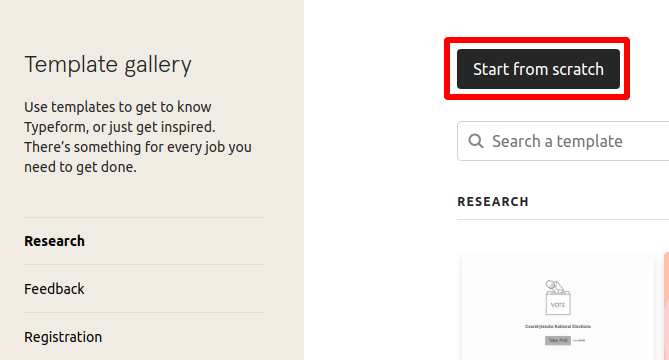
- Start from scratch by clicking the button, or pick a template if you prefer.
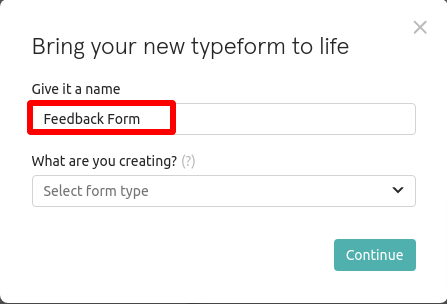
- Name your form and click Continue.
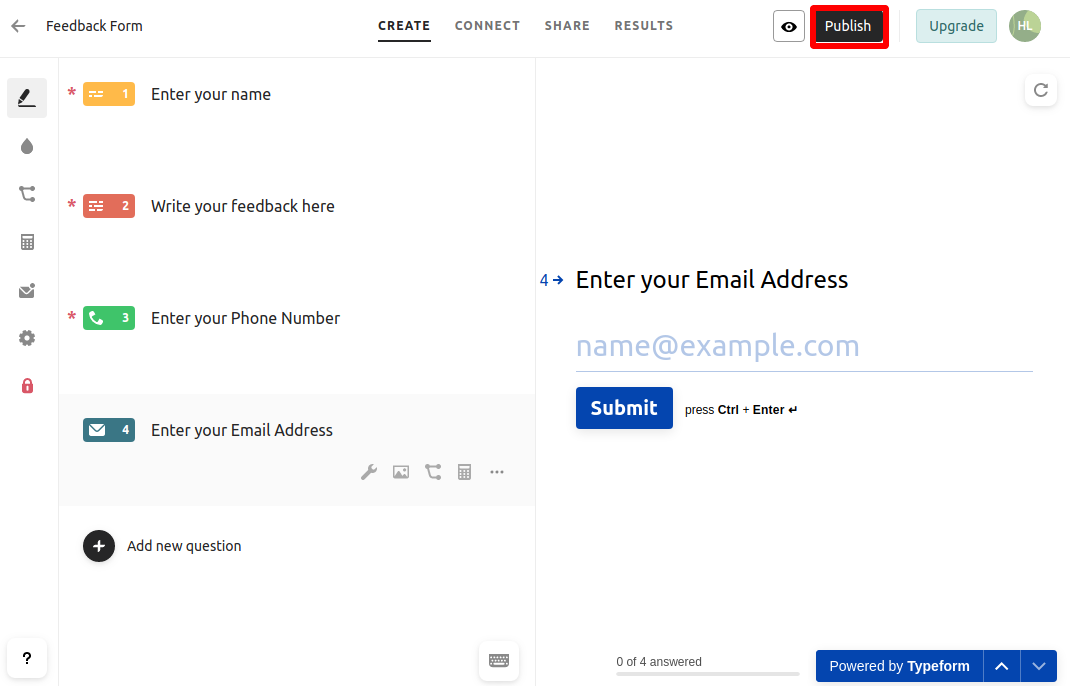
- Add your fields. In this example a Feedback form collects Name, Feedback, Phone and Email. You can design any fields you like, but two are mandatory: a Phone field (field type must be Phone) and a Name field (use any label that contains the word “Name”). Then Publish the form to your website or social media.
Step 2: Connect Typeform in CallHippo
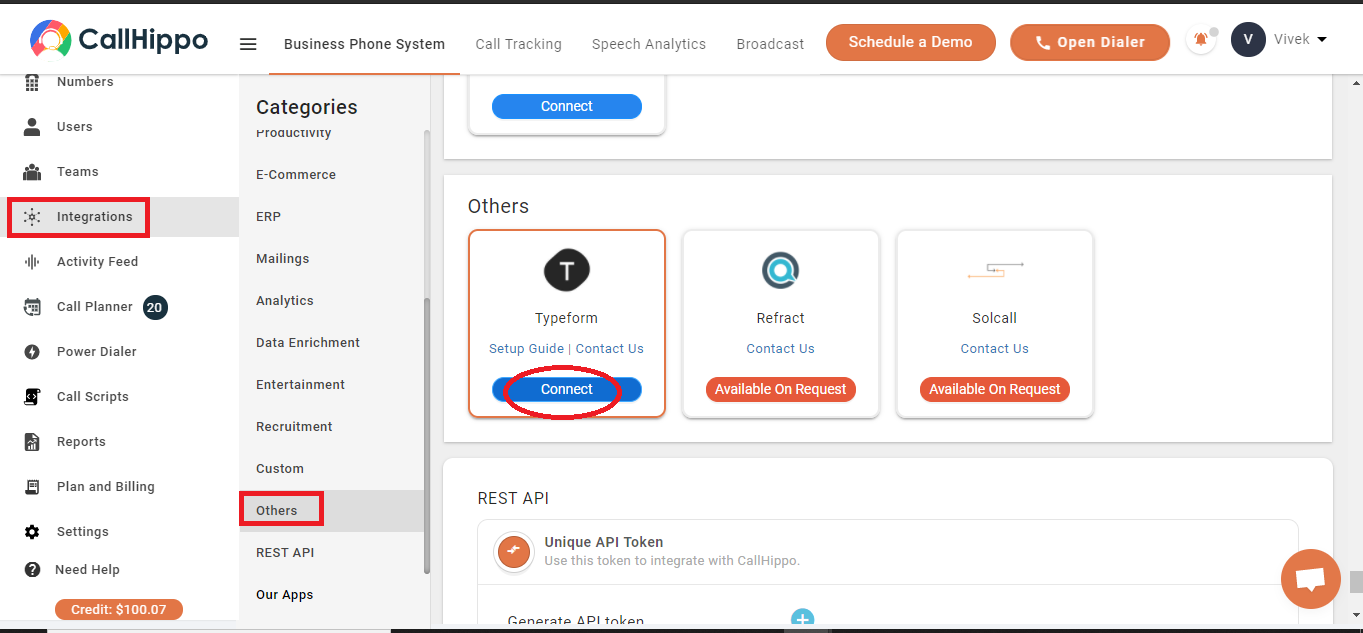
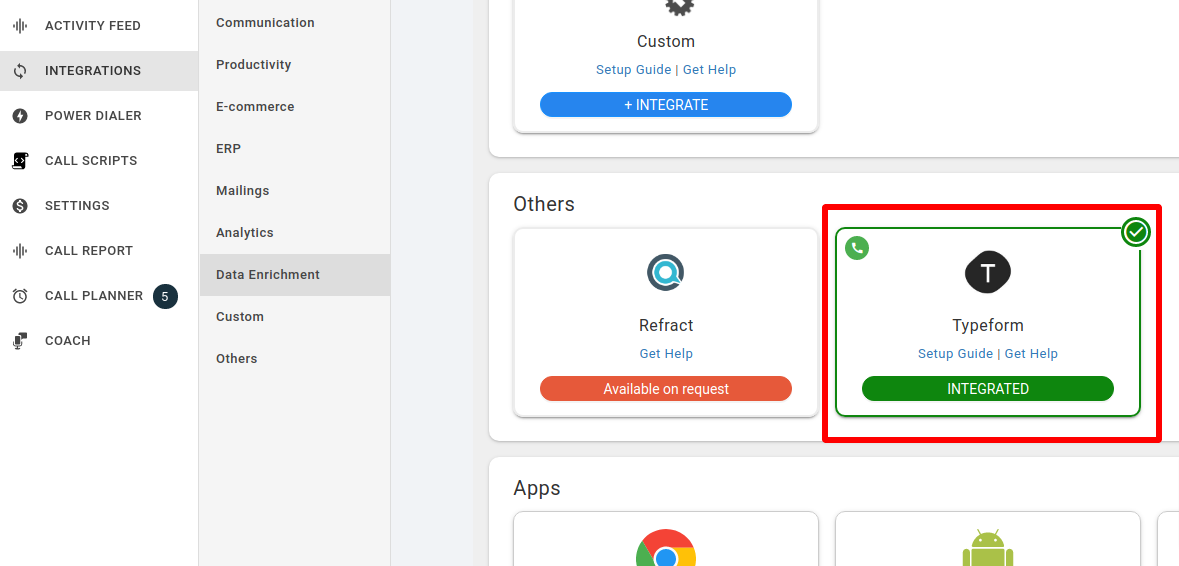
- Log in to your CallHippo account, open Integrations from the left sidebar, find Typeform (under Others) and click Connect.
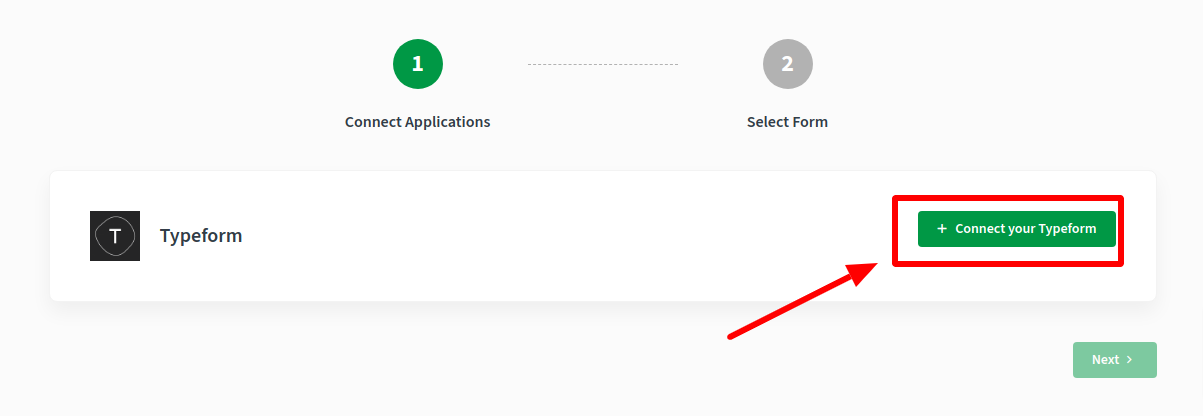
- On the setup page, click Connect your Typeform.
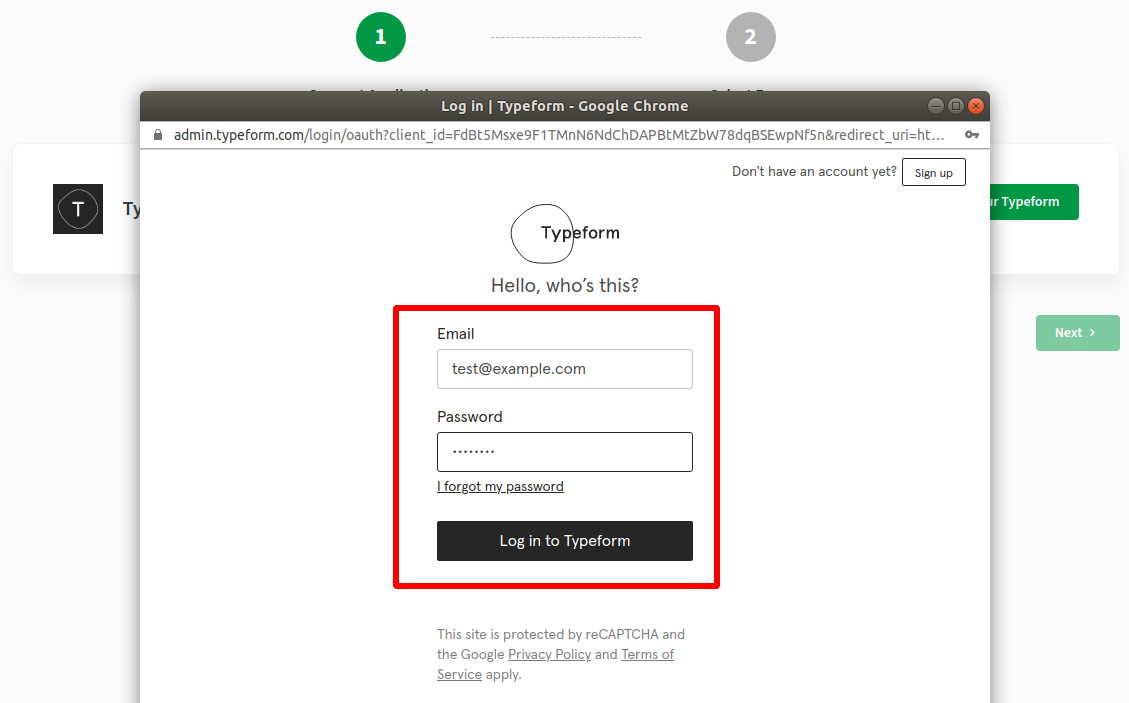
- Log in to Typeform with your email and password.
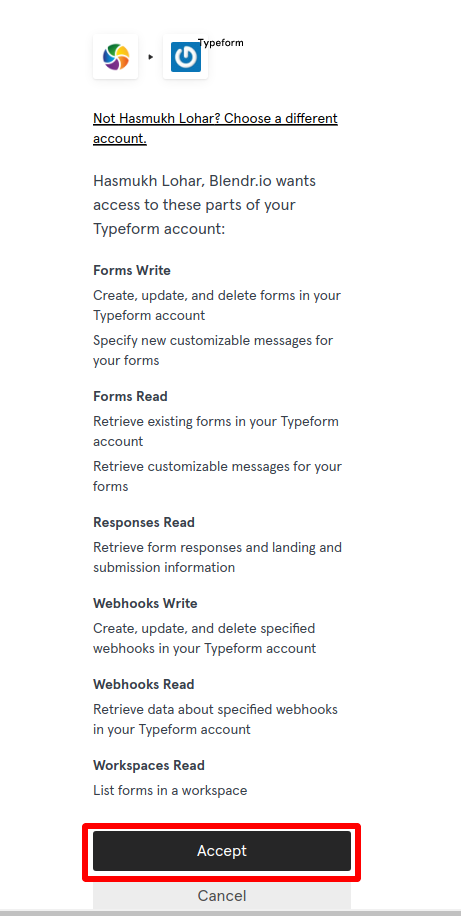
- On the permissions page, click Accept to grant access. Your Typeform account is now connected.
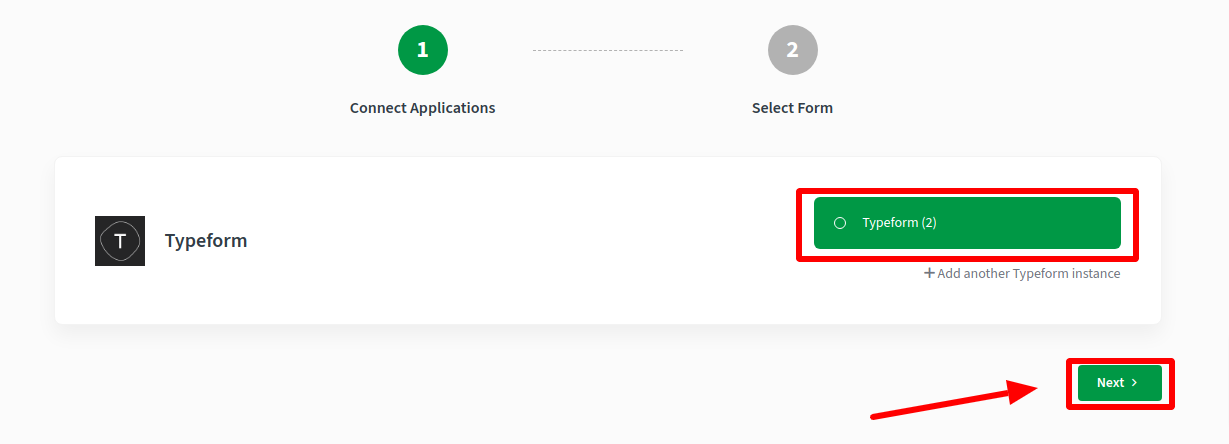
- Click Next, then on step 2 select the form you want to sync with CallHippo and click Next. Wait until you are redirected back to CallHippo.
- Your Typeform integration is complete, shown by the INTEGRATED badge.
Features of the Typeform Integration
- Contact sync: all contacts generated from responses to your selected form are synced into CallHippo.
- Call and SMS: reach those contacts directly from the CallHippo dialer.
If I delete a form response in Typeform, is the contact removed from CallHippo?
No. Deleting a response in Typeform does not delete the related contact in CallHippo. You will need to remove it manually.
Need a hand connecting Typeform? Reach us at [email protected].