
Keeping your billing address up to date ensures accurate invoices and uninterrupted service. When updating your billing address, include the correct first name and last name, street address, city, state, postal code, and country. It is also a good idea to verify that the payment details linked to your account are current so you can avoid any payment issues.
Before you begin
Please keep the following points in mind before updating your billing address:
- The billing address you enter in the dashboard will appear on all future invoices.
- Changing the billing address now will not update past invoices.
- If you have a pending (unpaid) invoice, updating the billing address will not reflect on that invoice.
- You cannot add, remove, or modify the billing address on already generated invoices under any circumstances.
- You can only check and update the billing address using the Owner account.
Updating the billing address to an Indian address
If you wish to update your billing address to an Indian address, your billing currency must first be changed to INR. Only after this currency change can the system accept an Indian billing address.
Please note that this change cannot be made from the dashboard. It must be handled manually by our accounts team. Once the request is submitted, the update typically takes 24 to 48 business hours to reflect.
Steps to change and update the billing address
- Log in to your CallHippo dashboard.
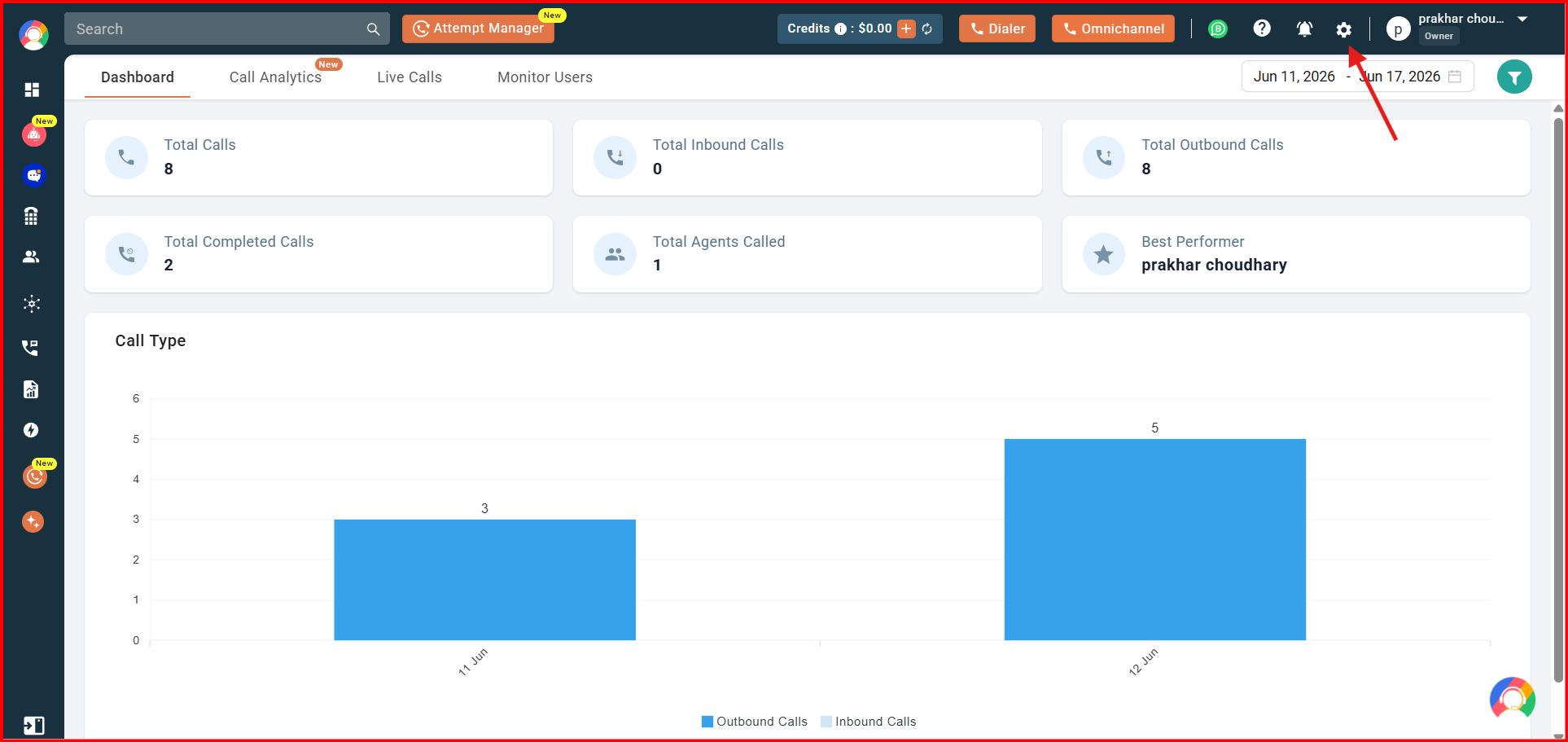
- Navigate to the settings (gear) icon in the top-right corner of the screen, then click on the Plan, Billing & Credits section and select the Invoice tab.
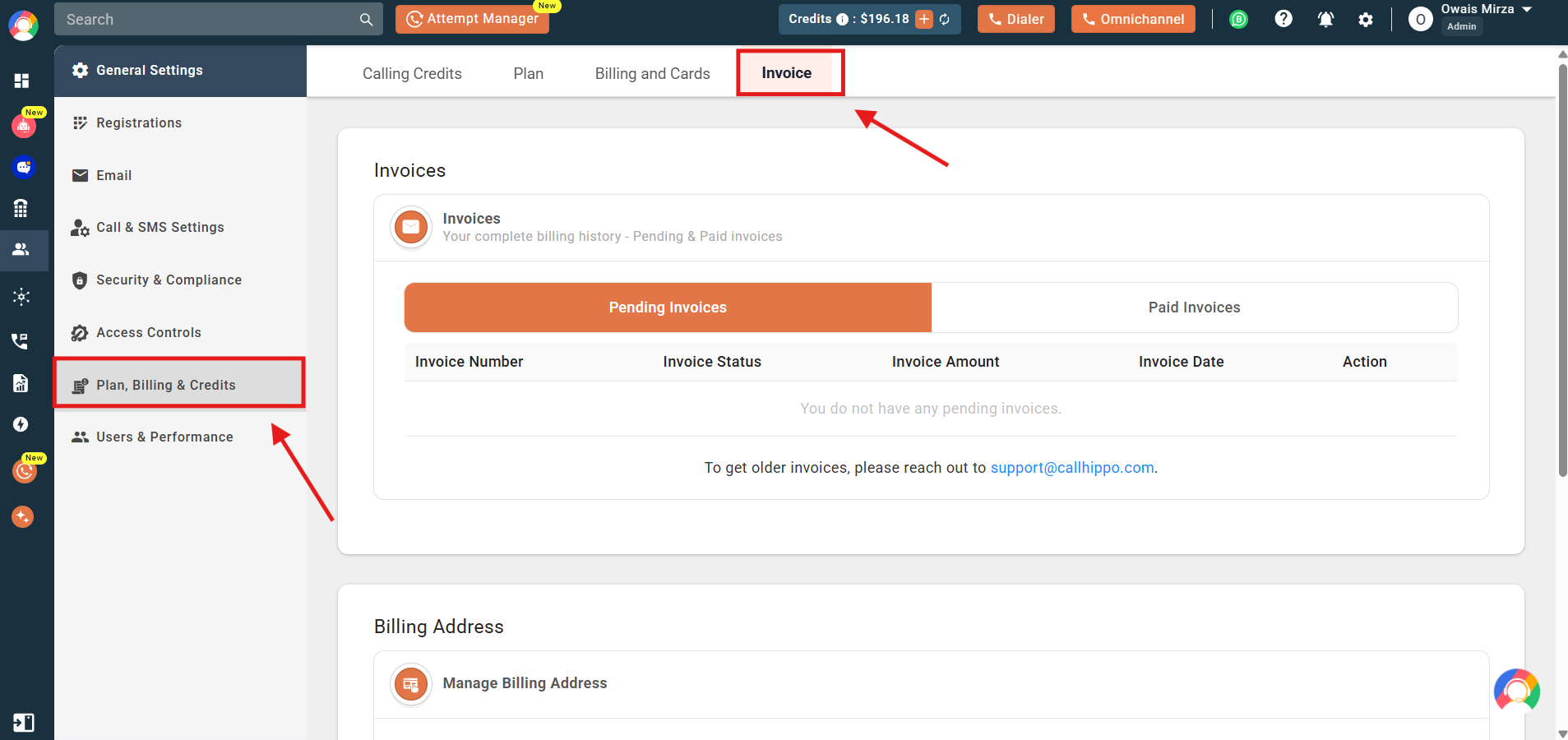
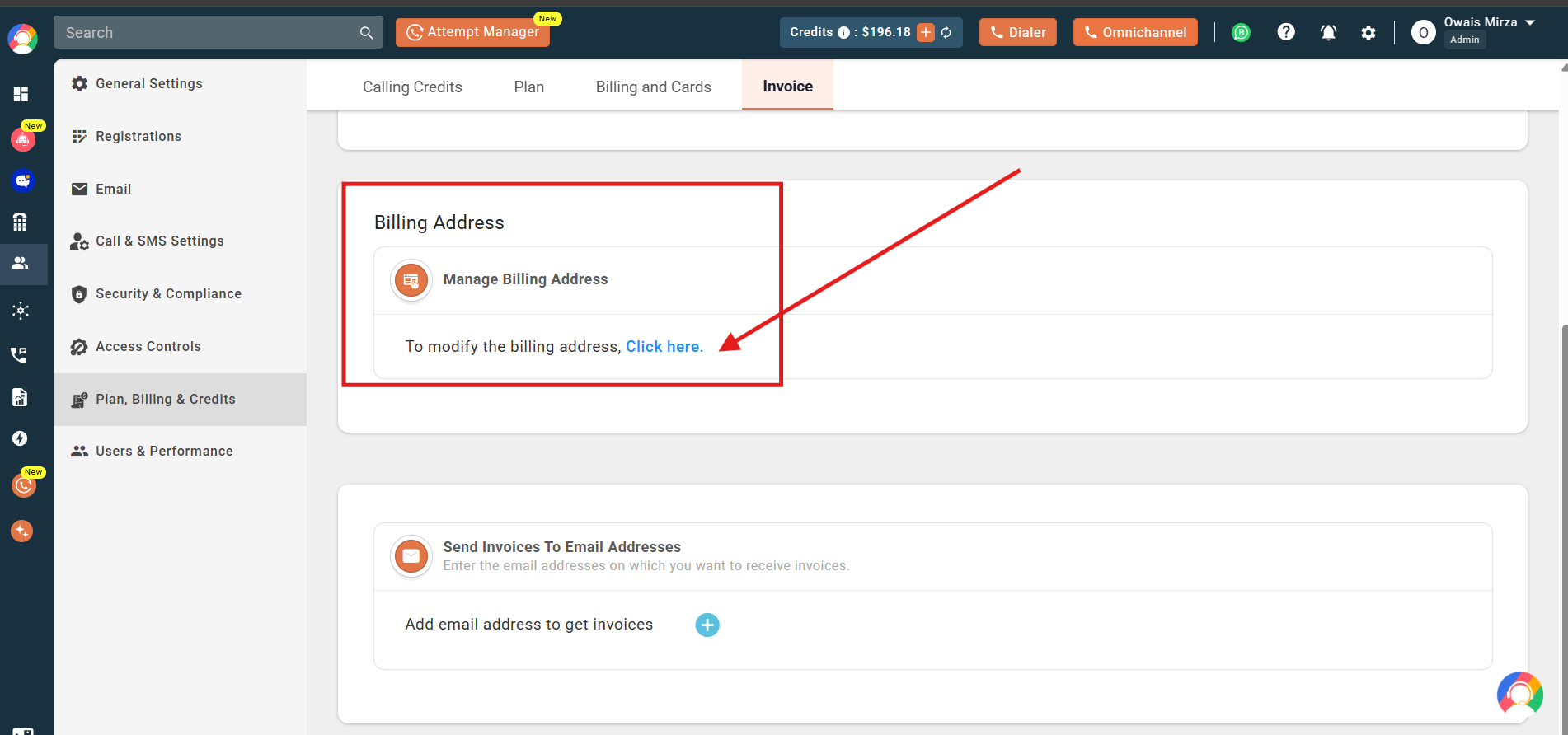
- Scroll down a bit and click on the Billing Address option visible on the screen.
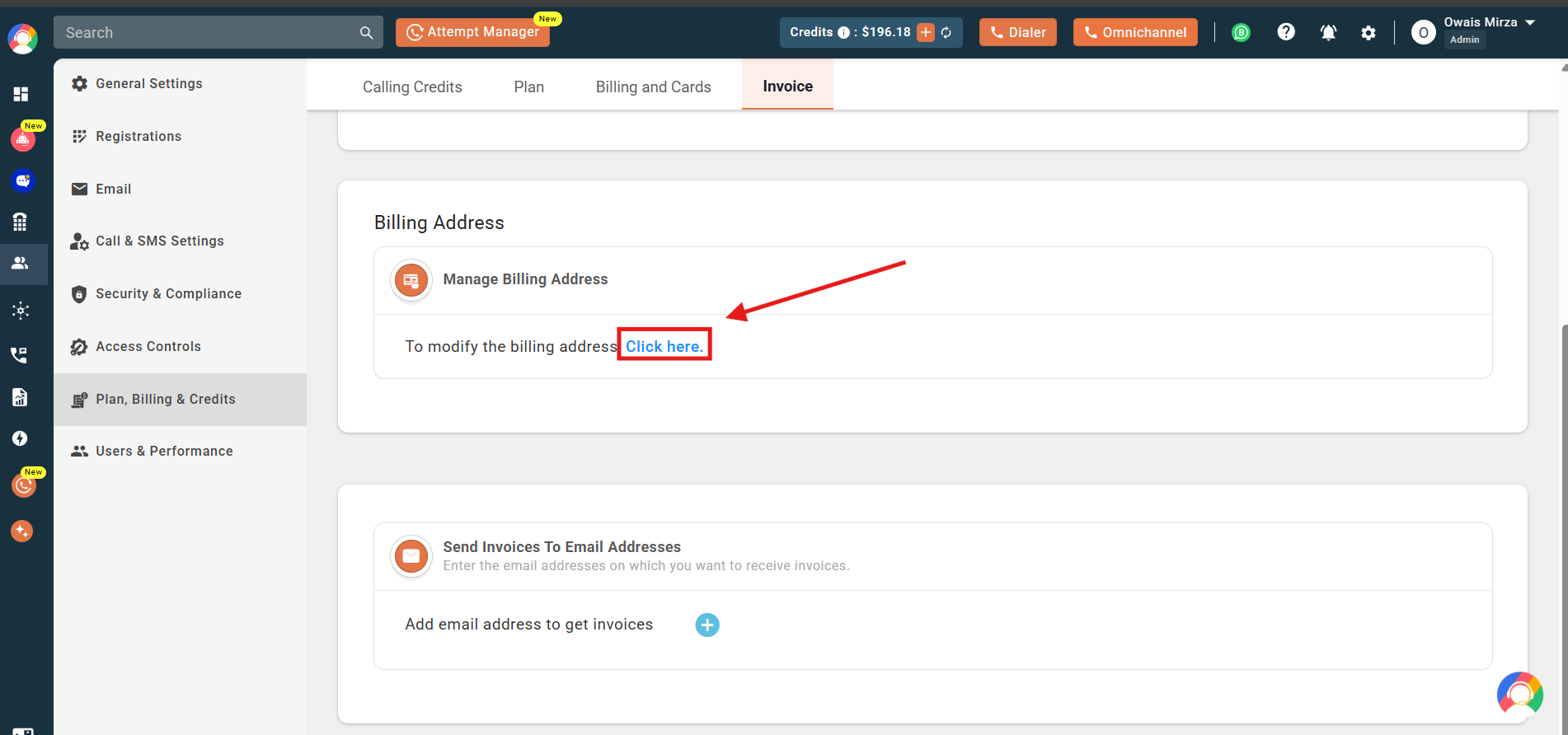
- Click on the Click here button shown in blue to proceed.
- Enter or edit the new billing address that you want to update, then click Update to finalize the changes.
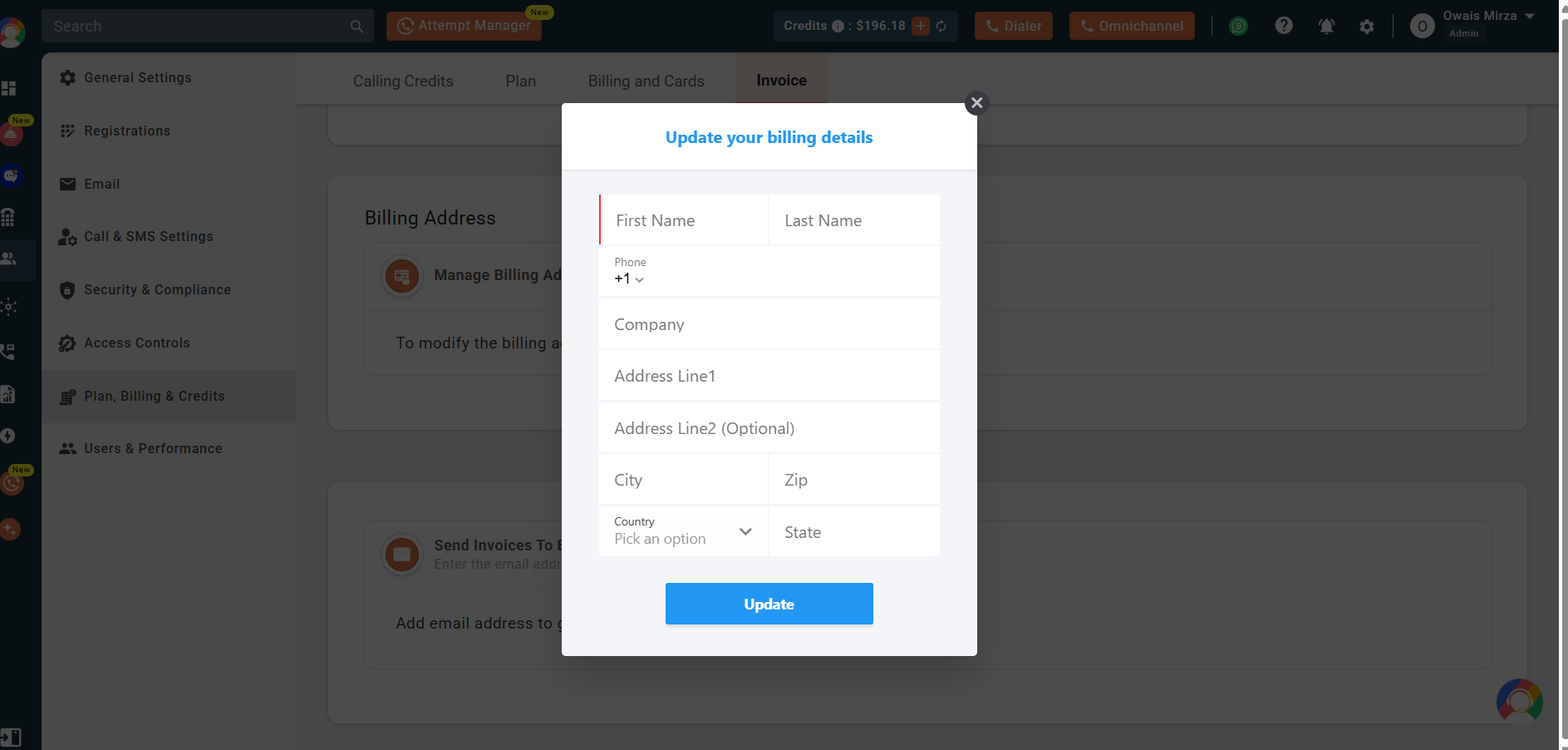
Your billing address is now updated.
Frequently asked questions
Q: Will changing my billing address update it on past invoices?
A: No, any changes will only apply to future invoices. Past invoices will remain unchanged.
Q: Can I edit the billing address on already generated invoices?
A: No, once an invoice is generated, the billing address cannot be changed under any circumstances.
Q: Will updating the billing address affect a pending invoice?
A: No, if an invoice is already generated but unpaid, updating the address will not affect that invoice.
Q: Will I get a confirmation after updating the billing address?
A: There is no separate confirmation email, but your changes will be immediately reflected on all future invoices.
Q: Do I need to update my payment method when changing the billing address?
A: Not necessarily, but it is a good idea to verify that your payment details are still accurate after updating your address.
Q: How can I update my billing address to an Indian address?
A: To update your billing address to an Indian one, your billing currency must first be changed to INR. This change needs to be done manually by our accounts team. Once requested, it usually takes 24 to 48 business hours for the update to reflect.
Q: Why am I unable to set an Indian billing address in my account?
A: The system only allows an Indian billing address if your billing currency is set to INR. If your current currency is different, the billing address cannot be updated until our accounts team manually changes it to INR, which takes around 24 to 48 business hours.
We hope this helps. If you still have questions, feel free to reach out at [email protected].