
You can purchase a CallHippo subscription whether you are on a trial or want to skip the trial and move directly to a paid plan. Upgrading gives you access to more features, higher usage limits, and additional customization options. Plan options vary by features and billing cycles, so you can choose what fits your needs.
Note: Only the Owner or Admin can purchase or upgrade a subscription. Once you upgrade, your account continues seamlessly with all your existing data.
To explore plan options and feature availability, visit the CallHippo Pricing Page.
Upgrade to a paid plan from a free trial
- Log in to your CallHippo Dashboard.
- Right on your dashboard, you will see an Upgrade button, it is hard to miss.
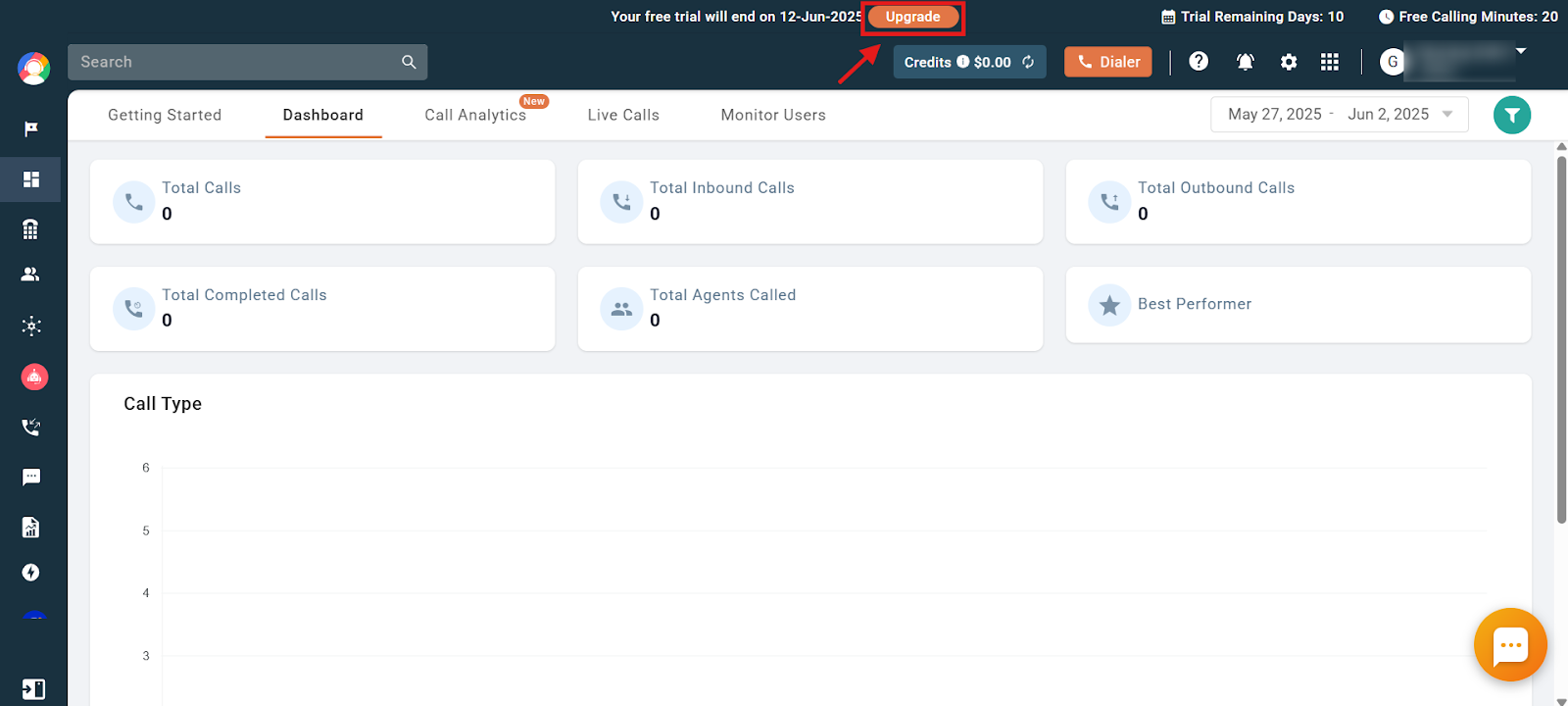
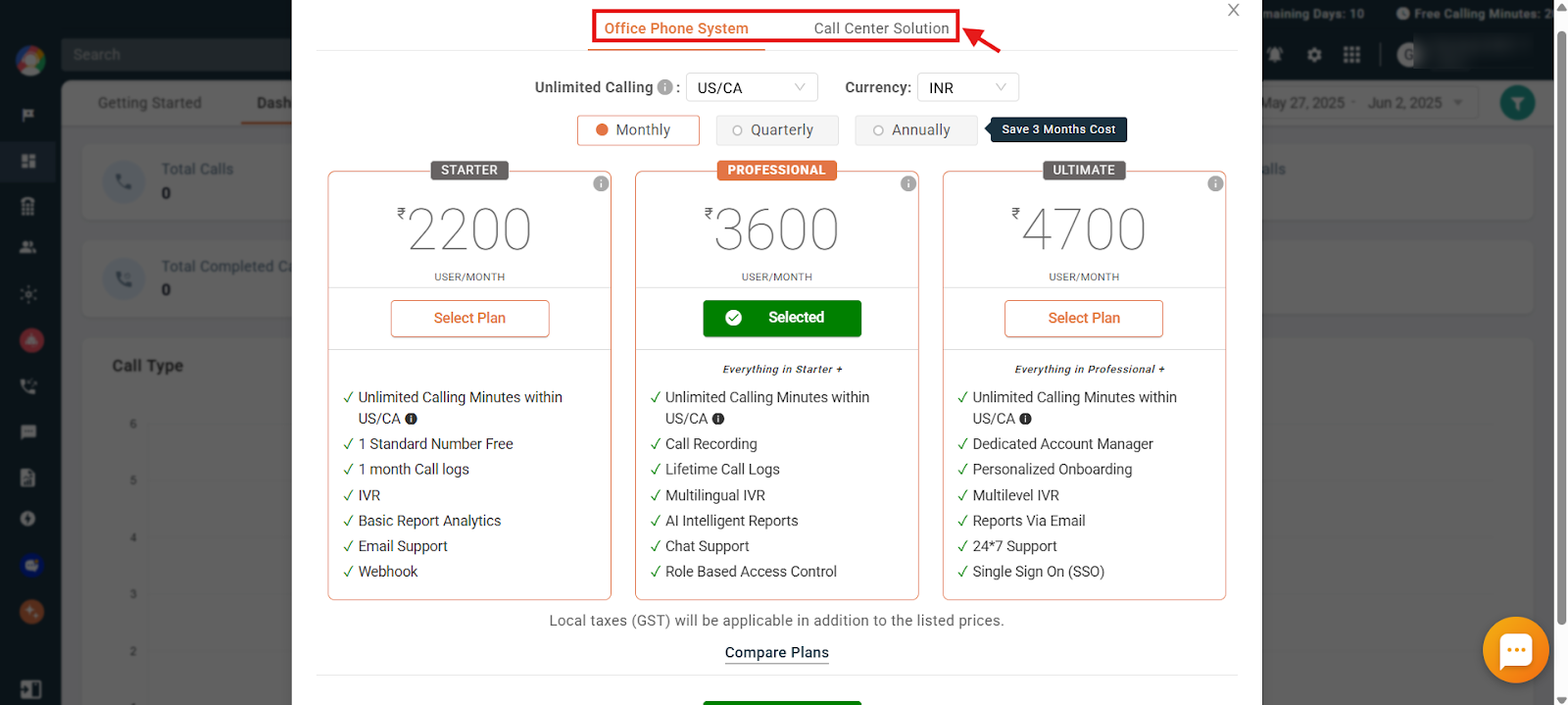
- Clicking Upgrade takes you to the Plans & Billing screen. Here, you can choose the perfect plan for your needs. There are two options:
- Office Phone System: Ideal for small and medium businesses.
- Call Center Solution Plan: Packed with features for high-volume call centers.
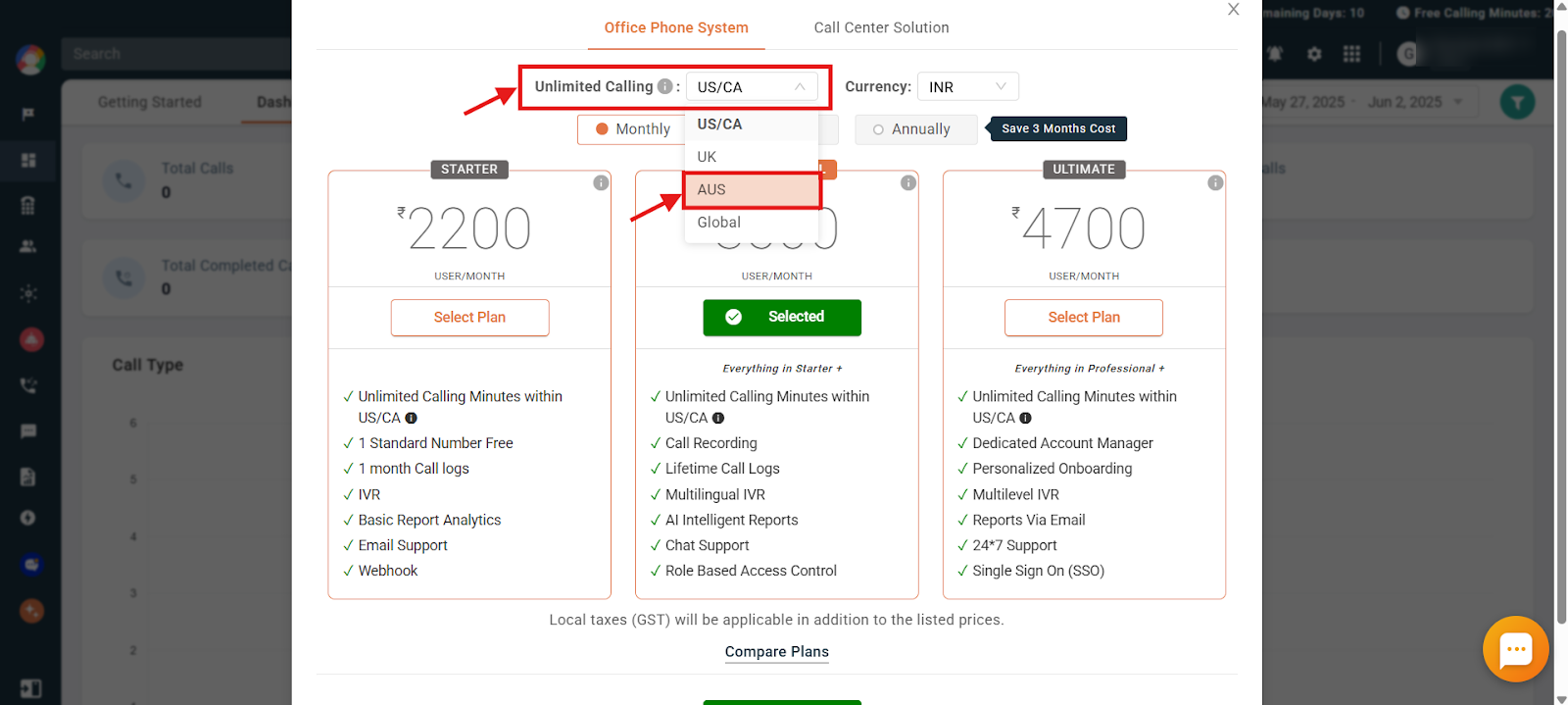
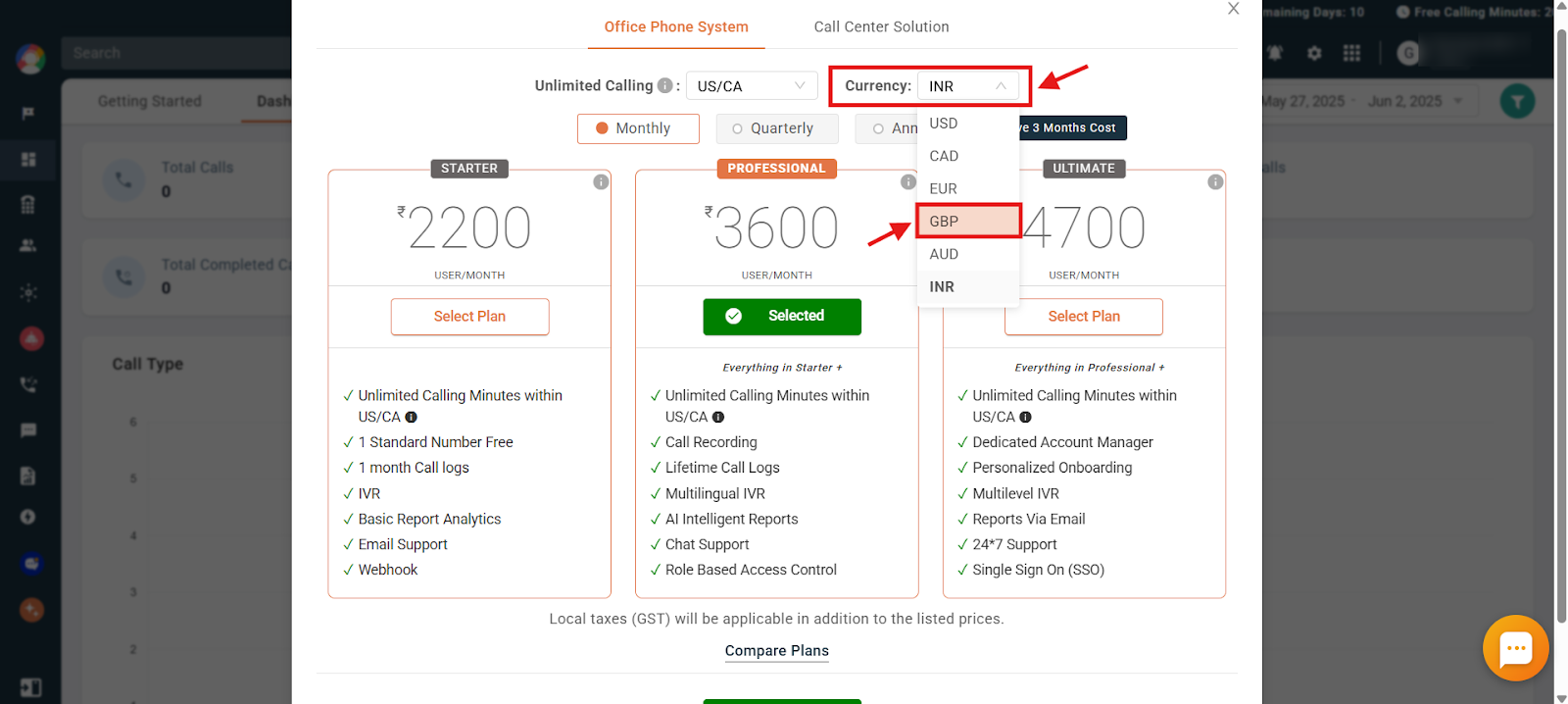
- When selecting a plan with unlimited calling, make sure you choose the correct region from the Unlimited Calling dropdown. This selection determines the region for which you will receive free calling benefits. Selecting the wrong region may result in limited or no access to free calling for your intended area.
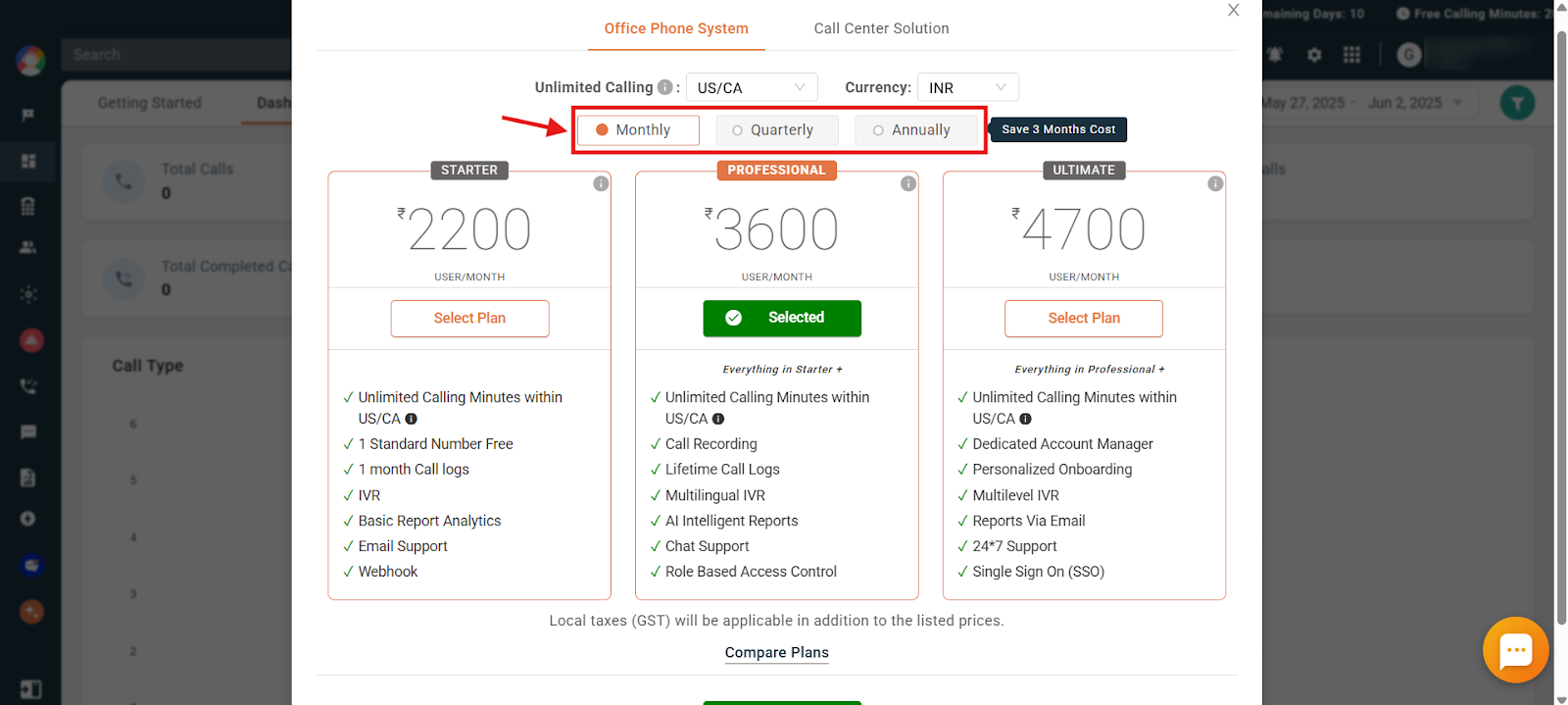
- You can also choose your preferred payment cycle (monthly, quarterly, or annually).
- Select your preferred billing currency.
- Scroll down and click on the Buy Now option.
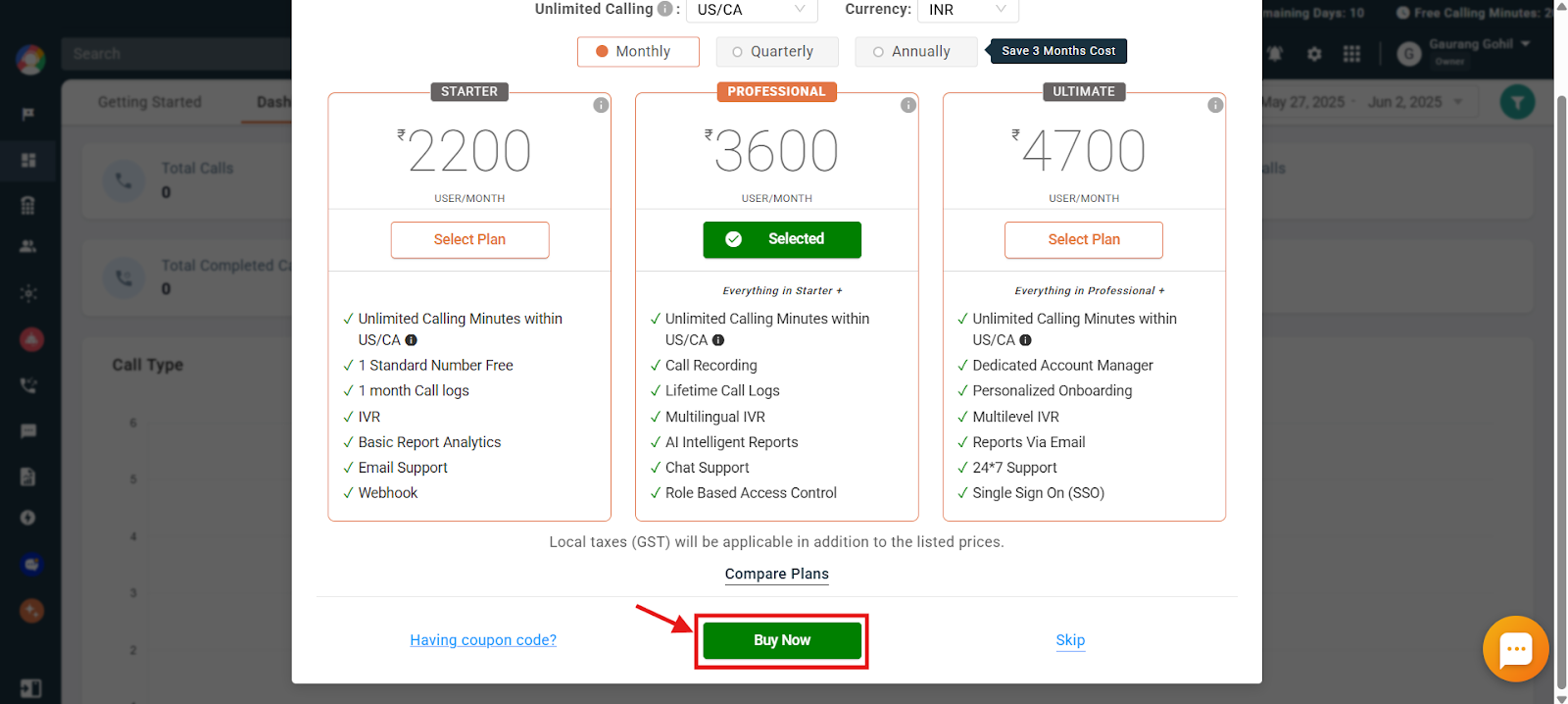
- Enter the billing details and complete the payment for the subscription you want to purchase.
Important: Selecting the wrong region at first and then getting it changed later takes around 48 business hours, as it is a manual process that needs to be done by our accounts team.
Purchase a plan when you are not eligible for a free trial
- Log in to your CallHippo dashboard.
- Navigate to the settings (gear) icon in the top-right corner of the screen, and then click on Plan, Billing & Credits.
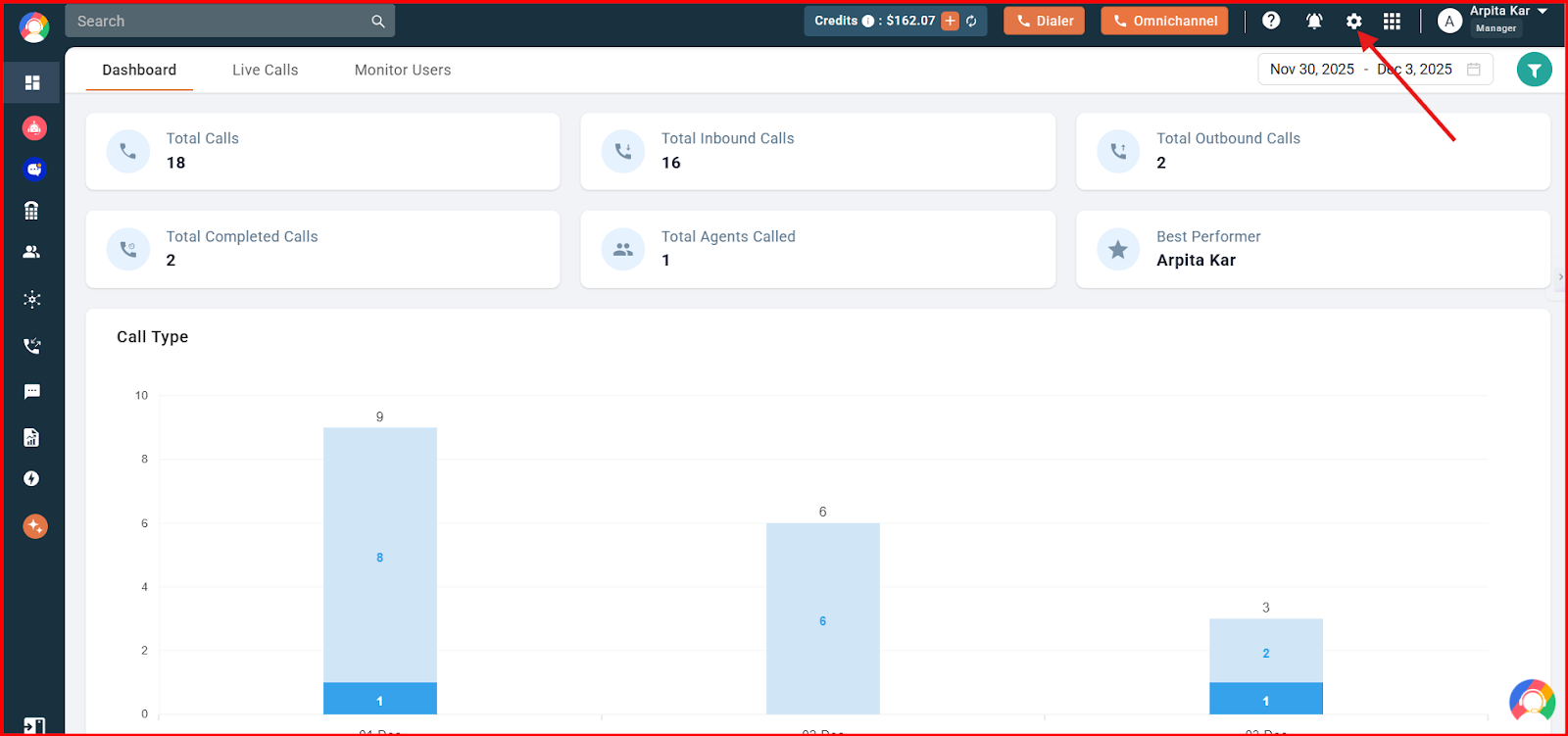
- In the Plan, Billing & Credits section, click on the Plan option.
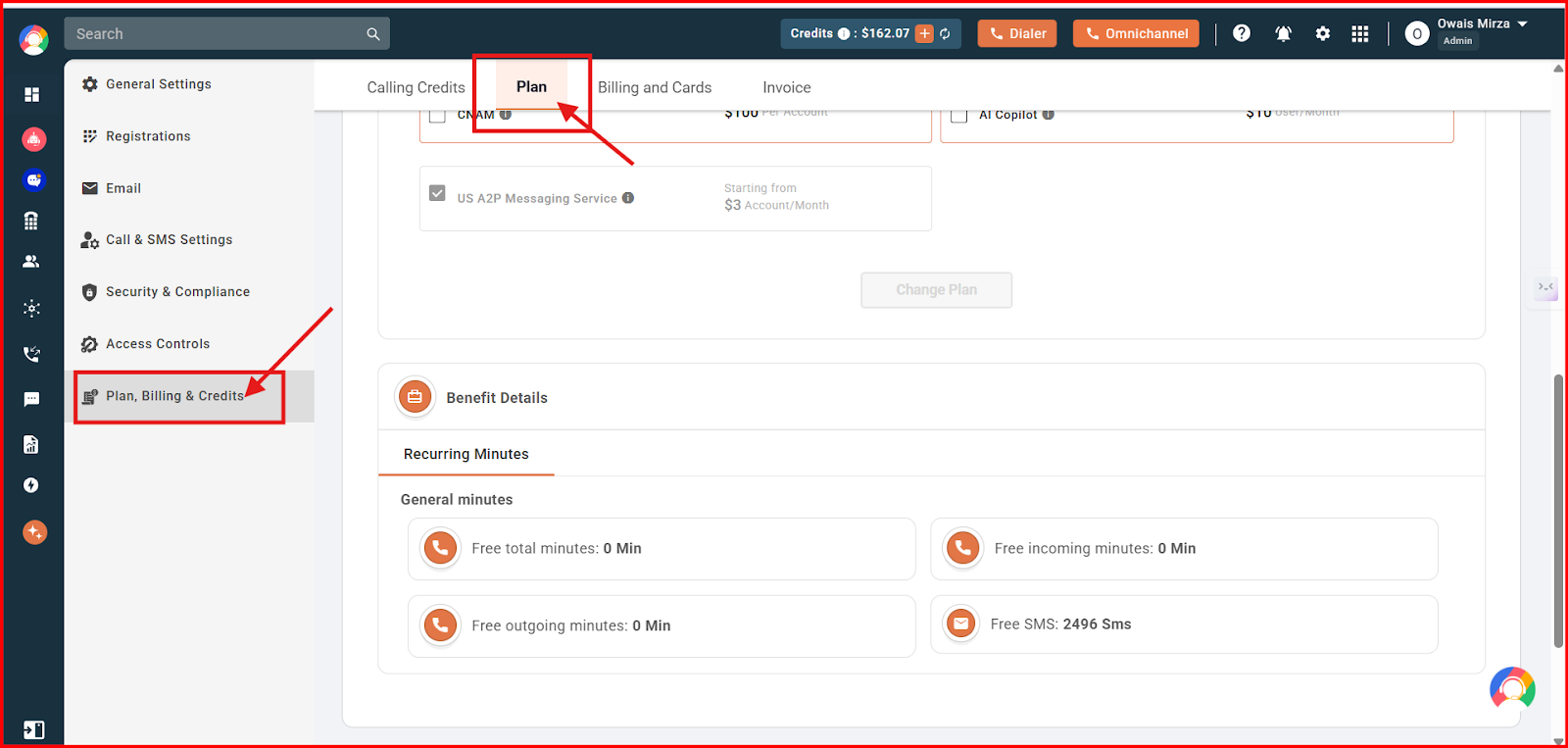
- You can view the different plans under Office Phone System and Call Center Solutions.
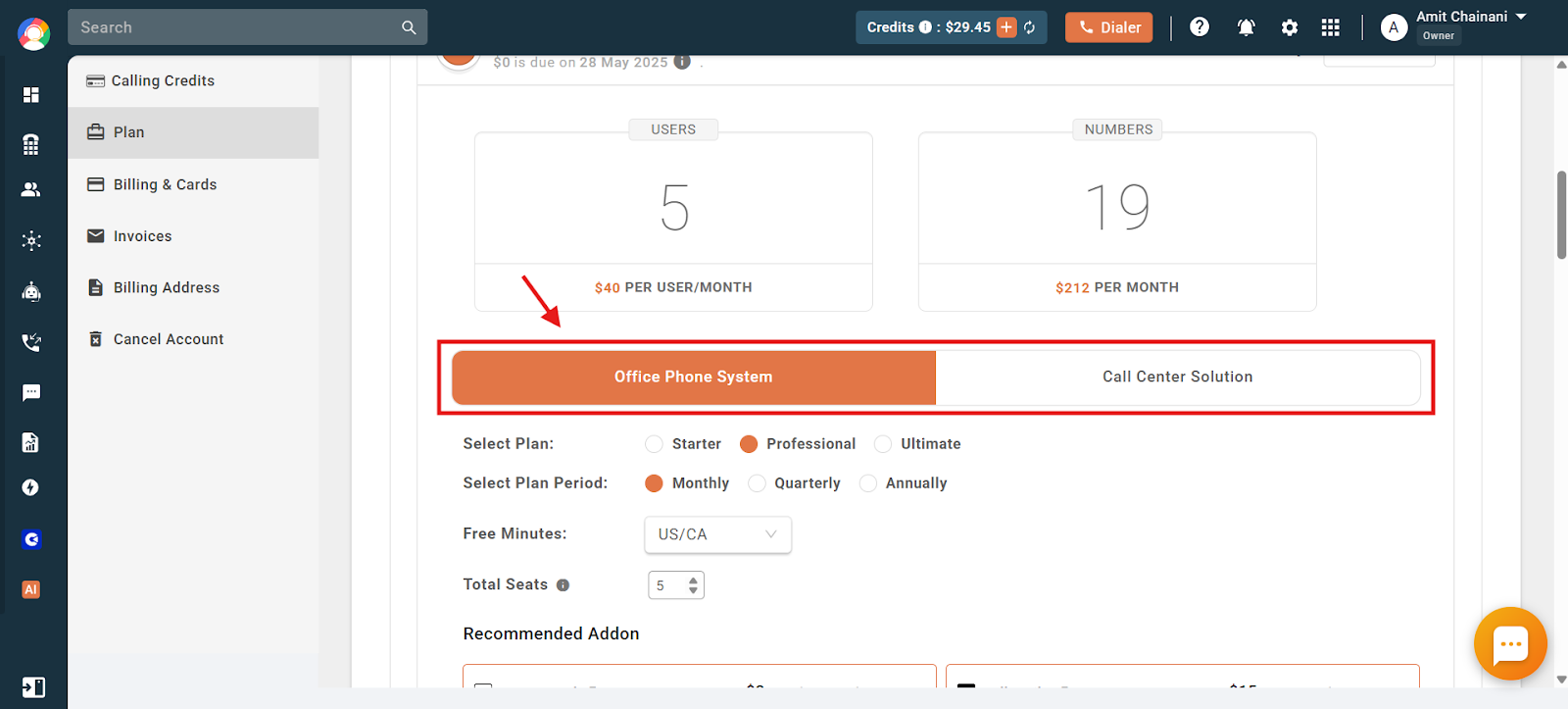
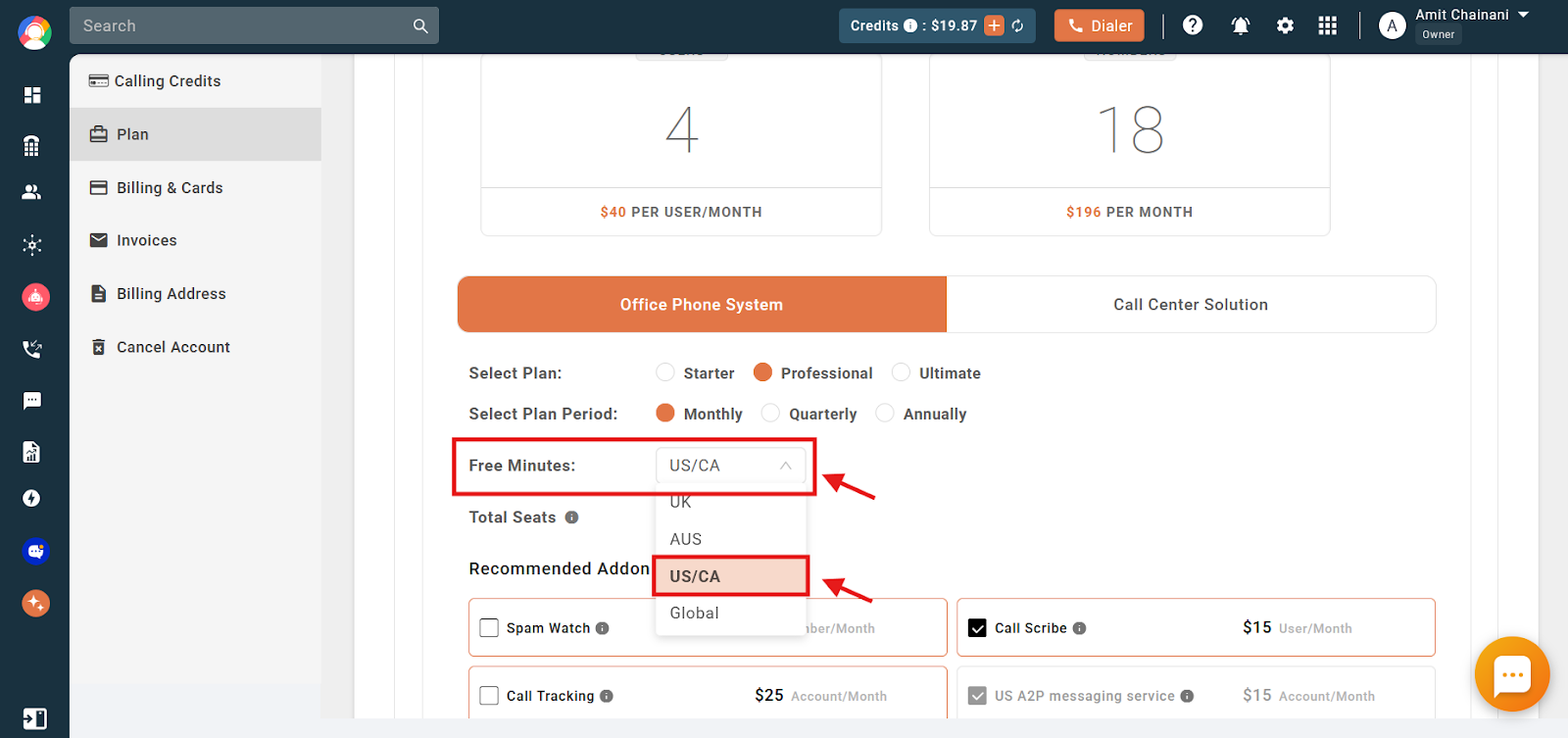
- When selecting a plan with unlimited calling, make sure you choose the correct region from the Free Minutes dropdown. This selection determines the region for which you will receive free calling benefits. Selecting the wrong region may result in limited or no access to free calling for your intended area.
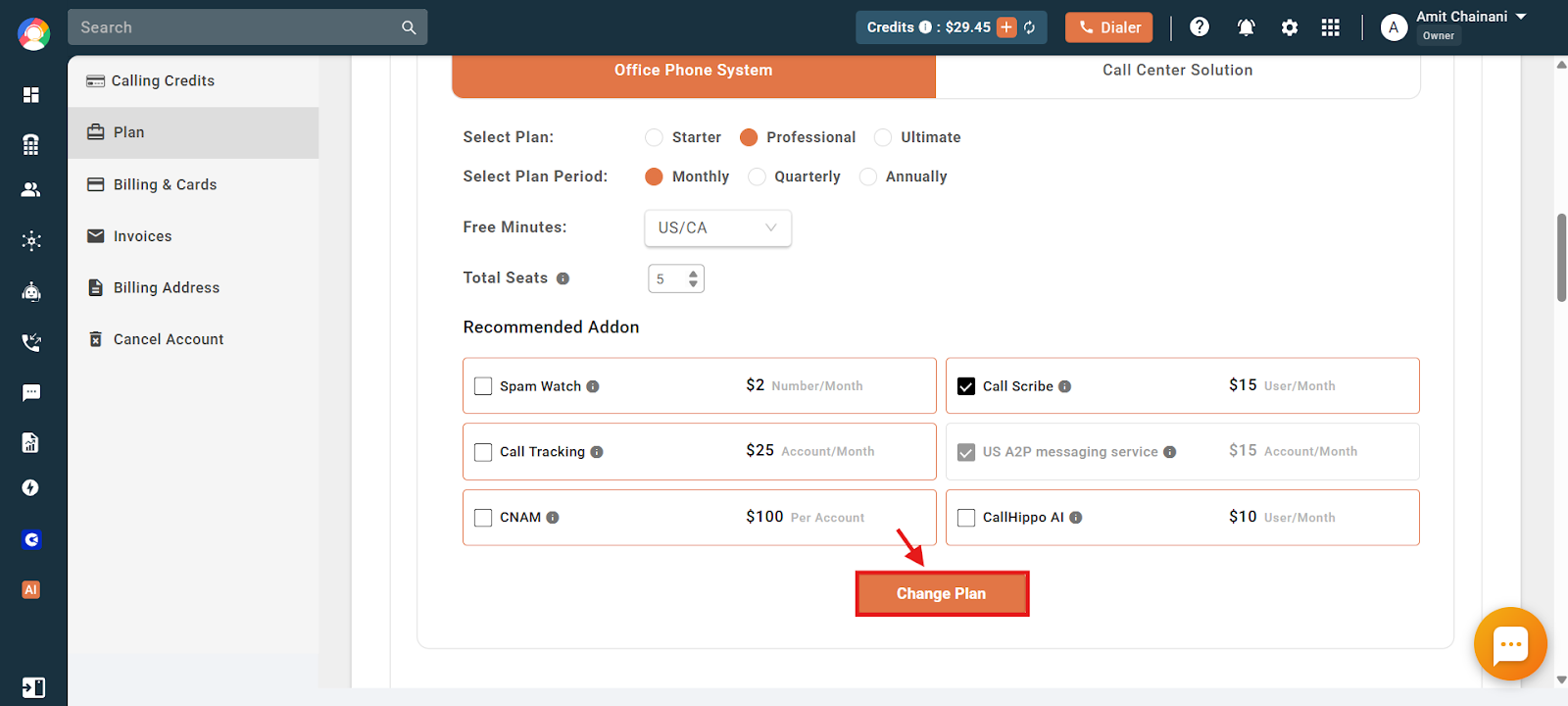
- Click on the Change Plan option to finally change and save the plan.
Important: Selecting the wrong region at first and then getting it changed later takes around 48 business hours, as it is a manual process that needs to be done by our accounts team.
That is all there is to it. Upgrading your CallHippo plan is quick and easy, letting you get the most out of your business calls.
We hope this helps. If you still have questions, feel free to reach out at [email protected].