
A User Extension is a unique three-digit number assigned to every user and sub-user in your CallHippo account, letting teammates call each other instantly without dialing full phone numbers.
Extensions turn internal communication into a quick, three-digit dial on the CallHippo Dialer, which is ideal for busy sales and support teams that need to reach each other fast.
Why Use User Extensions?
User extensions make internal communication simpler by enabling:
- Quick dialing: just enter the extension on the CallHippo Dialer to call a team member.
- Seamless collaboration: no need to look up or remember full numbers.
- Efficient call routing: easily transfer calls internally using the assigned extension.
Common use cases:
- Quick team communication — agents, managers, and admins connect instantly without external numbers.
- Remote team collaboration — ideal for distributed teams that need fast internal contact.
- Sales and support alignment — reps can consult support in real time on customer queries.
- Manager-agent coaching — managers can give quick feedback or guidance during calls.
- Multi-department coordination — different departments communicate efficiently for daily tasks.
Where to Find Your User Extension
- Log in to your CallHippo dashboard.
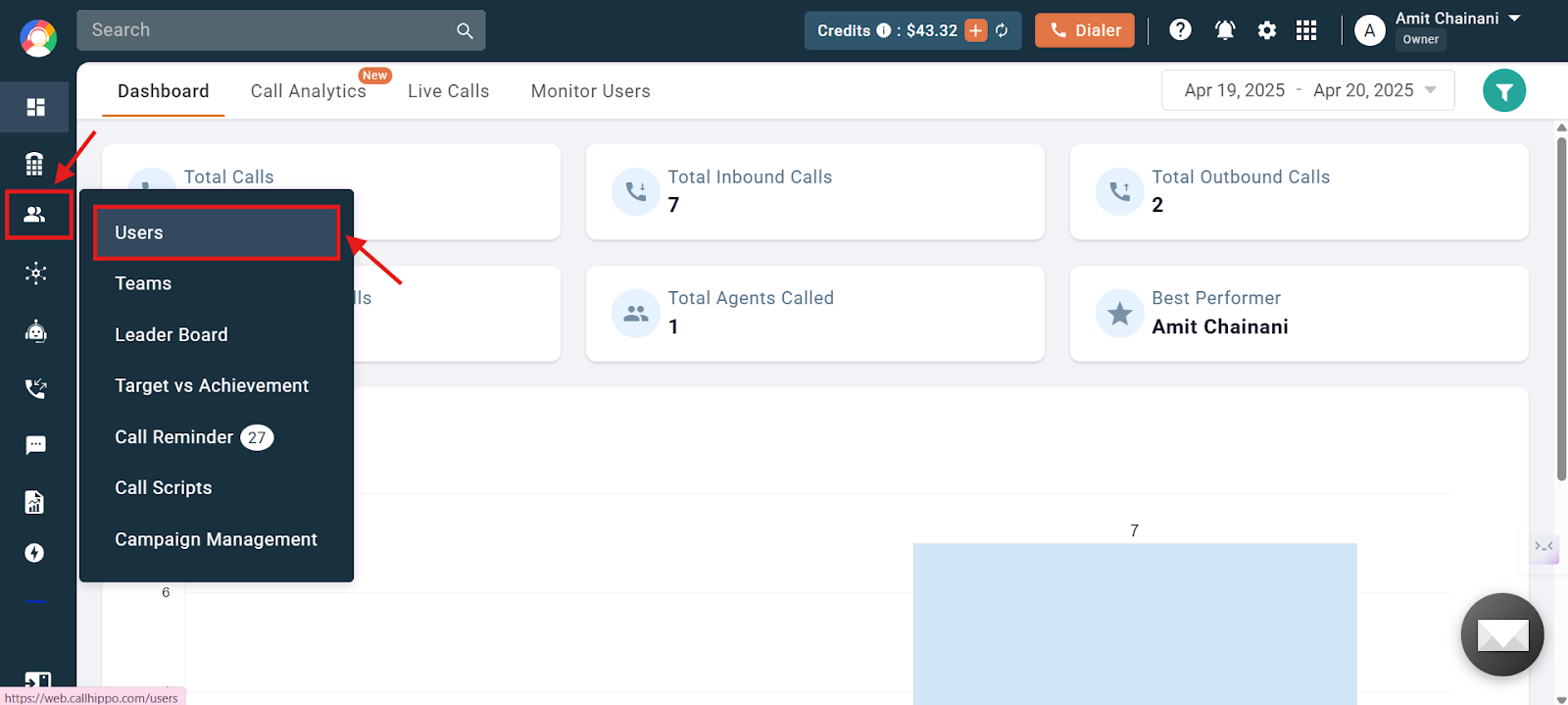
- Go to the Users and Performance section on the left and click Users.
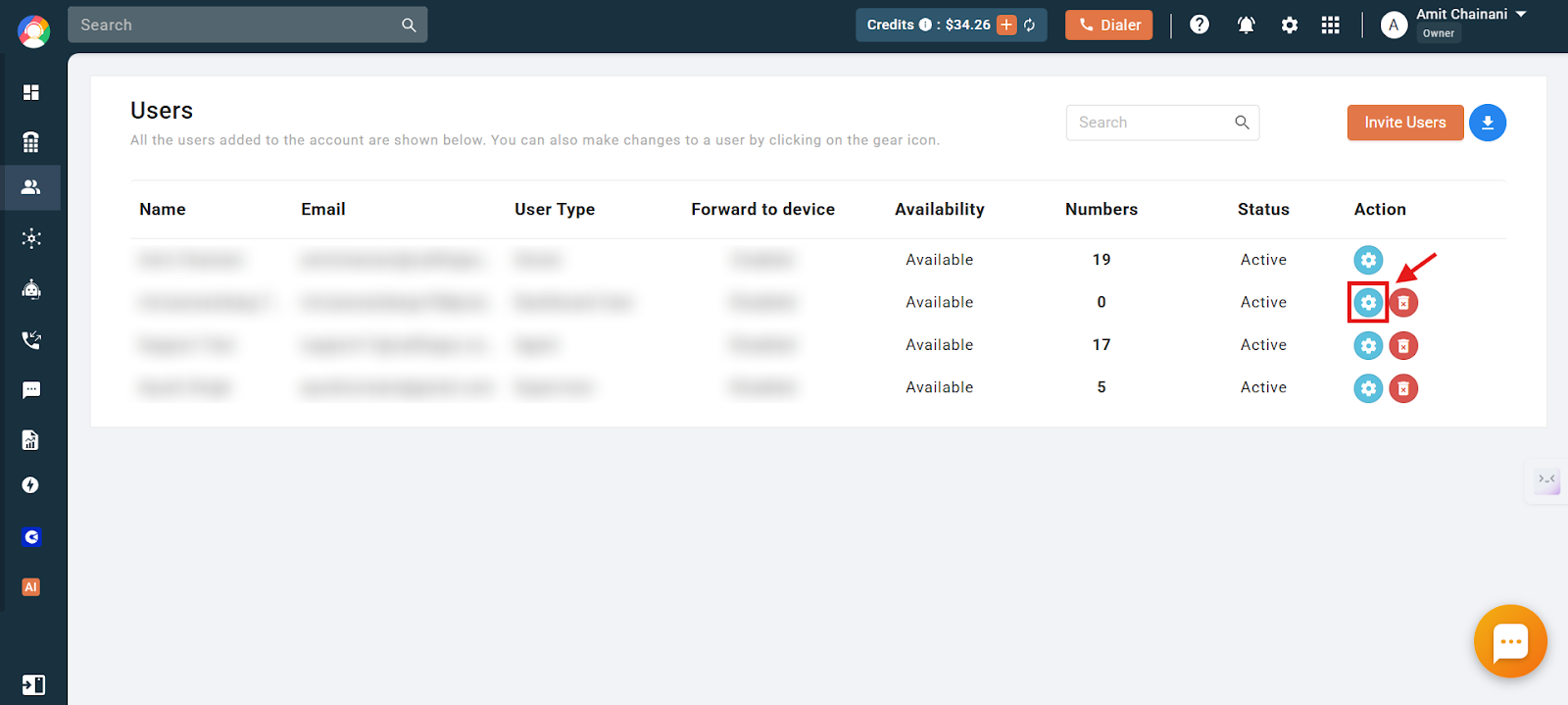
- Click the settings (gear) icon for the user whose extension you want to check.
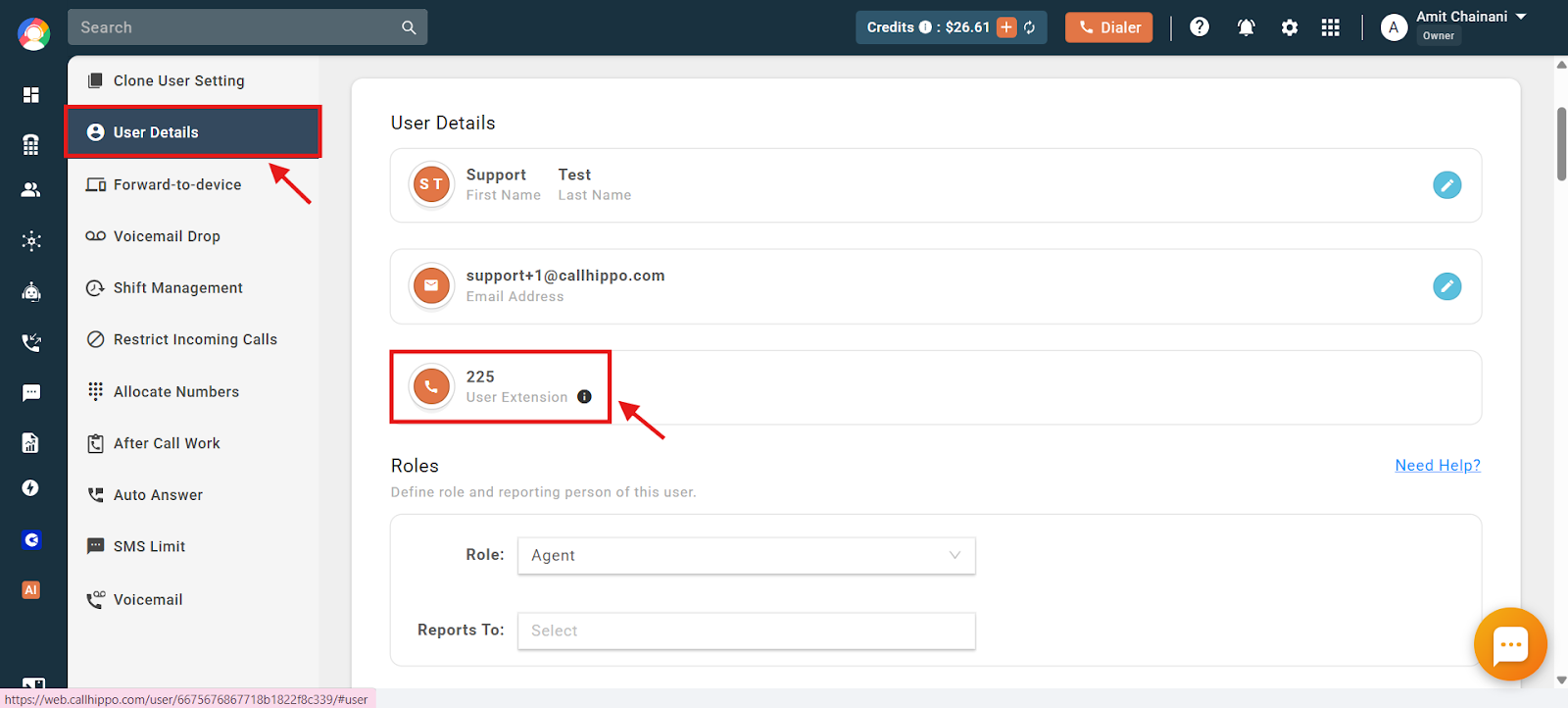
- Open User Details, where the User Extension is shown.
How to Call a User Using Their Extension
- Log in to your CallHippo dialer.
- Clear any default country code and dial just the 3-digit user extension.
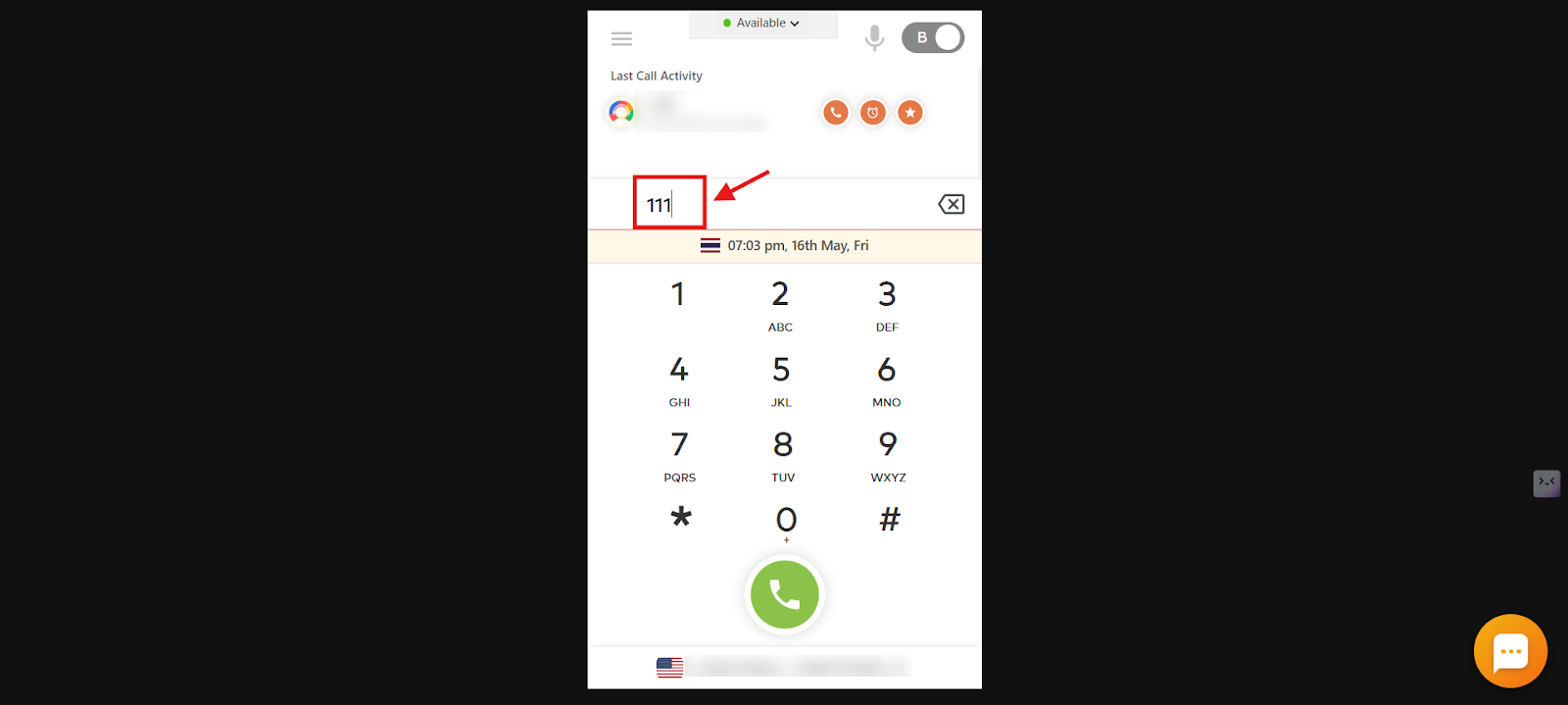
- The call rings on the dialer of the user whose extension you entered.
- You will see the user extension and the user name on the dialer while the call connects.

Note: User Extensions are assigned by the CallHippo system by default and cannot be edited. Internal calling is completely free.
Frequently Asked Questions
Can I change a user’s extension to make it easier to remember?
No. User extensions are automatically assigned by the CallHippo system and cannot be edited manually. This prevents conflicts or duplicates within the account.
How do I know what my user extension is?
Log in to your CallHippo dashboard, go to Users and Performance, click Users, then click the settings icon next to your name. Under User Details you will see your assigned 3-digit extension.
Can I use the extension to call someone outside of CallHippo?
No. User extensions are only for internal use within your CallHippo account. To call external contacts, use full phone numbers.
Are internal calls free?
Yes. All internal calls between CallHippo users within the same account are free.
Is internal calling available on all CallHippo plans?
Yes, internal calling is available on all plans.
Troubleshooting
I can’t make internal calls. What should I do?
Make sure both users are logged into CallHippo, and confirm the user you are calling is online and available.
Internal calls are dropping or have poor audio quality.
Check your internet connection for stability, close background applications using bandwidth, then restart the CallHippo application and try again.
I can’t see a teammate’s extension.
Ask your admin to confirm the user is properly added to the CallHippo account, then refresh your dashboard or log out and back in.