
CallHippo can email you whenever someone leaves you a voicemail, so you never miss an important message even when you’re away from your phone. Enable the Voicemail Alert setting to stay informed, or turn it off any time.
Why enable Voicemail Alert notifications
Voicemail alerts help your business:
- Never miss a message – get notified the moment someone leaves you a voicemail.
- Respond faster – act on important messages even when you’re away from the app.
- Deliver better service – stay responsive and engaged with your customers.
- Follow up efficiently – review voicemails quickly and plan your next steps.
Enable or disable Voicemail Alert
To update this preference, follow the steps below:
- Log in to your CallHippo dashboard.
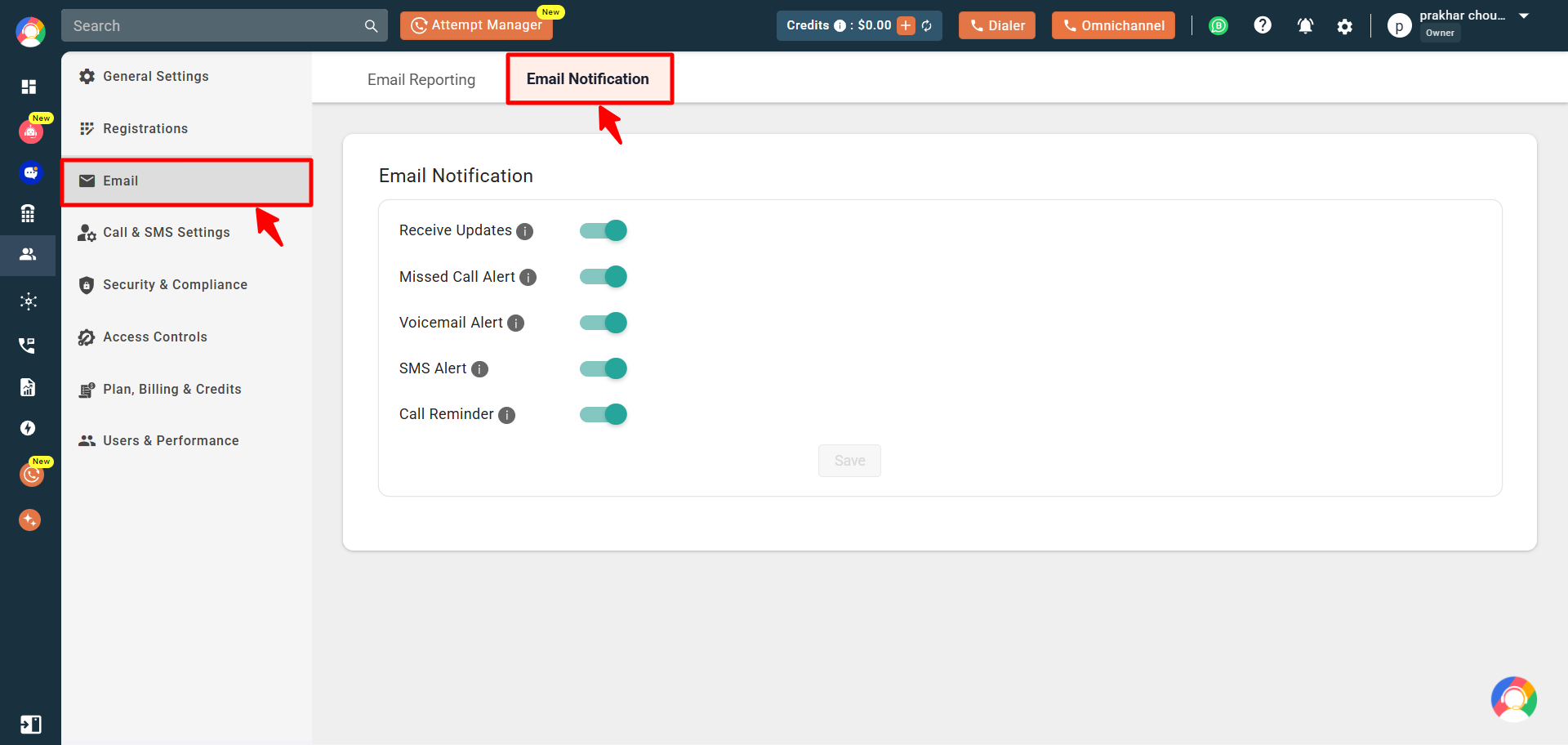
- Click the Settings (gear) icon in the top-right corner, open the Email section, and select the Email Notification tab.
- Toggle the Voicemail Alert option on or off, then click Save to apply your changes.
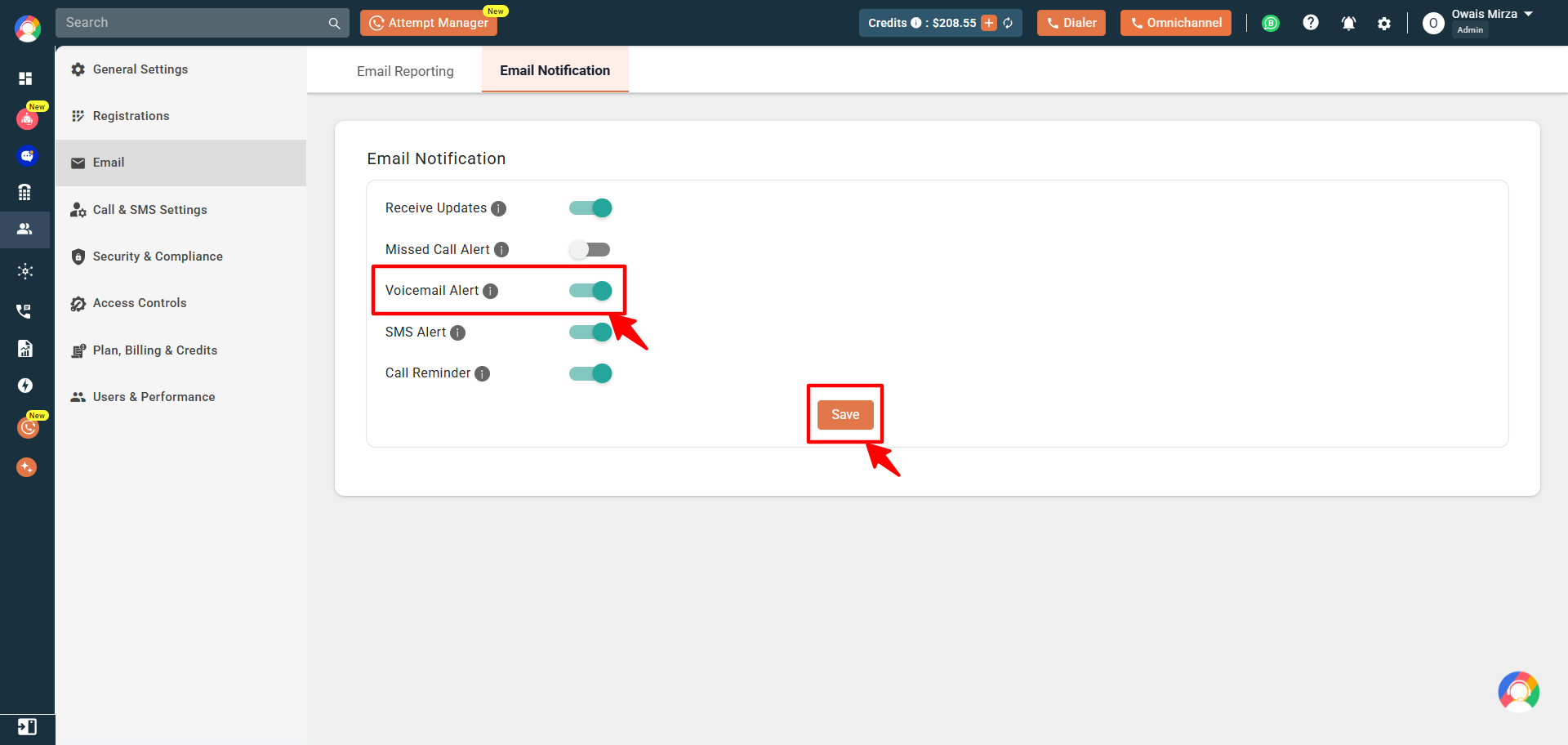
- You will see a “User updated successfully” confirmation on screen.
Good to know
- The email alert will not show the caller’s details.
- You cannot play the voicemail recording directly from the email.
- Voicemails are always available inside the CallHippo interface, regardless of your email notification setting.
Frequently asked questions
Will voicemail alerts be sent to my registered email address?
Yes. Notifications are sent to the email address linked to your CallHippo account.
Can I still listen to voicemails in the app if email alerts are disabled?
Yes. Voicemails are always available in the CallHippo interface, regardless of your email notification settings.
Still need help? Reach us at [email protected].