
Connecting Vtiger CRM with CallHippo lets you place calls straight from your CRM and automatically logs every call and SMS against the right contact. This guide walks you through generating your Vtiger access key and connecting the two platforms.
A few things to know before you start:
- Who can integrate: Any CallHippo user with admin access on both CallHippo and Vtiger.
- What you need: An active Vtiger CRM account and your Vtiger access key.
Get your Vtiger access key
- Log in to your Vtiger account.
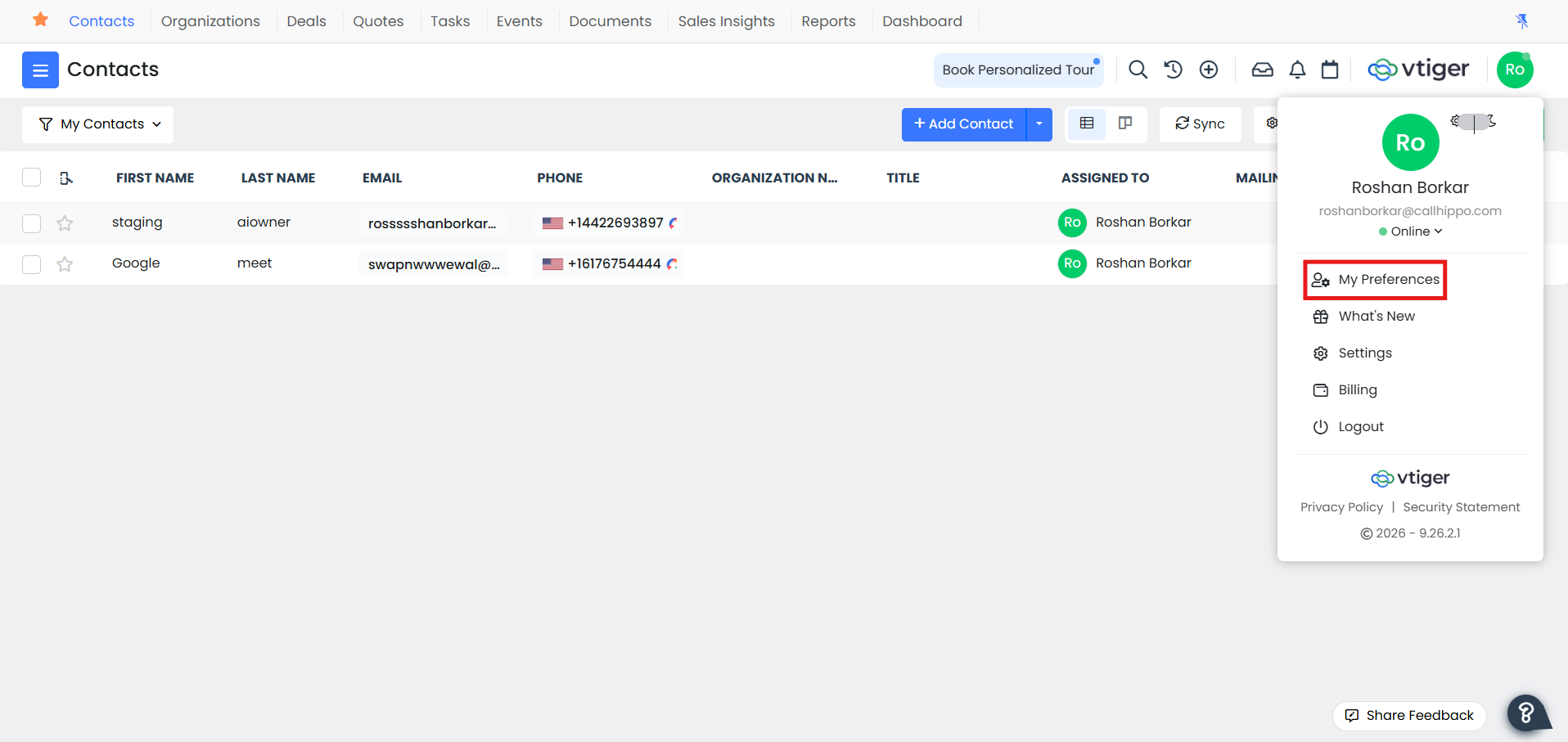
- Click the user icon in the top-right corner and go to My Preferences.
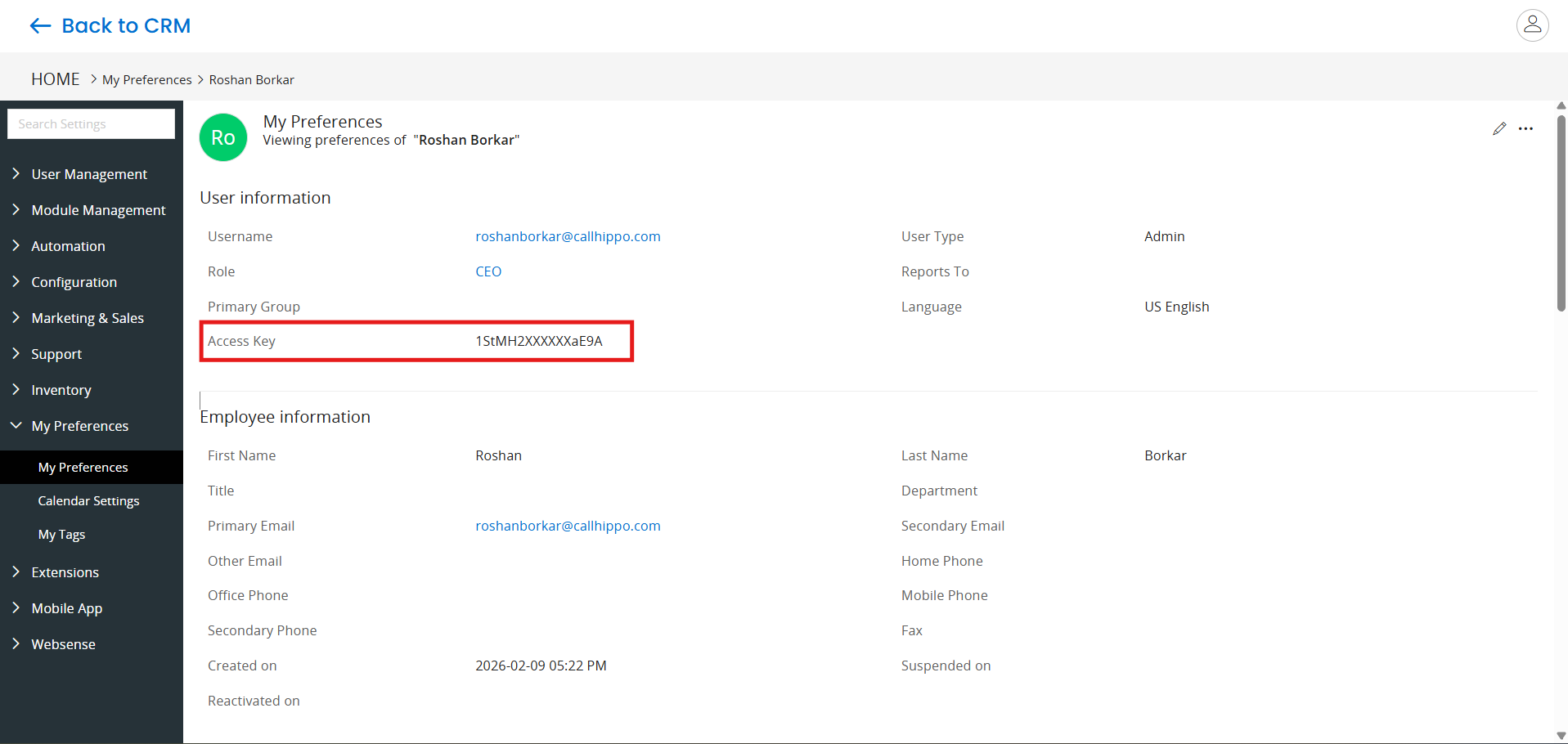
- On the My Preferences page, copy the Access Key and note it down. You will need it in CallHippo.
Connect Vtiger in CallHippo
- Log in to your CallHippo account.
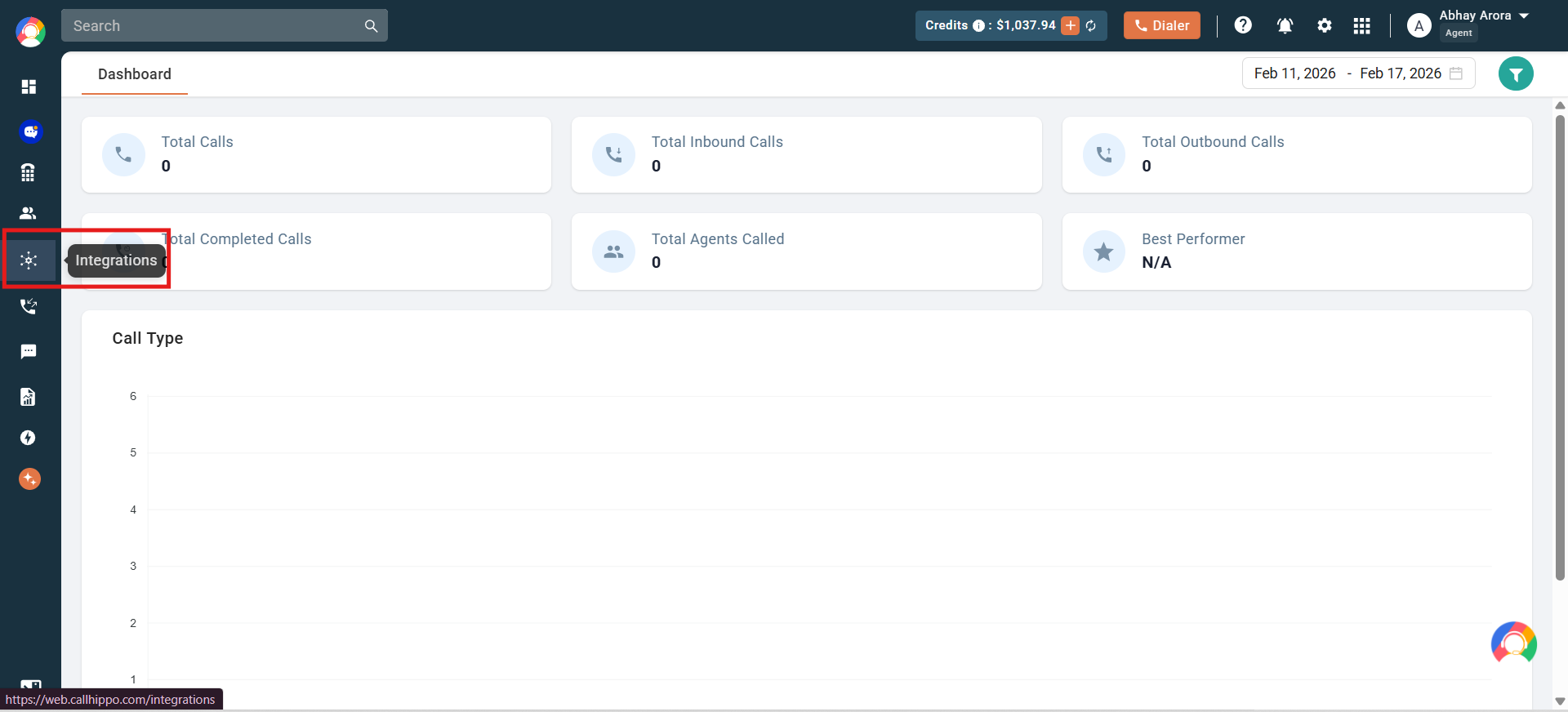
- From the left sidebar of your dashboard, click Integrations.
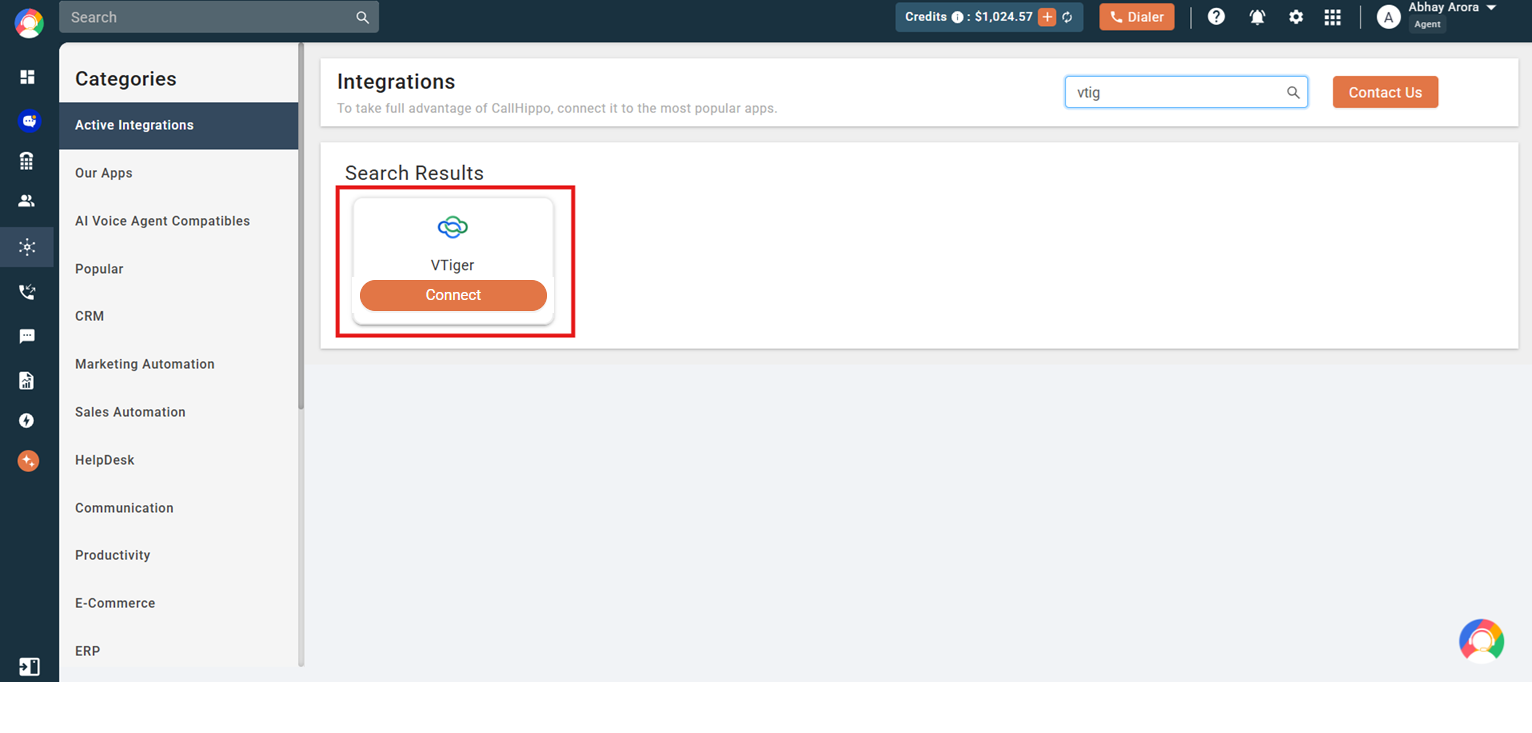
- Search for Vtiger and click Connect.
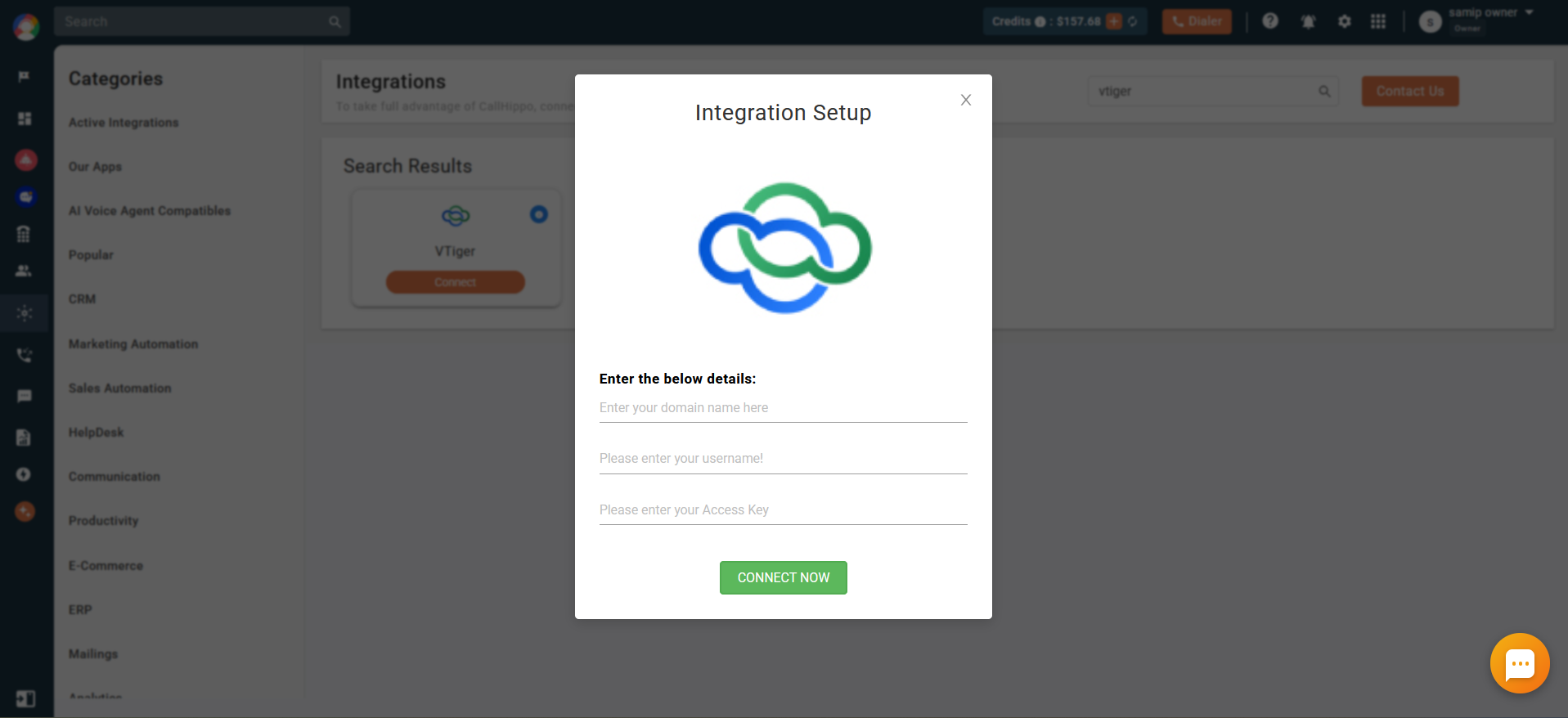
- Enter your Vtiger domain name, integration email, and access key, then click Connect Now.
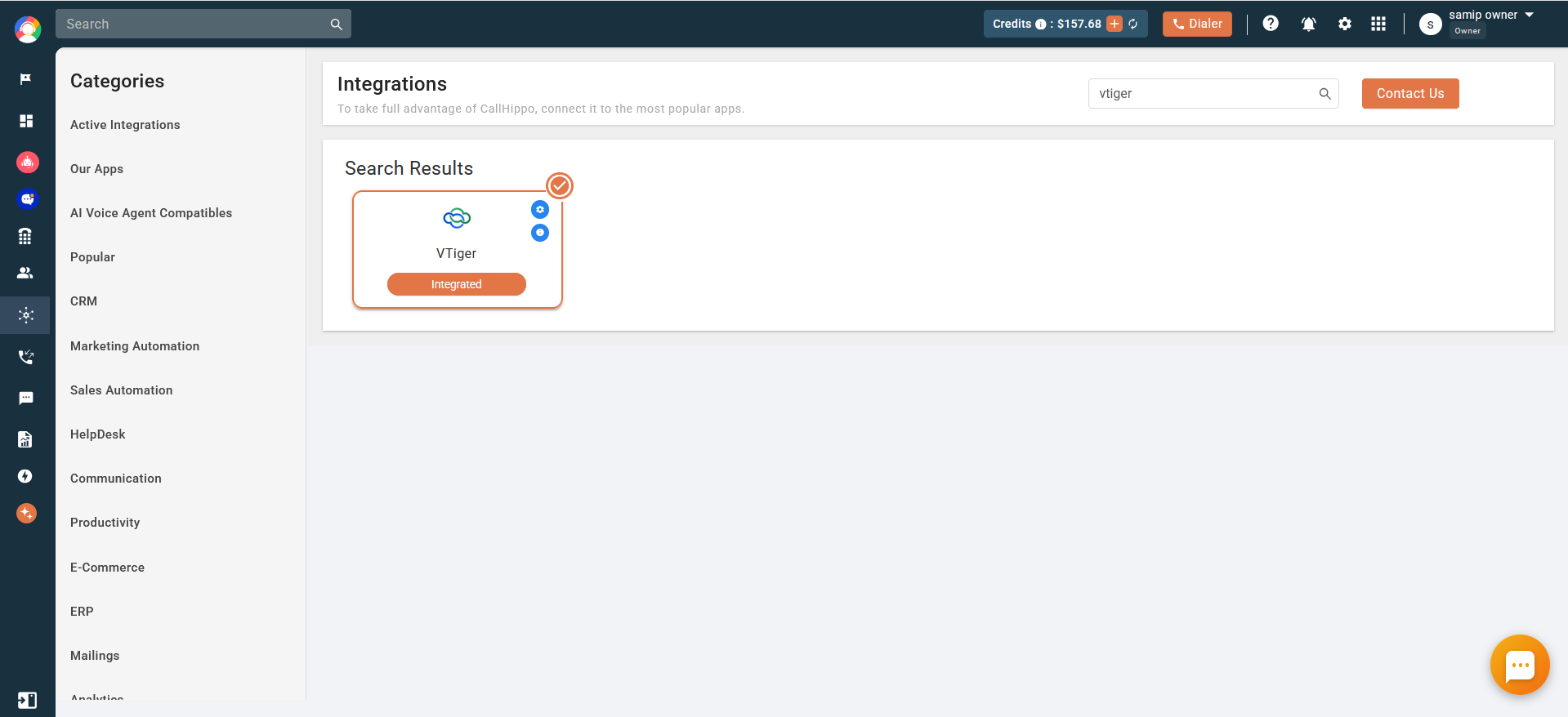
- Your Vtiger account is now connected and the integration is complete.
Note: If your Vtiger URL is https://callhippo.od2.vtiger.com/view/list?module=Contacts&app=MARKETING, enter the domain as callhippo.od2.vtiger.com in the setup popup.
What activity syncs to Vtiger
Once connected, CallHippo pushes call and SMS activity into your Vtiger contact records:
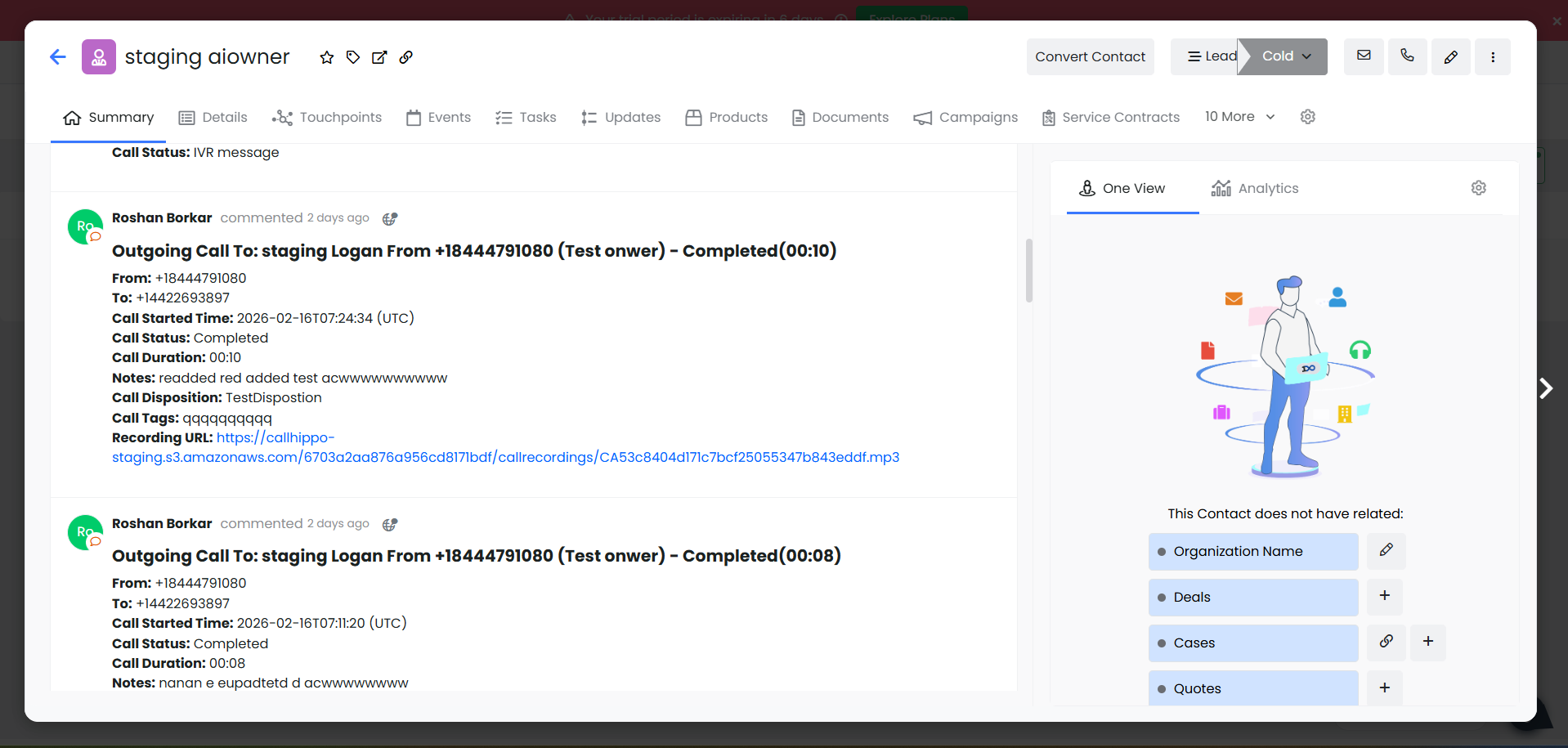
Call activity is sent to the contact’s recent events for every call made or received, including:
- Caller name, from and to numbers
- Call type, status, and duration
- Call started time and recording URL
- Call notes, tags, and disposition
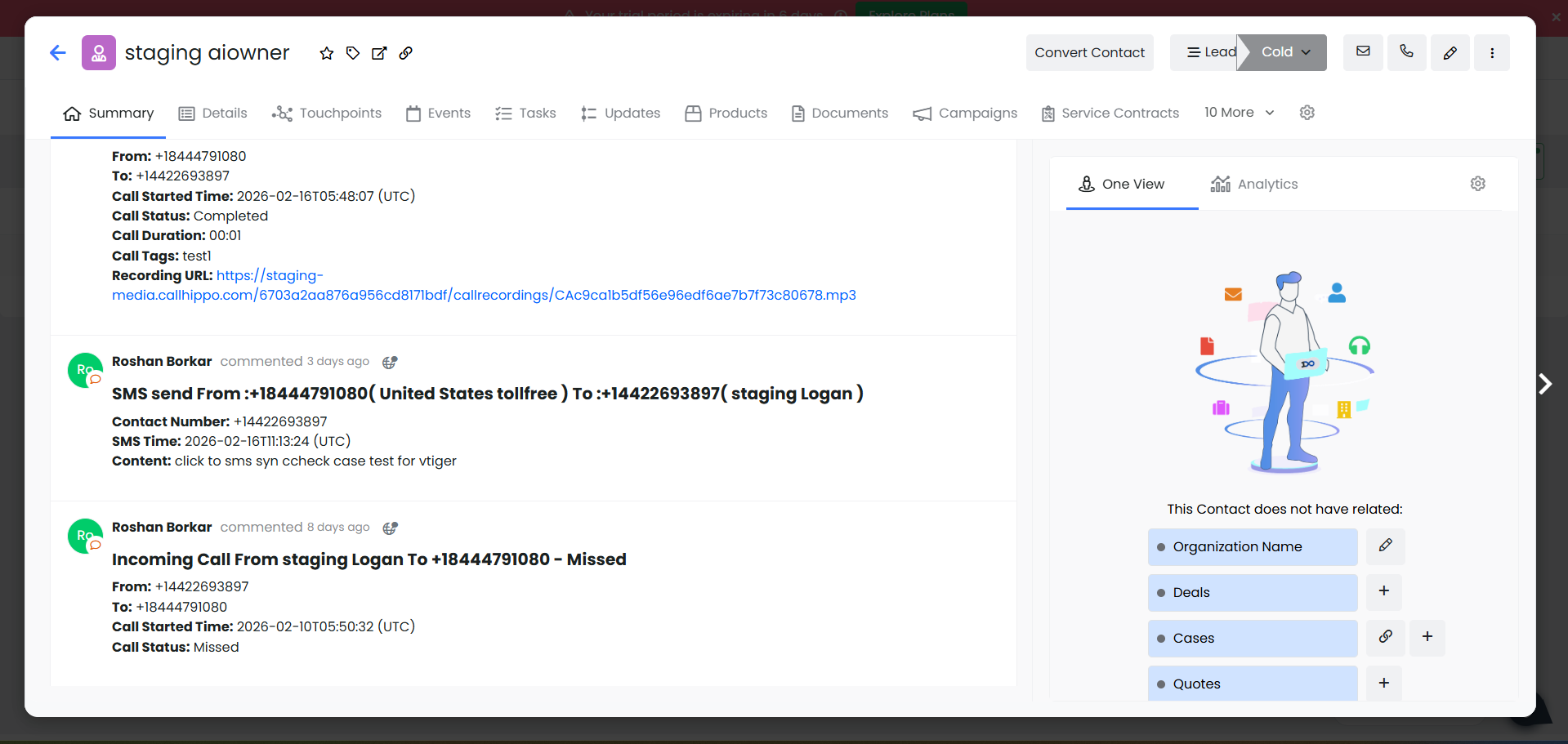
SMS activity is logged for every text sent or received, including the timestamp, sender, from and to numbers, and message content.
About After Call Work (ACW) sync: If your plan includes call tags and dispositions and they are enabled, the activity pushed to Vtiger includes the tags and disposition added on the ACW screen. This only syncs when they are added on the After Call Work screen. Tags or dispositions added later from call logs or another feed will not sync to Vtiger.
Features of the Vtiger integration
- All Vtiger contacts and leads sync to the CallHippo dialer as contacts when a click-to-call action is performed.
- Call and SMS activity is synced as a task under the contact and is visible to all users.
- To enable click-to-call, install the CallHippo Click-to-Call Chrome extension.
Still need help? Reach us at [email protected].