
Connect Wingman (Clari) with CallHippo to push your call recordings into Wingman automatically, so you can analyze conversations with AI and coach your reps on real calls. Setup takes a few steps in Wingman followed by a quick connection in CallHippo.
Prepare your Wingman account
First, create a recording user in Wingman and grab your API credentials.
- Log in to your Wingman account with an admin ID.
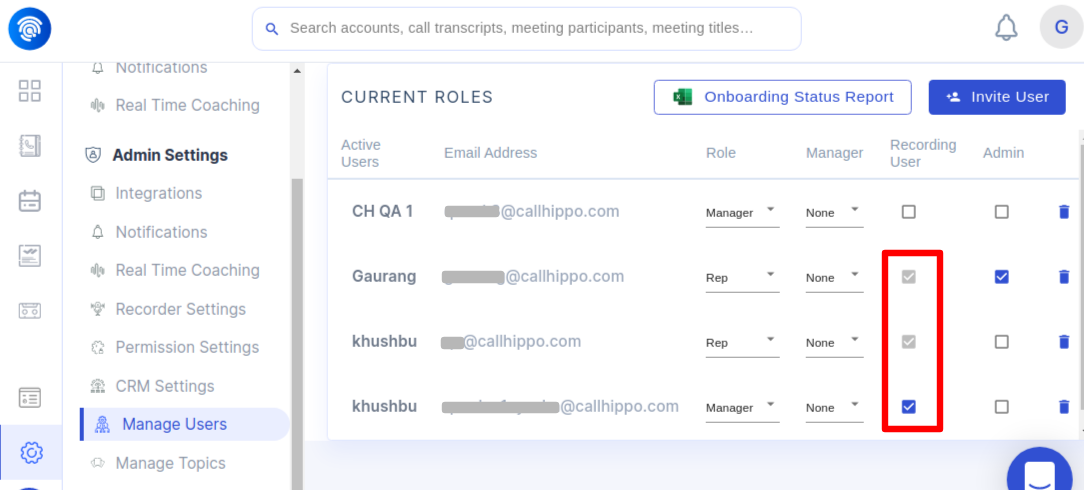
- Click the Settings gear icon in the bottom-left corner, open Manage Users, and click Invite User to add each recording user. Make sure the user’s email in Wingman exactly matches their CallHippo email, otherwise call recordings will not sync.
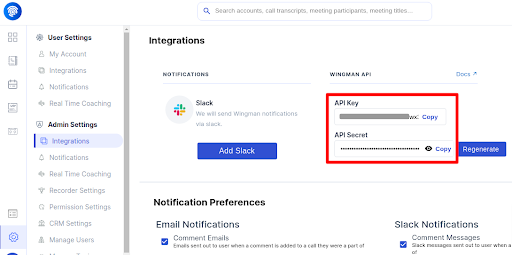
- Go to Settings > Integrations and copy the API Key and API Secret from the API section.
Connect Wingman in CallHippo
- Log in to your CallHippo account.
- In the left sidebar of your dashboard, click Integrations.
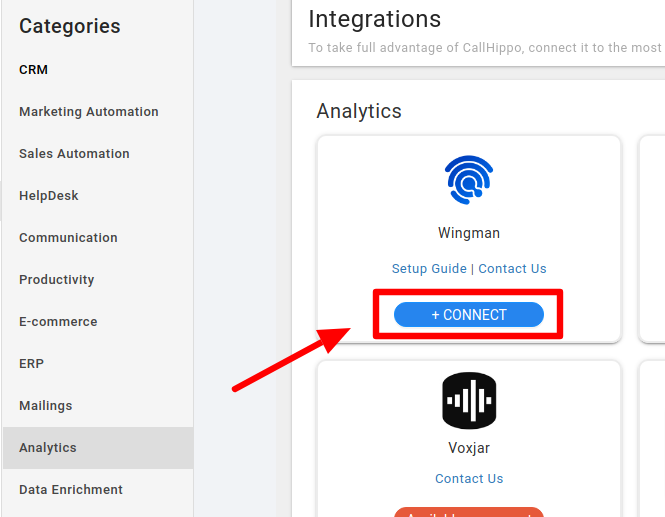
- Search for Wingman and click + Connect.
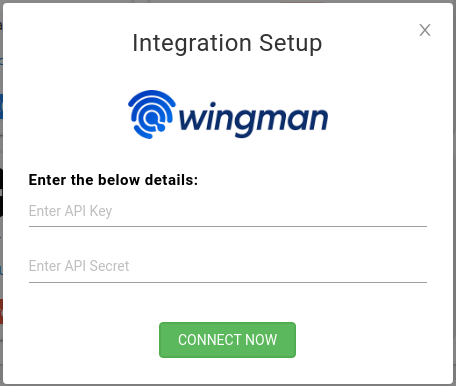
- In the pop-up, enter your API Key and API Secret, then click Connect Now.
- CallHippo validates your credentials and shows a success message. Wingman is now integrated.
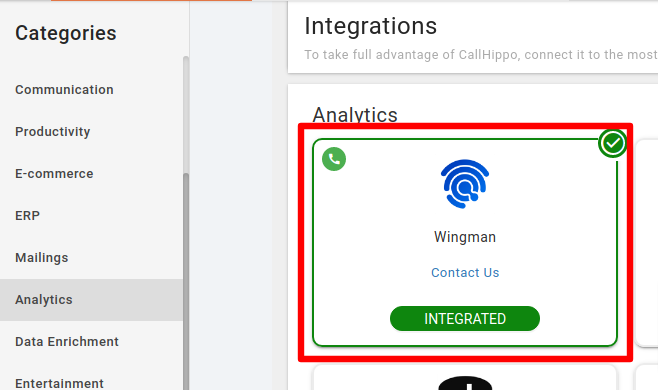
How the Wingman integration works
After every successful call from the CallHippo dialer, CallHippo sends the recording URL along with the call data to Wingman, where it appears in the My Calls list for review and coaching.
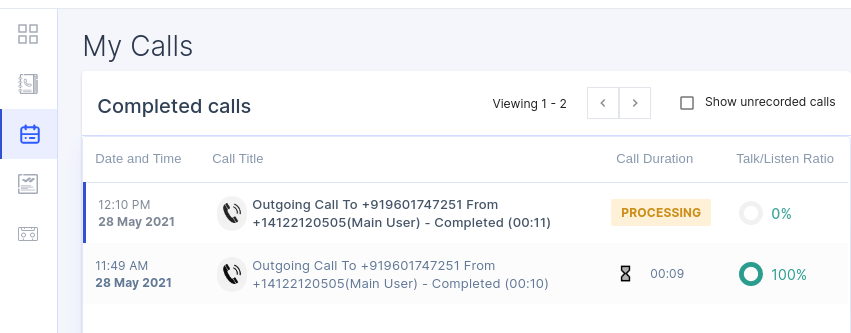
Call data is only sent to Wingman when:
- The call status is Completed or Voicemail.
- Call recording is enabled in CallHippo.
- The call is made by an agent who is registered in Wingman as a recording user.
Still need help? Reach us at [email protected].