
Connecting Zendesk Sell CRM with CallHippo brings your calling activity into your sales pipeline, so calls are logged against the right records and your team keeps context in one place.
Before You Begin
Sign in to your Zendesk Sell account and stay logged in — you’ll authorize the connection from an active session during setup.
Connect Zendesk Sell in CallHippo
The integration uses a quick OAuth authorization, so there’s no API key to copy.
- Sign in to CallHippo and open the Integrations tab.
- Find Zendesk Sell CRM and click the Connect button on its card.
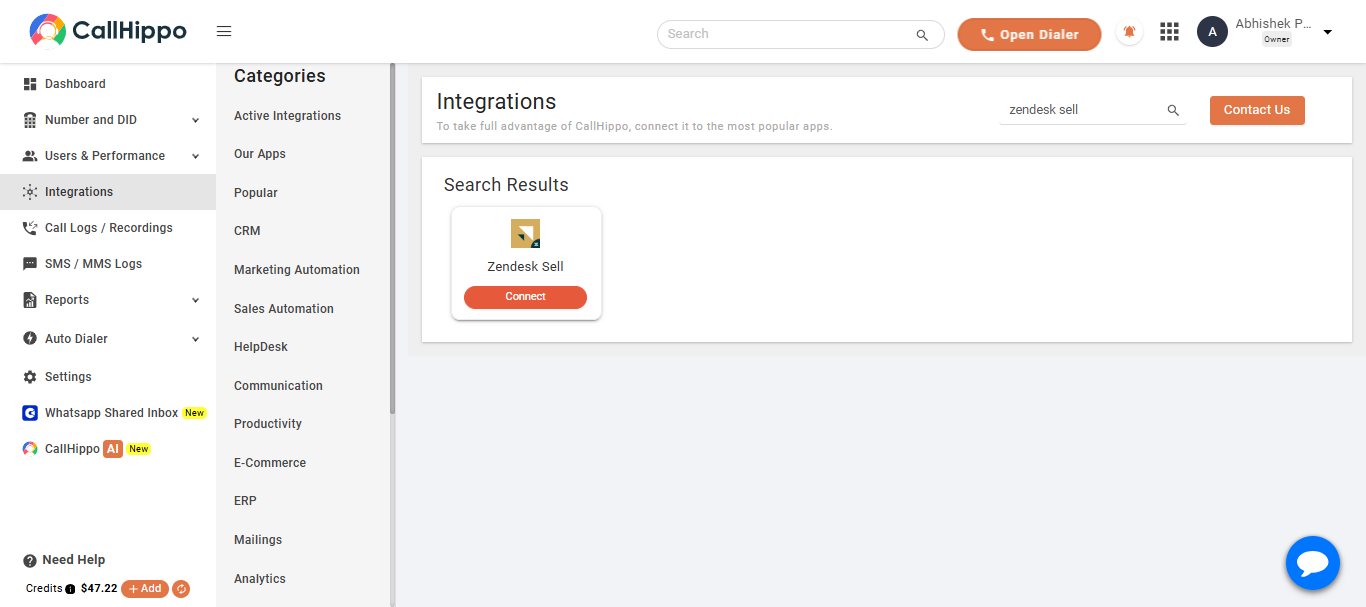
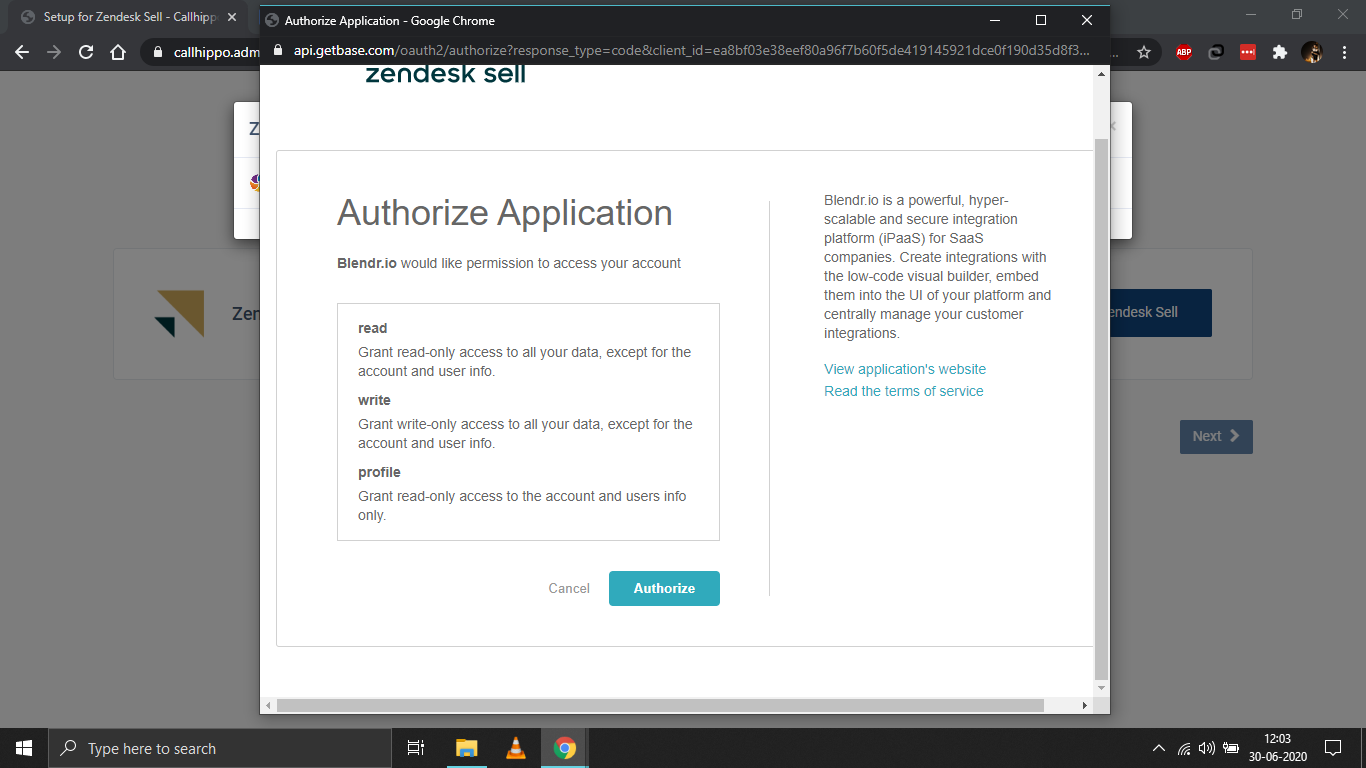
- Authorize the connection. On the authorization page, review the requested access and click Authorize.
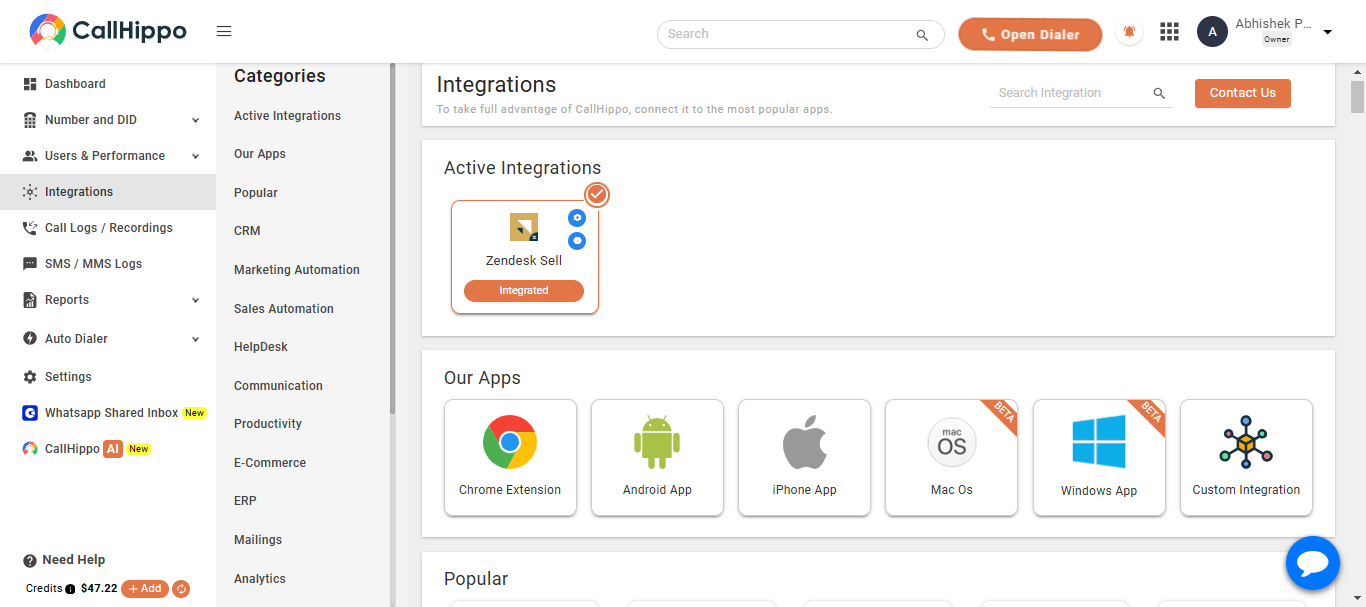
- Confirm the link. CallHippo redirects you back to your account and the status changes to Integrated.
Frequently Asked Questions
Do I need an API key to connect Zendesk Sell?
No. Zendesk Sell connects through a secure authorization flow — just stay logged in to Zendesk Sell and click Authorize when prompted.
Why should I stay logged in to Zendesk Sell during setup?
Keeping your Zendesk Sell session active lets the authorization page recognize your account and complete the connection without an extra sign-in step.