
Connect CallHippo with Zoho CRM to log calls and SMS against your Zoho records automatically, click-to-call straight from Zoho, and keep your contacts in sync. This guide walks you through connecting the integration, tuning its settings, and setting up the webhooks that keep deleted records tidy.
Before you begin
Make sure you have the following ready:
- Administrative (Owner) access to both CallHippo and Zoho.
- Your CallHippo Owner ID (you will need it when creating the Zoho webhooks).
- A paid Zoho plan, since webhook creation is only available on paid Zoho plans.
The integration covers these Zoho modules: Contacts, Leads, Deals, Calls, and Accounts.
Connect Zoho CRM in CallHippo
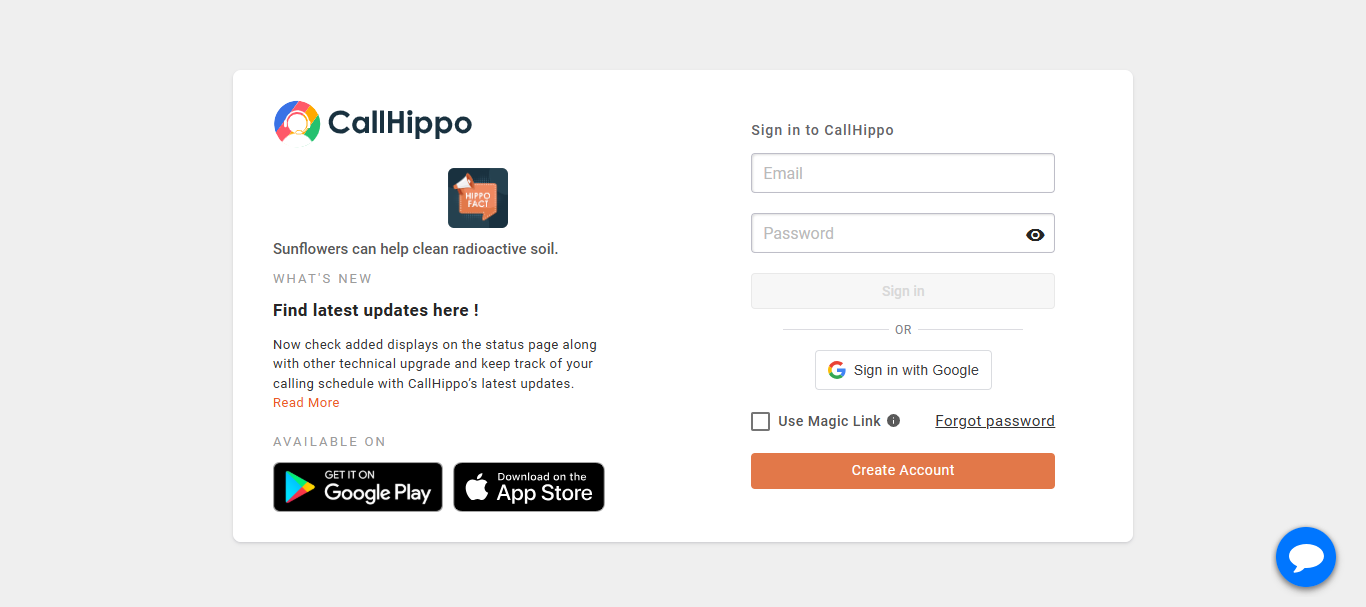
- Log in to your CallHippo account.
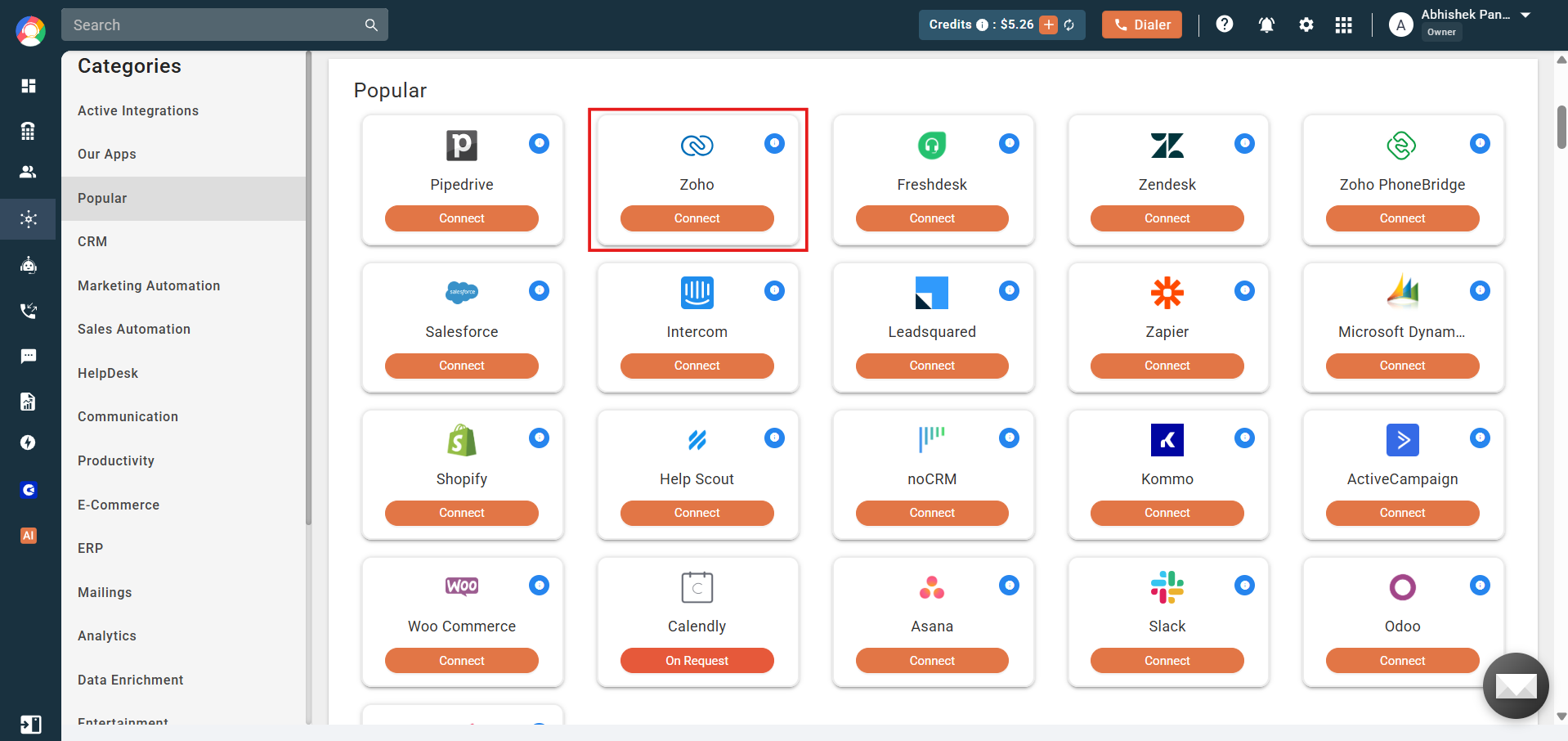
- In the left sidebar, click Integrations. Under the Popular category, find Zoho and click Connect.
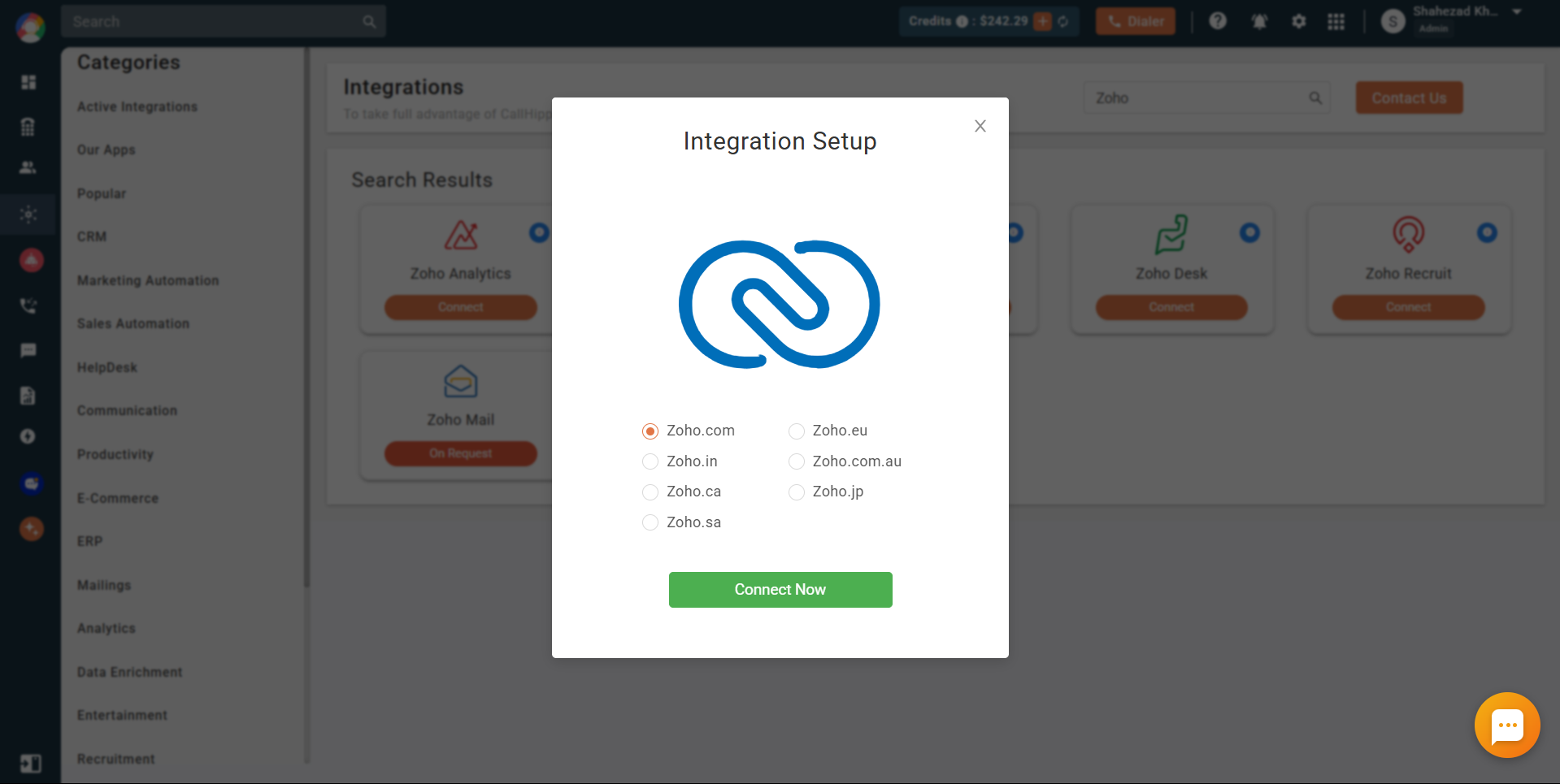
- In the Integration Setup popup, select your Zoho domain (for example, Zoho.com) and click Connect Now.
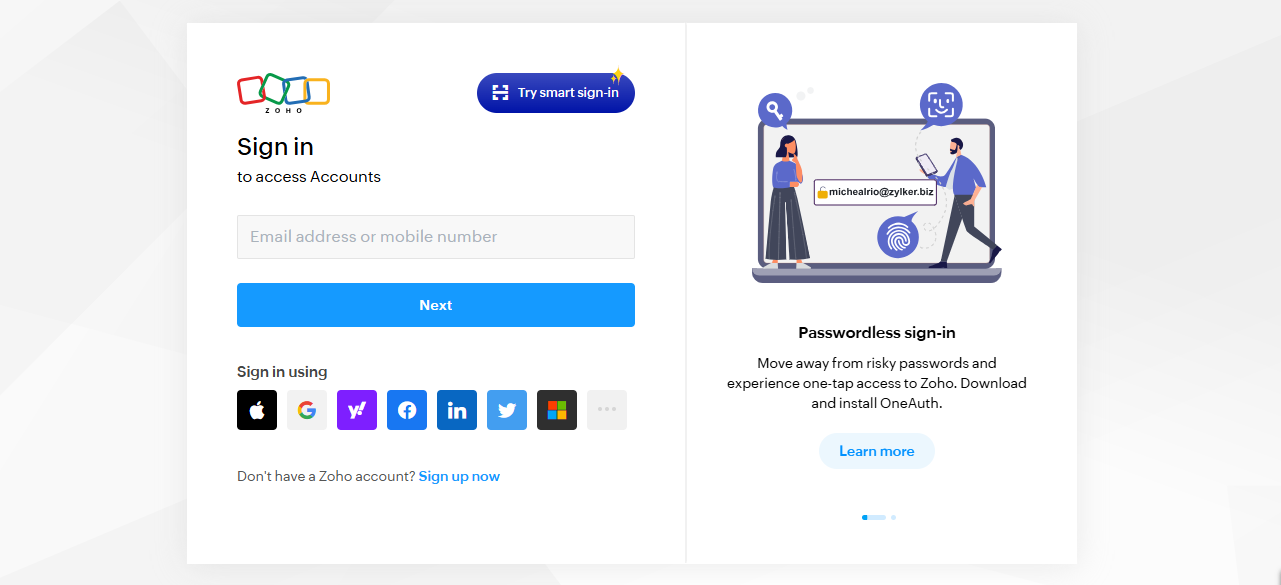
- If you are not already signed in to Zoho, sign in with your Zoho account.
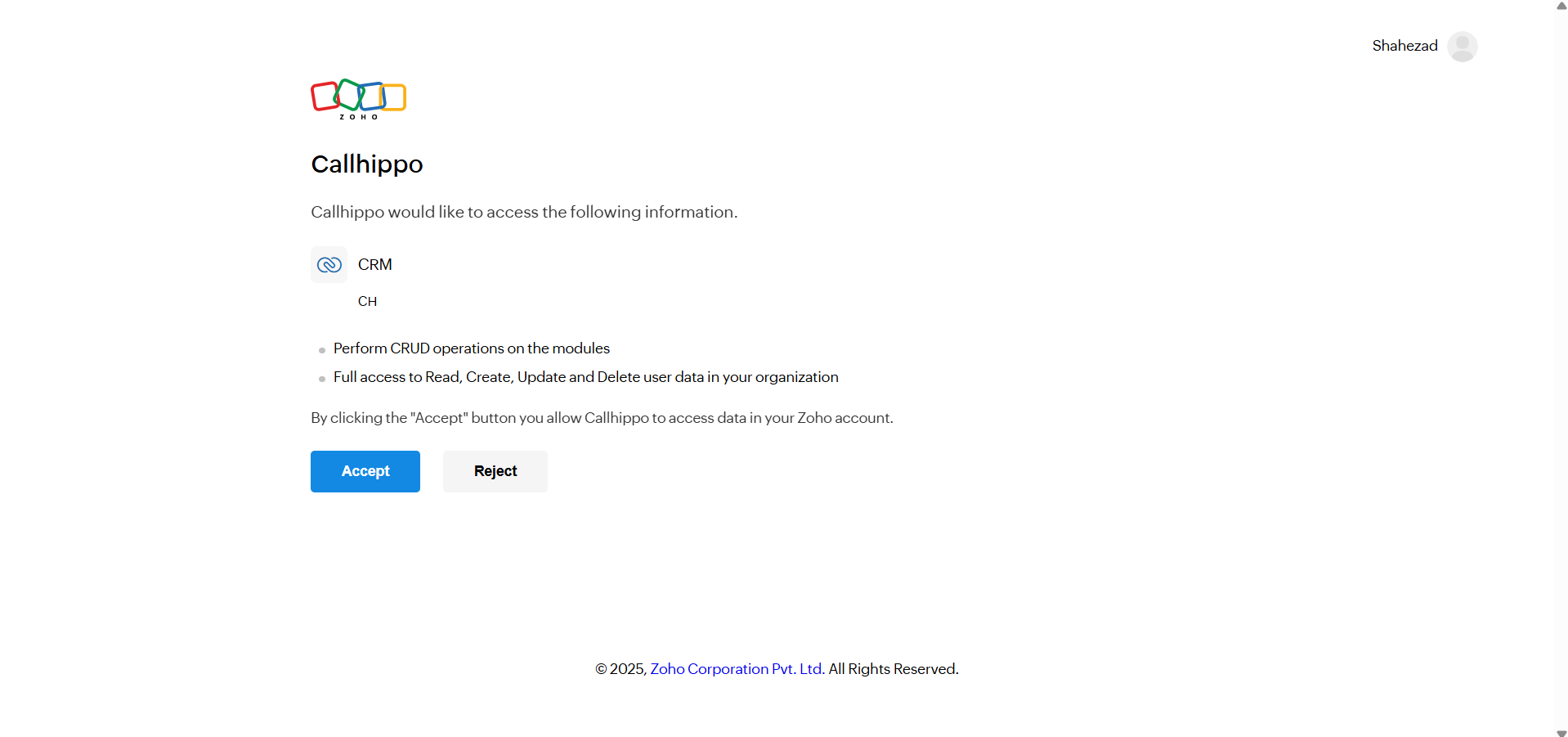
- When Zoho asks to grant CallHippo access to your CRM, click Accept. You are redirected back to CallHippo, and the integration status now shows Integrated.
Configure integration settings
Open the Zoho integration and use the Configuration, Connected Numbers, and Advance Settings tabs to control what syncs.
Configuration
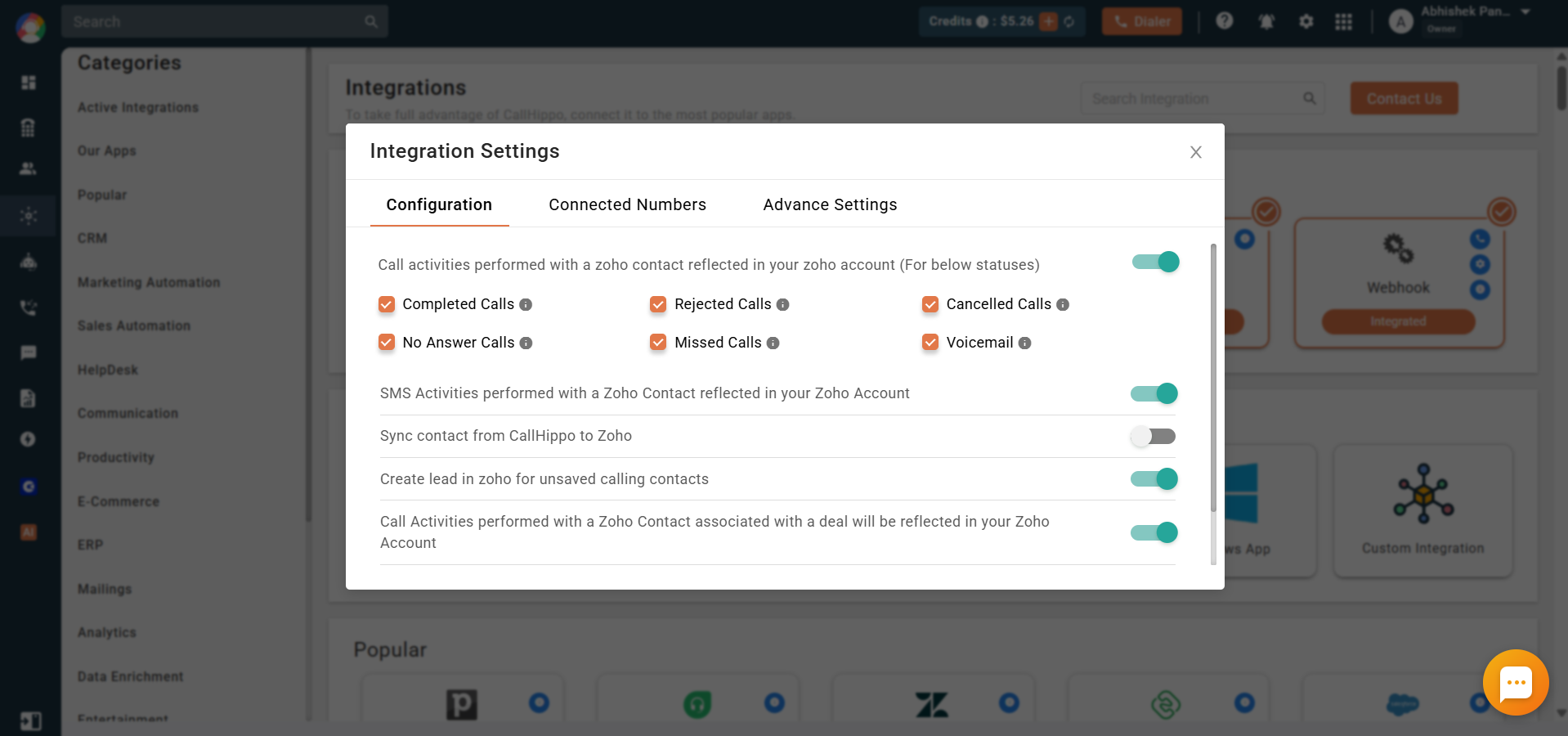
On the Configuration tab, turn on the options you want:
- Call activities performed with a Zoho contact reflected in your Zoho account — logs call activity in the Zoho contact’s Activity section. Select or deselect which call statuses (Completed, Rejected, Cancelled, No Answer, Missed, Voicemail) should sync.
- SMS activities reflected in your Zoho account — logs SMS activity in the Zoho contact’s Activity section.
- Sync contacts from CallHippo to Zoho CRM — syncs contacts you add or update in CallHippo over to Zoho.
- Create a lead in Zoho for unsaved calling contacts — creates a new Zoho lead when you call a contact that is not yet saved.
- Call activities for a Zoho contact associated with a deal reflected in your Zoho account — pushes activity into the deals linked to that contact.
- Intelligent Incoming Call Routing (based on Contact/Lead owners) — routes inbound calls to the Contact or Lead owner mapped in Zoho. Once enabled, it applies to all numbers on the integration, with no per-number setup needed.
Connected Numbers
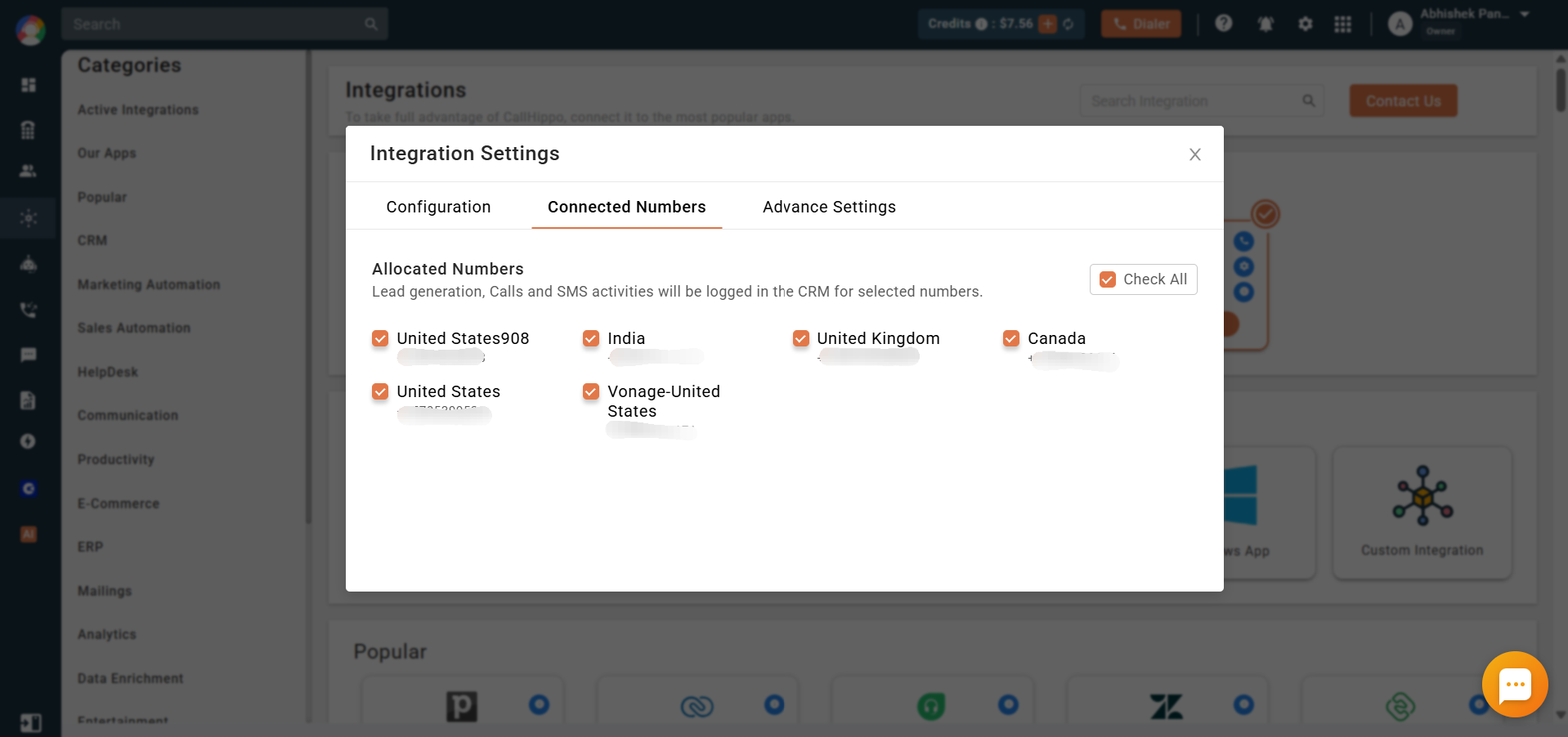
On the Connected Numbers tab, select or deselect which numbers connect with Zoho. All numbers are selected by default. Call and SMS activities are logged in Zoho only for the numbers you select here.
Advance Settings
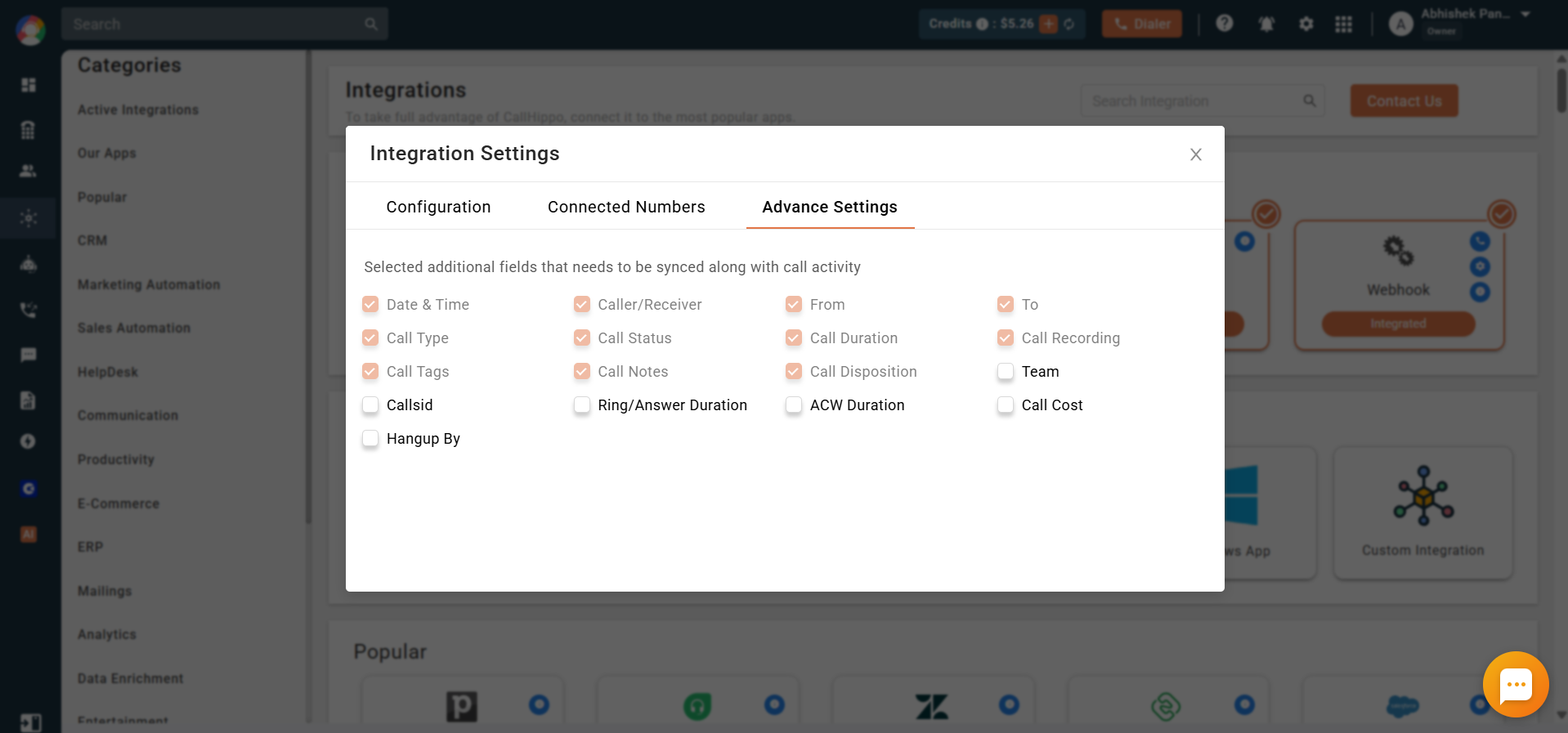
On the Advance Settings tab, select the additional fields you want synced along with each call activity.
Create the delete webhooks in Zoho
To instantly remove Contacts and Leads in CallHippo when they are deleted in Zoho, create two webhooks in Zoho: a Delete Contact webhook and a Delete Lead webhook.
Find your CallHippo Owner ID
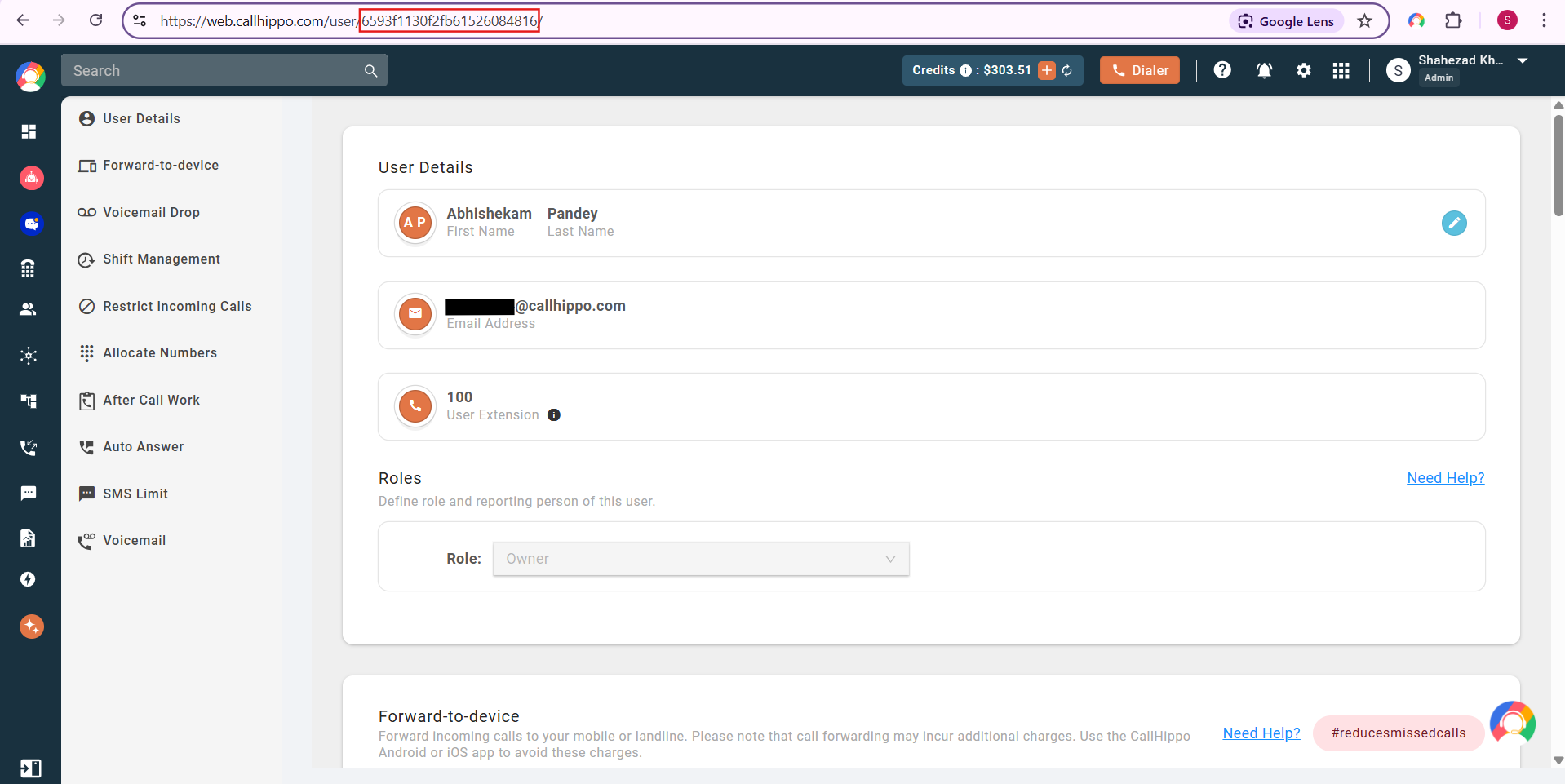
Both webhook URLs include your CallHippo Owner ID. To find it, open the Users module in CallHippo and select the Owner user. The last segment of the page URL is your Owner ID. Copy it and use it in place of <YOUR_OWNER_ID> in the webhook URLs below.
Open Workflow Rules in Zoho
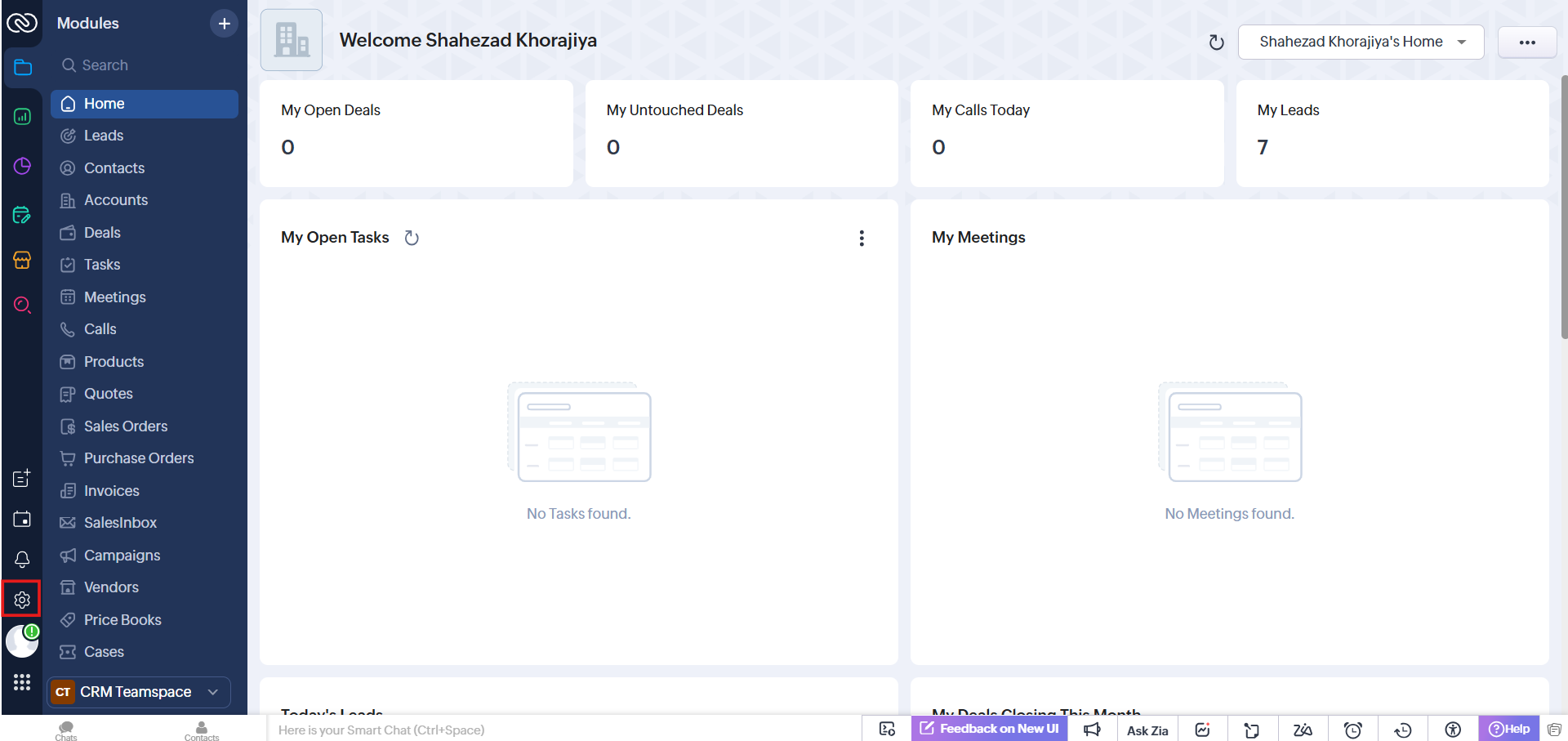
- Log in to Zoho CRM and click the Settings (gear) icon.
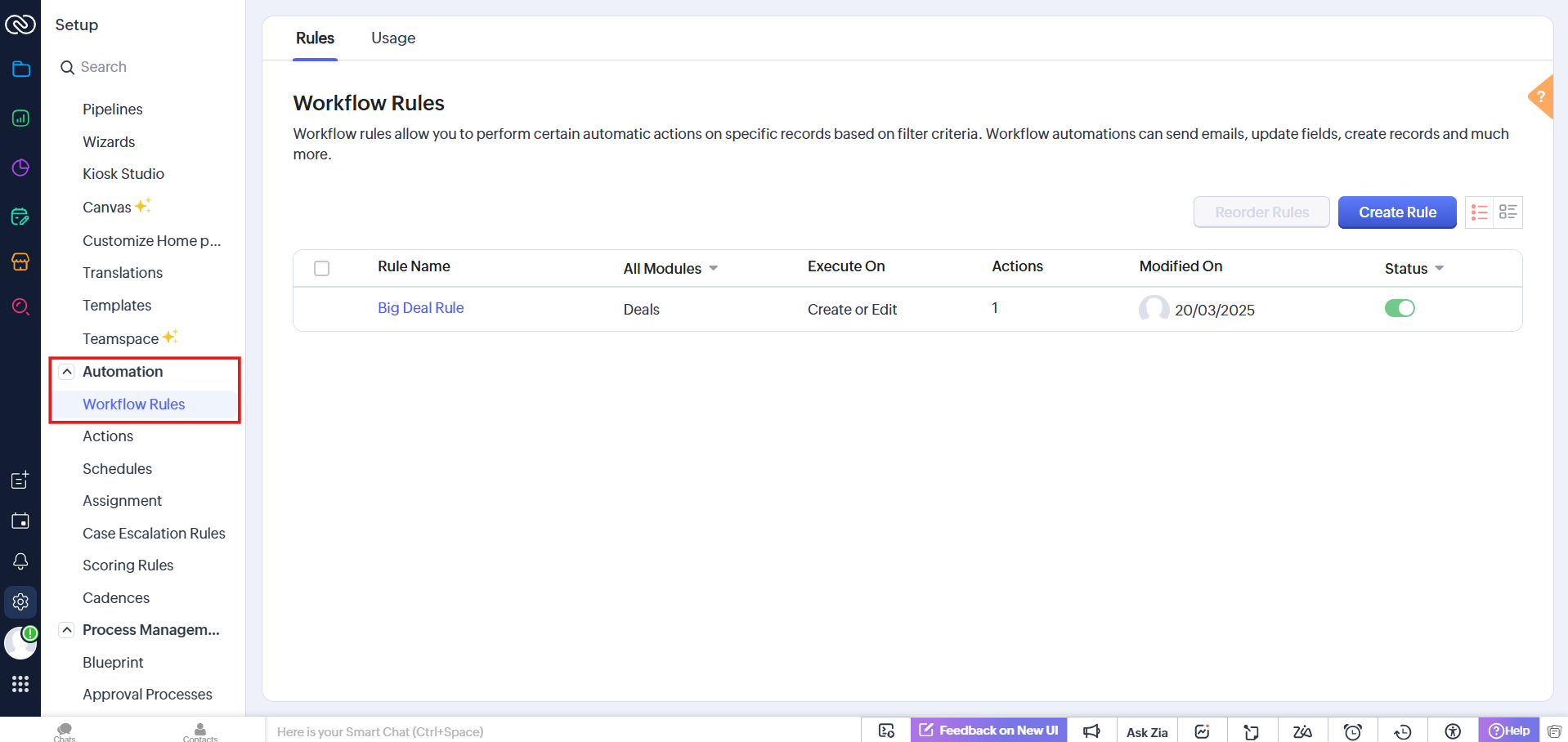
- Go to Automation > Workflow Rules.
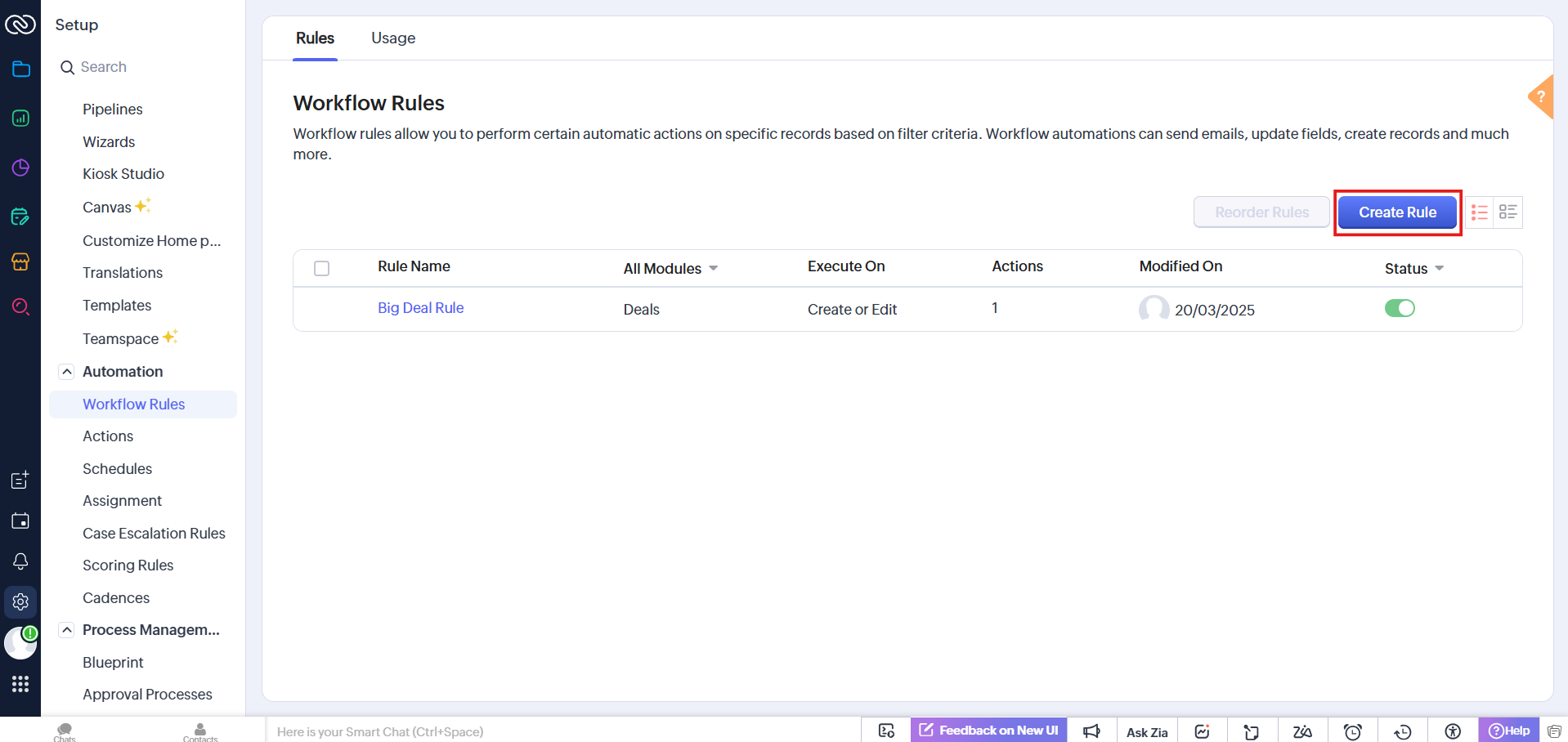
- Click Create Rule.
1. Delete Contact webhook
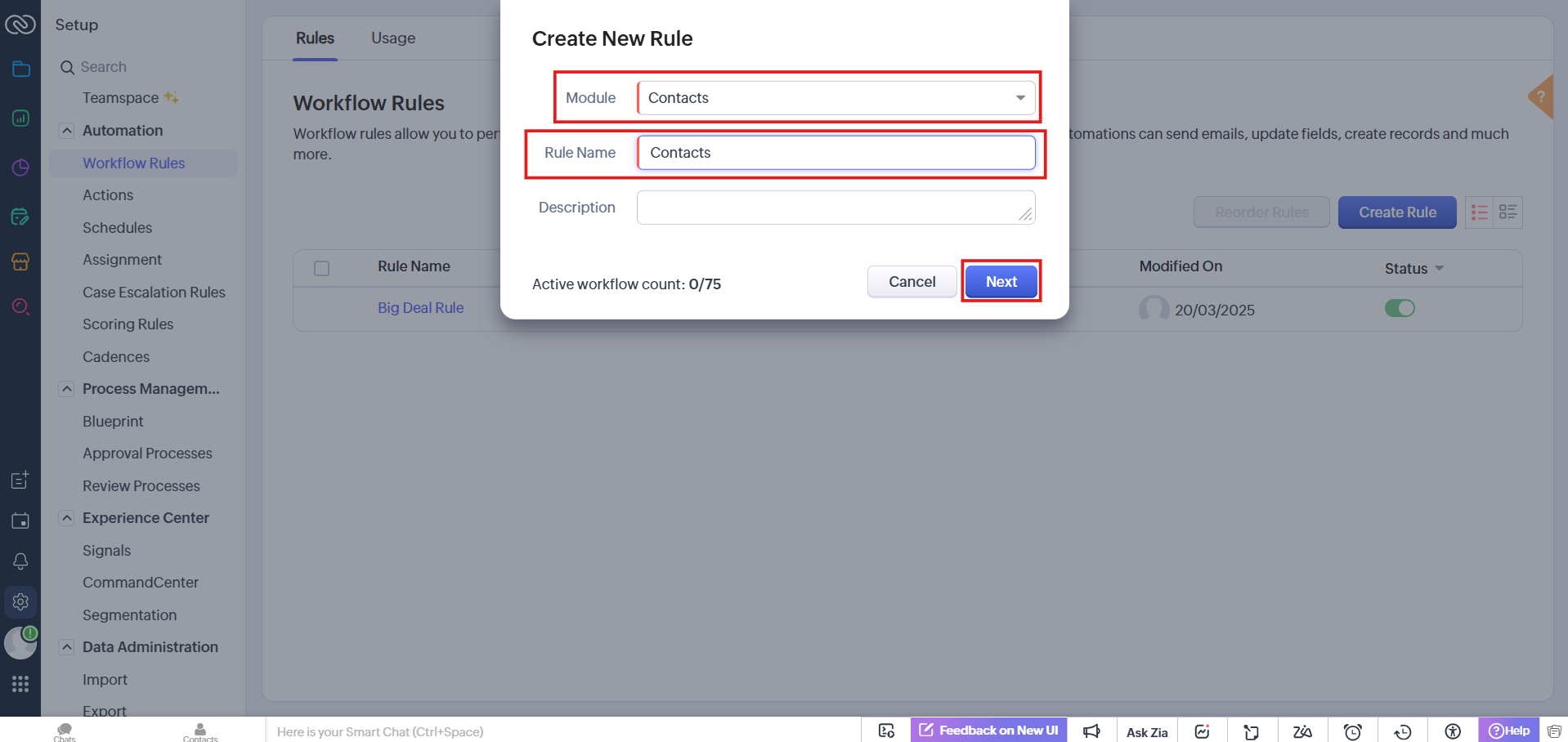
- In the Create New Rule dialog, set Module to Contacts, enter a Rule Name (for example, Delete Contact), add a description, then click Next.
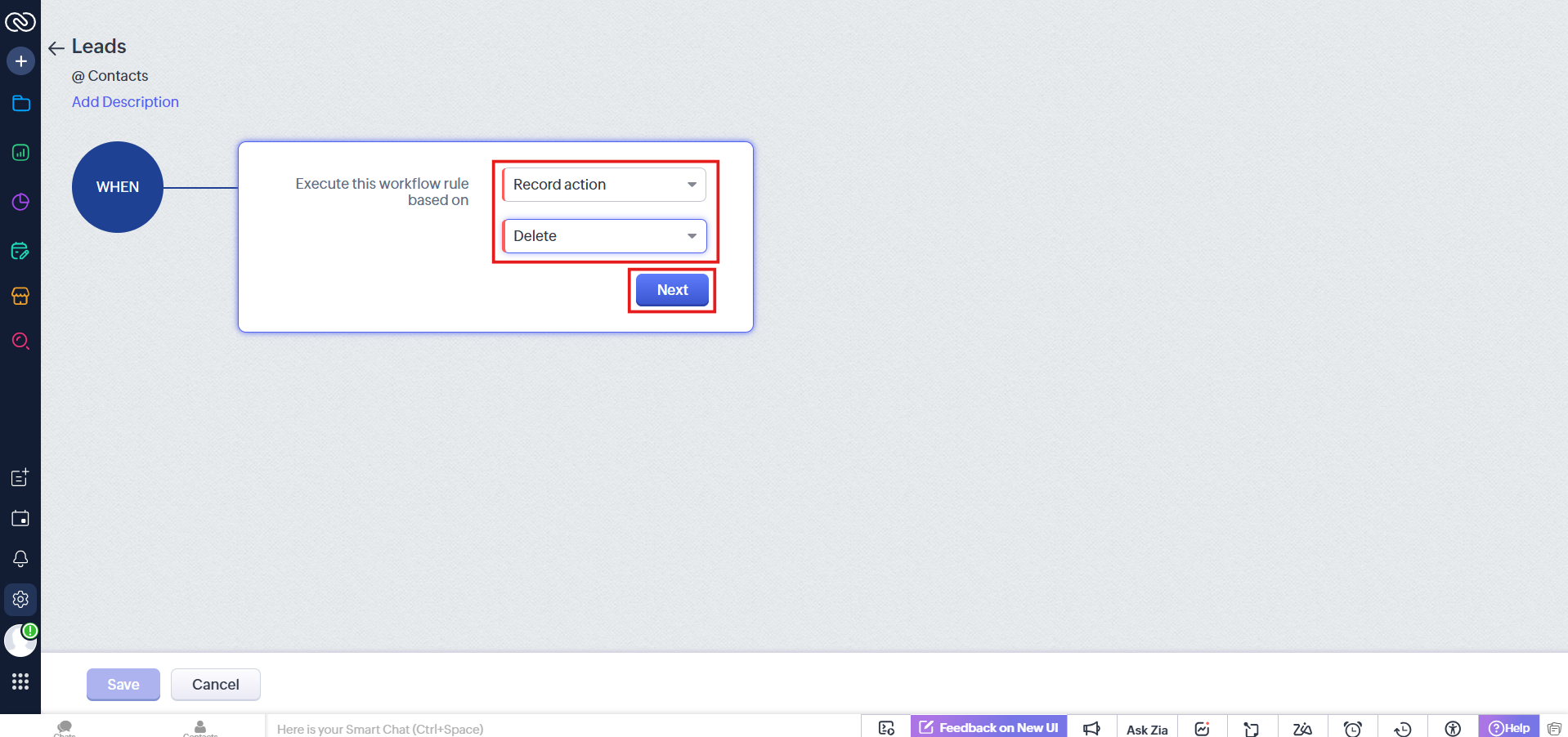
- Set Execute this workflow rule based on to Record action, choose the Delete action, then click Next.
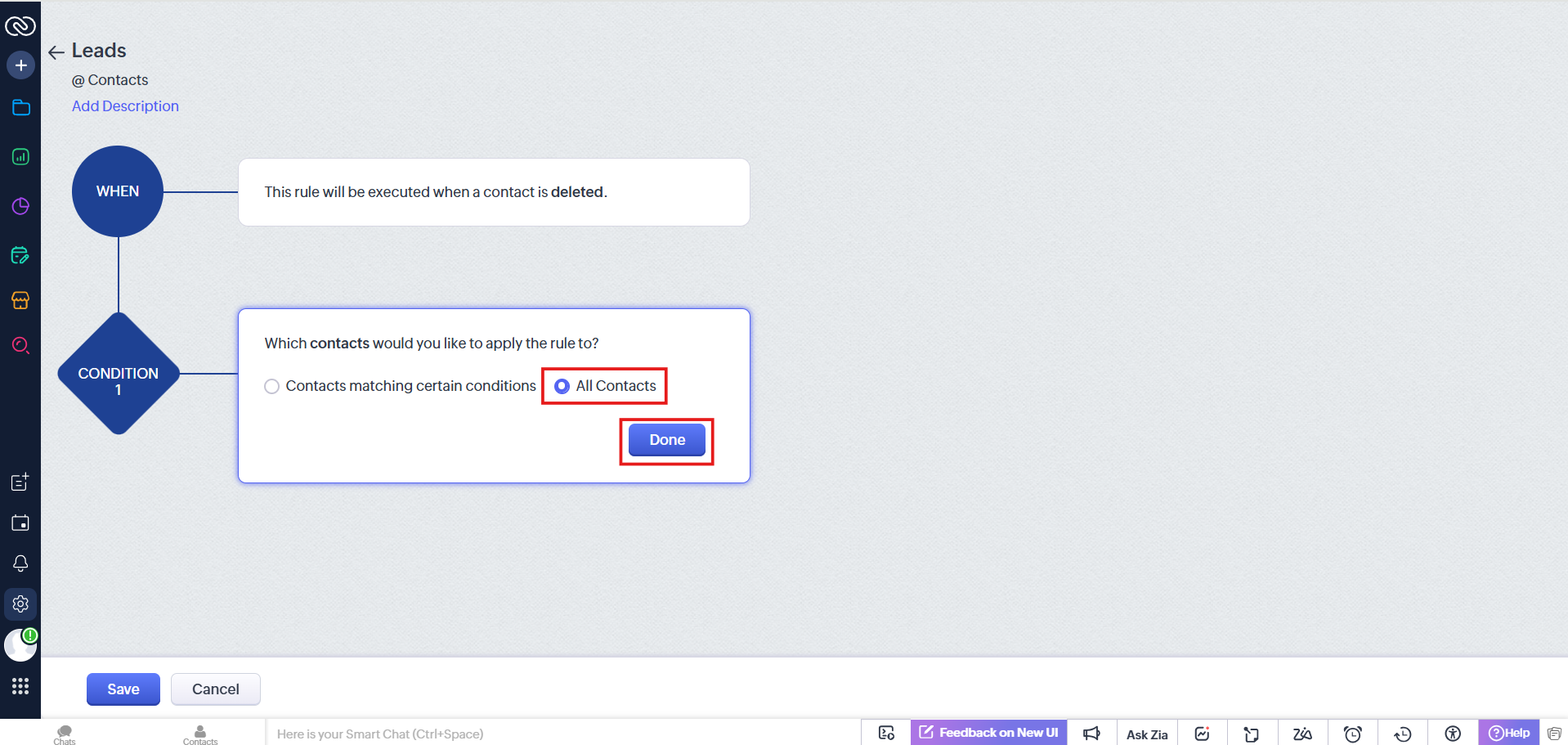
- In Condition 1, select All Contacts, then click Done.
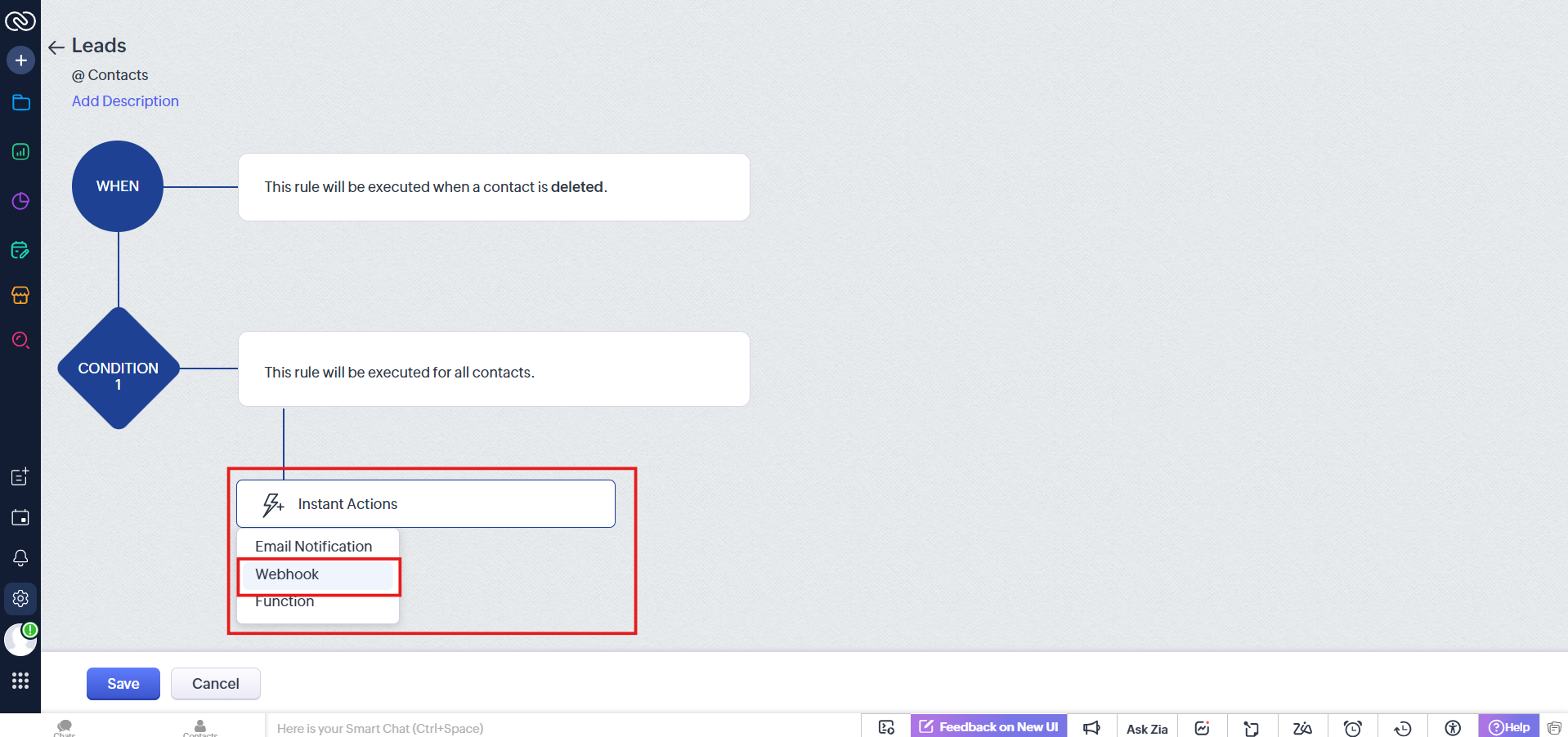
- In the Instant Action dropdown, select Webhook.
- Click Configure Webhook.
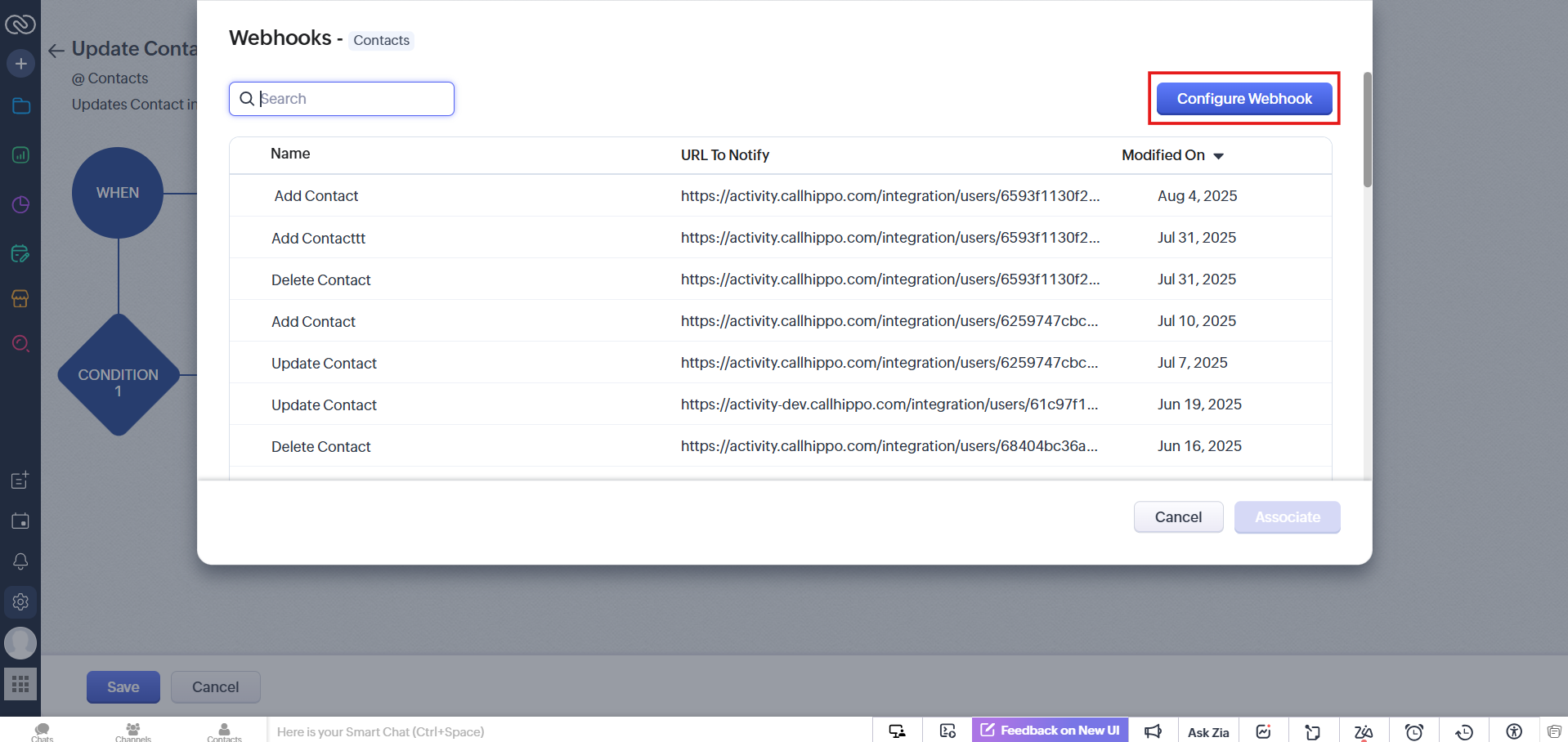
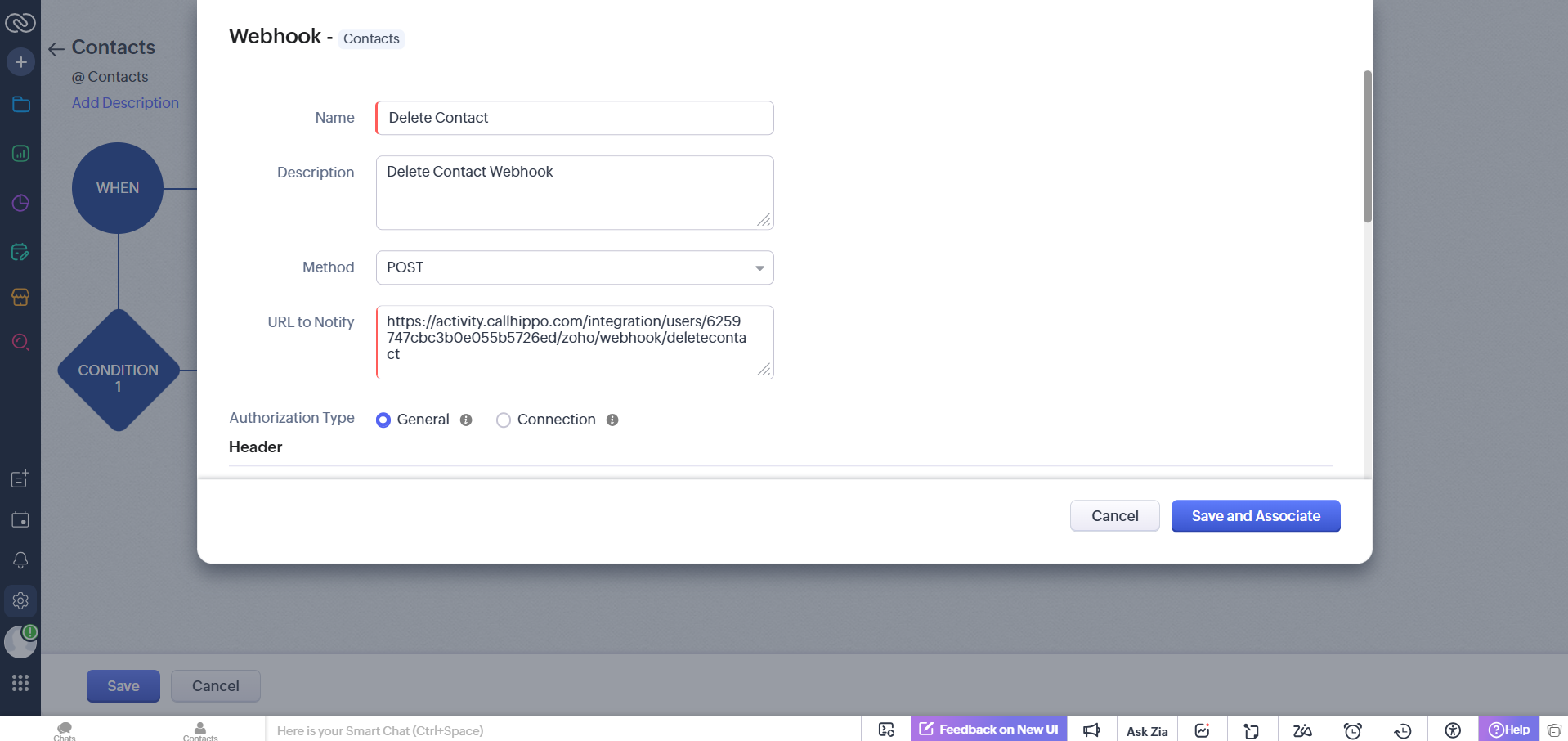
- In the Webhook form, enter the following details, then continue:
- Name: Delete Contact
- Description: Delete Contact Webhook
- Method: POST
- URL to Notify:
https://activity.callhippo.com/integration/users/<YOUR_OWNER_ID>/zoho/webhook/deletecontact - Authorization Type: General
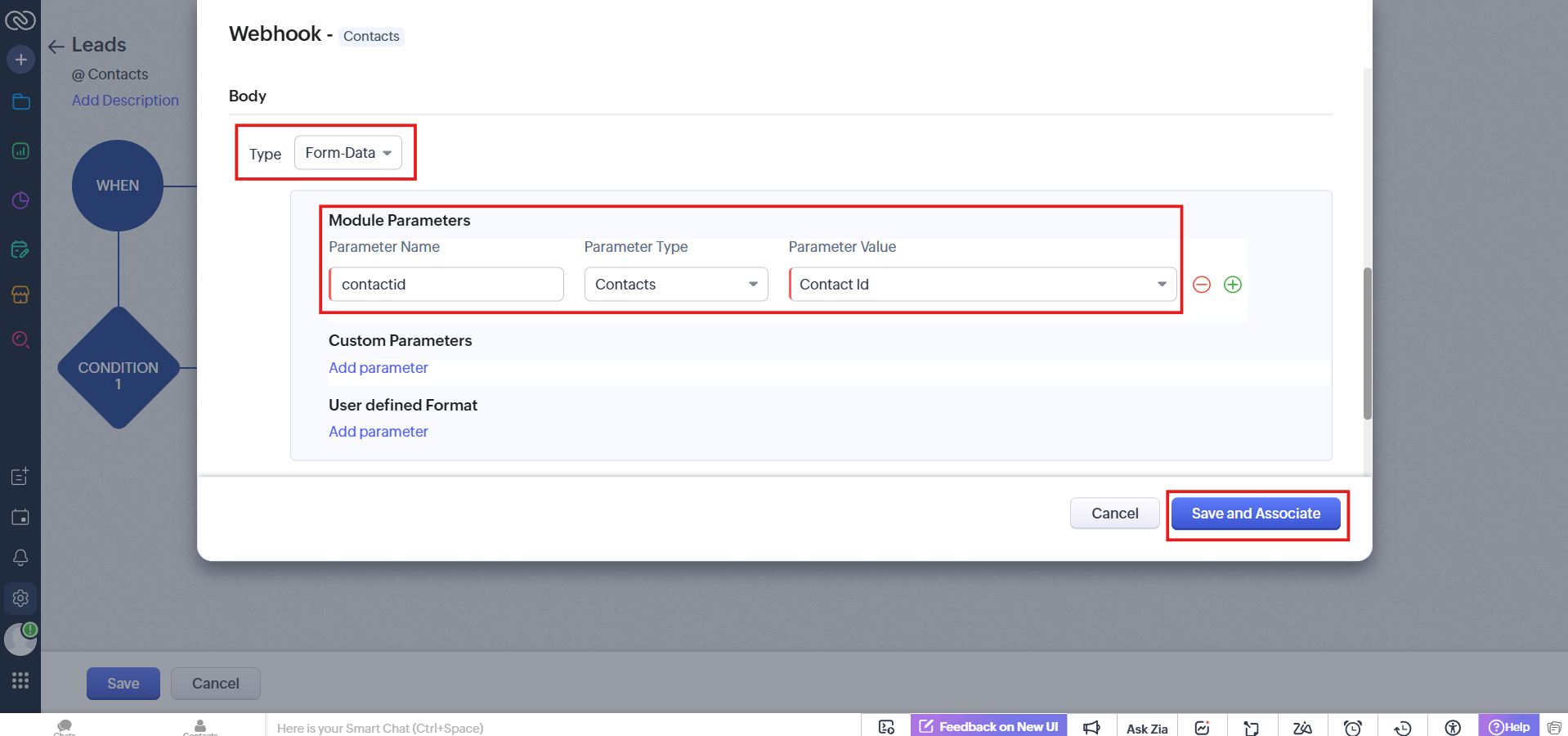
- Under Body, set Type to Form-Data and add a Module Parameter:
- Parameter Name: contactId
- Parameter Type: Contacts
- Parameter Value: Contact Id
Then click Save and Associate.
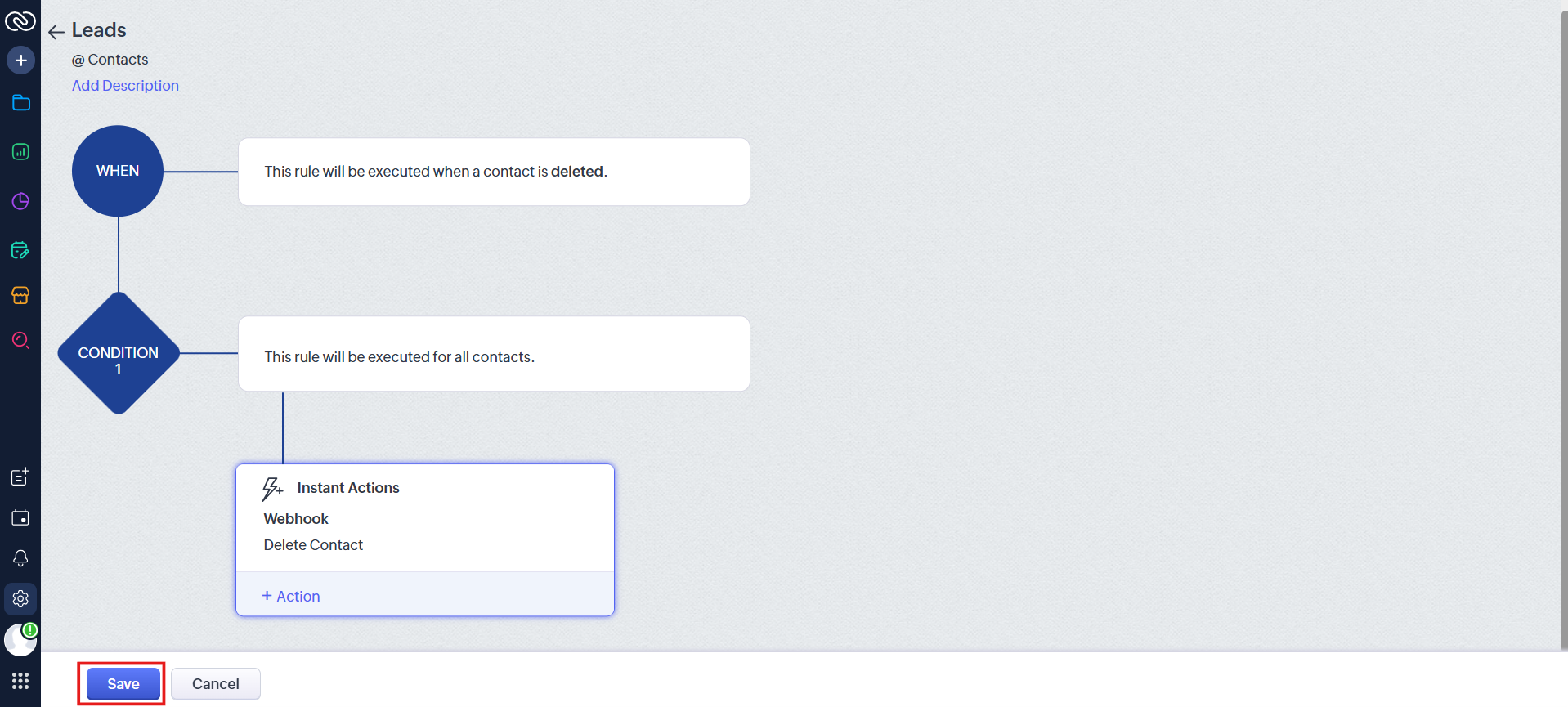
- Back on the Workflow Rule page, click Save.
2. Delete Lead webhook
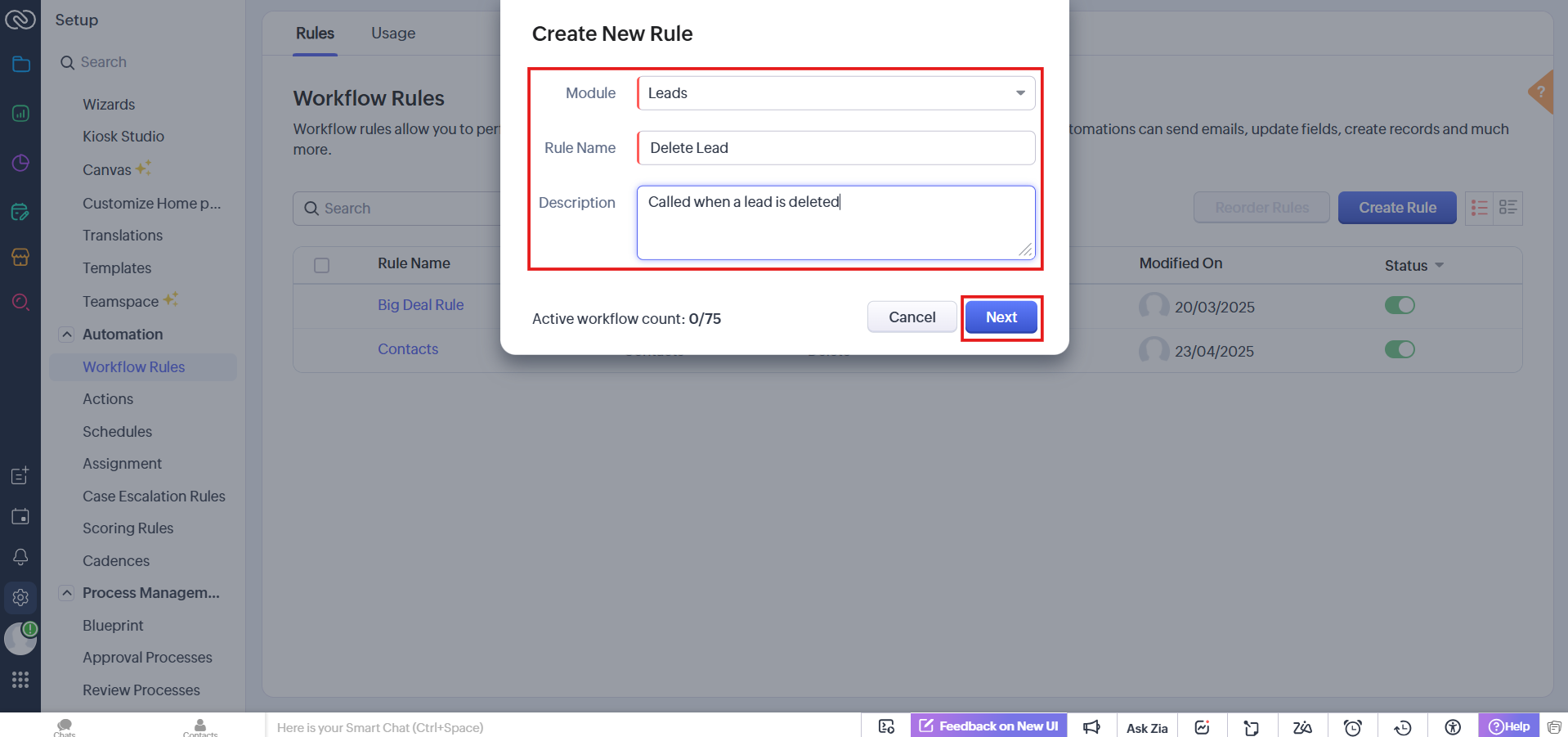
- Create a new rule with Module set to Leads, Rule Name Delete Lead, and description “Called when a lead is deleted”, then click Next.
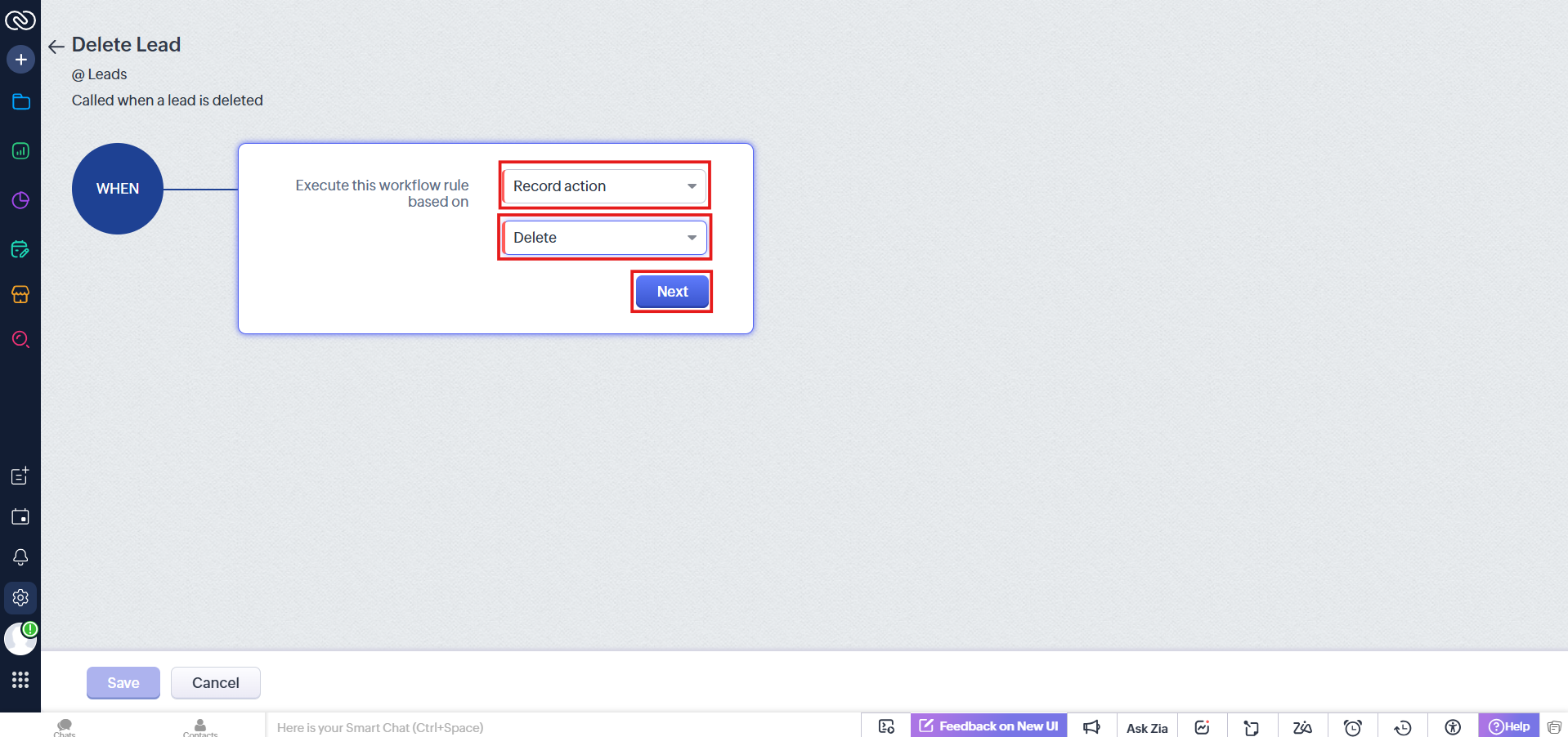
- Set Execute this workflow rule based on to Record action, choose the Delete action, then click Next.
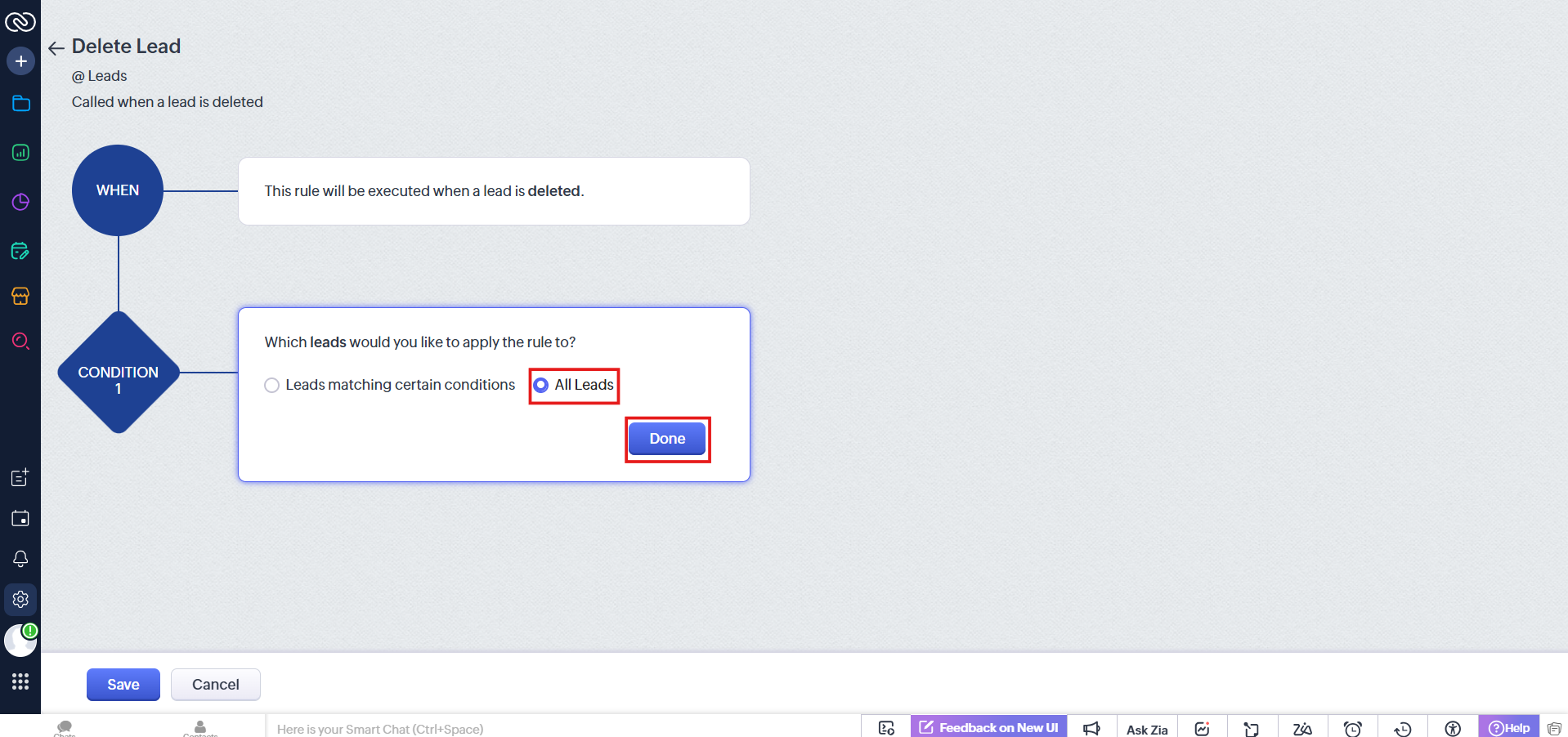
- In Condition 1, select All Leads, then click Done.
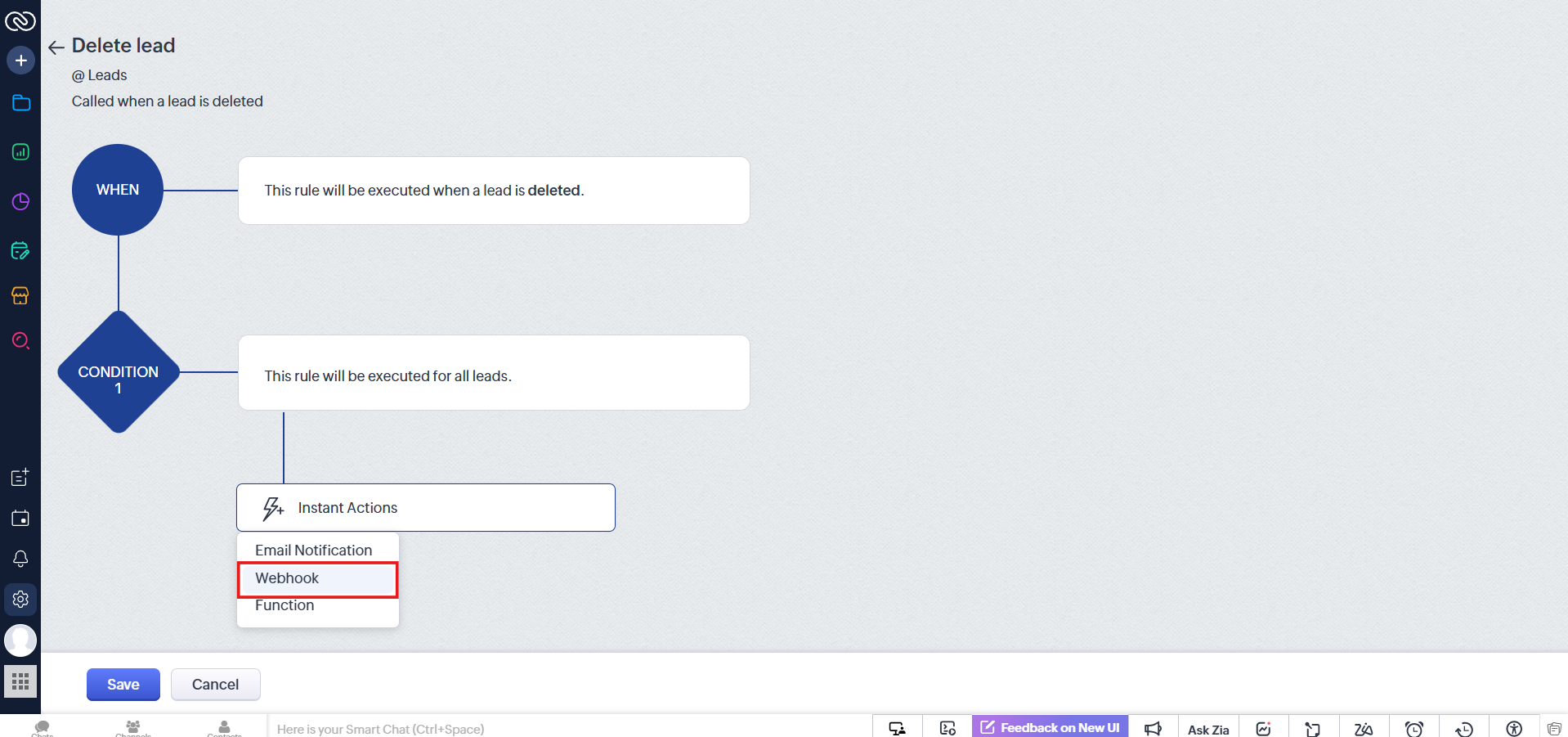
- In the Instant Action dropdown, select Webhook.
- Click Configure Webhook.
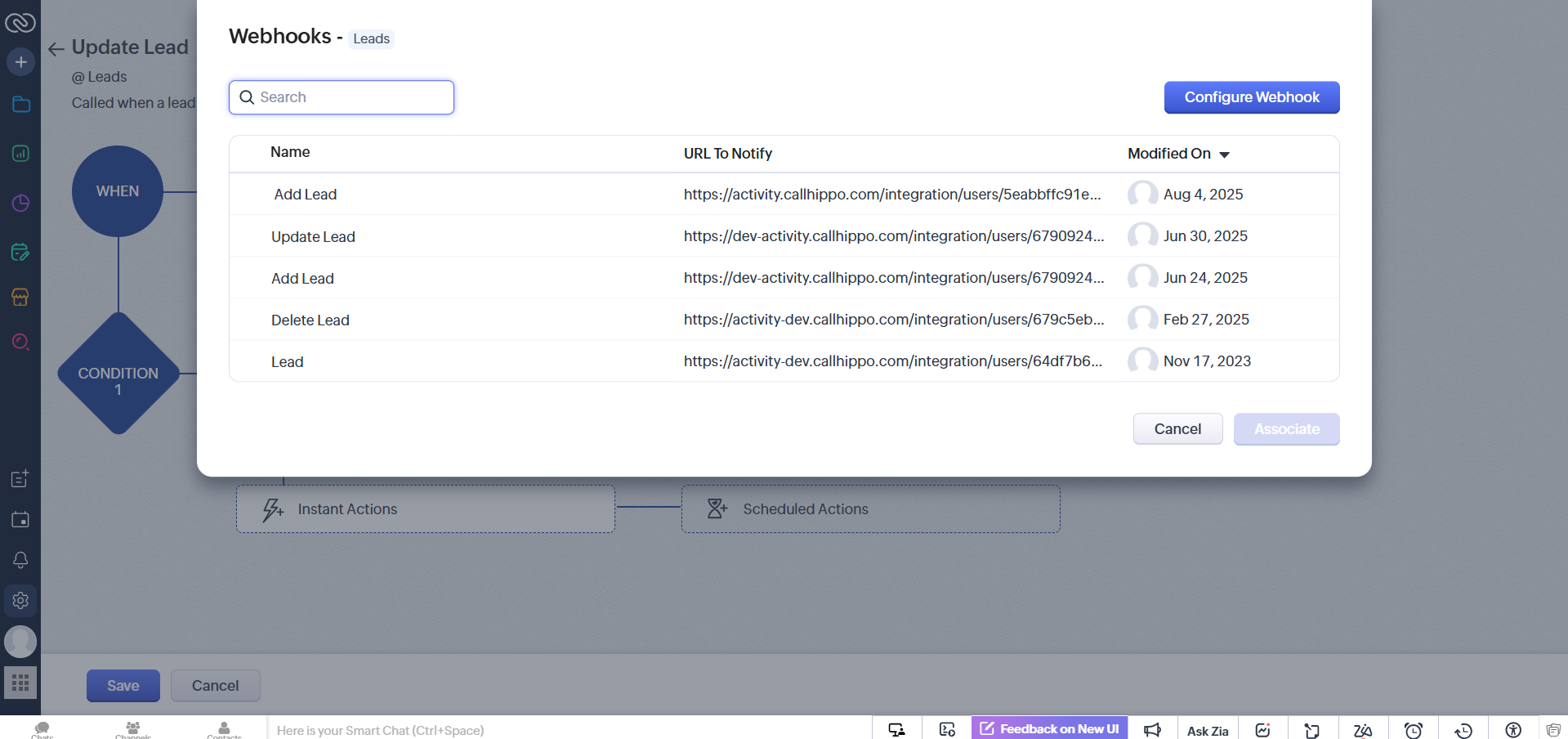
- In the Webhook form, enter the following details, then continue:
- Name: Delete Lead
- Description: Delete Lead Webhook
- Method: POST
- URL to Notify:
https://activity.callhippo.com/integration/users/<YOUR_OWNER_ID>/zoho/webhook/deletelead - Authorization Type: General
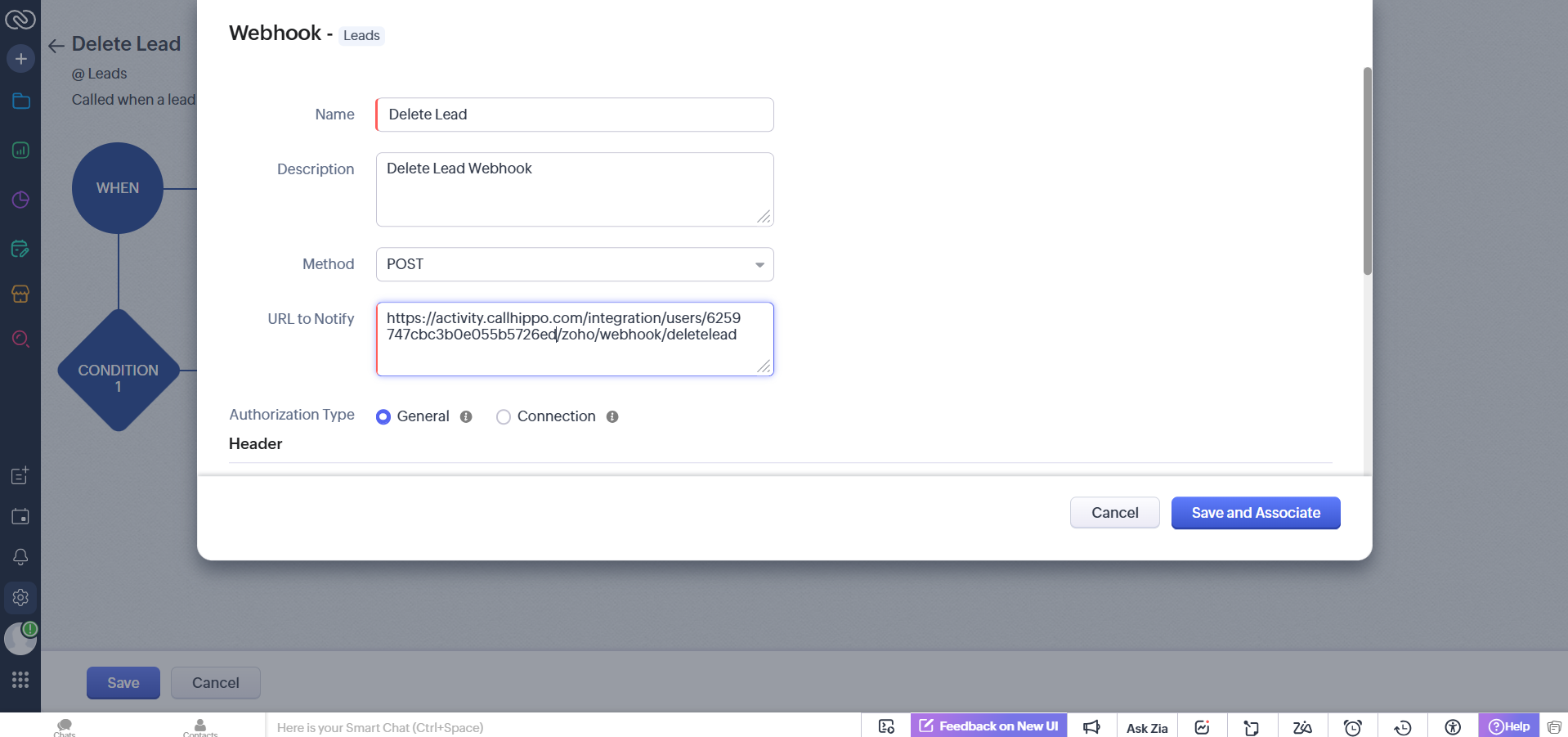
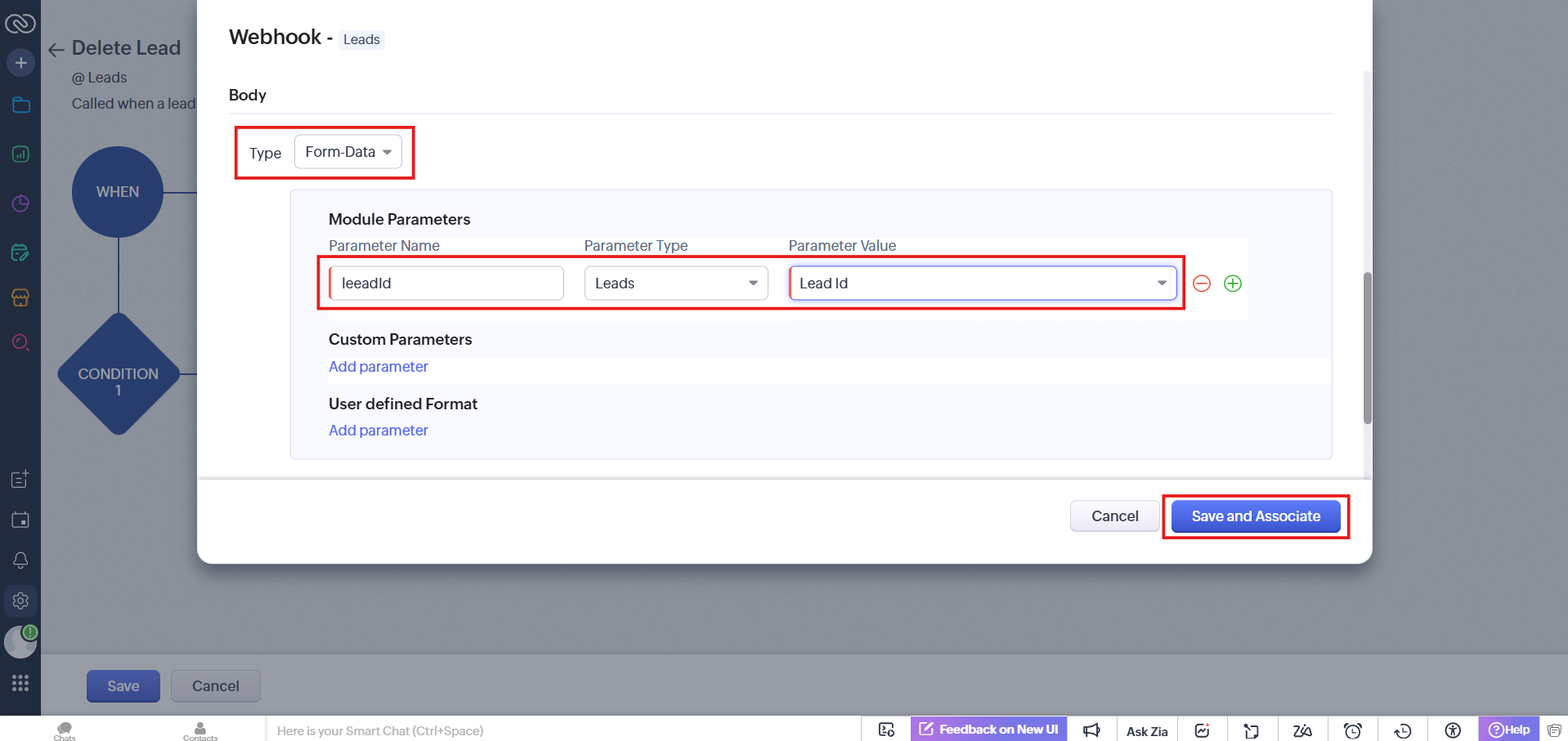
- Under Body, set Type to Form-Data and add a Module Parameter:
- Parameter Name: leadId
- Parameter Type: Leads
- Parameter Value: Lead Id
Then click Save and Associate.
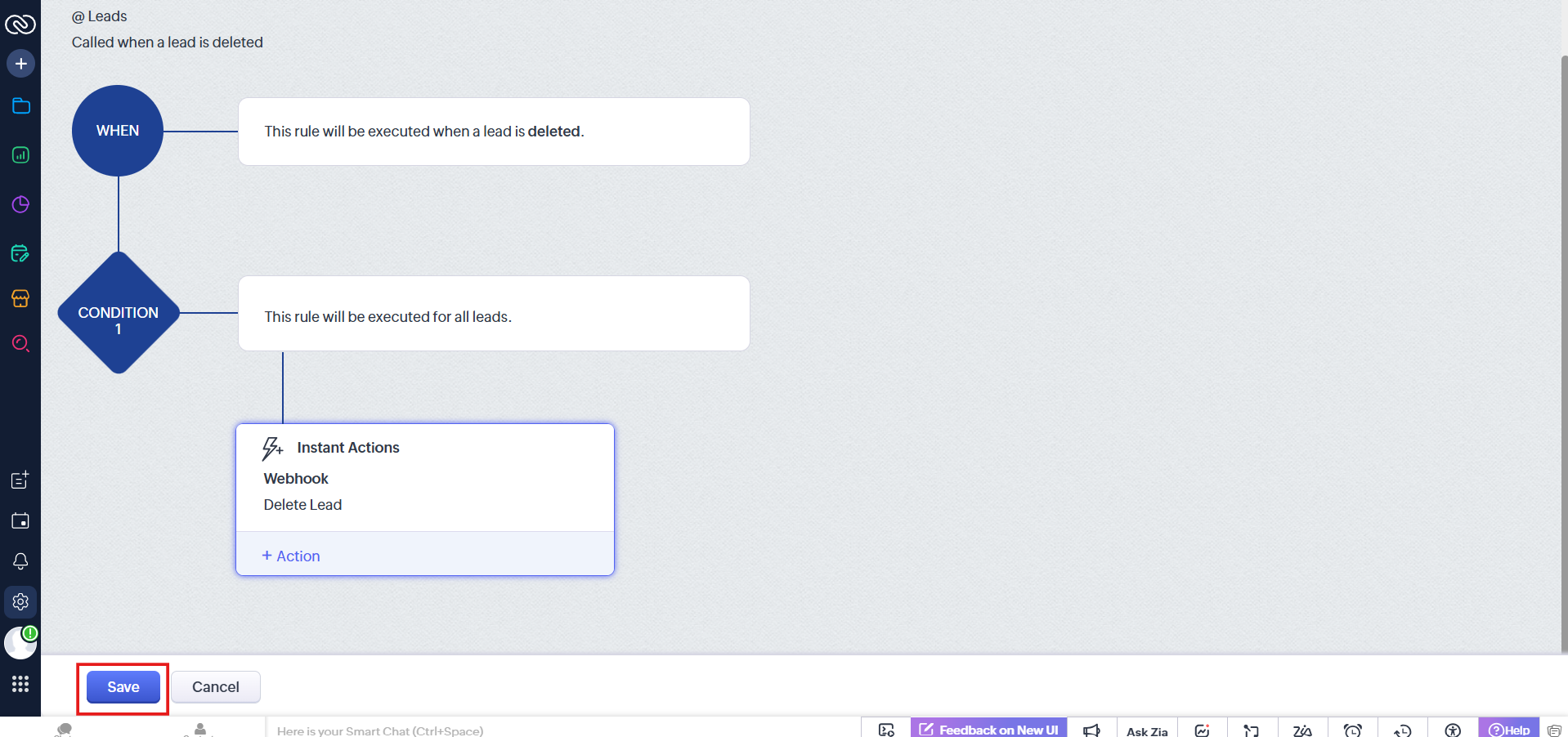
- Back on the Workflow Rule page, click Save.
Install the extension
Install the CallHippo Virtual Phone System Chrome extension so you can click-to-call directly from Zoho.
Zoho Contacts and Leads sync to CallHippo as contacts. A contact syncs to CallHippo when you use Click-to-Call on that record with the extension.
Still need help? Reach us at [email protected].