
Connecting Zoho Mail with CallHippo keeps your email and calling activity in sync, so your team can act on call events straight from their inbox workflow.
Connect Zoho Mail in CallHippo
The setup runs through a quick OAuth flow — you’ll authorize CallHippo to link with your Zoho Mail account.
- Sign in to CallHippo using your account credentials.
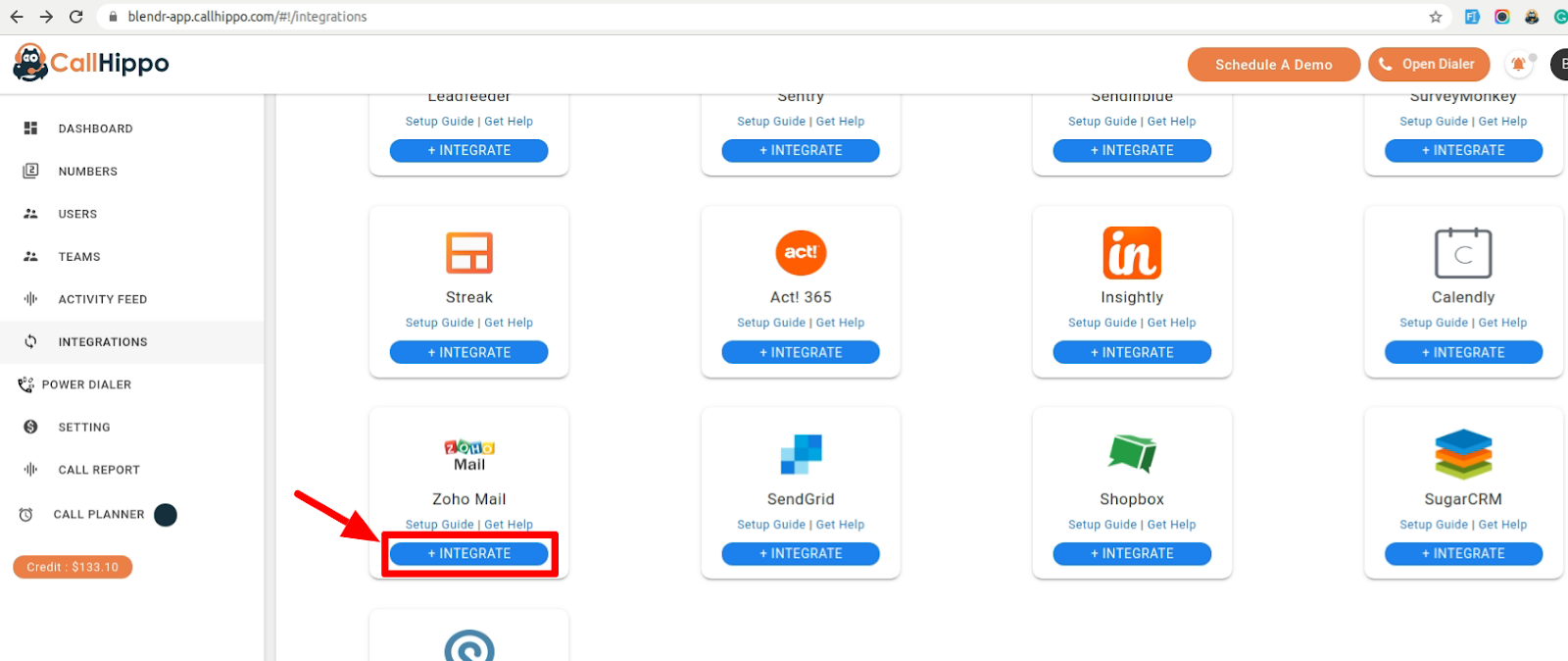
- Open Integrations. From the left sidebar of your dashboard, click Integrations.
- Find Zoho Mail and click + Integrate.
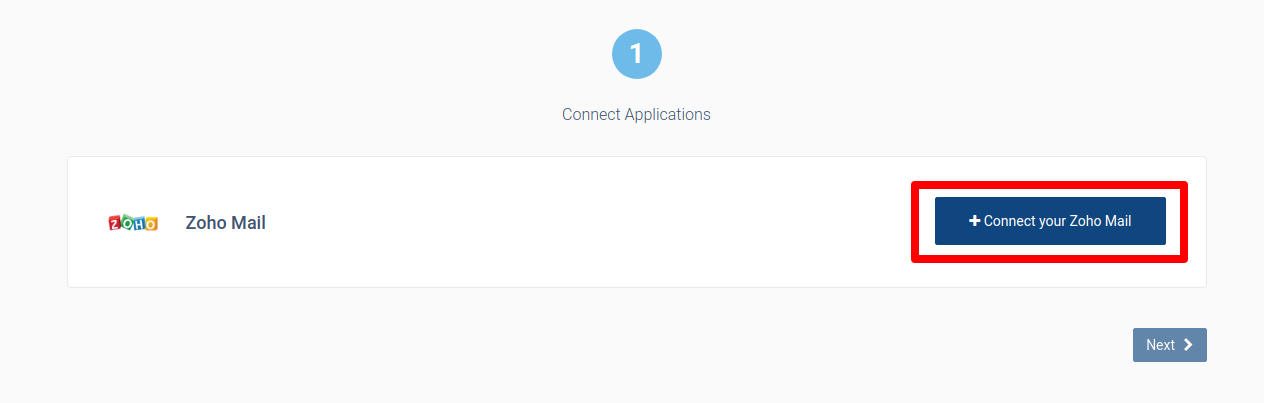
- Start the connection. On the setup page, click Connect your Zoho Mail.
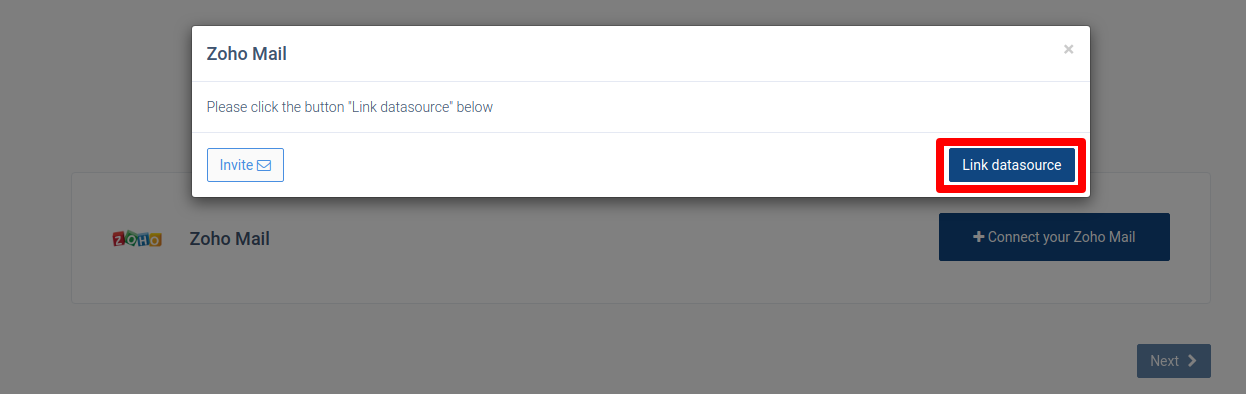
- Link the datasource. In the dialog, click Link datasource.
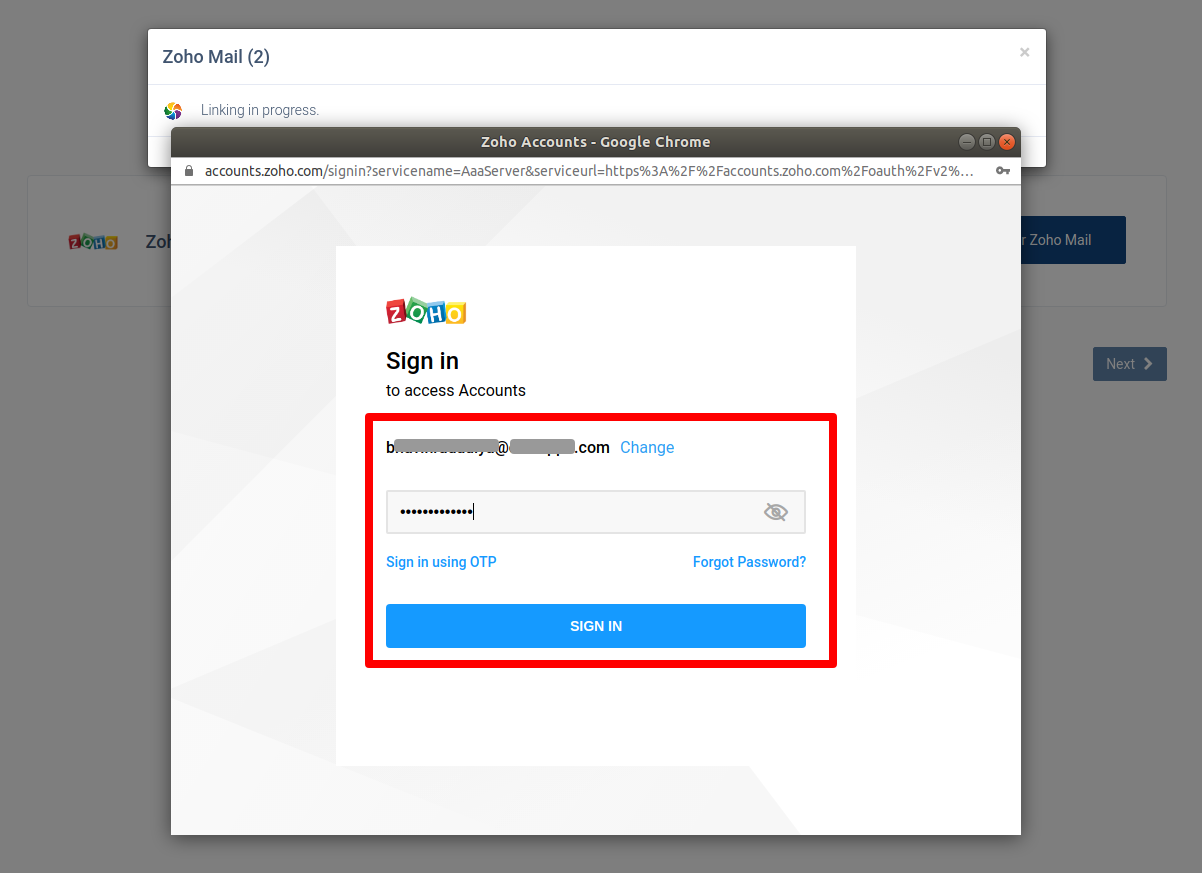
- Sign in to Zoho. Enter your Zoho Mail account credentials and click Sign In.
- Grant permissions. On the permission page, click Accept to authorize access.
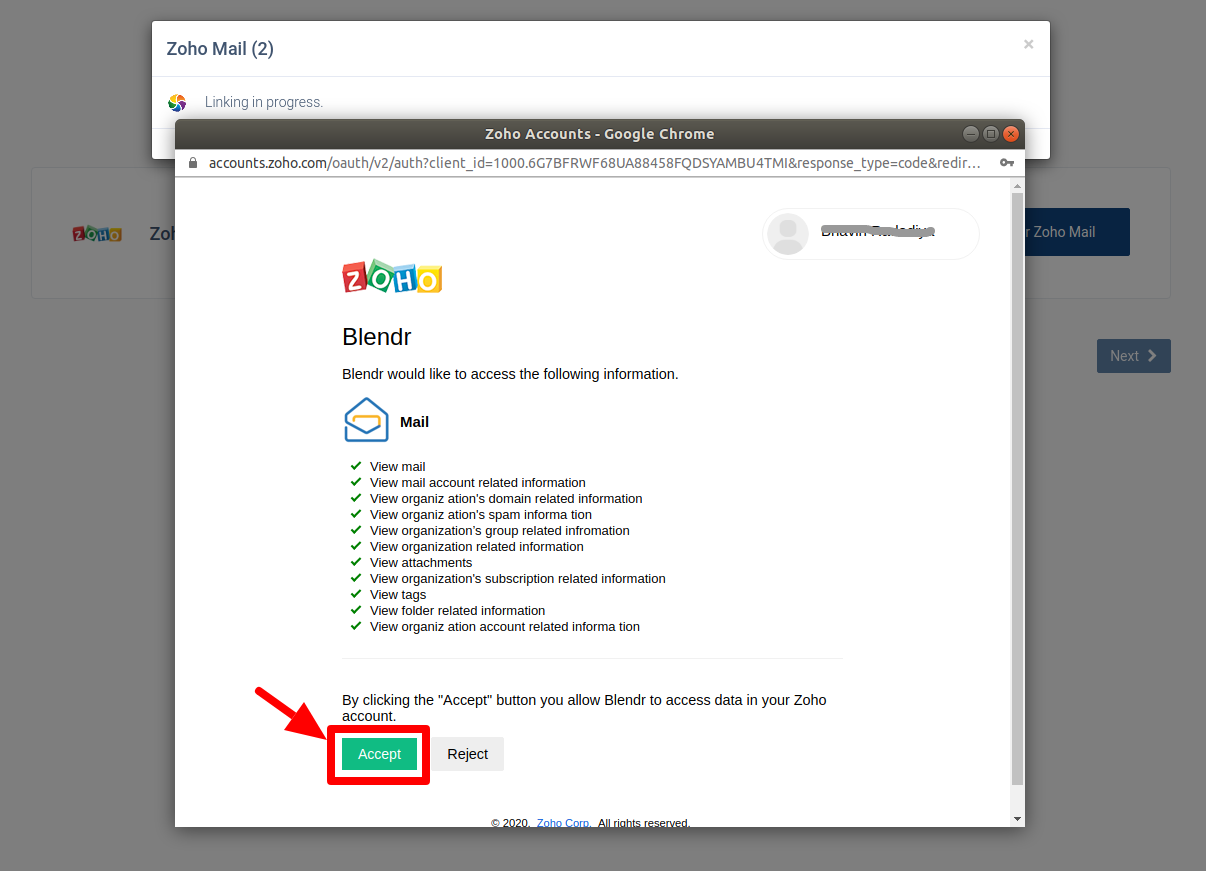
Finish the Setup
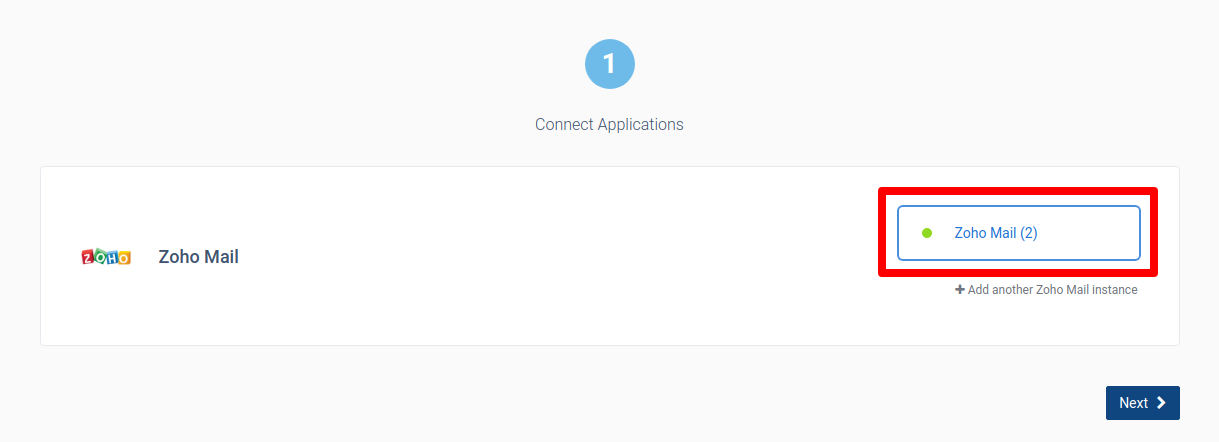
- Confirm the connection. Your Zoho Mail account is now linked. Click Next and wait for the redirect back to CallHippo.
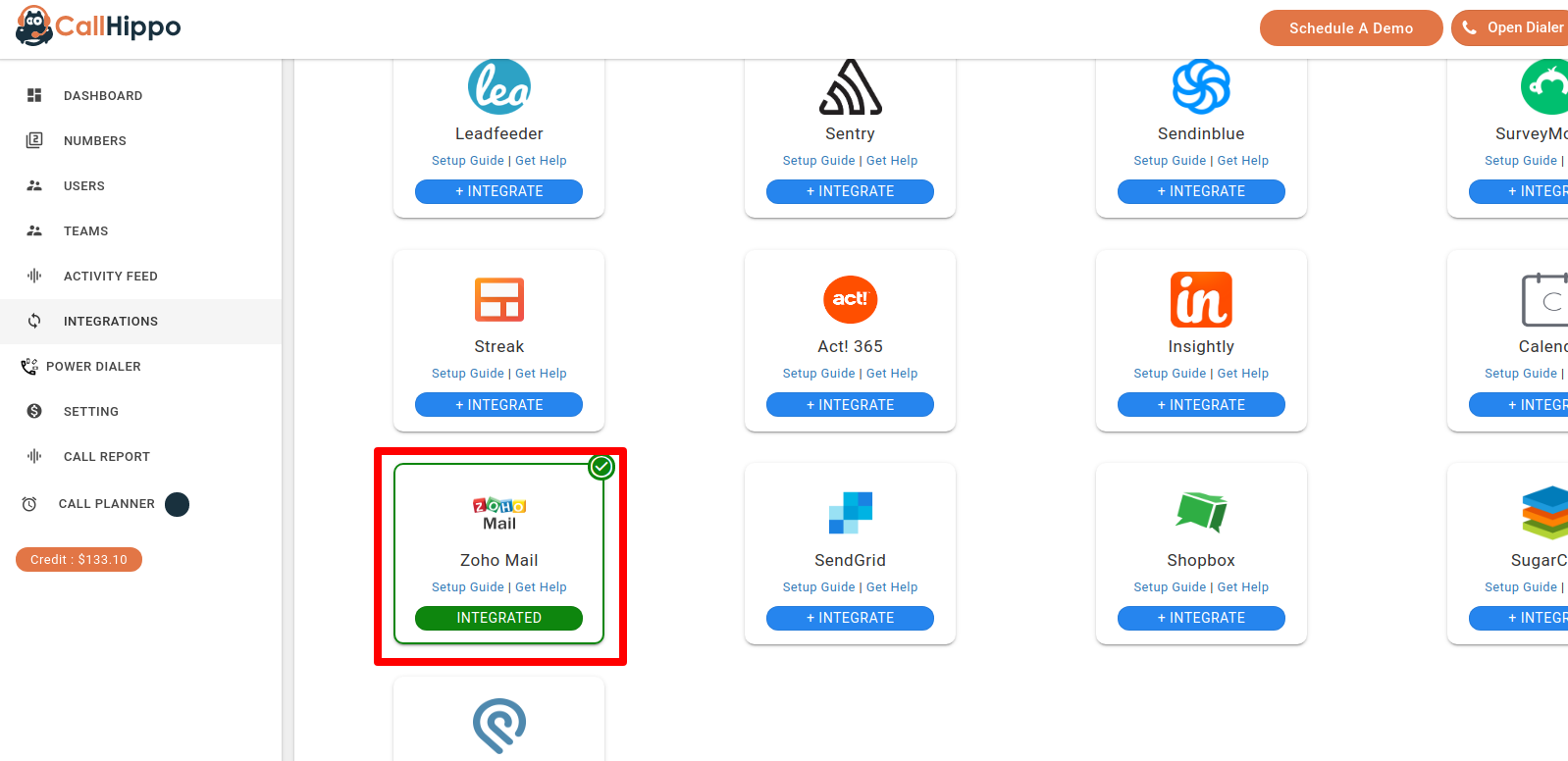
- Done. Zoho Mail now appears with an Integrated status on your Integrations page.
Enable Click to Call
To dial numbers directly from your browser, install the CallHippo Click-to-Call Chrome extension from the Chrome Web Store.
Frequently Asked Questions
Do I need to enter an API key for Zoho Mail?
No. Zoho Mail uses a secure sign-in and permission flow — you simply log in to your Zoho account and click Accept to authorize the connection.
How do I make calls from Zoho Mail?
Install the CallHippo Click-to-Call Chrome extension. Once enabled, you can dial numbers directly from your browser.
Need help connecting Zoho Mail? Reach out to us at [email protected] and we’ll be happy to assist.