
Connecting Zoho Recruit with CallHippo lets you call and text candidates from your ATS, sync contacts and candidates into the dialer, and log every call and SMS back to the Zoho timeline.
Connect Zoho Recruit in CallHippo
- Log in to your CallHippo account.
- From the left sidebar, open Integrations, then search for and select Zoho Recruit and click Connect (Integrate).
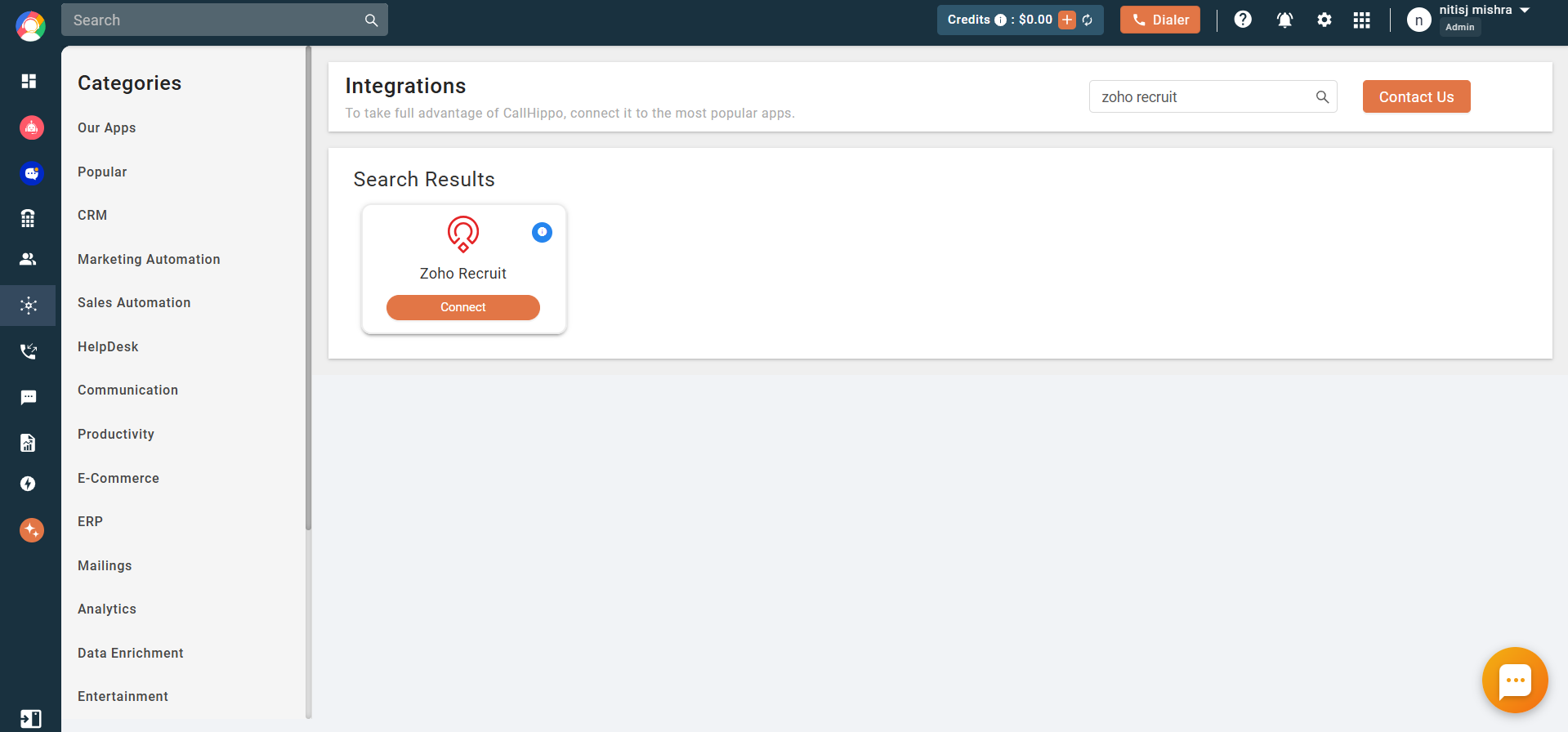
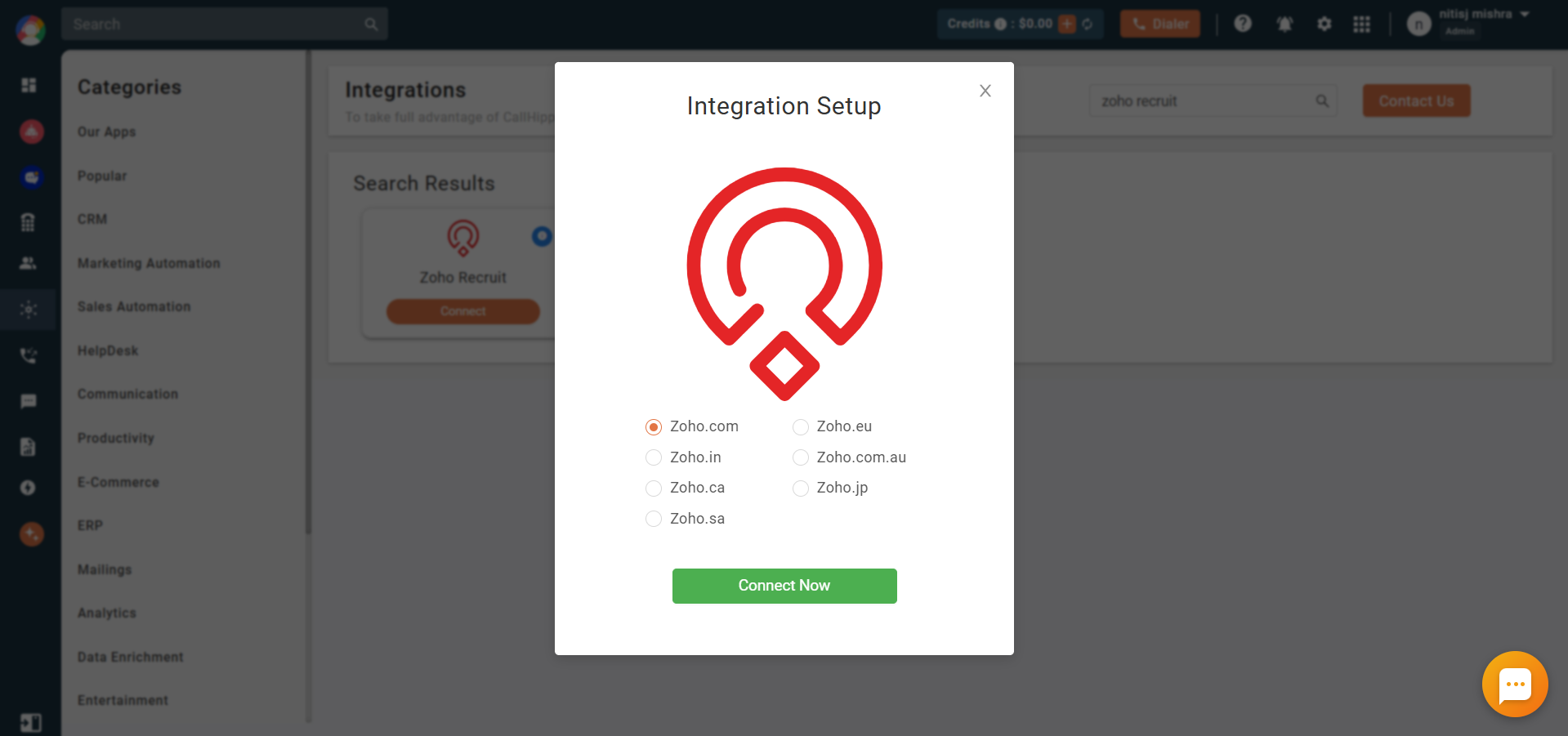
- In the Integration Setup popup, select your Zoho domain and click Connect Now.
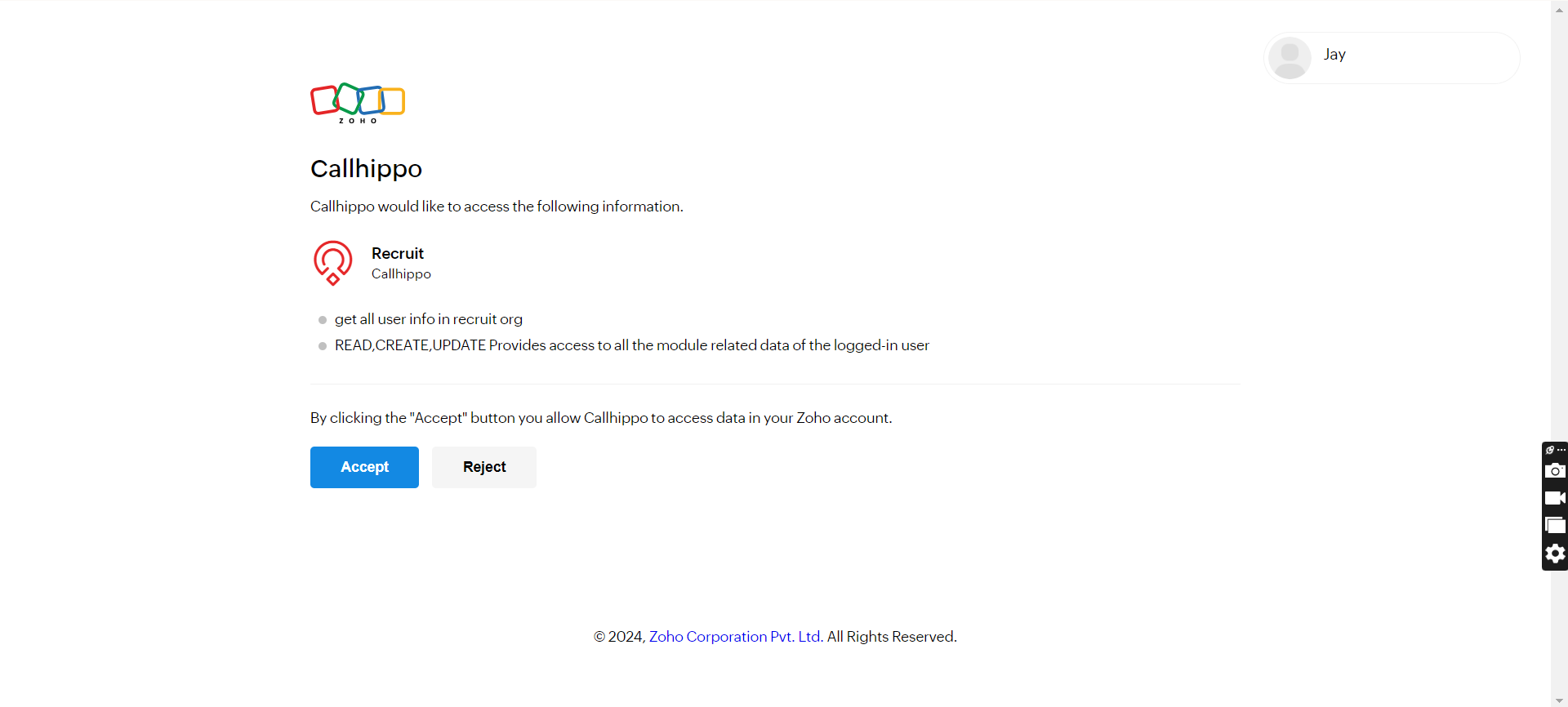
- Zoho will ask you to grant CallHippo access to your Recruit account. Click Accept.
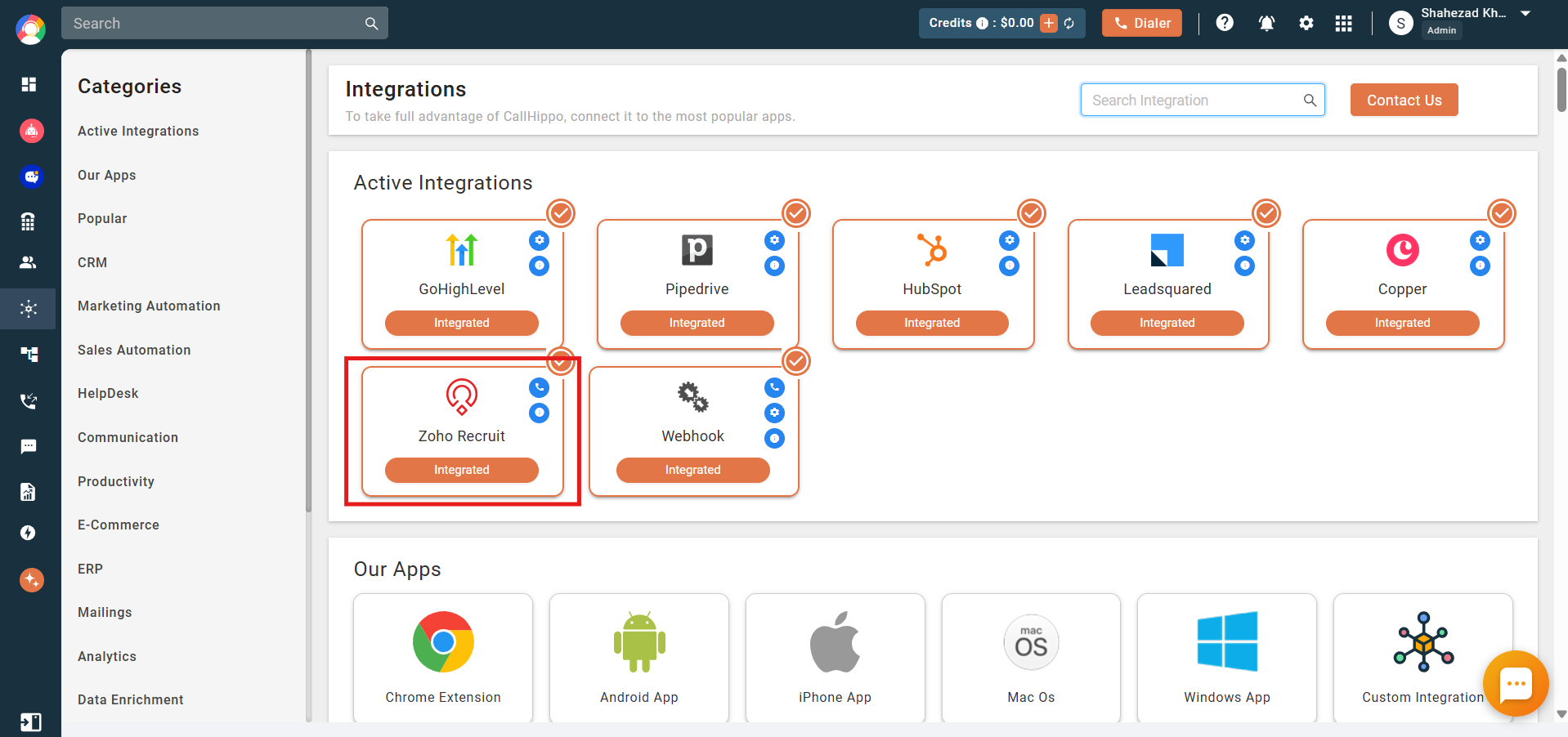
- Zoho Recruit is now connected and shows as Integrated in CallHippo.
Create the Add Contact webhook in Zoho Recruit
After connecting, you need to create webhooks in Zoho Recruit so newly created contacts sync into CallHippo. Start with an Add Contact webhook.
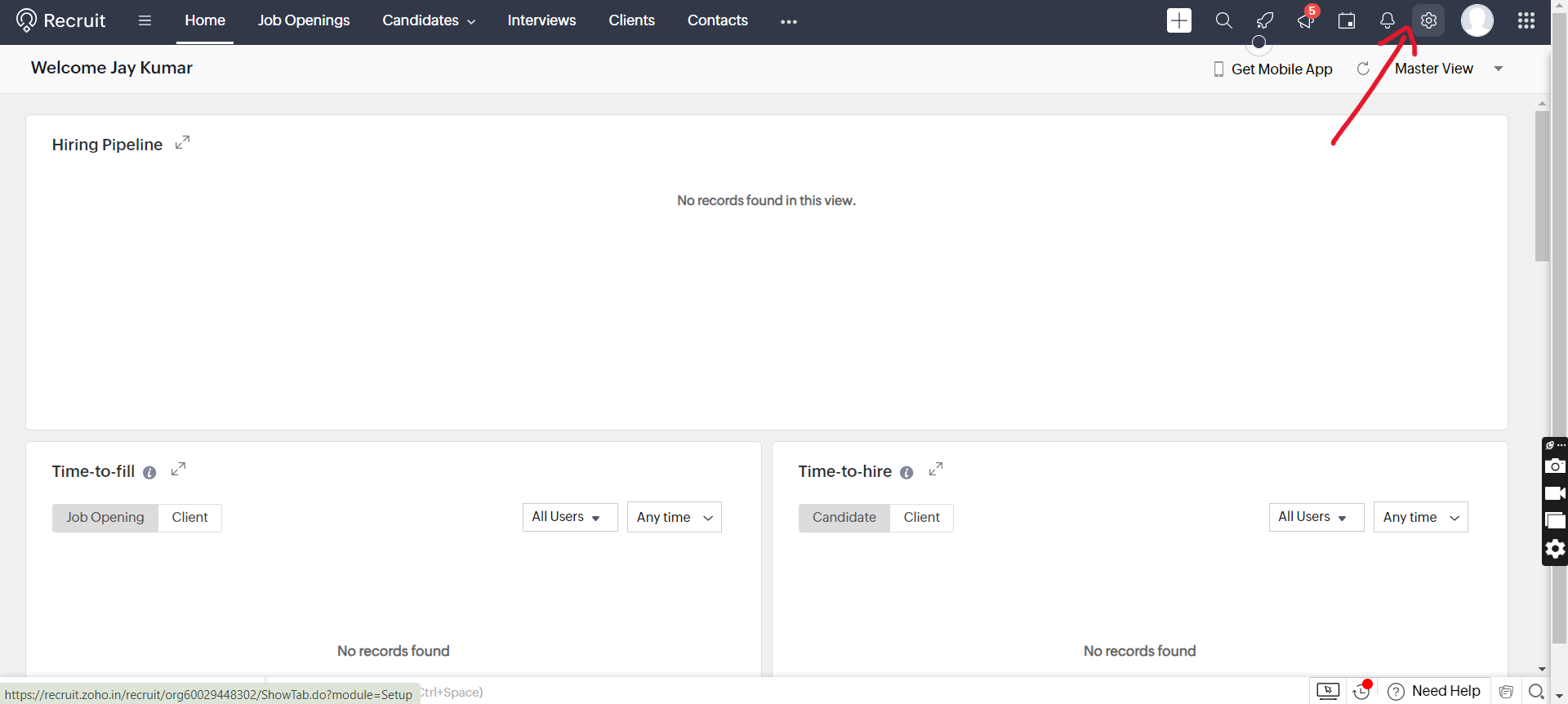
- Log in to Zoho Recruit and click the Settings gear icon in the top-right corner.
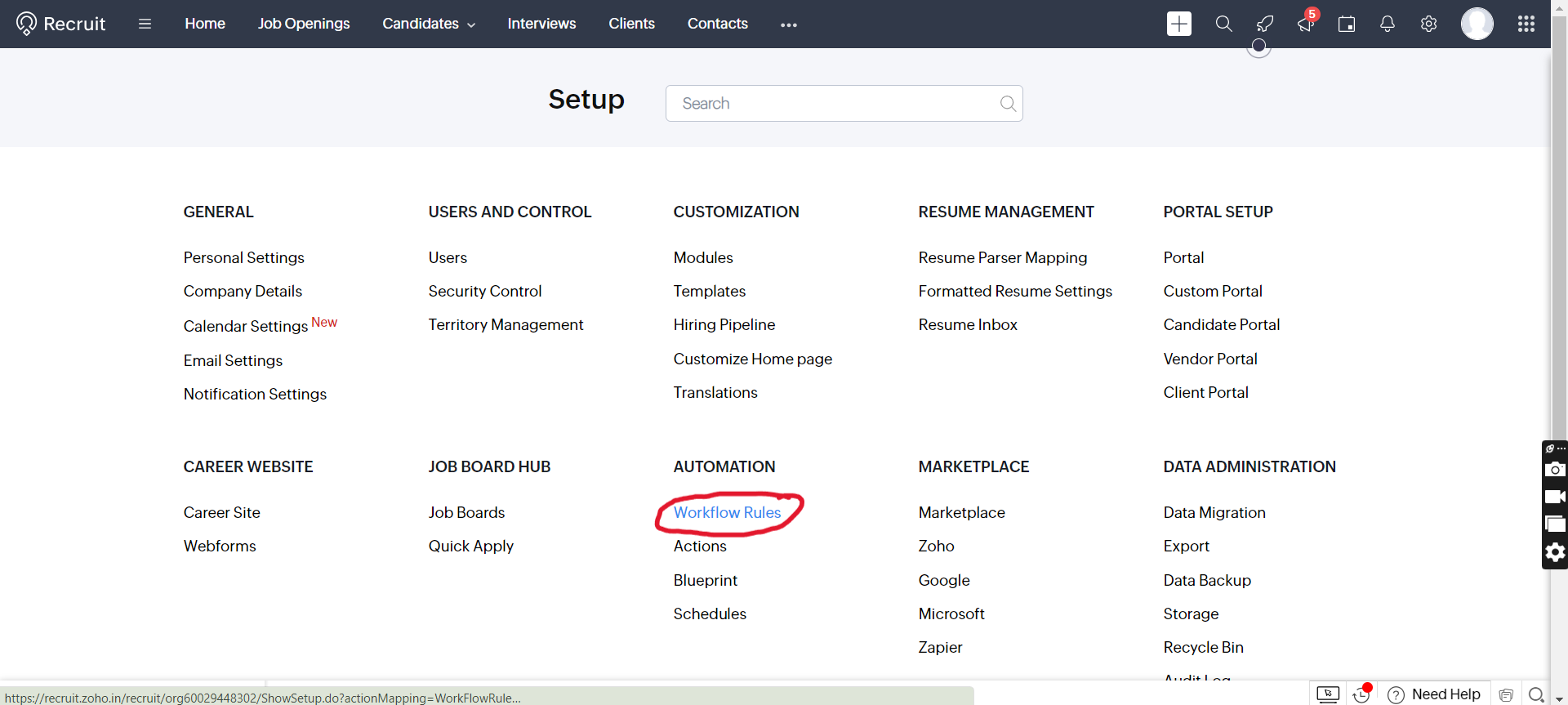
- Under the Automation section, click Workflow Rules.
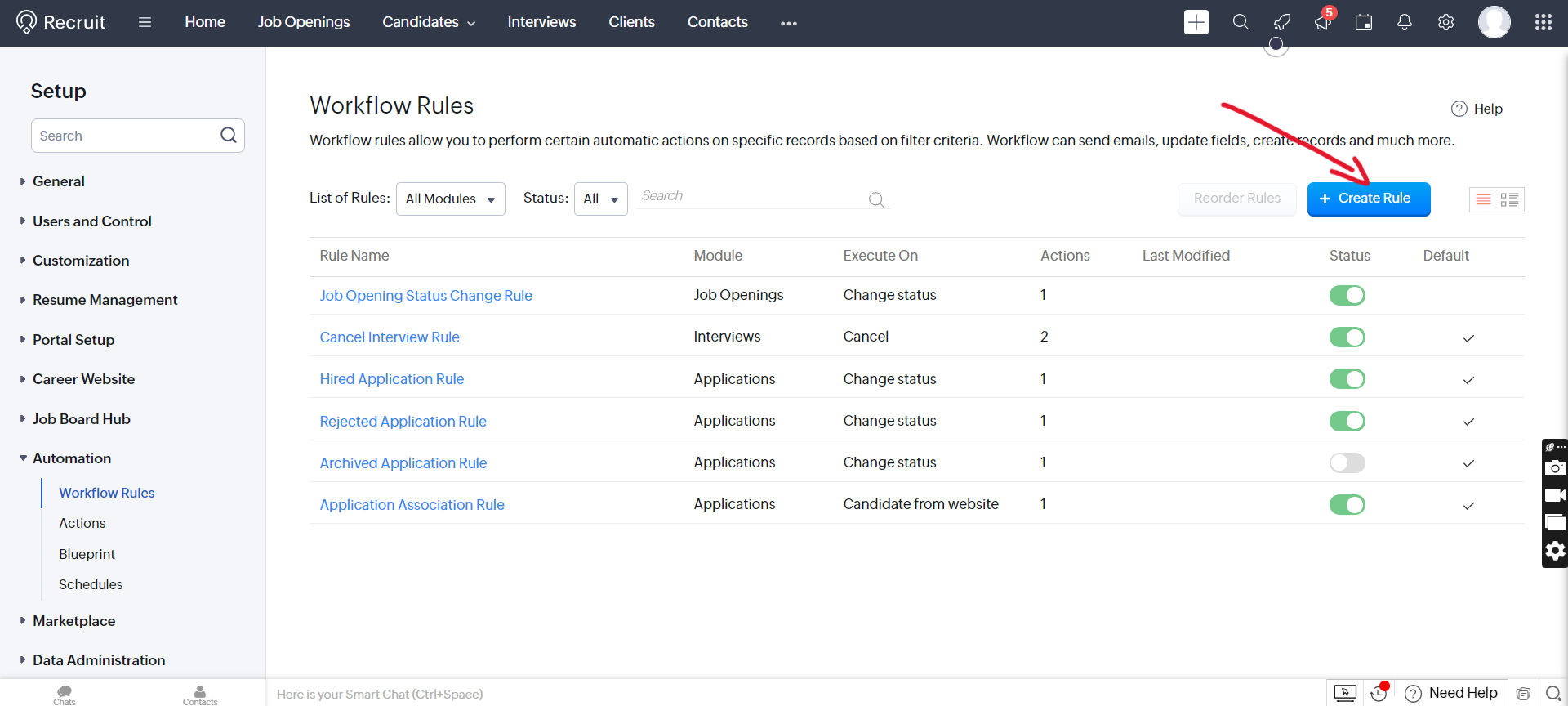
- Click Create Rule on the right.
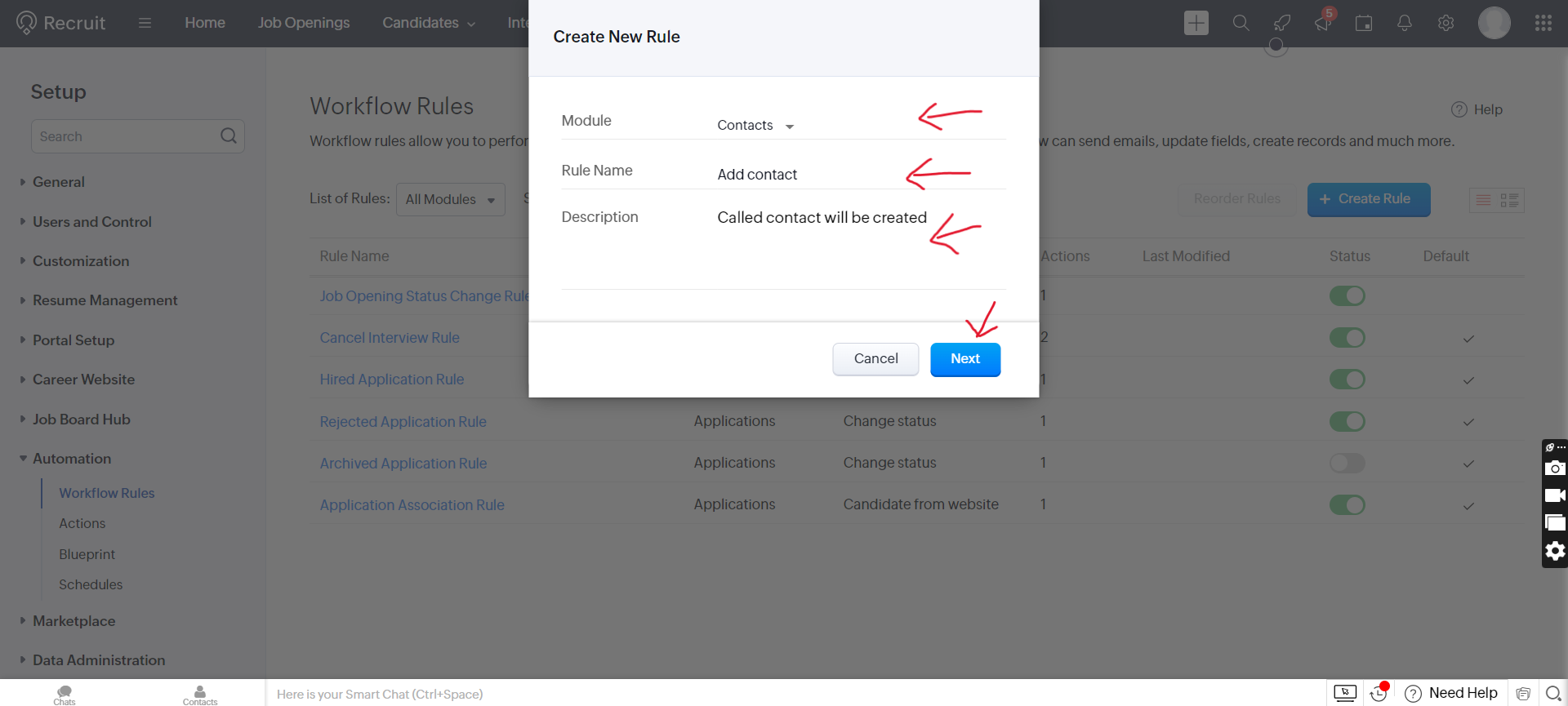
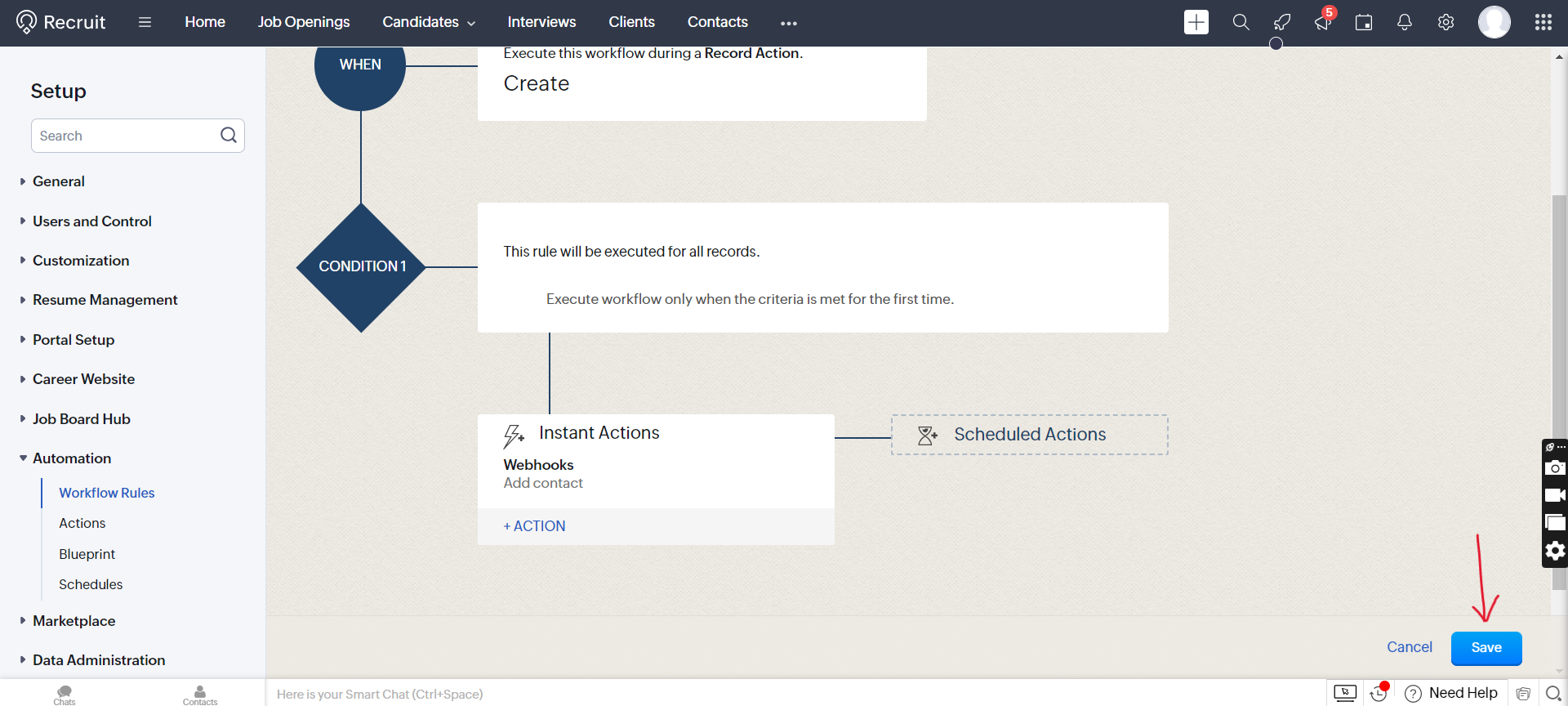
- Set Module to Contacts, name the rule Add contact, add a description, and click Next.
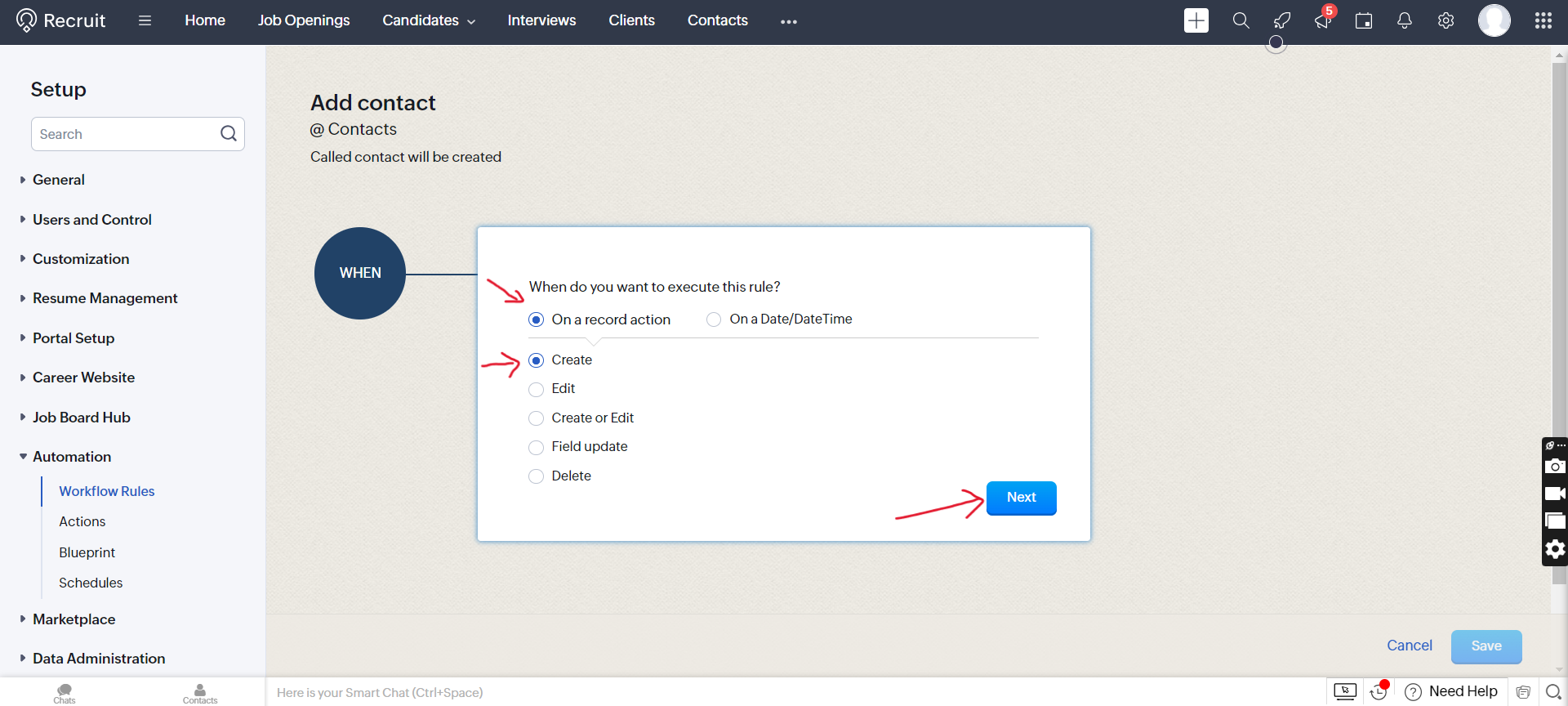
- Under When, select On a Record Action, choose the Create action, and click Next.
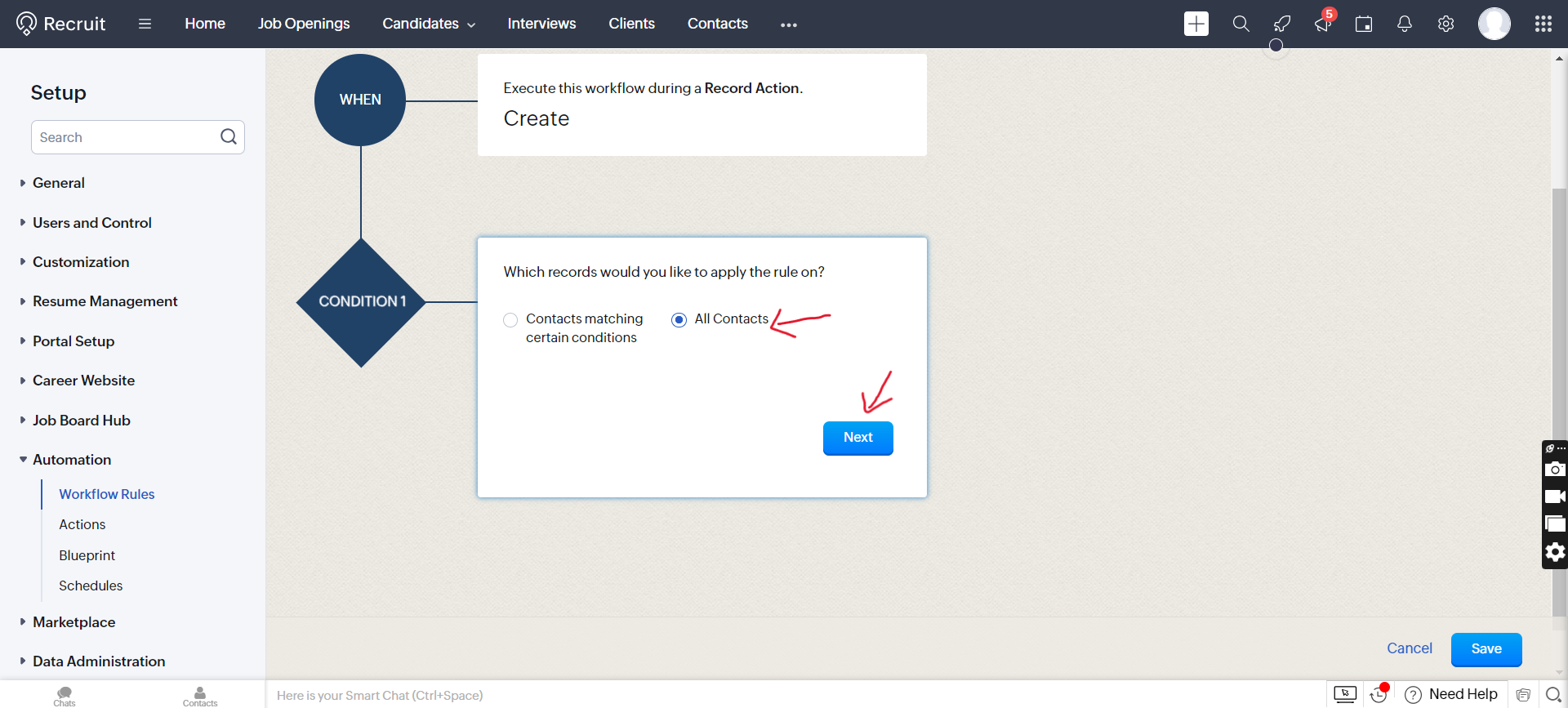
- Under Condition 1, select All Contacts and click Next.
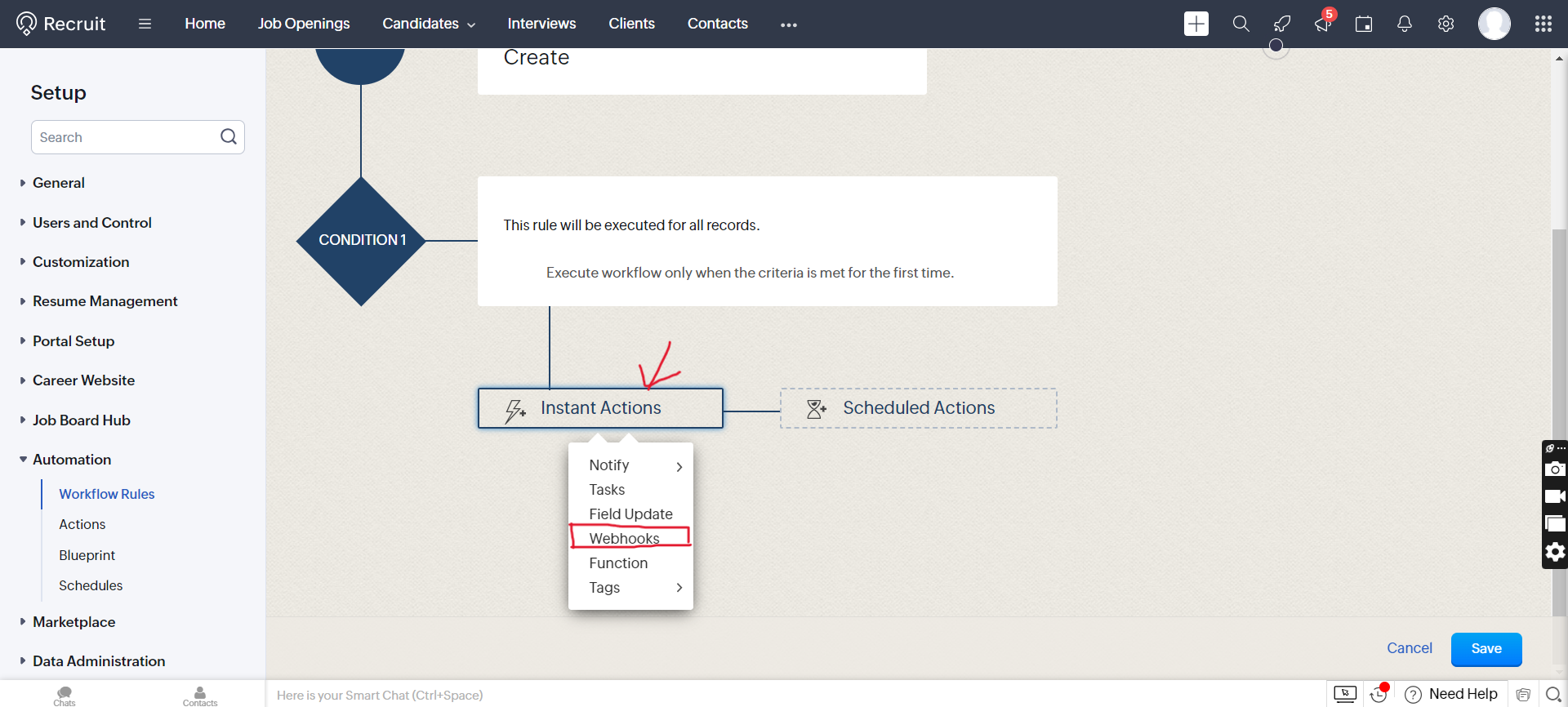
- From the Instant Actions dropdown, click Webhooks.
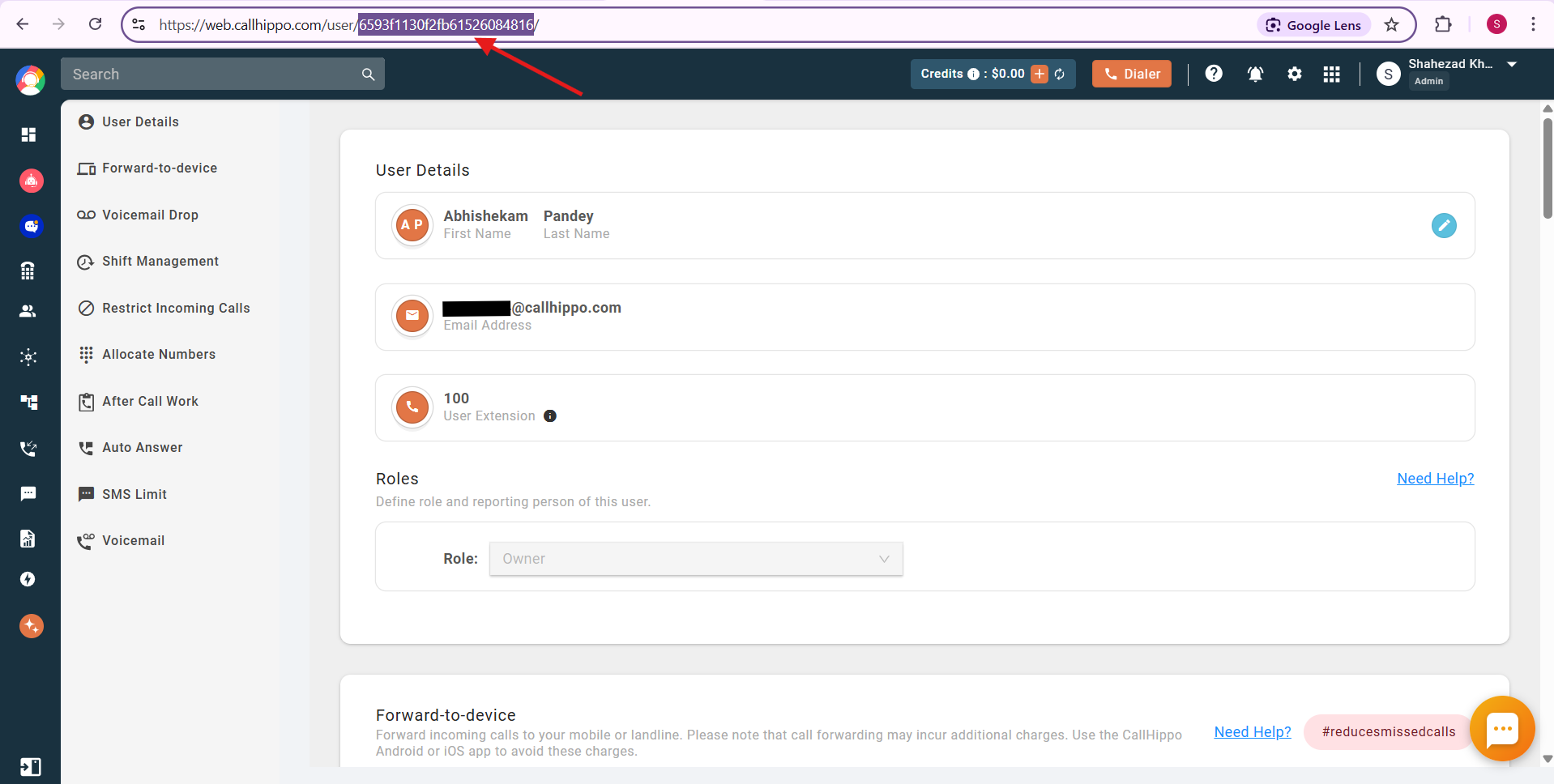
- You’ll need your CallHippo user ID. In the CallHippo web app open Users, click your Admin/Main user, and copy the user ID shown in the browser address bar.
- Back in Zoho Recruit, fill in the Call Webhook details:
- Name: Add Contact
- URL to Notify: https://activity.callhippo.com/integration/users/YOUR_USER_ID/zohorecruit/webhook/addcontact (replace YOUR_USER_ID with the ID you copied)
- Method: POST
- Description: Add Contact Webhook
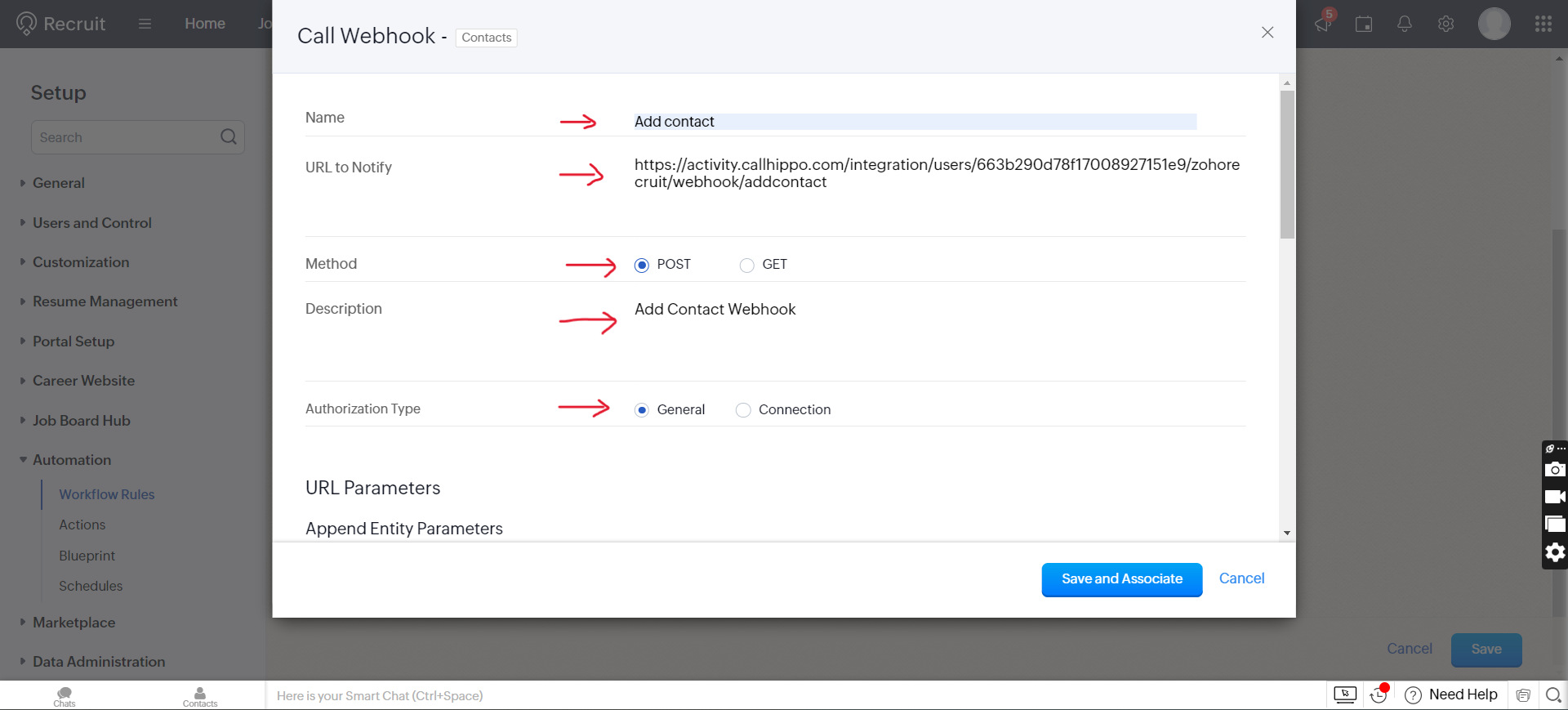
- Add the following URL parameters, then click Save and Associate:
- contactId → Contacts → Contact Id
- contactEmail → Contacts → Email
- contactFirstName → Contacts → First Name
- contactLastName → Contacts → Last Name
- contactMobile → Contacts → Mobile
- contactPhone → Contacts → Work Phone
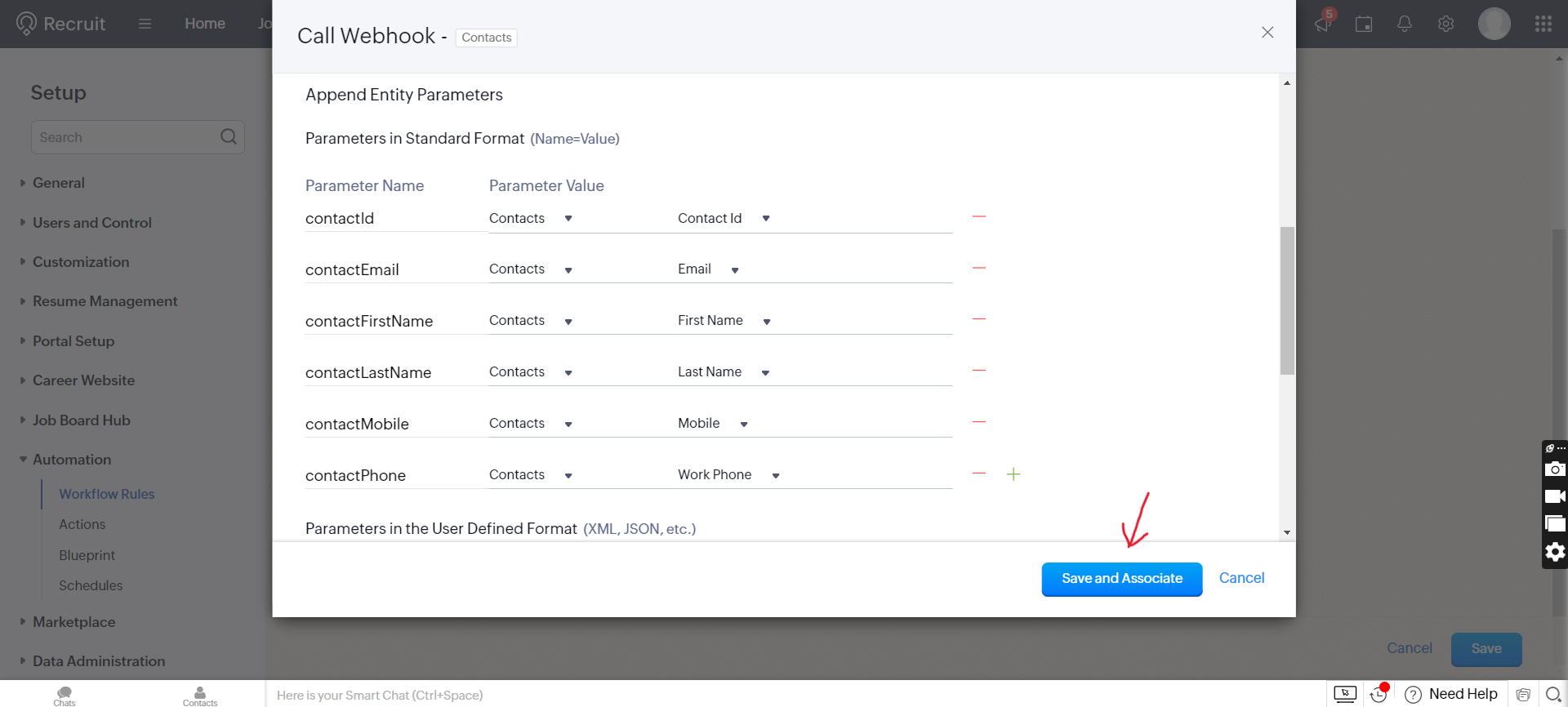
- Click Save to finish the rule. Your Add Contact webhook is created.
Create Update, Delete, and Candidate webhooks
Repeat the steps above to create the remaining webhooks so contact changes and candidate records also sync.
- Update Contact: Rule name Update Contact, When action Edit, condition All Records. Use the notify URL ending in
/zohorecruit/webhook/updatecontactwith the same URL parameters as Add Contact. - Delete Contact: Rule name Delete Contact, When action Delete, condition All Records. Use the notify URL ending in
/zohorecruit/webhook/deletecontactand the parameter contactId → Contacts → Contact Id. - Add/Update/Delete Candidate: Replicate the contact webhooks for the Candidates module. In the field mapping, add one extra custom parameter: isCandidate = true.

How it works and enabling Click to Call
- On successful integration, existing contacts and candidates with at least one phone number sync into the CallHippo dialer as contacts on Click to Call.
- Any contact or candidate created, updated, or deleted in Zoho Recruit syncs to CallHippo once Click to Call is performed on that record.
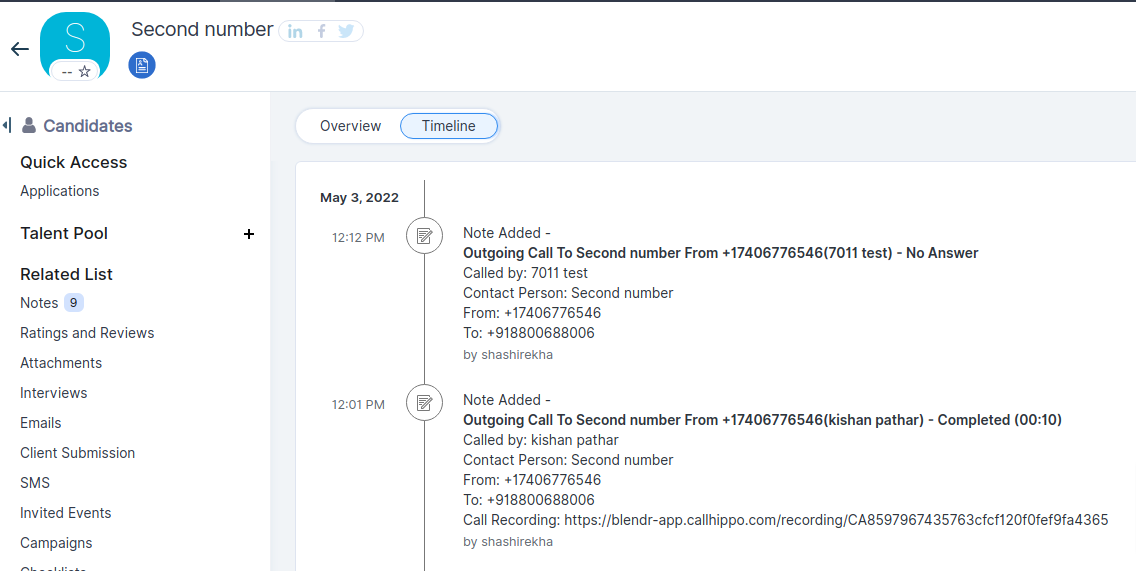
- All calls and SMS done in CallHippo are synced to the contact or candidate timeline.
Call activity can be logged in the Contact Timeline (default) or in To-Do — contact CallHippo support if you’d prefer To-Do.
To place calls directly from Zoho Recruit, install the CallHippo Click-to-Call Chrome extension from the Chrome Web Store.
Frequently asked questions
Why do I need to create webhooks?
Webhooks let Zoho Recruit notify CallHippo when a contact or candidate is added, updated, or deleted, keeping your dialer contacts in sync.
Do bulk uploads or bulk deletes sync?
No. Bulk actions in the candidate or contact modules — such as bulk upload or bulk delete — do not reflect in CallHippo.