Call tracking shows you how callers found your business, so you can tie phone calls back to the exact marketing channel, campaign, or keyword that drove them.
What Is Call Tracking?
Call tracking is the process of determining how callers found your business. Marketing and sales teams use it to attribute phone calls to the specific marketing channels that led callers to ring your business. By knowing what makes your phone ring, you can measure the success of your advertising and optimize future campaigns.
With CallHippo’s call tracking, you know the answer to “How did you hear about us?” before you even pick up the phone, including which ad, campaign, or keyword got the caller’s attention.
How to Enable Call Tracking
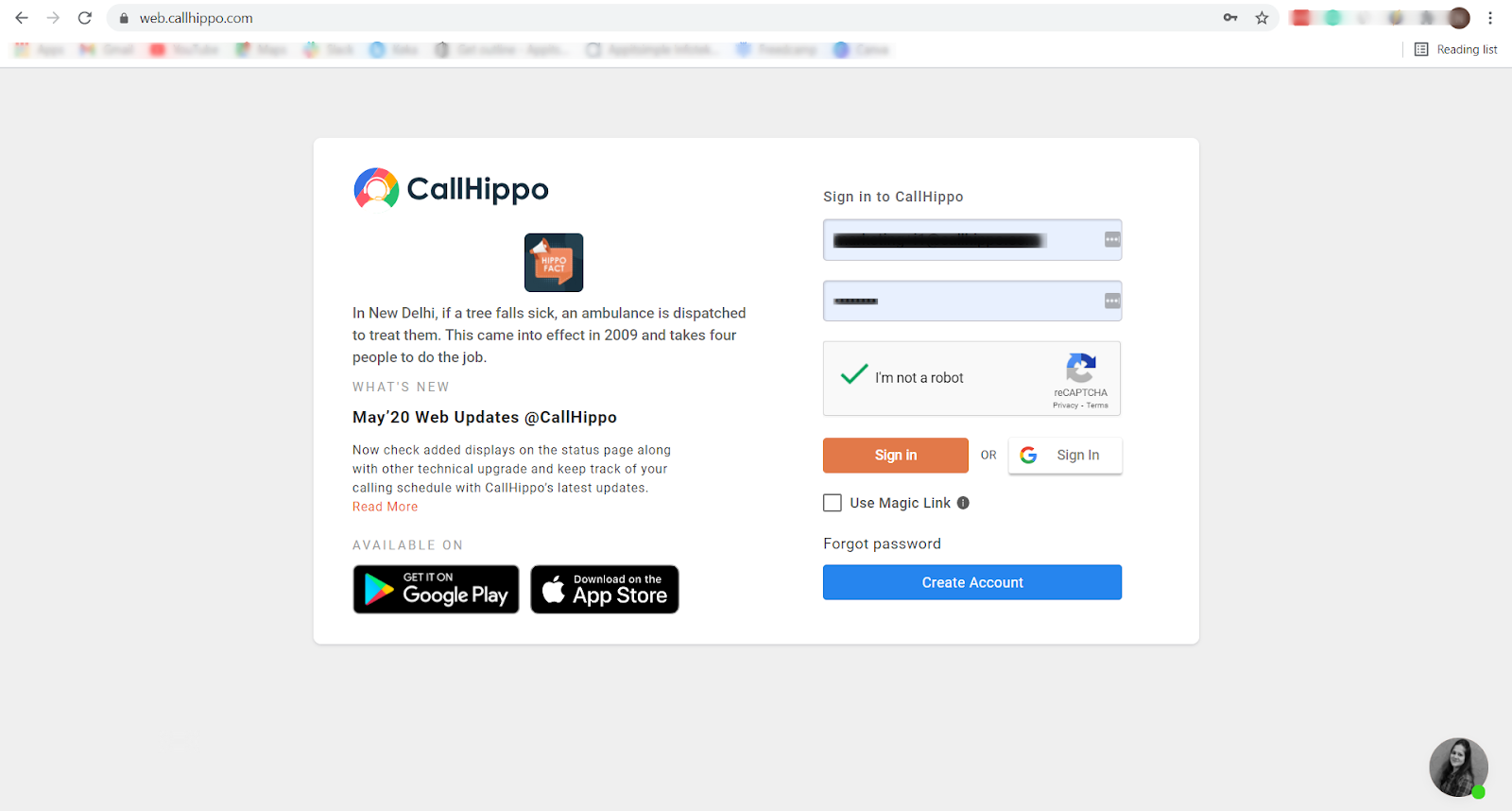
- Log in to web.callhippo.com.
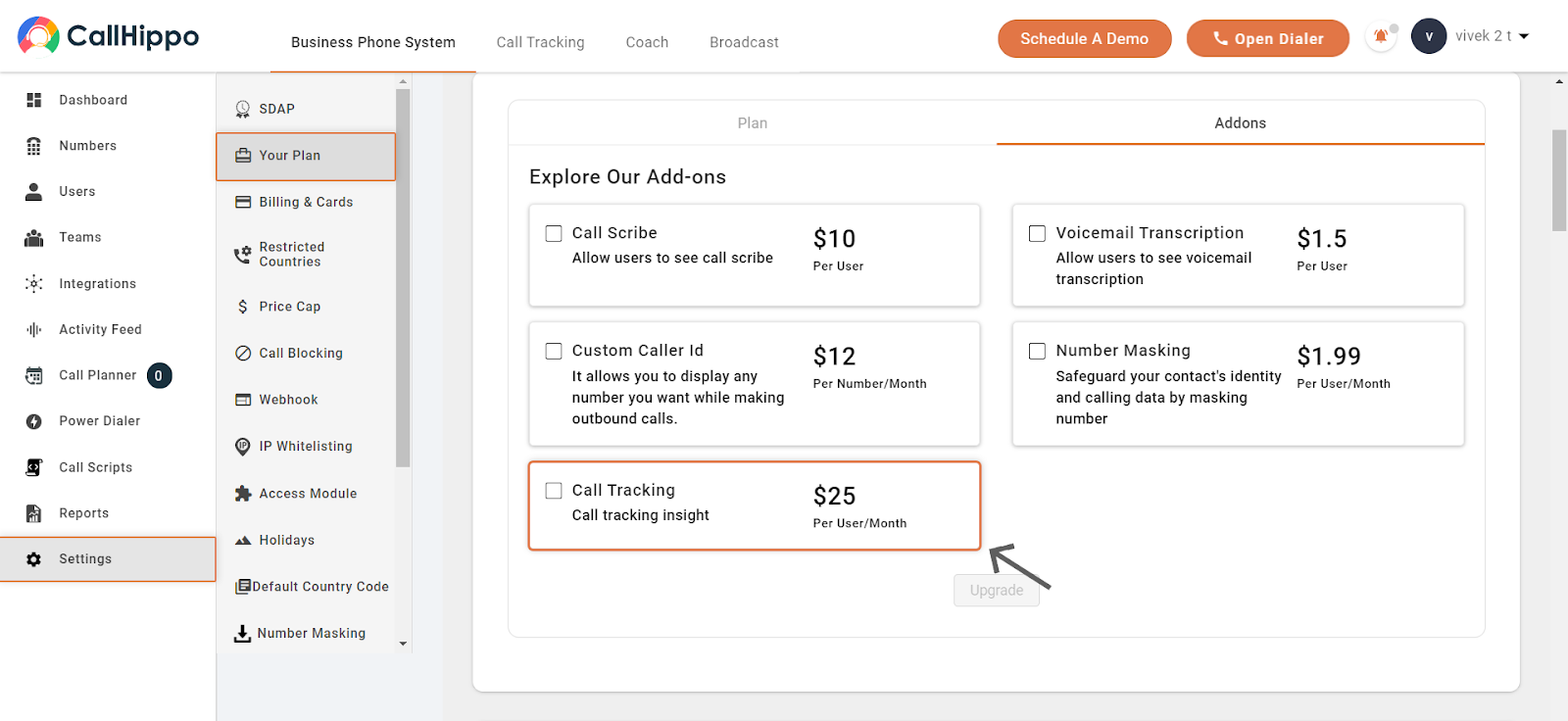
- Add the add-on. Go to Settings, click Add-on, and select the Call Tracking add-on. Call Tracking is now enabled.
Set Up the Google Ads Integration
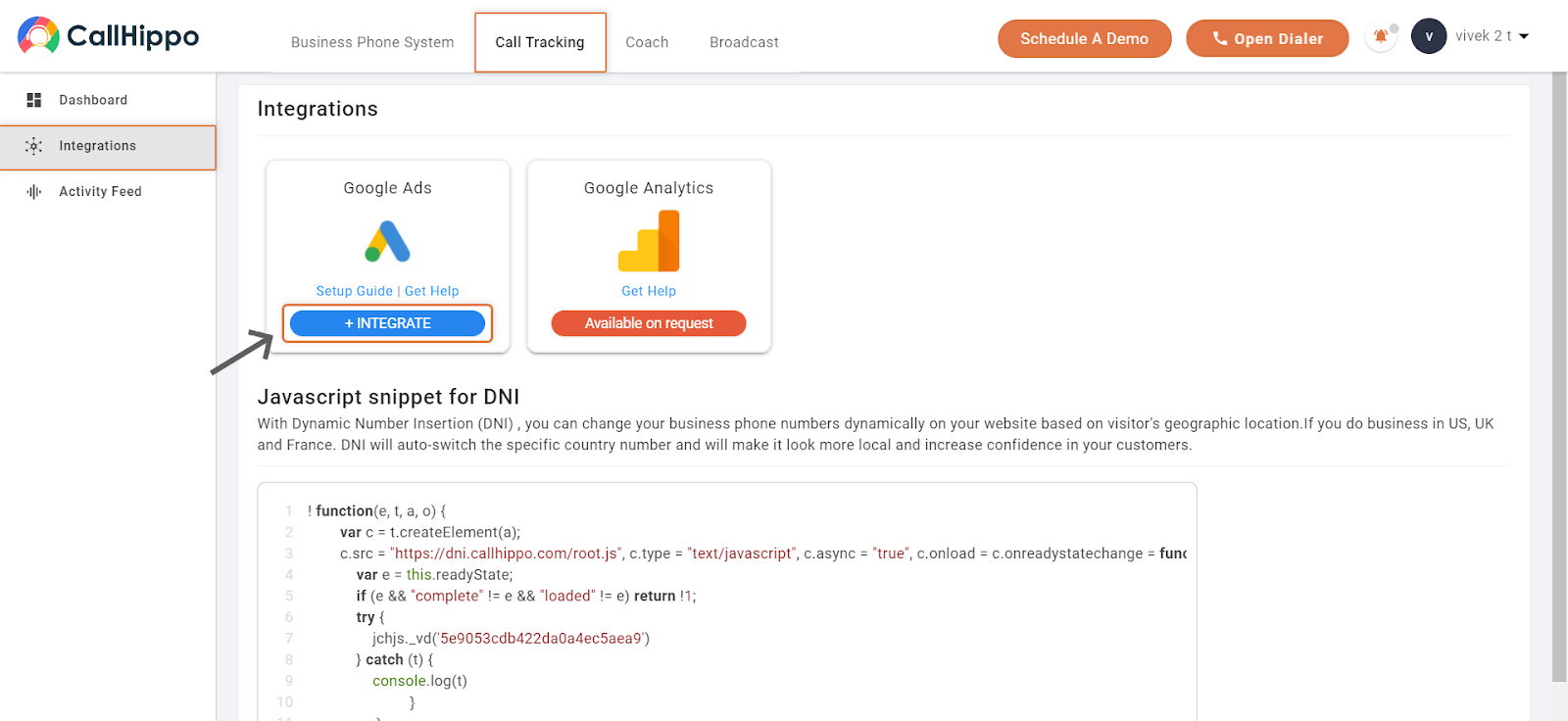
- Open Call Tracking. Once the feature is enabled, click the Call Tracking button at the top of the dashboard, then go to Integration > Google Ads and click Integrate.
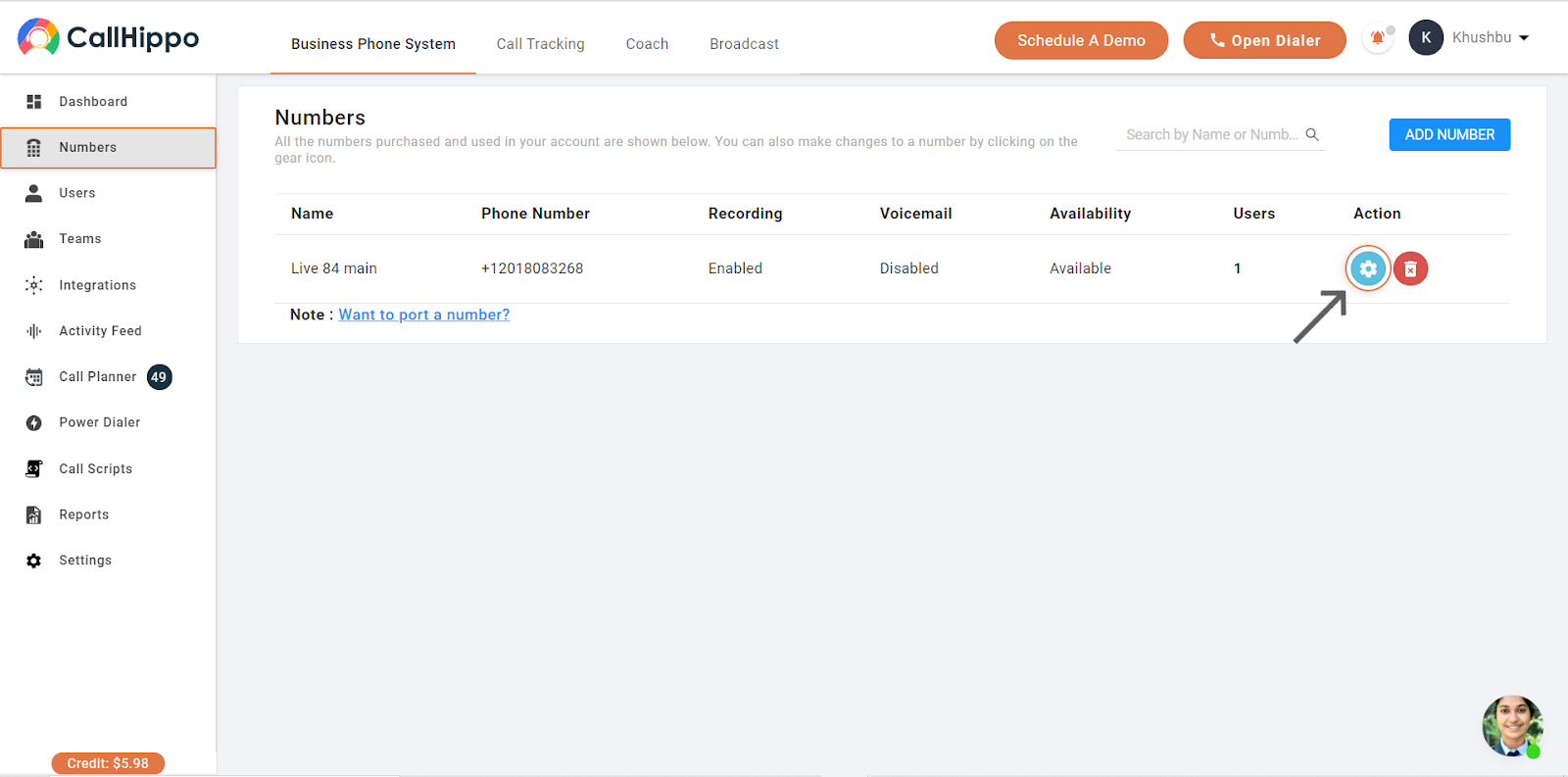
- Choose a forwarding number. Go to Numbers in the left panel and open the number’s settings.
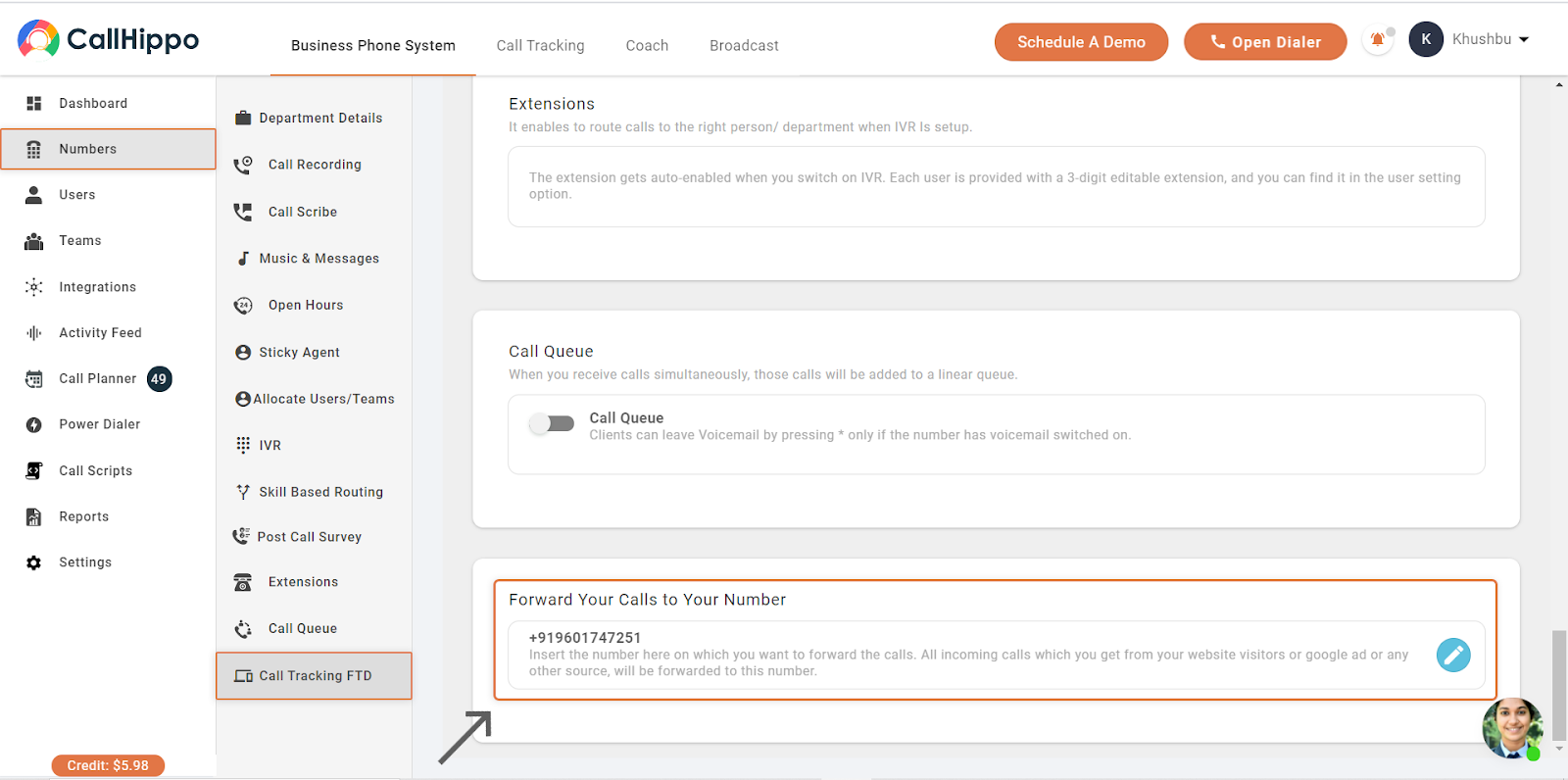
- Set the forward number. Open Call Tracking FTD and add your number in the Forward Your Calls to Your Number field. Incoming calls from your website visitors or Google Ads will be forwarded here.
- Add the Call Me script to your landing page. When a Google Ad visitor clicks through to your landing page, this JavaScript lets them submit a number and request a callback, which rings the forwarding number you set.
Track Keywords and Campaigns with a Tracking Template
To display each caller’s keyword data on the activity feed, add a tracking template to your Google Ads campaign.
- Log in to Google Ads and select All campaigns.
- Click Settings on the left, then Campaign settings at the top.
- Tick the checkbox next to any campaign where you want to add the tracking template.
- Open the Edit dropdown and click Change tracking templates.
- Keep Set the tracking template selected, then type
{lpurl}(which represents your final URL) followed by your template. - Paste this into the tracking template field:
{lpurl}?utm_campaign={_campaign}&utm_adgroup={_adgroup}&utm_keyword={keyword}&utm_content={creative}&utm_device={device}&utc_matchtype={matchtype}&utc_network={network}&utc_adposition={adposition} - Click Apply to save your tracking template.
View Call Activity and Attribution
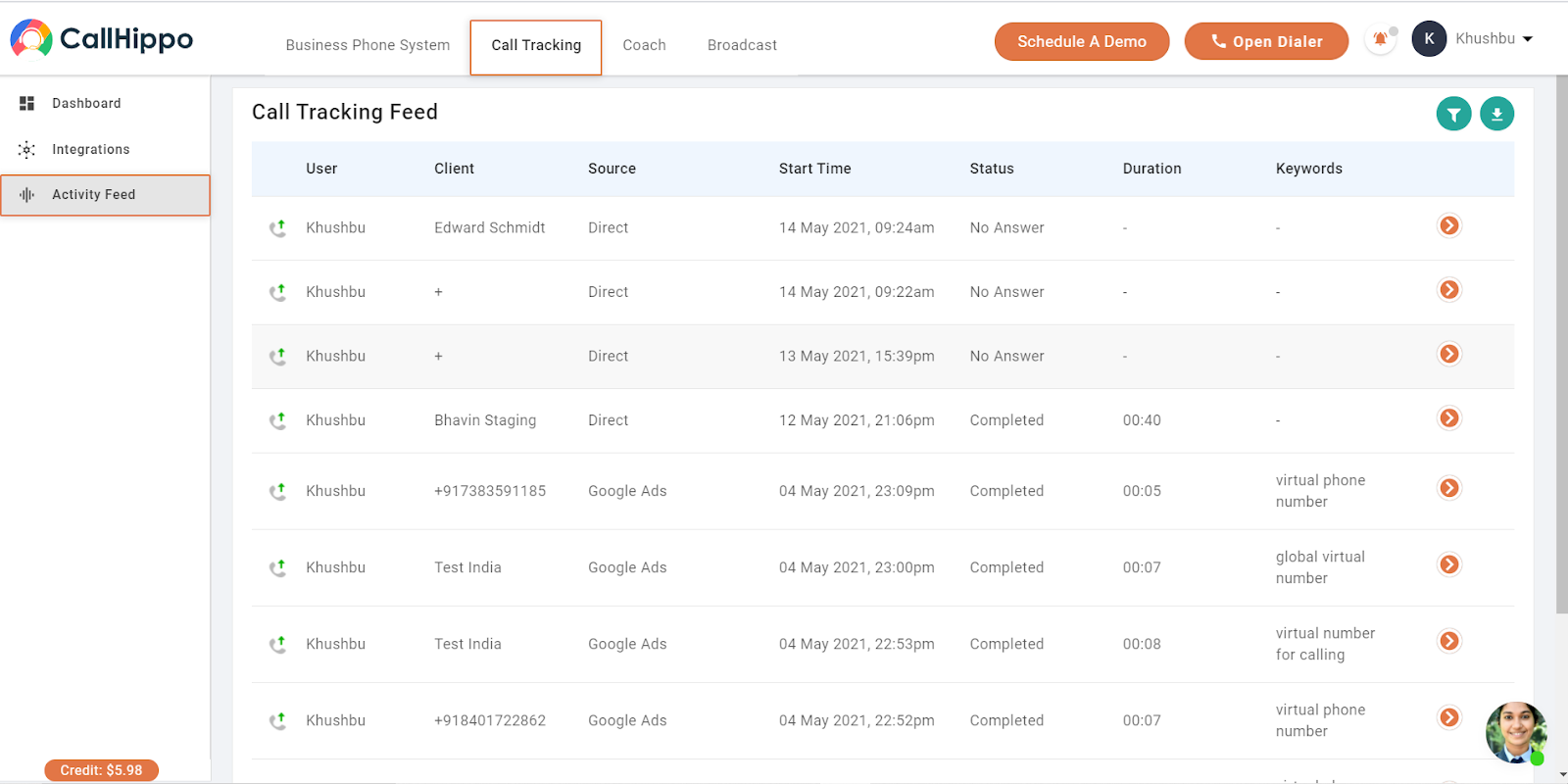
All call activity appears in the activity feed, with the source, status, duration, and matched keyword for each call.
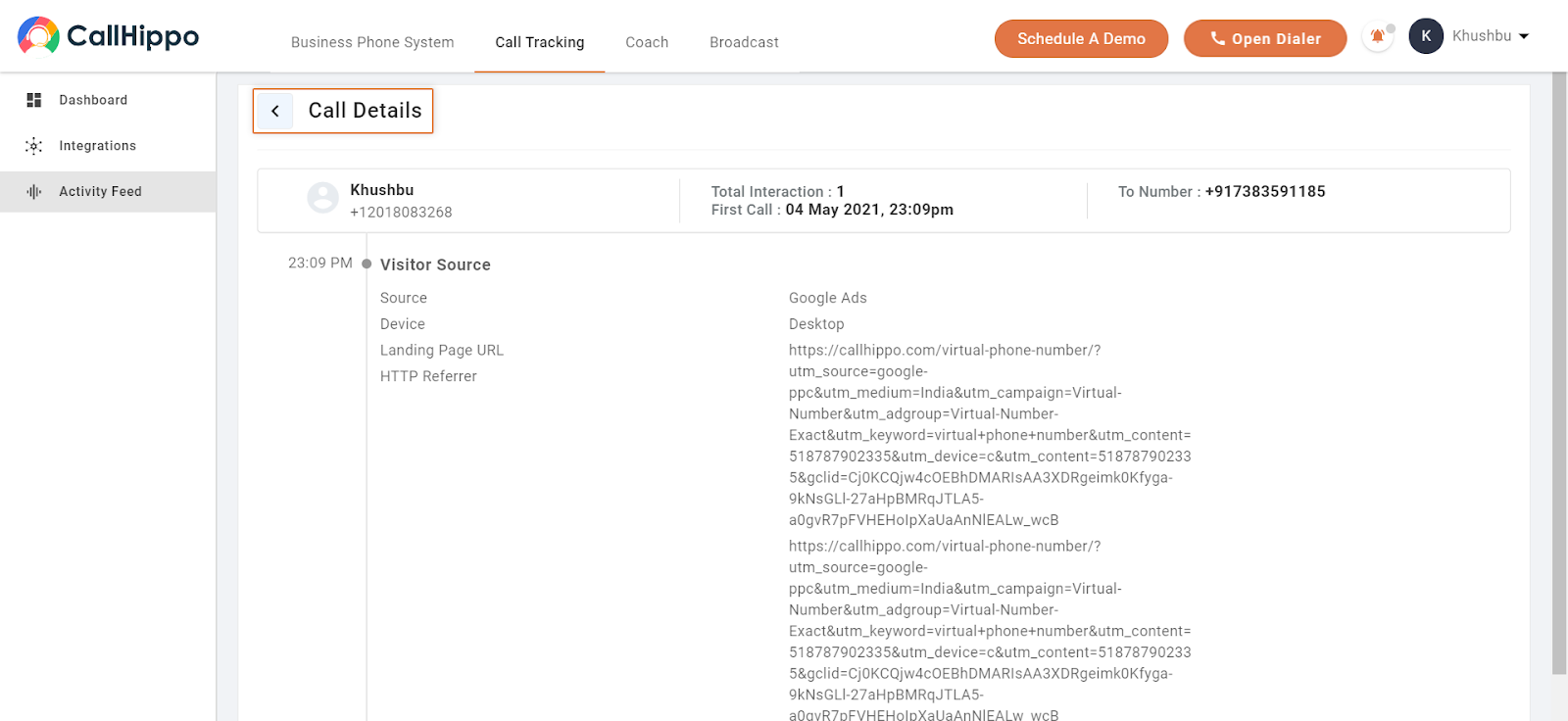
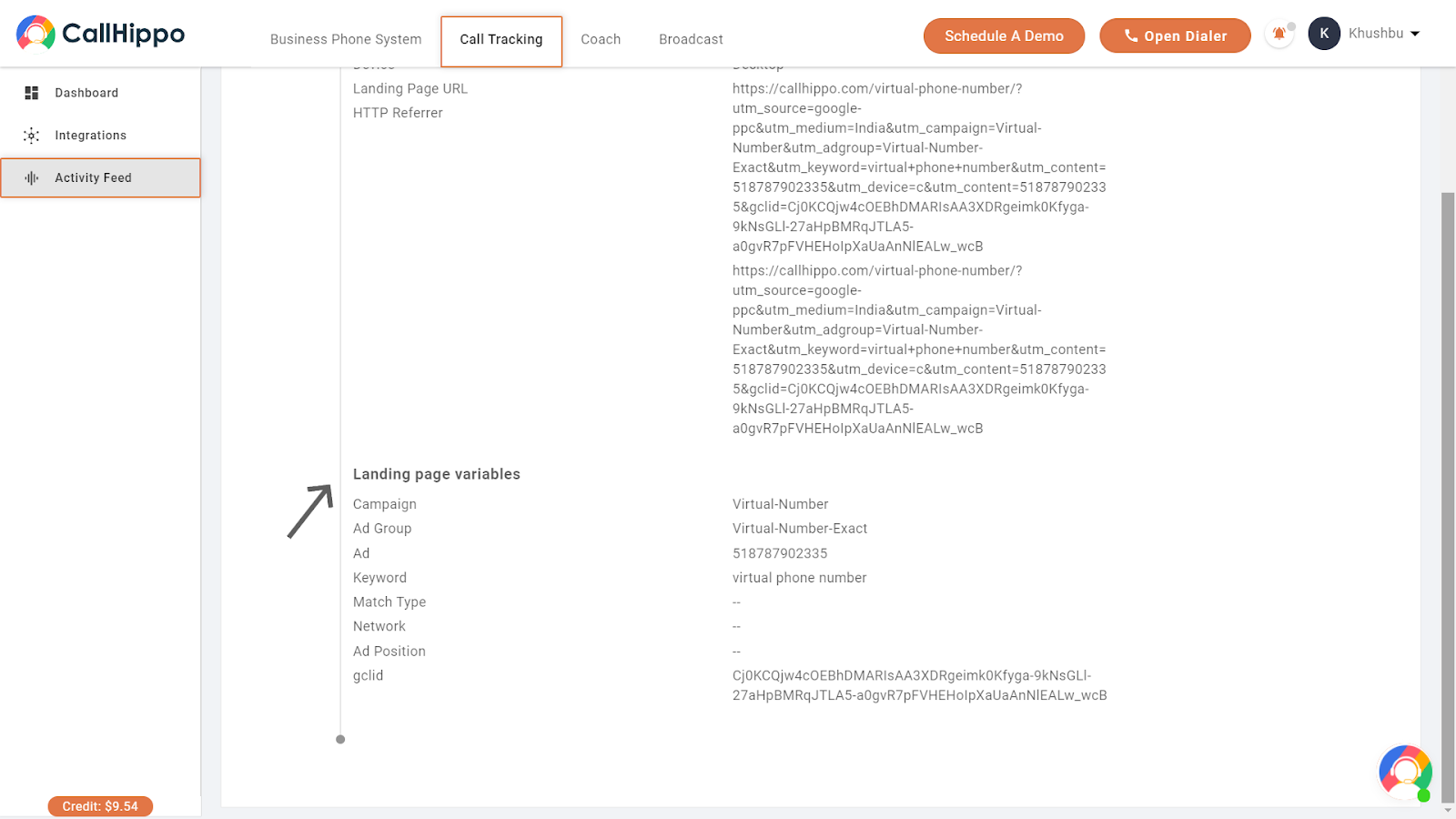
Open a call to see its full attribution, including the visitor source, device, landing page URL, and the campaign, ad group, keyword, and gclid captured from Google Ads.
Sync Conversions and Values to Google Ads
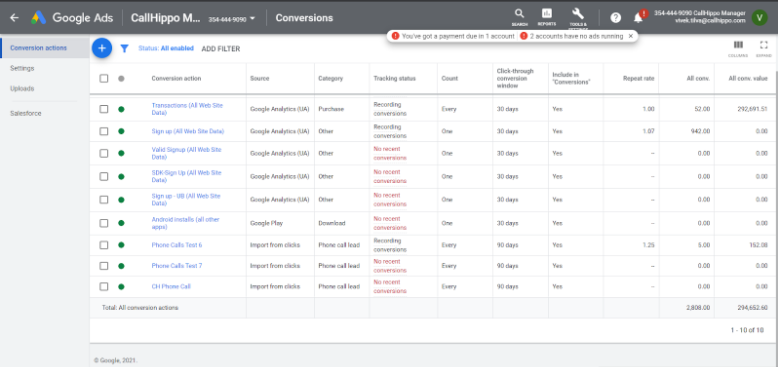
Every call generated through Google Ads is marked as a conversion in your Google Ads account.
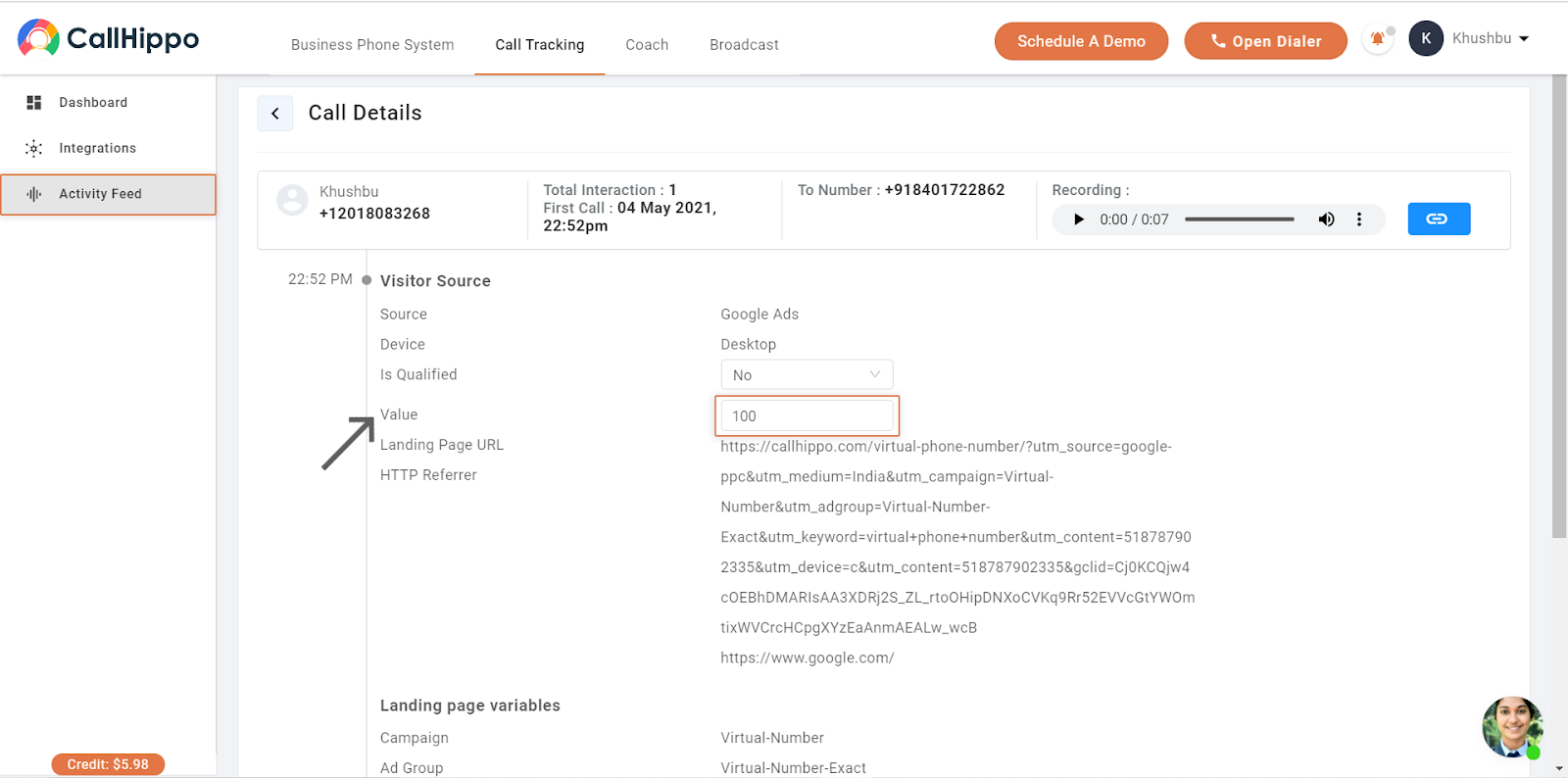
To attach a monetary value to a call, open the call in the Activity Feed, go to the Value option, and enter a value (for example, 100). The value updates in your Google Ads conversion data within 24 hours.
Reports and Charts
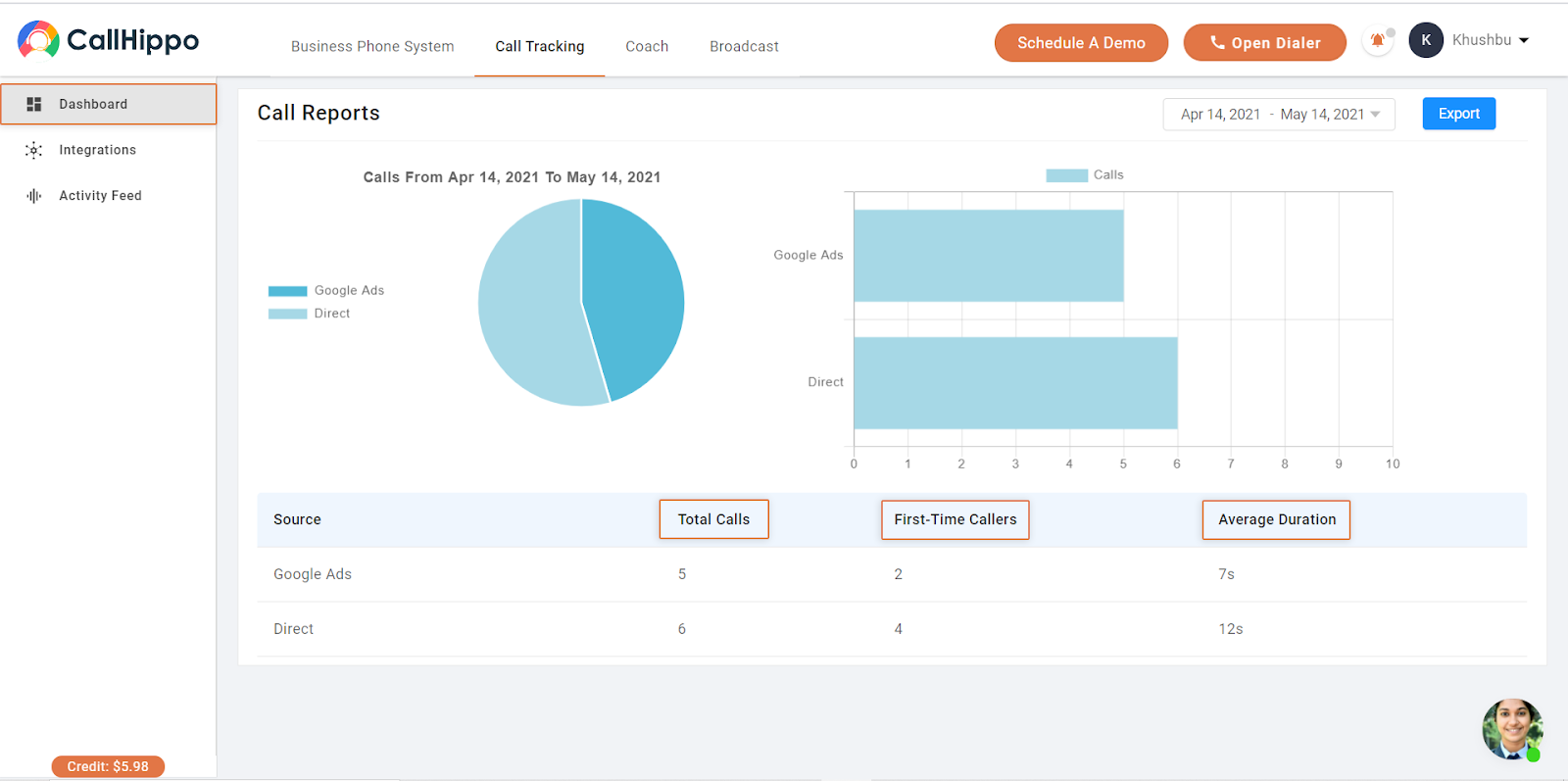
Go to Call Tracking > Dashboard to view charts and totals for Total Calls, First-Time Callers, and Average Call Duration, broken down by source so you can compare Google Ads against direct traffic.