
Tracking call status helps you monitor call activity, spot missed opportunities, and resolve issues faster. CallHippo provides clear call status labels for both incoming and outgoing calls, so you always know what happened to each call. Below is a simple breakdown to help you understand each status and where to find it.
Incoming Call Statuses
These statuses apply when customers call your team.
| Status | What it means |
|---|---|
| Completed | Call was answered successfully by an agent. |
| Missed | Call was not answered, or the caller disconnected before pickup. |
| Rejected | Agent declined the call (for example, spam). |
| Voicemail | Caller left a voicemail message. |
| Unavailable | The number or agent was not reachable. |
| IVR | Caller disconnected while the IVR message was playing. |
| Welcome Message | Caller hung up during the welcome message. |
| Call Not Set-Up | Call came in outside business hours due to custom availability settings (download call logs to see exact details). |
| User Not Available | Agent could not be reached (logged out, app closed, or unavailable). |
| Number Not Available | Number is unreachable (set to always closed or custom closed). |
Outgoing Call Statuses
These statuses apply when your team calls customers.
| Status | What it means |
|---|---|
| Completed | Customer answered the call successfully. |
| No Answer | Customer did not pick up the call. |
| Rejected | Customer declined the call during ringing. |
| Canceled | Agent ended the call before it was answered (number busy, invalid, or restricted). |
| Failed | Call could not connect due to an issue on the receiver’s end. |
Where to Check Call Status
You can view all call statuses by navigating to Call Logs in your CallHippo dashboard. Each call entry clearly shows its status, helping you track and analyze call outcomes easily.
- Log in to your CallHippo dashboard.
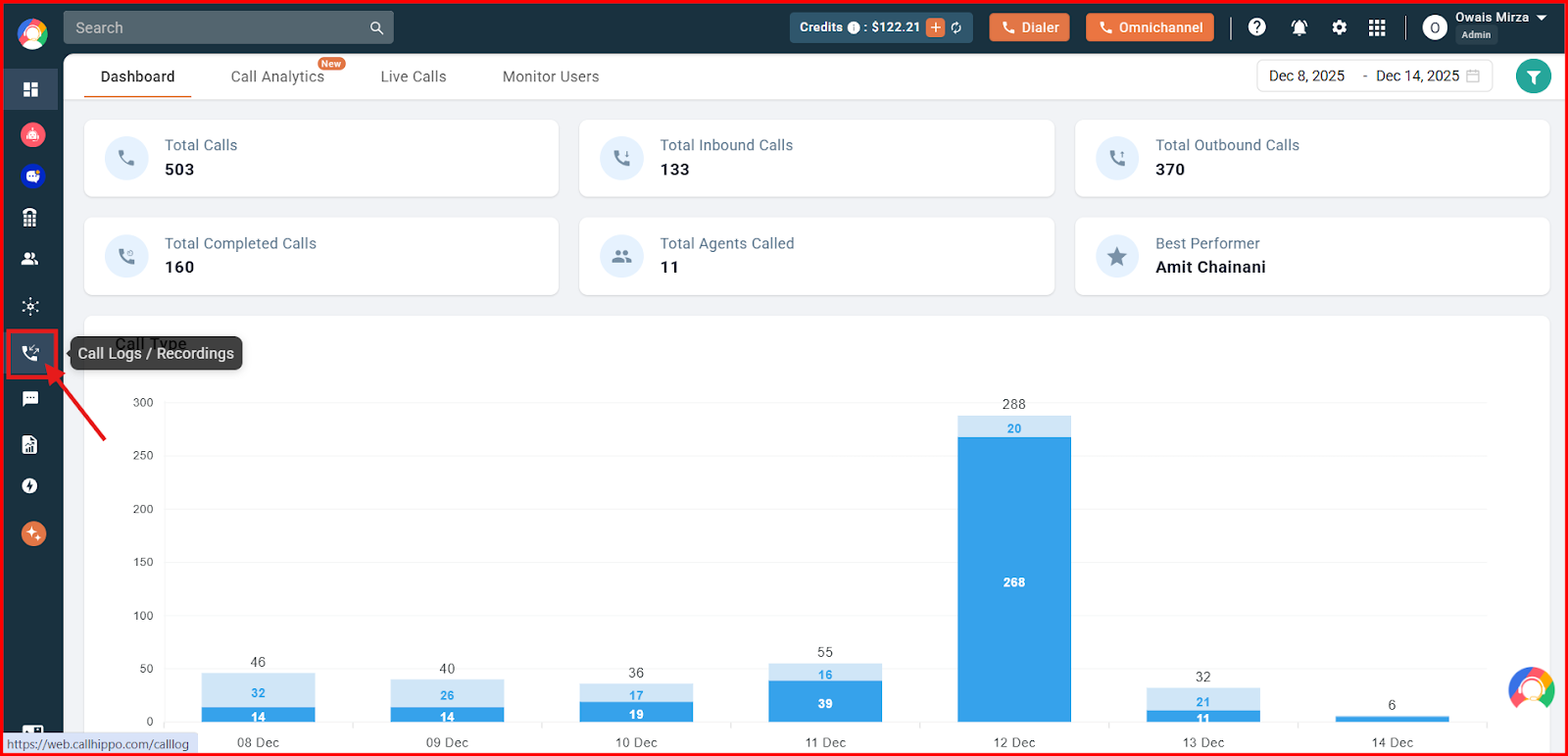
- Click on the Call Logs / Recordings section on the left side of the dashboard.
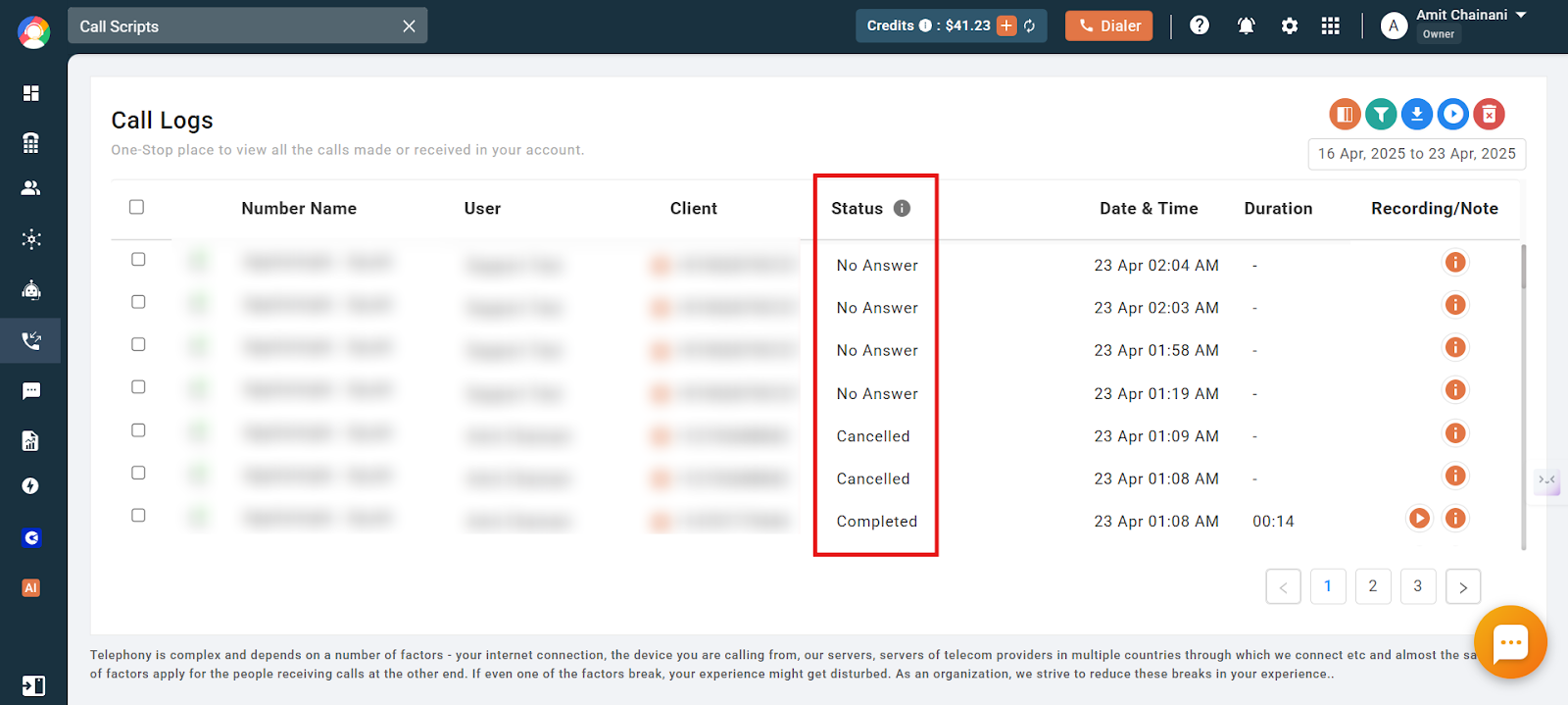
- The Status column shows the status of the calls made.
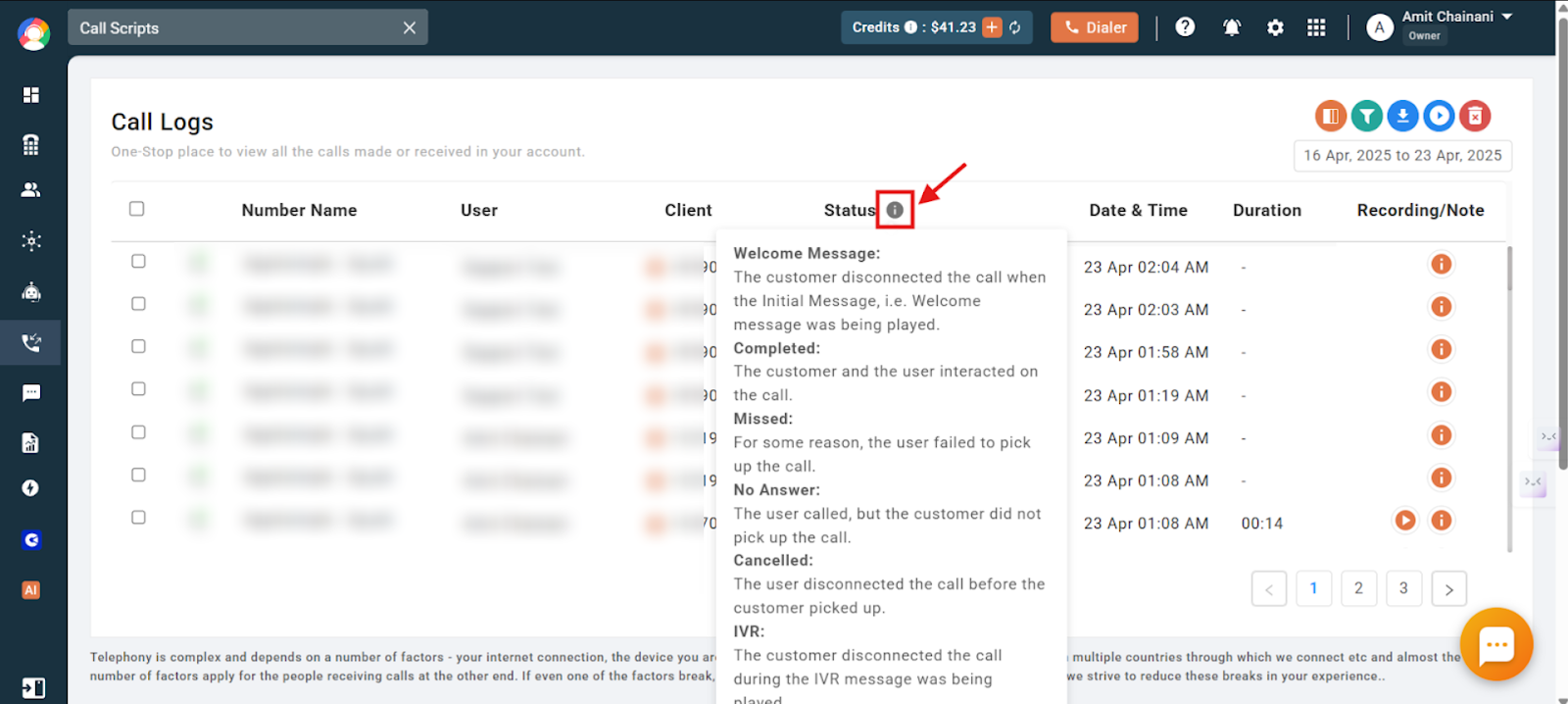
- To see the meaning of all call statuses directly from the Call Logs section, click the “i” icon and scroll down to view the different call statuses.
Filter Calls by Status
You can filter the calls in your call logs based on their call status.
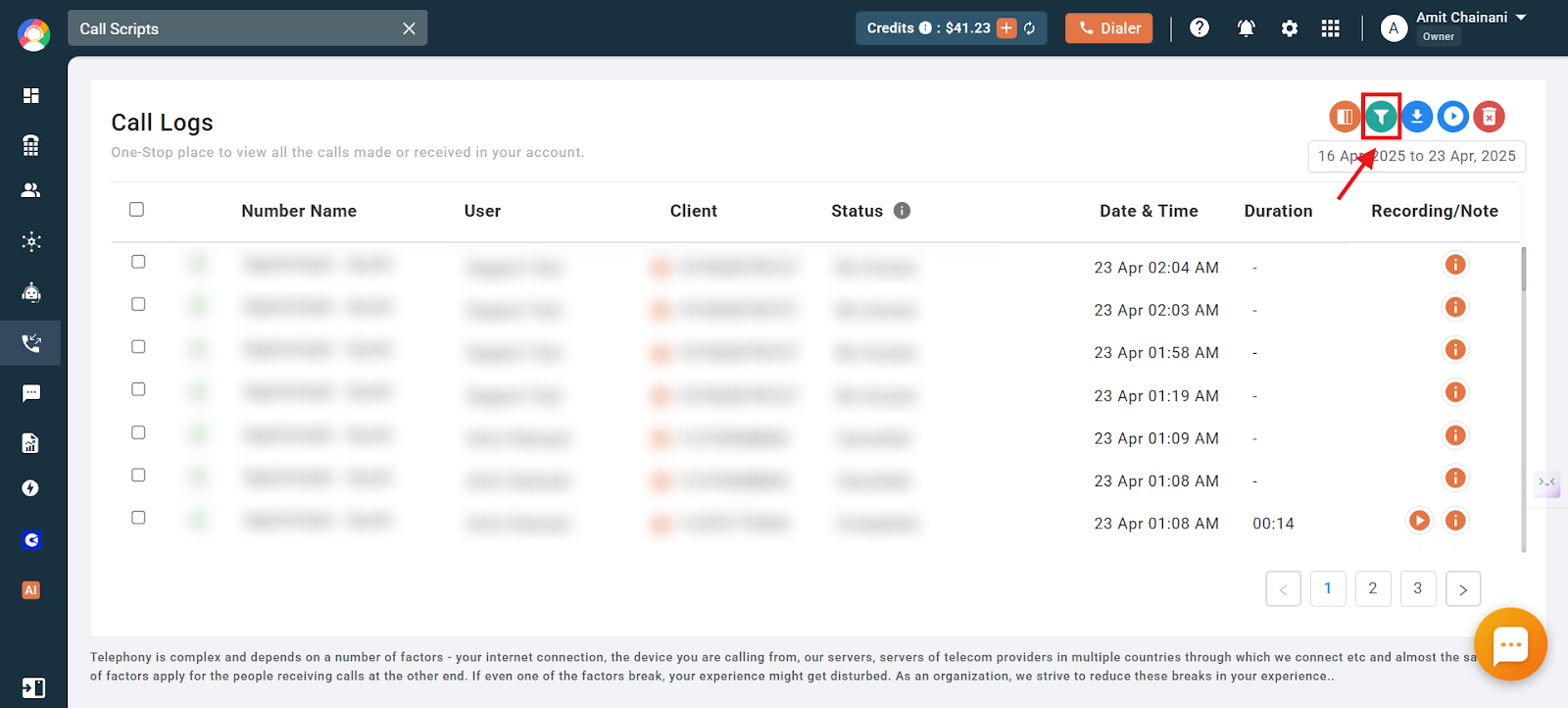
- Click the filter option visible in the Call Logs section.
- Click the status you want to select, then click Apply.
Note: For the Call Not Set-Up status, you can view the detailed reason by clicking the “i” icon next to the status.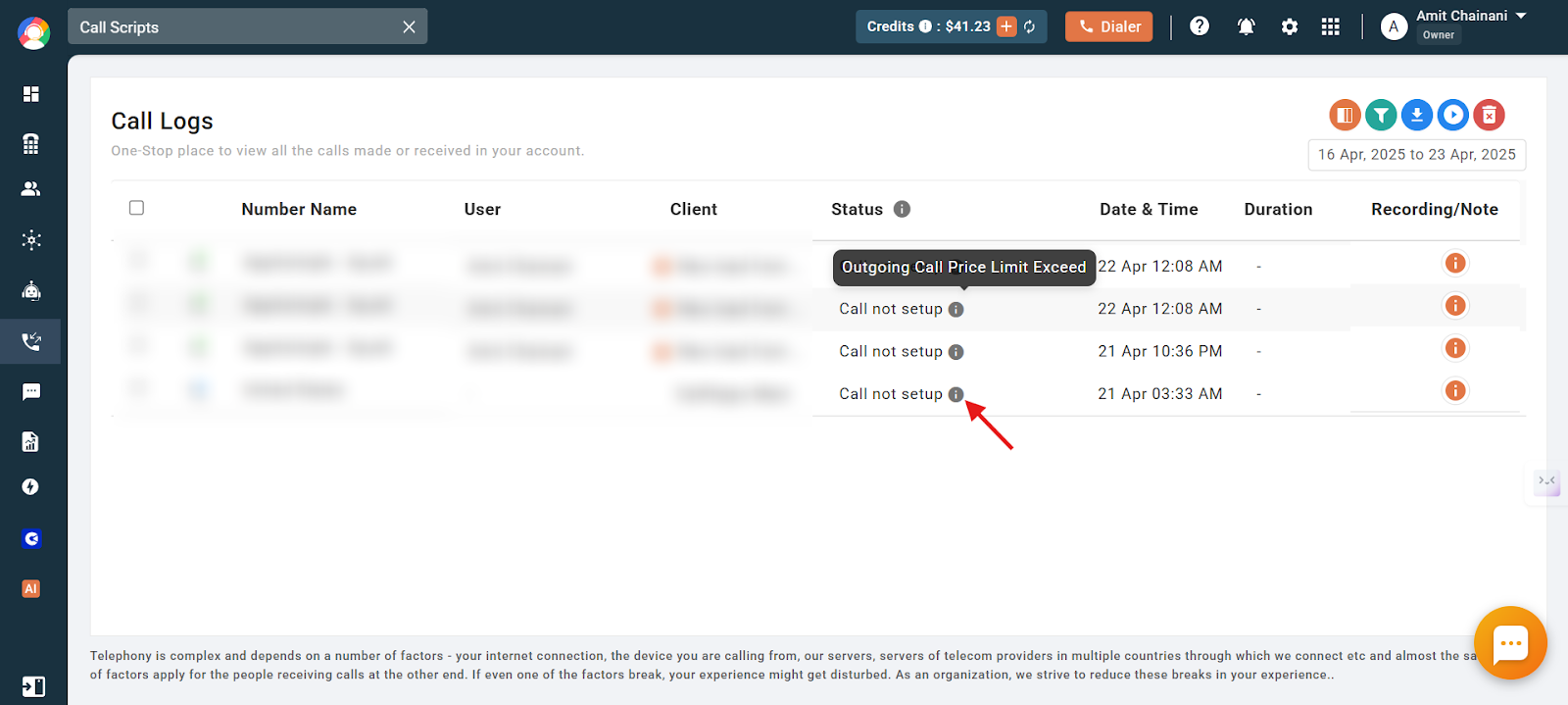
Frequently Asked Questions
How can I find out why a call status says “Call Not Setup”?
Click the “i” icon next to the status in the call logs to view the detailed reason.
Can I filter calls based on their status in the CallHippo dashboard?
Yes. Use the filter option in the call logs to select and apply the call status you want to view.
How can I better understand all the call statuses while viewing call logs?
Click the “i” icon in the call logs section to see detailed explanations for all call statuses.
The call duration is 1 second and no conversation happened, but the status shows “Completed”. Why?
The “Completed” status indicates that the call was successfully connected — that is, the receiver picked up. Even if the duration is very short (for example, 1 second), it is still marked “Completed” if the call was answered. It does not necessarily mean a conversation took place, only that the recipient accepted the call.
What does a “Missed” status with the reason “Welcome Message” mean?
It means the incoming call was marked “Missed” because the customer hung up while the initial welcome message was still playing. The system logs this as a missed call, with the specific reason being that the caller disconnected during the welcome message.
What does “User Not Available” mean in call status?
This status means the call was routed to a team member whose shift availability is set to “Always Closed”, or the call was received outside their configured custom working hours.
What does “Number Not Available” mean in call status?
This status appears when the incoming call is directed to a phone number whose business hours are set to “Always Closed”, or the call came in outside the number’s custom working hours.
We hope this helps. If you still have questions, feel free to reach out at [email protected].