
Call Scripts in CallHippo give your sales and support agents a ready-made conversation guide, helping them handle every call with consistency and confidence. This guide explains what call scripts are, how to create and assign them, and how they appear to agents during live calls.
What is a Call Script?
A Call Script is a ready-made conversation guide that helps sales and support agents handle customer calls smoothly. It includes key talking points, answers to common questions, and step-by-step guidance to resolve issues effectively.
Why use a Call Script?
- Ensures accurate and consistent responses across all calls.
- Reduces call handling time and errors.
- Builds agent confidence.
- Delivers a more professional and seamless customer experience.
Call scripts help your team communicate clearly, confidently, and efficiently on every call.
How to enable Call Scripts in CallHippo
Follow these steps to activate and use Call Scripts in CallHippo:
- Log in to CallHippo: Visit CallHippo and sign in to your account.
- Navigate to the Call Script section: Go to Users and Performance > Call Scripts in the dashboard.
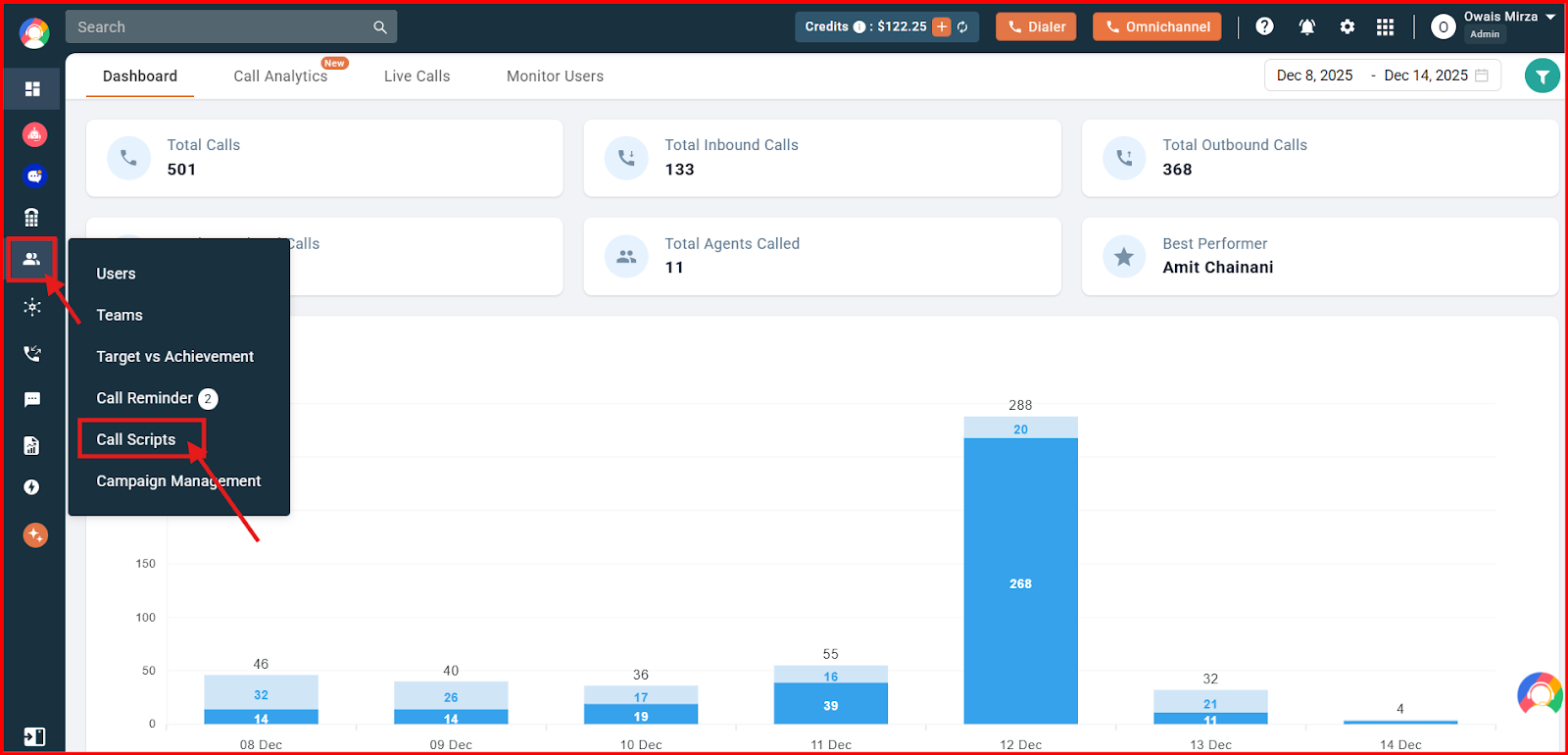
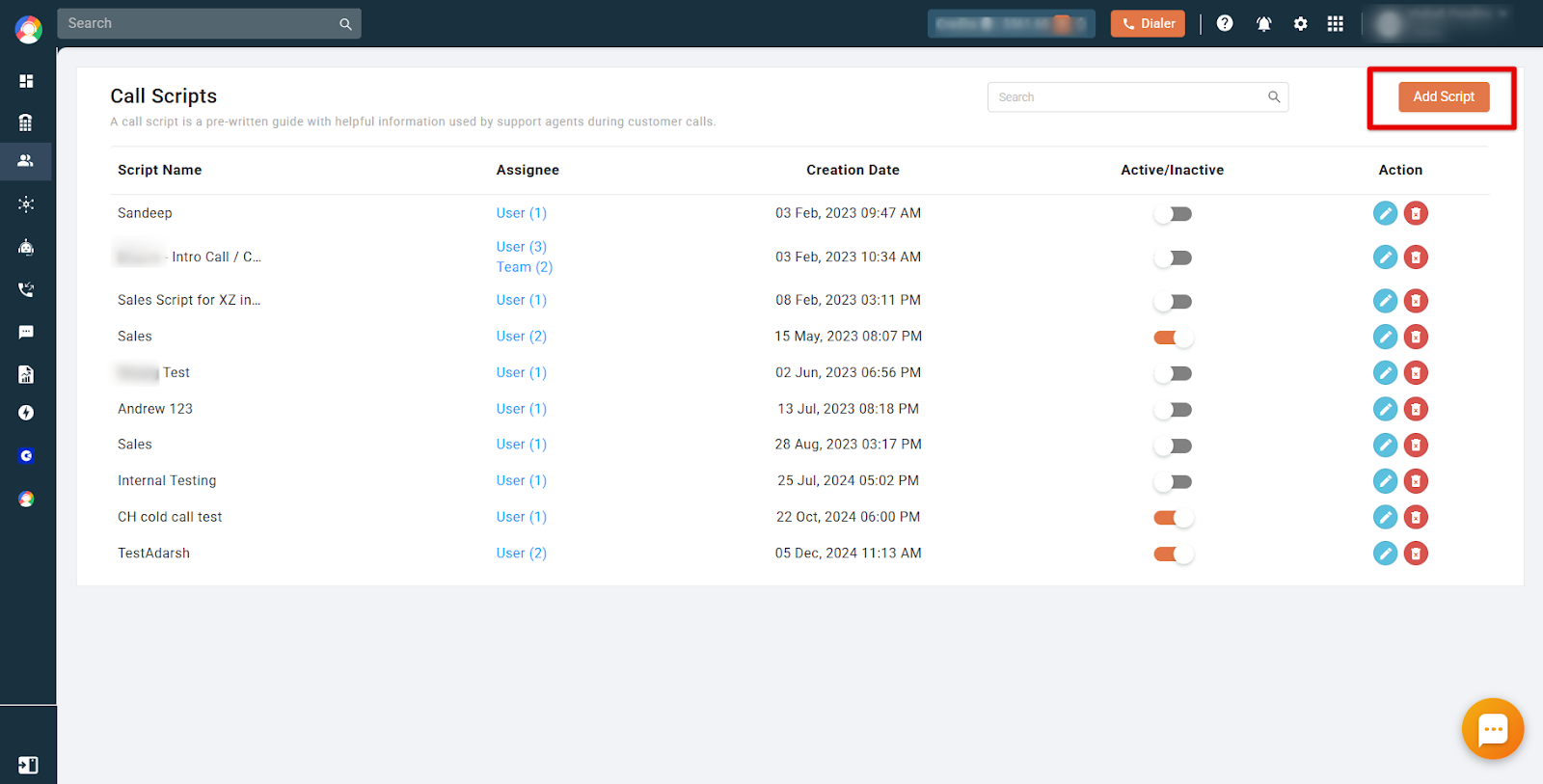
- Add your call script: Select Add Script to create a new script, then customize it according to your business needs.
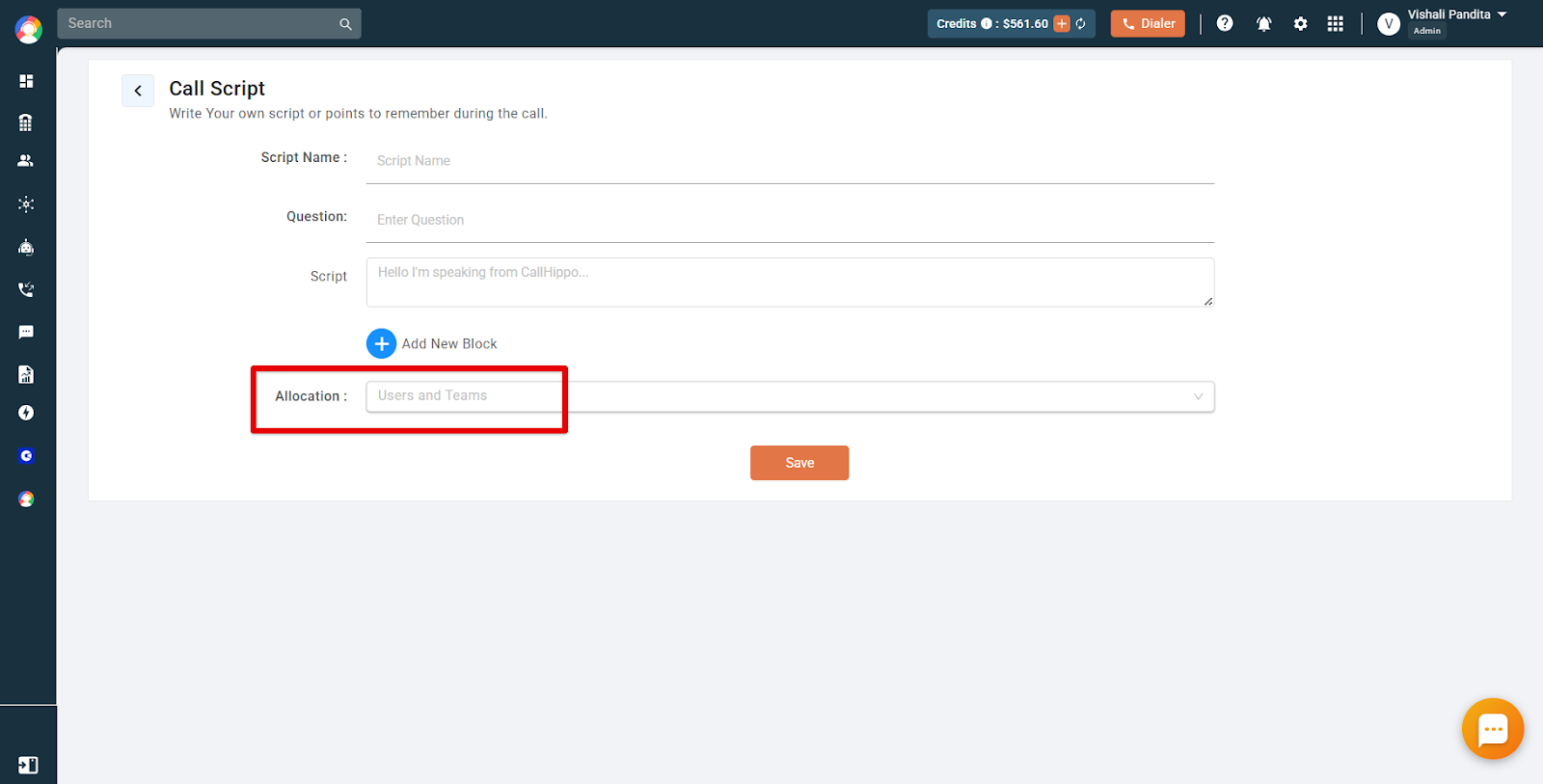
- Add questions and assign to users/teams: Add your preferred questions and script to read during calls, link specific scripts to different teams, and ensure agents have access to the right scripts for their roles.
- Activate and use during calls: Agents can access the script while on calls for reference. You can modify scripts after the call (not during an ongoing call) as needed, based on customer feedback and changing business needs.
How to check the status of Call Scripts
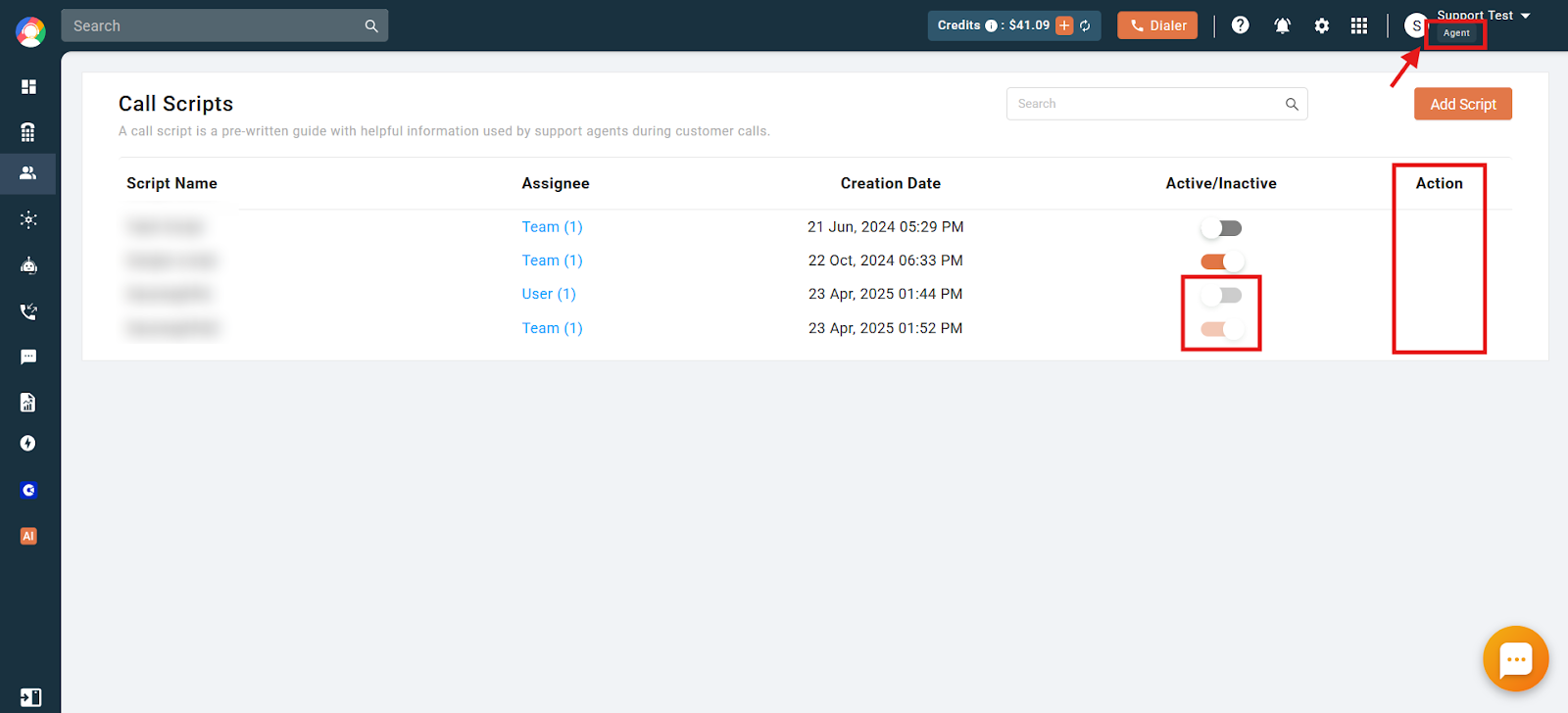
- Navigate to the Call Script section: Click on the Users and Performance > Call Scripts tab in the dashboard.
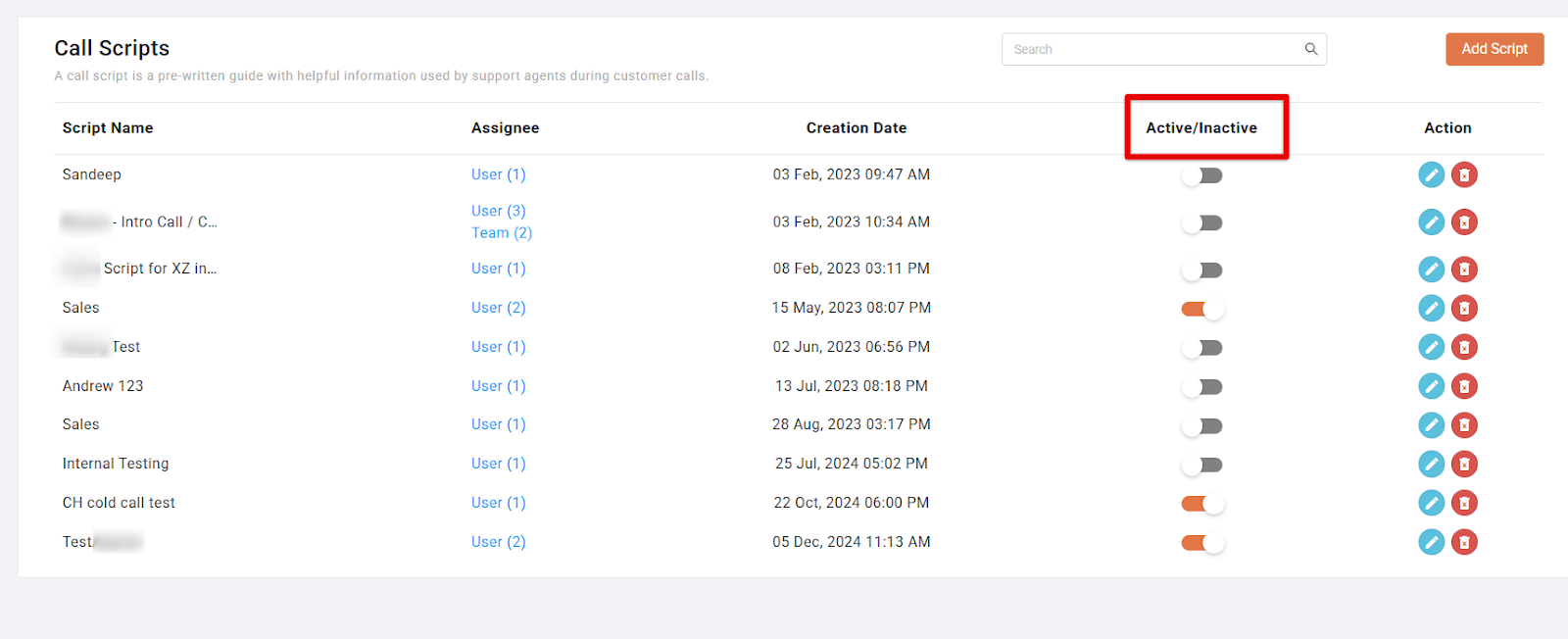
- Check the status: Find the list of available call scripts and look for the Active/Inactive status displayed next to each script.
Roles and permissions
- All users except those with the Quality Analyst (QA) role can create, edit, and delete their own call scripts.
- Owners and Admins can create call scripts and assign them to any user or team within the account.
- Call scripts created by the Owner or Admin cannot be edited or deleted by users with the Agent role.
- If an Agent creates a call script, they can assign it only to themselves or to the teams they are part of.
- The Owner can check, edit, and delete all the scripts created for your account.
How the Call Script appears during calls
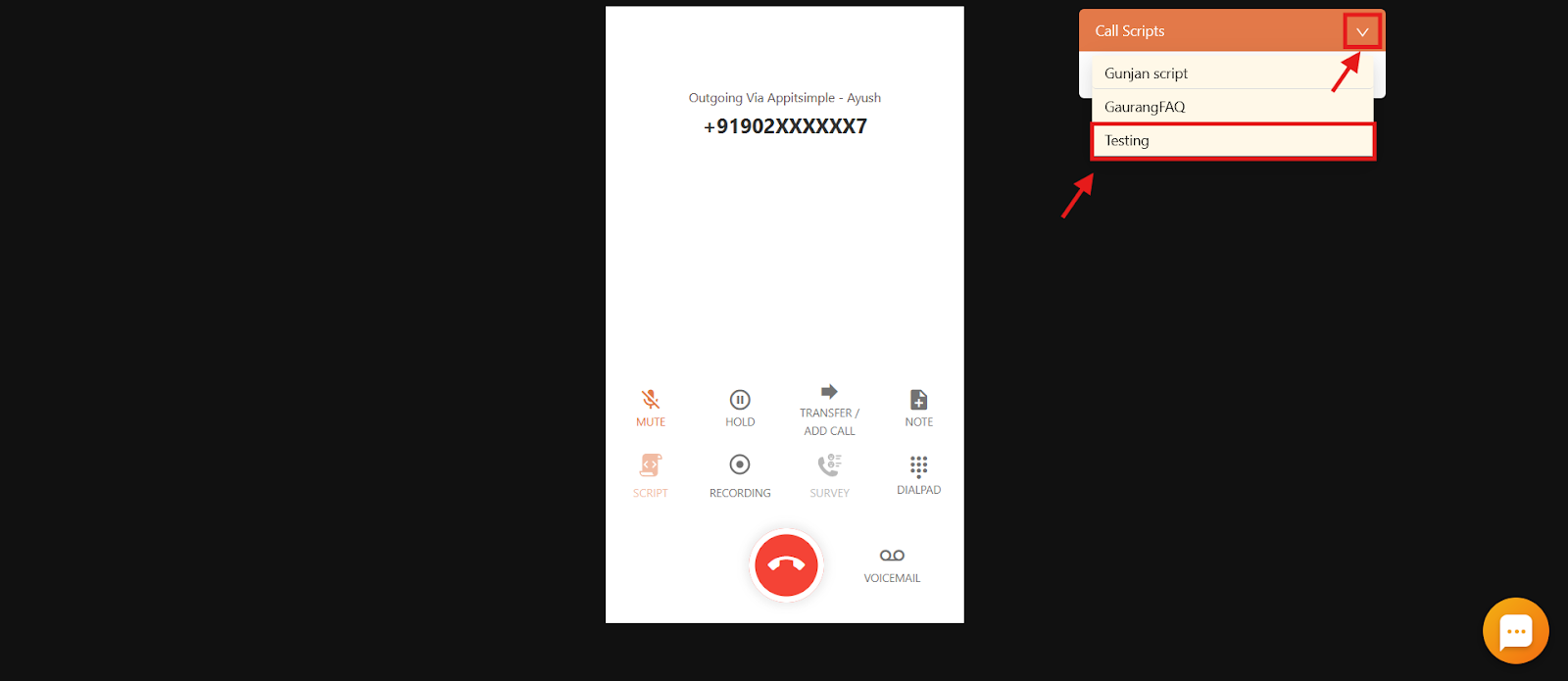
- The call script is visible in a dialog box beside the dialer during an ongoing call.
- You can click Add to view the content of the call scripts.

If there are multiple scripts assigned to you, click the dropdown button and select the call script you want to see by clicking on the script title.
Frequently asked questions
Q: Can I create multiple call scripts for different scenarios?
A: Yes, you can create multiple scripts tailored to various customer interactions, such as sales, support, and troubleshooting calls.
Q: Can agents customize the script while on a call?
A: No, scripts need to be pre-made.
Q: Can I update my call script after activation?
A: Yes. You can edit and update your call script anytime from the Call Script section in your dashboard.
Q: How is the call script displayed during a call?
A: It appears in a dialog box next to the dialer. Agents can view and select from multiple assigned scripts using a dropdown menu.
Q: Who can create, edit, and delete call scripts?
A: All users except those with the QA role can create, edit, and delete their own scripts. Admins and Owners have full control over all scripts.
Troubleshooting common issues
- Call script not visible to agents: Ensure the script is properly assigned to the correct team or user. Refresh the dashboard, or log out and log back in.
- Unable to edit or update a call script: Check whether you have admin permissions.
- Call script not displaying during calls: Make sure the Call Script feature is enabled in your settings. Clear your browser cache or try accessing it from a different device.
We hope this helps. If you still have questions, feel free to reach out at [email protected].