
Call disposition refers to the outcome or result of a phone call, recorded or categorized for tracking and analysis. It indicates what happened during a call — whether it was successful, whether a sale was made, or if an issue needs further attention. Common dispositions include “Answered,” “No Answer,” “Busy,” “Left Voicemail,” “Call Back Later,” “Sale Made,” and “Customer Issue Resolved.”
Why Do You Need Call Dispositions?
Call dispositions enhance productivity and reporting by offering clear insights into every call made. Here’s why they matter:
- Structured follow-ups – Assign outcomes like “Left Voicemail” or “Call Scheduled” to guide next steps.
- Efficient workflow – Help agents move quickly through calls by categorizing each interaction.
- Improved reporting – Analyze call results to track performance and identify trends.
- Better collaboration – Share standardized call outcomes across teams for unified tracking.
How to Add Custom Call Dispositions in CallHippo
- Log in to your CallHippo dashboard.
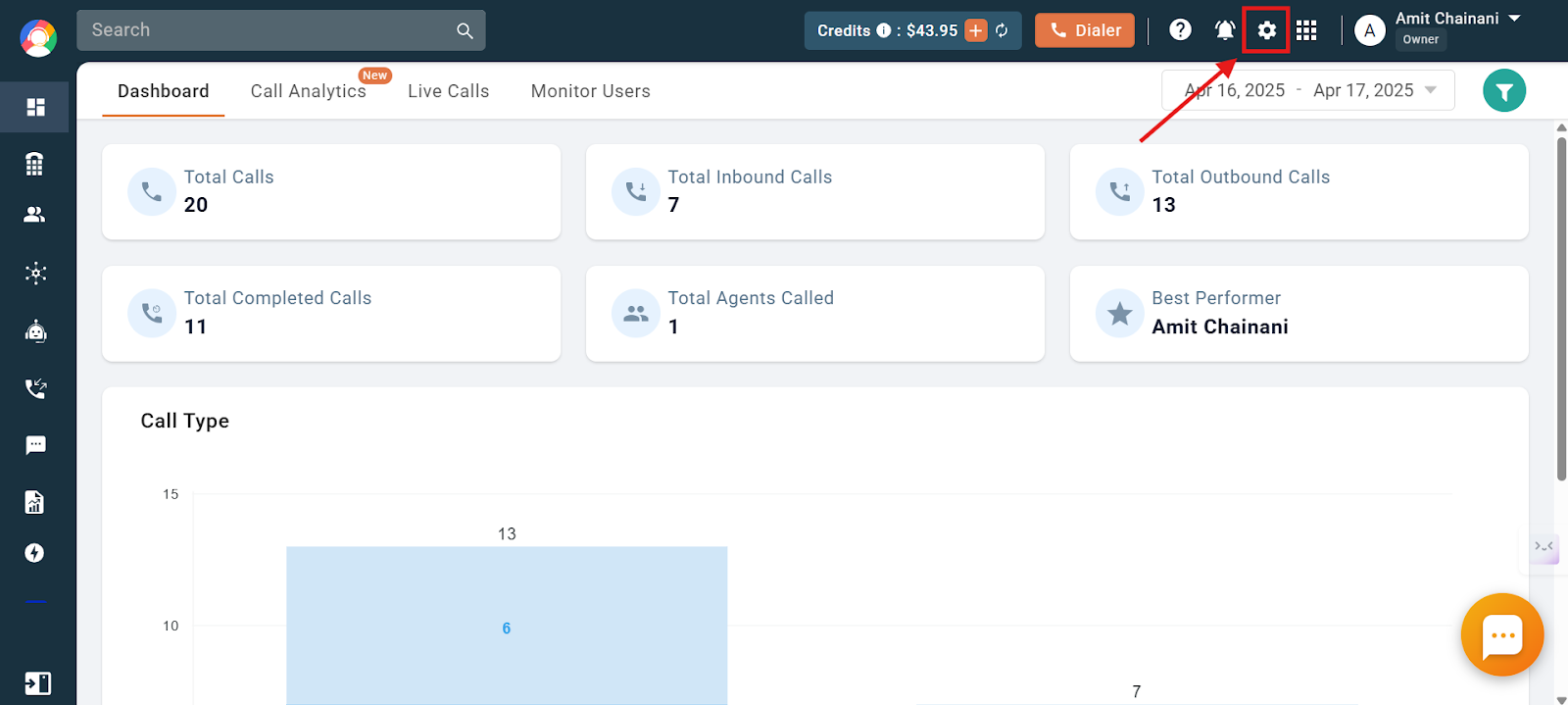
- Click on the Settings option at the top of the dashboard.
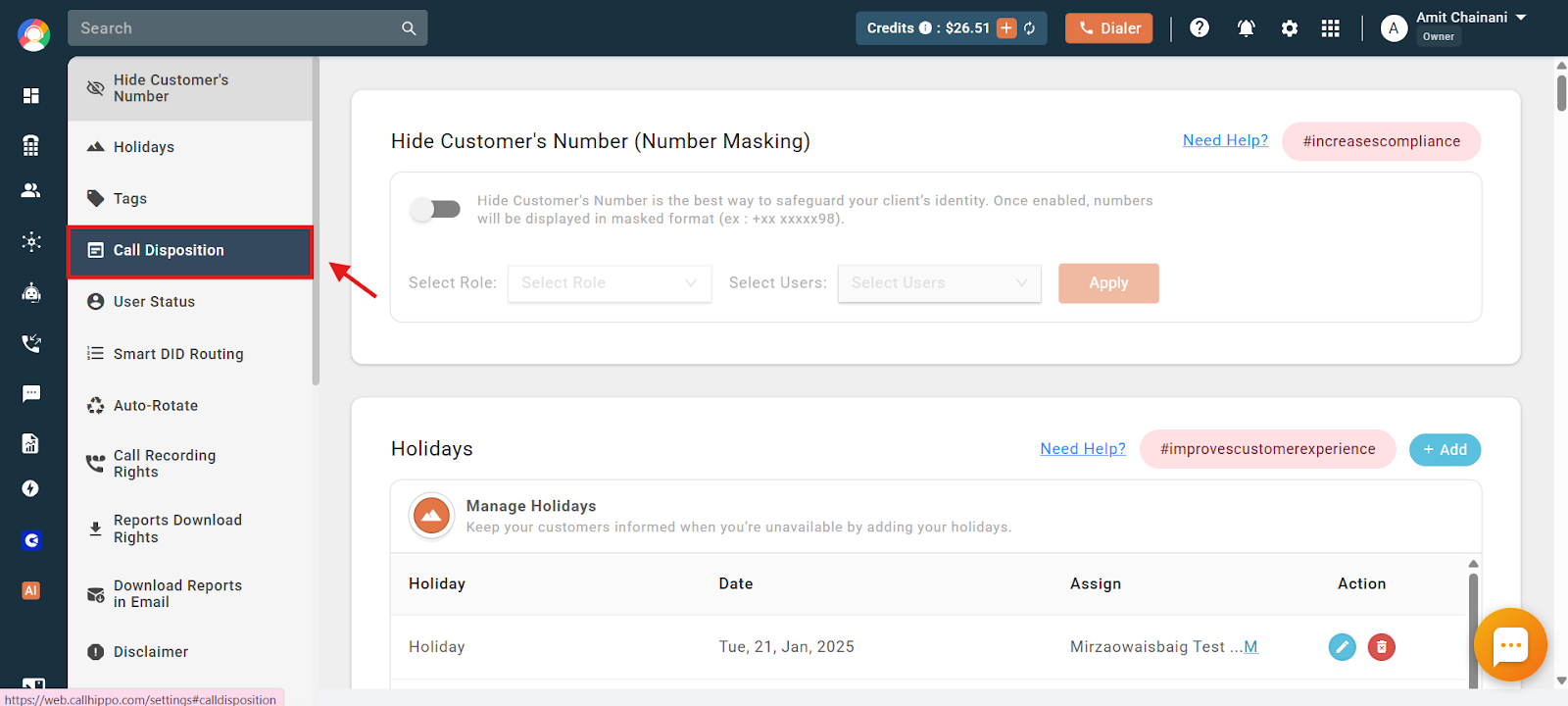
- Click on the Call Disposition section.
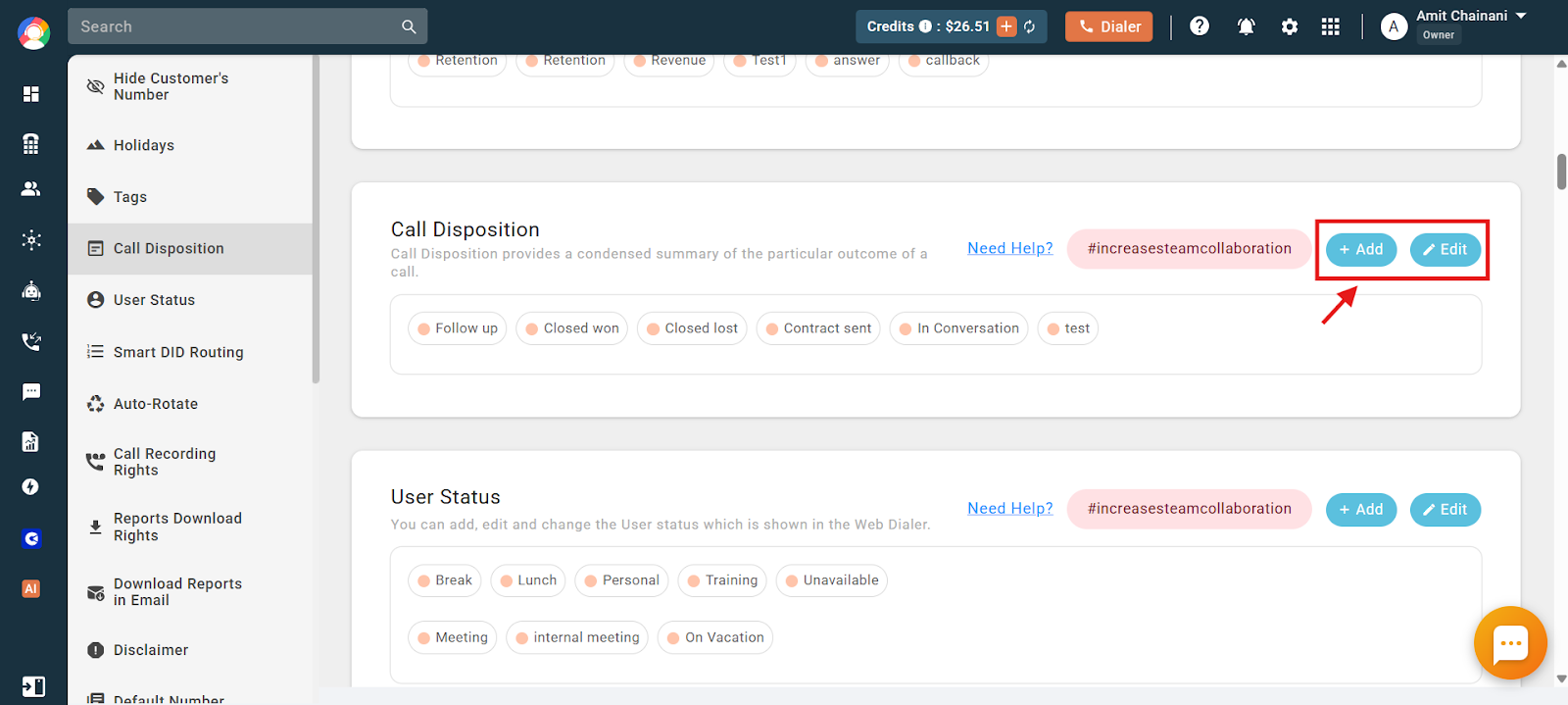
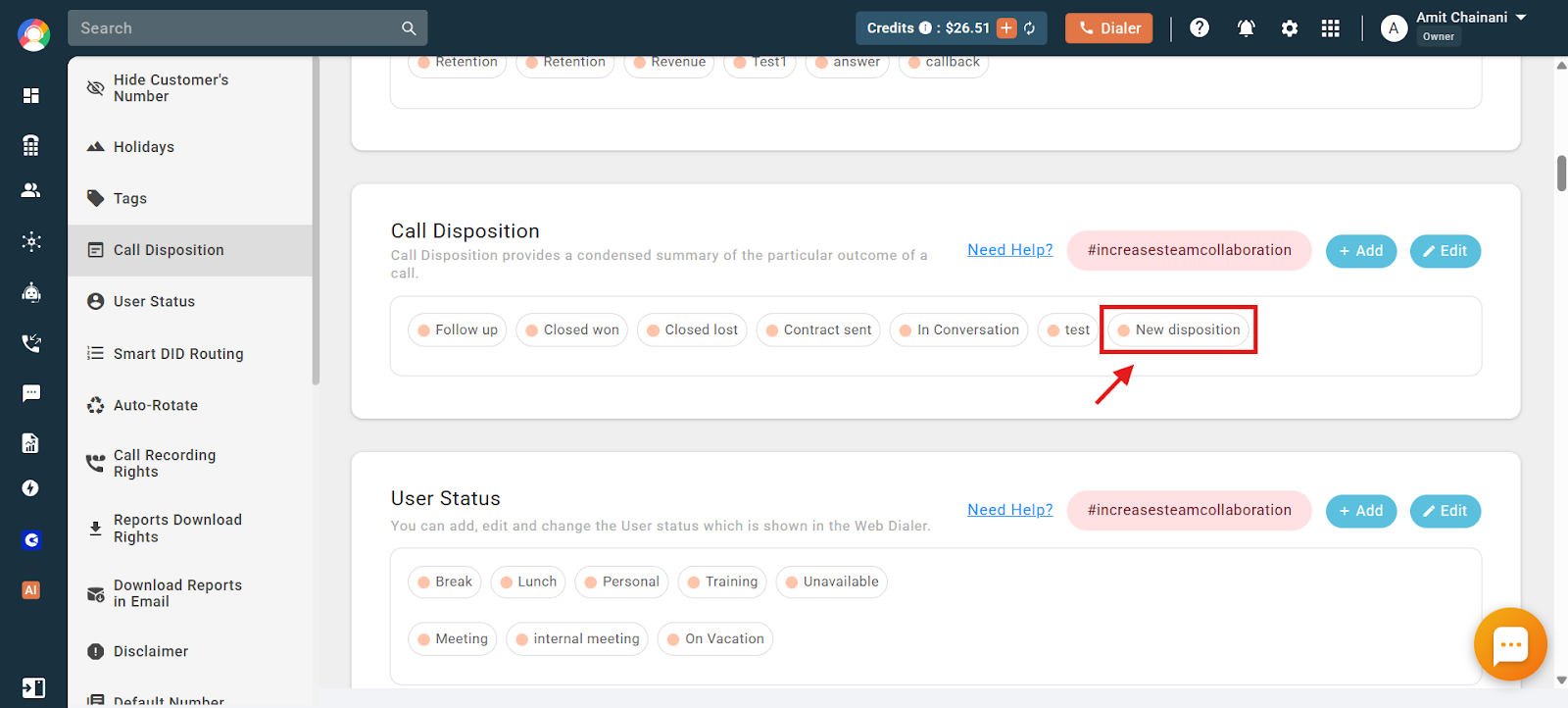
- Click on Add or Edit to create a new disposition or modify/delete an existing one.
- Fill in the necessary details and click Save.
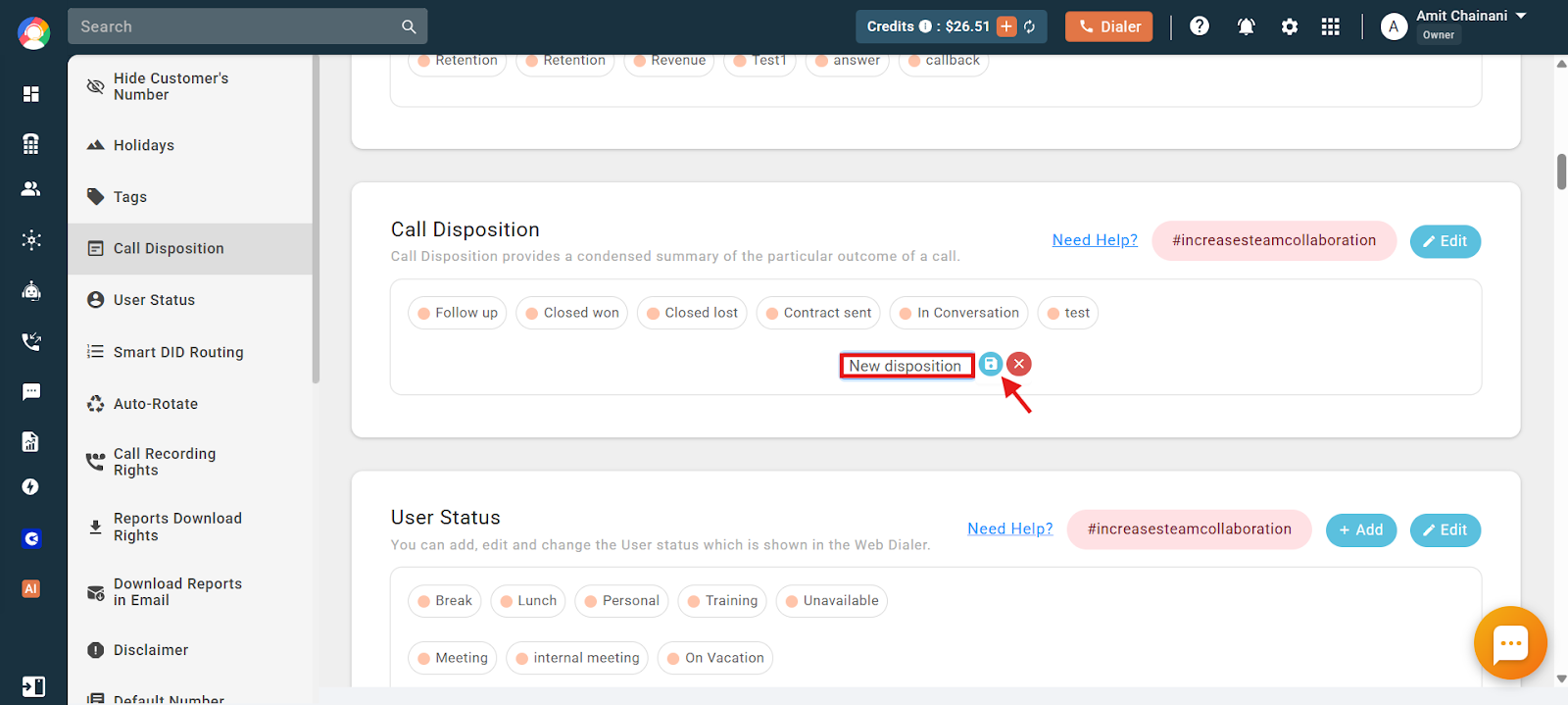
- The newly saved disposition will now be visible, as shown below.
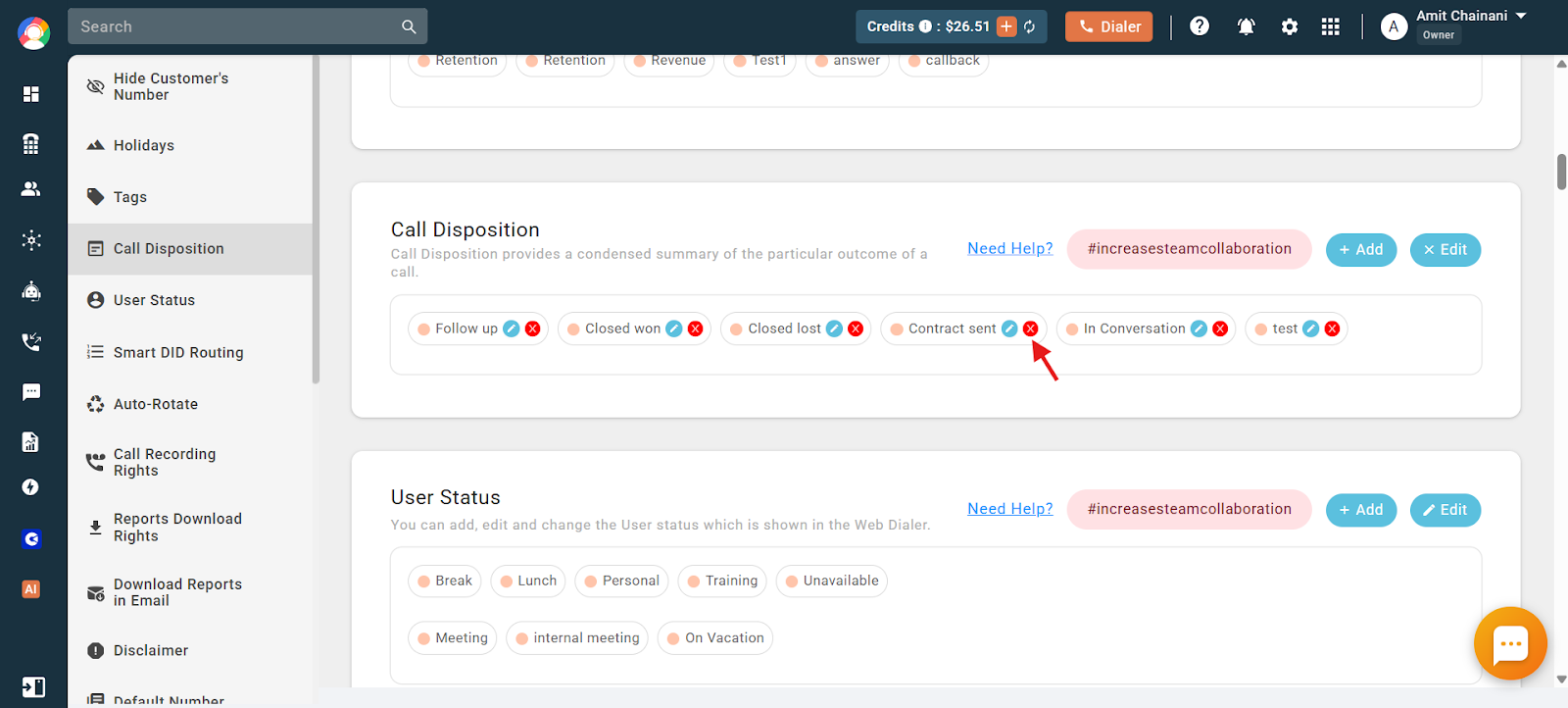
- To delete any disposition, click the delete icon next to it.
How to Check or Update Call Tags and Dispositions After a Call Ends
- Log in to your CallHippo dashboard.
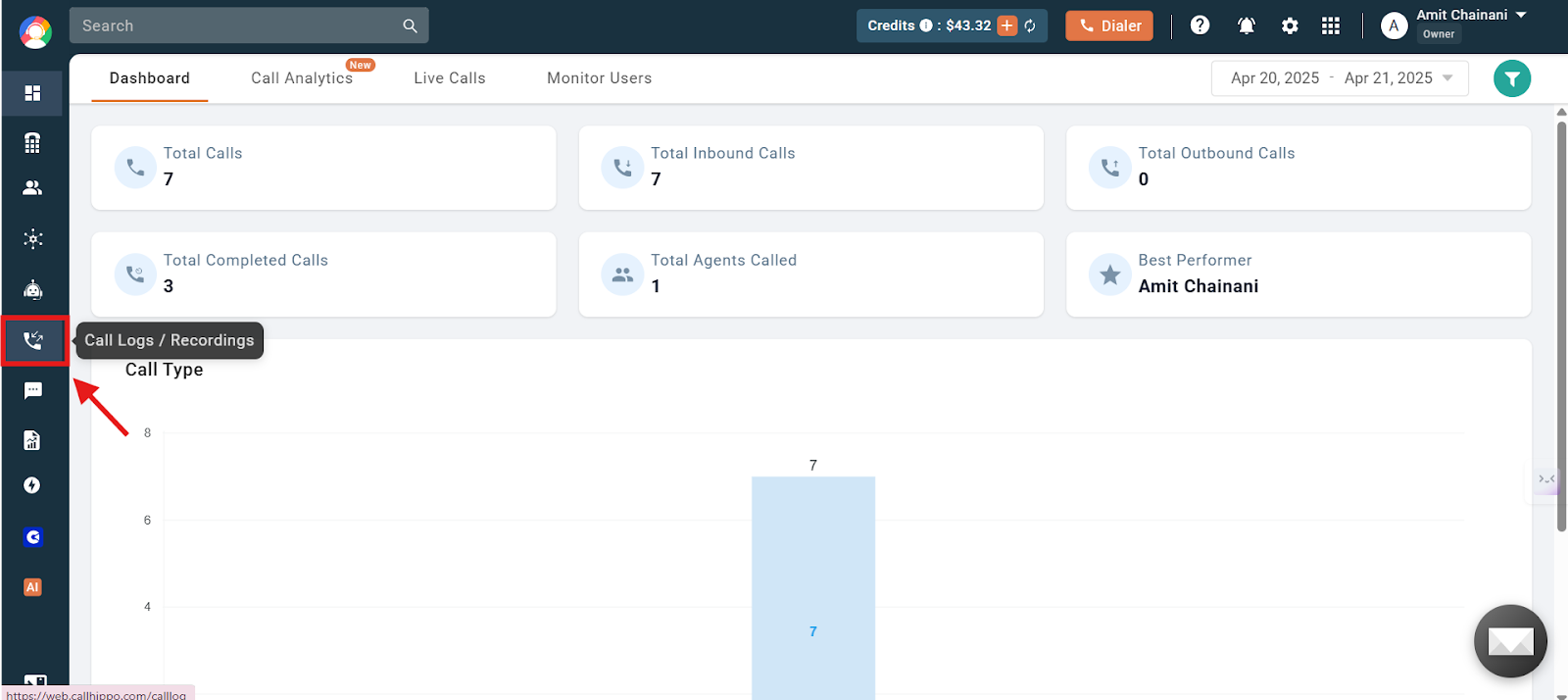
- Click on the Call Logs / Recordings section on the left side of the dashboard.
- Click on the ‘i’ icon next to the call you want to check or edit.
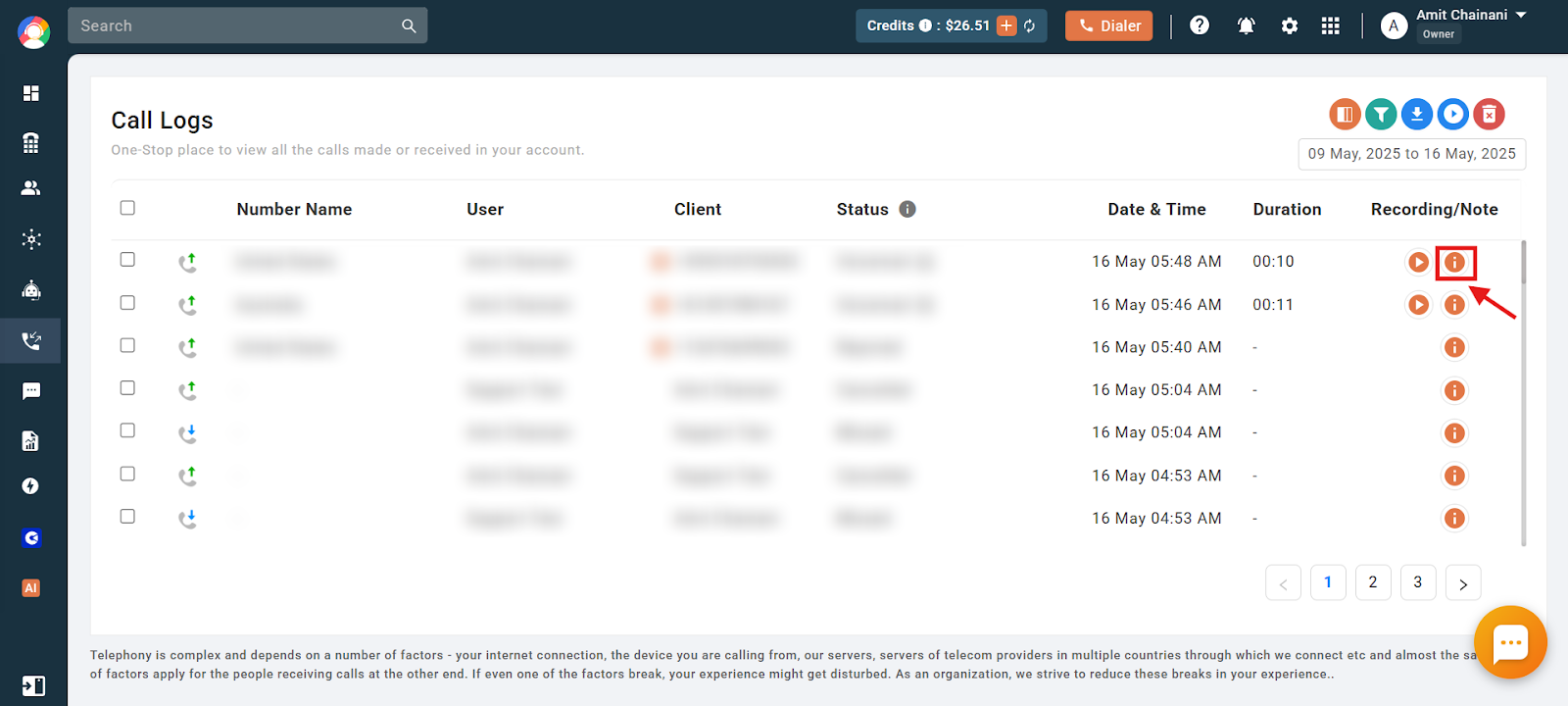
- Click on the Notes, Tags & Disposition icon.
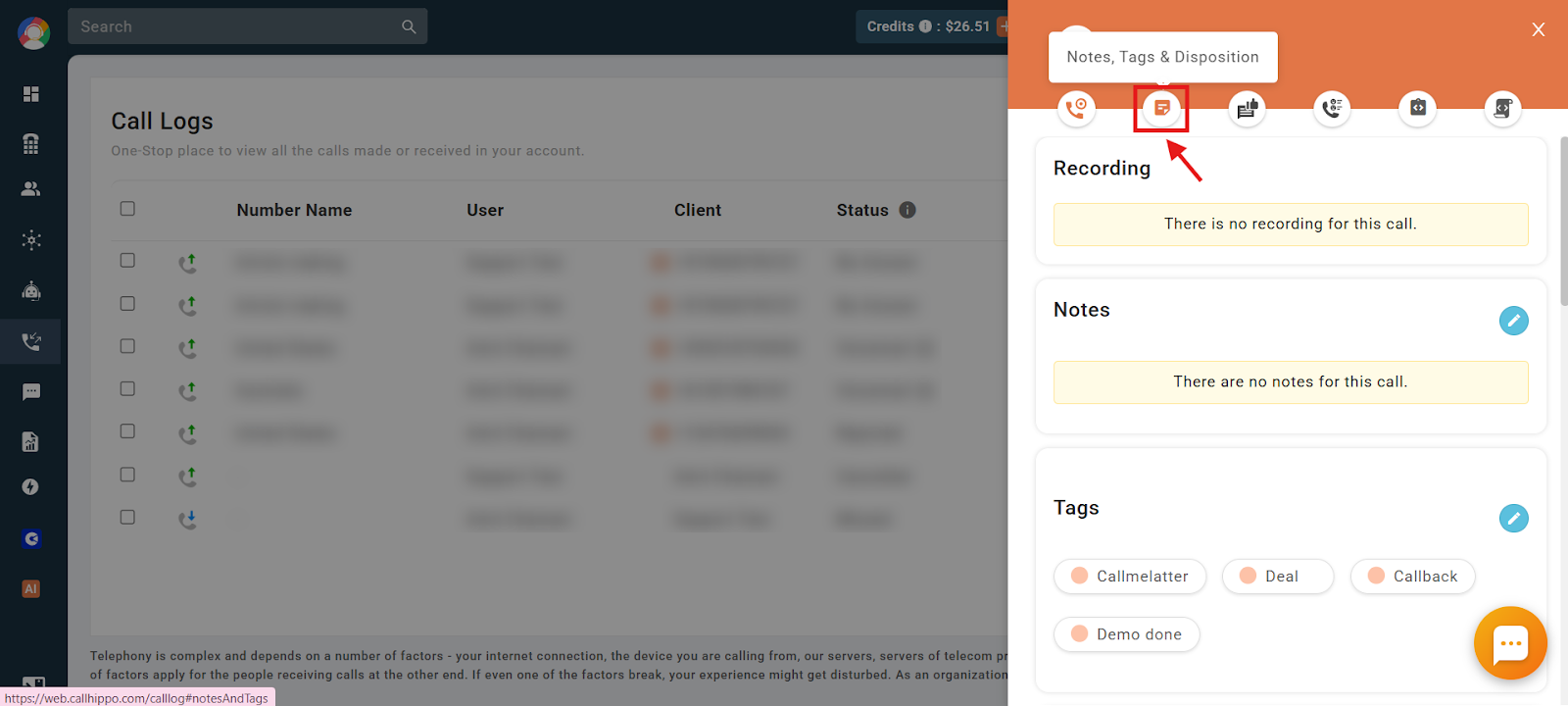
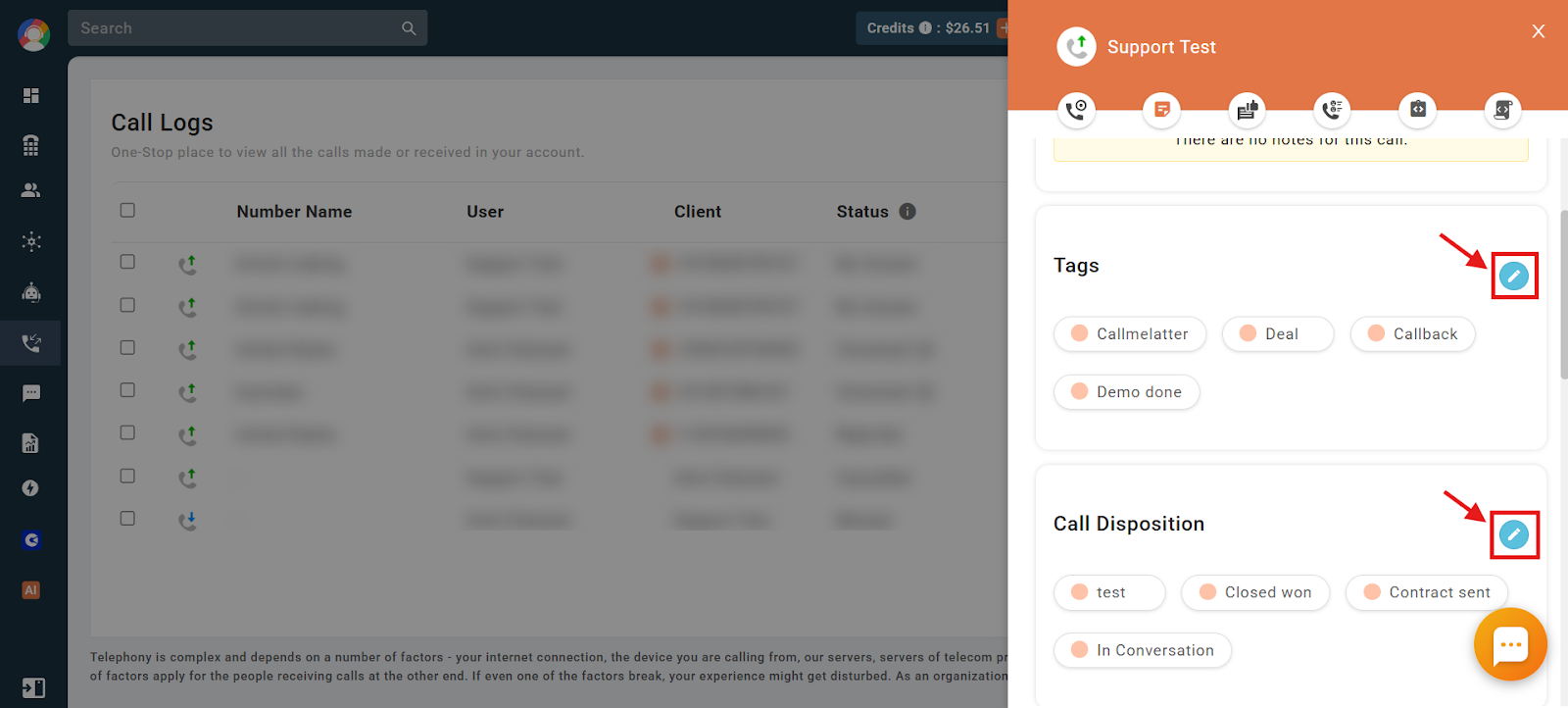
- You can now check and edit the call tags and disposition from here.
Use Cases of Call Disposition
- Sales teams – Mark calls as “Interested,” “Not Interested,” or “Follow-up Required.”
- Support teams – Use dispositions like “Issue Resolved” or “Escalated.”
- Marketing teams – Track lead engagement with tags like “Demo Scheduled” or “Unqualified Lead.”
- Recruiters – Disposition calls as “Interview Completed,” “No Show,” or “Candidate Rejected.”
Frequently Asked Questions
How many custom dispositions can I create in CallHippo?
There’s no fixed limit, but keeping them structured ensures easy tracking and usability.
Can I assign multiple dispositions to one call?
No, only one disposition can be assigned per call to accurately reflect its outcome.
How can I edit or delete a call disposition?
- Go to Settings > Call Disposition.
- Click on the disposition you want to update.
- Choose Edit or Delete, then click Save.
Can I filter reports or logs by disposition?
Yes, you can filter call logs and reports using the disposition field to analyze call outcomes.
Do we have the option to edit the call disposition?
Yes, you can create and edit call dispositions from the global Settings option of the CallHippo dashboard.
Troubleshooting Steps
My custom disposition is not saving
- Try refreshing the page.
- Make sure you have admin-level permissions to manage dispositions.
Dispositions not appearing in reports or logs
- Confirm that the disposition was applied to the call.
- Use the filter option in Call Logs to locate calls with specific dispositions.
We hope this helps. If you still have questions, feel free to reach out at [email protected].