
A website callback button, also known as a “call back” or “request a call” button, is a feature on your website that lets visitors ask for a call from your team. It gives users a quick way to leave their contact details and request a call, typically for sales or support.
How the Website Callback Button works
- Your customer or potential lead visits your website.
- They click the callback button and submit their name, phone number, and other details.
- The callback request is instantly sent to your CallHippo dialer.
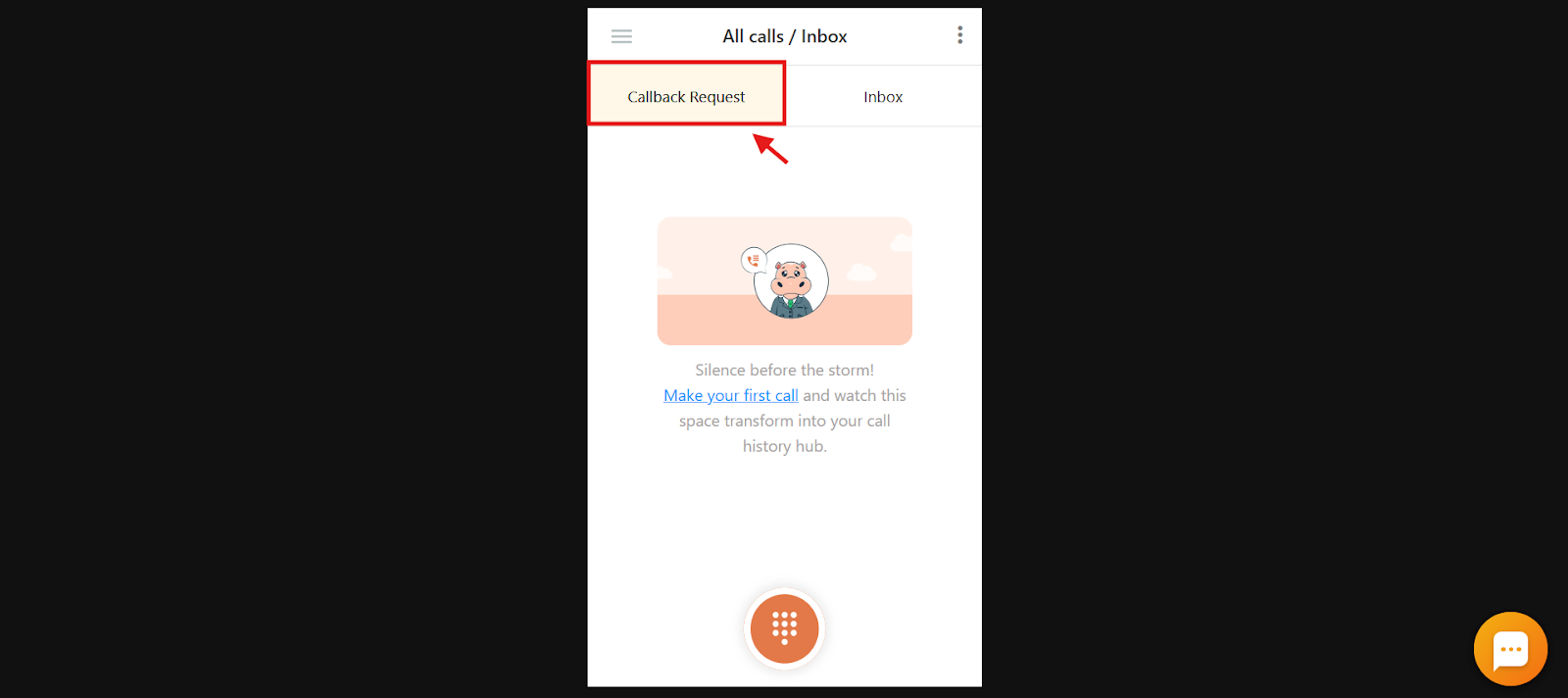
- You can view and manage all callback requests from your dialer anytime.
- Call the customer back at your convenience based on your internal processes or availability.
Note: You cannot check the callback requests from the CallHippo dashboard. You can only see them in the CallHippo dialer.
Steps to set up the Website Callback Button
- Log in to your CallHippo dashboard.
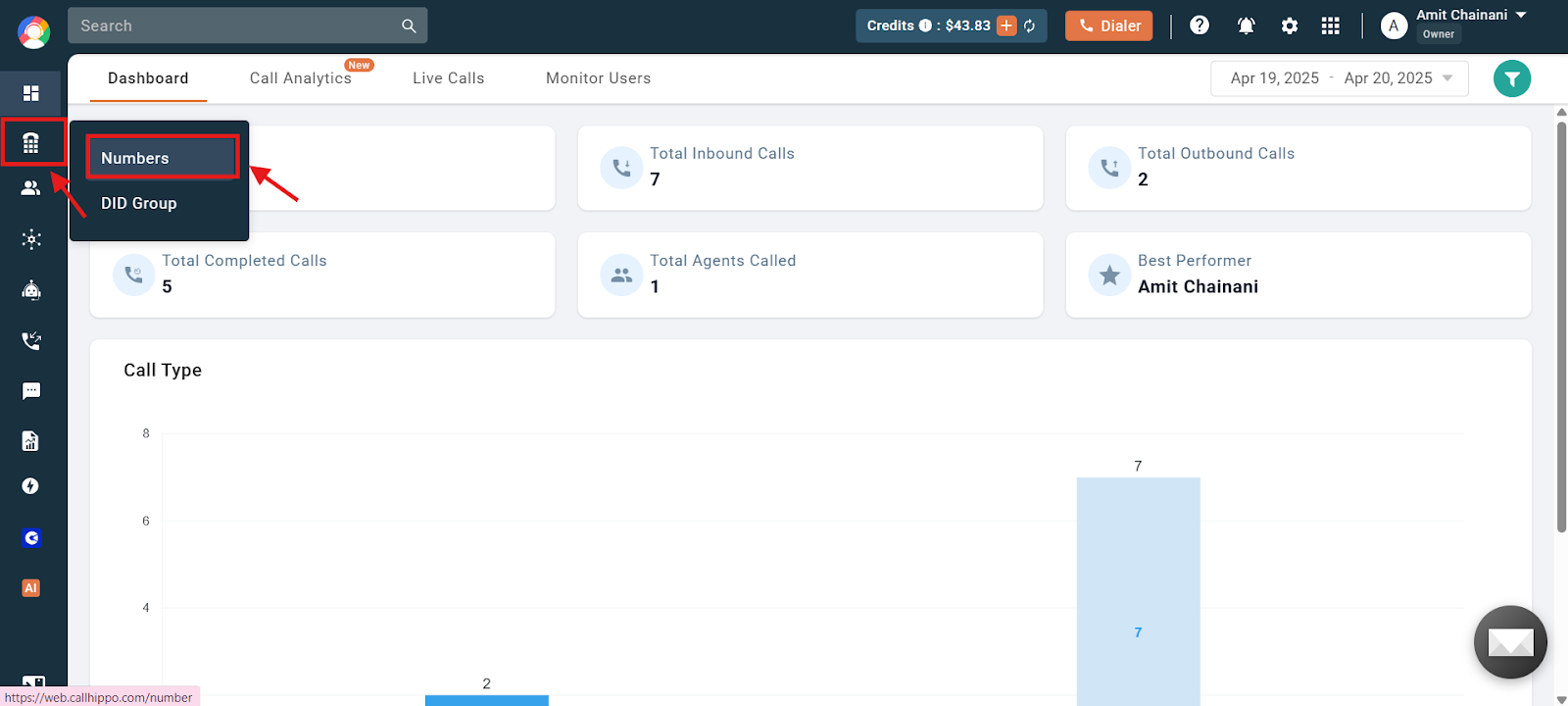
- Navigate to the Numbers and DID section on the left side of the screen and then click on Numbers.
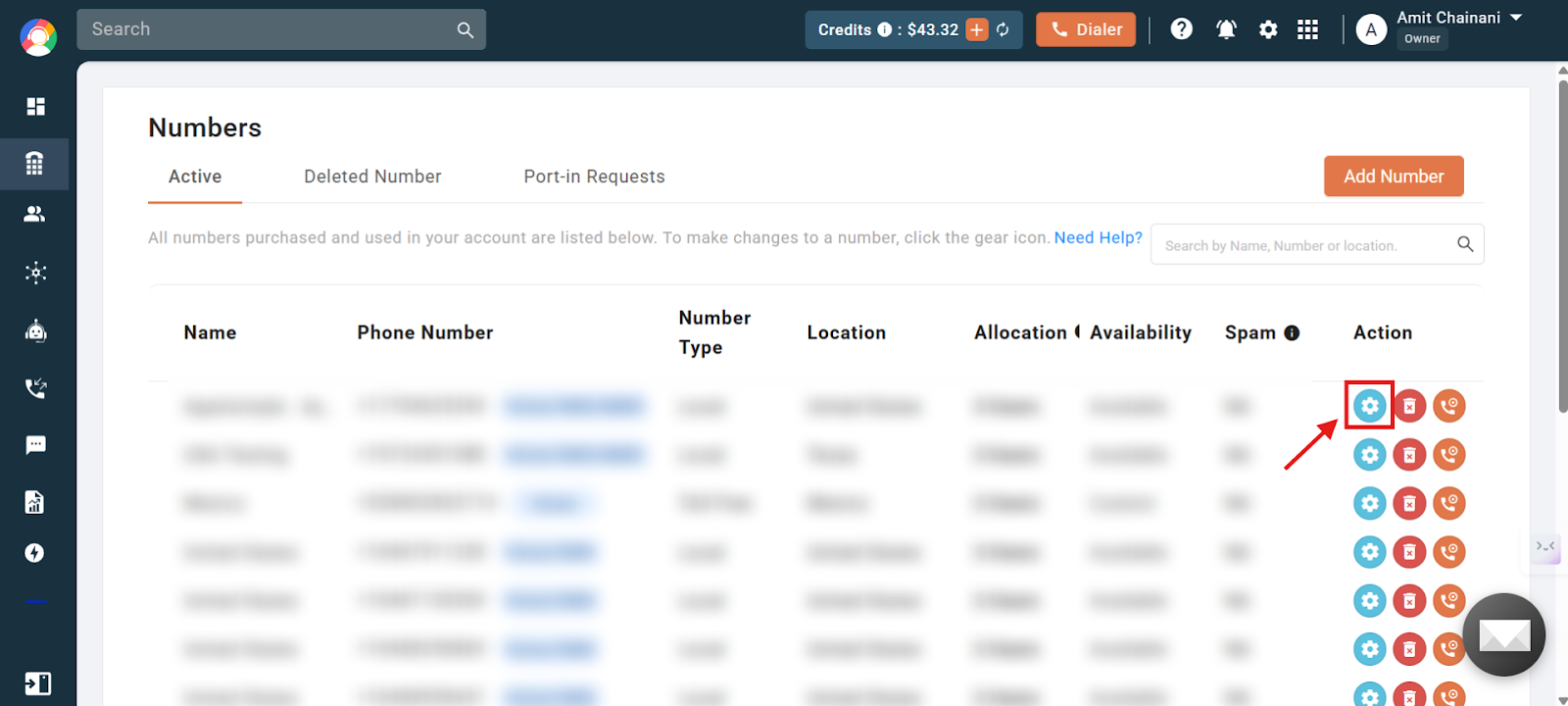
- Click on the settings icon of the number you want to allocate to agent(s).
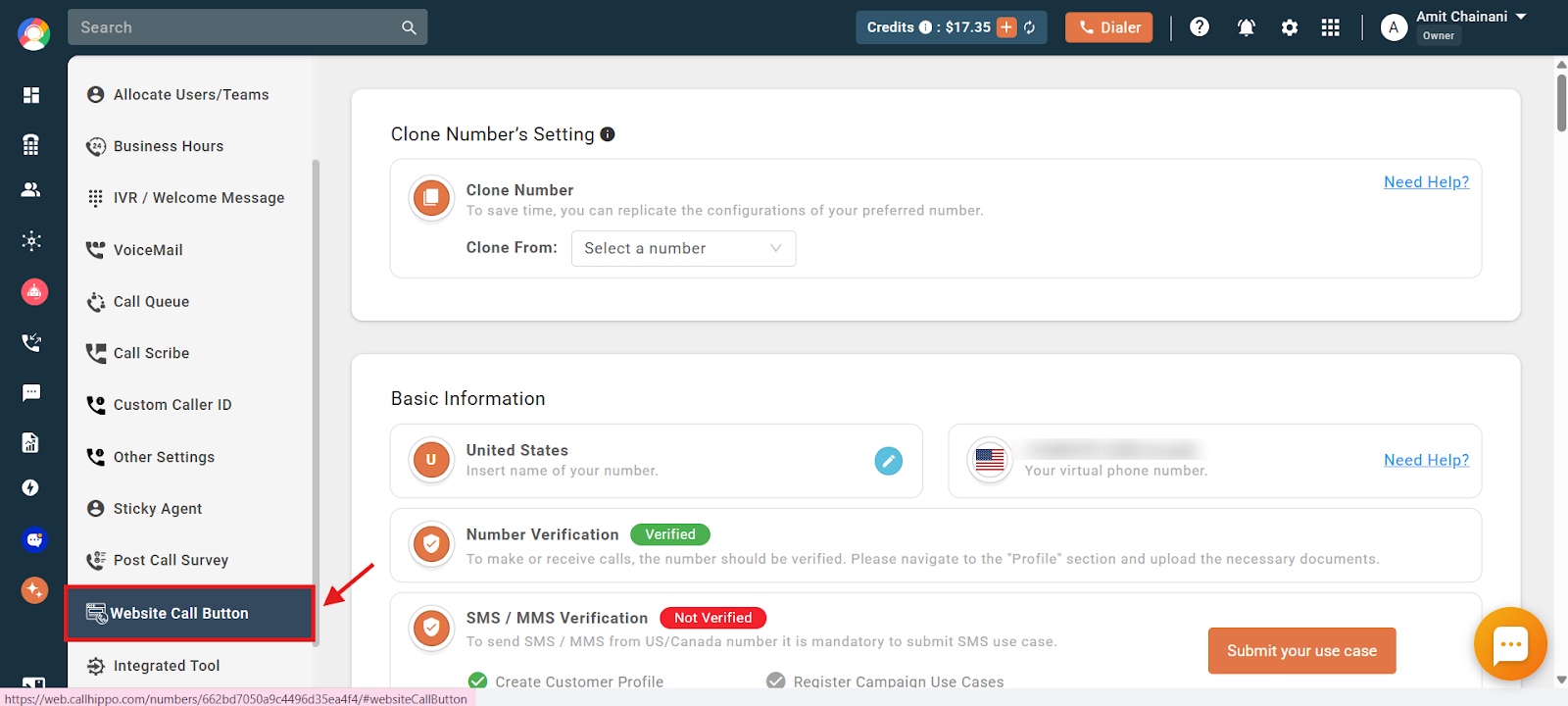
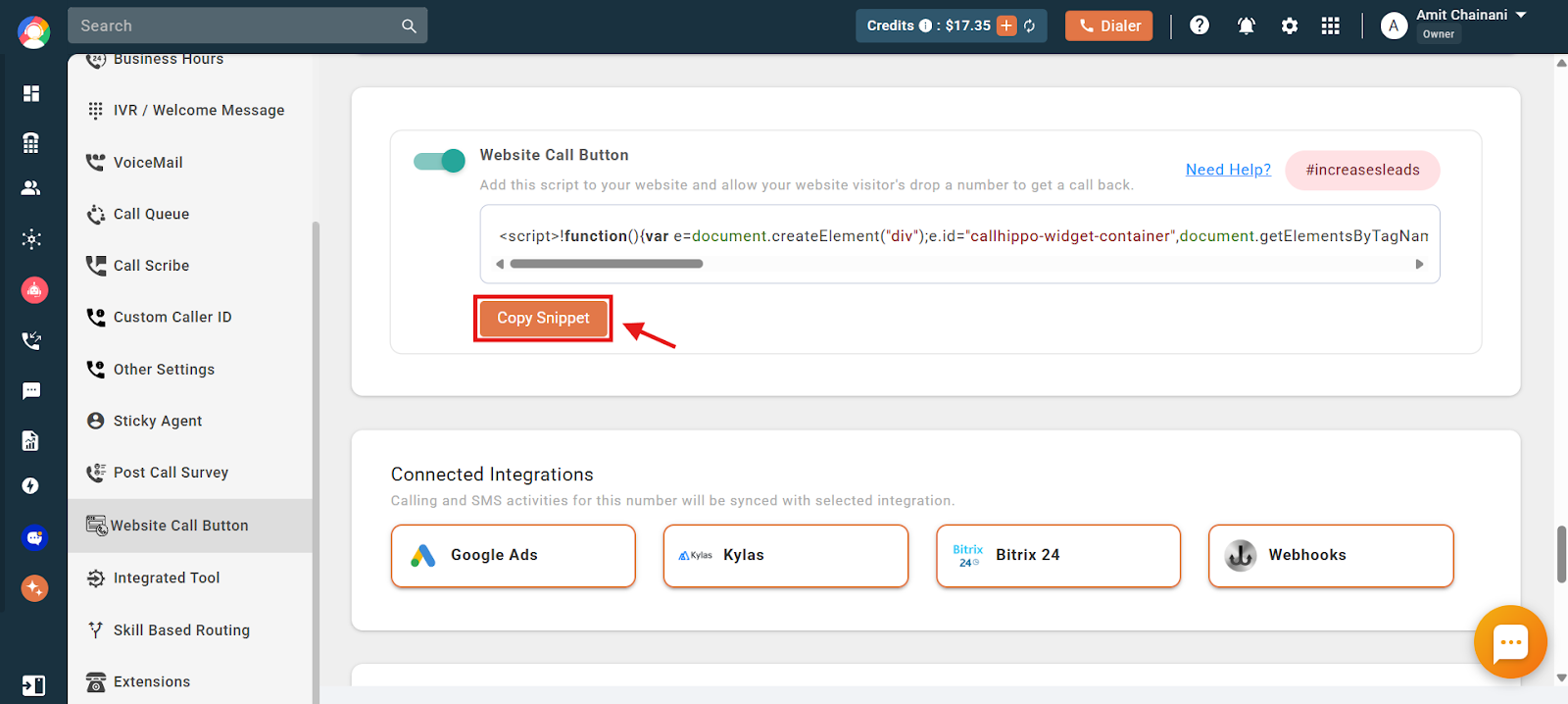
- Scroll down on the left of the screen and click on the Website Call Button option.
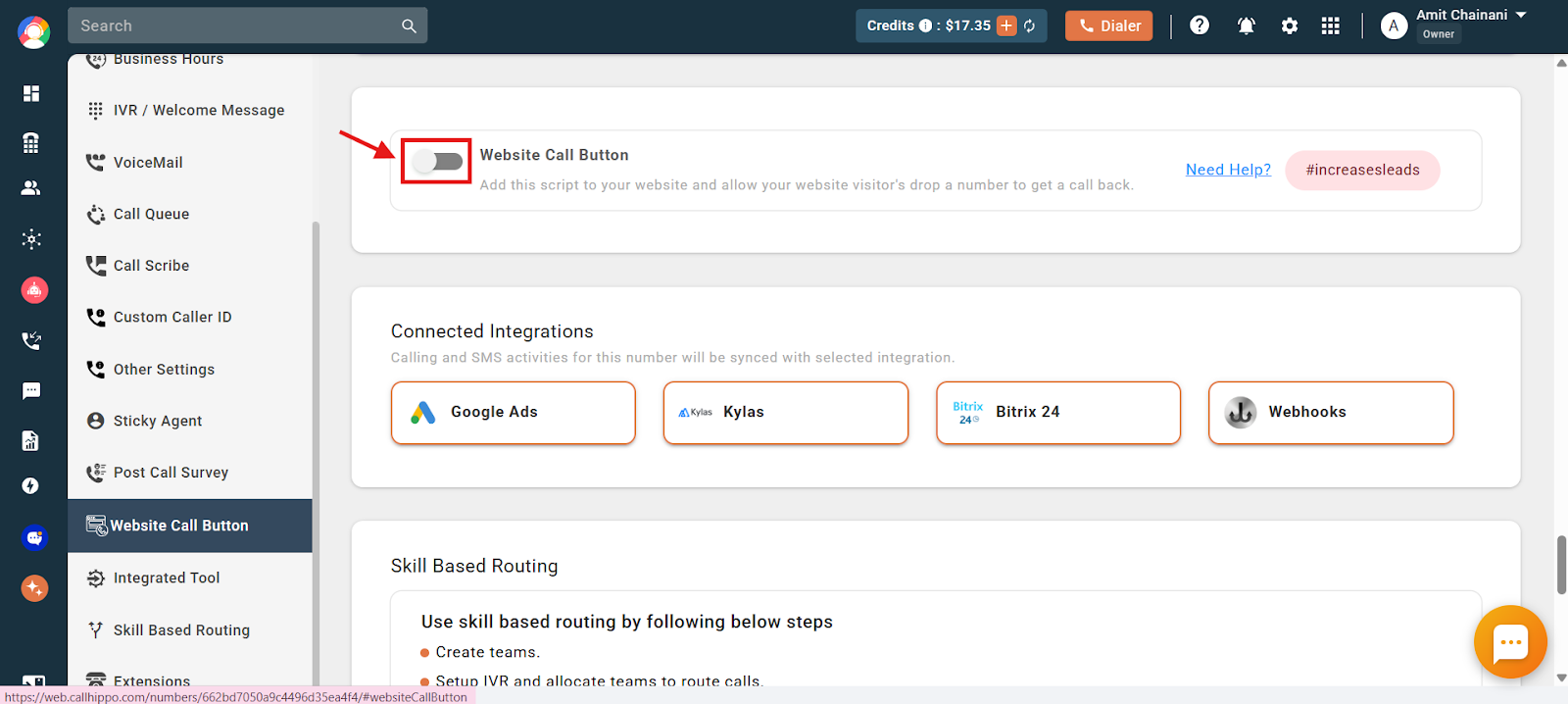
- Click on the toggle to enable the Website Call Button feature.
- Click on the Copy Snippet button to copy the script, and then paste it onto your website.
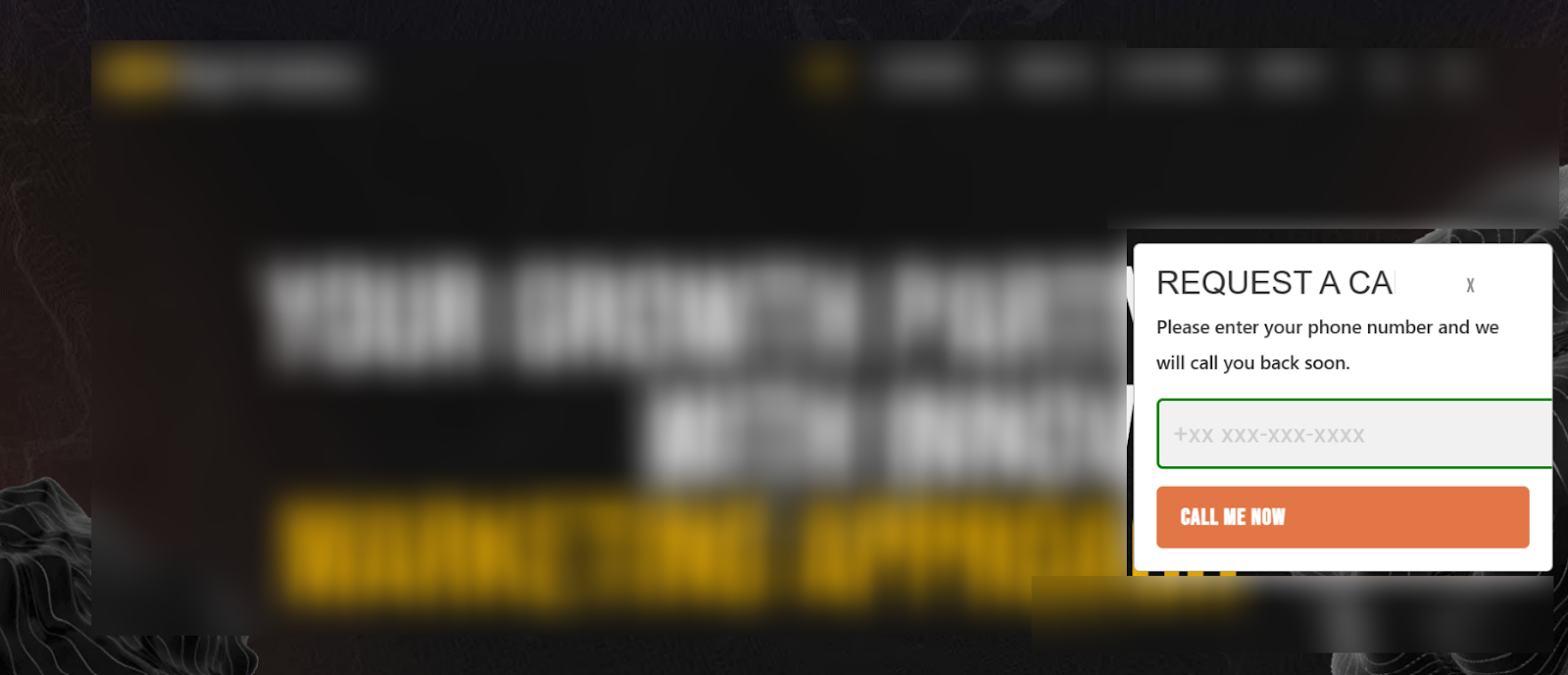
- The Request a Callback button will now be visible on your website.
Steps to check the callback requests
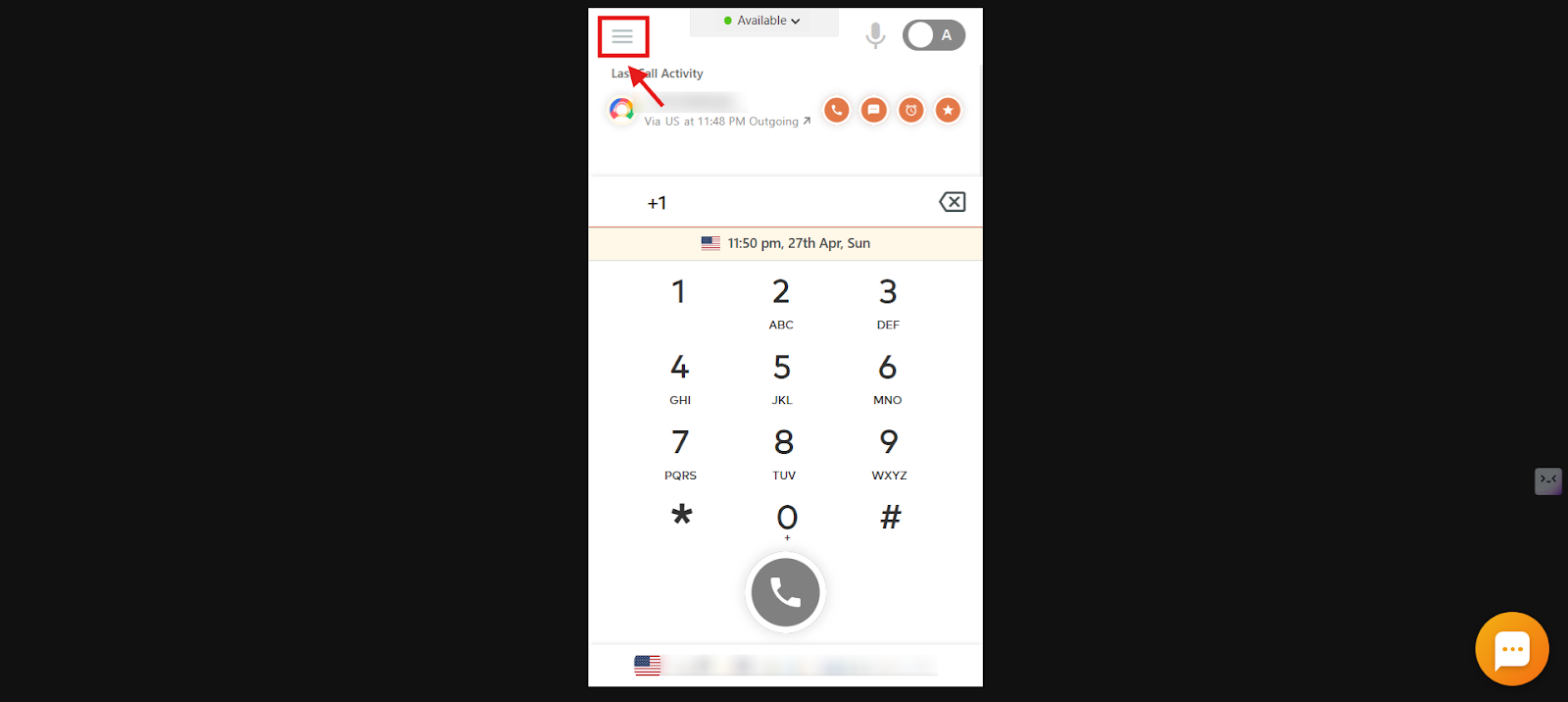
- Log in to your CallHippo dialer.
- Click on the Main Menu icon.
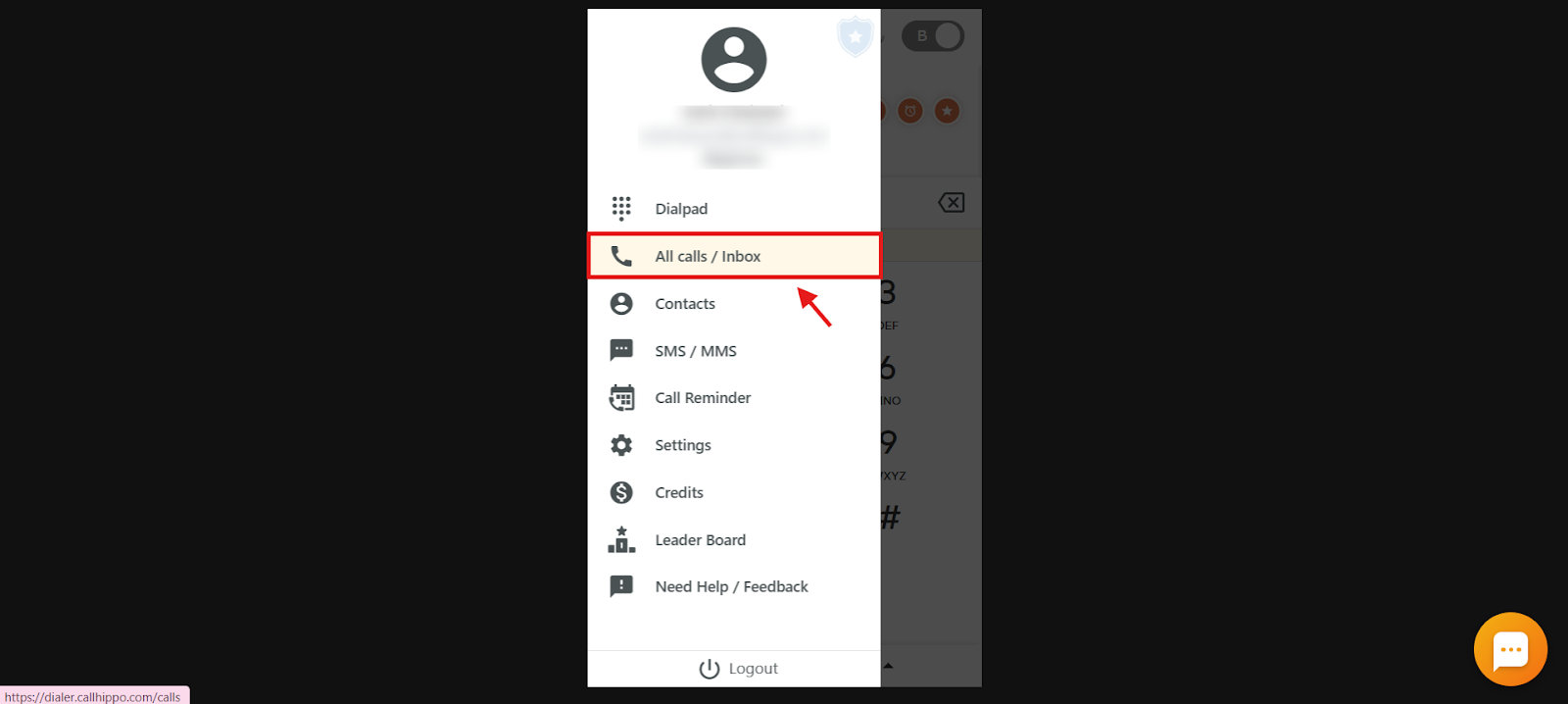
- Click on the All calls / Inbox option.
- Navigate to the three dots in the top-right corner of the dialer and then click on the Callback Request option.
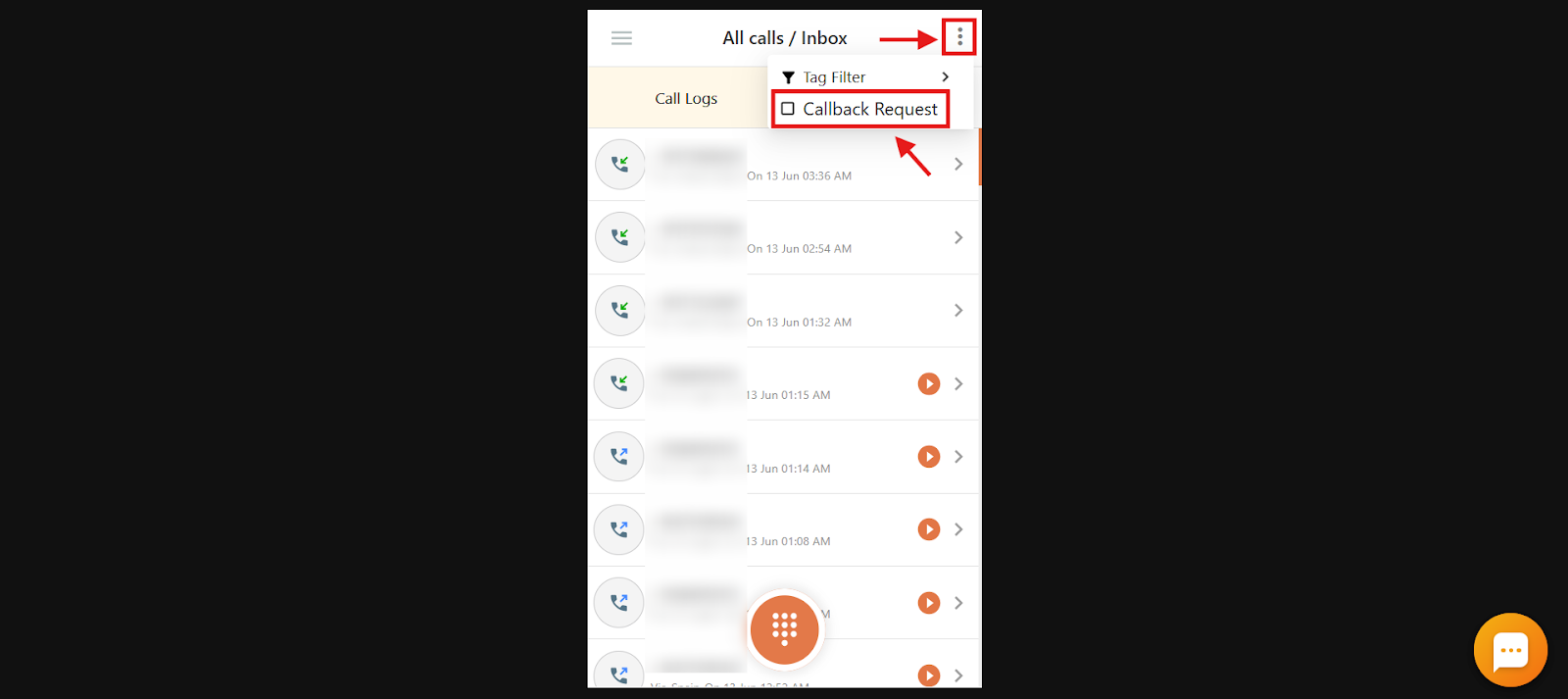
- You will now be able to see all the callback requests received from your website visitors.
Frequently asked questions
Q: I followed all the steps, but the callback button isn’t showing up on my website. What could be wrong?
A: Make sure you have pasted the copied script snippet into your website’s HTML correctly. Also, check that the toggle for the Website Call Button is enabled in the number’s settings.
Q: Will I be notified instantly when someone fills out the callback form?
A: The request is instantly sent to your CallHippo dialer. While there is no separate notification, it will be available to view under the “Callback Request” section in the dialer.
Q: Can I customize the form fields that appear on the Website Callback Button?
A: No, the form fields on the Website Callback Button cannot be customized. The default fields are fixed and cannot be changed.
Q: I added the call button on my website—where do I receive those requests?
A: You can view all callback requests in your CallHippo dialer. Log in, go to the main menu, and open the “Callback Request” section under All calls / Inbox. They are not visible in the dashboard.
Q: When visitors leave their numbers on our website using your snippet, how do we get those numbers?
A: The visitor’s phone number and details are sent directly to your CallHippo dialer. You can view them in the “Callback Request” section and follow up whenever you are ready.
Q: How do I identify which calls came from the callback button?
A: Calls made in response to callback requests will appear under the “Callback Request” section in your dialer. You can manage and track them from there.
Q: I want to connect the dialer to my website and make international calls—how do I do that?
A: You can enable the Website Callback Button and link it to a CallHippo number that supports international calling. Once visitors leave their number, you can call them from your dialer using international calling, depending on your plan.
We hope this helps. If you still have questions, feel free to reach out at [email protected].