
Shift Management lets you define the exact working hours for each user in your CallHippo account, so agents are only available during their designated shifts and every call is logged in the correct time zone.
What Is the Shift Management Feature?
Shift Management controls when a user can make or receive calls through the dialer, based on the working hours and time zone you assign to them. It helps route calls efficiently, cut down on missed calls, and keep reporting consistent across teams. You can choose from three shift types:
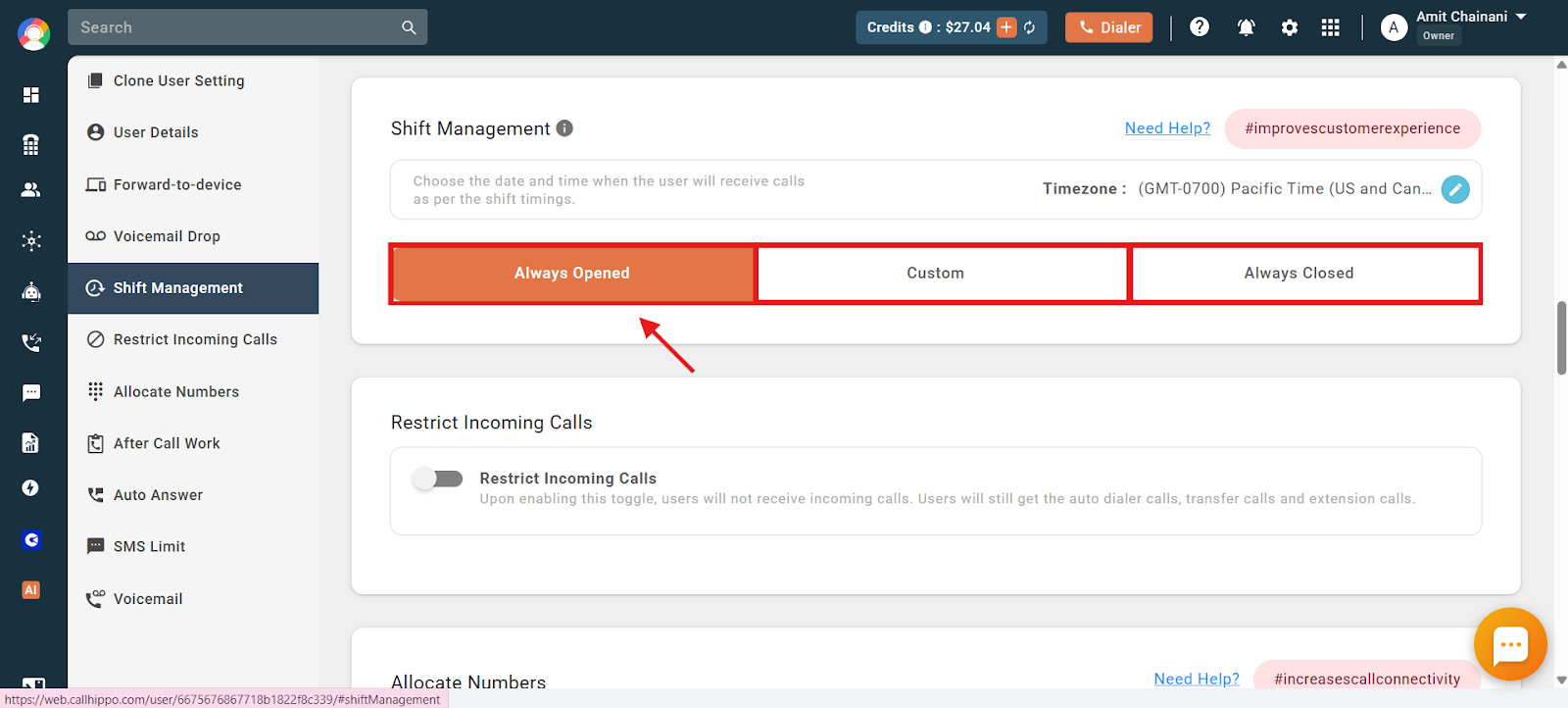
- Always Available: The user is active 24/7 and can make or receive calls at any time.
- Custom Shift: You set specific working hours for each day of the week, and the user can only handle calls during those hours.
- Always Unavailable: The user cannot make or receive any calls.
These shift settings also affect call log timestamps. All logs reflect the shift’s assigned time zone rather than the device’s local time.
Time Zone Settings for Shift Management
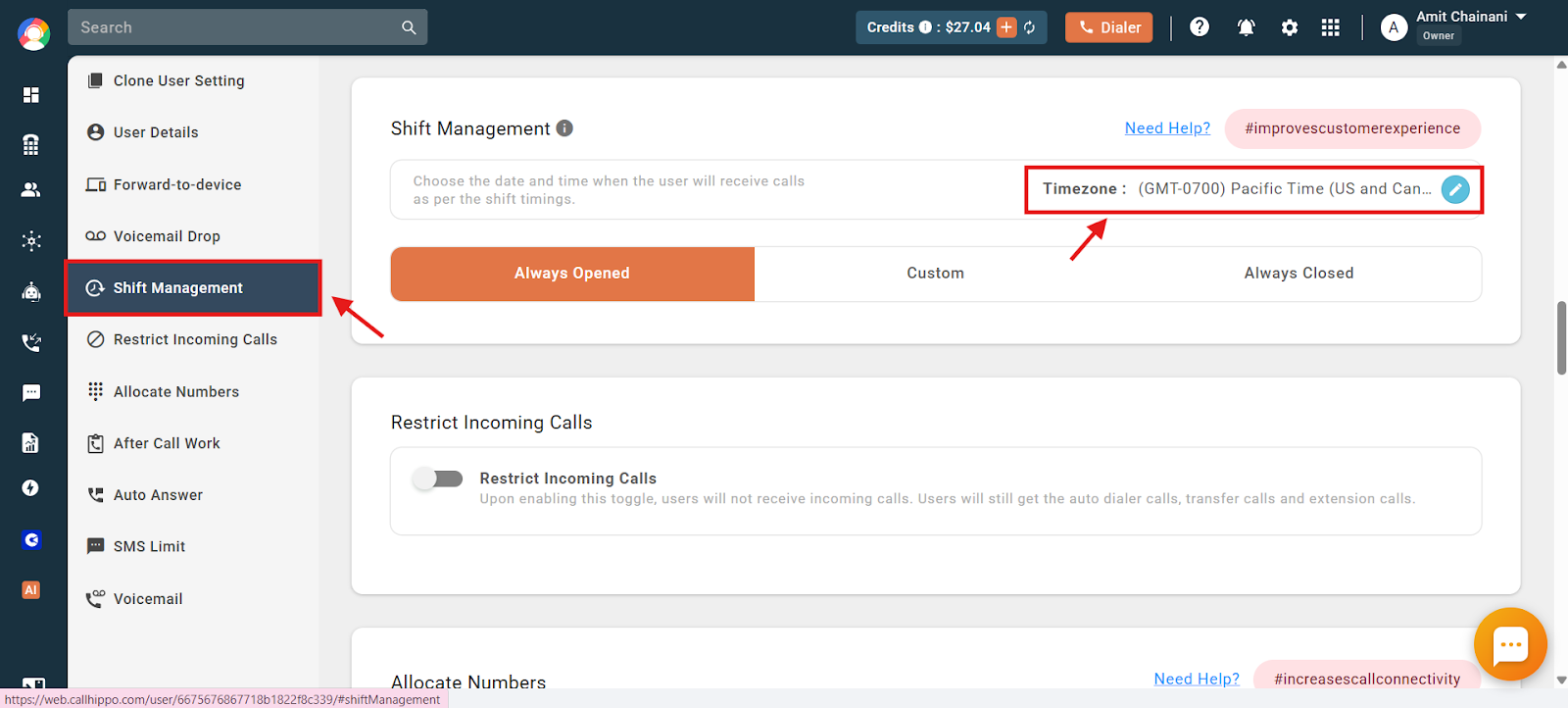
The time zone set for a user determines when their shift timings apply. You can view or change it from the top-right corner of the Shift Management screen. When you use a Custom Shift, every shift time you set follows this selected time zone, not your device’s local time, so availability stays accurate for the intended region regardless of where the admin or user is logging in from.
This time zone also controls how call times appear in the call logs for all calls made and received by the user, which standardizes reporting across teams in different regions.
How to Set the Time Zone for a User
- Log in to your CallHippo dashboard.
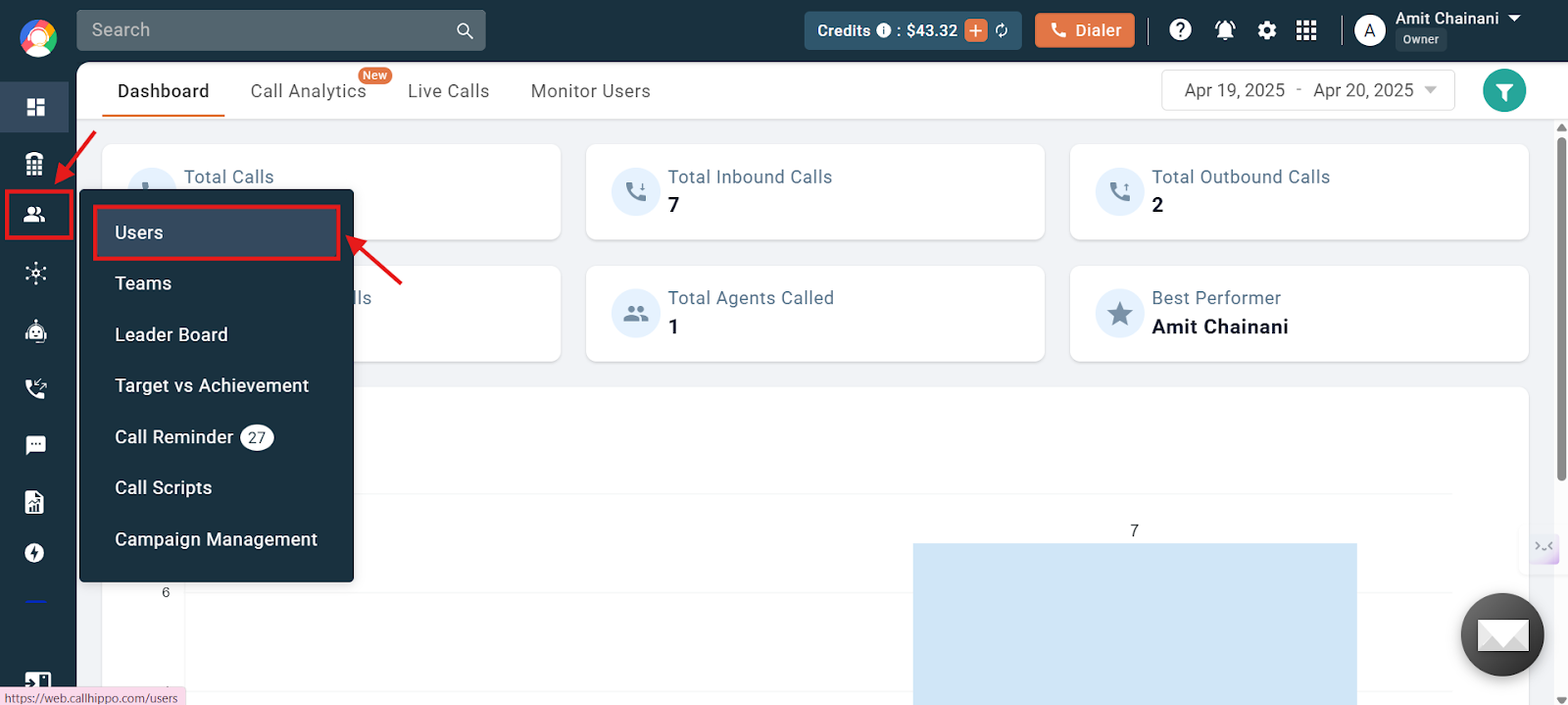
- Go to the Users and Performance section on the left, then click Users.
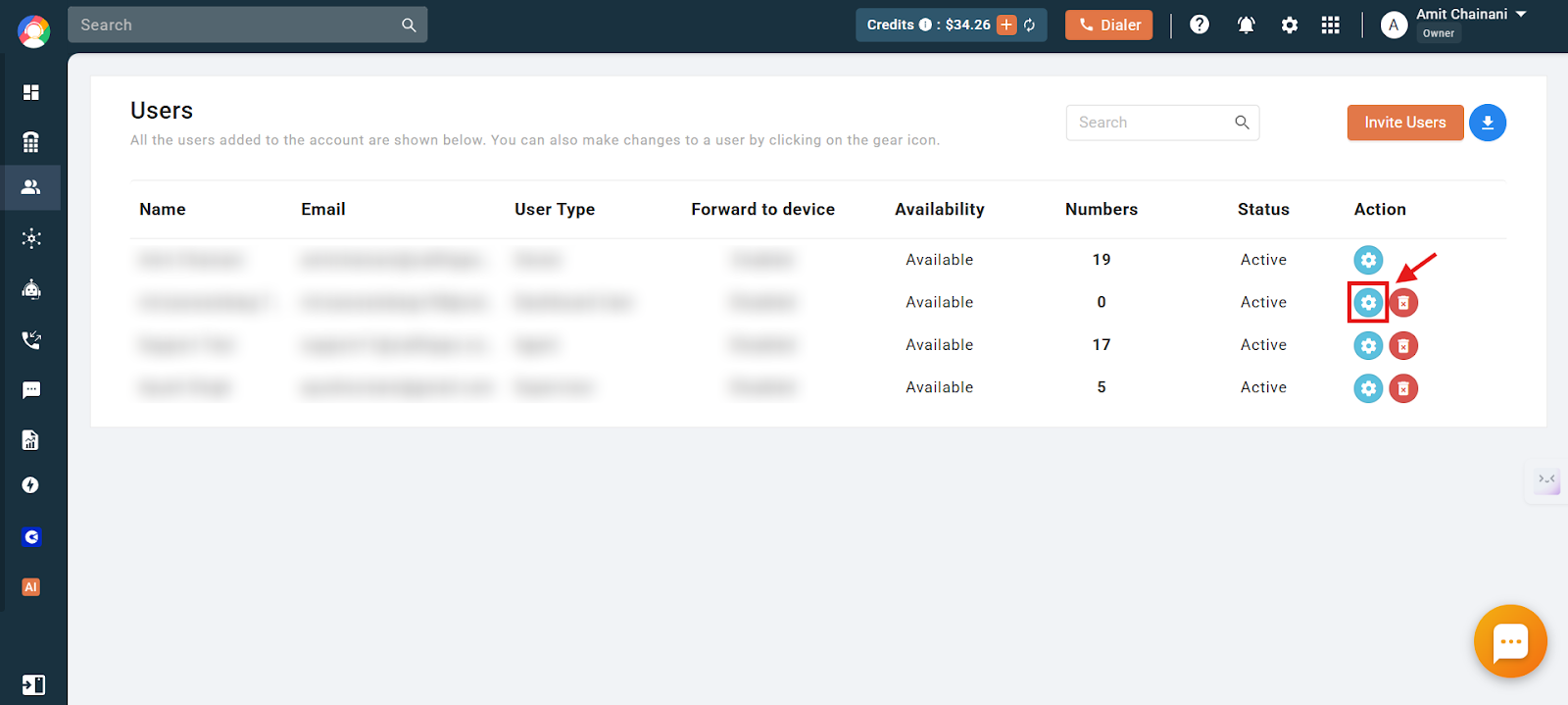
- Click the settings (gear) icon for the user you want to configure.
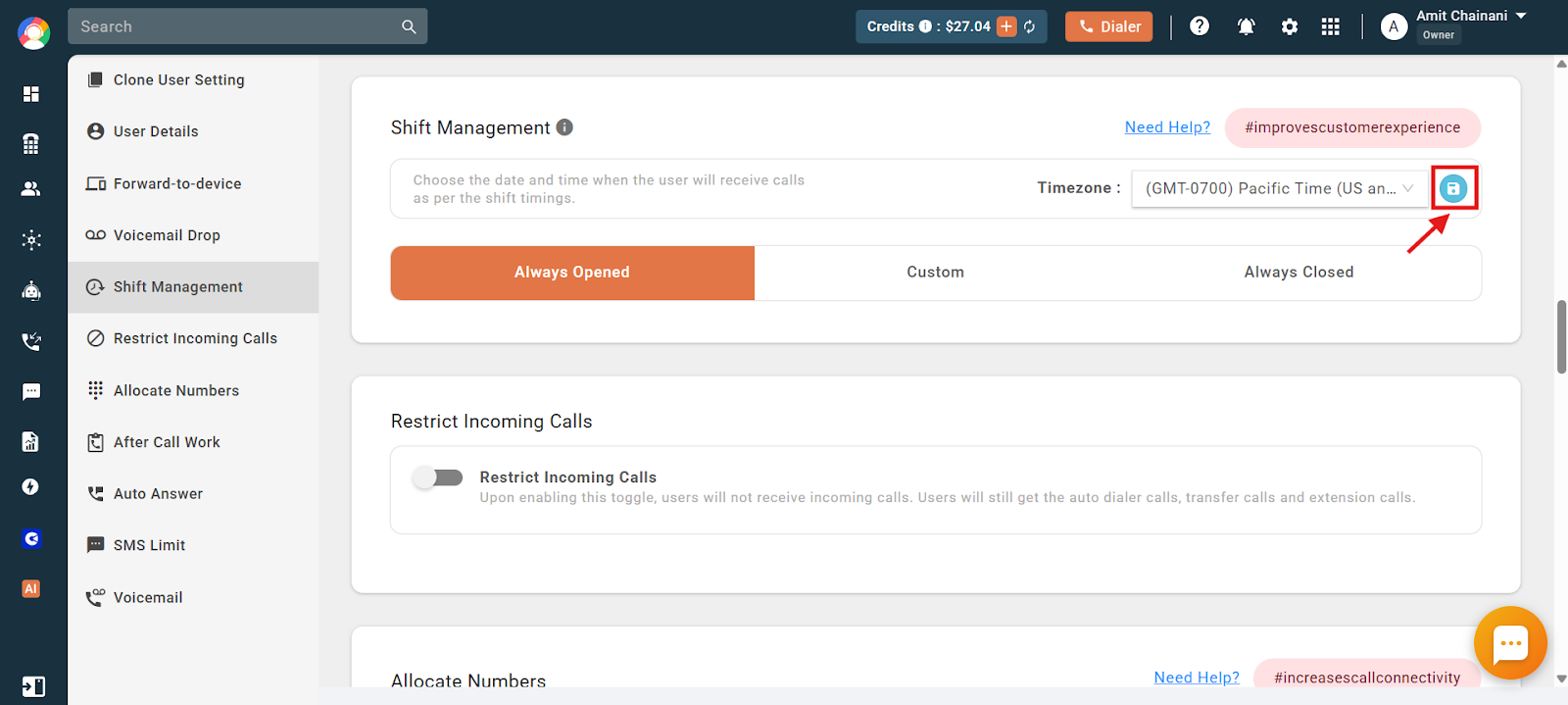
- Open the Shift Management option on the left and select the time zone you need.
- Click the save icon to save the selected time zone.
How to Change a User’s Shift
- Log in to your CallHippo dashboard.
- Go to Users and Performance on the left, then click Users.
- Click the settings icon for the relevant user.
- Open the Shift Management option on the left.
- Choose one of the three options: Always Opened, Custom, or Always Closed.
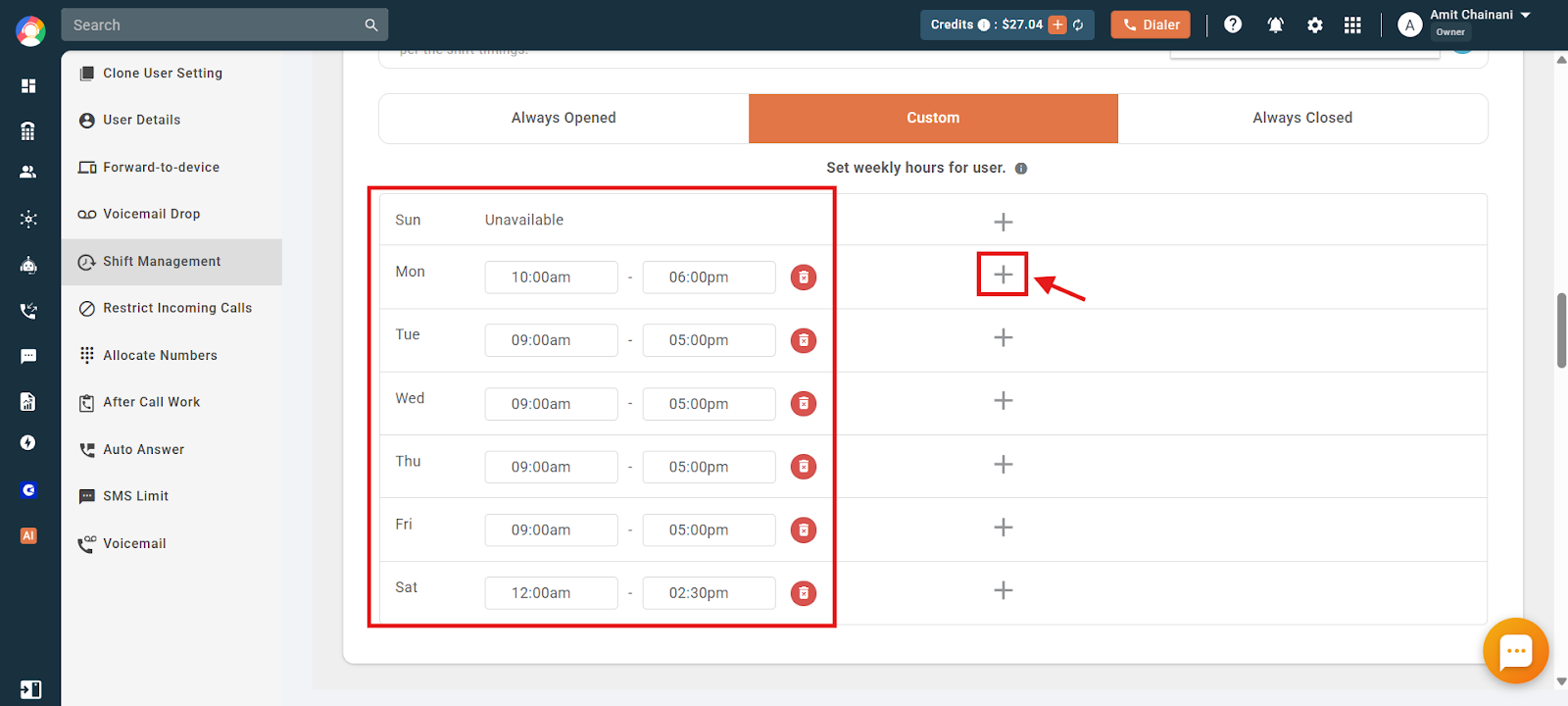
- If you choose Custom, set different shift times for each day of the week. Use the + icon to add and edit timings.
Custom Shift: More Information
- Per-user working hours: The user can only make or receive calls during their active shift hours.
- Weekly schedule: Configure start and end times for each day of the week. These timings repeat weekly unless you change them.
- Dialer conditions: The user can handle calls only during their active shift, and only if the dialer is open and status is set to Available.
- Time zone driven: All custom timings follow the time zone selected in Shift Management, not the device’s or browser’s local time.
What Happens Outside Shift Hours?
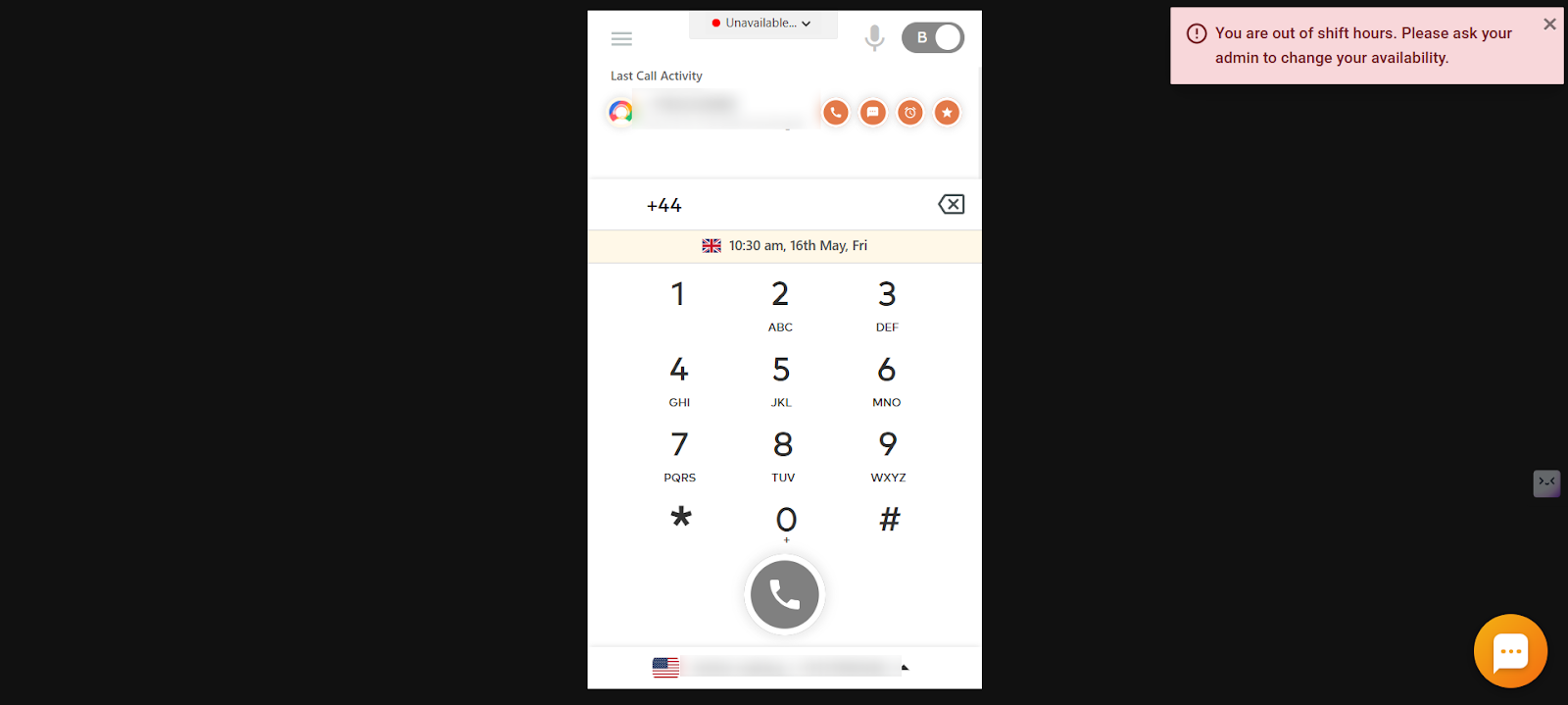
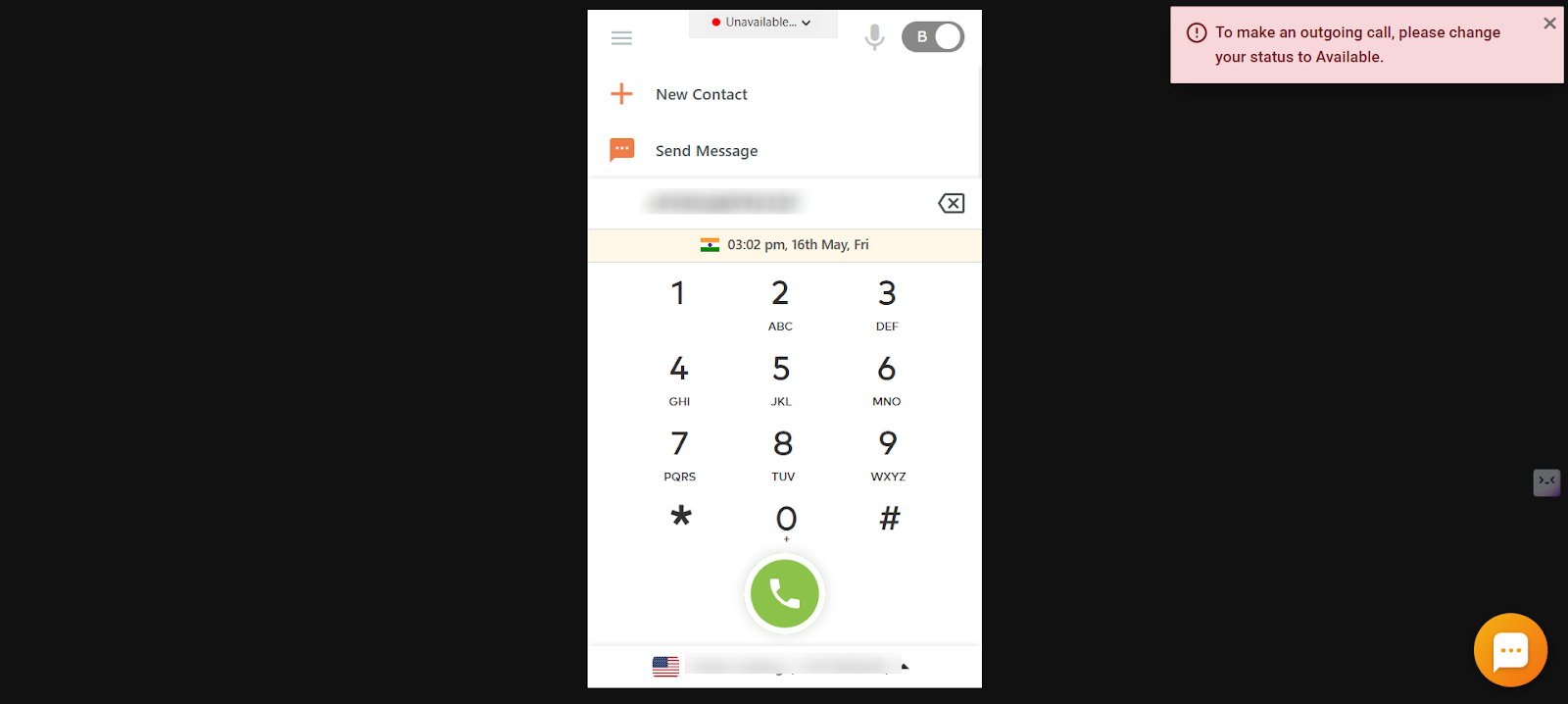
- When a user is outside their custom hours or set to Always Closed, the dialer automatically sets their status to Unavailable.
- If the user tries to manually change their status, the system blocks it and shows: “You are out of shift hours. Please contact your admin to adjust your availability.”
- If the user tries to place an outgoing call while unavailable, the system blocks the call and shows: “To make an outgoing call, please change your status to Available.”
Why the Correct Time Zone Matters
Setting the correct number or user time zone in CallHippo is important for:
- Accurate call scheduling: Ensures calls are placed at the right time across different regions.
- Proper call routing: Routes incoming calls based on the agent’s or number’s time zone.
- Better analytics and reporting: Displays call logs and reports in the correct time format.
Frequently Asked Questions
I updated the shift timings for a user, but the call logs still show the old time zone. Why?
Call logs use the time zone selected in the Shift Management settings. If you changed the shift hours but not the time zone, the logs will still reflect the previous zone.
Can I set different shifts for different days for one user?
Yes. With the Custom Shift option you can define specific working hours for each day of the week.
What does “You are out of shift hours” mean?
It means the user is trying to change their availability outside their assigned shift hours. They need to wait for their shift to begin or have an admin adjust their schedule.
My user is marked unavailable but is within their shift hours. What could be wrong?
Make sure their dialer is open and their status is set to Available. If both are correct, recheck their time zone and shift settings for any errors.
Can users override their availability from the dialer to work outside their shift?
No. Users cannot manually change their status outside their assigned shift directly from the dialer.
What is the difference between Custom Hours and Always Open?
With Custom Hours, the user can make or receive calls only during the set working hours for each day; outside those hours their status is automatically set to Unavailable and cannot be changed manually. With Always Open, the user is available 24/7 with no restrictions.