
CallHippo’s Call Conference feature lets you instantly connect multiple people, whether teammates or clients, on a single call, and it also powers smooth call transfers when you need to hand a conversation off.
Key benefits of call conferencing
Call Conference is built to make your business conversations smoother, faster, and more effective. Here is how it adds value to your workflow:
- Collaboration made easy: Bring internal team members or external contacts into a single call to collaborate in real time.
- Time-saving: Skip the back-and-forth scheduling and consolidate multiple one-on-one calls into one.
- Clear communication: Everyone receives the same information at once, reducing misunderstandings and missed updates.
- Simple call management: As the host you stay in control. Add or remove participants, or transfer the call, all from your dashboard.
- Call recording: Record conference calls to review discussions later or keep documentation for future reference.
CallHippo supports both internal conferencing (within your team) and external conferencing (with clients, vendors, or partners). Internal conferencing lets you pull a colleague such as a supervisor or technical expert into an ongoing call; the participant must be a registered sub-user in your account. External conferencing lets you add any third party, whether a saved contact or a new number, to an active call.
Activation and charges
Before you start, keep these points in mind:
- No separate activation needed: If Call Conference is included in your plan, it is already active with no manual setup.
- Indian numbers not supported: Call conferencing does not work when dialing from an Indian number in your account, due to local telecom restrictions.
- Free calling benefit applies: If the numbers in your conference belong to countries covered by your plan’s free calling benefits, only free minutes are used. Your account must still hold a positive, non-zero credit balance (even as little as $1); conference calls will not work at a zero balance.
- Out-of-plan destinations: If any participating number is from a country not covered by your free calling benefits, charges are deducted from your calling credits at standard rates.
Good to know: hold and audio behavior
- When you start a new outgoing call from within an active call, the current caller is placed on hold.
- You will no longer hear the original caller while they are on hold.
- The original caller hears hold music until you resume or merge the call.
Steps for internal and external call conferencing
- Start a call: Log in to your CallHippo dialer and initiate a call.
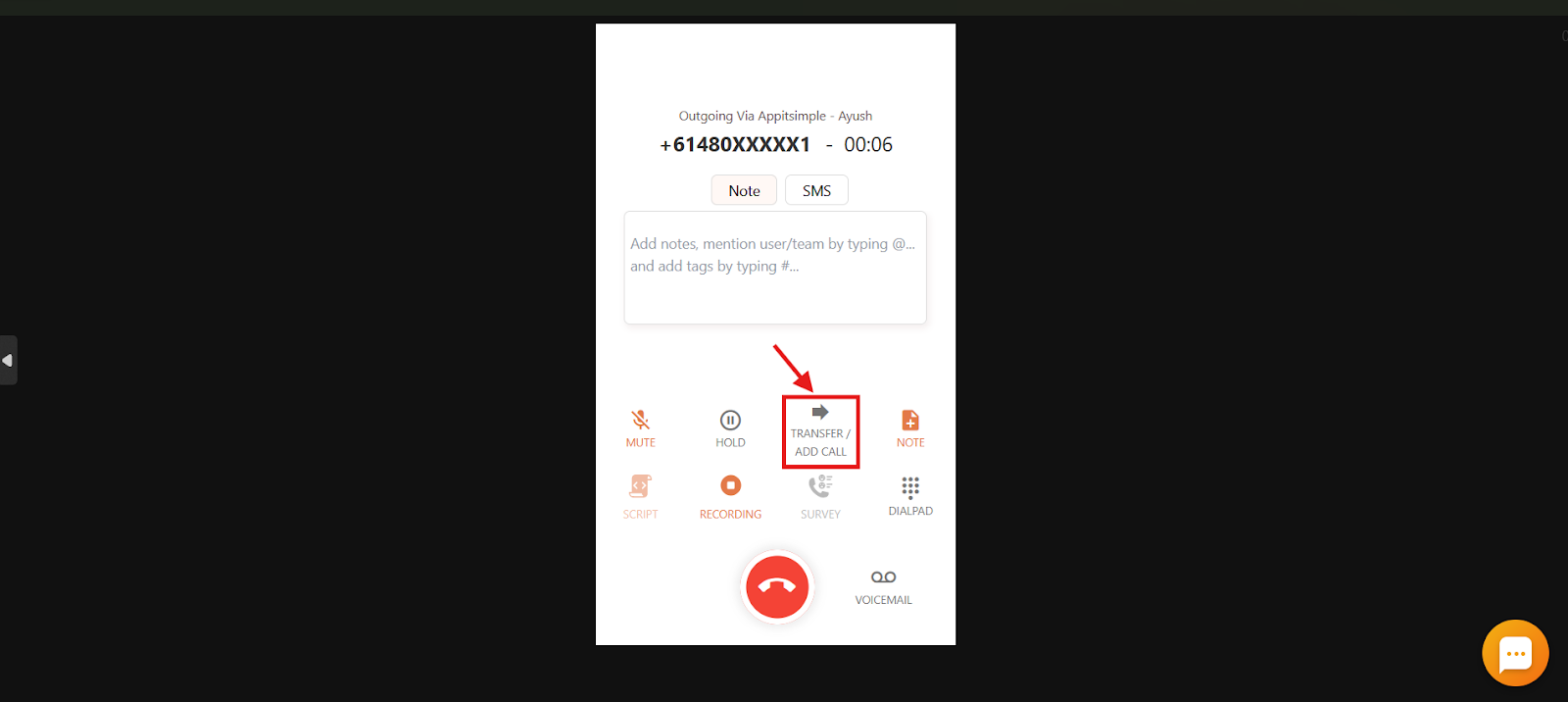
- Open Transfer / Add Call: Click the Transfer / Add Call button.
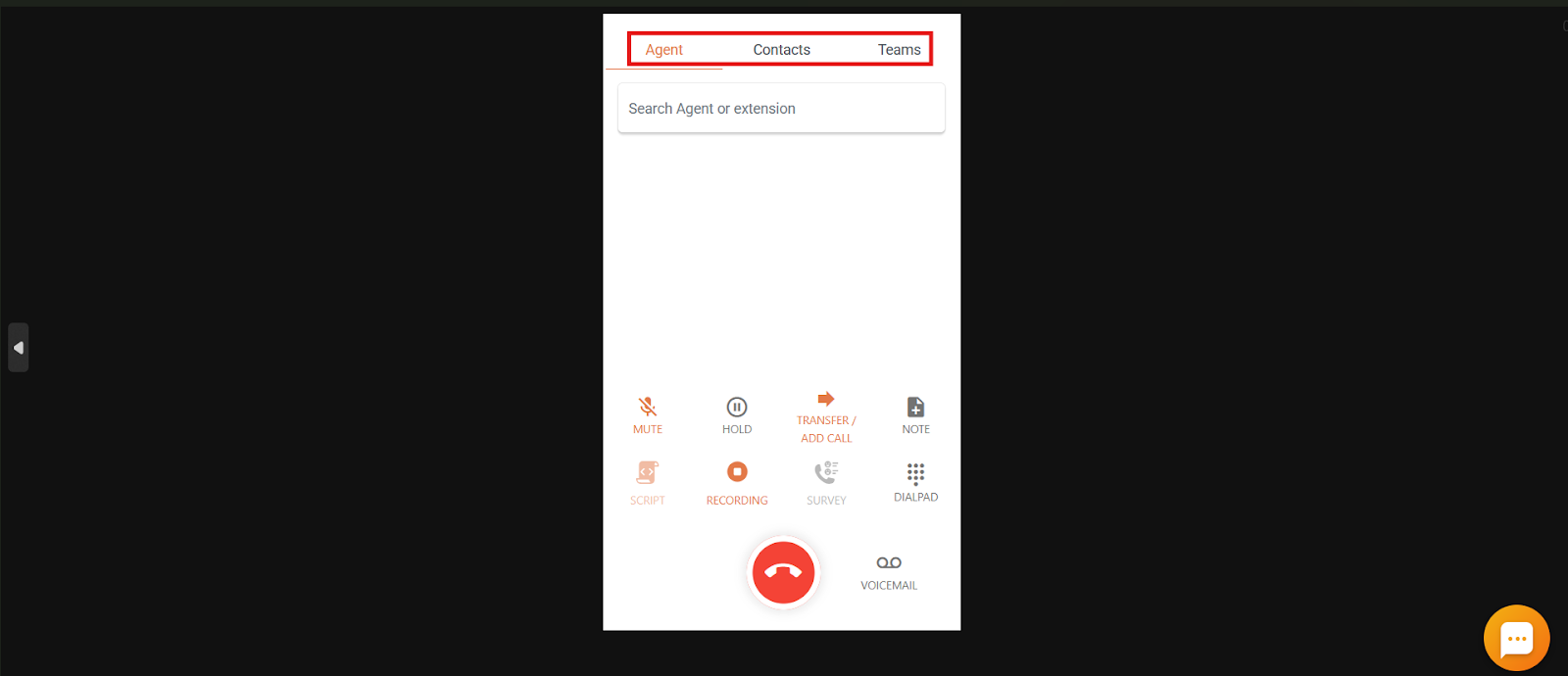
- Choose who to add: You will see three options, Agent, Contacts, and Teams.
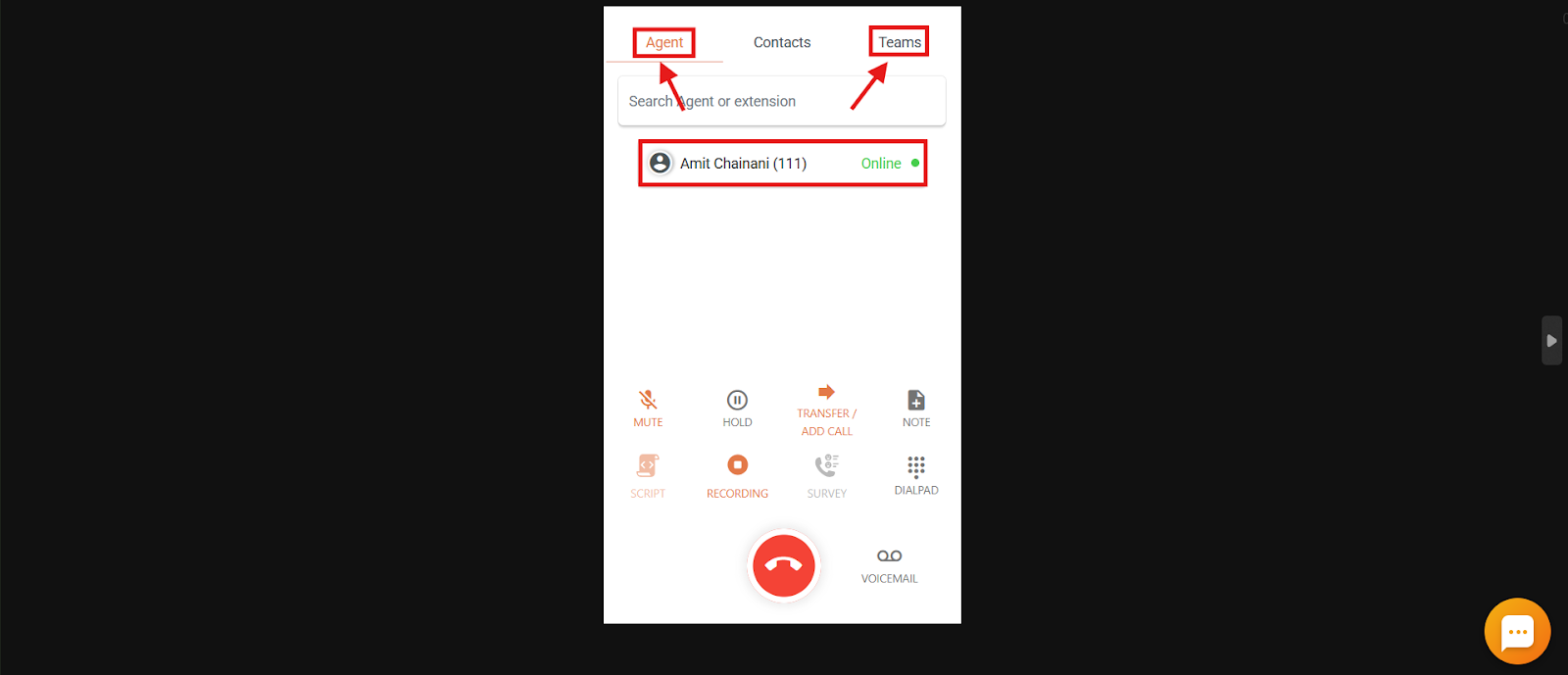
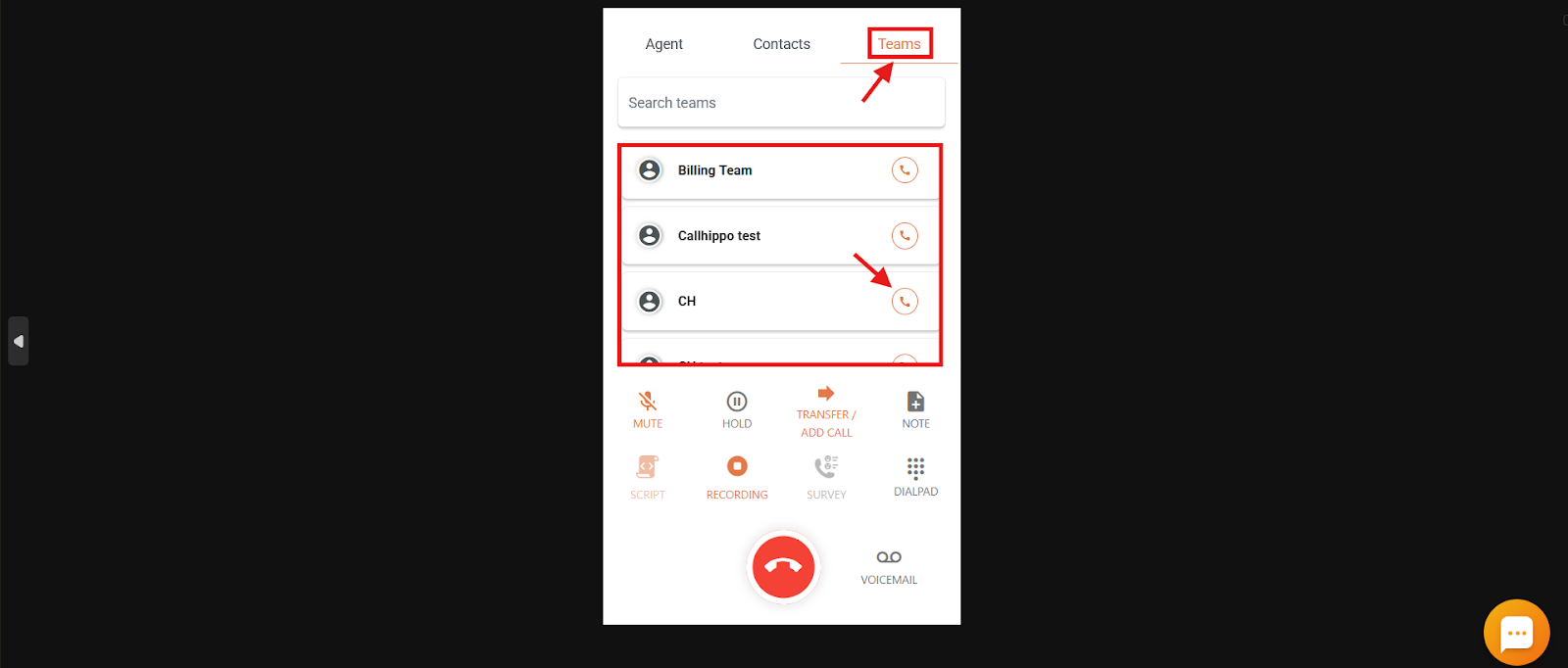
Internal conferencing: Use Agent to invite an individual user from the list of available agents, or Teams to invite a member of a team created in your account.
External conferencing: Use Contacts to add any external number. You can either add an existing saved contact or manually dial a number to add to the call.
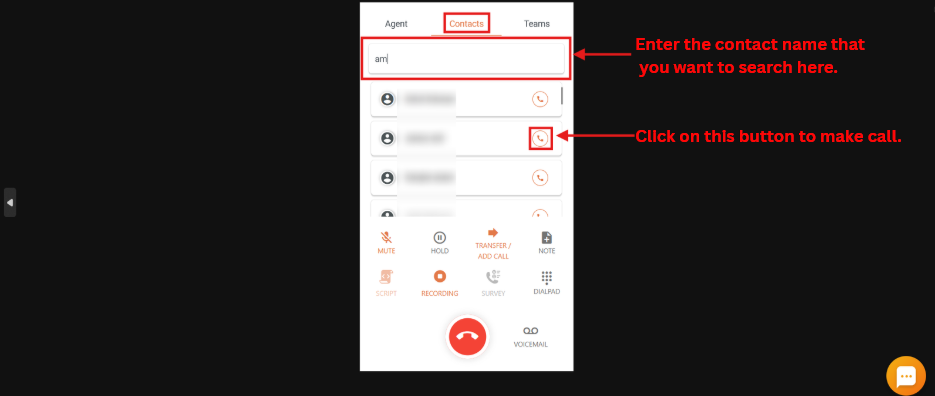
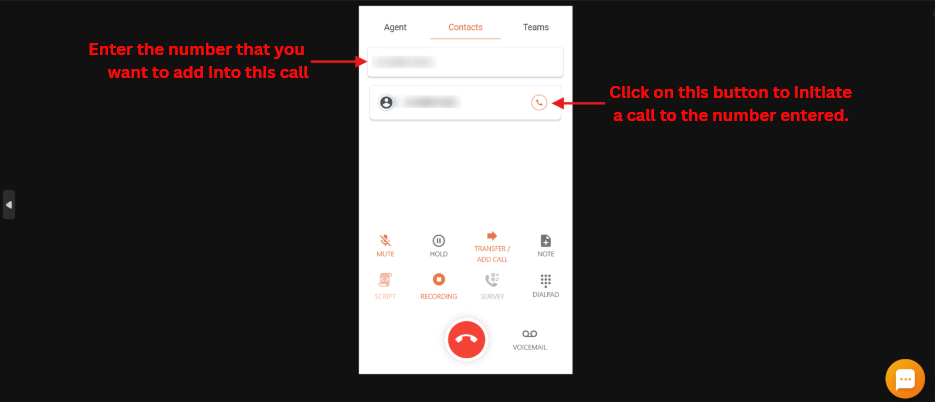
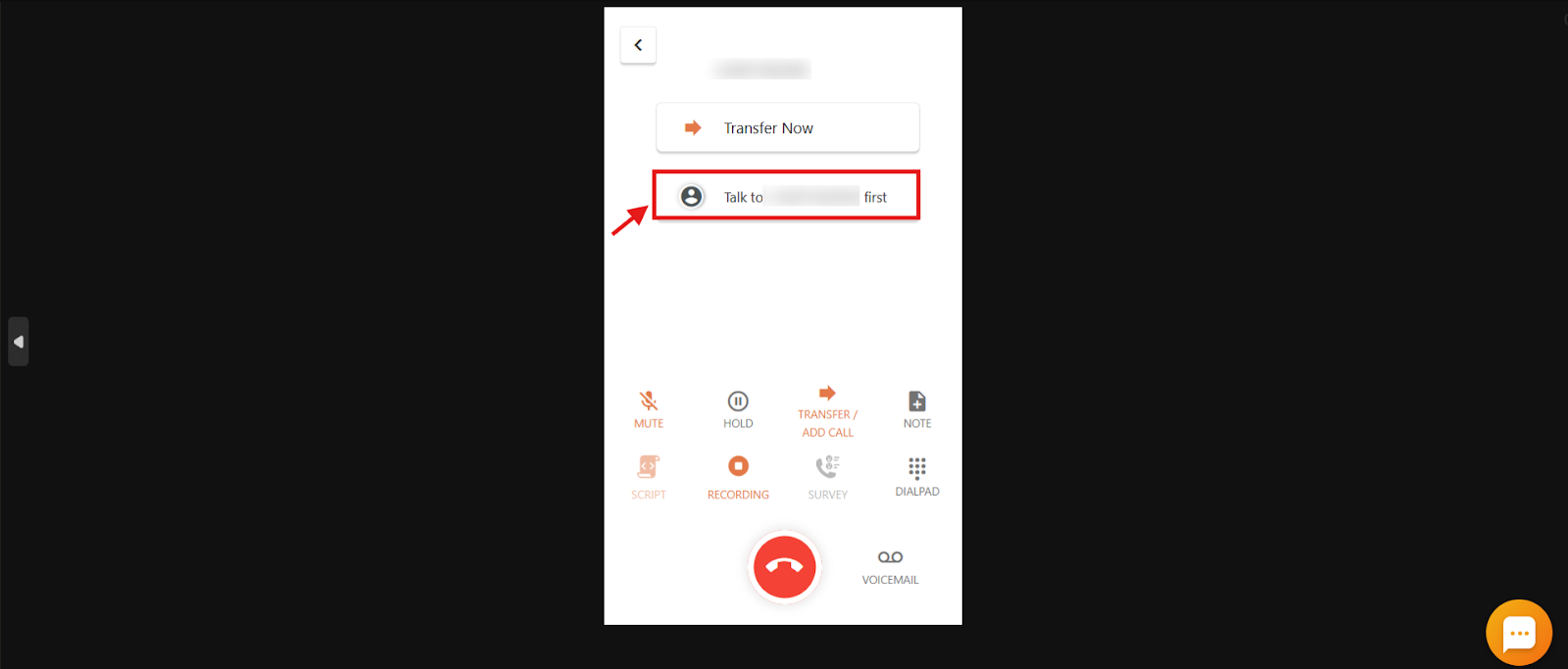
Once you click the call button, you can choose between Transfer now and Talk to the newly connected call first. Before you pick one, it helps to understand the two types of transfer.
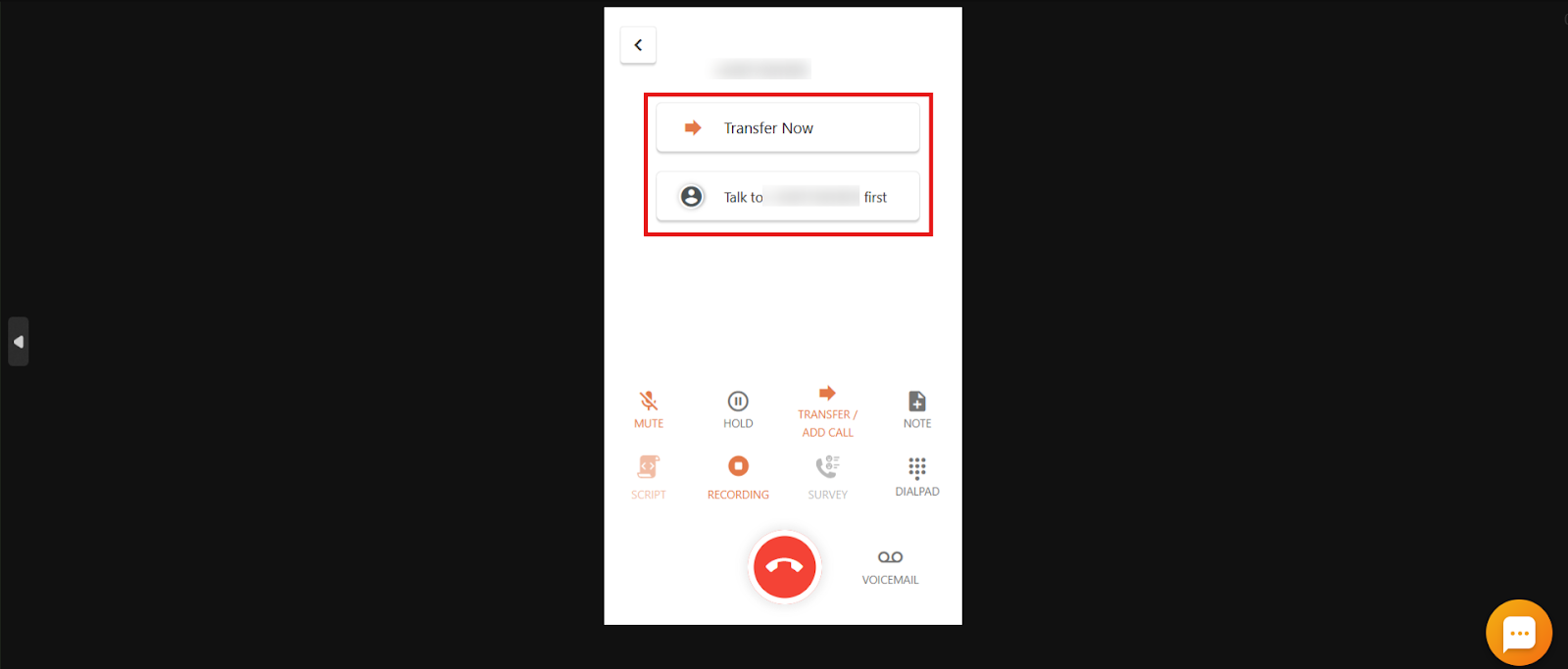
Types of call transfer
Blind (cold) transfer: Redirect the caller to another agent or contact without speaking to the recipient first. Their phone rings, and once they accept, you are automatically disconnected. It is fast, but there is no chance to brief the recipient.
Warm transfer: Before completing the transfer, you briefly speak with the next agent, provide context, and make sure they are ready to take over. This small step delivers a much smoother experience for the caller.
Proceeding with a cold transfer
- Click Transfer Now.
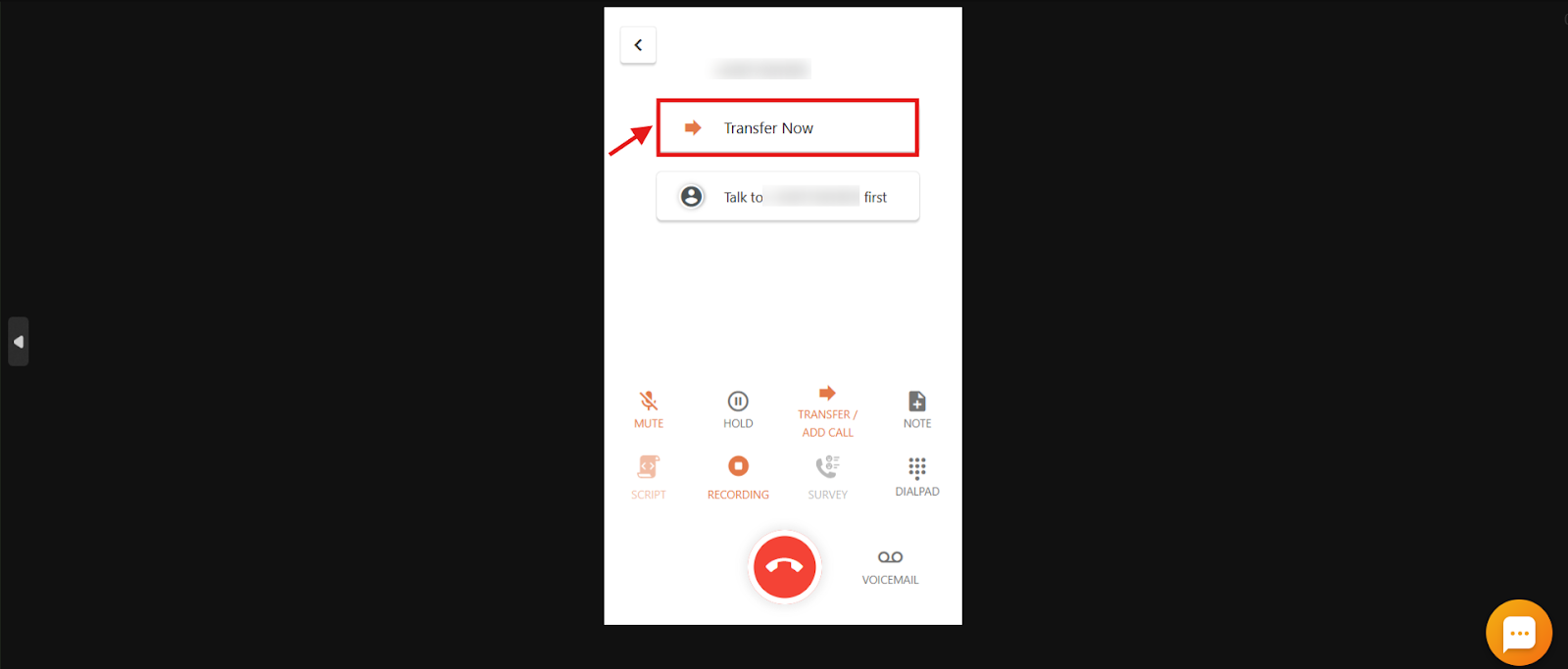
- If the new call connects, your line automatically disconnects and the original caller and new recipient are connected directly. This completes the cold transfer.
- If the new call is not answered (busy, unreachable, or rejected), the original caller is taken off hold and you are reconnected as the call resumes.
Proceeding with a warm transfer
- Click Talk to the new caller first.
- If the new call is not answered, the original caller is taken off hold and you are reconnected.
- If the new call connects, you can speak to the new caller while the original stays on hold, giving you time to brief them before merging or transferring.
- Transfer Call: Click Transfer Call to connect the original and new caller directly while you drop off. The transfer completes immediately.
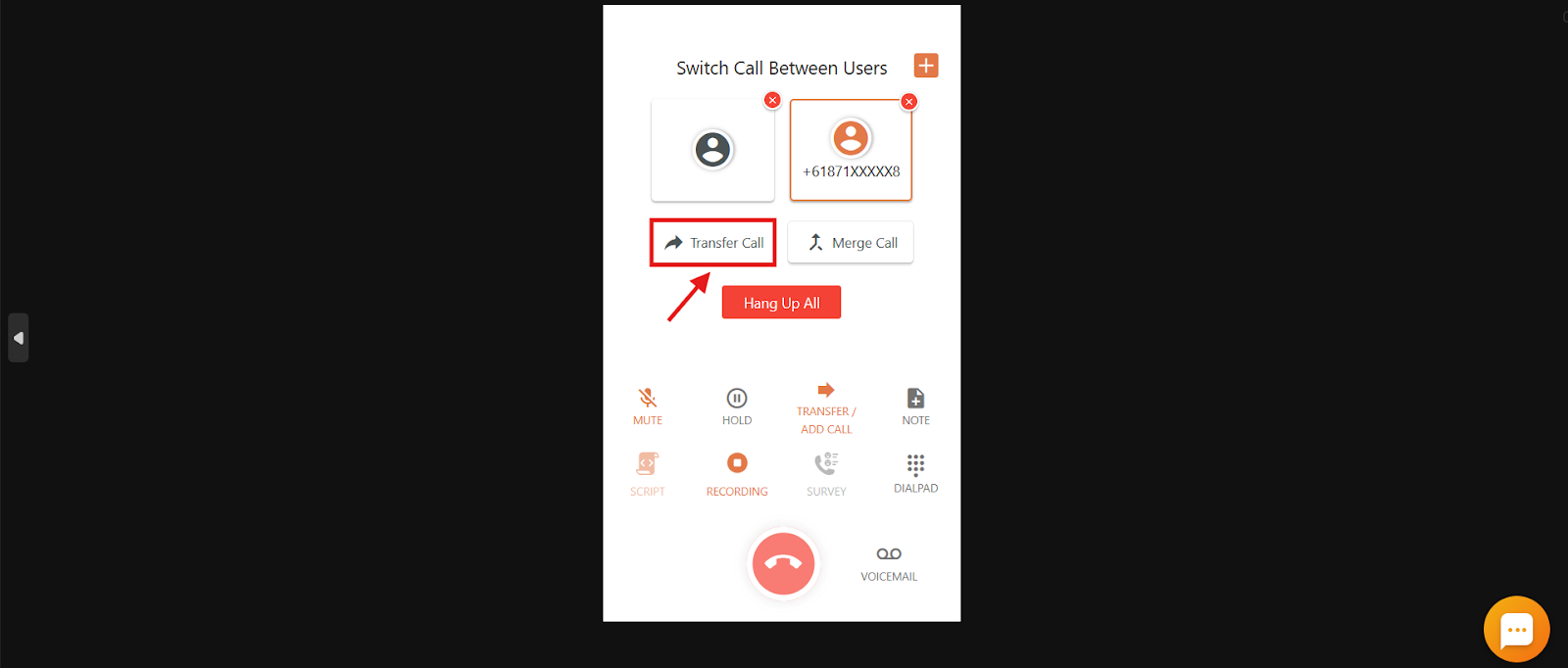
- Switch between callers: Click a caller to switch. The caller highlighted in red is connected to you; the other is on hold.
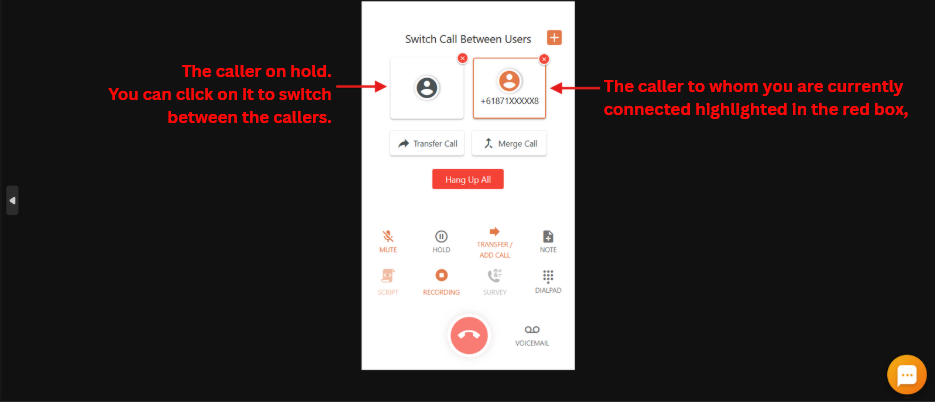
- Merge Call: Click Merge Call to connect the original caller, the new caller, and yourself, all three on the same call.
Leaving or ending a conference
Once you merge into a conference, you get two options.
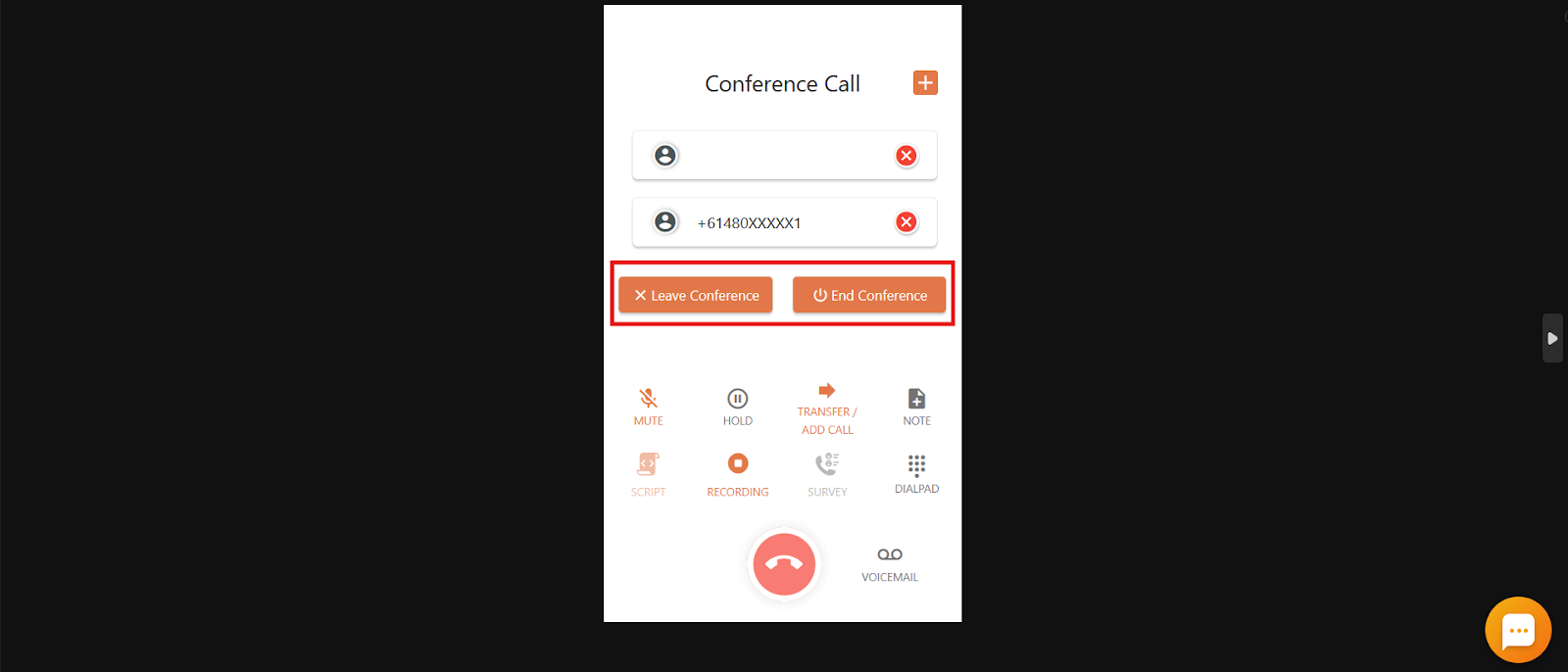
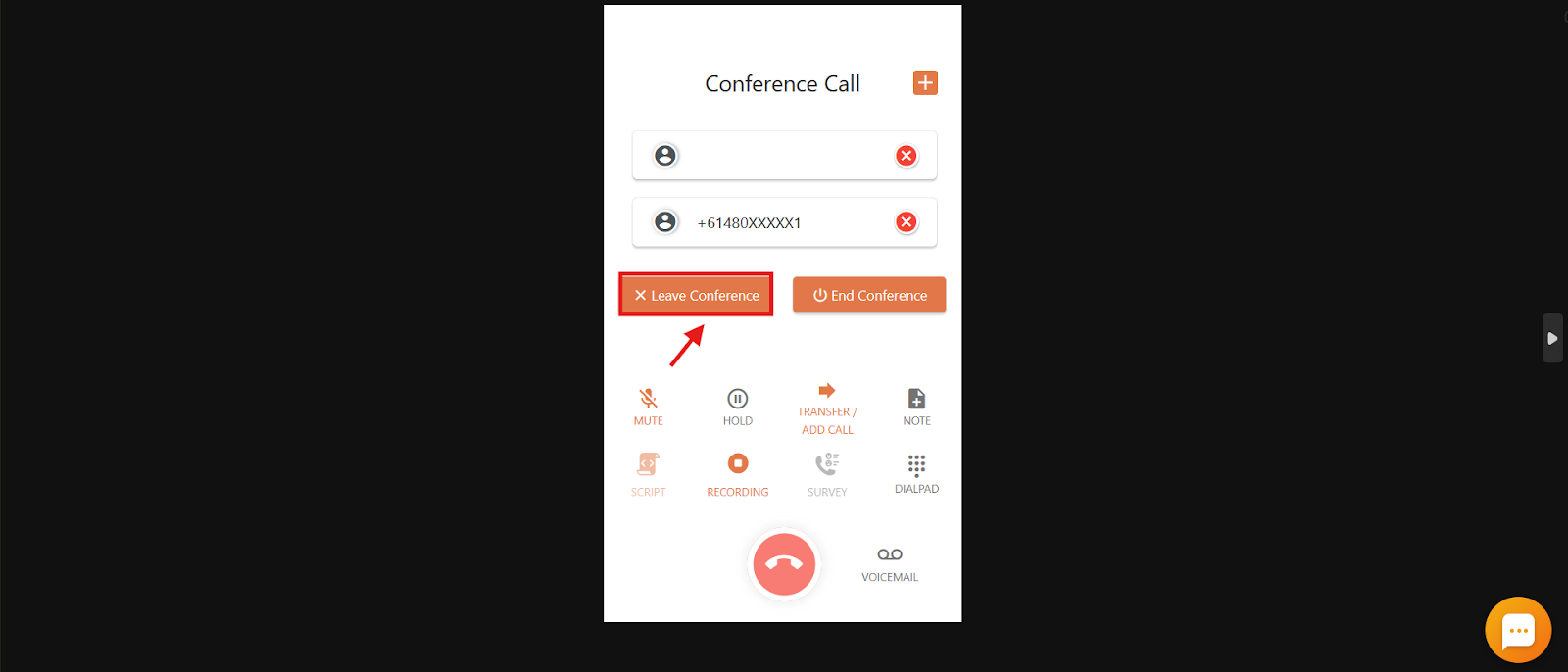
- Leave Conference: Drop off the call while the original and new callers stay connected to each other.
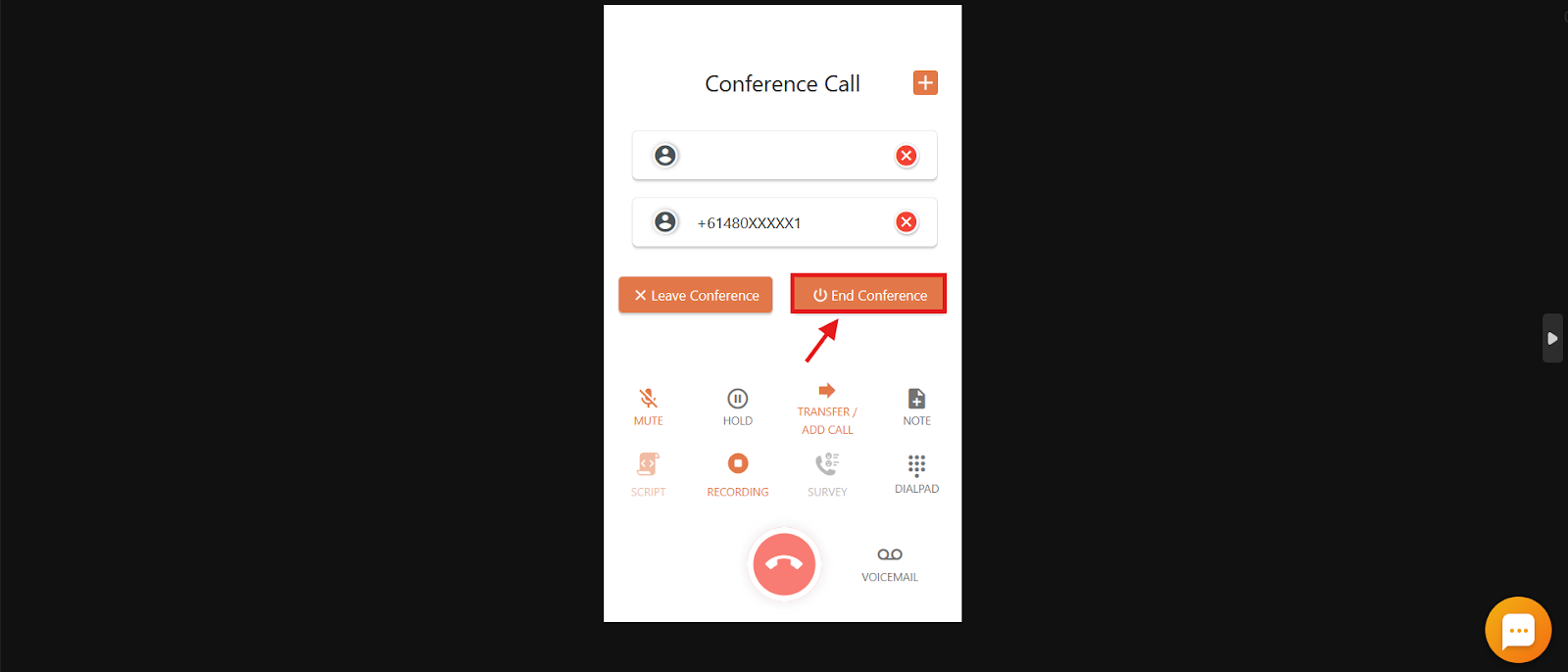
- End Conference: End the call for everyone, the original caller, the new caller, and yourself.
Frequently asked questions
Can I use Call Conference if my account has zero credits?
No. Even when using free calling benefits, your account must hold a non-zero credit balance (for example, at least $1) for conference calling to work.
Can I invite someone outside my company to a conference call?
Yes. Select Contacts and either choose a saved contact or dial a new number.
What is the difference between cold and warm transfer?
A cold (blind) transfer sends the caller directly to another person without introducing them. A warm transfer lets you talk to the recipient first before completing the transfer.
What happens if the new person does not answer during a transfer?
The original caller is taken off hold and you are reconnected with them automatically.
Can I merge all three participants into one conference call?
Yes. After connecting with both the original and new caller, click Merge Call to connect all three people.
How do I know which caller I am speaking with during a transfer?
The caller you are actively speaking with is highlighted in red in the dialer.
Will the person on hold hear anything during the transfer?
Yes, they hear hold music until the call resumes or is merged.
Are conference calls recorded automatically?
If your account has call recording enabled, conference calls are recorded like regular calls.
How many people can I add to a single call?
CallHippo currently supports up to 5-way conferencing, so three-way calling is fully possible.
Why is the transfer option grayed out on my dialer?
This usually means your plan does not include the Call Conference feature. Review your plan on our pricing page.
Can I rejoin a conference after leaving it?
No. Once you leave, you cannot rejoin the same call. You would need to start a new call and a new conference.
Can I add call transfer as a standalone add-on?
No. Call Transfer cannot be added individually. It is only available with specific plans, so check the pricing page to see which plans include it.
Our agent cannot see the supervisor’s name in the transfer list. Why?
Make sure the supervisor is a registered user in your account and is currently online. Only visible, available users appear in the transfer list.
Can I use Call Conference when calling from my Indian number?
No. Conferencing is not supported from an Indian number due to local telecom regulations. You can still use it with non-Indian numbers assigned to your account.