
A welcome message is the first greeting callers hear when they connect with your business, setting the tone and guiding them before the call is routed.
Why Welcome Messages Matter
- First impressions: A well-crafted greeting establishes professionalism and trust from the very first second.
- Information delivery: Share business hours, menu options, or updates so callers get the details they need right away.
- Call routing: Point callers toward the right department or person, cutting wait times.
- Brand reinforcement: Consistent messaging keeps your brand identity front and center and makes the interaction more memorable.
Impact on Your Business
- Better customer experience: Callers feel acknowledged and informed, which boosts satisfaction.
- Operational efficiency: Correctly directed calls lighten the load on receptionists and reduce misrouted communications.
- Professionalism: A standardized greeting signals your commitment to quality and consistency.
Steps to Set Up a Welcome Message
- Log in to your CallHippo account at web.callhippo.com.
- Go to Number & DID, then Numbers. From the left-hand menu, open Numbers to view your list of virtual numbers.
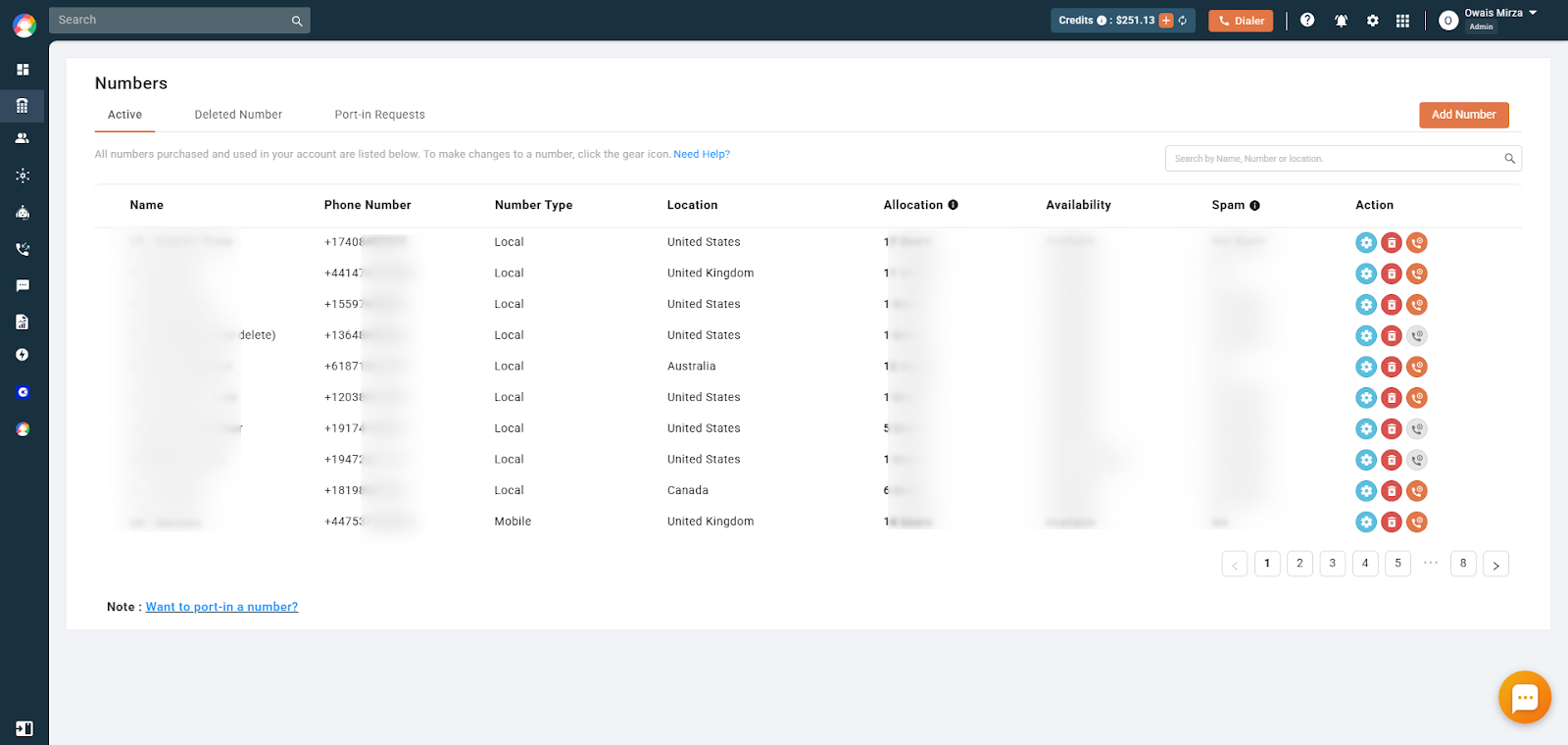
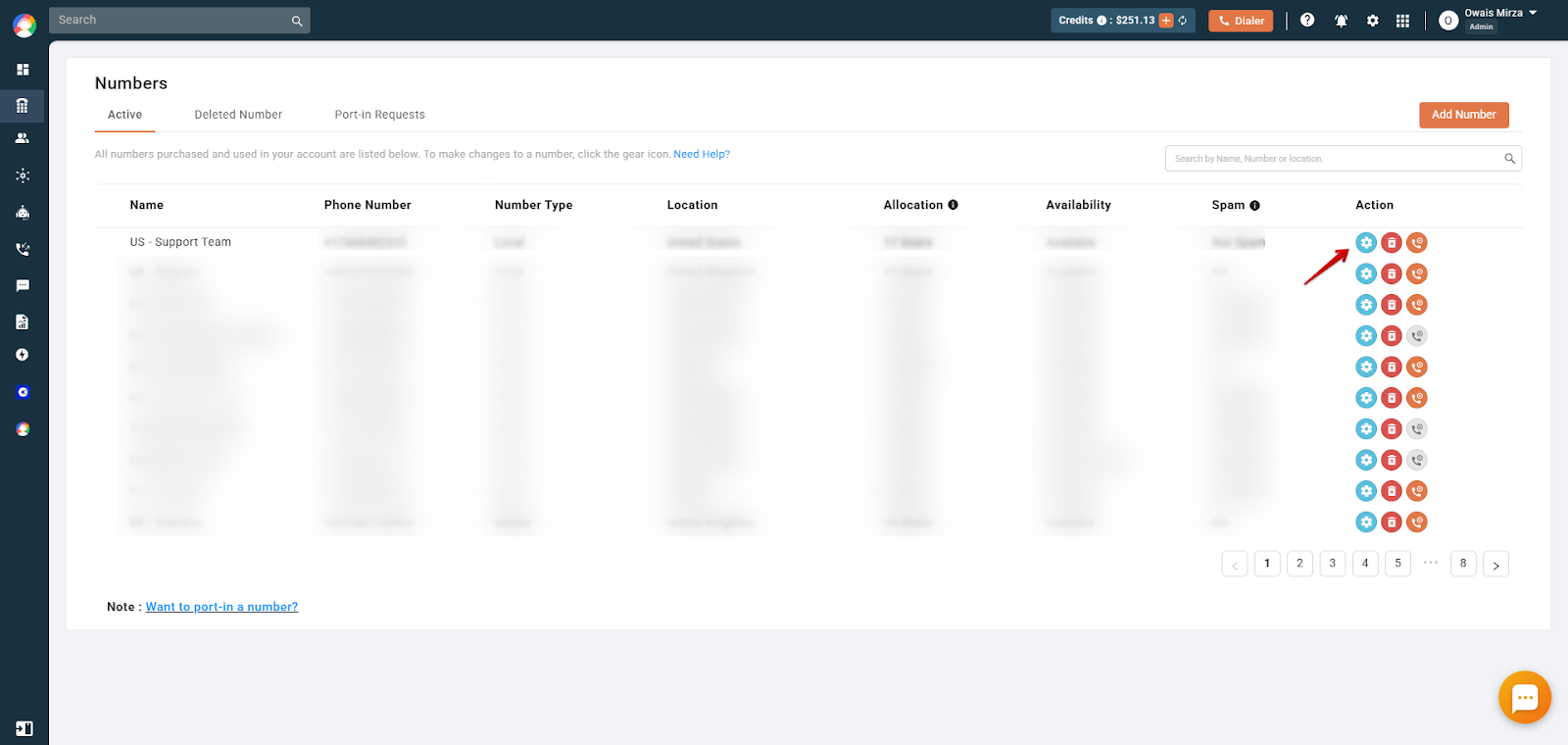
- Open number settings. Find the number you want to configure and click the Settings (gear) icon in the Action column.
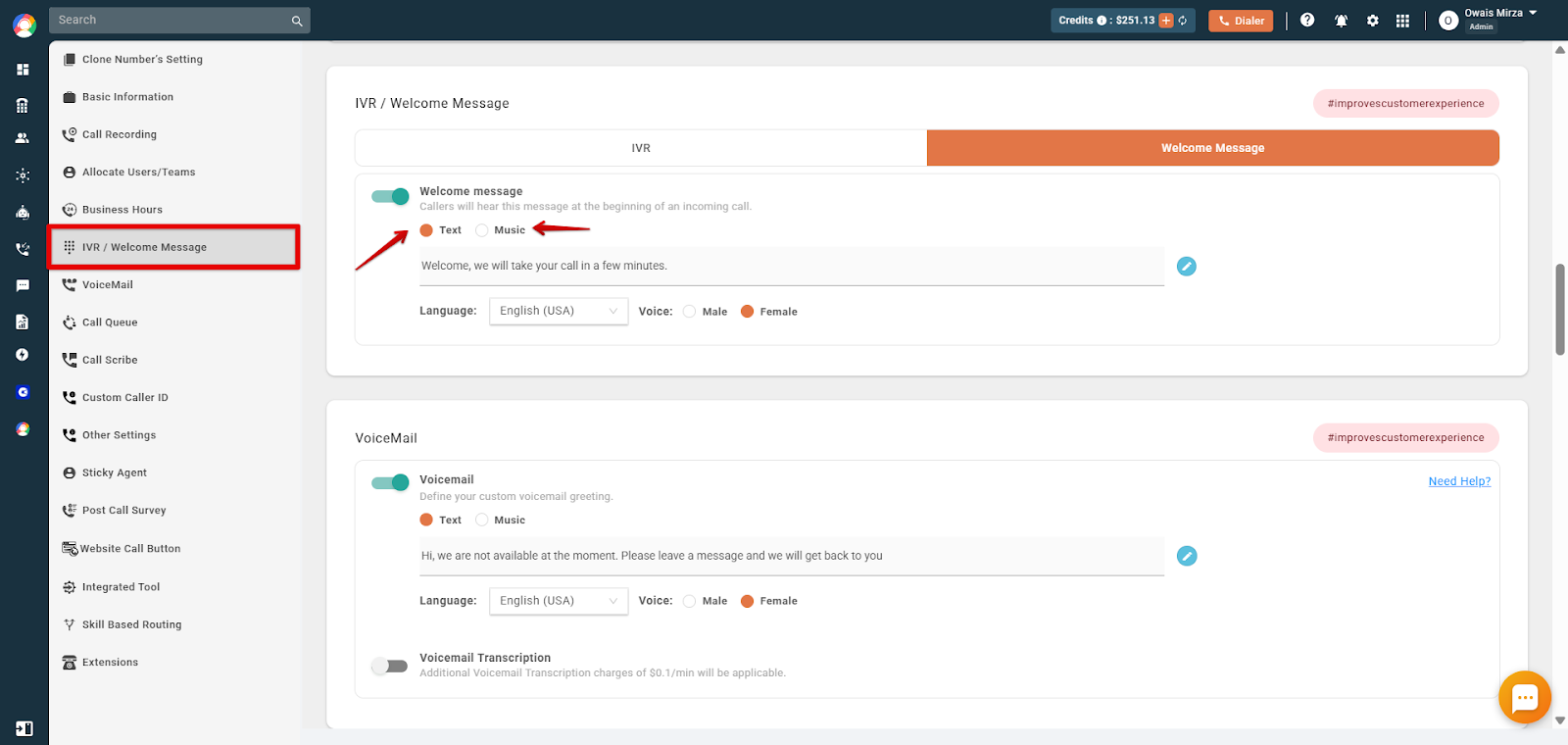
- Go to IVR / Welcome Message. Click the Welcome Message tab, then choose how the greeting is delivered:
- Text: Type your message and CallHippo converts it into speech.
- Music: Upload a pre-recorded audio file (WAV or MP3, under 5 MB) with your greeting.
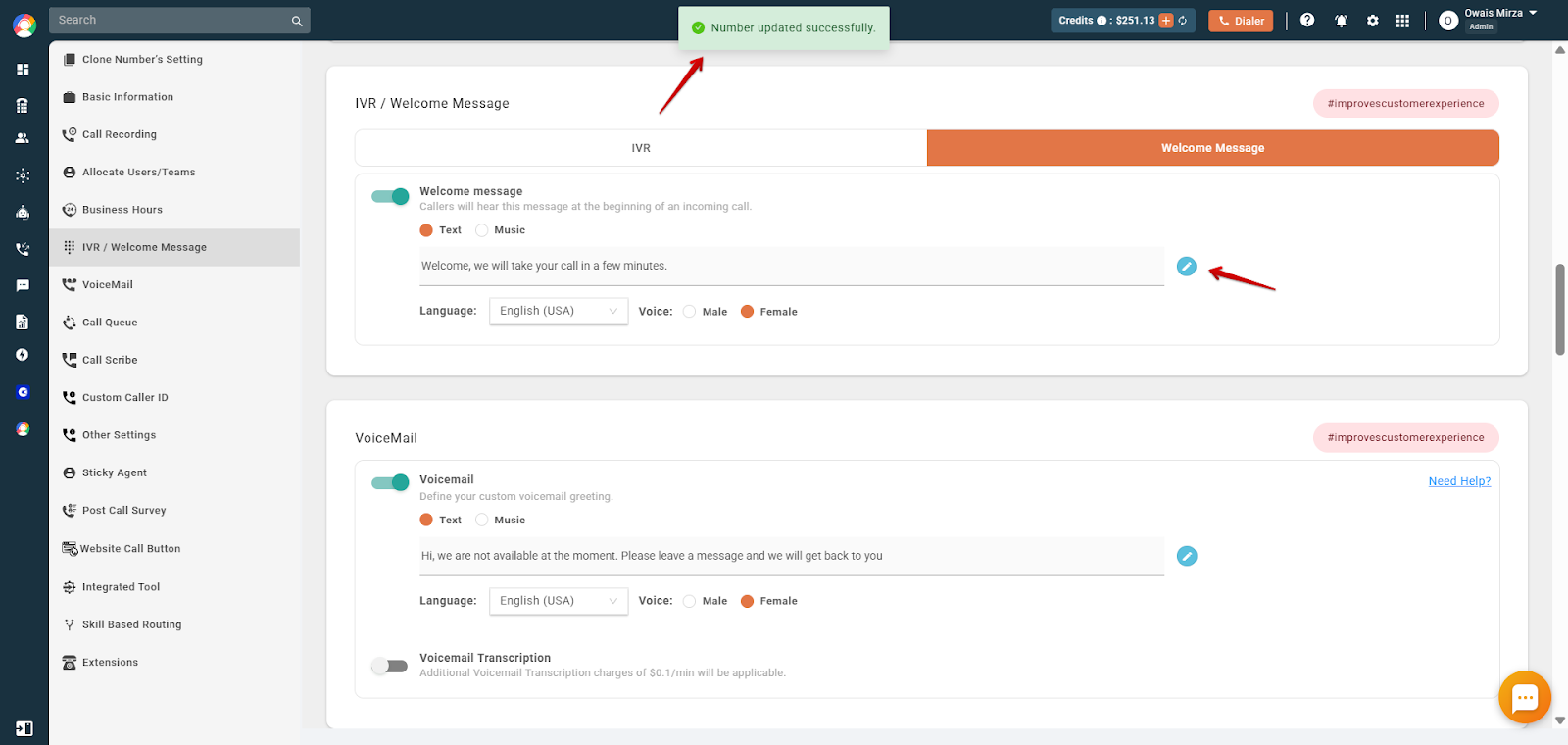
- Save your changes. Click the save icon to apply the welcome message. You will see a confirmation once it is updated.
Frequently Asked Questions
Can I customize the language of the welcome message?
Yes. CallHippo lets you set welcome messages in multiple languages to serve a diverse caller base.
What audio formats are supported?
You can upload audio files in MP3 and WAV formats for your welcome messages.
Can I have different welcome messages for different numbers?
Absolutely. Each virtual number in CallHippo can have its own unique welcome message, so you can tailor greetings by department or service.
Can I change the welcome message after it has been set?
Yes. You can update or modify it at any time by following the setup steps and uploading a new file or editing the text.
Does CallHippo provide default welcome messages?
CallHippo offers a standard script, but we encourage businesses to upload customized recordings that better match their brand voice.
Incoming calls on my number assigned to the AI sales agent are not playing the welcome message. What is the issue?
Welcome messages do not work for numbers assigned to the AI sales agent. Those numbers follow a different flow based on website interactions and do not support standard welcome messages.
My IVR and welcome message are not working. What should I check?
Make sure your dialer is open and ready to receive calls. If the dialer is closed, incoming calls will not connect, and only the voicemail may play instead of the IVR or welcome message.