
After-Call Work (ACW) gives agents a short, protected window after each call to finish notes, tag the call, and follow up before the next call arrives.
What Is After-Call Work?
After-Call Work is the time allocated to agents immediately after a call ends so they can complete essential post-call tasks such as adding notes, tagging the call, updating the disposition, or sending a follow-up message. In CallHippo, the agent is not assigned another call during ACW, giving them a moment to process and record important details.
Key Features of ACW in CallHippo
- Set duration: Define how long the ACW period lasts (from 1 to 60 minutes) so agents get enough time without excessive idle time.
- Mandatory tagging and disposition: Admins can require tagging and outcome logging to standardize call data across teams.
- Default tag and disposition: Assign predefined values to save time and encourage consistency.
- ACW for all calls: Apply ACW after every call, or limit it to completed calls only.
- SMS option: Let agents send follow-up messages to customers directly from the ACW screen.
Benefits of Using After-Call Work
- Address customer requests: Document inquiries promptly for timely, accurate follow-ups.
- Facilitate collaboration: Share detailed notes and insights with colleagues across departments.
- Enable supervisor feedback: The post-call period is ideal for immediate coaching based on real interactions.
- Let agents recharge: Brief intervals between calls help agents manage stress and stay attentive.
Common Use Cases
- Sales teams: Record lead interest, add deal-stage tags, and schedule follow-ups.
- Support teams: Document issues, escalate unresolved queries, and assign tags such as Billing Issue or Technical Bug.
- Customer success: Mark calls as Check-In Complete or Upsell Discussed to track engagement.
Example: A sales agent finishes a call with a prospect interested in a demo. During ACW they set the disposition to “Follow-up Required,” add the tags “Interested” and “Needs Demo,” and send an SMS: “Thank you for your time. Let us reconnect next week for the demo.”
How to Enable After-Call Work
- Log in to your CallHippo dashboard.
- Open Users. Go to Users and Performance in the left menu and click Users.
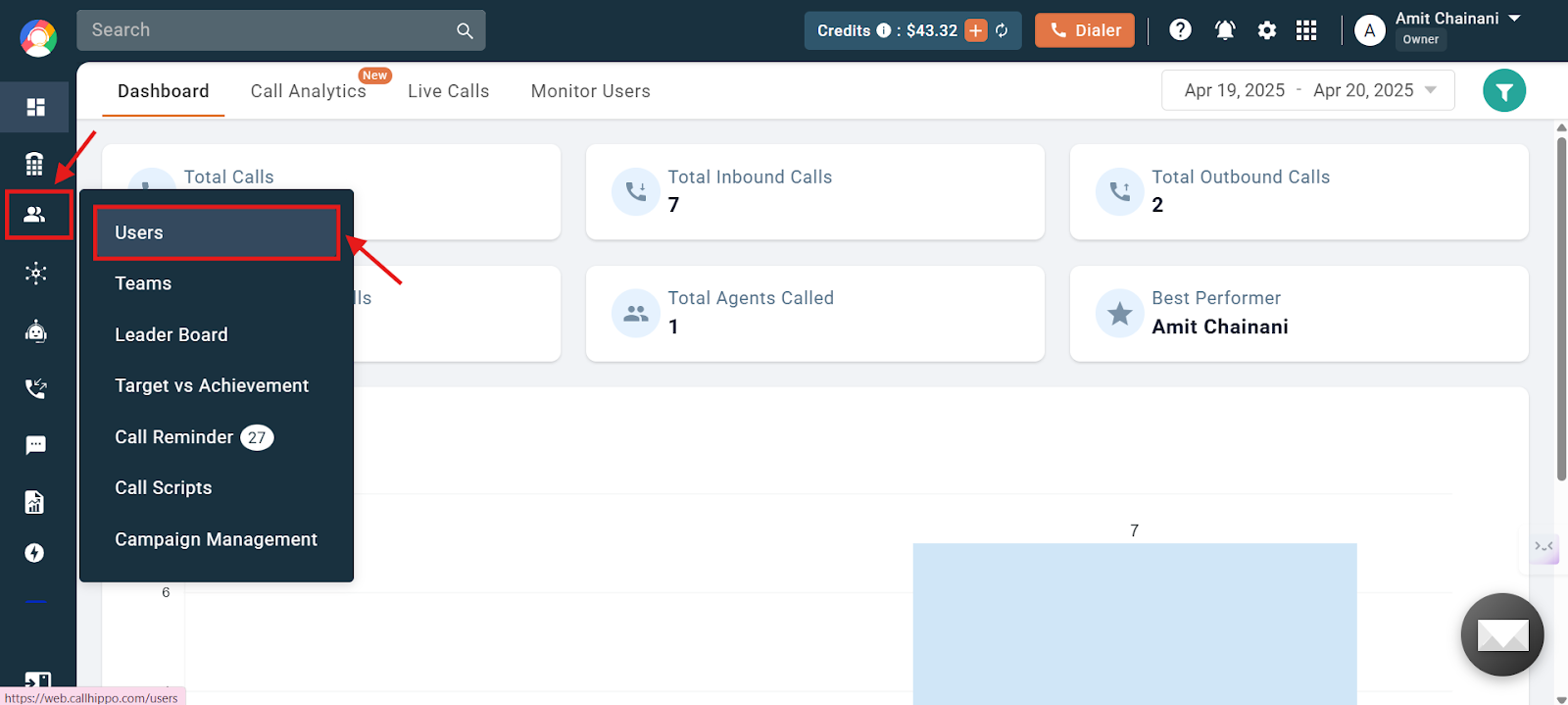
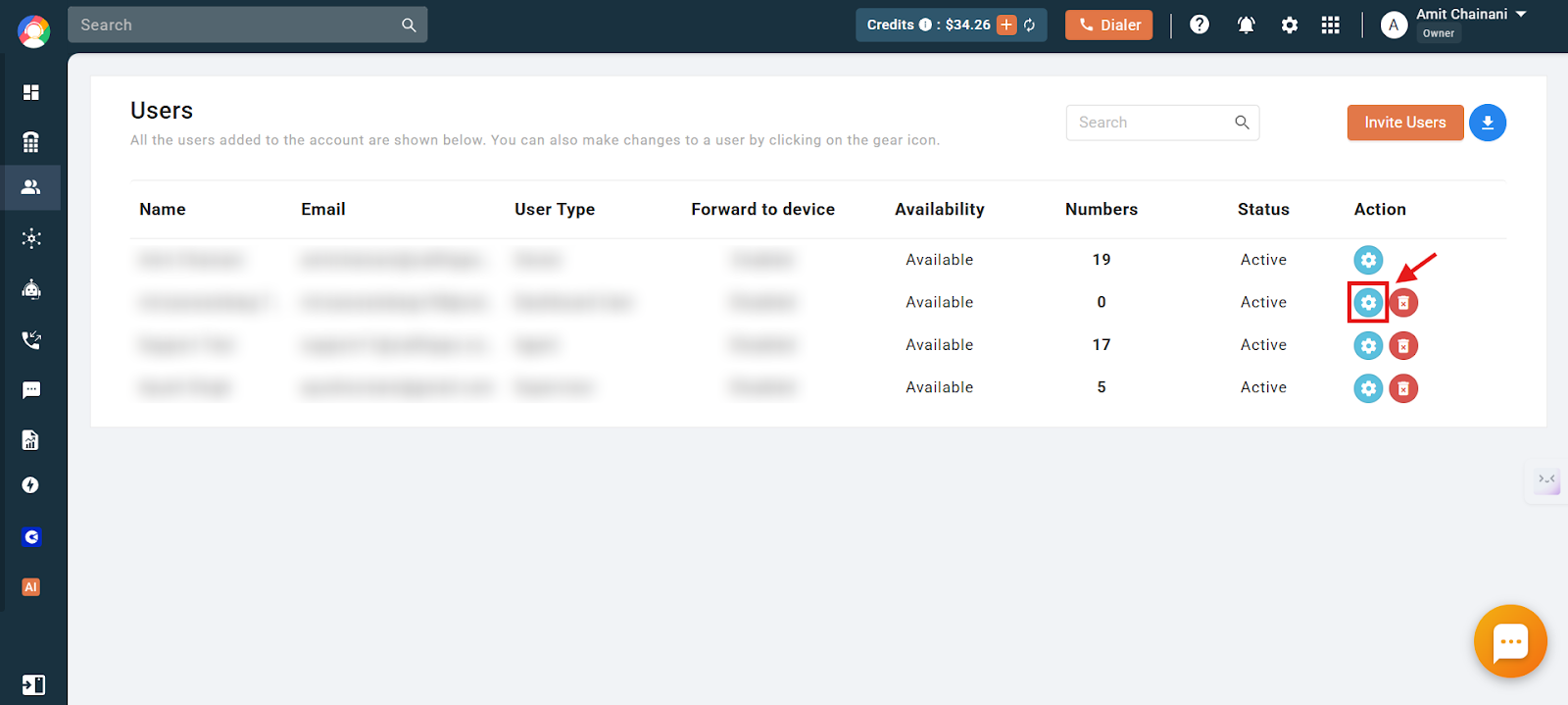
- Open user settings. Click the settings (gear) icon of the user you want to update.
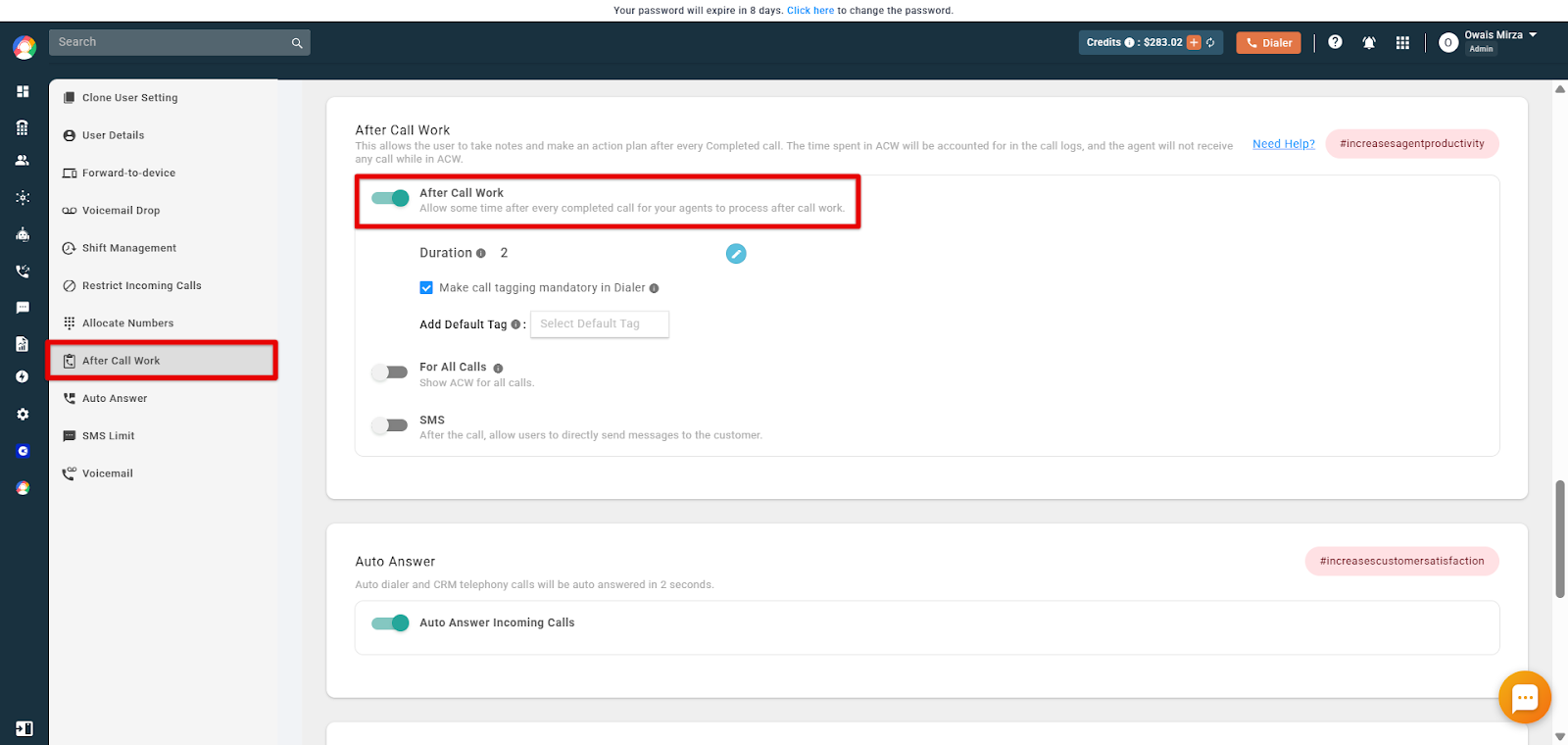
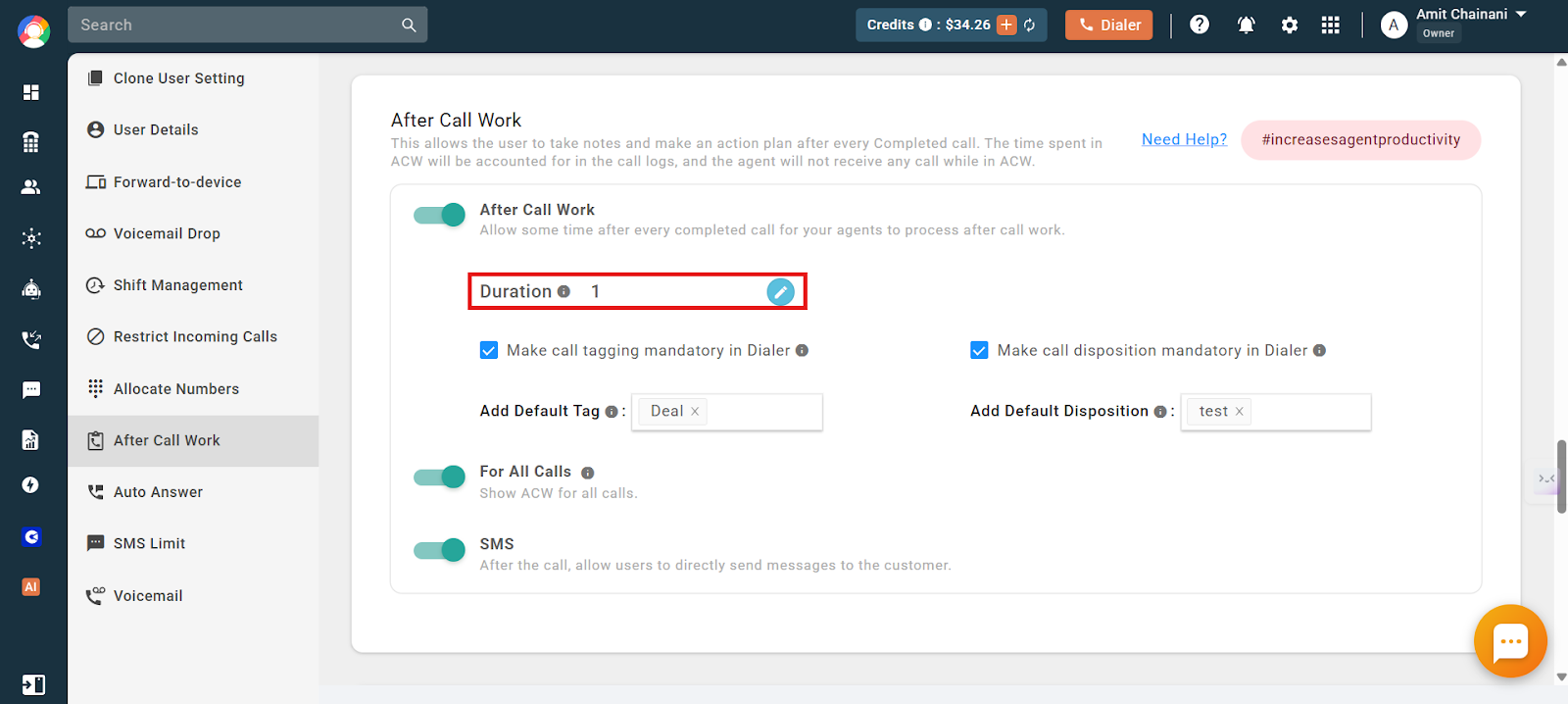
- Enable ACW. Under the user section, open After Call Work and turn on the toggle.
- Set duration and defaults. Click the edit icon to set a duration between 1 and 60 minutes, then save. You can also enable mandatory tagging and disposition and pick default values.
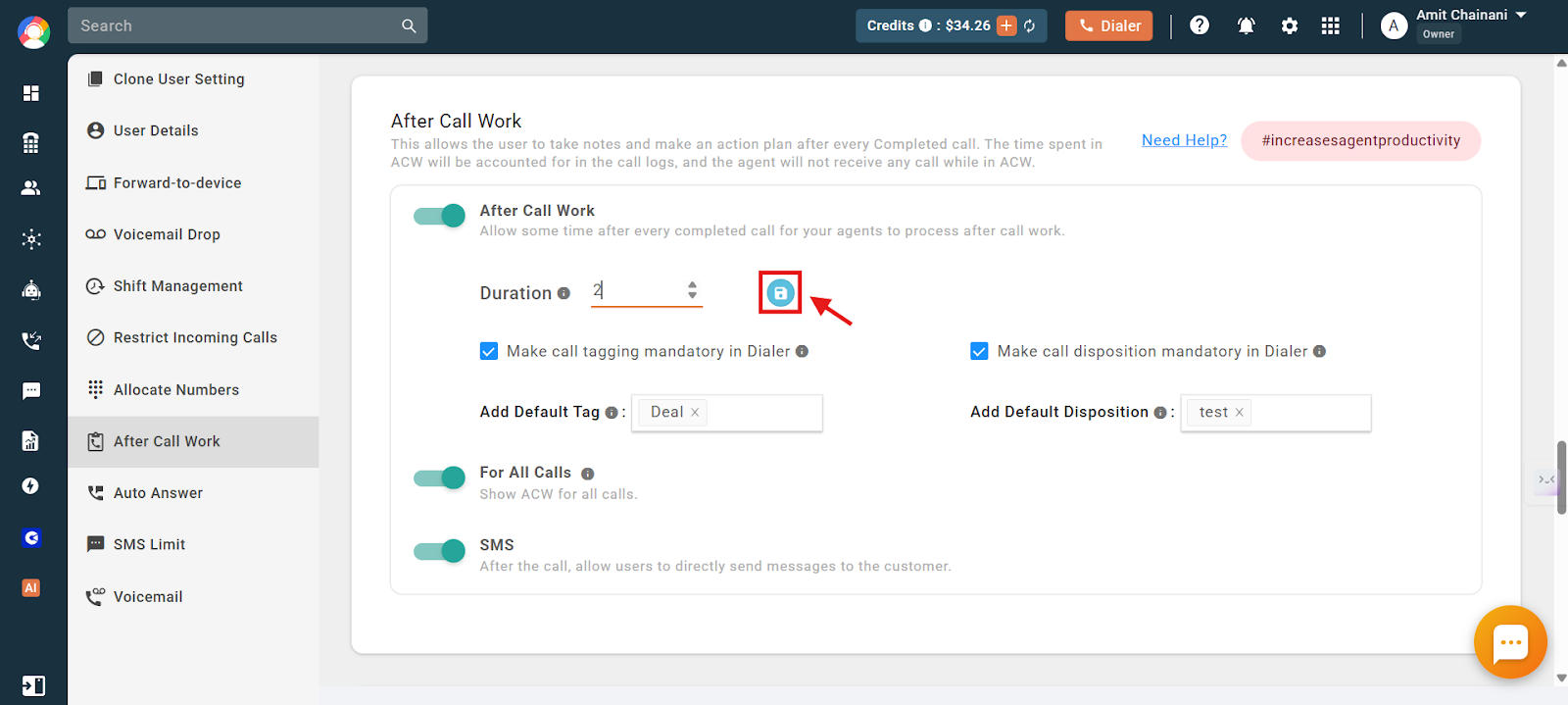
- Choose a default tag from the dropdown if you enabled mandatory tagging.
- Apply ACW to all calls (optional). Toggle For All Calls on to show ACW after every call status. If left off, ACW appears only for completed calls.
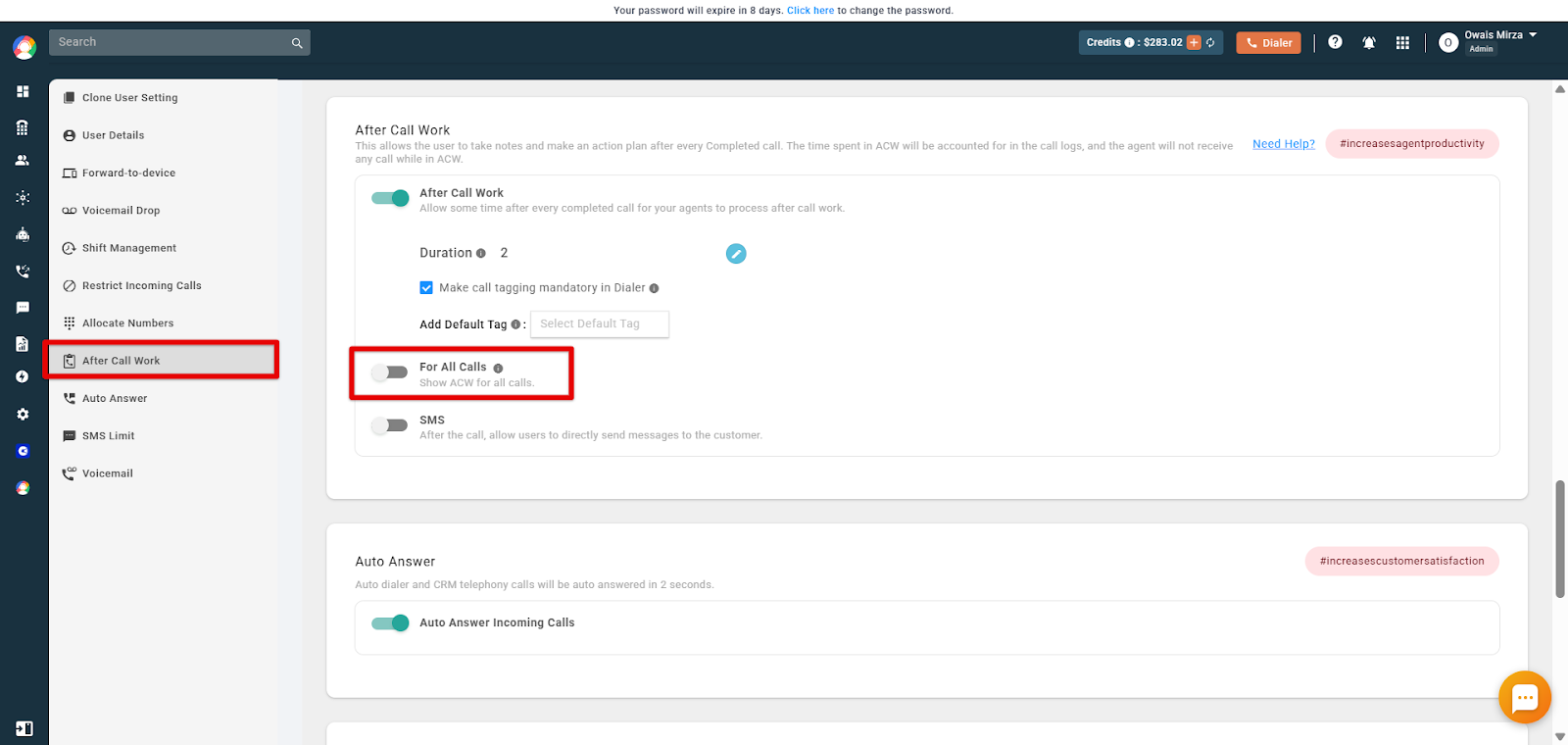
- Enable SMS (optional). Toggle SMS on so agents can send messages directly from the ACW screen.
Using the ACW Screen
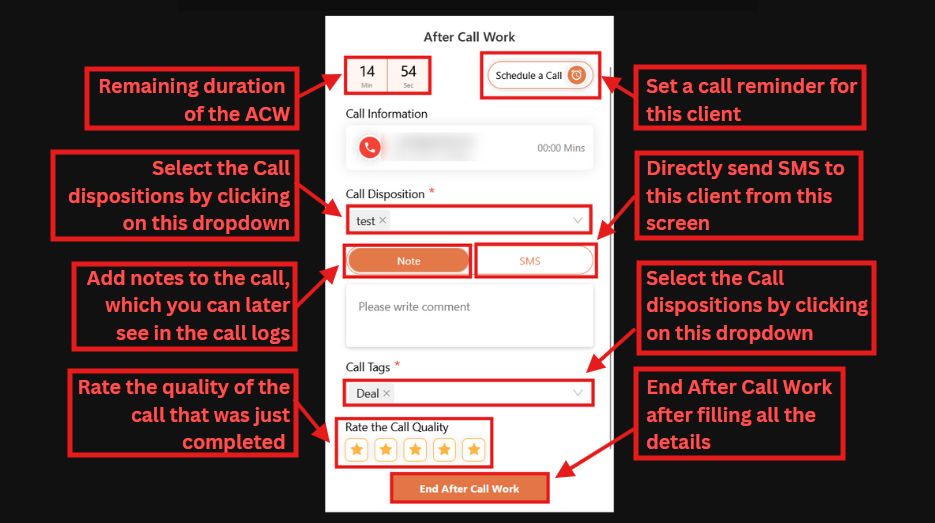
After ACW is enabled, the ACW screen appears at the end of a call with fields for the call disposition, notes, call tags, and a call-quality rating. Switch between the Note and SMS tabs depending on whether you want to log a note or message the customer.
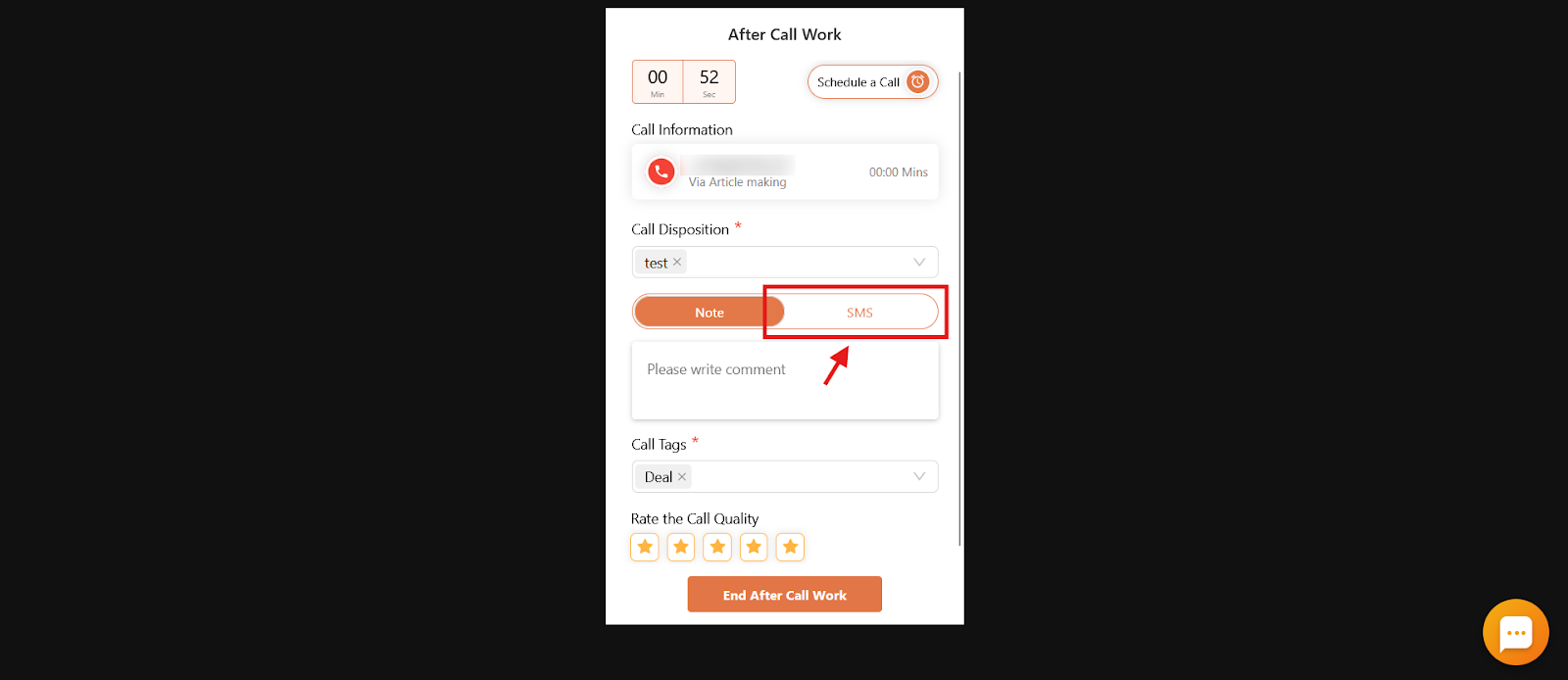
To message the customer, open the SMS tab, type your follow-up, and click the send icon.
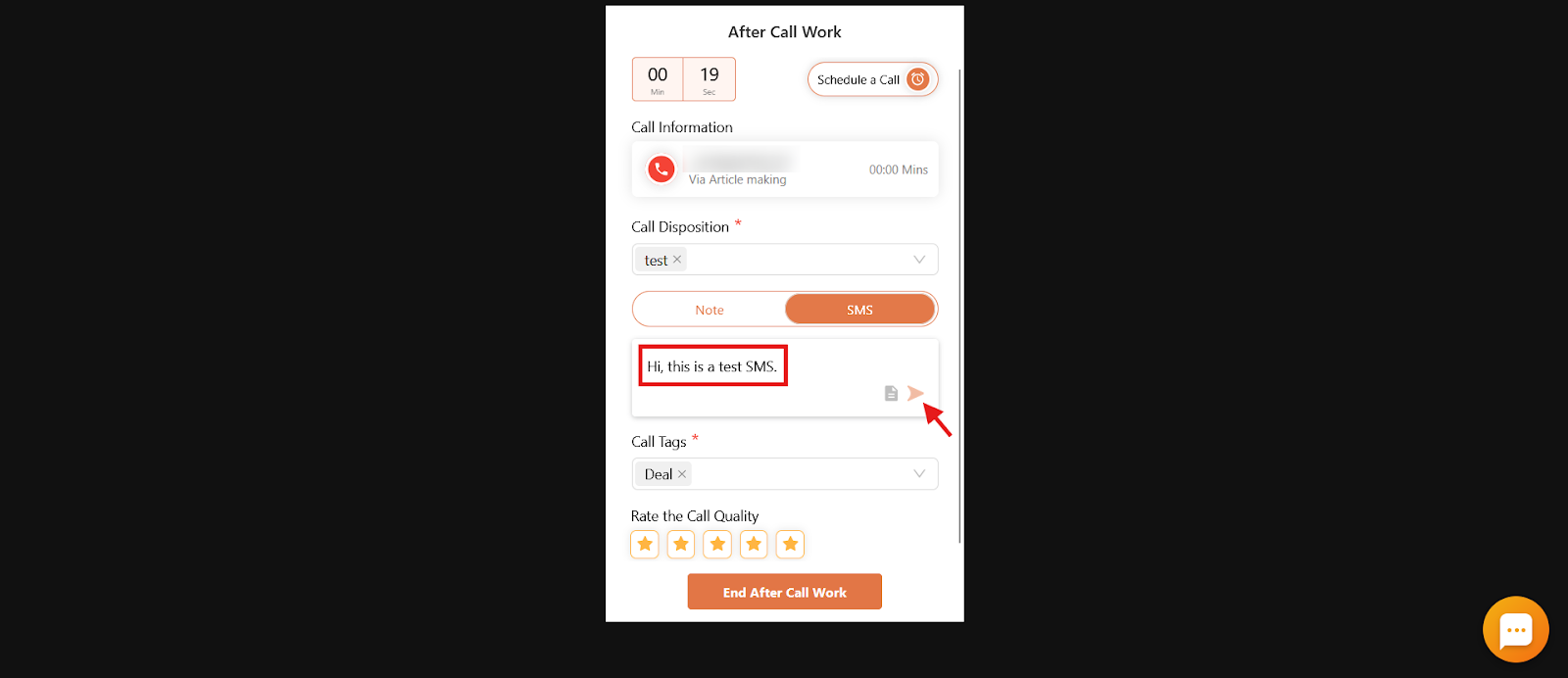
Here is a quick overview of everything the ACW screen offers.
Manage ACW from the Dialer
Once ACW is enabled for a user, that user can turn it on or off for themselves in the dialer.
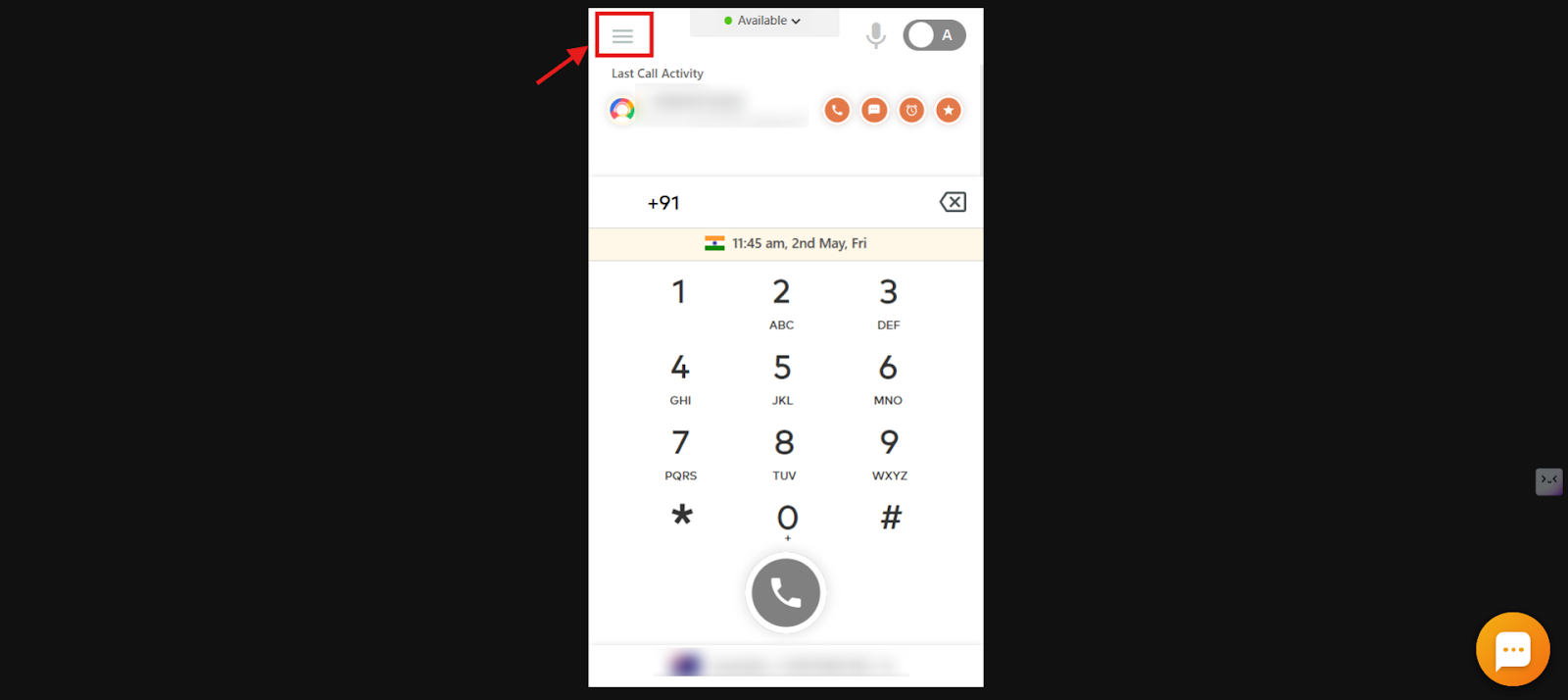
- Log in to the CallHippo dialer and click the menu icon.
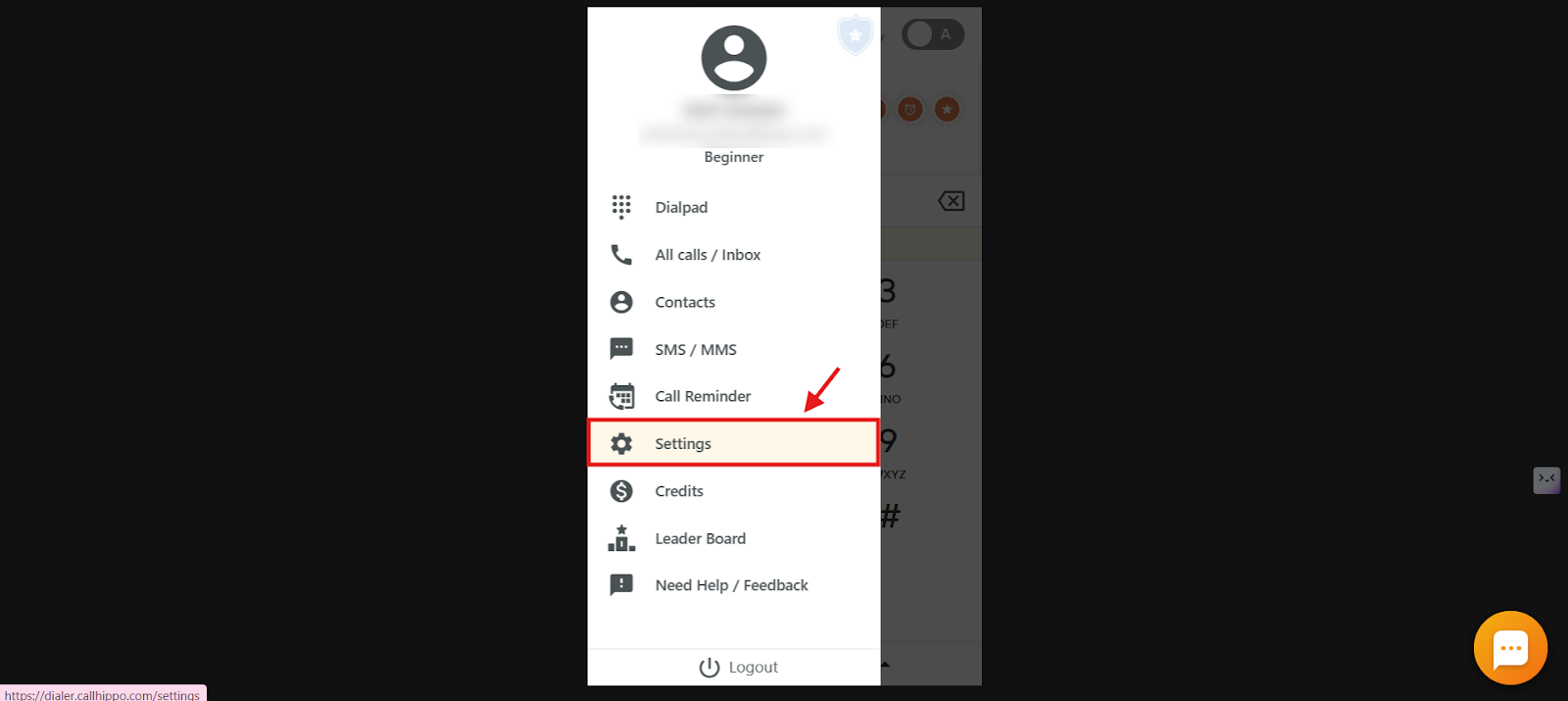
- Open Settings from the menu.
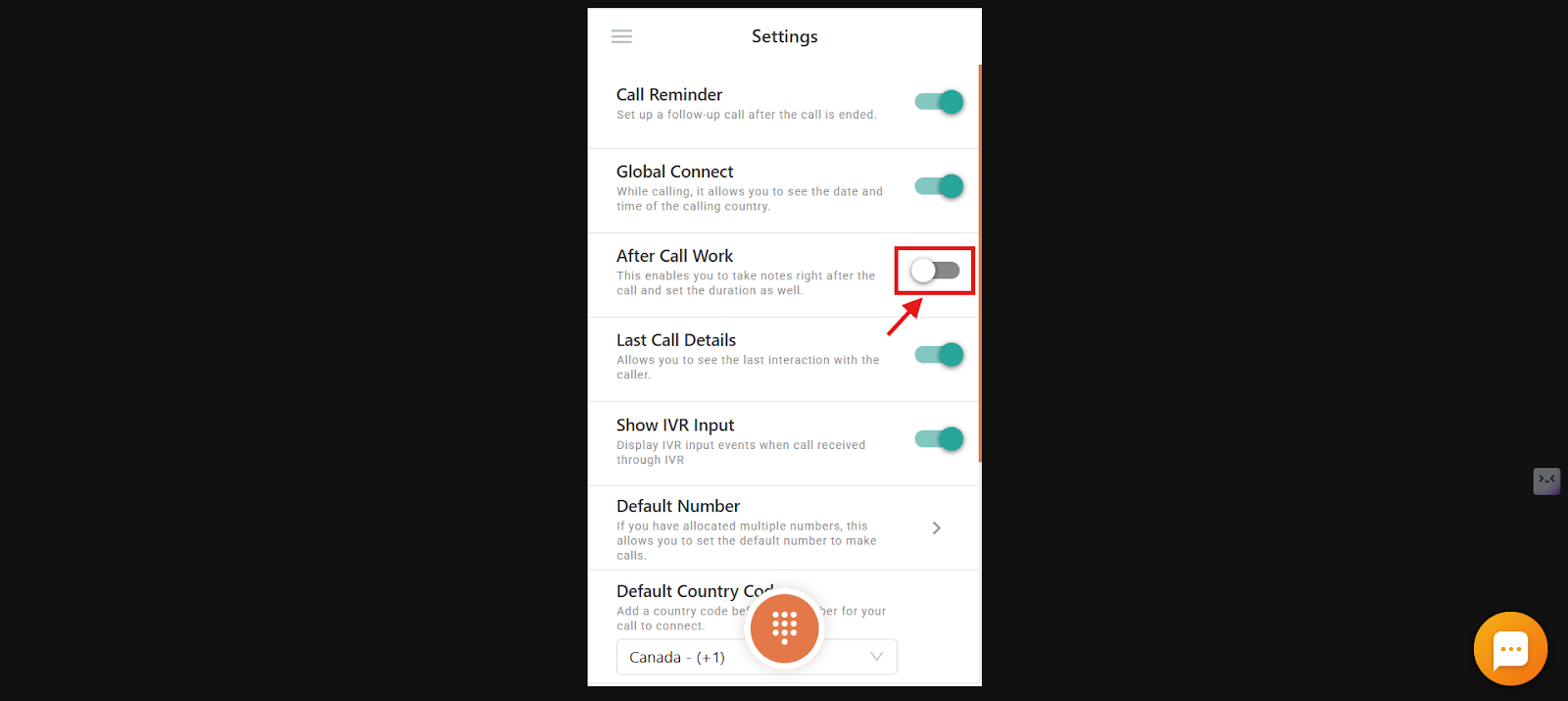
- Toggle After Call Work on or off as needed.
Restrict ACW Access for Sub-Users
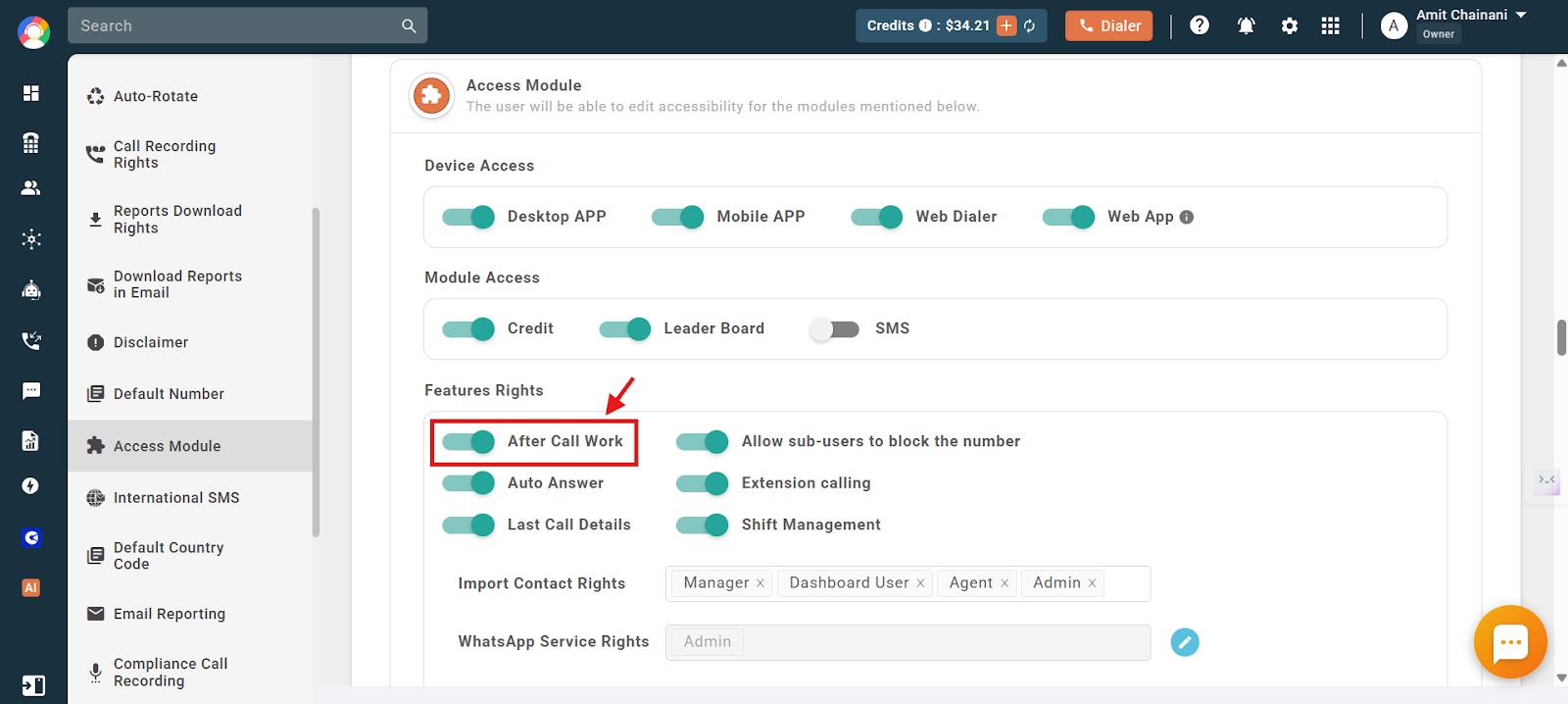
To keep post-call processes consistent, account Owners can stop sub-users from enabling or disabling ACW on their own.
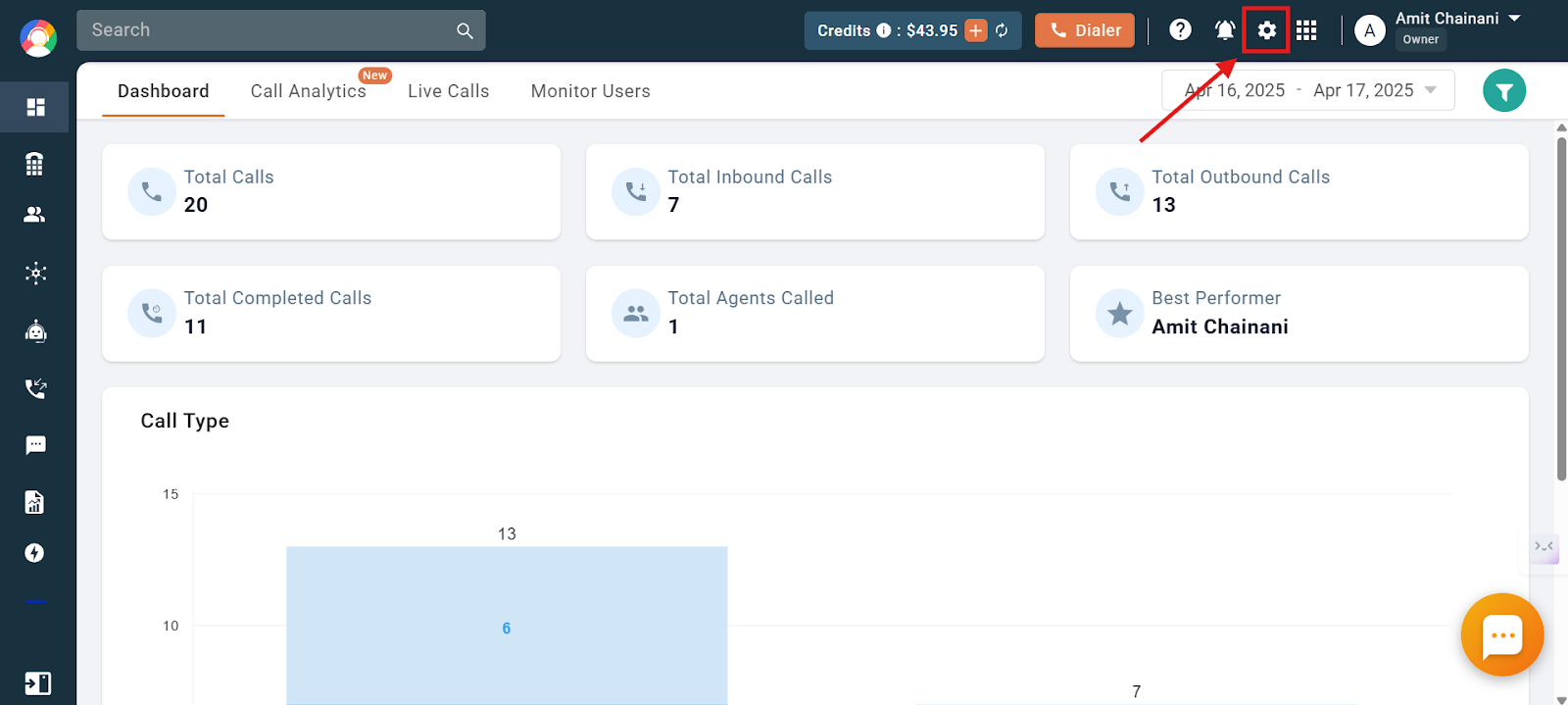
- Open settings. Click the settings icon at the top of the dashboard.
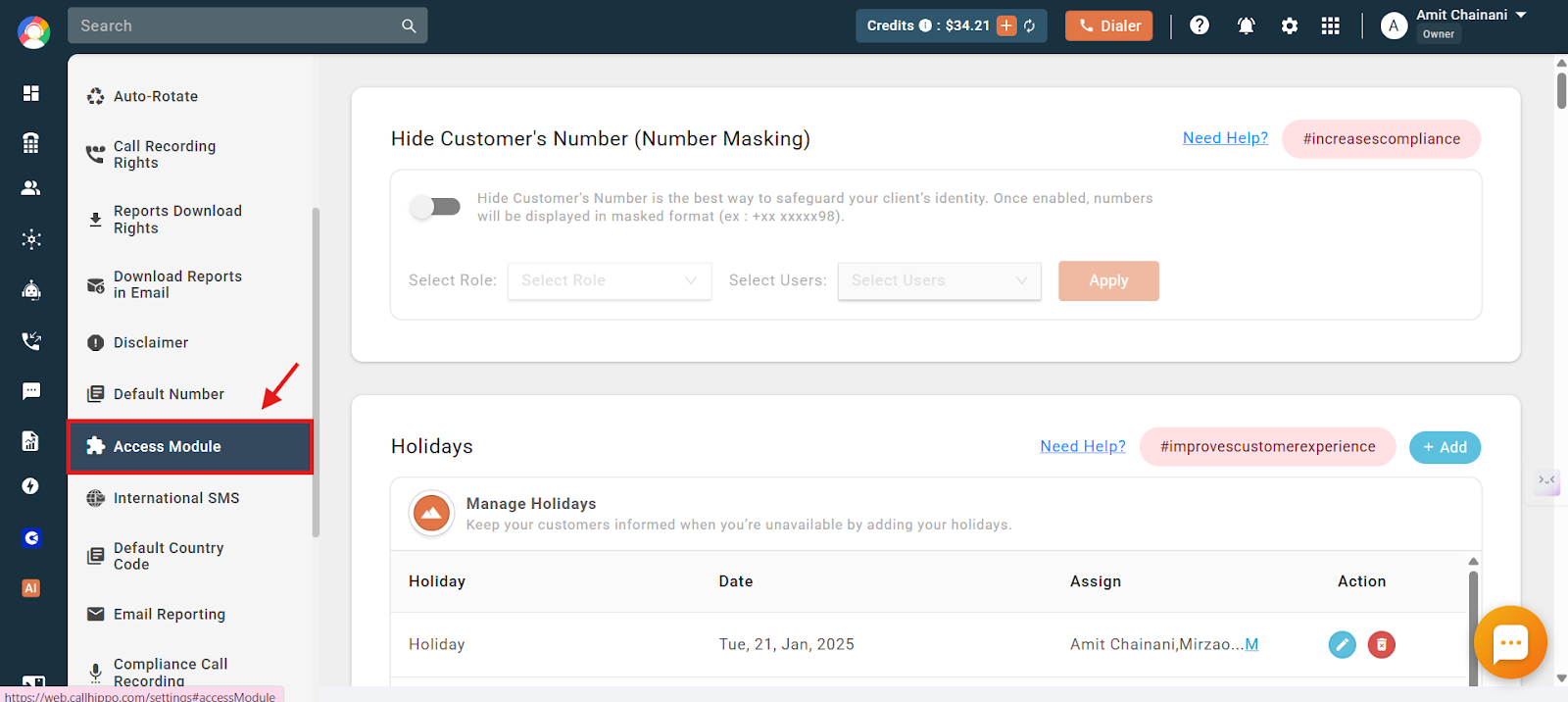
- Go to Access Module in the settings sidebar.
- Toggle After Call Work off under Features Rights to prevent sub-users from changing their own ACW preferences.
Why Limit the ACW Duration?
ACW can be set from 1 to 60 minutes, but keeping it short protects productivity. During ACW, agents do not receive any calls, including incoming, power dialer, and CRM-integrated calls.
- Maintain productivity: A shorter window keeps agents handling more calls while still completing key tasks.
- Avoid missed calls: Brief ACW reduces call-handling delays.
- Encourage focus: A defined window keeps agents on track without overextending downtime.
On-Call Notes vs. After-Call Work
- On-Call Notes: Jot down notes while you are on the call, capturing key details in real time.
- After-Call Work: Enter a summary once the call ends, ideal for final thoughts, tagging outcomes, and next steps.
Both On-Call Notes and After-Call Work entries are accessible from the Activity Feed, making it easy to review and manage your call records.
Frequently Asked Questions
I am unable to add or edit call tags and disposition. Why?
Make sure ACW is enabled for the user and the call was completed, and confirm ACW has not been disabled manually in the dialer.
Can sub-users disable ACW from their dialer?
Yes, unless the Owner has restricted it in the Access Module by toggling off ACW permissions for sub-users.
Why is my agent not receiving new calls after a call ends?
If ACW is active, agents are unavailable for all call types during the set ACW duration. Consider shortening the duration.
Can I send an SMS to a client immediately after a call disconnects?
Yes. Enable the SMS option in ACW settings, and the agent can compose and send a follow-up message directly from the ACW screen.
My follow-up SMS is not sending from the ACW screen. What should I check?
Confirm the SMS option is enabled in ACW settings, the number is correct, and the account has SMS credits.
I cannot disable ACW from the dialer menu. Why?
The account Owner may have restricted this using the Access Module, preventing sub-users from toggling ACW.
Can ACW be enabled for missed or rejected calls too?
No. Missed and rejected calls do not have the ACW option available.
My agents keep forgetting to tag or select a disposition. How can I fix that?
Enable “Mandatory Call Tagging” in ACW settings and set default values to prevent incomplete entries.