
Removing specific call logs or recordings from your CallHippo account takes just a few clicks, whether for data management, cleanup, or privacy.
This article explains how to permanently delete call logs or recordings. Keep in mind that these actions are irreversible and affect only your internal records, not your clients.
Steps to Delete Call Logs or Recordings
- Log in to your CallHippo dialer.
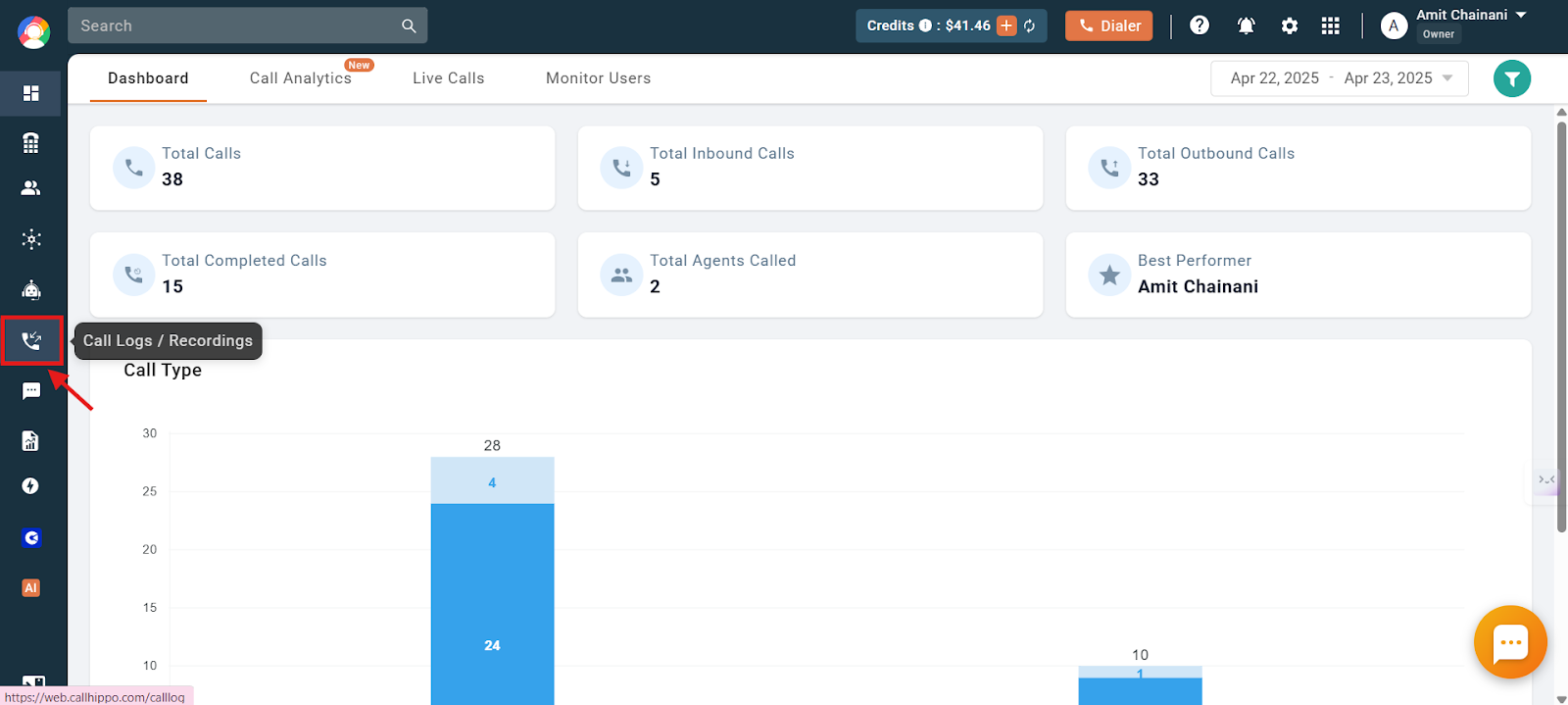
- Open Call Logs / Recordings. Click the Call Logs / Recordings section on the left side of the dashboard.
- Open the filter. Click the green Filter icon so you can select the date range and other criteria for the logs you want to delete. By default, the date range is set to the past week (7 days).
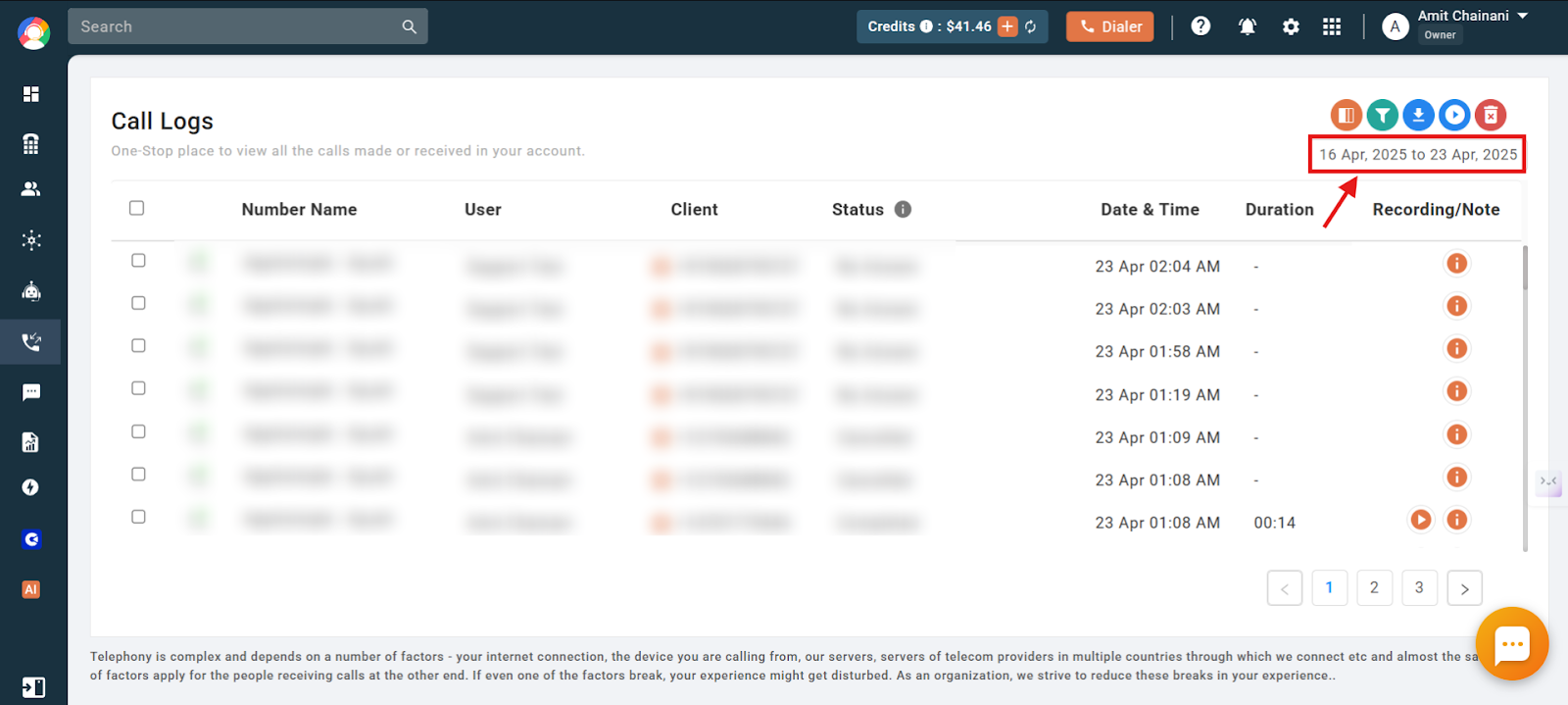
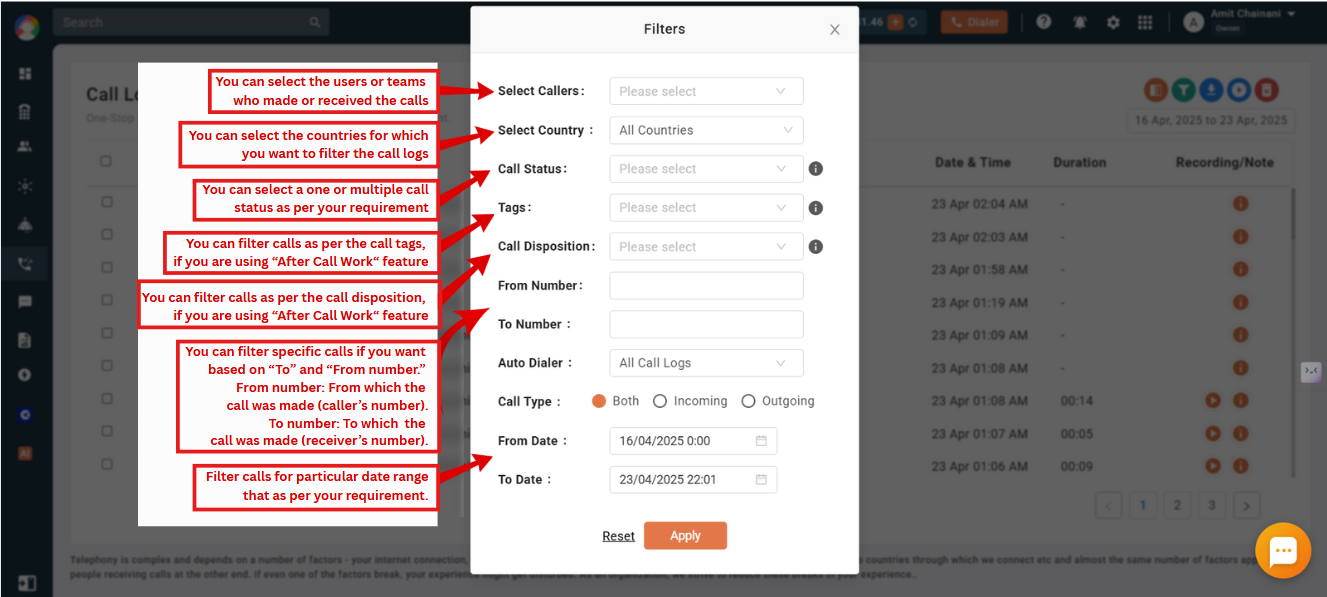
- Set your filters. You can narrow logs by several options:
- Select Callers: Choose specific users or teams who made or received the calls.
- Select Country: Filter calls by the countries involved.
- Call Status: Filter by one or more statuses (answered, missed, failed, and so on).
- Tags: Filter by tags if you use the After Call Work feature.
- Call Disposition: Filter by call outcome (resolved, follow-up required), available under After Call Work.
- From Number / To Number: Narrow down by specific caller or receiver numbers.
- Auto Dialer: View all logs or only those tied to the auto-dialer.
- Call Type: Choose incoming, outgoing, or both.
- Date Range: Specify a custom date and time range.
Important: You can view logs on the dashboard for a maximum range of 90 days (3 months). If you select a range beyond 90 days, the logs will instead be sent to your registered email address.
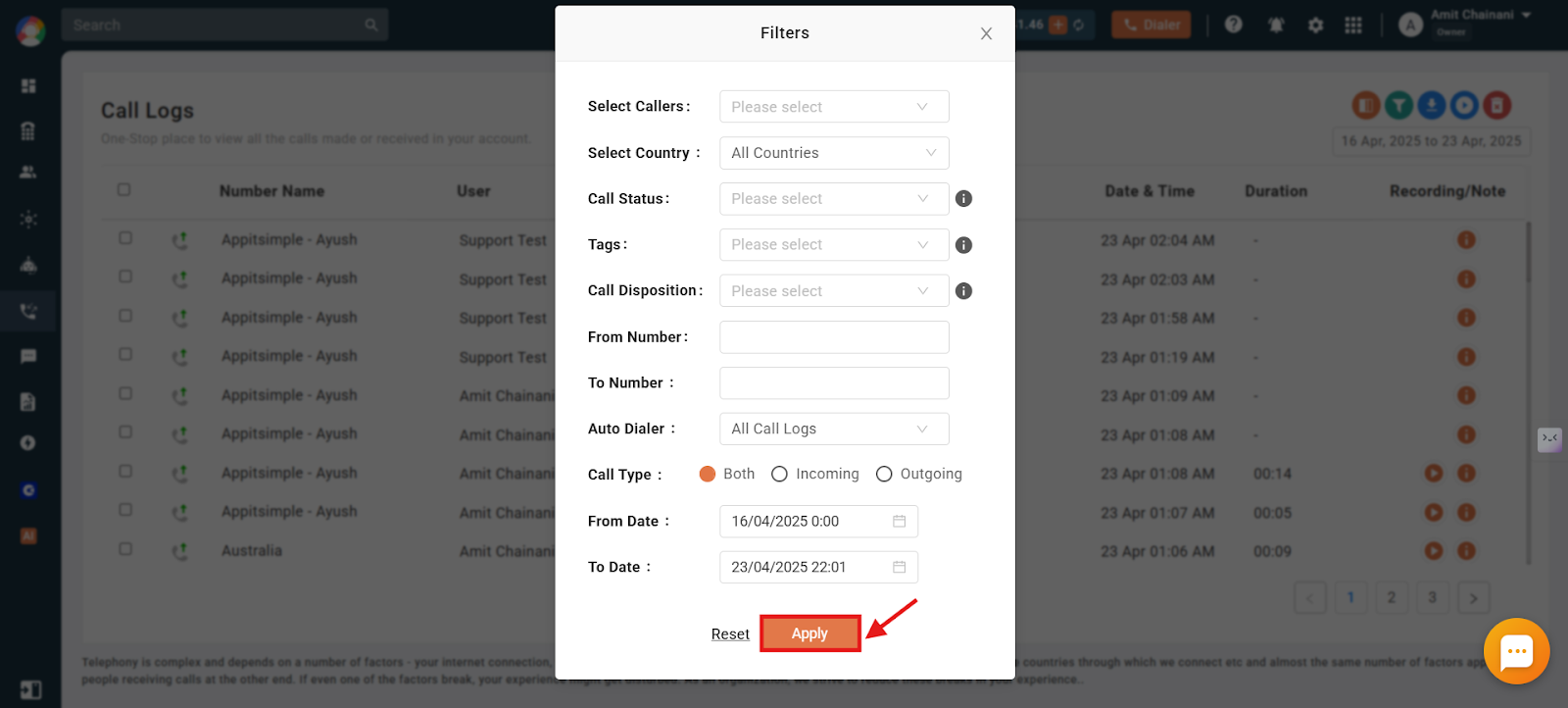
- Apply the filters. Once your parameters are set, click Apply.
- Select the calls. Tick the checkbox next to each call you want to remove, or use the checkbox at the top to select all calls in the applied filter.
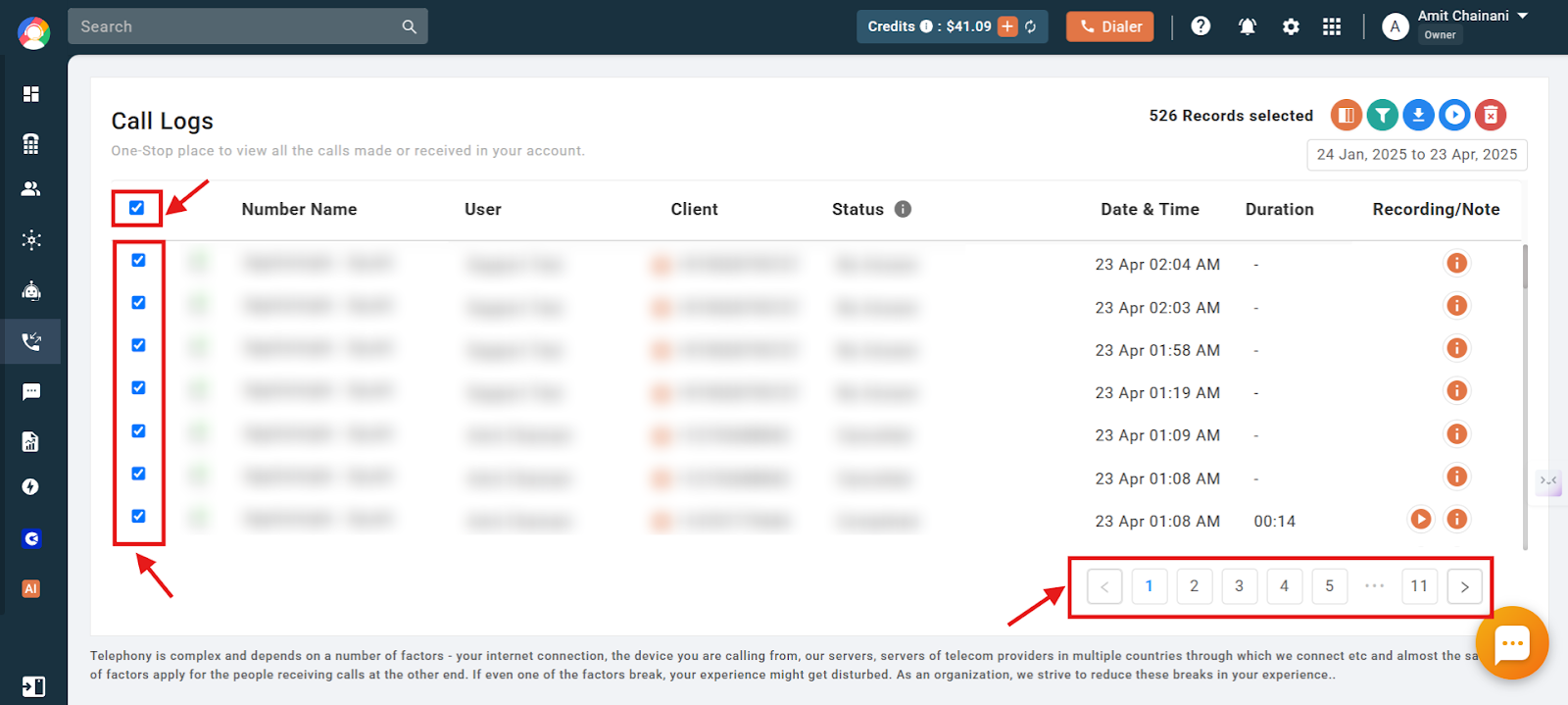
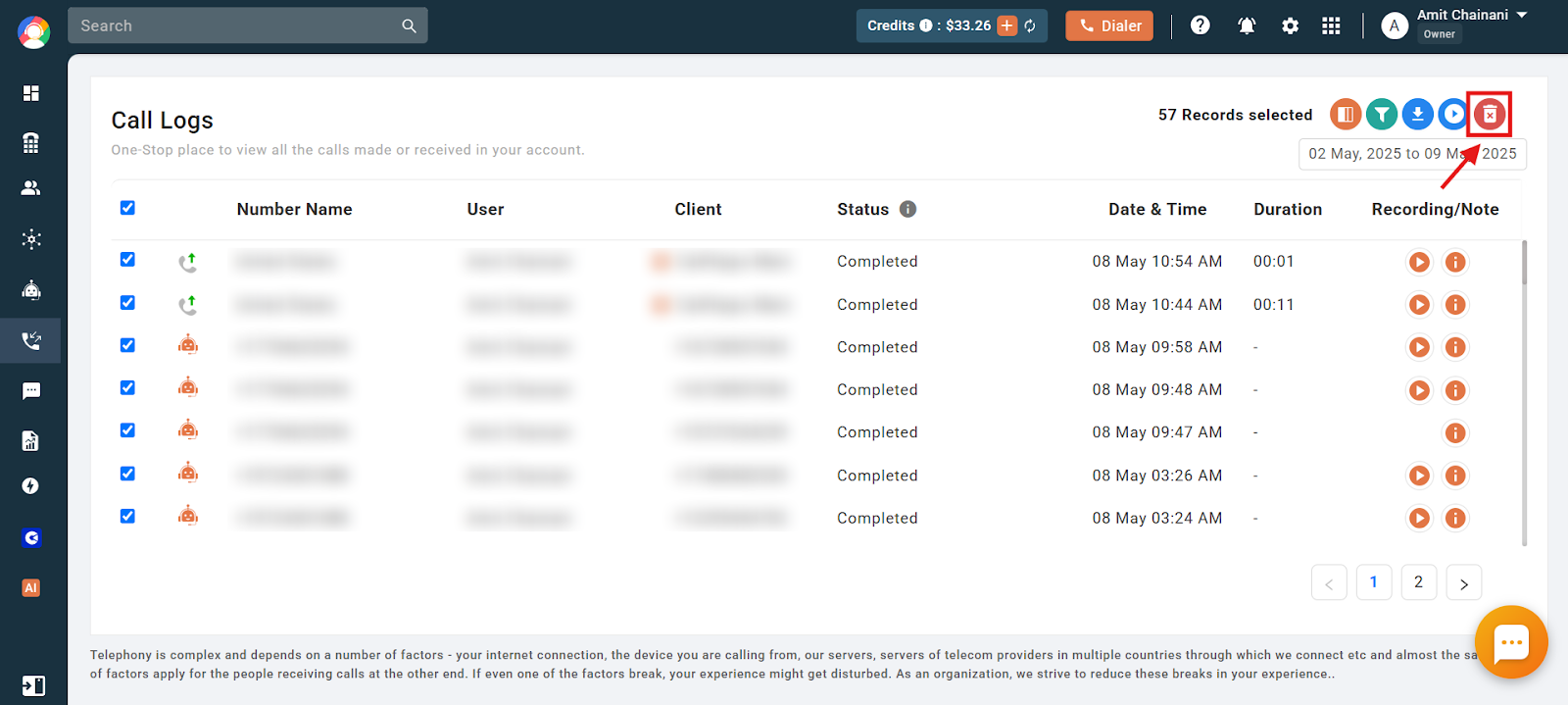
- Click Delete. Use the delete icon in the top-right corner of the Call Logs section.
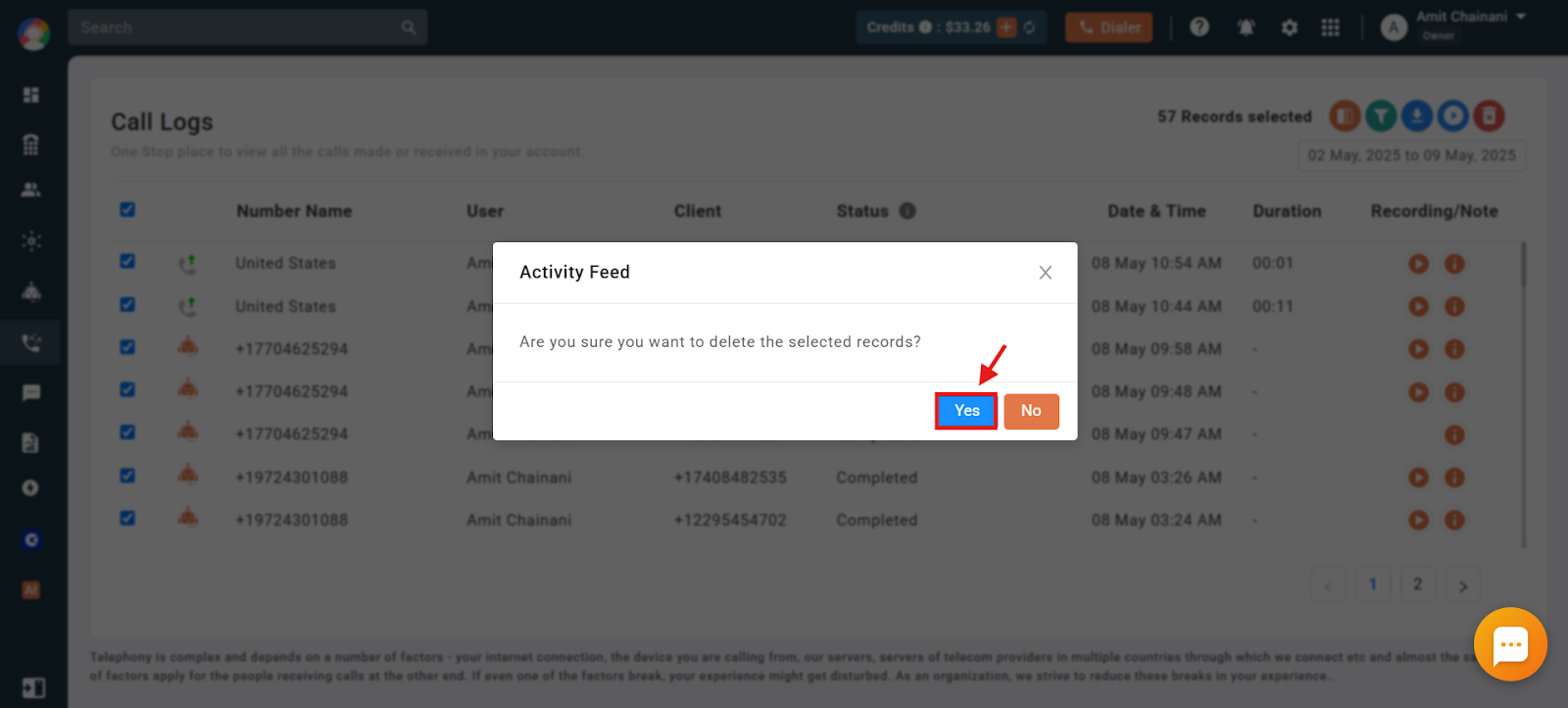
- Confirm. Click Yes to permanently delete the selected call logs or recordings.
Important Information
- Agents do not have access to the Delete option in the Call Logs section. Only the account owner can delete call logs.
- Deleted call logs cannot be recovered. This action is permanent and irreversible.
- The delete feature is not included in every plan. Check its availability on the CallHippo pricing page.
Frequently Asked Questions
Can I clear my call history?
Yes. Go to the Call Logs / Recordings section, use filters to find the calls you want to remove, select them, and click Delete. Only the account owner can delete call logs, and the action is permanent.
I can’t see the delete option in call logs. Why?
It is likely because you are not the account owner. Only the account owner has permission to delete call logs or recordings.
Is it possible to recover deleted call logs or recordings?
No. Deletion is permanent, so make sure you want to remove the data before confirming.
How do I find the call logs I want to delete?
Use the filter option in the Call Logs / Recordings section. Filters include date range, user, country, call status, tags, and call type. Once filtered, you can select and delete the desired logs.