
CallHippo lets agents capture notes during and after calls, tag outcomes with dispositions, and rely on automatic transcription, so every customer interaction is well documented and actionable.
How note-taking works in CallHippo
Agents can take manual notes both during and after a call:
- During the call: Use the note field on the dialer to add notes or tags in real time.
- After the call: Add notes or custom dispositions in the After Call Work (ACW) section to document requests and queries for accurate record-keeping and follow-ups.
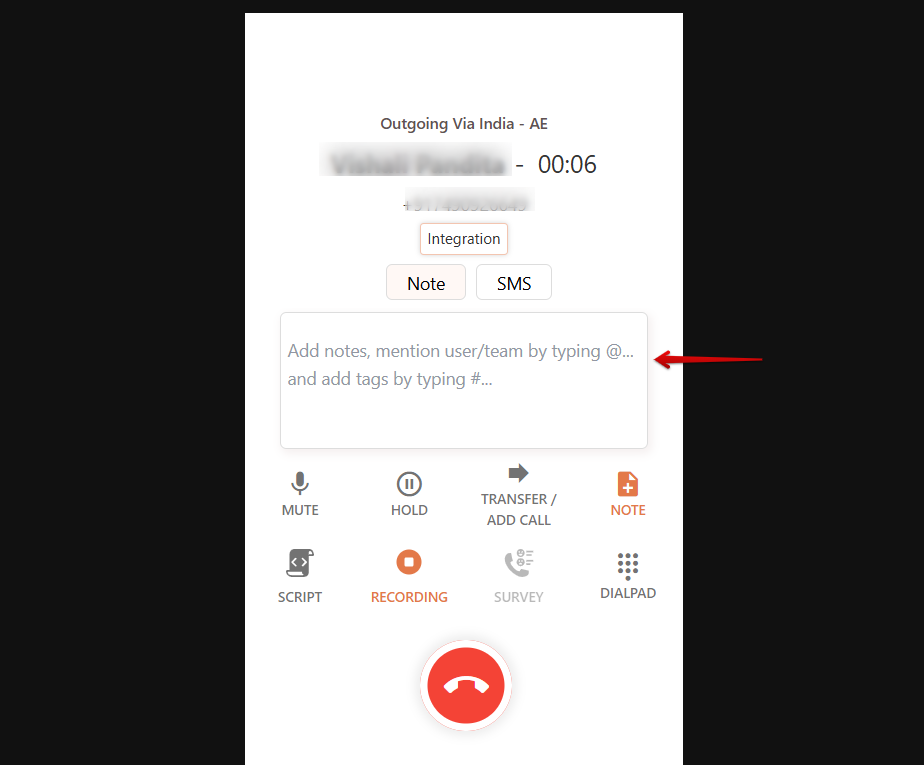
CallHippo also offers real-time call transcription, automatically converting spoken words into text during the call. This reduces manual note-taking so agents can focus on the conversation, and the transcripts can be reviewed afterward for accurate follow-ups. For a centralized record, CallHippo can sync call logs, outcomes, notes, and recordings with your CRM.
Using the After Call Work screen
Once a call ends, the After Call Work screen lets you record the outcome before closing:
- Call Disposition: Select a status from the dropdown to label the call outcome (for example, Follow-up or Sale Closed).
- Note: Add any final thoughts or key points from the conversation.
- Call tags: Apply tags to categorize the interaction.
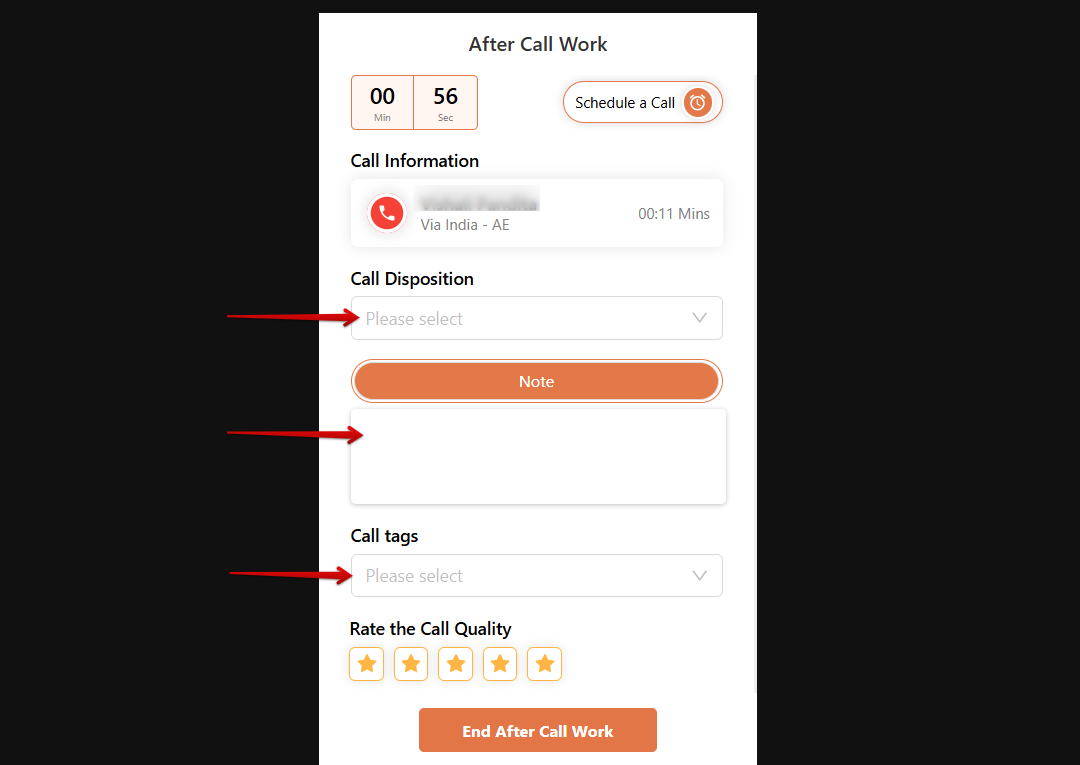
Admins can set a default disposition to save time and keep tagging consistent across the team.
Use cases for notes and dispositions
- Enhancing follow-ups: Real-time notes ensure every important point is documented, so no key detail is forgotten after the call.
- Improving call efficiency: Notes summarize past interactions, reducing repetitive questions and improving the customer experience.
- Accurate customer insights: Automated transcription captures conversations, making it easy to review and analyze customer needs.
- CRM synchronization: Notes, dispositions, and recordings sync with your CRM, keeping a centralized record for future reference.
- Tracking call outcomes: Dispositions categorize calls (for example, Interested, Callback Required, or Not Interested), helping you refine your approach.
Frequently asked questions
Can I take notes while on a call?
Yes. CallHippo provides a space in the dialer to add notes in real time.
Can I add notes after the call ends?
Yes. Enter notes in the After Call Work (ACW) section to document key points.
What are call dispositions?
Dispositions are tags or statuses assigned to calls (such as Follow-up, Not Interested, or Sale Closed) to categorize outcomes efficiently.
Can notes and dispositions be shared with my team?
Yes. All notes and dispositions are saved and can be accessed by other team members with permission.
Does CallHippo support automated transcription?
Yes. CallHippo converts spoken words into text in real time, reducing the need for manual note-taking.
Can notes and call data sync with my CRM?
Yes. CallHippo integrates with multiple CRMs for seamless data synchronization.
Can I edit or update notes after a call?
Yes. Notes can be modified or updated from the call log history.
How do I add a call disposition?
After a call ends, select the appropriate status from the dropdown on the ACW screen before closing it. Admins can also set a default disposition.
Why can’t my team see newly created custom tags?
Ask your team to log out and log back in to refresh their dialer, and the updated tag list will appear.
Can agents update tags or dispositions after the call ends?
Yes, during the After Call Work period. While the ACW screen is active, they can make edits before submitting the call details, subject to any role restrictions set in the Access Module.
What does ‘Total ACW’ mean in the call report?
Total ACW is the total time users spent in After Call Work, such as tagging calls, adding notes, or sending follow-up messages.
How can I change or cancel the ACW duration?
Go to the User section, then After Call Work, click the edit icon next to the duration, set a new time or disable ACW, and save. If sub-users cannot change it, the Owner may have restricted access in the Access Module.