
Call Forwarding, or the Forward-to-Device feature, automatically routes incoming calls on your CallHippo numbers to your personal or business phone, so you never miss an important call whether you are at your desk or on the move.
How call forwarding works
When Call Forwarding is enabled, incoming calls to your CallHippo number are redirected to a number of your choice, such as your mobile or landline. The experience varies slightly depending on your login status:
- Logged in to the Web Dialer or Mobile App: The call rings on the dialer or app for up to 30 seconds. If unanswered, it is forwarded to your designated number.
- Logged in only to the Web Dialer: The call rings simultaneously on your web dialer and the forwarded number.
- Logged in only to the Mobile App: The call rings on the app first. If it goes unanswered within 30 seconds, it is forwarded to your assigned number.
Tips for seamless call forwarding
- Log out of the CallHippo dialer and mobile application when you want calls to be forwarded directly without ringing on the app.
- Make sure your forwarded number is active and reachable.
- Maintain a sufficient credit balance to ensure uninterrupted call forwarding, as it applies to both the incoming and outgoing legs of the call.
- When entering the external numbers you want incoming calls forwarded to, enter them with the correct country code.
Important notes on charges
Call forwarding includes two chargeable components:
- Incoming call charges: These apply when a call is first received on your CallHippo number. Charges depend on the country code of your CallHippo number.
- Outgoing call charges: When the call is forwarded to your selected device, outgoing call charges are applied based on the destination country.
To avoid forwarding charges, use the CallHippo mobile app (iOS or Android) to receive calls directly without redirection.
Best use-case scenarios
- Stay connected while traveling or working remotely.
- Maintain professionalism by answering business calls from any device.
- Ensure after-hours coverage by forwarding calls to team members or alternate numbers.
How to enable call forwarding
Follow these simple steps to activate Smart Call Forwarding on your CallHippo account.
- Log in to your CallHippo account. Open your web browser, go to the CallHippo login page, enter your credentials and sign in.
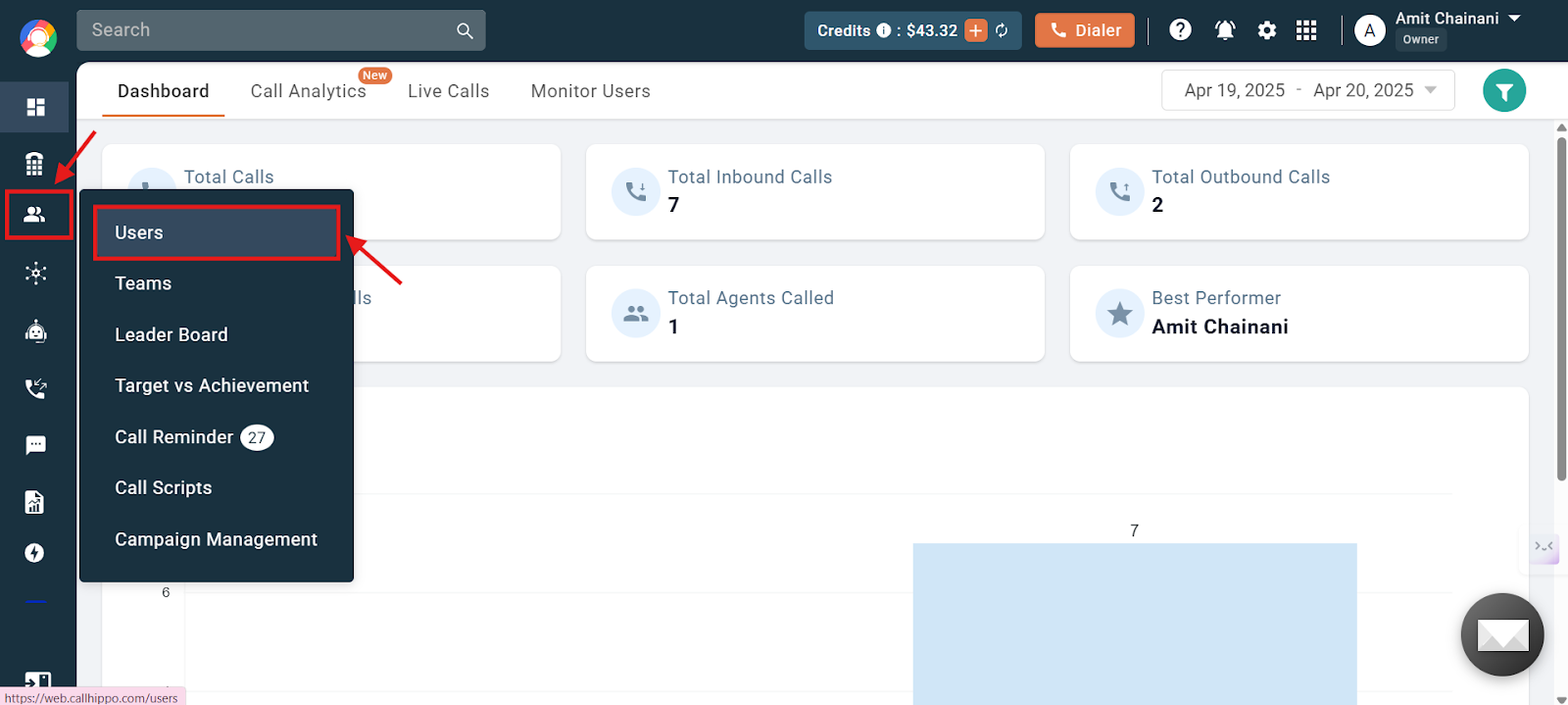
- Navigate to the Users section. On the dashboard, click Users. You will see a list of all users associated with your CallHippo account.
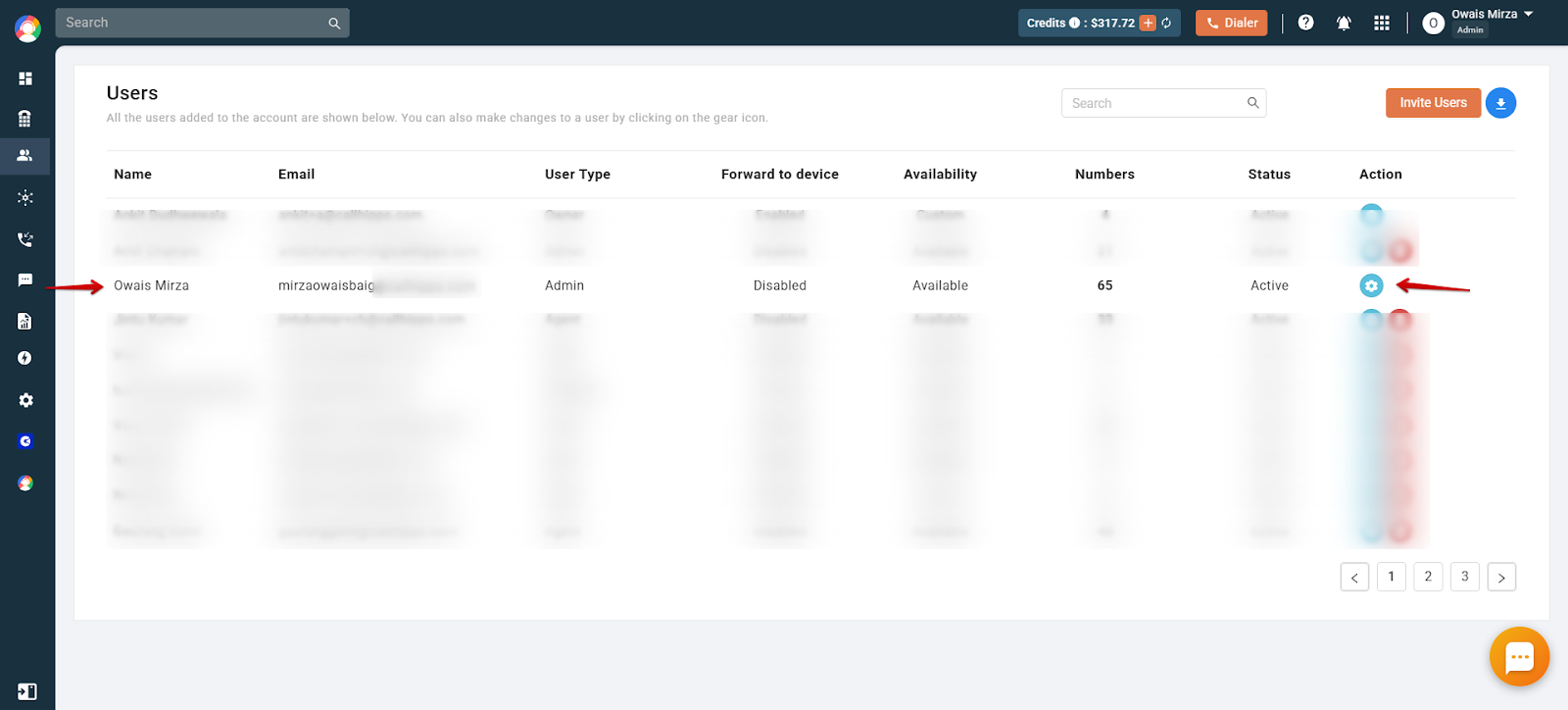
- Select a user. Choose the user whose number needs Smart Call Forwarding, then click the gear icon next to their name to open user settings.
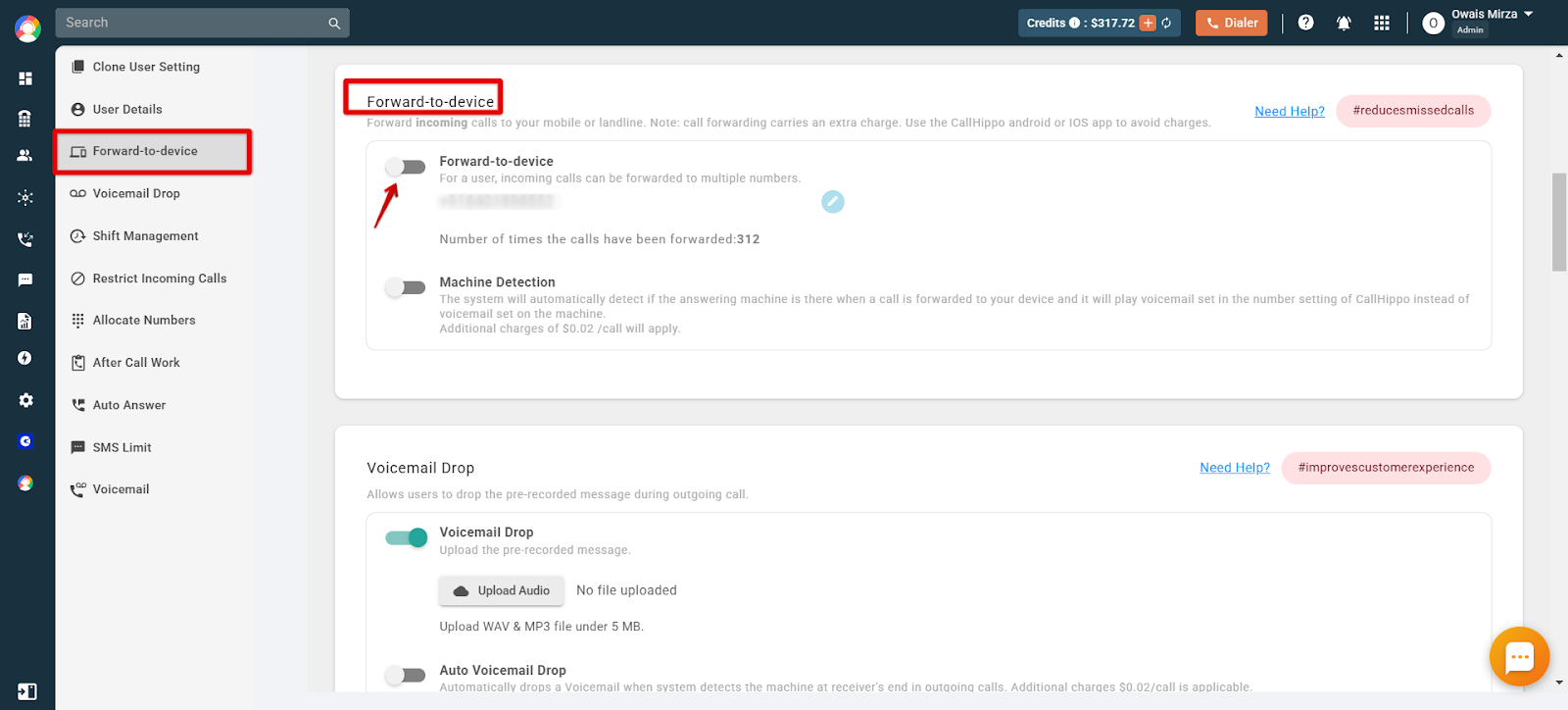
- Access the forwarding settings. In the user settings menu, select Forward-to-Device.
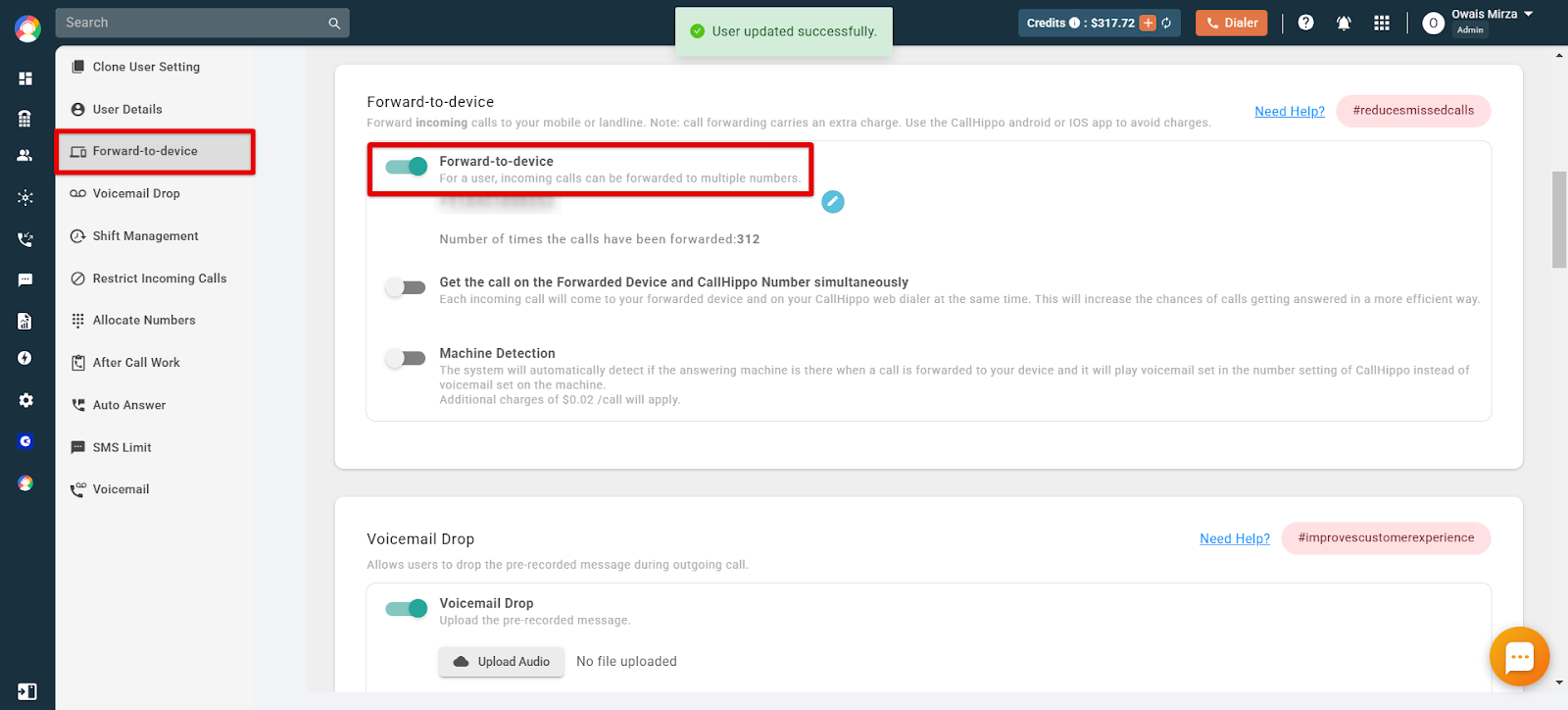
- Enable call forwarding. Toggle the Forward-to-Device switch on. The settings are saved automatically.
Important: Call Forwarding will not work if the number you are forwarding calls to is in a country that is not included in your plan and your account does not have any calling credits.
How to check the number of forwarded calls
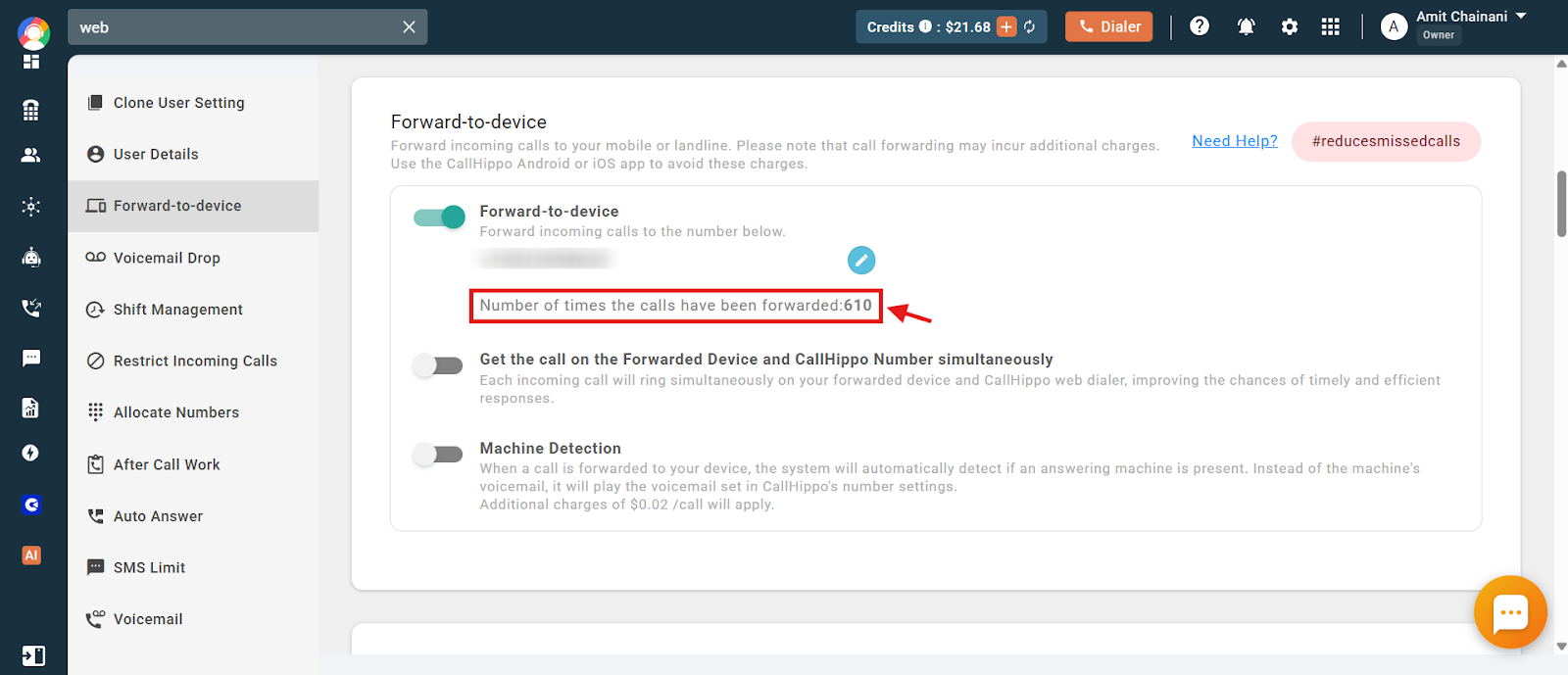
On the Forward-to-Device screen you can see how many times incoming calls have been forwarded to your device, shown as Number of times the calls have been forwarded.
Additional call forwarding settings
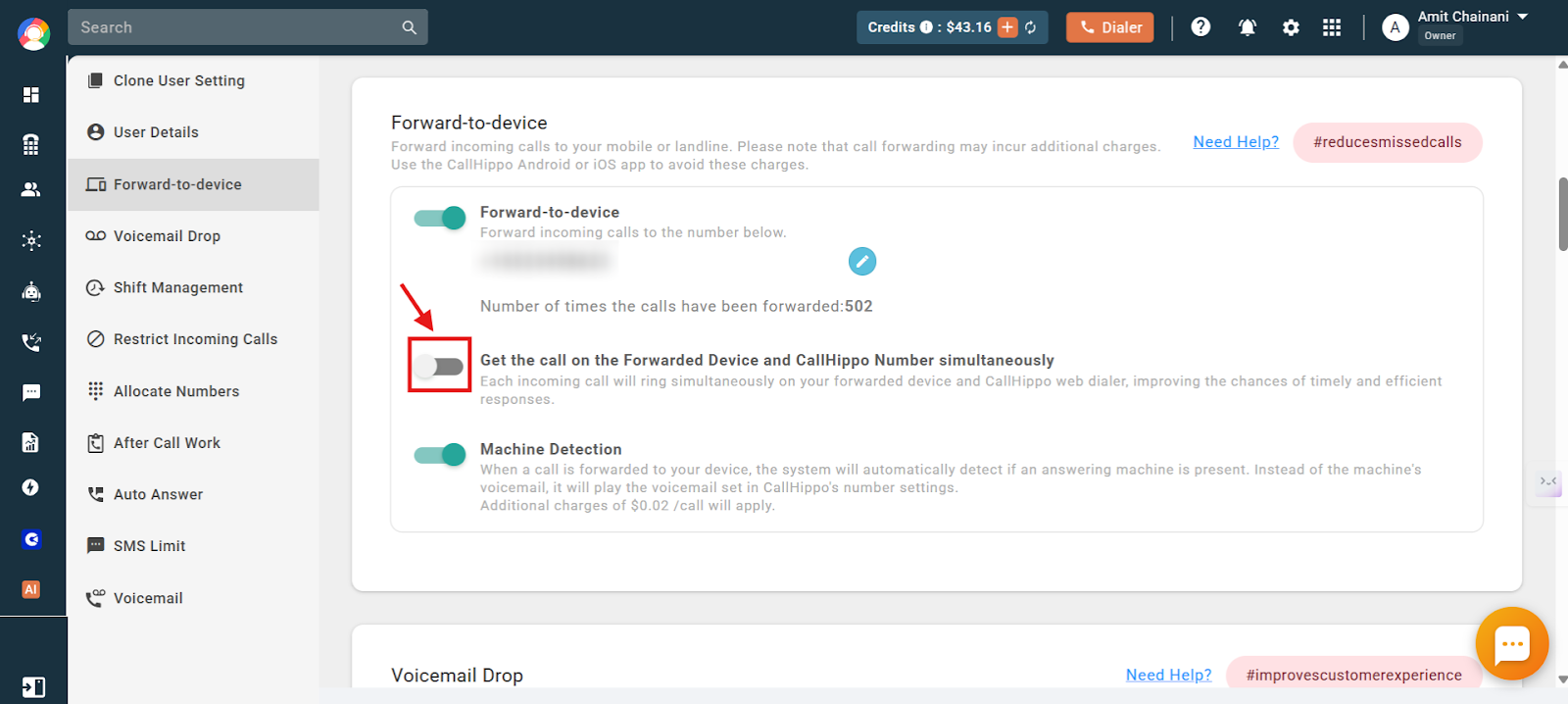
Ring the forwarded device and CallHippo number simultaneously: This setting controls how incoming calls are routed when Call Forwarding is enabled.
- When enabled: Incoming calls ring both on your CallHippo dialer and your forwarded device at the same time, so you can answer from whichever device is most convenient.
- When disabled: Incoming calls ring on your CallHippo dialer first. If the call is not answered within 30 seconds, it is then forwarded to your designated device.
Machine detection: When a call is forwarded to your device, the system automatically detects if an answering machine is present. Instead of the machine’s voicemail, it plays the voicemail set in CallHippo’s number settings. You can enable it by clicking the toggle for Machine Detection.
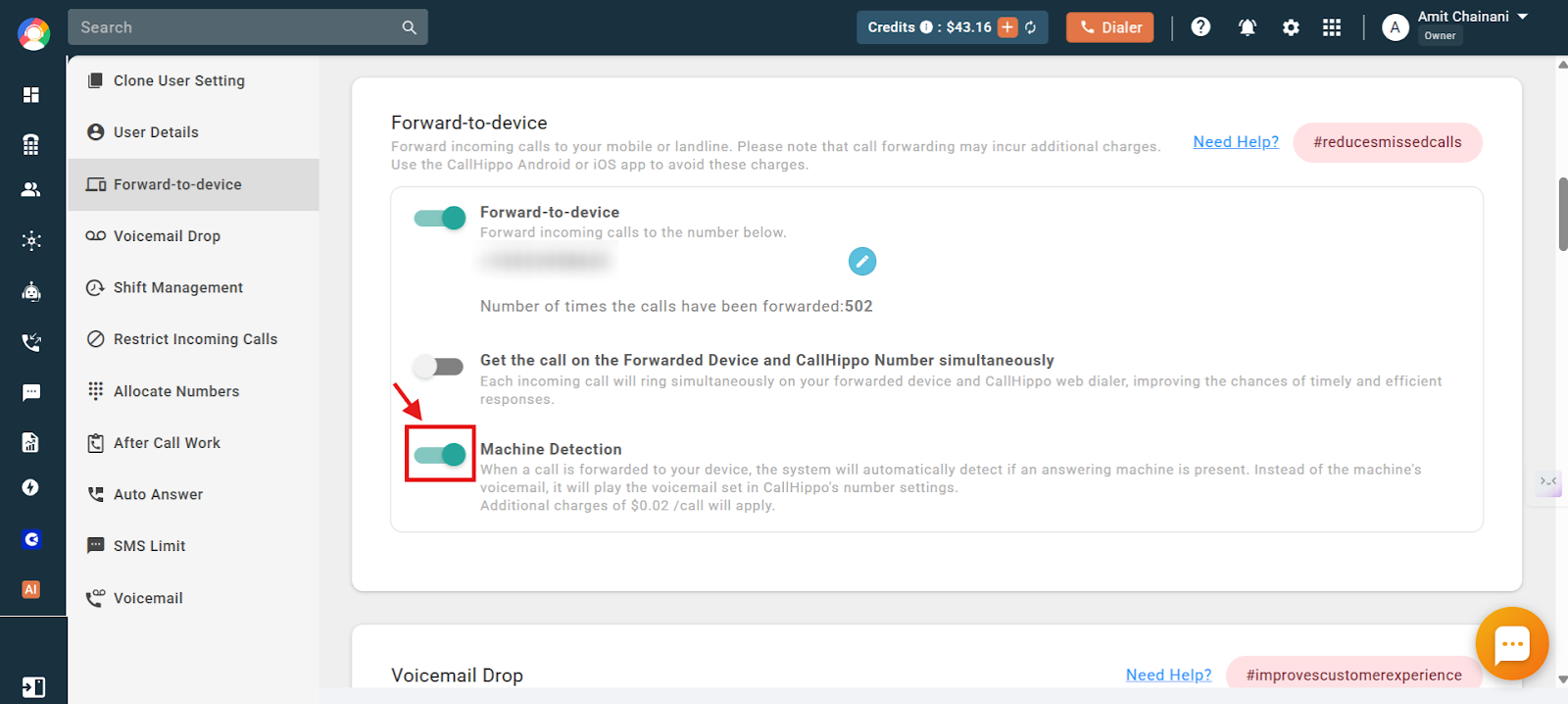
Important: An additional charge of $0.02 per call applies and is deducted from the available calling credits in your account. This feature will not function if your account does not have sufficient calling credits.
Frequently asked questions
Q: Can I have the call ring on both my forwarded number and CallHippo dialer at the same time?
A: Yes. By enabling the “ring simultaneously” setting, the call rings on both your CallHippo dialer and forwarded number at the same time.
Q: What should I do if I want calls to go directly to my forwarded number without ringing on the app?
A: Simply log out of the CallHippo mobile app and web dialer to have calls routed directly to the forwarded number.
Q: How can I avoid paying extra for call forwarding?
A: Use the CallHippo mobile app to take calls directly. Also, turn off the call forwarding feature so calls are not forwarded to the external number.
Q: What happens if my forwarded number is in a country not included in my plan?
A: Call Forwarding will not work unless your account has calling credits or your active plan supports that country.
Q: Why is call forwarding not working for my international number?
A: The number you are forwarding to must be in a country covered by your plan. If it is not, you need calling credits in your account for forwarding to work.
Q: What does the machine detection feature actually do?
A: It detects whether a forwarded call is answered by a machine. If so, it overrides the device’s voicemail and plays the voicemail set in your CallHippo settings, helping maintain a consistent caller experience.
Q: How do I stop incoming call forwarding to my personal number?
A: Log in to your CallHippo account via the web dashboard, go to the Users section and select the relevant user, click the gear icon to open the user’s settings, navigate to the Forward-to-Device settings, and toggle the Forward-to-Device switch off. Once disabled, incoming calls will no longer be redirected to your personal number.
Q: How can I forward calls to multiple phones?
A: CallHippo does not support forwarding a single call to multiple external phone numbers at the same time. Call forwarding can only be set to one designated number per user.
We hope this helps. If you still have questions, feel free to reach out at [email protected].