
Call recording lets CallHippo automatically capture phone conversations made through your virtual phone system, then store them securely for quality assurance, training, compliance, or resolving disputes. This guide walks you through enabling recording, using pause/resume, listening to recordings on the dashboard and mobile app, and managing who can access them.
What is call recording, and how can it benefit my business?
Call recording is a feature offered by CallHippo that automatically records phone conversations made through your virtual phone system. These recordings are securely stored and can be accessed later for quality assurance, training, compliance, or resolving disputes.
Example use case: Call recording helps businesses monitor agent performance, resolve disputes, and improve customer service by reviewing real conversations for training and quality assurance.
Important: Call recording is enabled per number. To record all calls made through CallHippo, please ensure the feature is activated for each number individually.
Note: This feature is available on select plans. To check whether it is included in your current plan, we recommend visiting our pricing page for a detailed breakdown.
How to enable call recording
- Log in to your CallHippo dashboard.
- Navigate to Numbers on the left of the dashboard, then click the Numbers option.
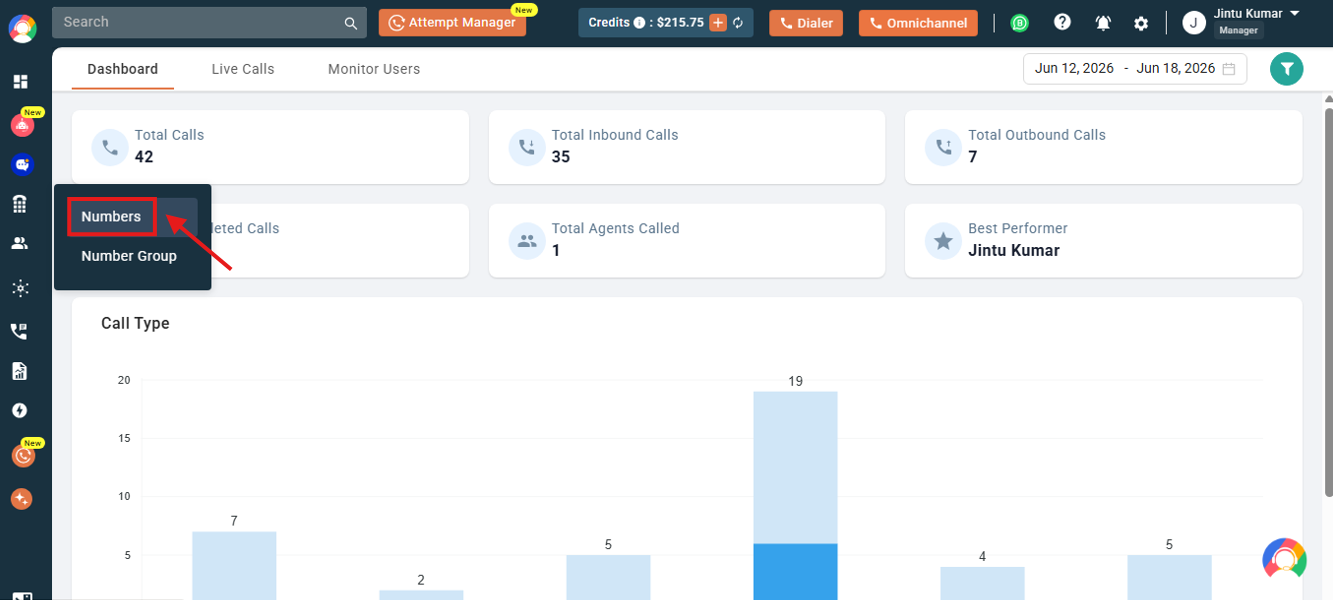
- Click the settings icon of the number for which you want to enable call recording.
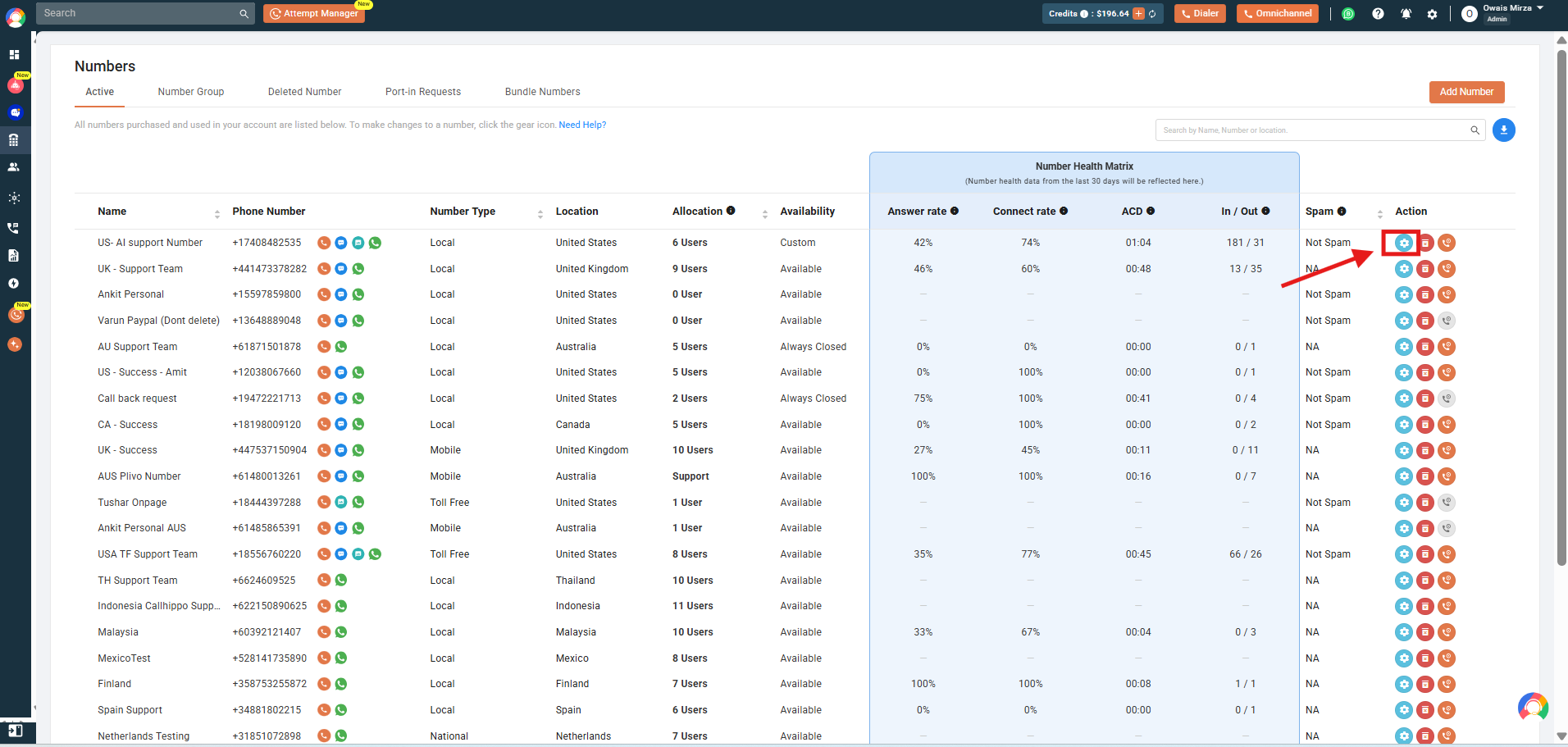
- Click the Call Recording section on the left side of the screen.
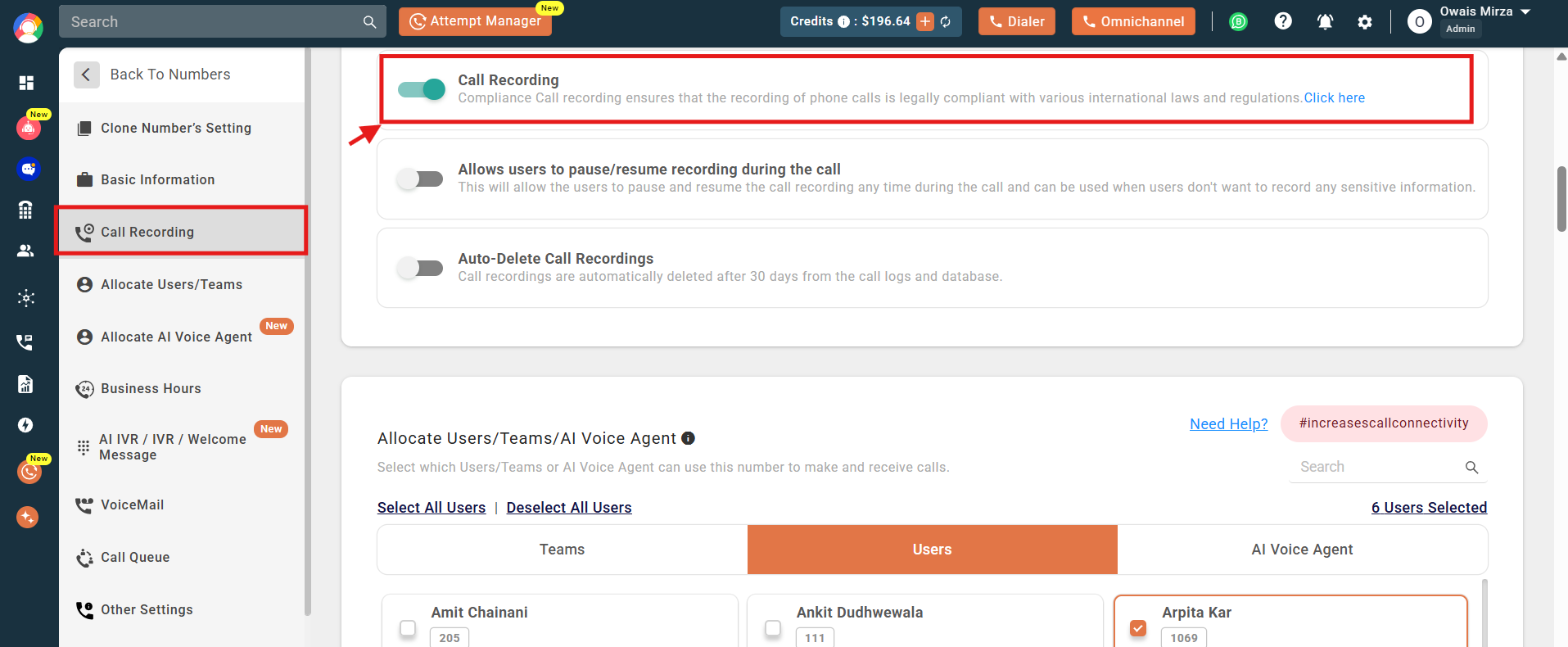
- Click the Call Recording toggle to enable it.
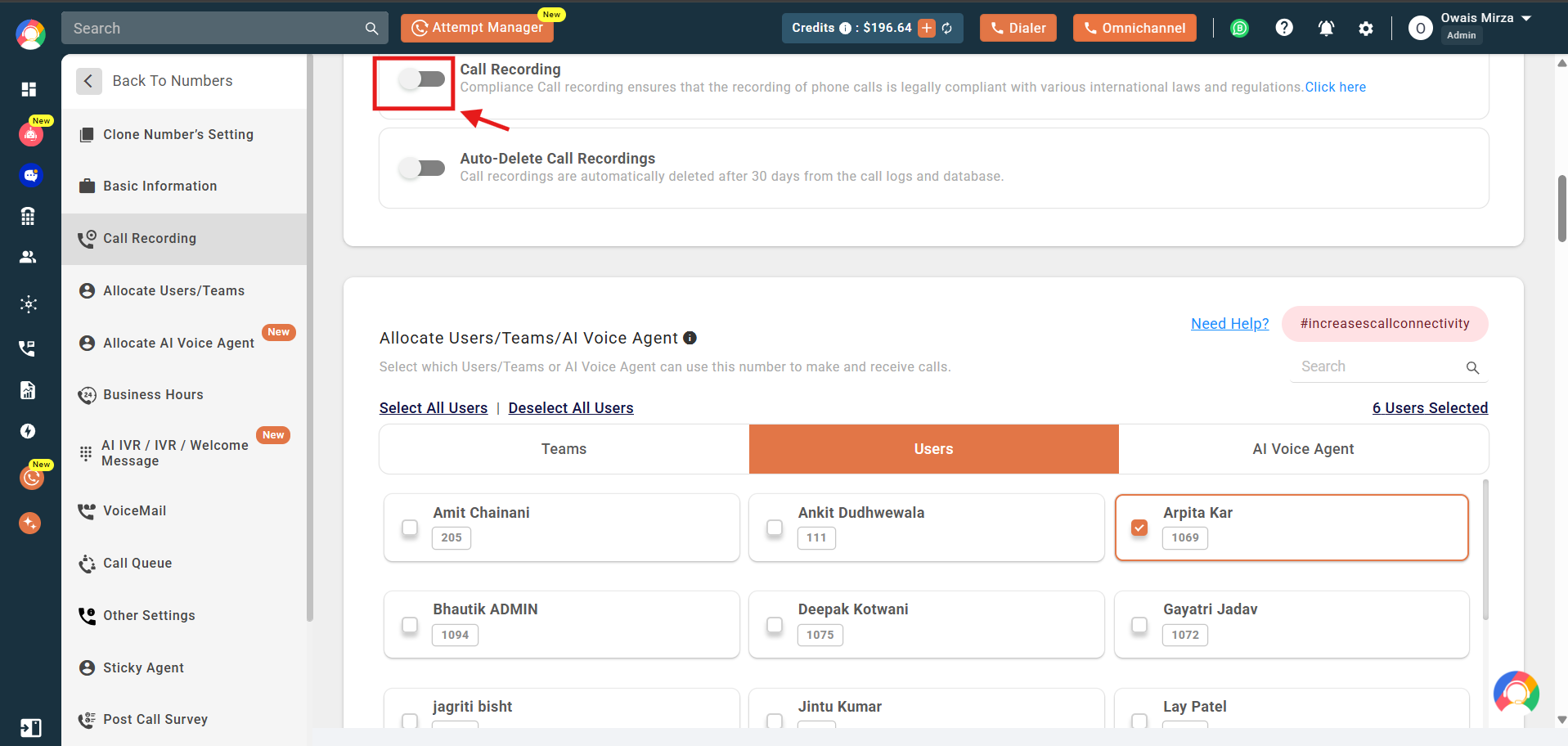
Call recording for the selected number is now enabled.
Please note:
- Call recording will only be available for the calls you make after you enable this feature.
- The recording for calls made before these changes will not become available in any way.
How pause/resume call recording works
When you pause and resume a call recording, the final audio is compiled into one continuous recording. Any gaps during the paused period will not be audible, ensuring a seamless playback experience in the activity feed.
Once the Call Recording toggle is enabled, you will see a new sub-setting: pause/resume recording. If this toggle is enabled, you will get an option to pause and resume recording during an ongoing call.
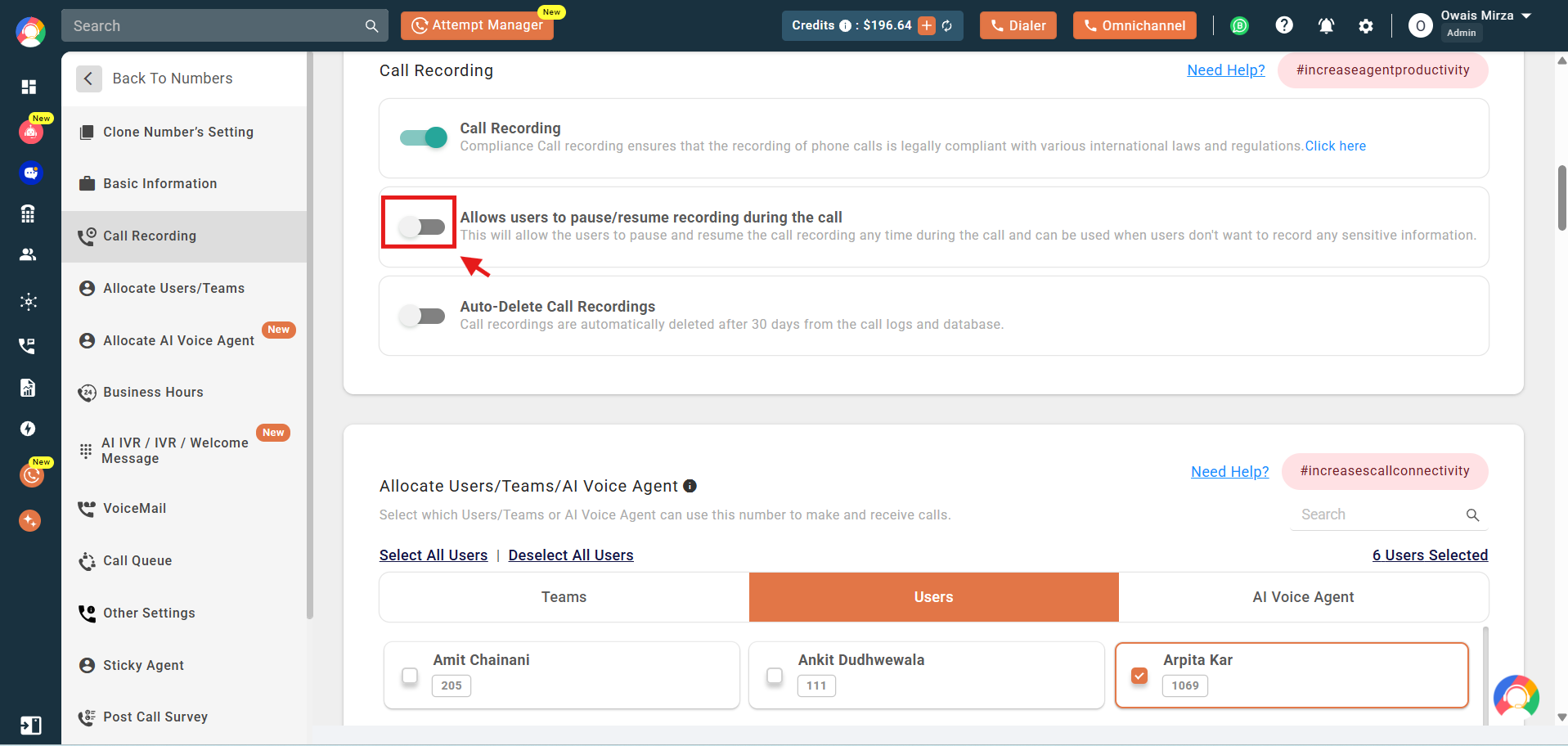
How to use pause/resume during an ongoing call
Once this feature is enabled, during an ongoing call you will see the recording button as shown below:
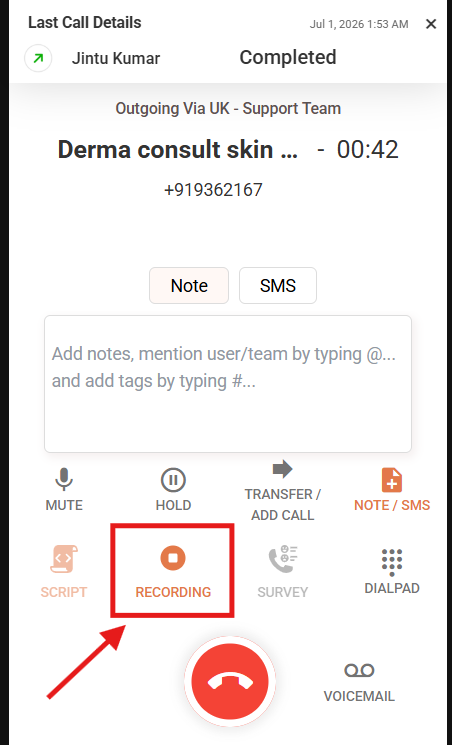
Note that call recording is turned on by default for each call. Click the Recording button on the dialer during an ongoing call to turn off the recording.
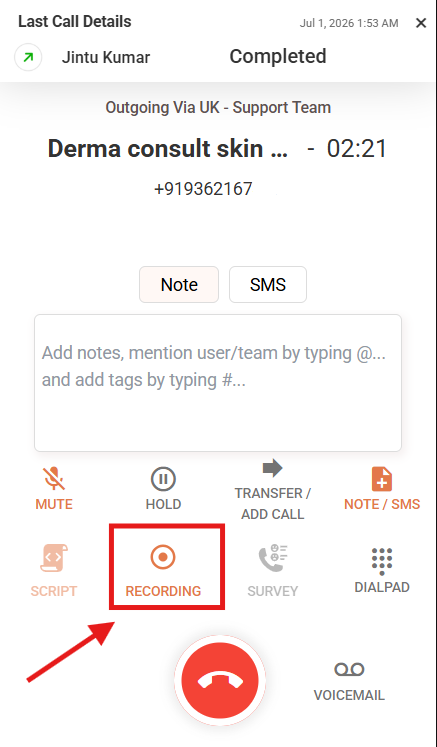
As you can see, the button changes to show that recording is now disabled. Click the same button again to re-enable recording.
How to listen to call recordings from the dashboard
You can listen to the recording for each recorded call from the Call Logs section of the dashboard. Follow the steps below:
- Log in to your CallHippo dashboard.
- Click the Call Logs / Recordings section on the left side of the dashboard.
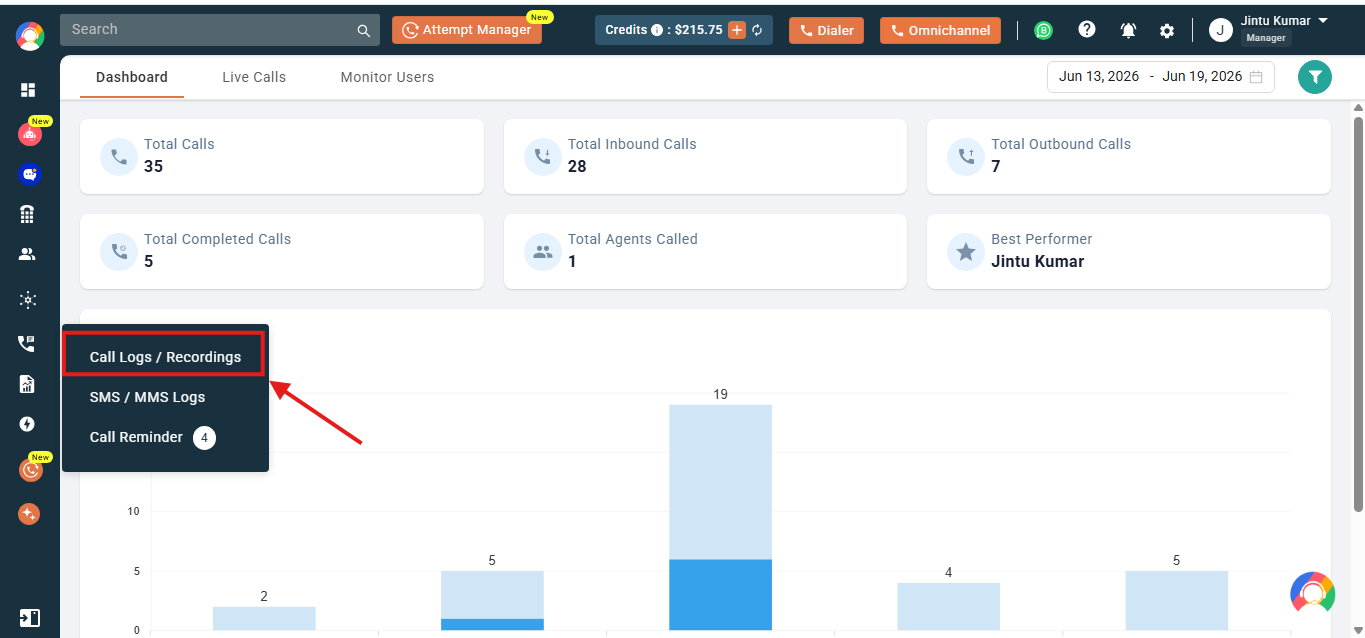
- Recorded calls have a play button beside them. Click the play button to play the recording.

- Alternatively, click the i button and listen to the recording from there.
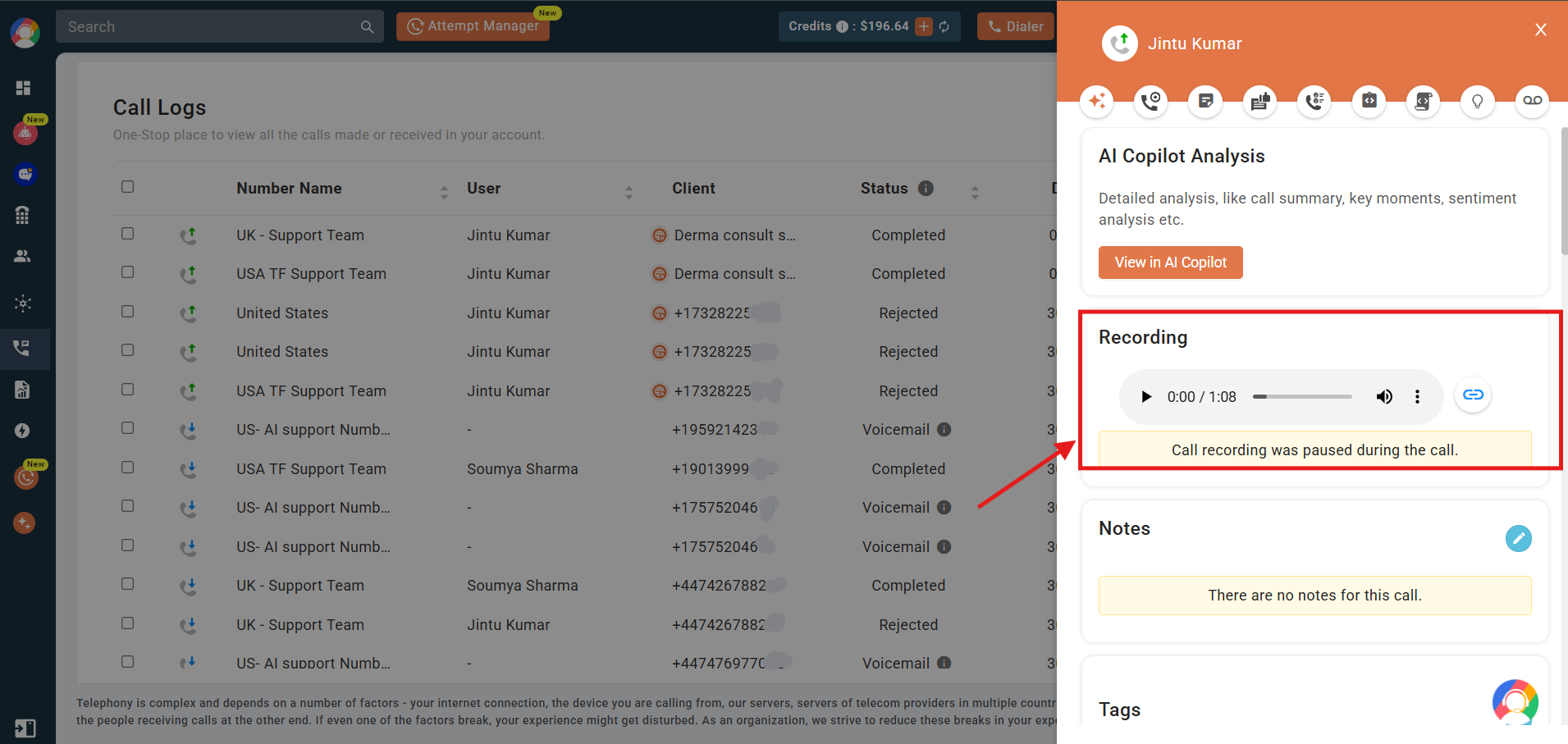
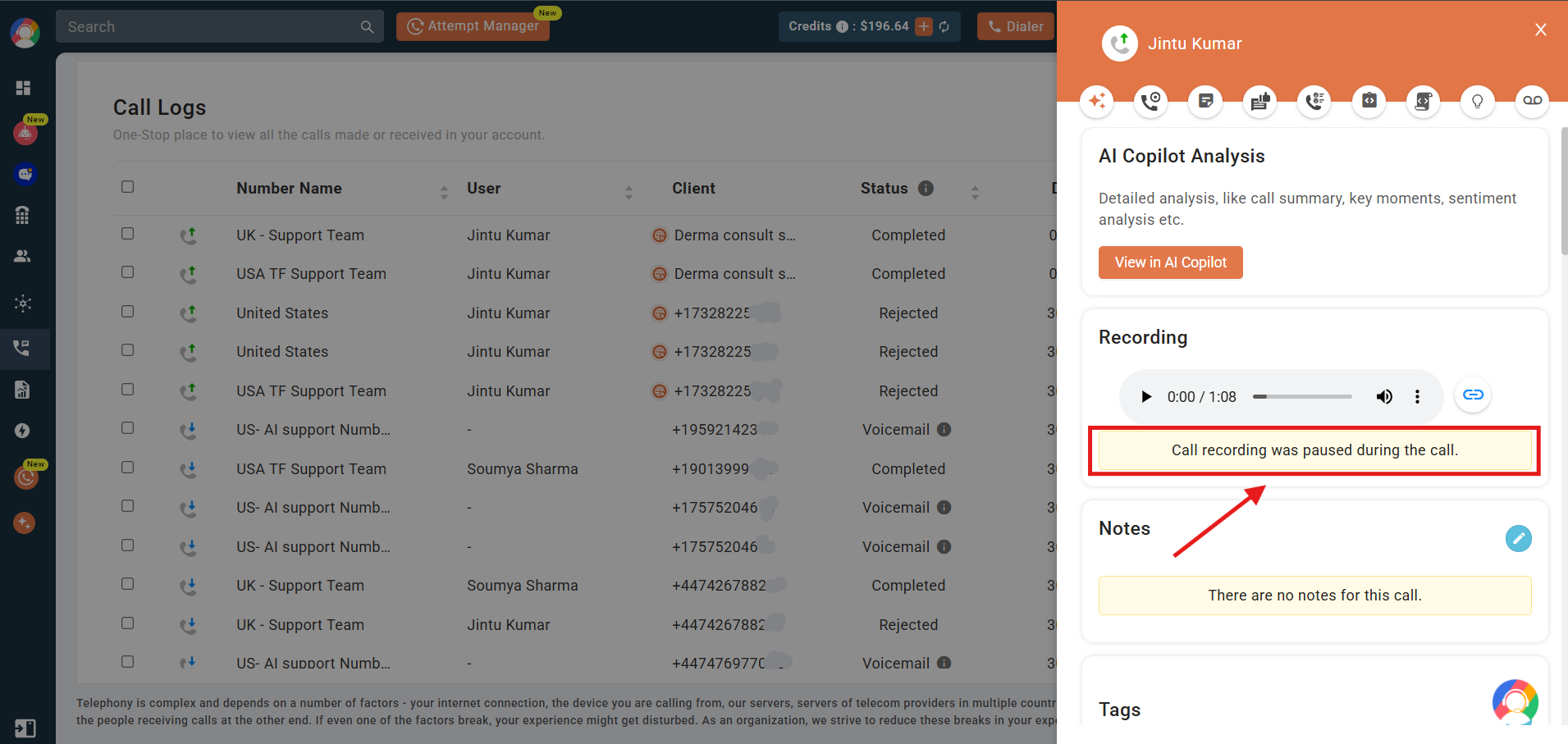
- You can check whether the recording was paused during the call from this screen.
How to listen to call recordings from the mobile app
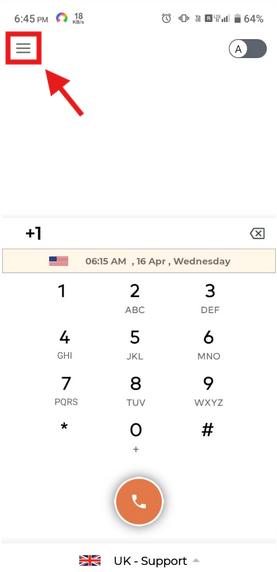
- Log in to your CallHippo mobile application.
- Tap the Main Menu icon as shown below.
- Tap the All Calls / Inbox option.
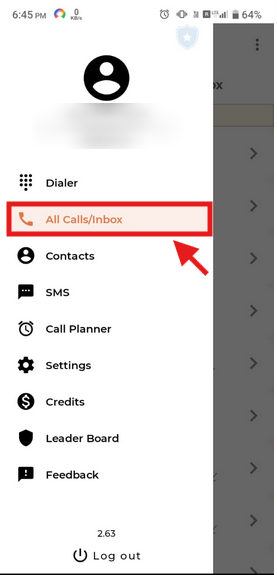
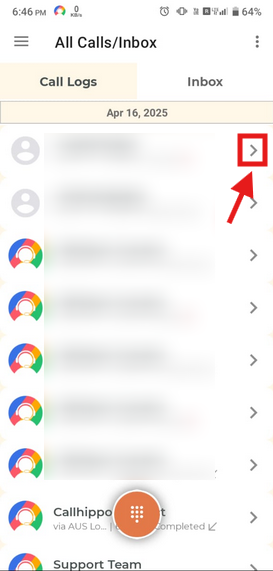
- Tap the arrow icon beside the call you want to hear.
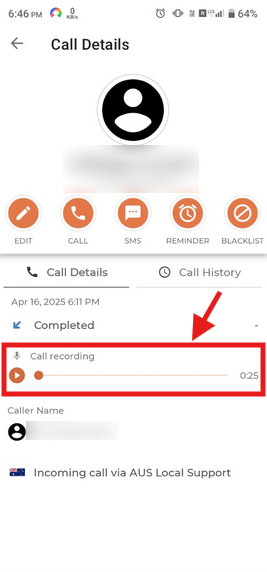
- Tap the play icon to play the recording.
How the owner can manage call recording rights for other users
By default this feature is turned off, so every user can listen to call recordings. If the admin wants to allocate rights to only specific users, they can use this feature.
- Log in to your CallHippo dashboard.
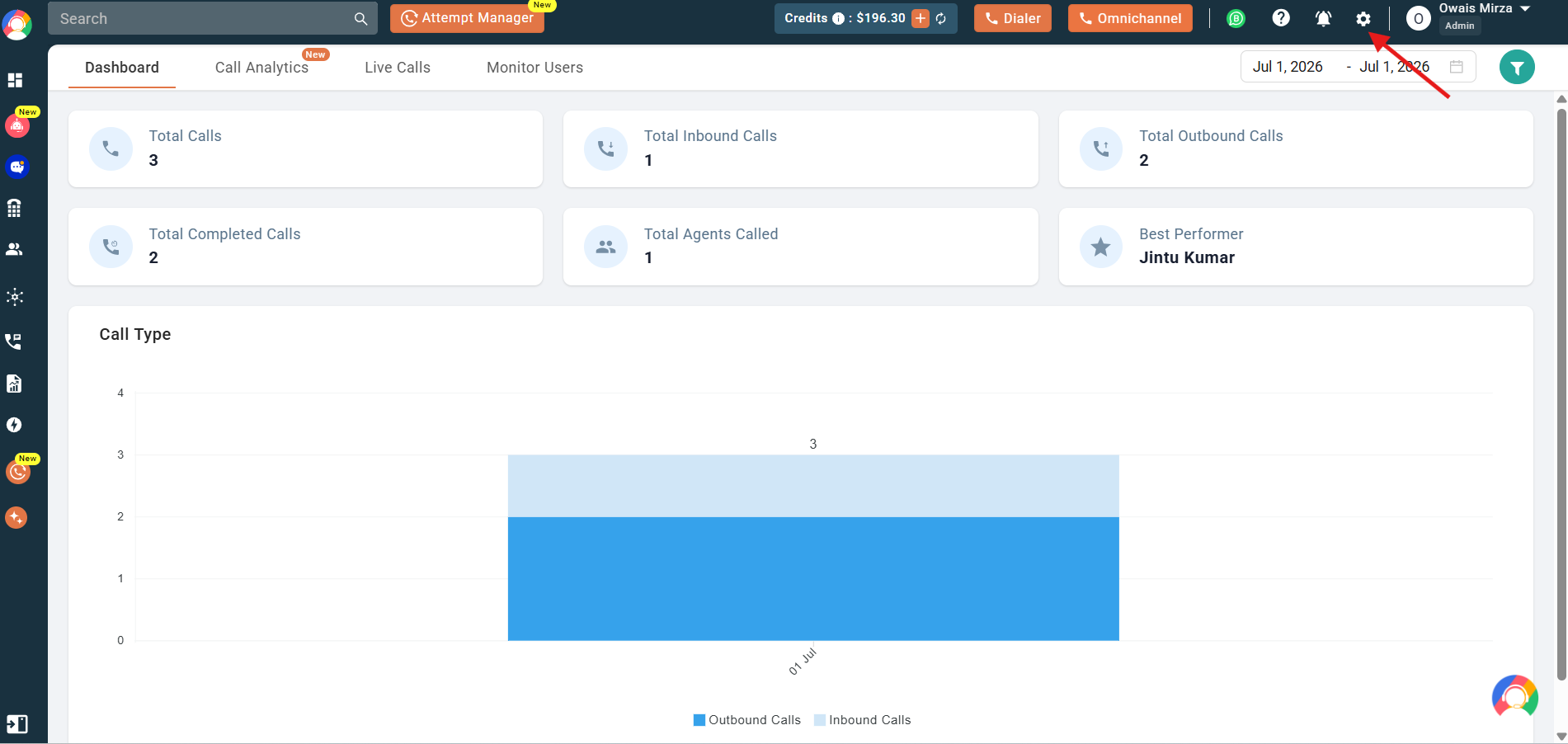
- Click the Settings icon on the dashboard as shown below.
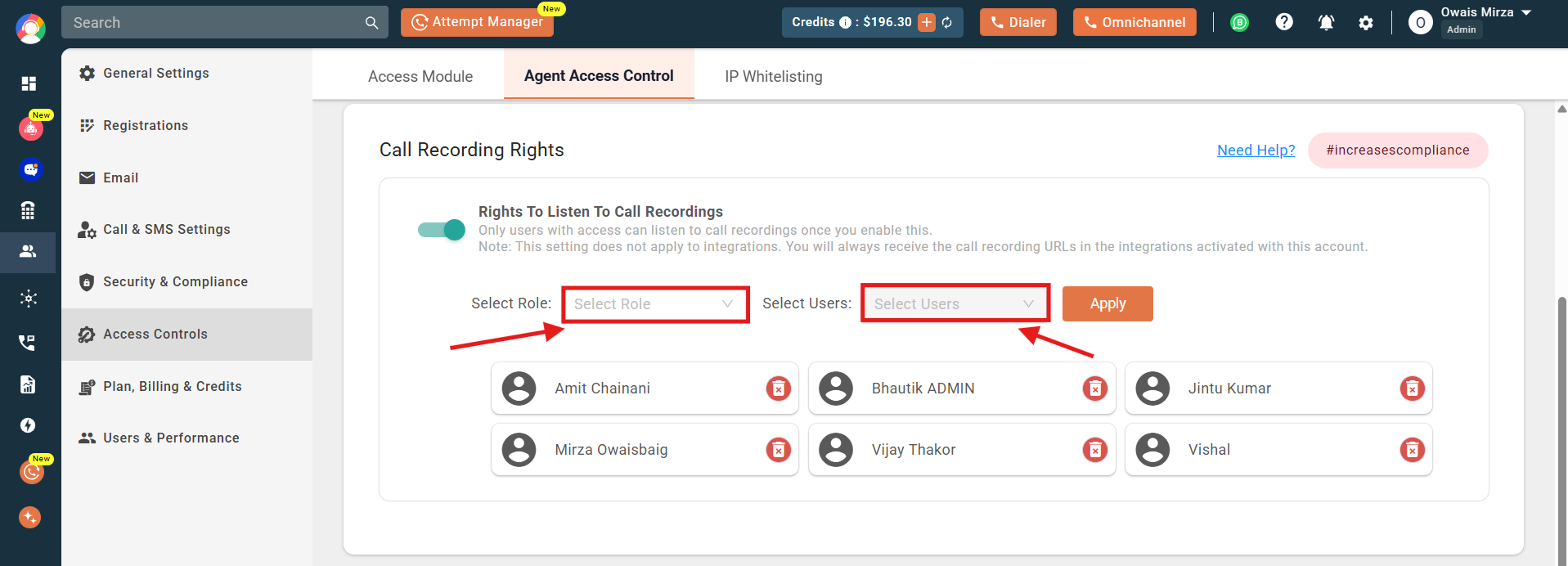
- Go to the Access Controls section on the left, select Agent Access Control from the top, and under Call Recording Rights turn on the toggle.
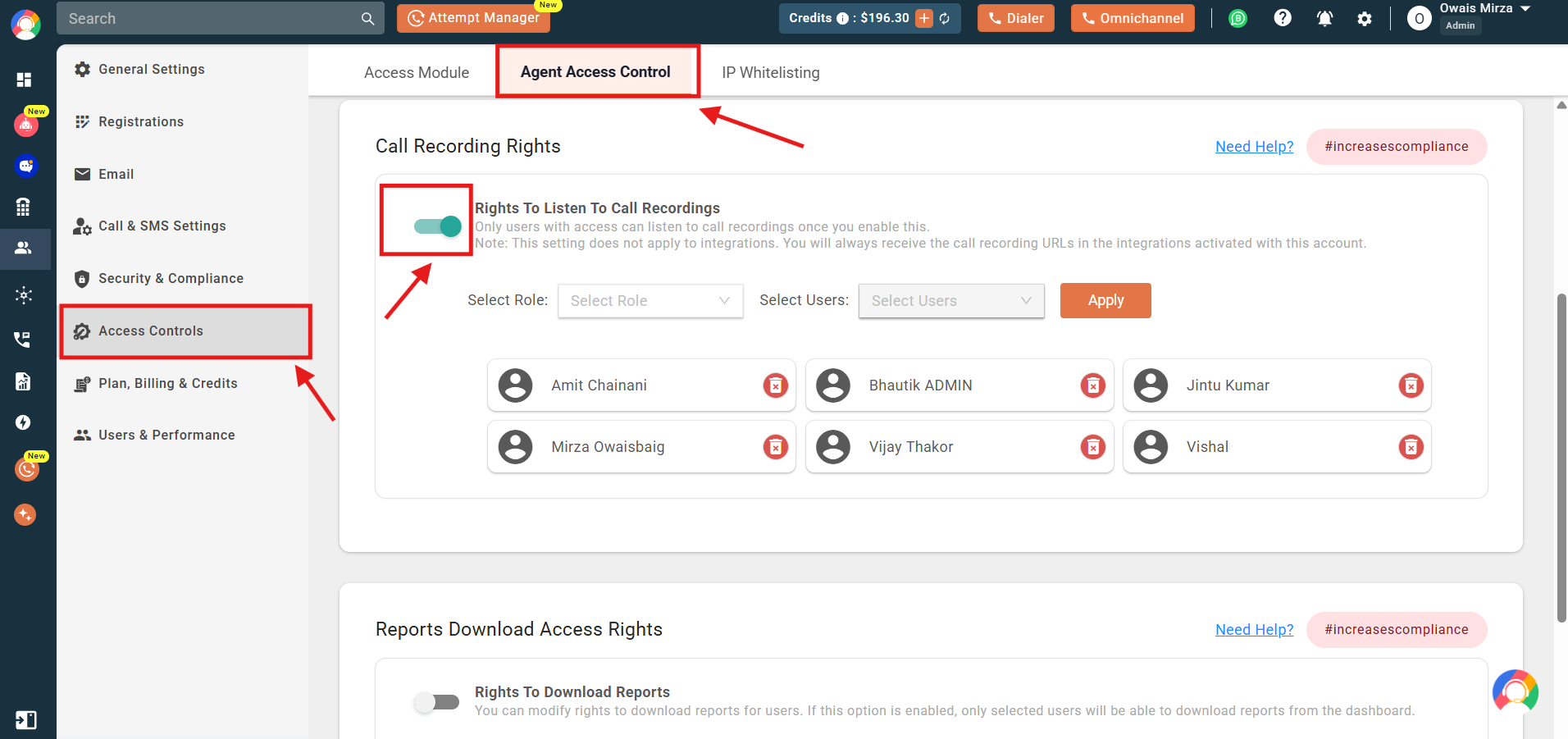
- Click the Agent role dropdown and select the role of the agent you want to grant rights to, then click the Select users dropdown and choose the agents who should have call recording rights.
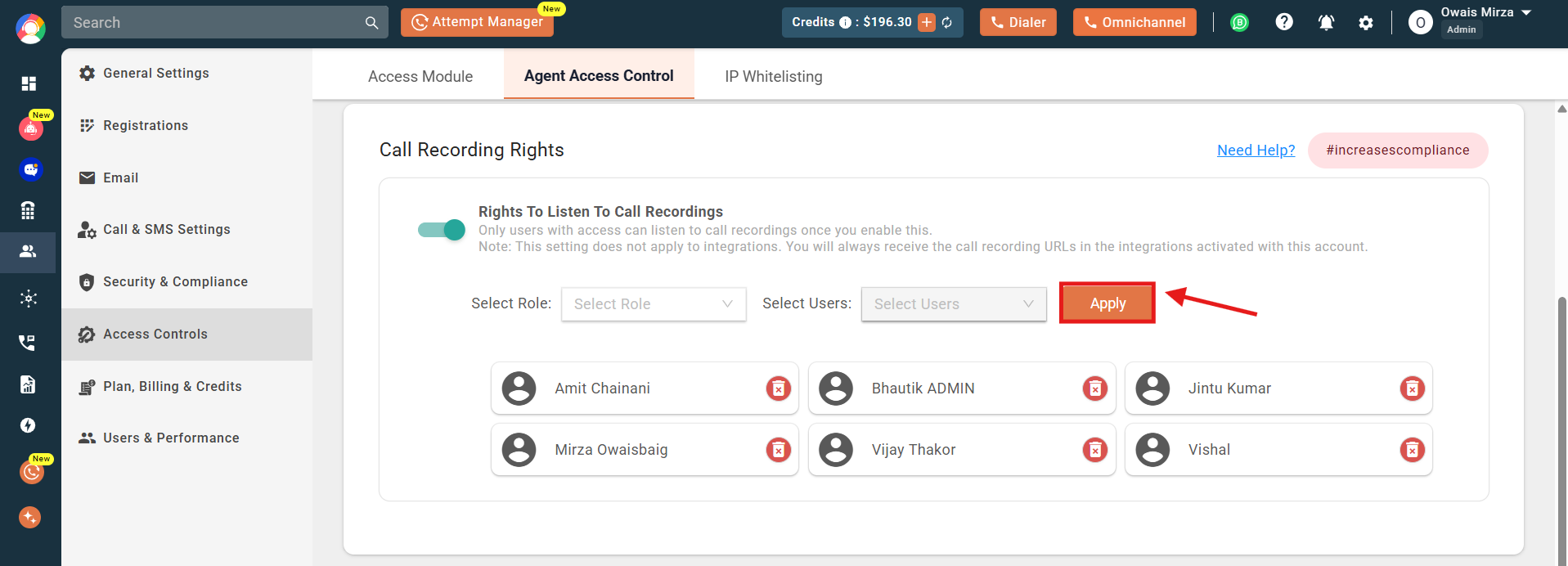
- Click Apply so the system can save the changes.
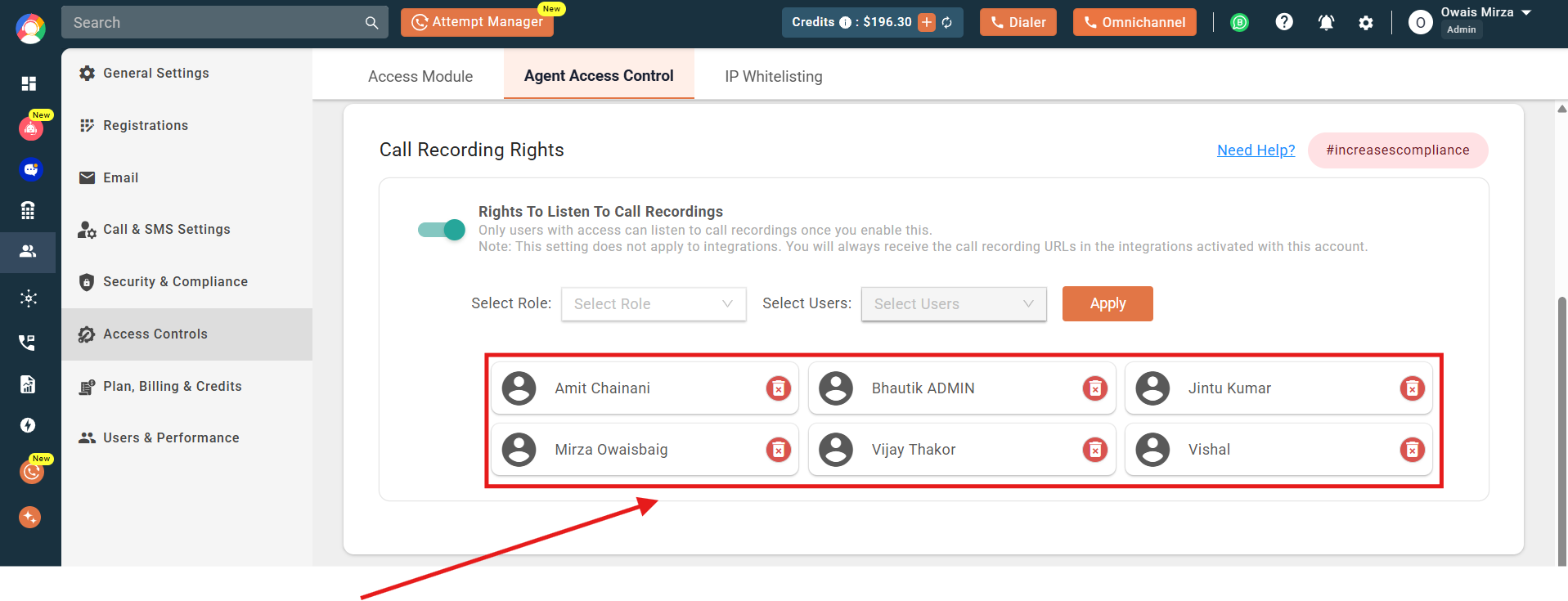
- Once done, you will see the users you granted recording rights to, as shown below.
Important:
- Once you enable Call Recording Rights, only the users shown on this screen can listen to call recordings. Other agents will not be able to listen to any recordings.
- If the Call Recording Rights toggle is enabled, the recording link will not be sent to any integration call logs.
Frequently asked questions
Will call recording be enabled for all numbers by default?
No, call recording is number-specific. You must enable it individually for each number where you want it active.
Is call recording available in all CallHippo plans?
No, it depends on your subscription plan. You can check availability on the CallHippo pricing page.
Can I access call recordings from the mobile app?
Yes. Open the CallHippo mobile app, go to the menu, tap All Calls / Inbox, tap the arrow beside a call, then press the play icon to listen.
Can all users access call recordings by default?
By default, yes. However, the admin can restrict access by enabling Call Recording Rights and assigning access to specific users only.
If call recording rights are restricted, do recordings still appear in CRM logs?
No. If Call Recording Rights is enabled, the recording link will not appear in integrated CRM call logs for users without access.
Is the call recording stored securely?
Yes, all recordings made through CallHippo are securely stored and accessible through the dashboard or mobile app based on your access permissions.
Can I purchase the call recording feature as an add-on instead of upgrading my plan?
No, the call recording feature is only available as part of specific CallHippo plans. It cannot be purchased separately as an add-on.
I have enabled call recording, but I still do not see recordings for some calls. Why?
Even if call recording is enabled for a number, recordings will only be available for calls made after the feature was turned on. Additionally, if a user pauses recording during a call using the Pause/Resume button, that portion will not be recorded. Also verify that the user has the necessary Call Recording Rights, especially if access has been restricted by an admin.
I paused a call recording mid-call. Why can I not find the full conversation later?
When you pause a recording, that portion of the conversation is excluded from the final recording. The system compiles the recording from only the segments that were actively recorded. If key parts of the conversation happened while recording was paused, they will not be available in the playback.
Why do I not see the recording option/button during my call?
The ability to pause or resume a recording during an ongoing call appears only if the Pause/Resume toggle is enabled in the number’s call recording settings. If it is still not visible, please ensure the number has call recording enabled, you are using the latest version of the CallHippo app or dialer, and your user role has not been restricted from call recordings by the admin.
I am an admin, but I do not see the Call Recording Rights option in settings. What am I missing?
Only Owner-level users can assign or modify Call Recording Rights. If you are logged in as an Admin but do not see the option, you may need to request the account Owner to make the changes. Also confirm that the feature is included in your subscription plan.
How can I ensure compliance with recording laws in different countries?
CallHippo enables call recording on a per-number basis, but compliance with local call recording regulations is your responsibility. Some countries require one-party consent, while others mandate two-party consent. We recommend informing all participants that a call may be recorded and consulting legal counsel if you operate across multiple jurisdictions. CallHippo does not automatically notify participants when a recording is in progress.
Why are my calls not getting recorded even though I upgraded the plan?
Upgrading your plan gives you access to the feature, but recordings only begin once the feature is manually enabled for each number. Go to your dashboard, then Numbers, then Settings, then Call Recording, and toggle it on. Calls made before enabling the feature will not be recorded, even if your plan supports it.
How can I access call recordings of all calls?
You can access all available recordings from the dashboard or mobile app. On the dashboard, log in, go to Call Logs / Recordings, and click the play icon next to the call. On the mobile app, log in, tap the menu icon, select All Calls / Inbox, tap the arrow next to a call, and press the play icon. Ensure you have the required Call Recording Rights; if restricted, only selected users will see playback options.
If I upgrade my plan now, will I get recordings for calls made before the upgrade?
No, recordings are only available for calls made after the feature is activated. Recordings will not be retroactively available for previous calls. You must enable call recording for each number to start capturing new calls.
How can I turn off call recording for a number?
Log in to the dashboard, go to Numbers, click the settings icon next to the number, navigate to the Call Recording section, and toggle the Call Recording option off. This stops new calls on that number from being recorded. Past recordings remain available based on your access rights.
Why does it say I do not have access to the recording when I try to listen to it?
This message appears if your admin has enabled Call Recording Rights and has not granted you permission. Only users explicitly assigned access can listen. Please contact your account admin to request access if needed.
Why are my calls not being recorded?
Common reasons include: call recording is not enabled for the number; your plan does not include call recording; the call was made before recording was activated; recording was manually paused during the call; or your role does not have permission to access recordings if rights have been restricted. Please verify these settings or contact your admin or support team for assistance.
We hope this helps. If you still have questions, feel free to reach out at [email protected].