
Call Reminder helps you stay on top of scheduled calls and follow-ups by setting timely alerts, so you never miss an important conversation. It keeps your calling workflow organized and ensures better follow-through with customers. Whether it’s a sales follow-up or a client check-in, Call Reminders help you stay prepared and on time.
What is a Call Reminder?
A Call Reminder lets you schedule a follow-up call from within CallHippo and receive an alert when it’s time to make it. It works across the CallHippo Dialer on web, desktop, and mobile, so your planned calls stay visible and organized in one place.
Key things to know
- Call Reminder is available only on selected CallHippo plans. Please check the Pricing & Features page to confirm availability.
- You can create call reminders only from the CallHippo Dialer (web, desktop, and mobile).
- On the CallHippo mobile app (Android and iOS), this feature is called Call Planner.
- In the dashboard, you can view only scheduled and completed calls under the Call Reminder section.
- Call Reminder is a user-specific feature.
- Each user can enable or disable their own reminders.
- Users, including the account owner, cannot manage or control call reminders for other users.
This feature ensures you stay organized, responsive, and consistent with your calls.
How to enable the Call Reminder feature
- Log in to your CallHippo dialer.
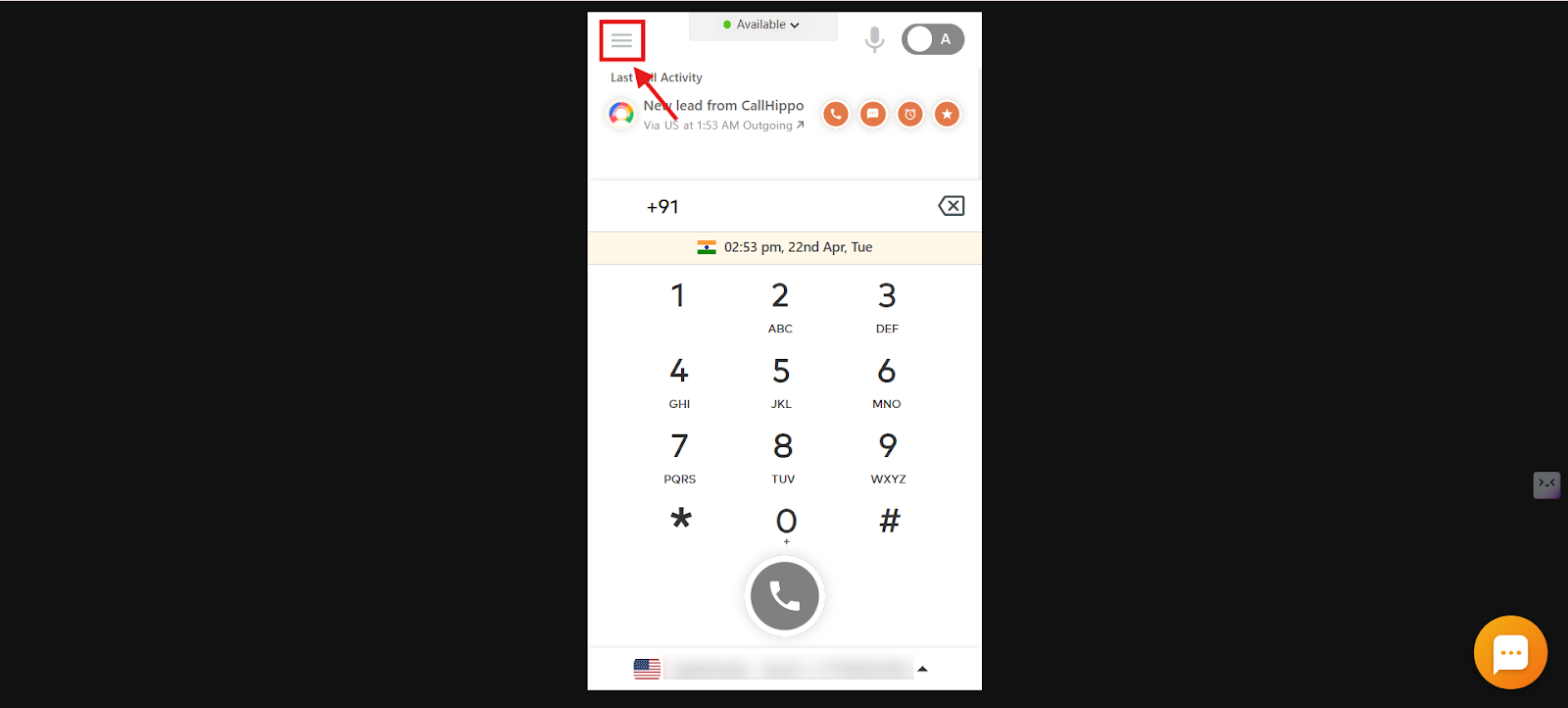
- Click on the Main Menu icon on the dialer.
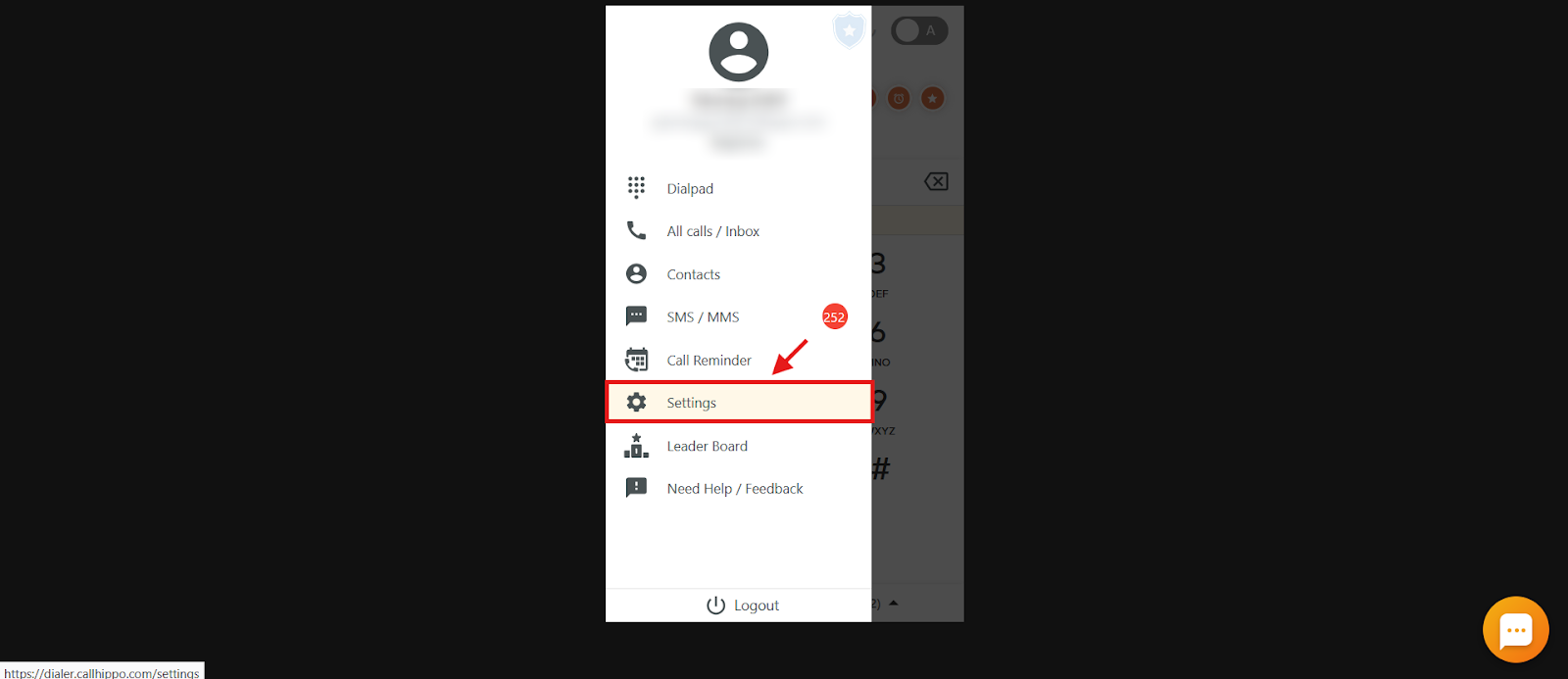
- Click on the Settings option.
- Click on the Call Reminder toggle to enable it.
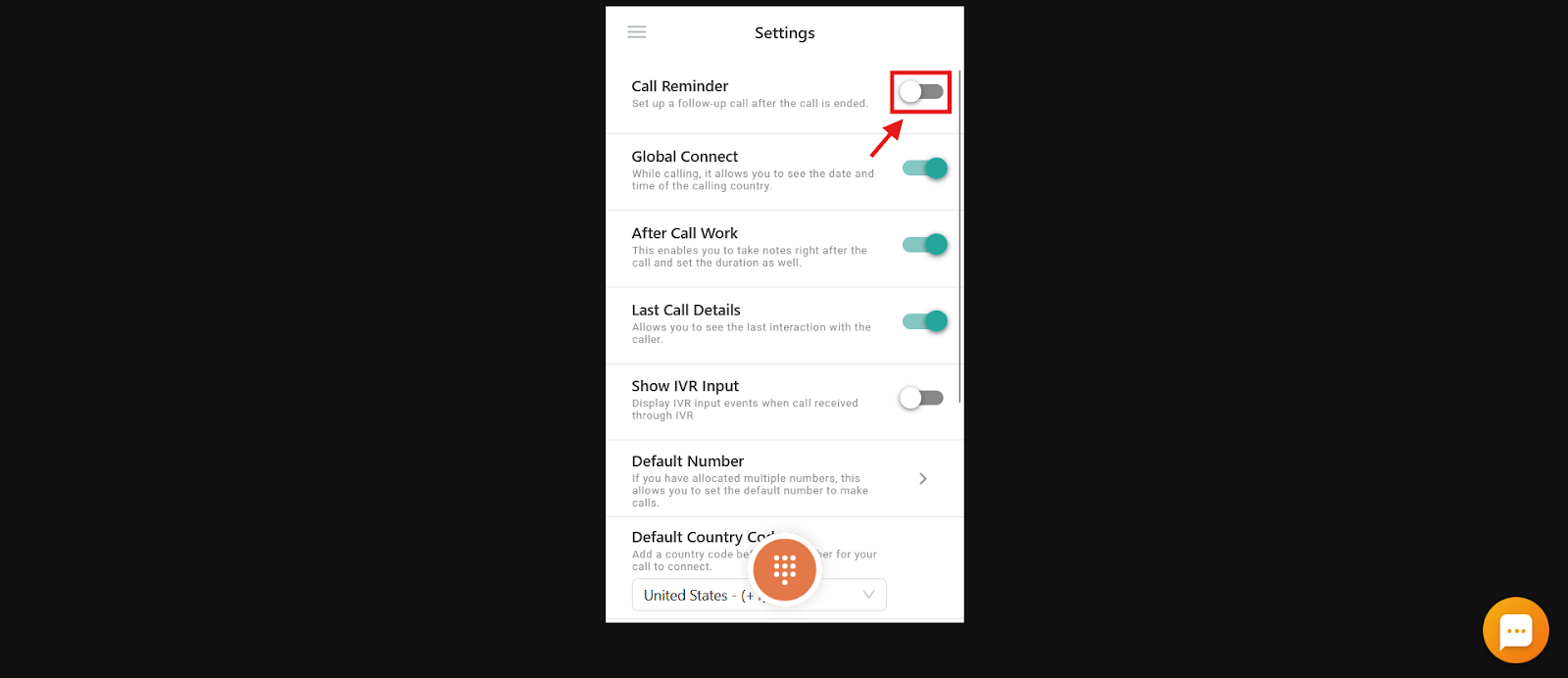
The Call Reminder feature is now enabled.
How to set a Call Reminder for any call
- Log in to your CallHippo dialer.
- Click on the Main Menu icon on the dialer.
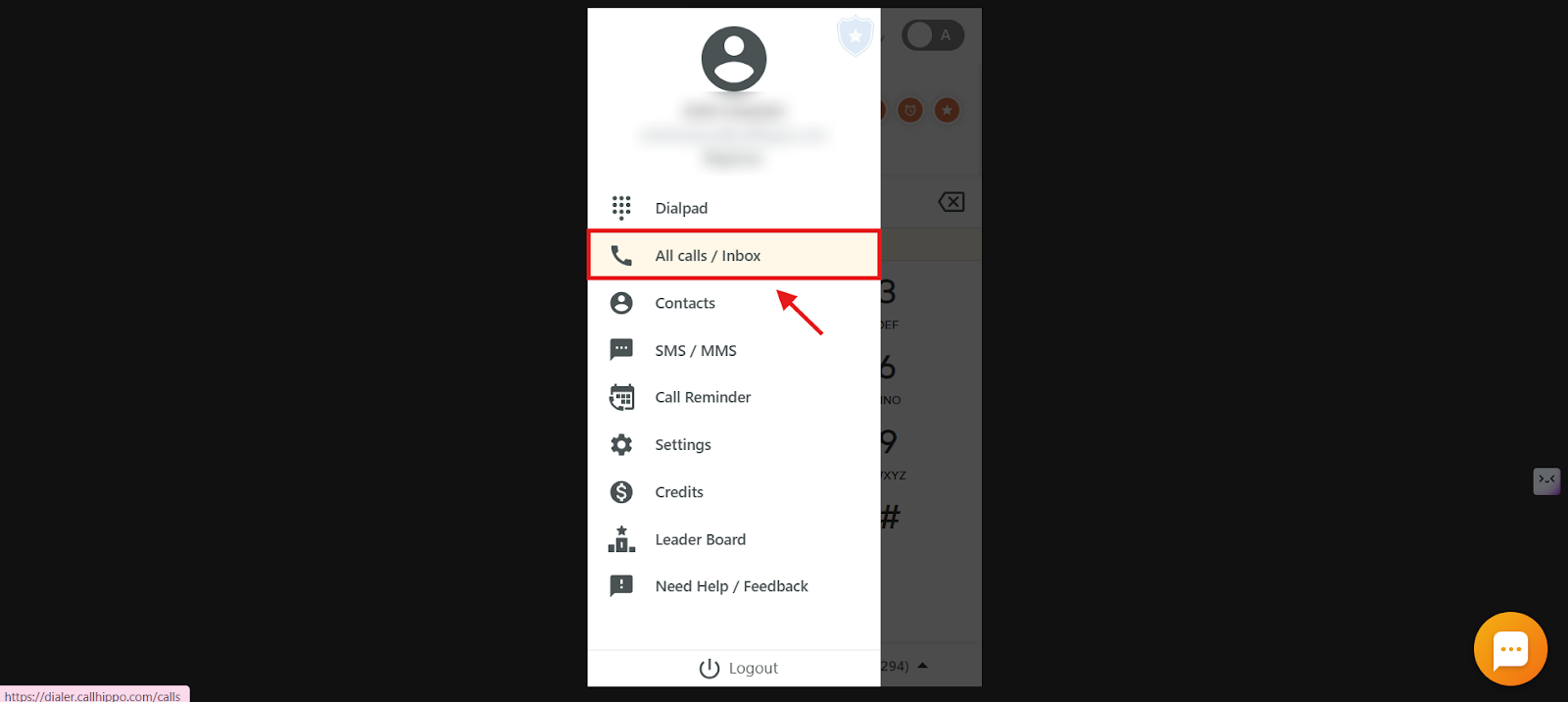
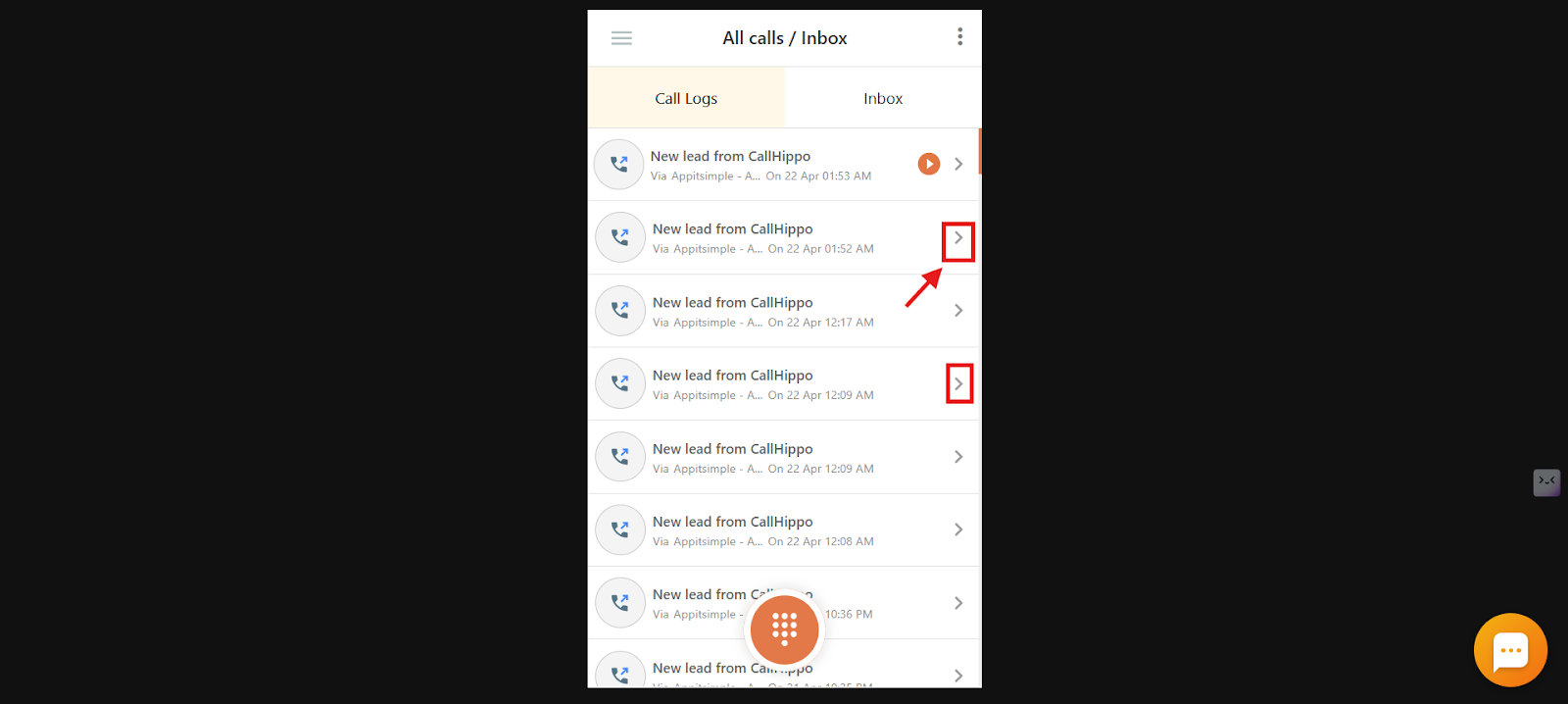
- Click on the All calls / Inbox option to open the call logs.
- Click on the arrow icon of the call for which you want to set the reminder.
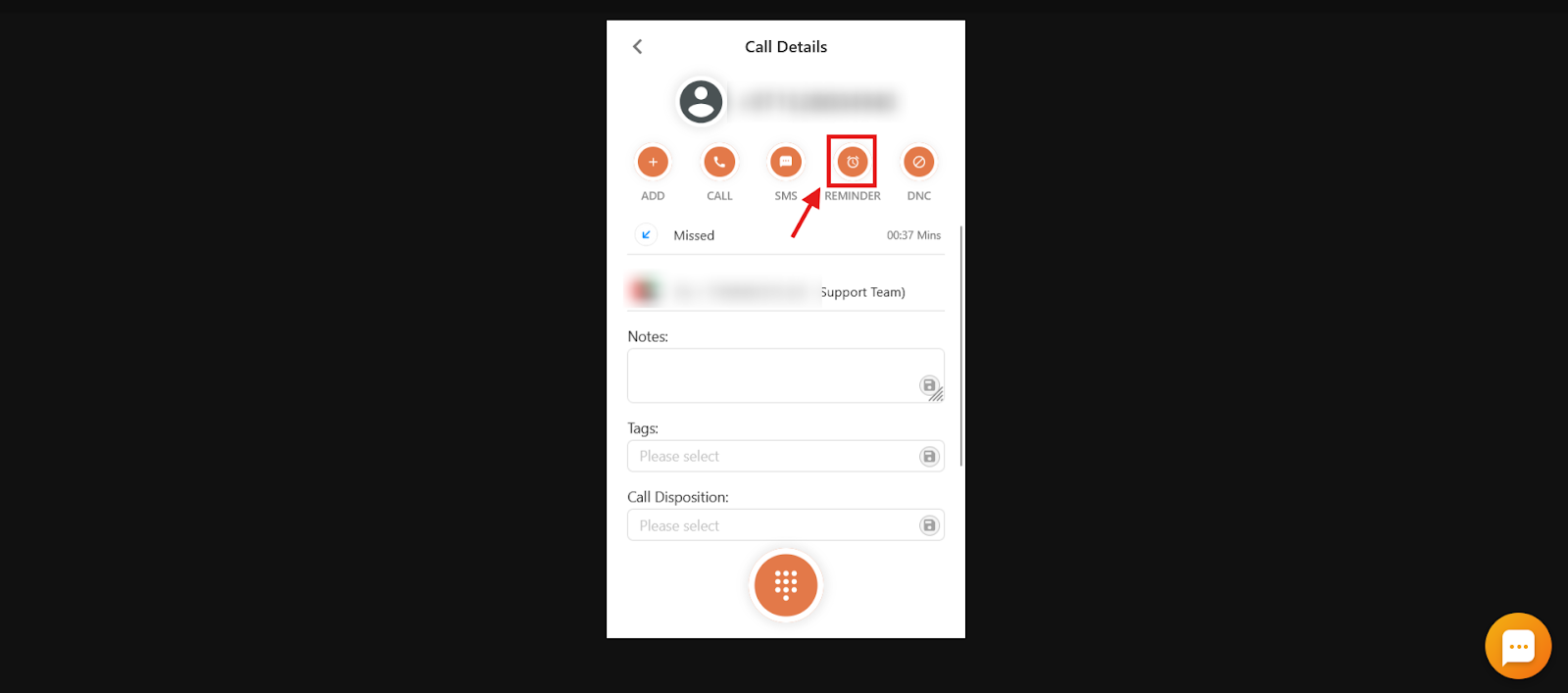
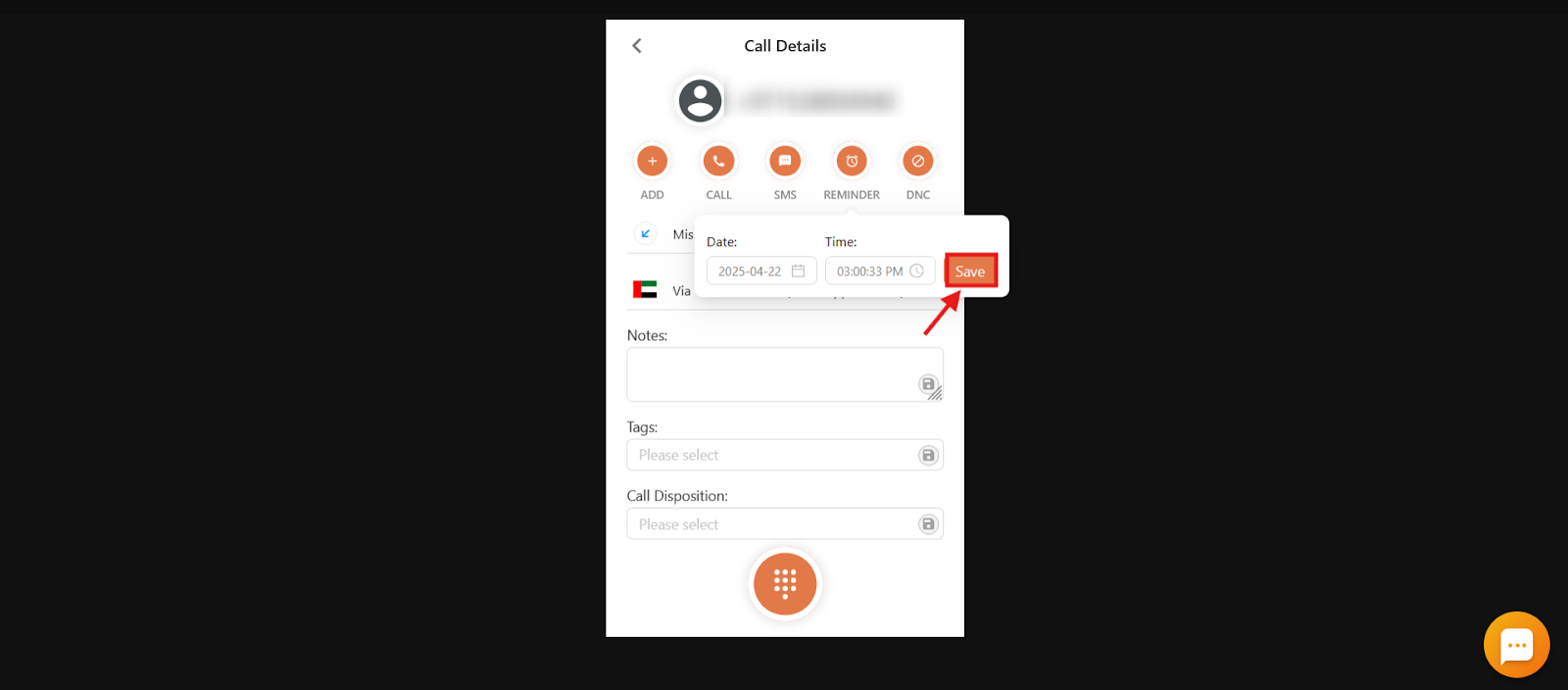
- Click on the Reminder button.
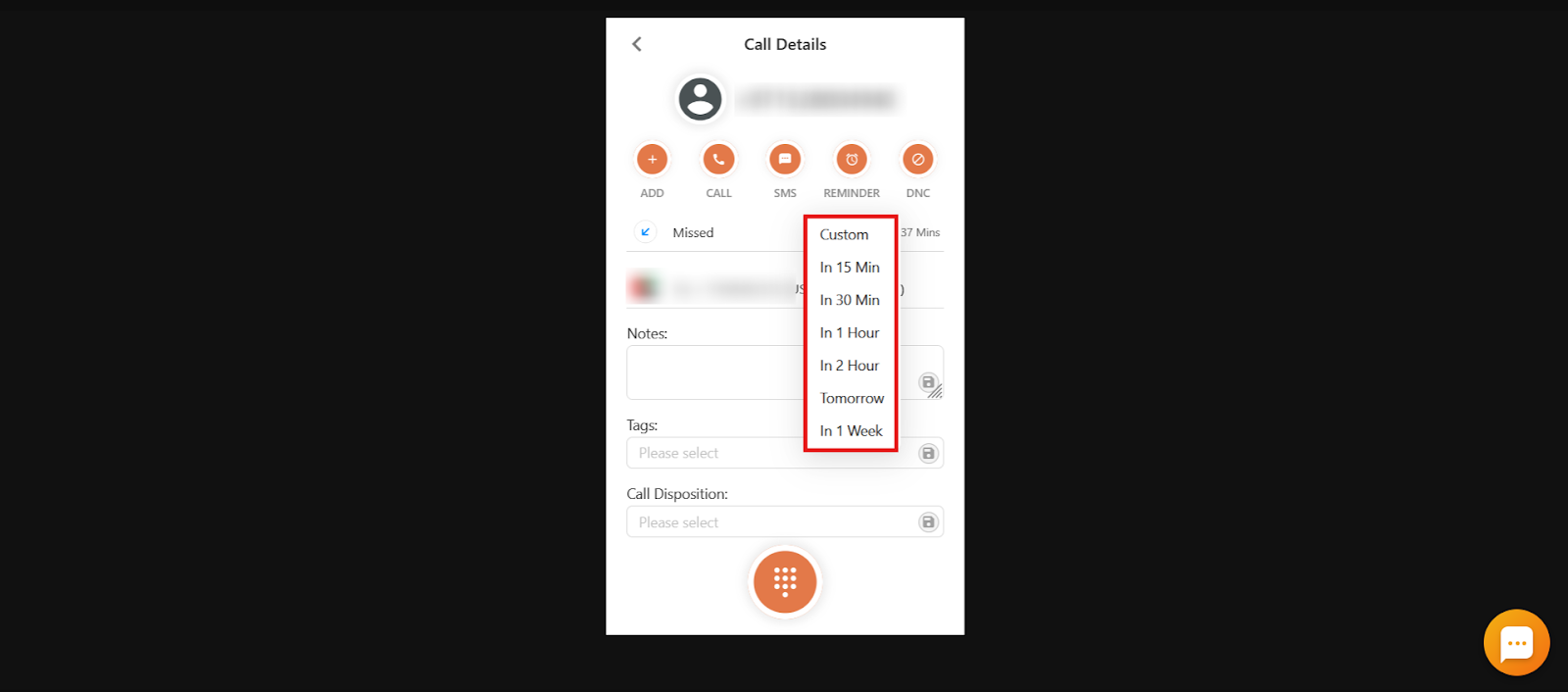
- Select the time after which you want the reminder, from the dropdown list.
- Select Custom if you want to set a particular time and date for the reminder.
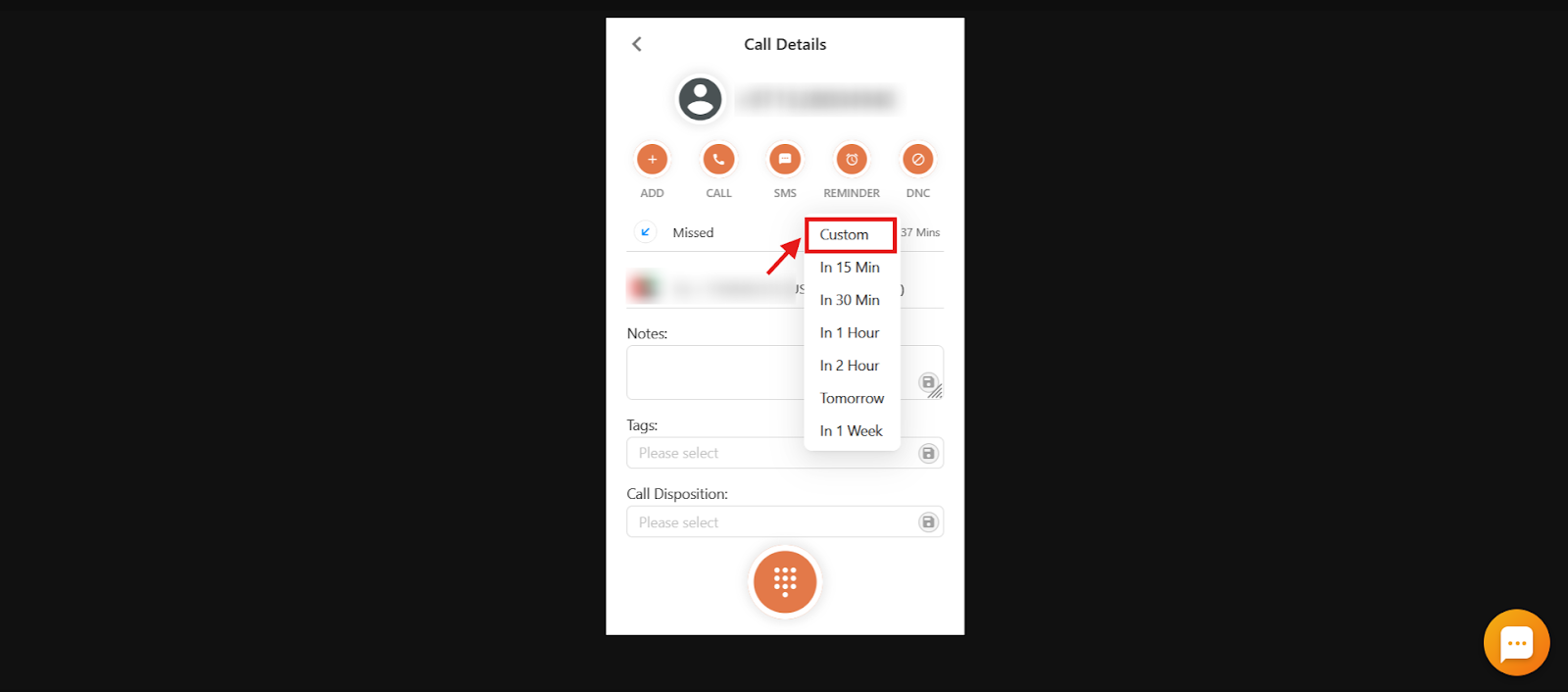
- Select the date and time you want the reminder for, and then click on Save.
Note: A call reminder can also be set from the After Call Work screen, if it is enabled for your account, by clicking on Schedule a Call and following the same steps mentioned above.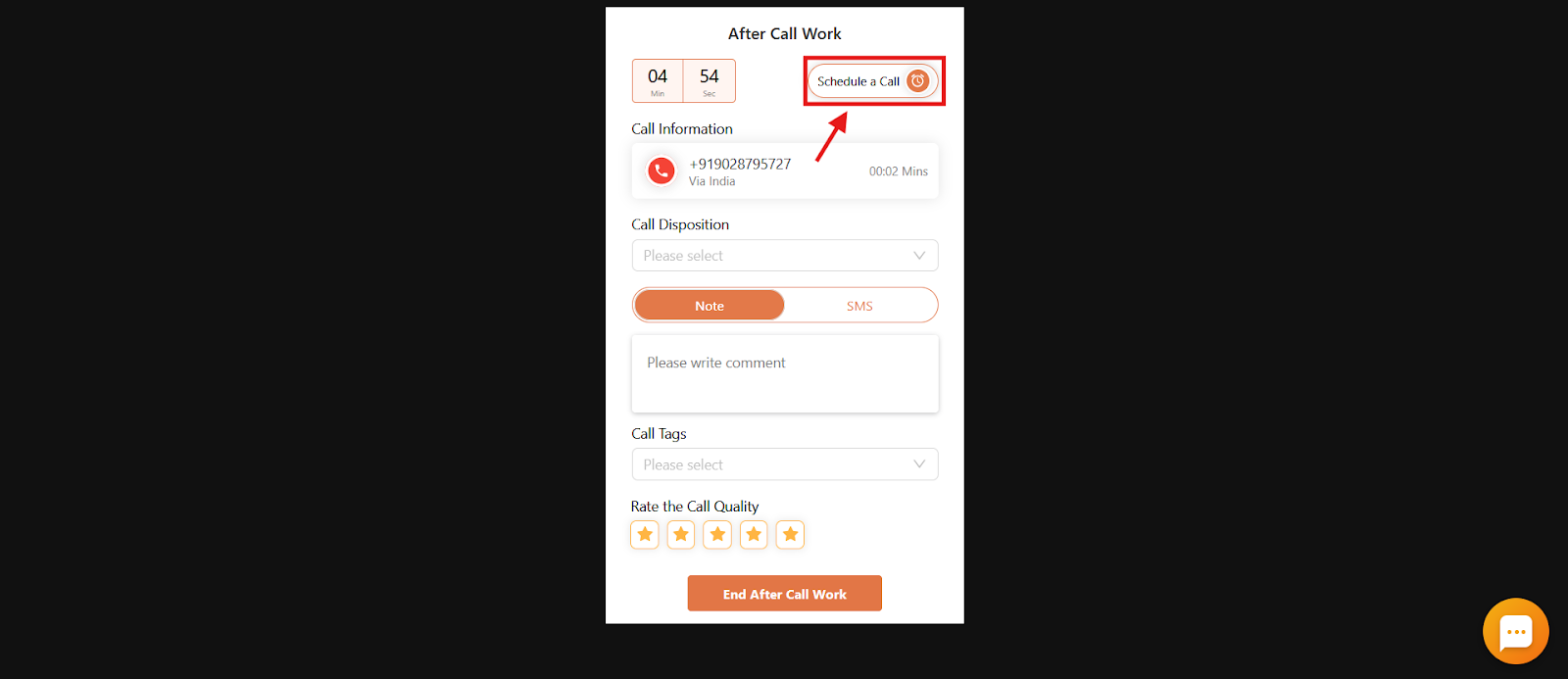
The call reminder is now successfully set.
How to check the status of reminder calls — CallHippo dashboard
- Log in to your CallHippo dashboard.
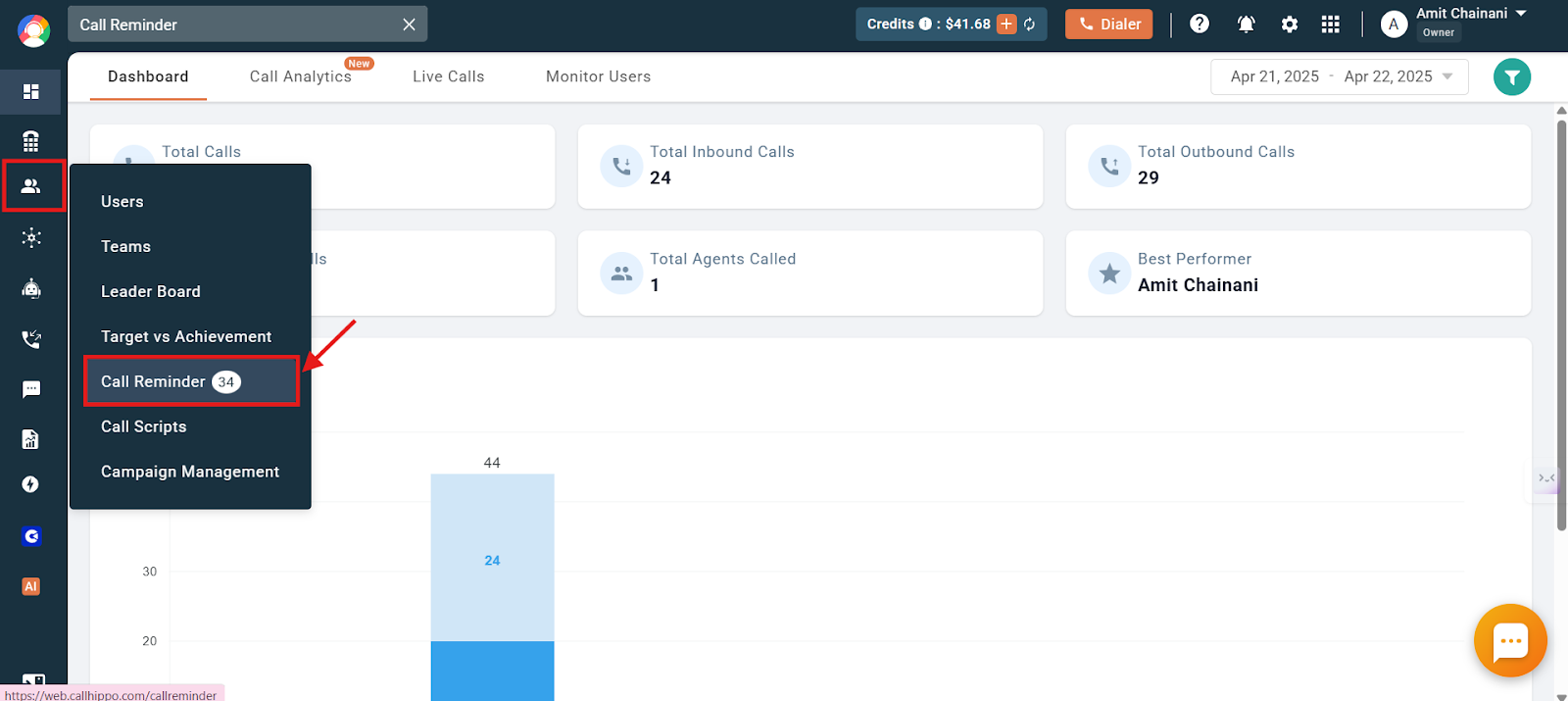
- Navigate to the Users and Performance section on the left side of the screen and then click on Call Reminder.
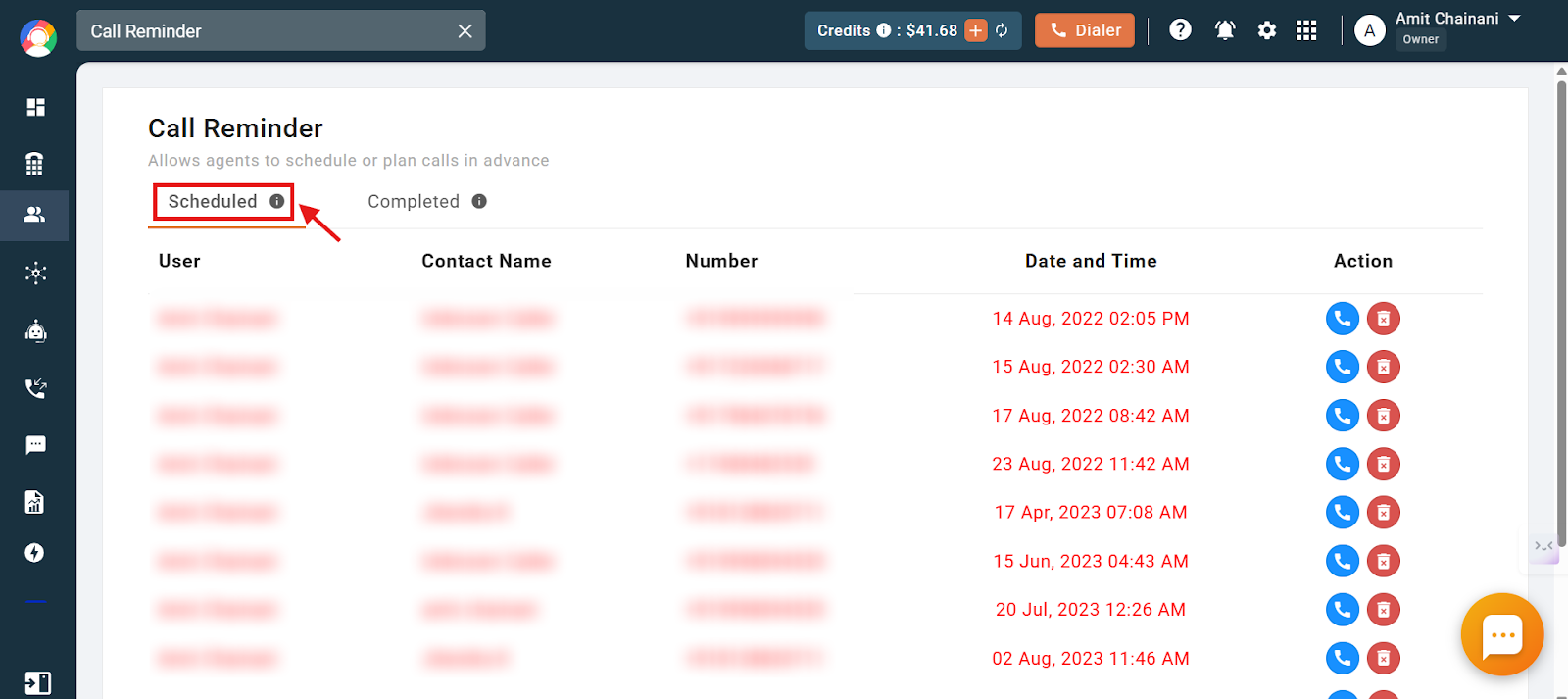
The Call Reminder screen has two major tabs:
- Scheduled tab: Displays all upcoming or pending reminders. Calls highlighted in red indicate that the scheduled reminder has passed and the call was not completed.
- Completed tab: Lists all calls that were successfully completed after a reminder was triggered.
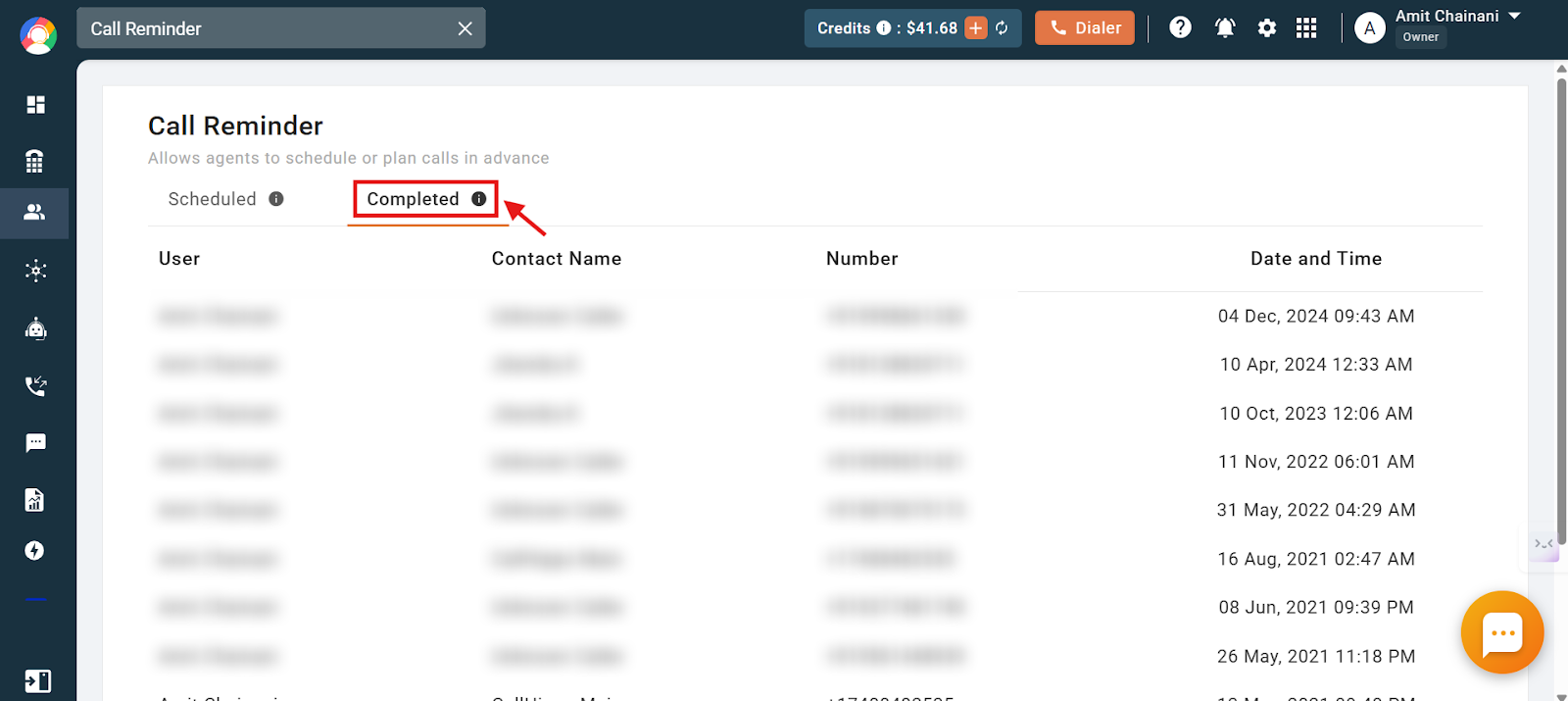
Each entry provides detailed information such as:
- User name (who scheduled the call)
- Contact name and number
- Scheduled date and time
- Action options to initiate a call or remove the reminder
This section serves as a centralized view for managing your reminder-driven outreach, ensuring you never lose track of important engagements.
How to check the status of reminder calls — CallHippo dialer
- Log in to your CallHippo dialer.
- Click on the Main Menu icon on the dialer.
- Click on the Call Reminder option.
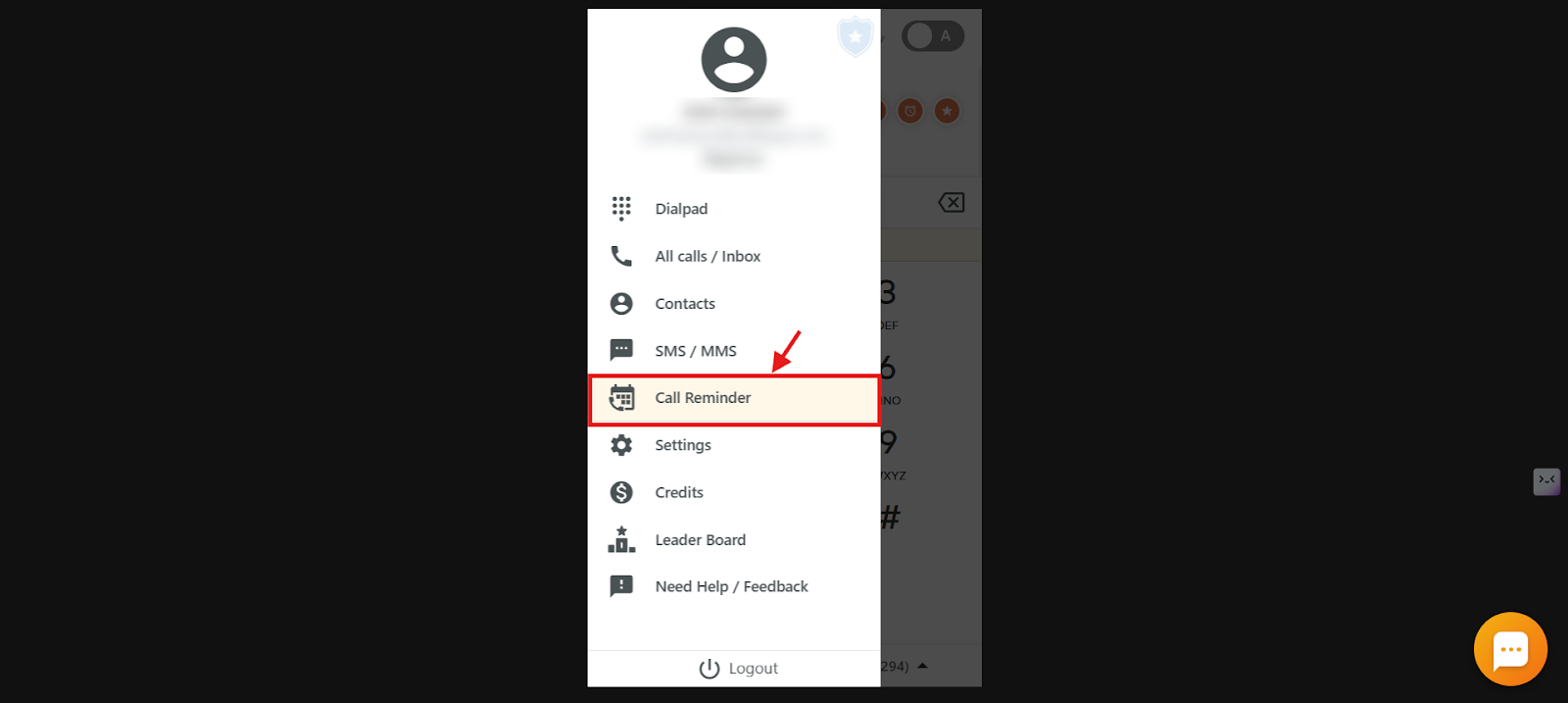
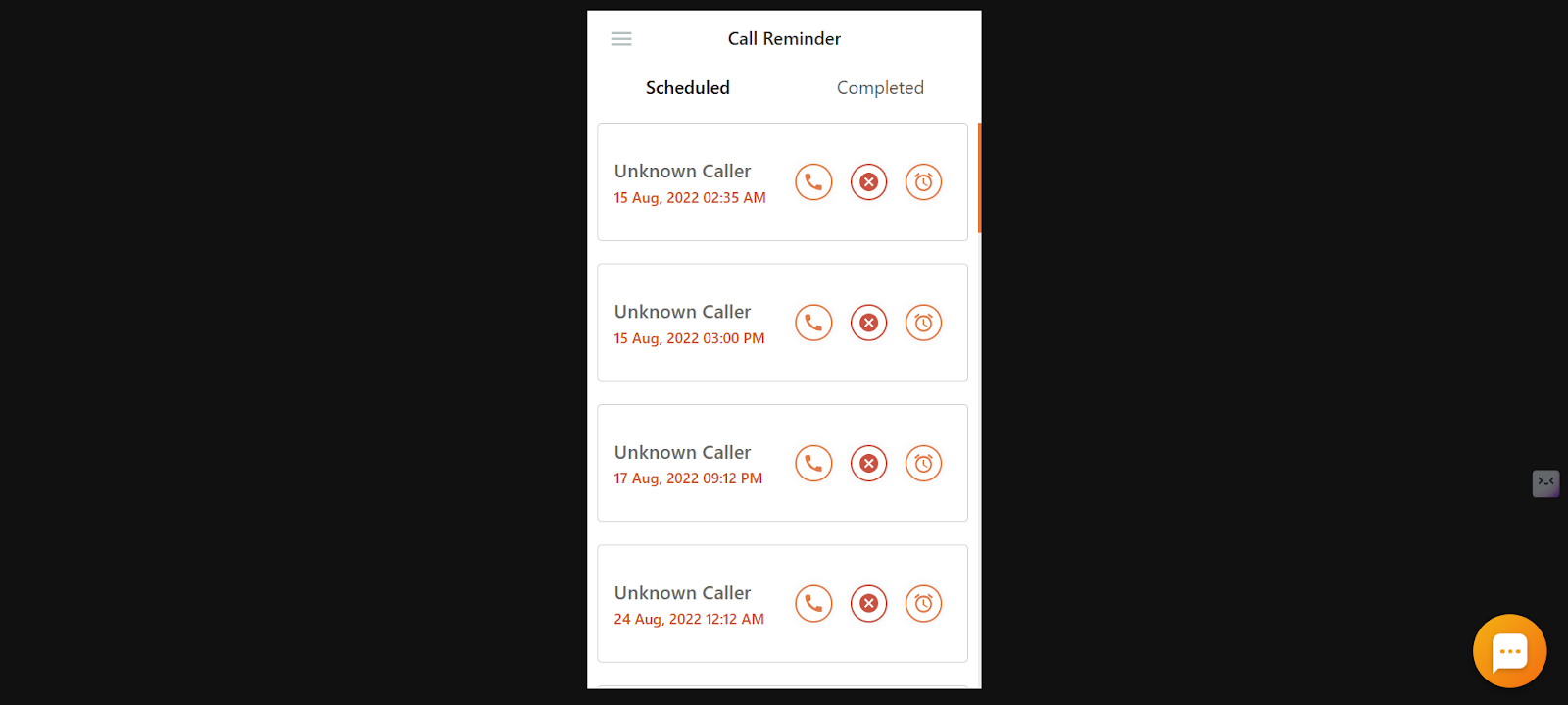
You’ll now be able to see the Scheduled Calls and Completed Calls sections.
- The Scheduled Calls section shows the details of upcoming scheduled calls. If a record is shown in red, it means the call could not be made at the scheduled time. You also have the option to Call, Delete, or Re-schedule the scheduled call.
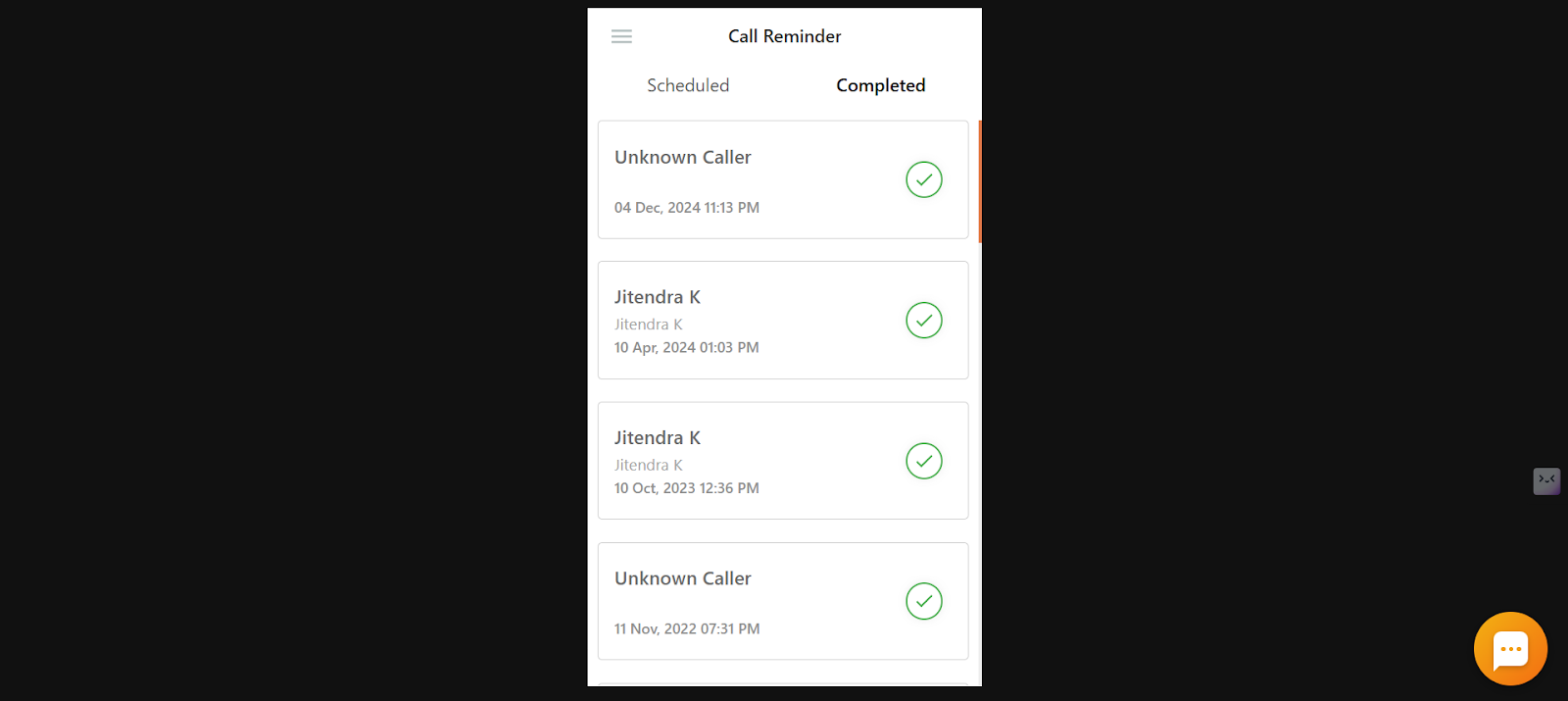
- The Completed Calls section shows the details of all scheduled calls which were successfully made.
How does the Call Reminder feature notify you?
- If you are using the web dialer or the desktop application of the CallHippo dashboard, the user who set the reminder will receive a Chrome notification pop-up in the bottom-right corner of the screen.
- If you are using a mobile device (Android or iOS) for the CallHippo dialer, you will receive a notification in the notification bar, along with the default notification sound set for your device.
- You can also choose to receive email notifications for your Call Reminders. When enabled, CallHippo will send a reminder email to your registered email address at the scheduled time, so you’re notified even if you’re away from the dialer.
- Only email notifications for call reminders can be controlled by the owner/admin account.
How to enable or disable email notifications for Call Reminder
- Log in to your CallHippo dashboard.
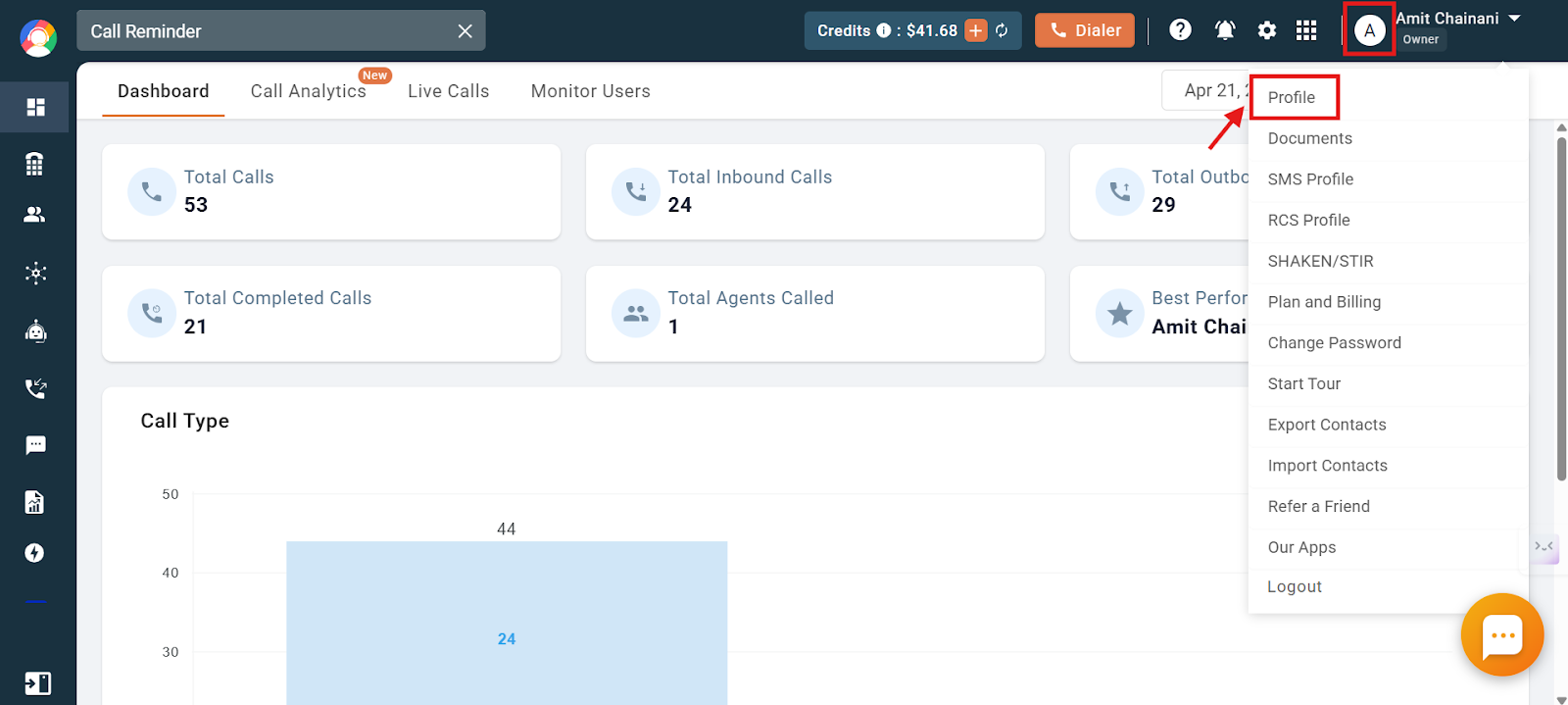
- Navigate to your profile icon in the top-right corner of your screen, and then click on Profile.
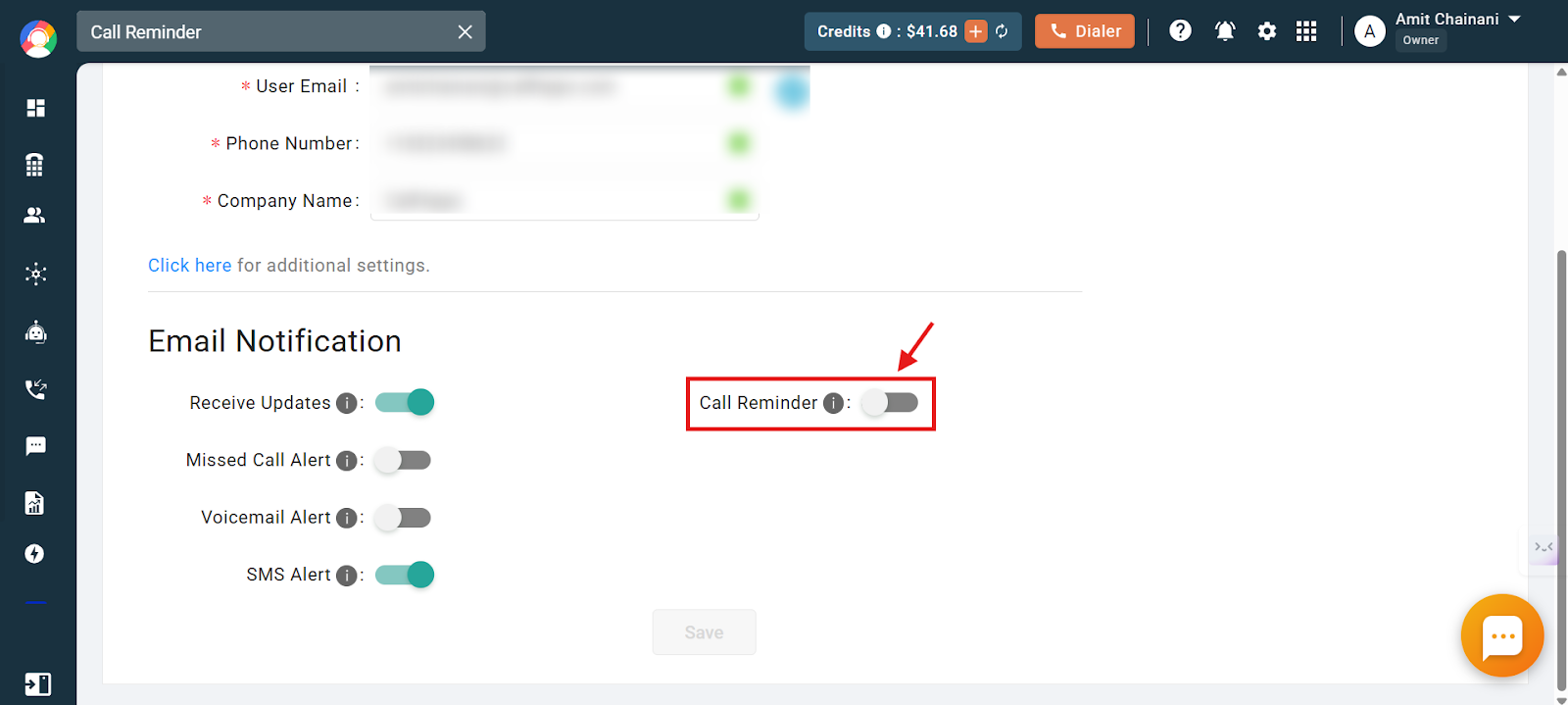
- Click on the Call Reminder toggle to enable the email notifications.
- Click on Save to finalize the changes.
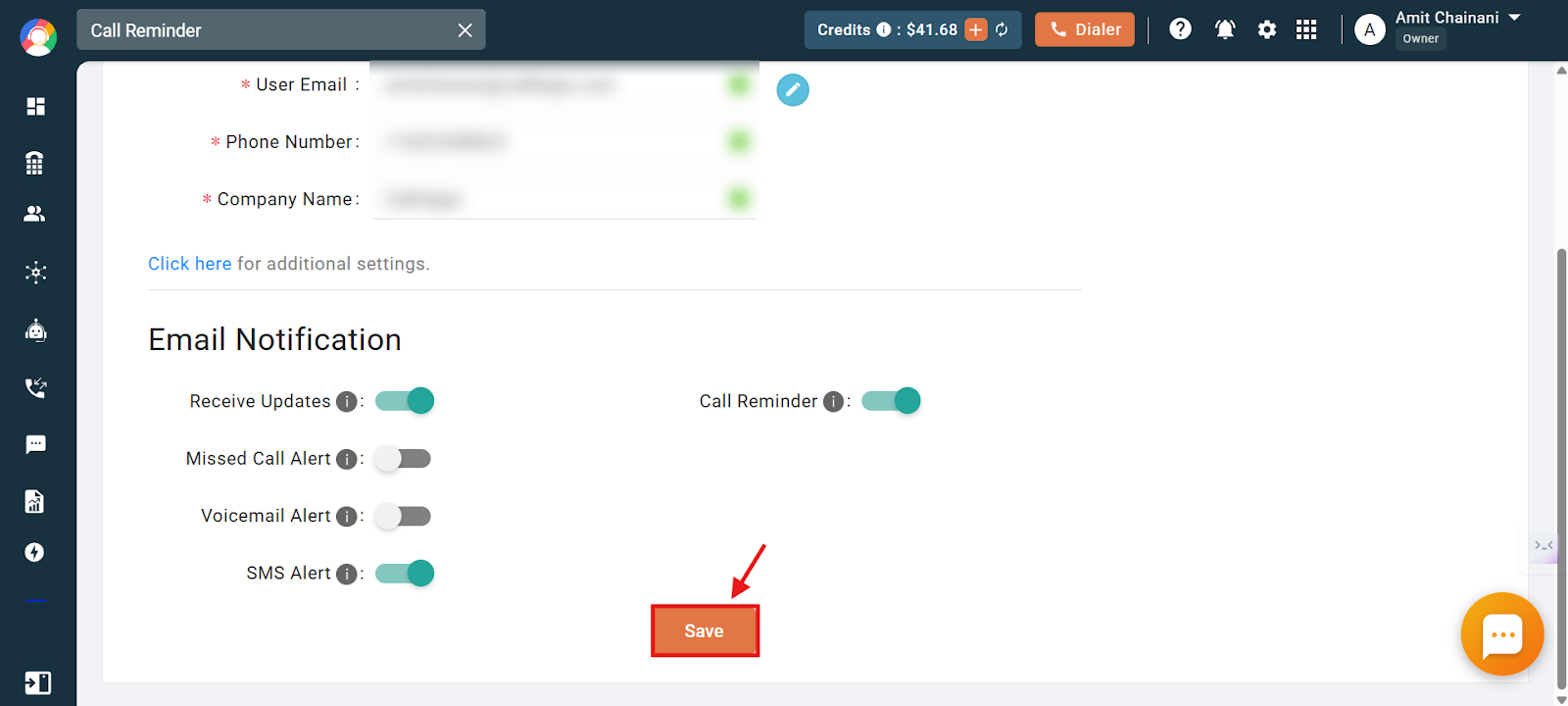
You will now receive email notifications for the call reminders that you set.
Troubleshooting: Call Reminder not working
- Check for updates: Ensure that your CallHippo application is updated to the latest version.
- Review settings: Verify that notifications are enabled and properly configured.
- Contact support: If problems persist, reach out to CallHippo’s customer support at [email protected].
Frequently asked questions
Q: Can I use the Call Reminder feature on any CallHippo plan?
A: No, the Call Reminder feature is only available in specific CallHippo plans. Check the Pricing & Features page to see if your plan includes it.
Q: Can I set a call reminder from the After Call Work screen?
A: Yes, if After Call Work is enabled for your account, you can click on Schedule a Call from that screen and follow the usual steps to set a reminder.
Q: Is the Call Reminder feature controlled by account admins or owners?
A: No, this is a user-specific feature. Each user can enable or disable it for themselves, and no one (not even the account owner) can control it for others.
Q: What does it mean if a scheduled call reminder is highlighted in red?
A: It means the scheduled time has passed, and the call was not completed.
Q: Can I reschedule or delete a call reminder?
A: Yes, in the Call Reminder section of the dialer, you can call, delete, or reschedule any upcoming reminder.
Q: Is the Call Reminder feature available across all devices?
A: Yes, it’s available via the CallHippo dialer on web, desktop, and mobile platforms.
Q: Where can I see scheduled calls?
A: You can see scheduled calls on both the dialer and the dashboard.
We hope this helps. If you still have questions, feel free to reach out at [email protected].