
Call tags are labels you can create and assign to calls or contacts for easy categorization, filtering, and retrieval. They help you organize call data efficiently based on specific criteria like “Hot Lead,” “Follow-up,” or “VIP Client.”
Why Do You Need Call Tags?
Call tags help businesses manage their call data more effectively. Here’s why they are important:
- Quick access & organization — Easily locate specific calls or contacts by filtering based on tags.
- Better call management — Categorize leads, customers, or issues for streamlined workflows.
- Enhanced analytics — Analyze call trends based on different tag categories.
- Improved team collaboration — Standardized tagging helps teams stay aligned on call statuses.
How to Add Custom Tags in CallHippo
- Log in to your CallHippo account at web.callhippo.com.
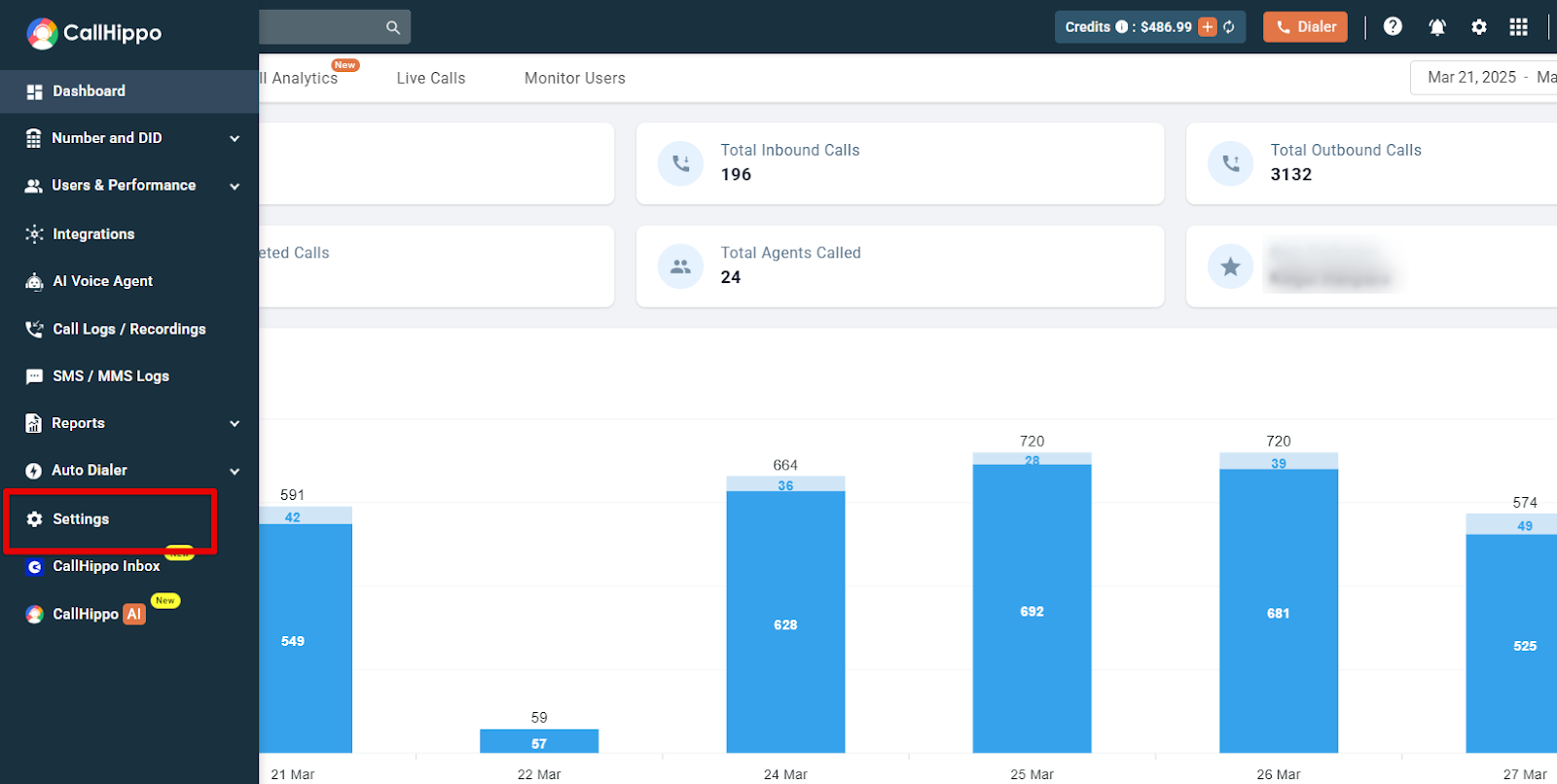
- Click on the Settings tab.
- Navigate to the Tags section.
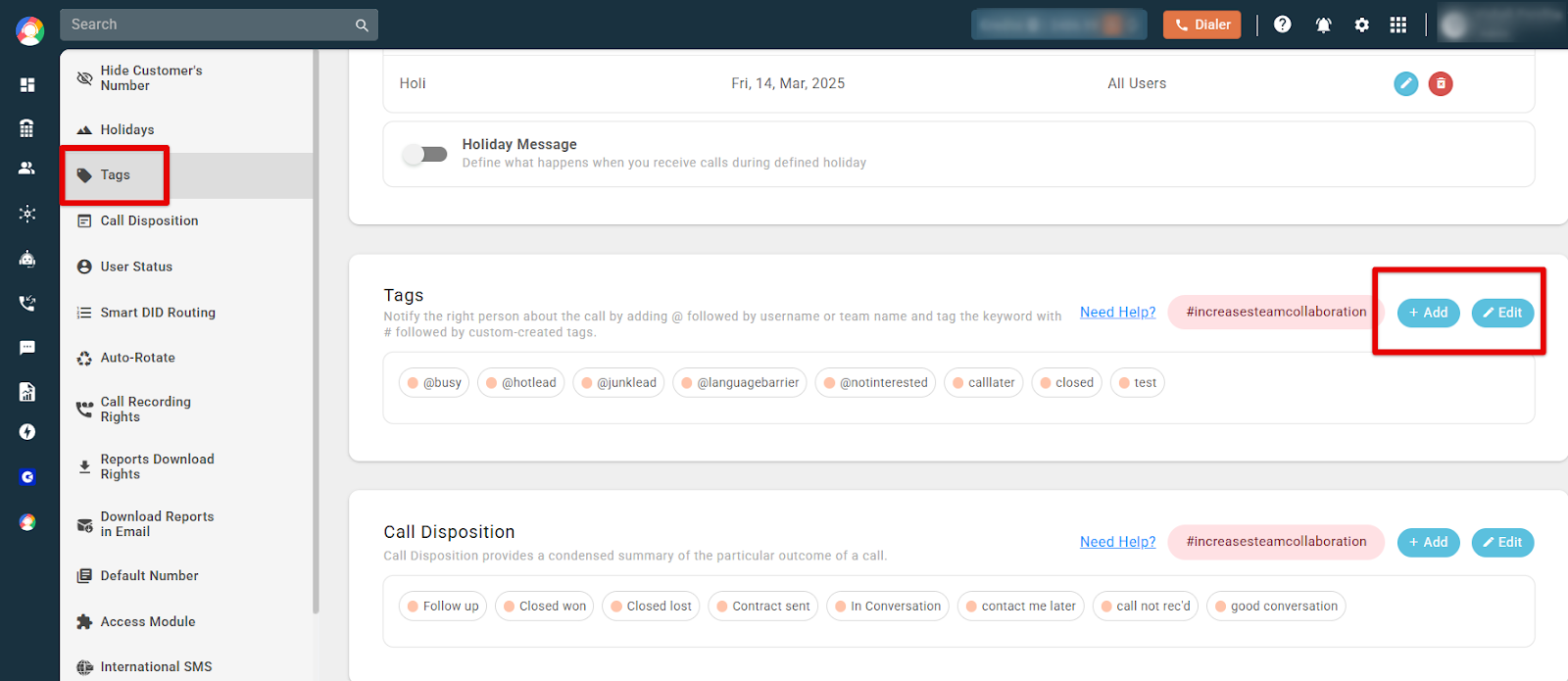
- Click on + Add to create a new tag, or Edit to modify or delete existing tags.
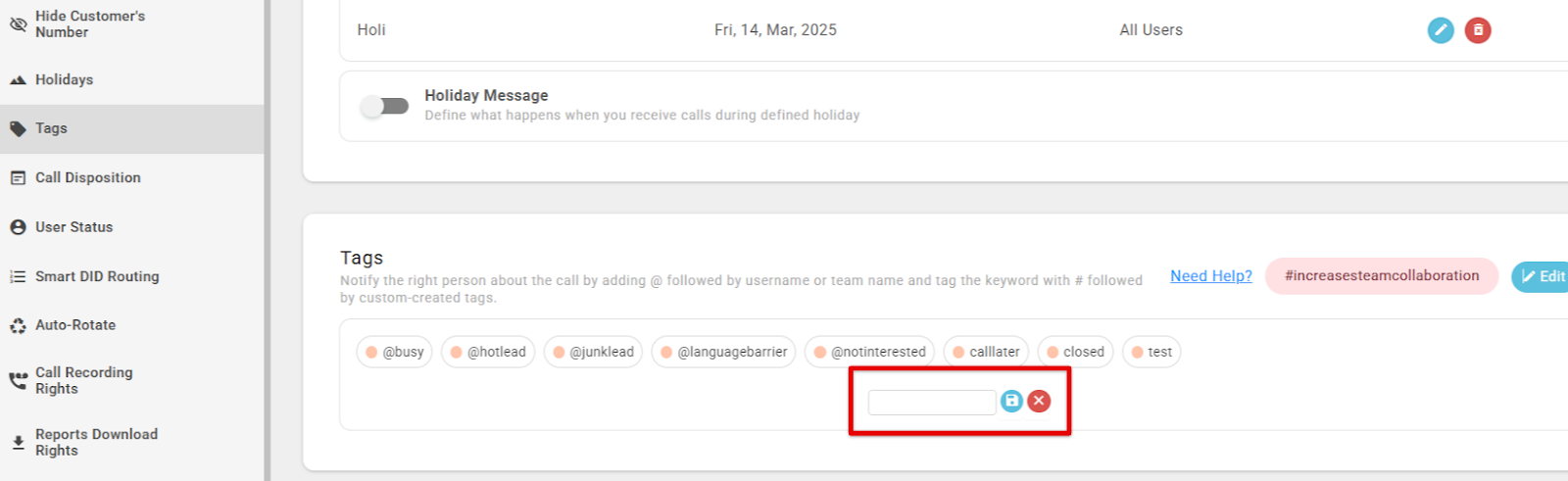
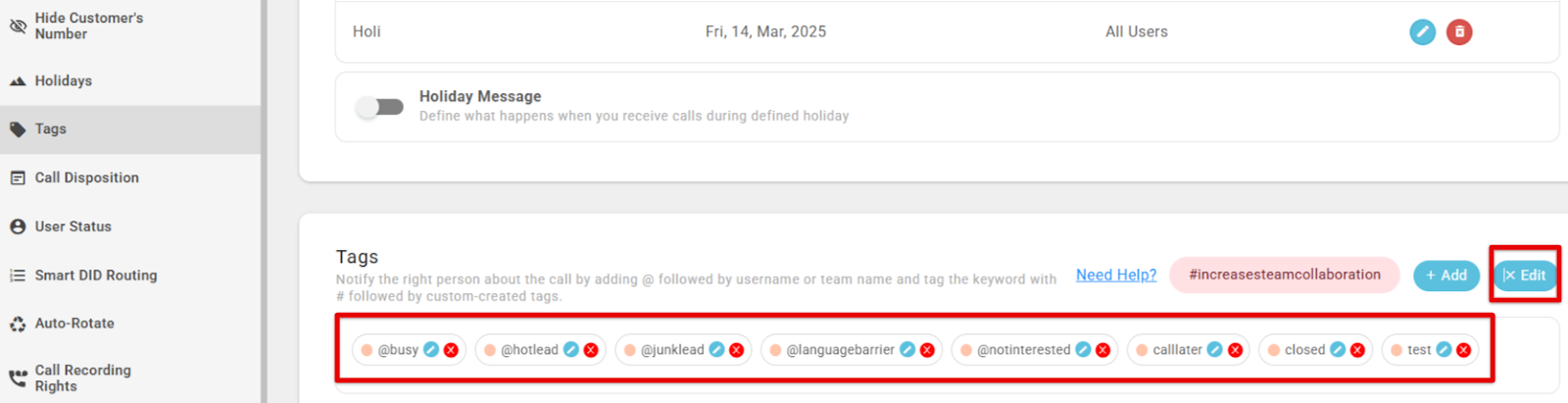
- Make your changes and click Save.
Use Cases
- Sales teams — Tag leads as “Hot,” “Warm,” or “Cold” to prioritize follow-ups.
- Customer support — Categorize calls as “Technical Issue,” “Billing Inquiry,” or “Resolved.”
- Marketing teams — Track campaign performance with tags like “Ad Campaign” or “Referral.”
- Recruiters — Label calls as “Interview Scheduled” or “Candidate Shortlisted.”
Frequently Asked Questions
Q1: How many custom tags can I create in CallHippo?
There is no strict limit, but it’s best to keep them organized for easy access.
Q2: Can I assign multiple tags to one call or contact?
Yes, you can assign multiple tags to a call or contact for better classification.
Q3: How can I edit or delete a custom tag?
- Go to Settings > Tags.
- Click on the tag you want to modify or remove.
- Select Edit or Delete, then save the changes.
Q4: Can I filter call logs based on custom tags?
Yes, you can use the search or filter option in Call Logs to find calls with specific tags.
Troubleshooting
Issue 1: My custom tag is not saving
- Refresh the page and try again.
- Ensure you have admin permissions to create tags.
Issue 2: Custom tags are not appearing in call logs
- Check whether the tag was assigned to the specific call or contact.
- Use the search/filter option to locate tagged calls.
We hope this helps. If you still have questions, feel free to reach out at [email protected].