
The Contacts section in the CallHippo dialer keeps all your customer details in one place, so you can add, search, edit, and call contacts without leaving the dialer.
Each contact can store a full name, phone number, company name, and email address, and you can attach multiple phone numbers to a single contact for easy reference.
How to Create a Contact in the Dialer
- Log in to your CallHippo dialer.
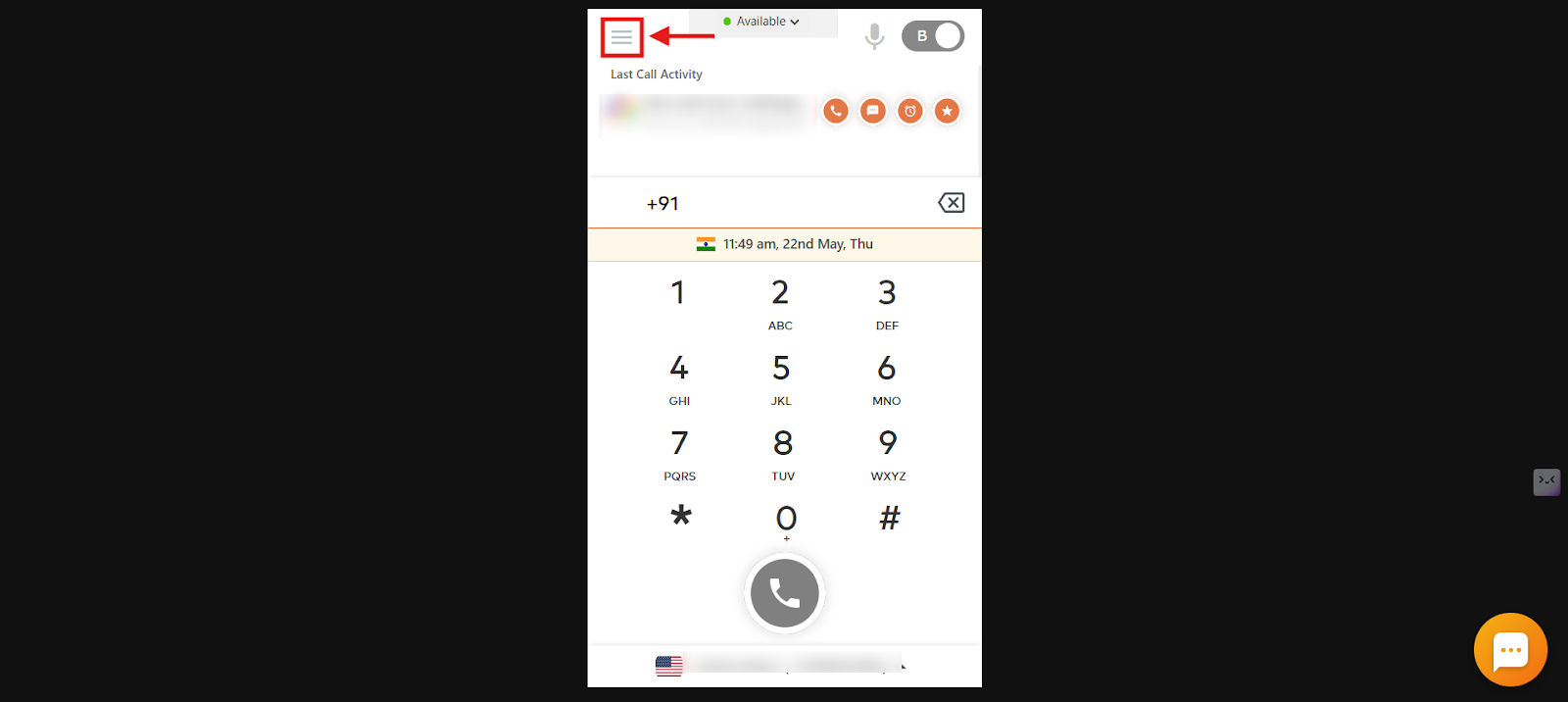
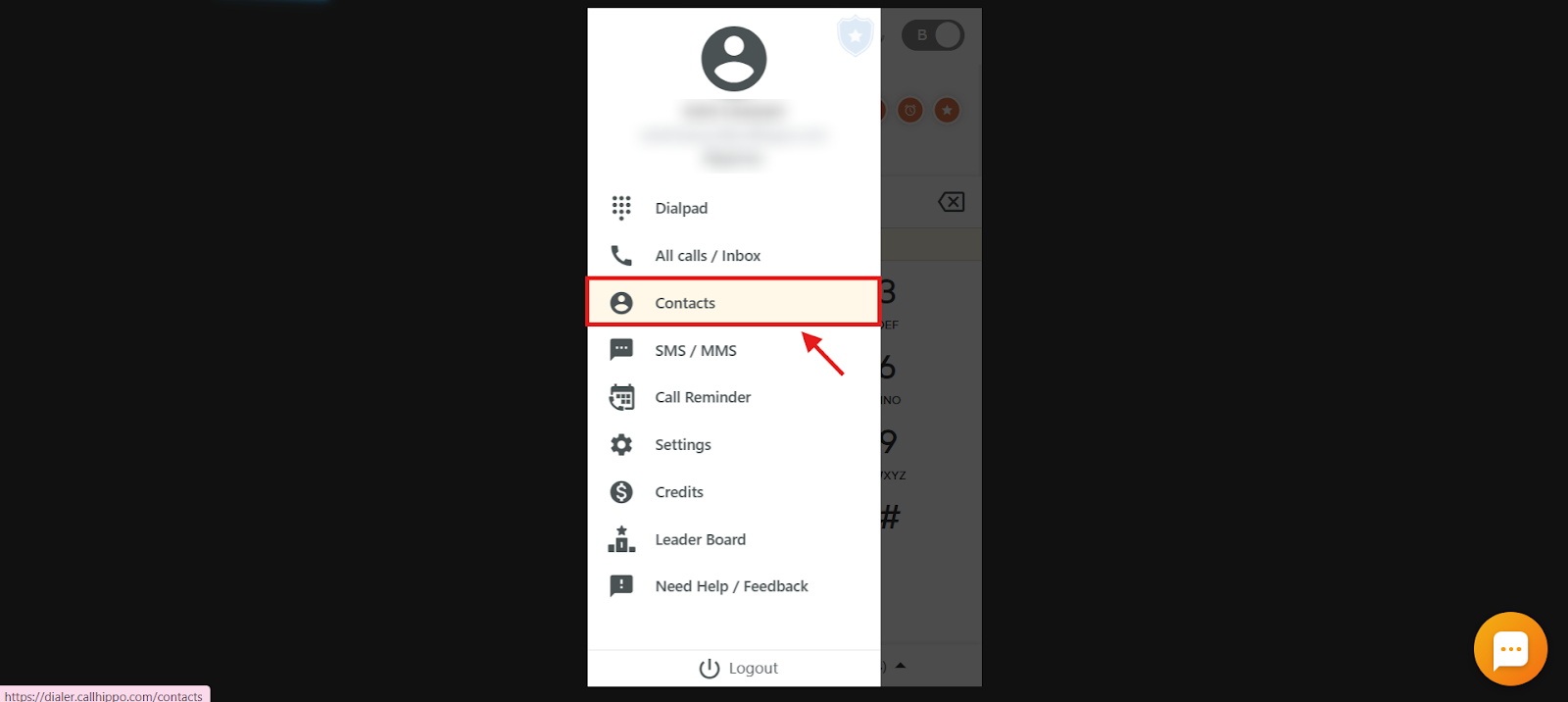
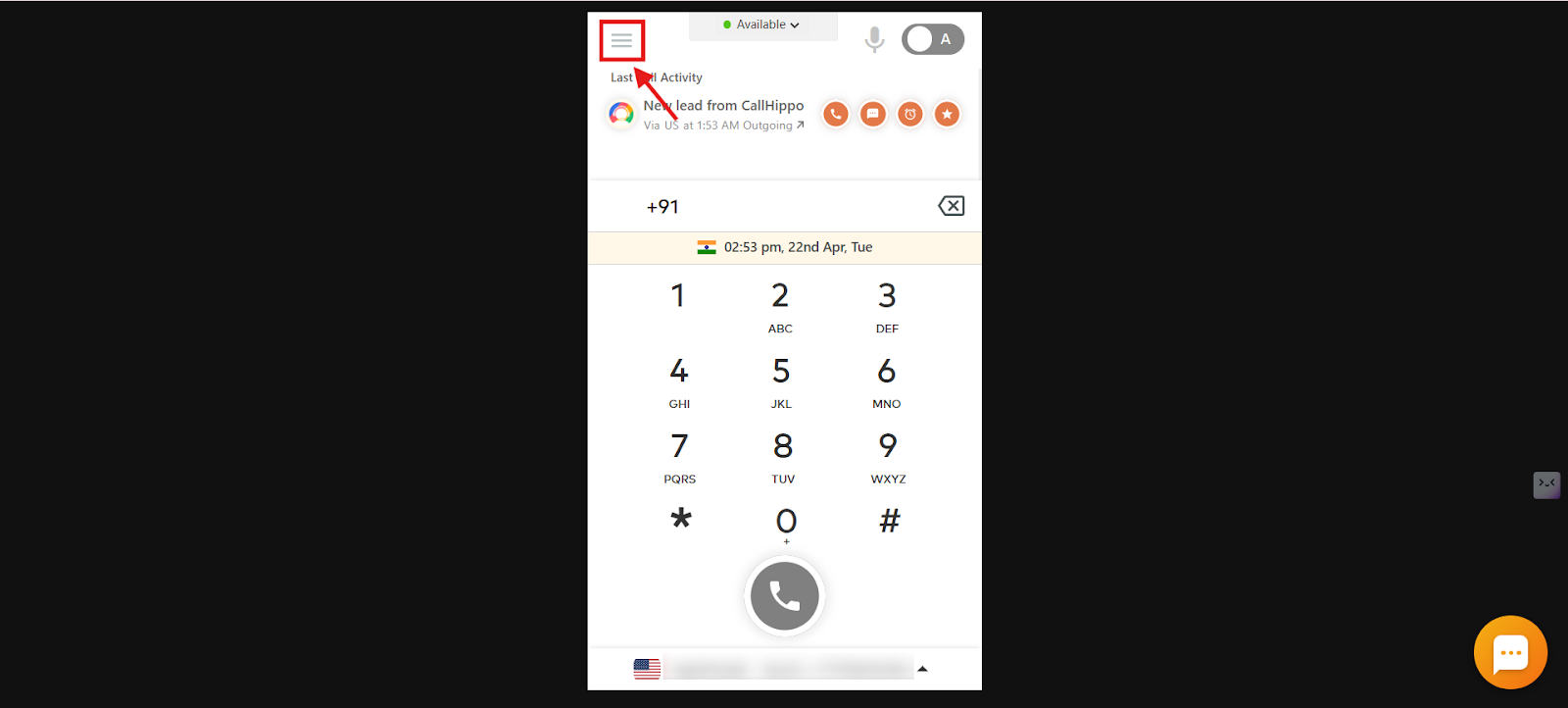
- Click the three horizontal lines to open the menu, then select Contacts.
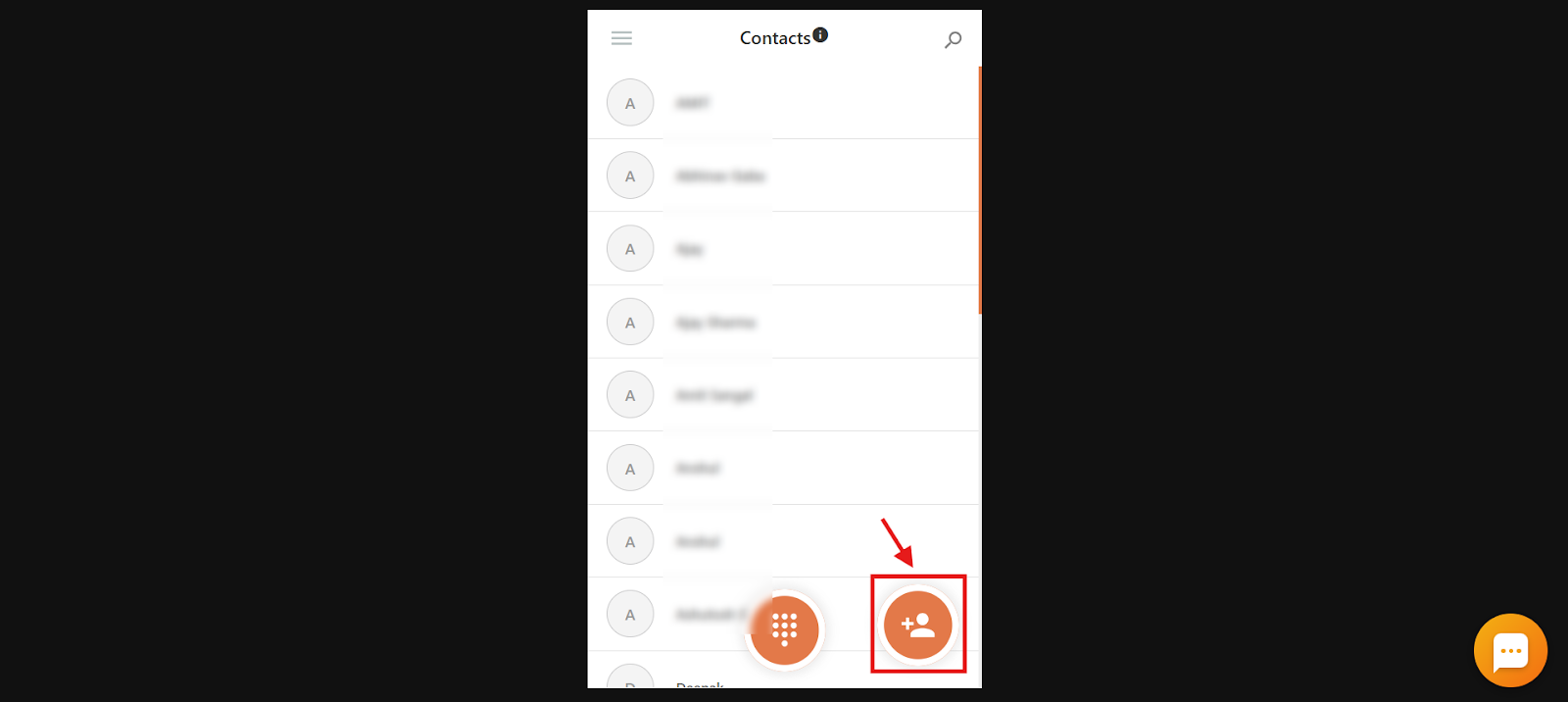
- Click the Add Contact icon.
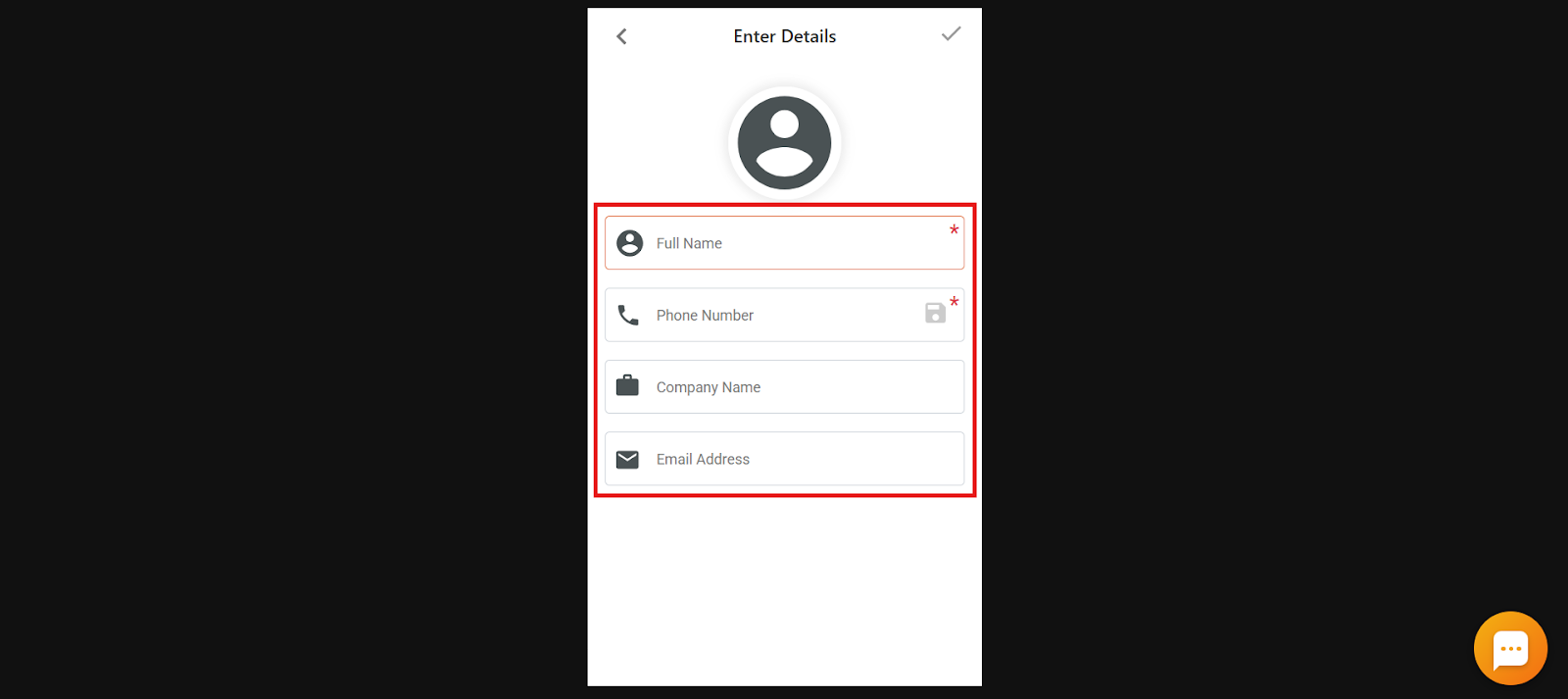
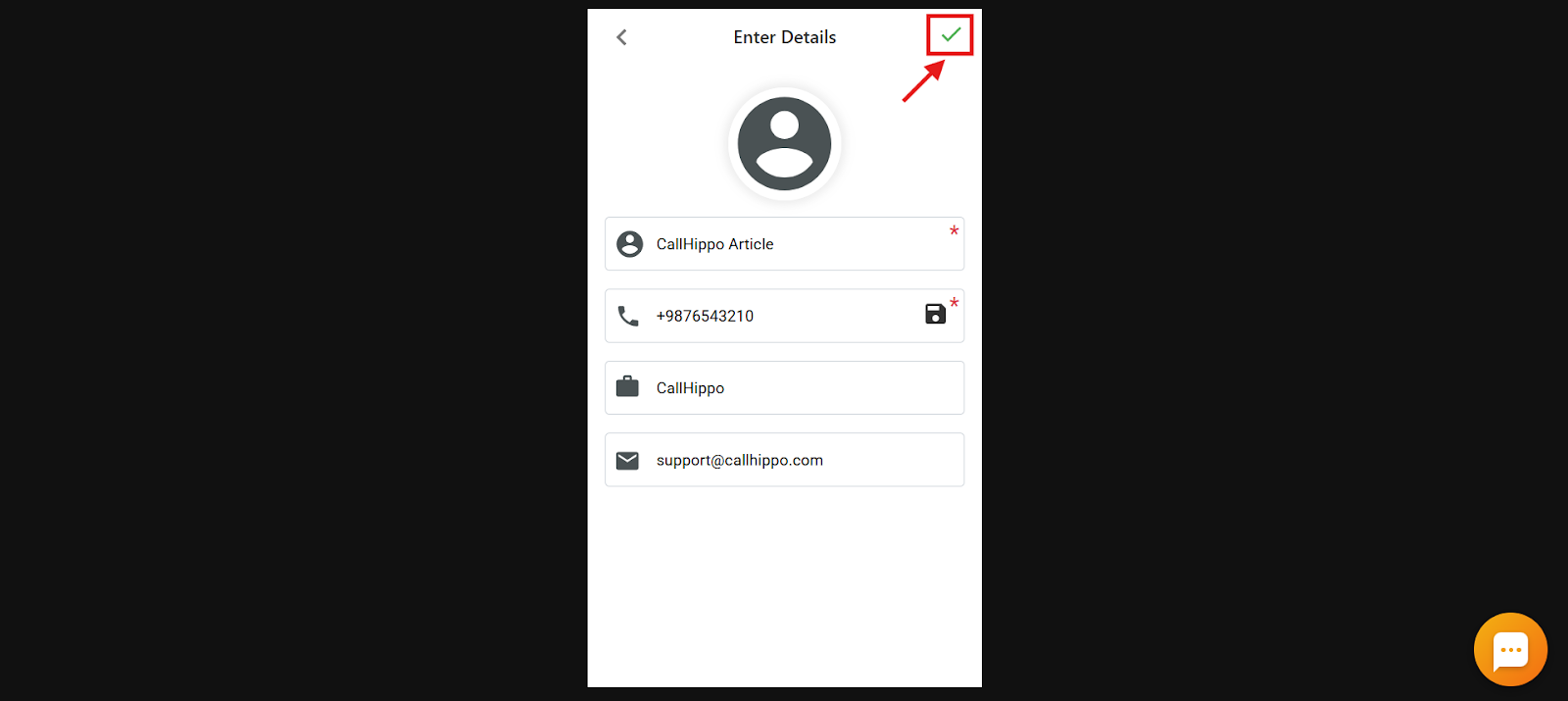
- Enter the details:
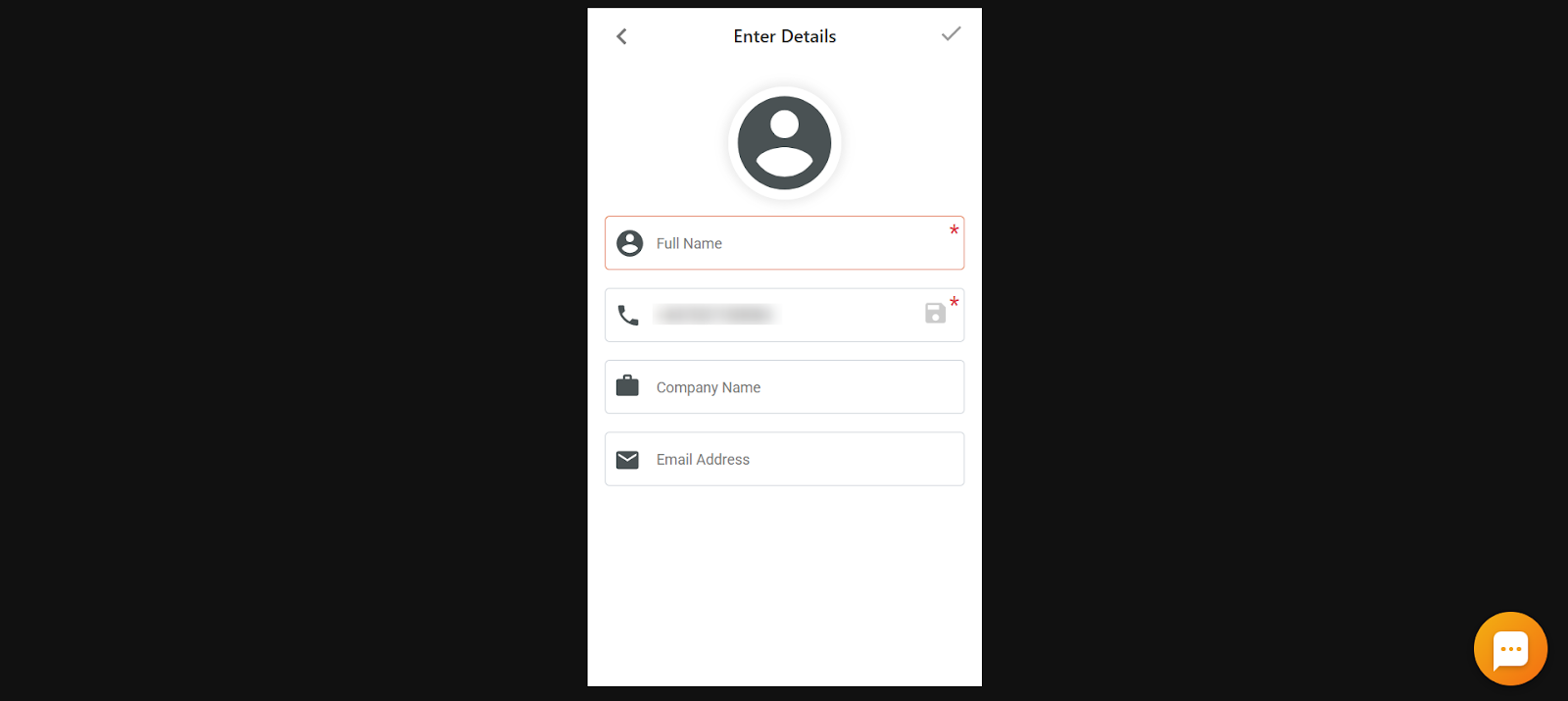
- Full Name (required): The name of the contact.
- Phone Number (required): The primary number. You can add more numbers if needed.
- Company Name (optional): The organization the contact belongs to.
- Email Address (optional): The contact’s email for additional communication.
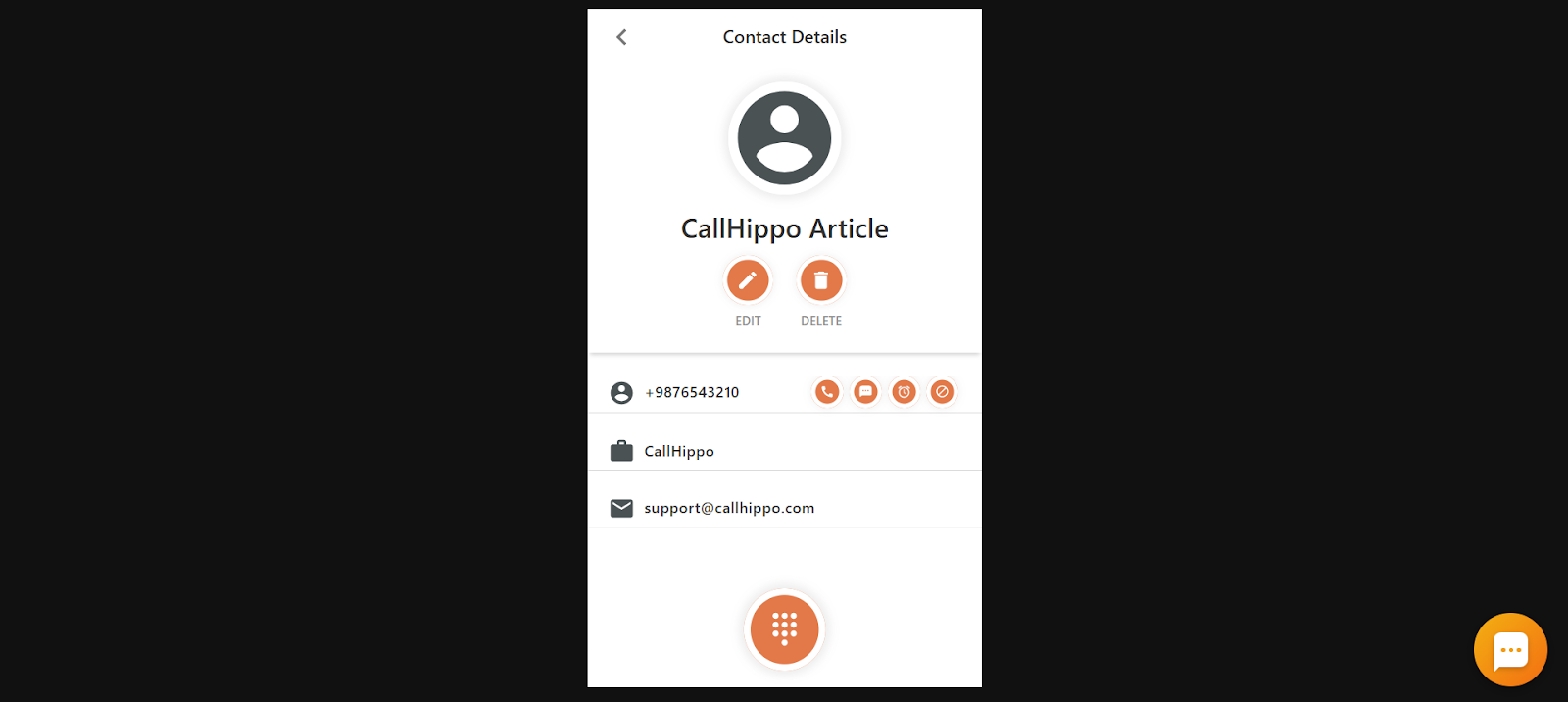
- Click the checkmark in the top-right corner of the dialer to save. The contact is now created.
How to Create a Contact from Call Logs
- Log in to your CallHippo dialer.
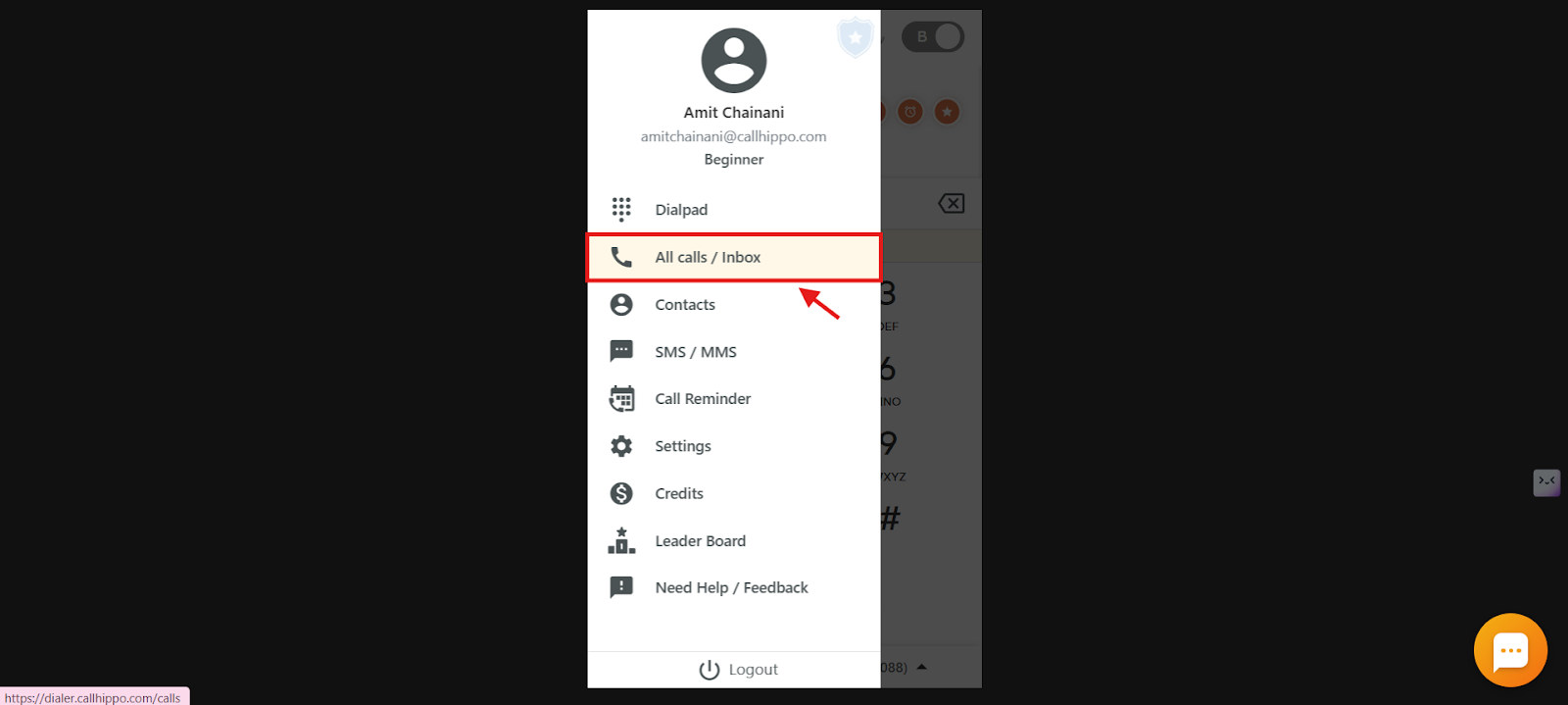
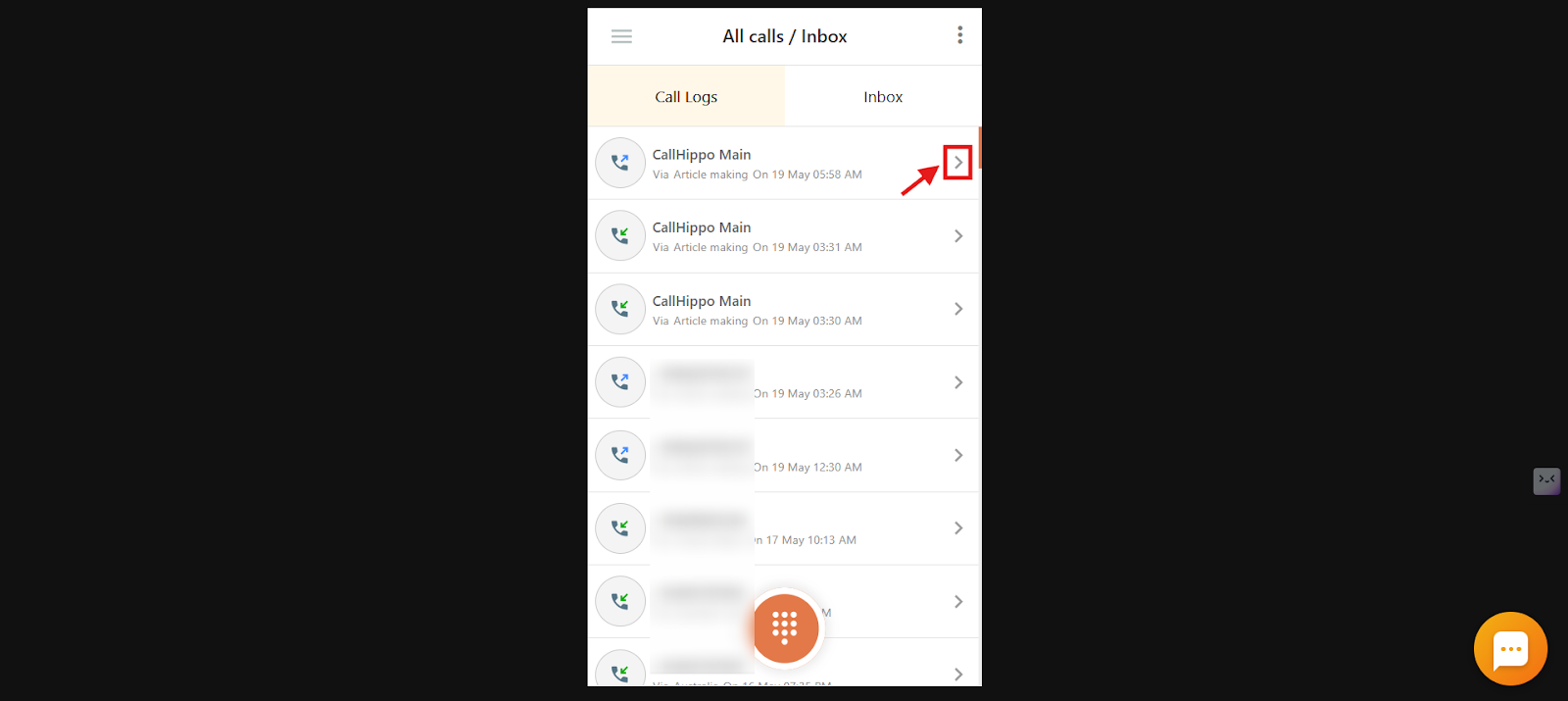
- Click the Main Menu icon, then click All calls / Inbox.
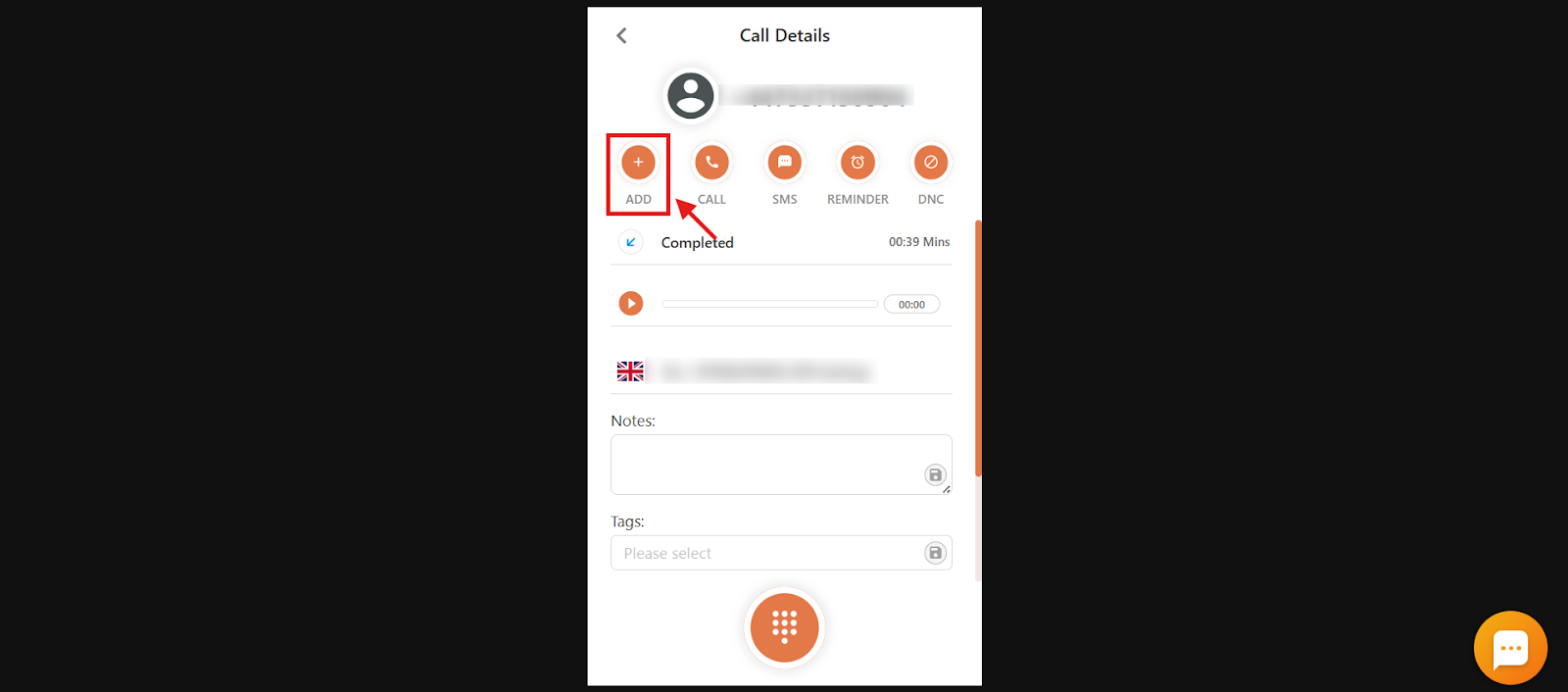
- Open the call log for the number you want to save.
- Click the Add option.
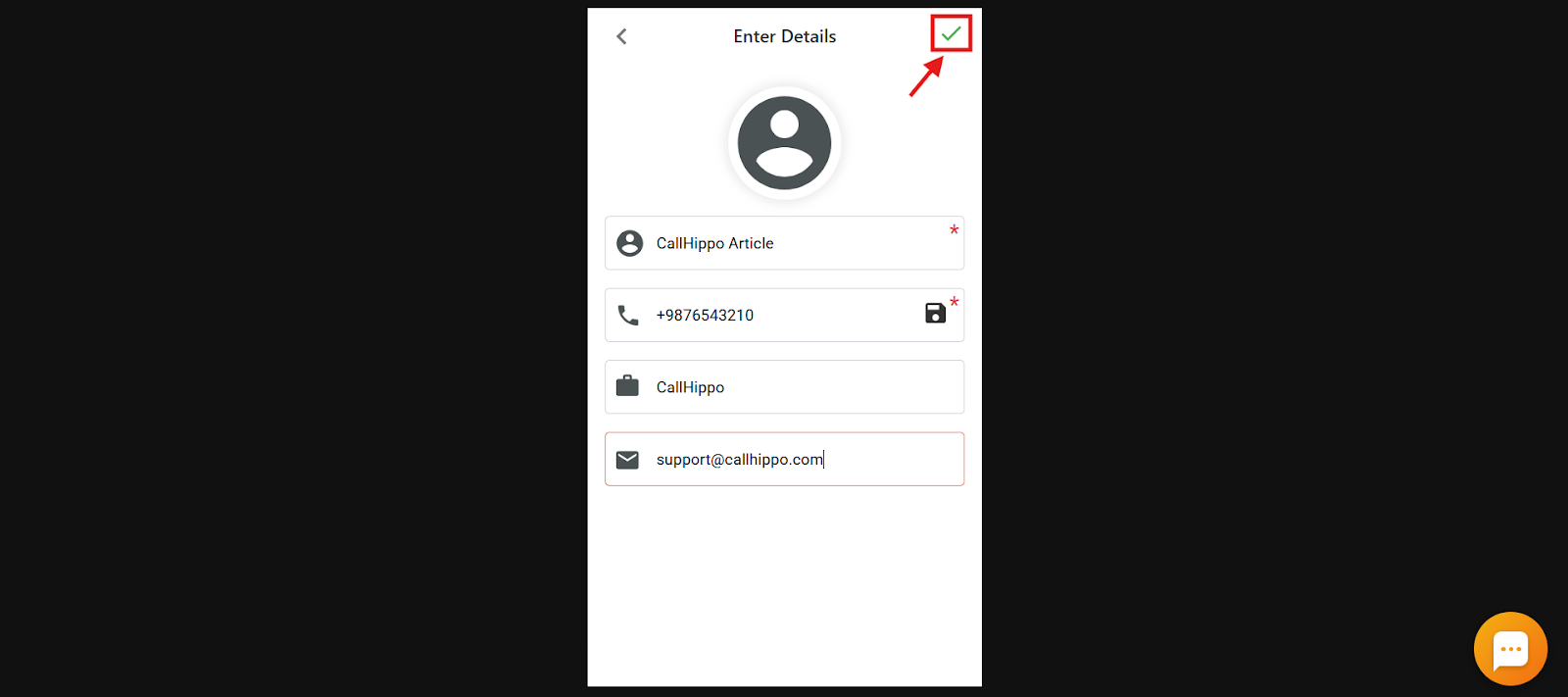
- Enter the contact’s information.
- Click the checkmark in the top-right corner to save. The call log contact is now saved.
Note: If a call is made before the number is saved as a contact, the call log shows only the number. If the contact is saved before the call, the log displays the associated name.
How to Search for a Contact
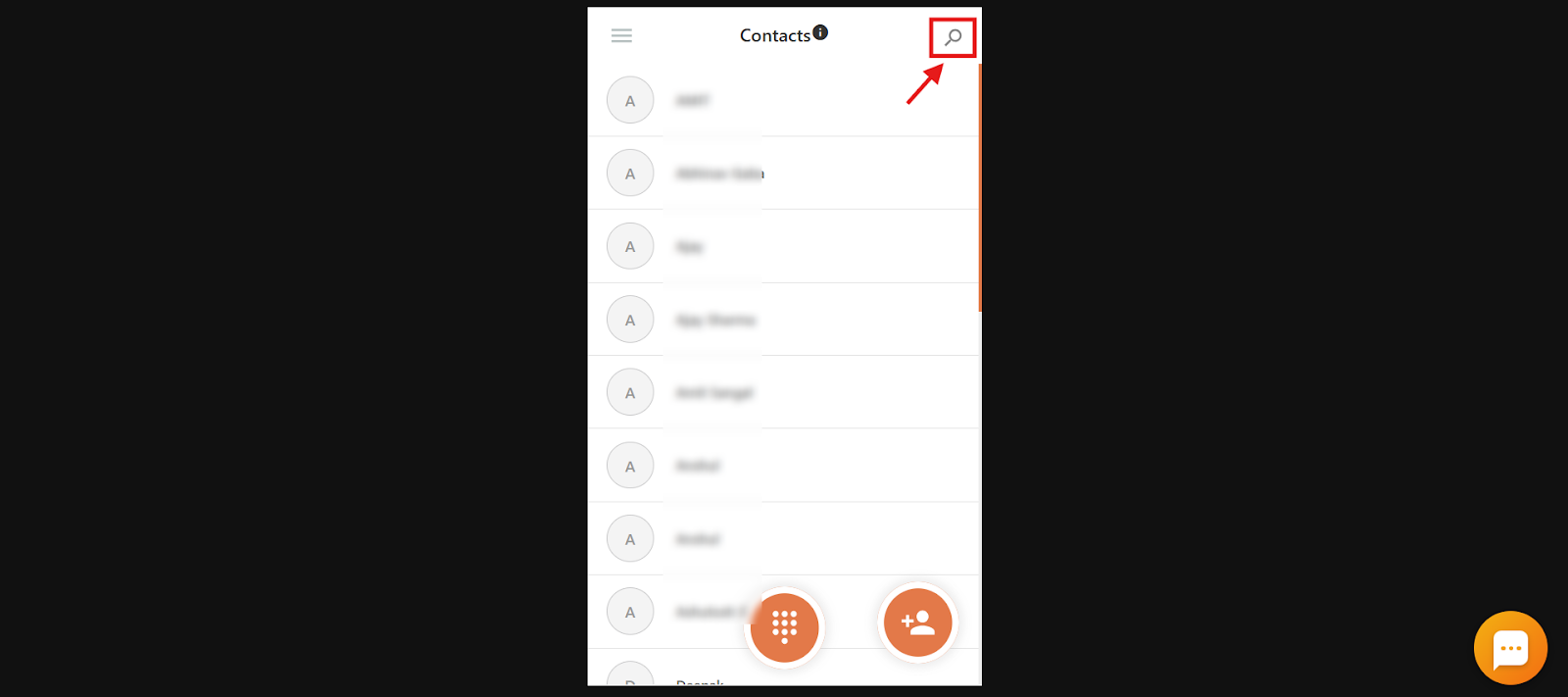
- Use the search icon at the top-right corner of the dialer.
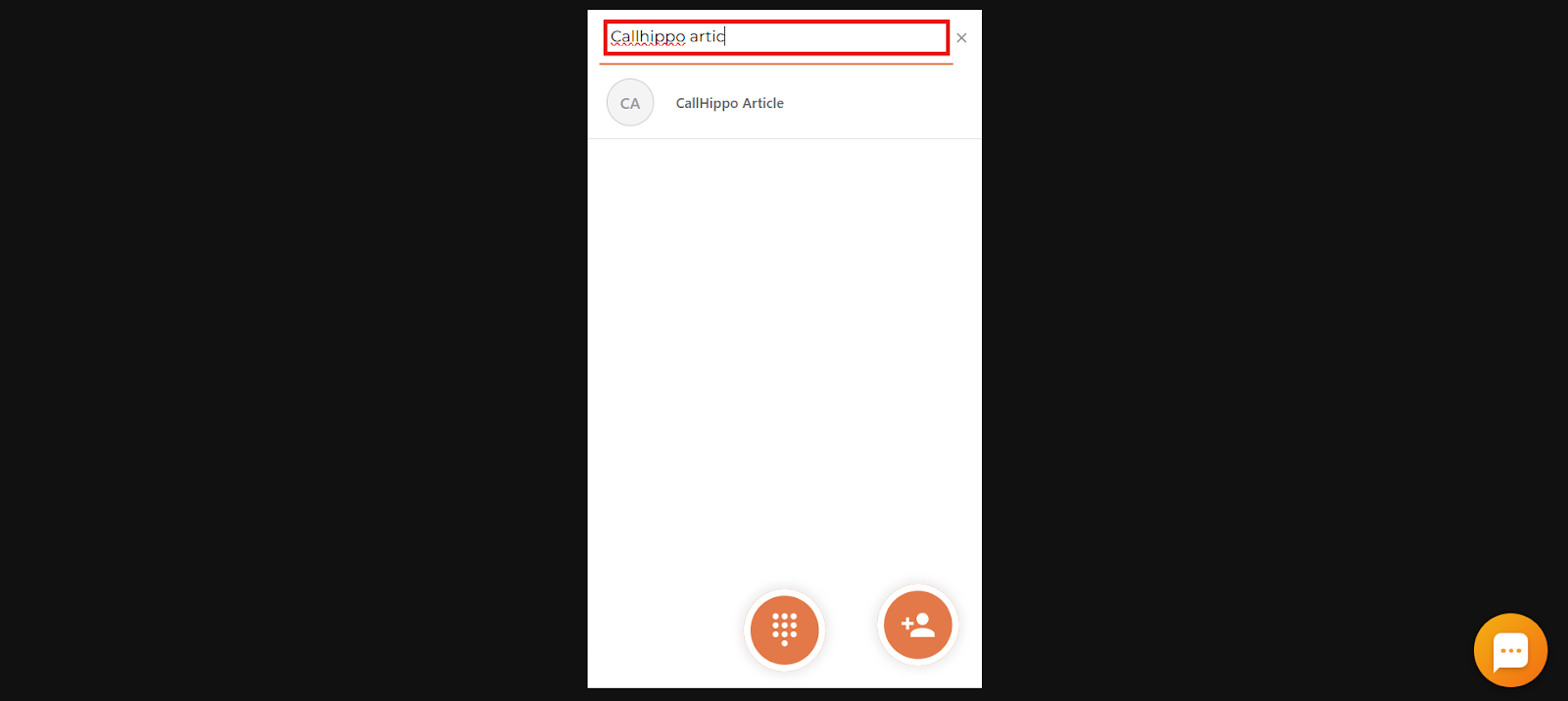
- Enter the contact name to find them in the list.
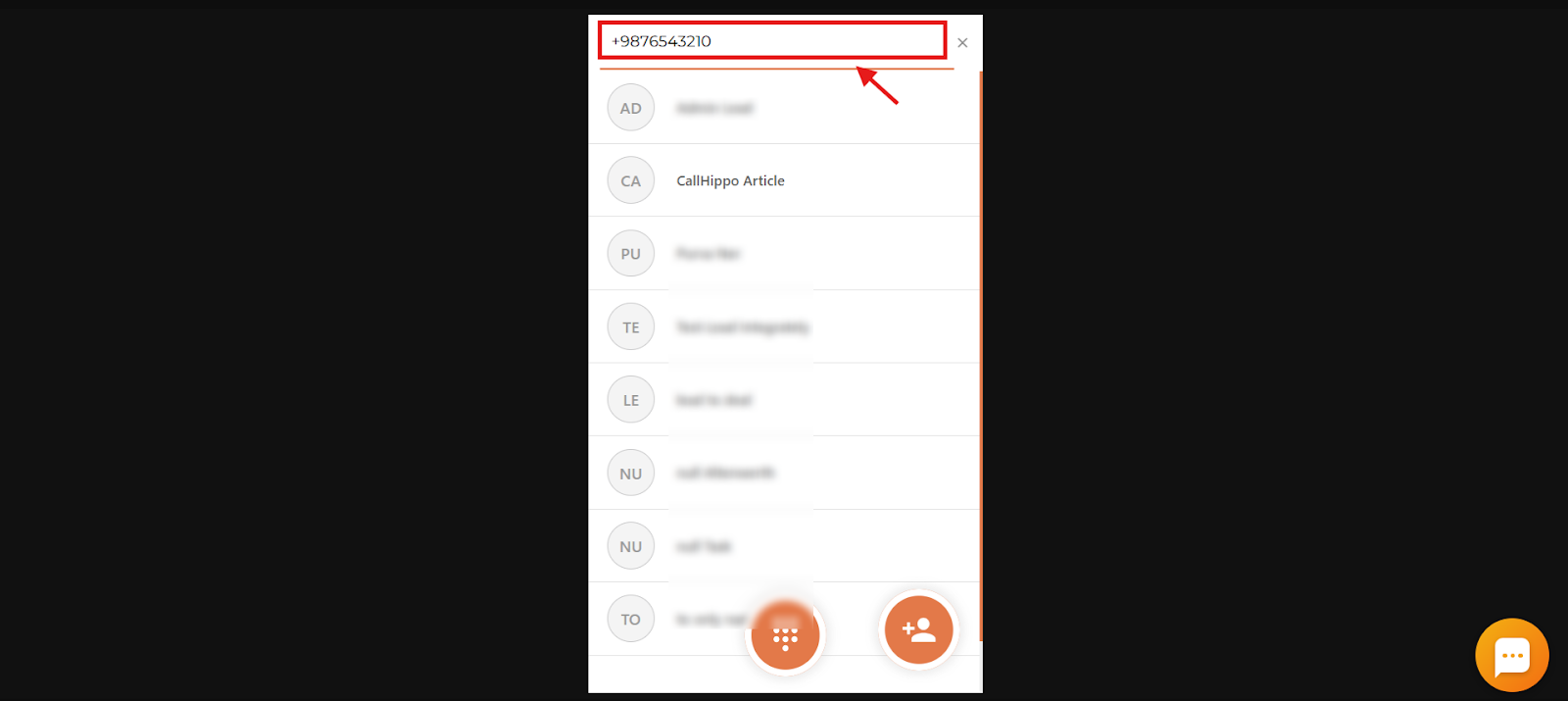
- You can also search by entering the phone number.
Note: You cannot search by company name or email address — only by name or phone number.
How to Edit a Contact
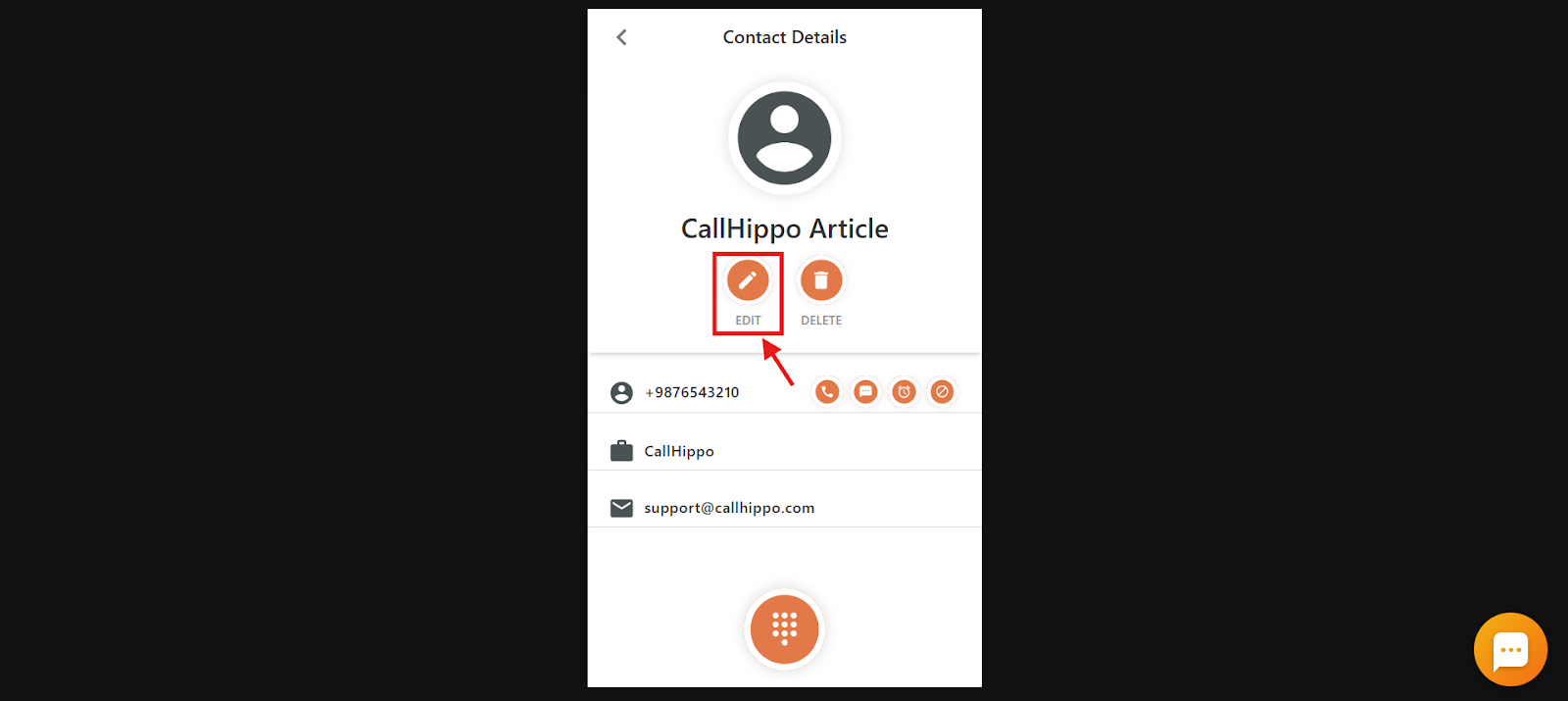
- Open the contact you want to edit.
- Click the Edit icon.
- Change the details, then click the checkmark in the top-right corner. The contact is now updated.
How to Add Multiple Numbers to a Contact
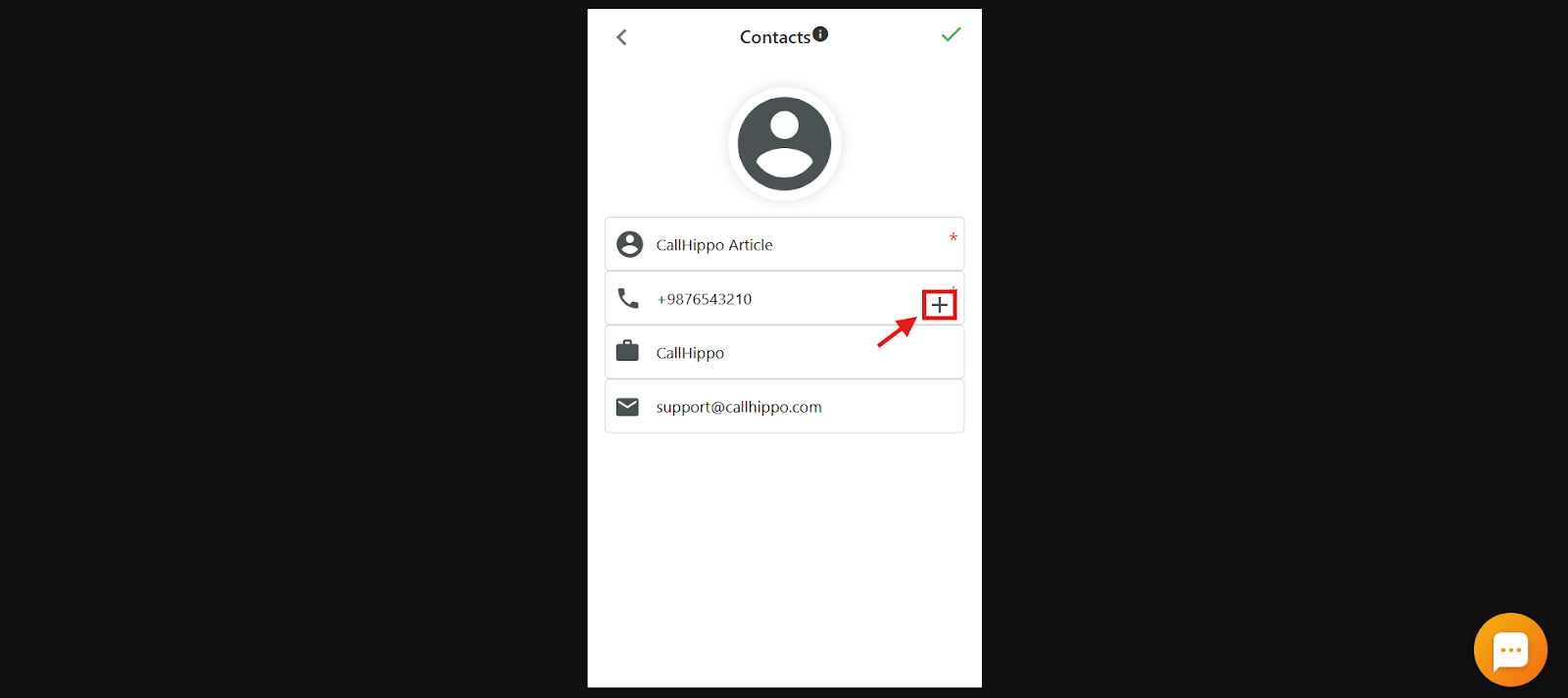
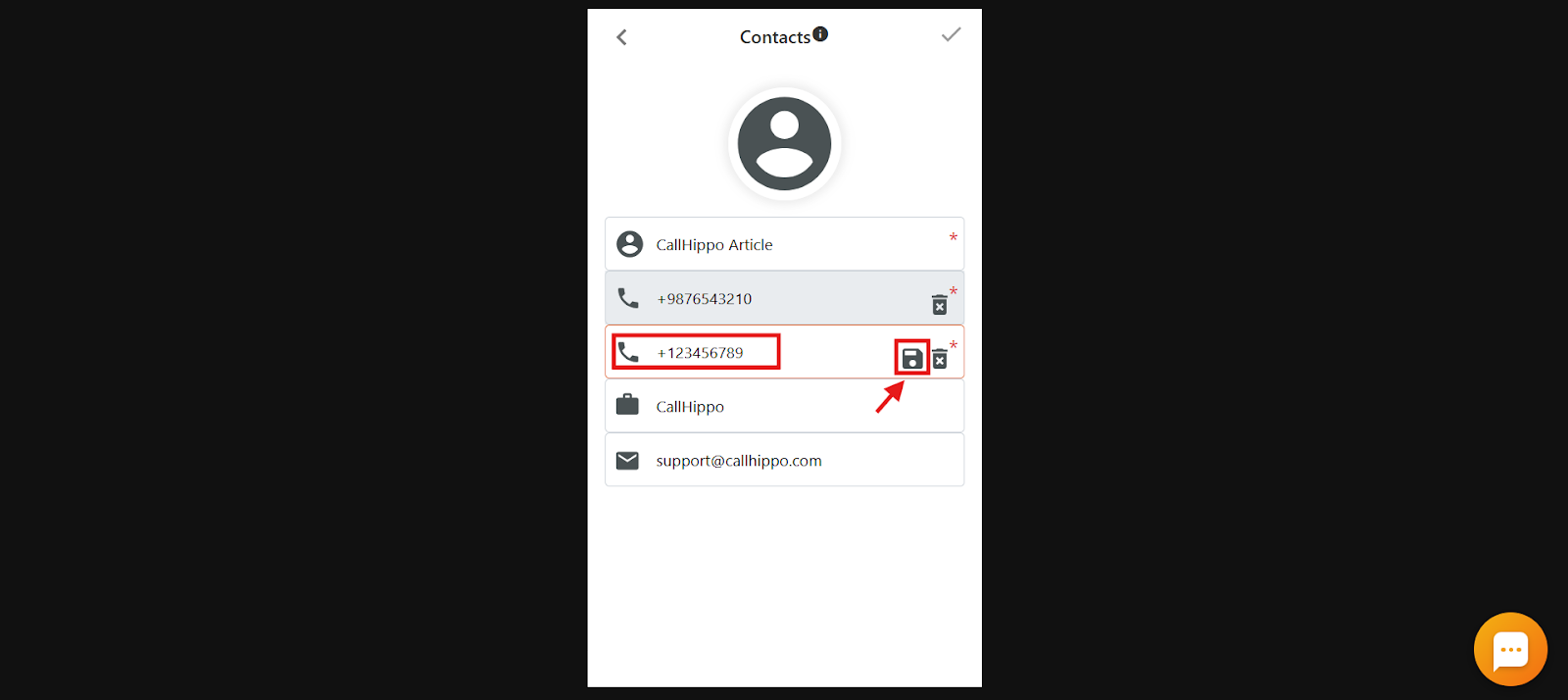
- Once a contact is created, open it in edit mode and click the + icon.
- Enter the additional number and click save.
Note: You can add up to 5 phone numbers to a single contact.
Additional Actions from Contacts
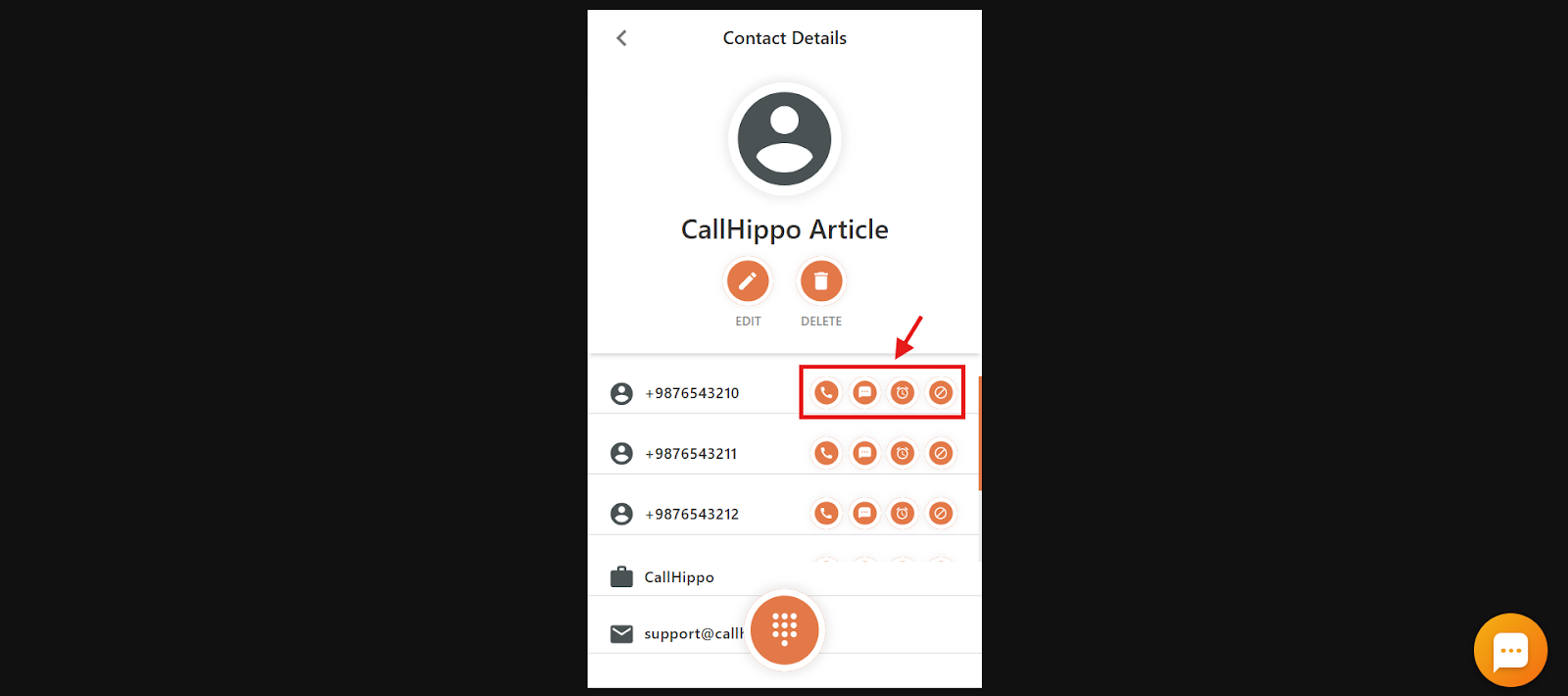
From the Contacts section you can quickly:
- Call back: Start a callback directly from the dialer homepage.
- Send an SMS: Message the selected contact.
- Set a call reminder: Schedule a follow-up at a convenient time.
- Mark as DNC: Add the contact to Do Not Call to prevent future calls.
Contact Syncing Behavior
Note: CallHippo does not sync contacts from integrations automatically. Contacts from integrated platforms only start appearing in your contact list once calling activity happens for that specific contact. Until then, the contact will not be visible under the Contacts tab.
How to Delete a Contact
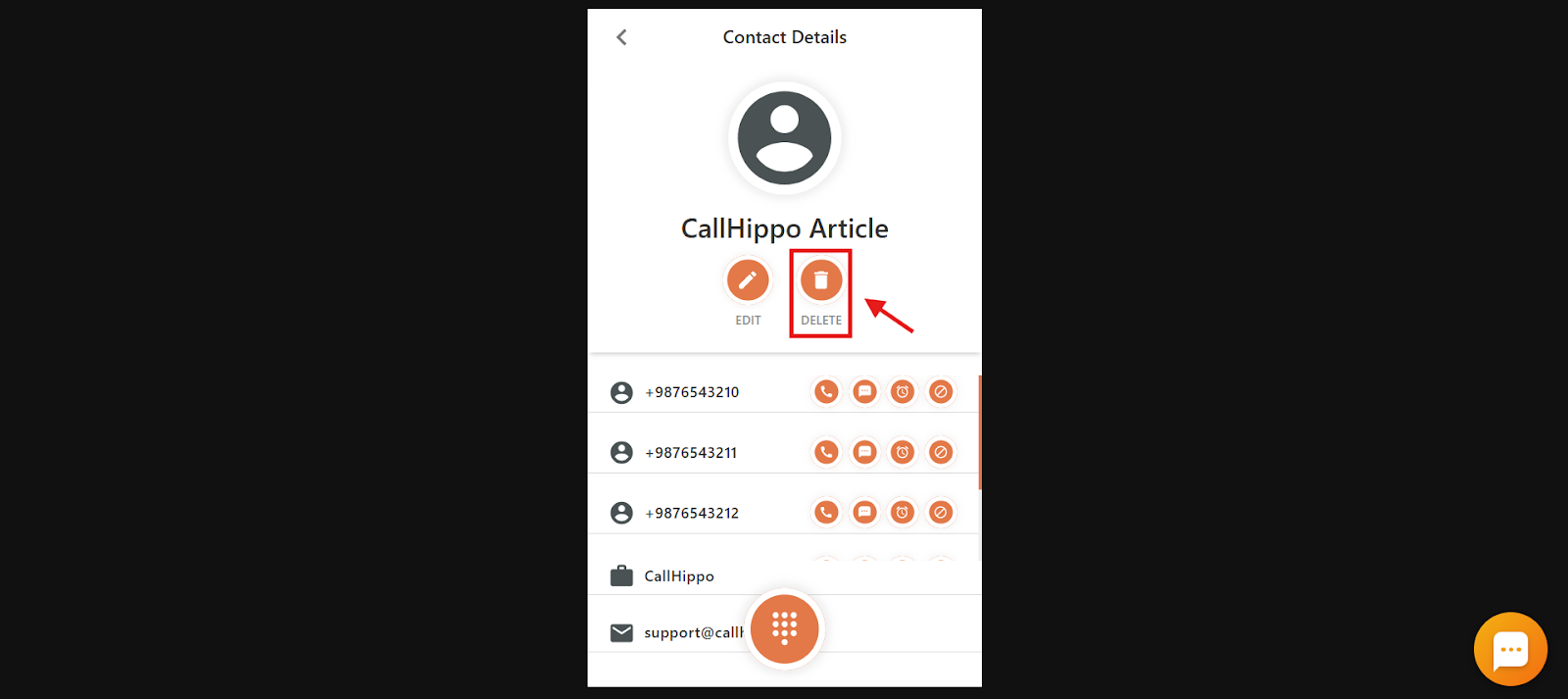
- Open the contact you want to delete.
- Click the Delete icon.
- Click Yes to confirm the deletion.
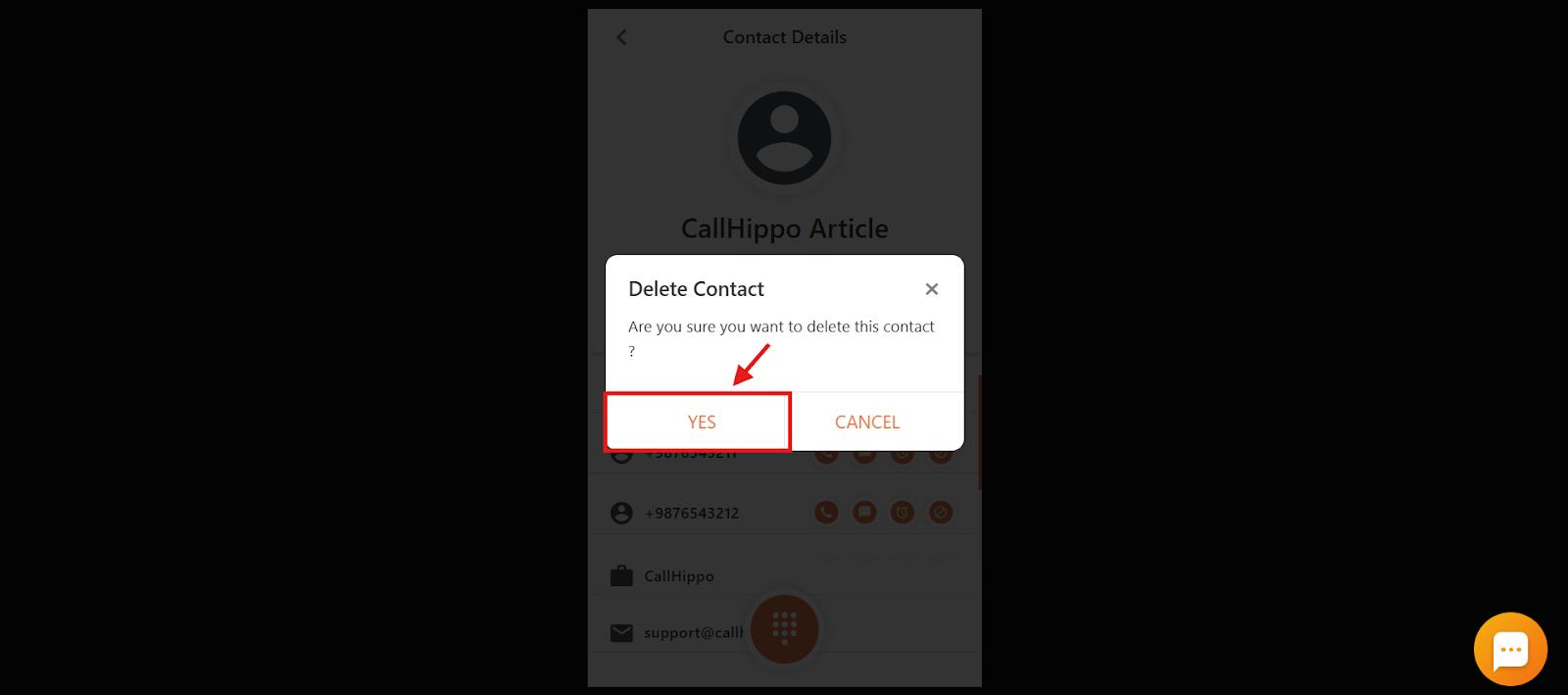
Before deleting, keep in mind:
- Data loss: Deleting a contact removes all associated information, including call logs and notes.
- Irreversibility: This action is typically irreversible, so double-check you are deleting the correct contact.
Frequently Asked Questions
Can I recover a deleted contact?
No. Once a contact is deleted, it cannot be recovered.
Can I delete multiple contacts simultaneously?
No. CallHippo does not support bulk deletion of contacts in the dialer. Each contact must be deleted individually.
Does deleting a contact affect other users?
If you are part of a team account, deleting a contact may remove it for all users.
Who can delete a contact?
Owners and Admins typically have full access to manage the system, which includes deleting contacts.
Can I view a contact’s entire call history in the dialer?
No. The dialer shows limited information. To view detailed call logs, visit the CallHippo web dashboard.
Can I add notes or comments to a contact in the dialer?
No. Notes cannot be added directly through the dialer. Use the CallHippo dashboard to add detailed notes to contact records.
Can I filter contacts by company name or email address?
No. You can only search by name or phone number. Filtering by company name or email is not supported in the dialer.
Can contacts be shared across other users in the dialer?
Yes. Contacts you create are accessible to other users as well.
I integrated CallHippo with my CRM, but the contacts are not showing in the dialer. Why?
Contacts from integrations only appear in the dialer after calling activity has taken place with those contacts. Until then, they will not show under the Contacts tab.
Why is only the number showing in the call log instead of the contact name?
If the number was not saved as a contact before the call, the log shows only the number. The name appears only if the contact was saved before the call.
Will updating a contact name reflect in previous call logs?
No. Updating the name does not change past call logs. The updated name reflects only in future logs.
How do I add multiple numbers to a contact?
Open the contact, click the Edit icon, then tap the + icon to add another number. You can enter up to 5 phone numbers. Click the checkmark in the top-right corner to save.