
CallHippo lets you download call recordings straight from the dashboard, so you can keep important conversations, share them with your team, or store them for compliance and training.
Steps to Download a Call Recording
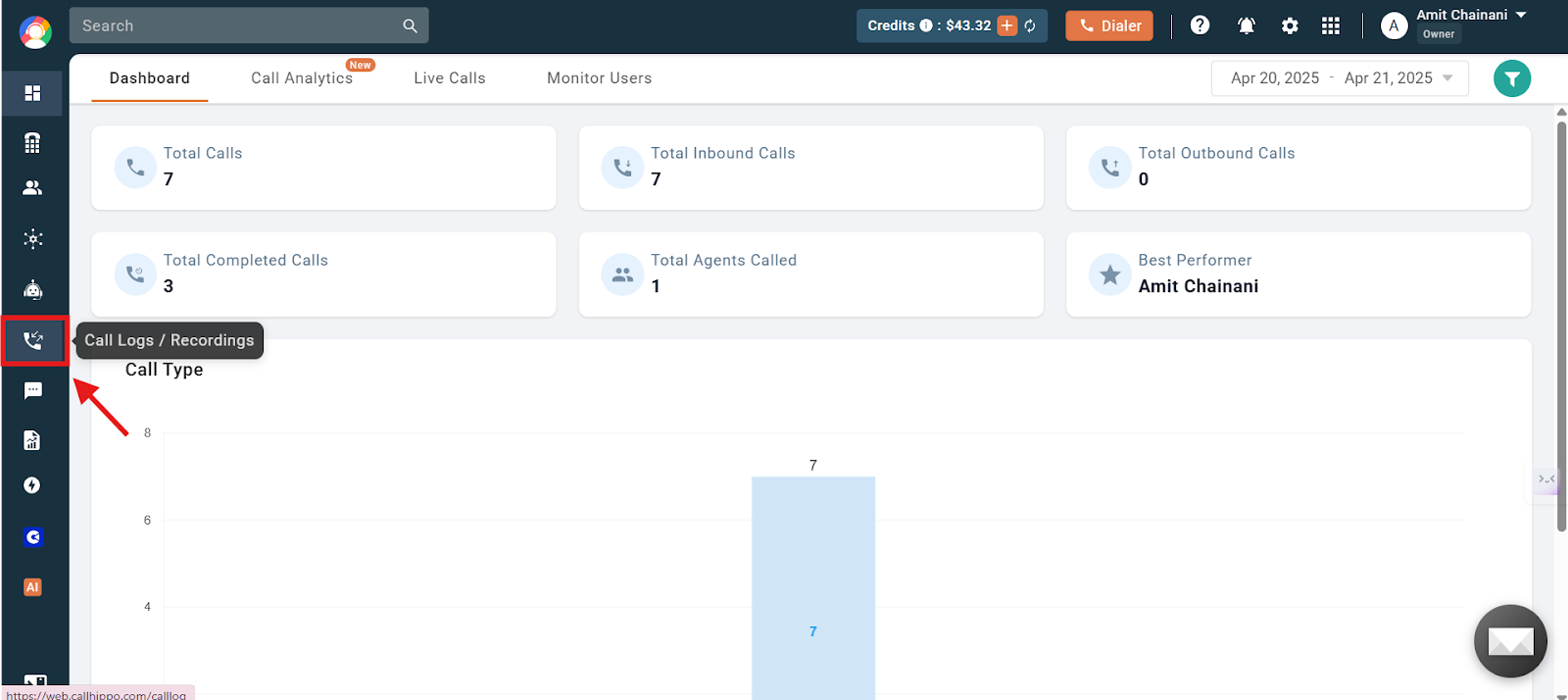
- Log in to your CallHippo dashboard.
- Click the Call Logs / Recordings section on the left side of the dashboard.
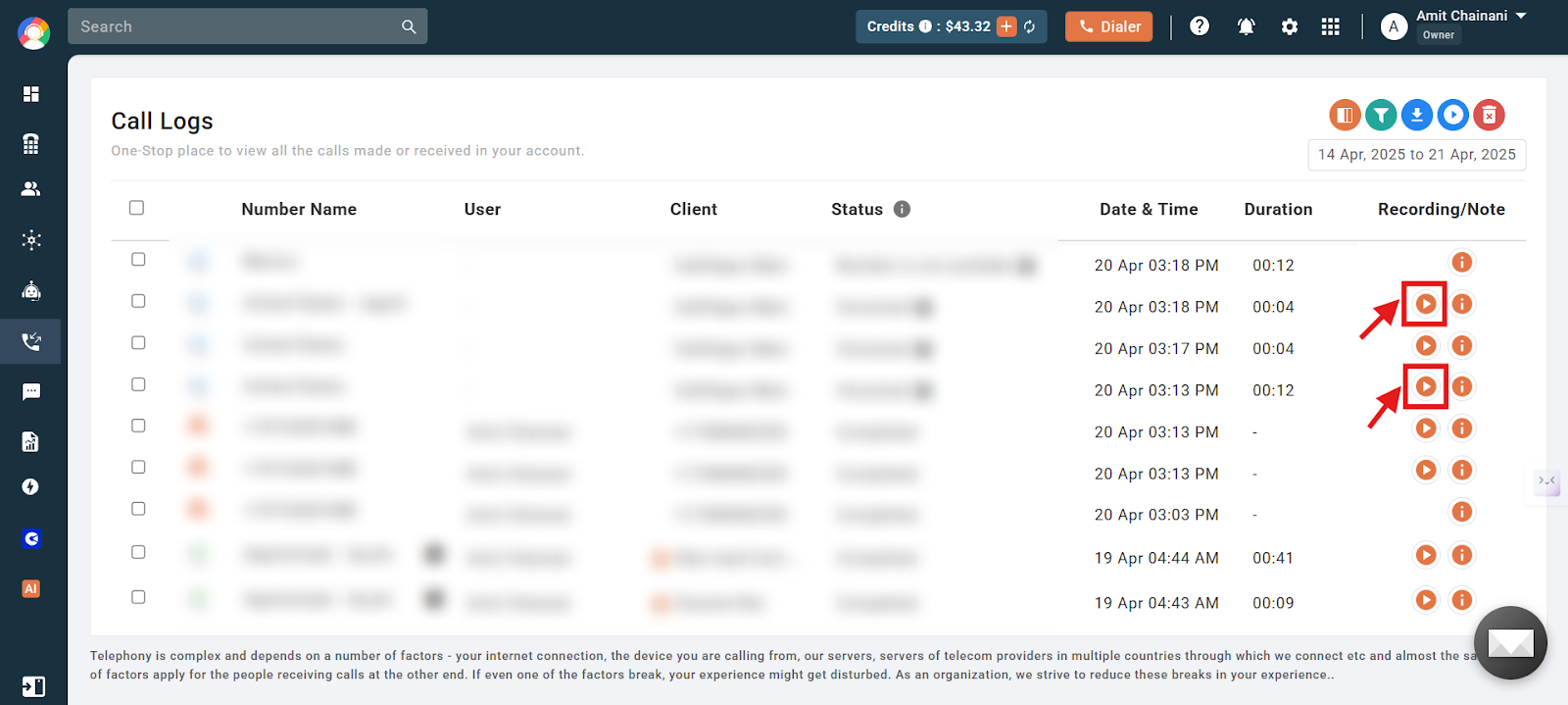
- Recorded calls show a play button beside them. Click it to listen to the recording.
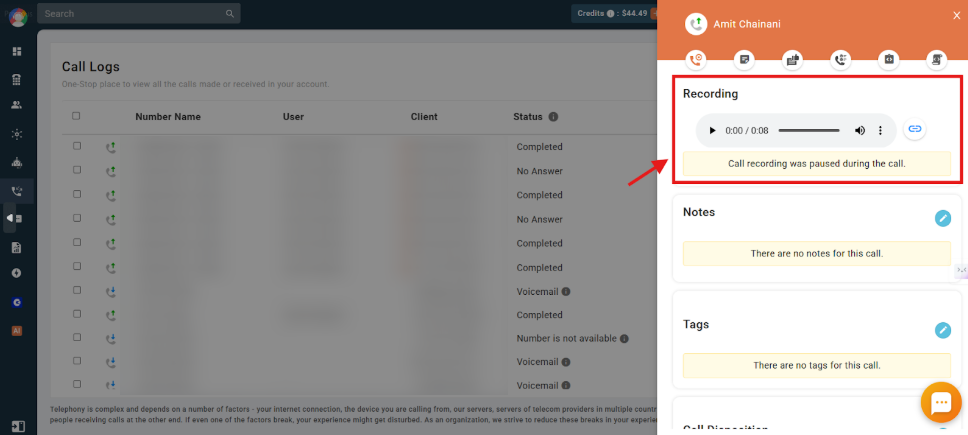
- Alternatively, click the “i” button to open the call details and play the recording from there.
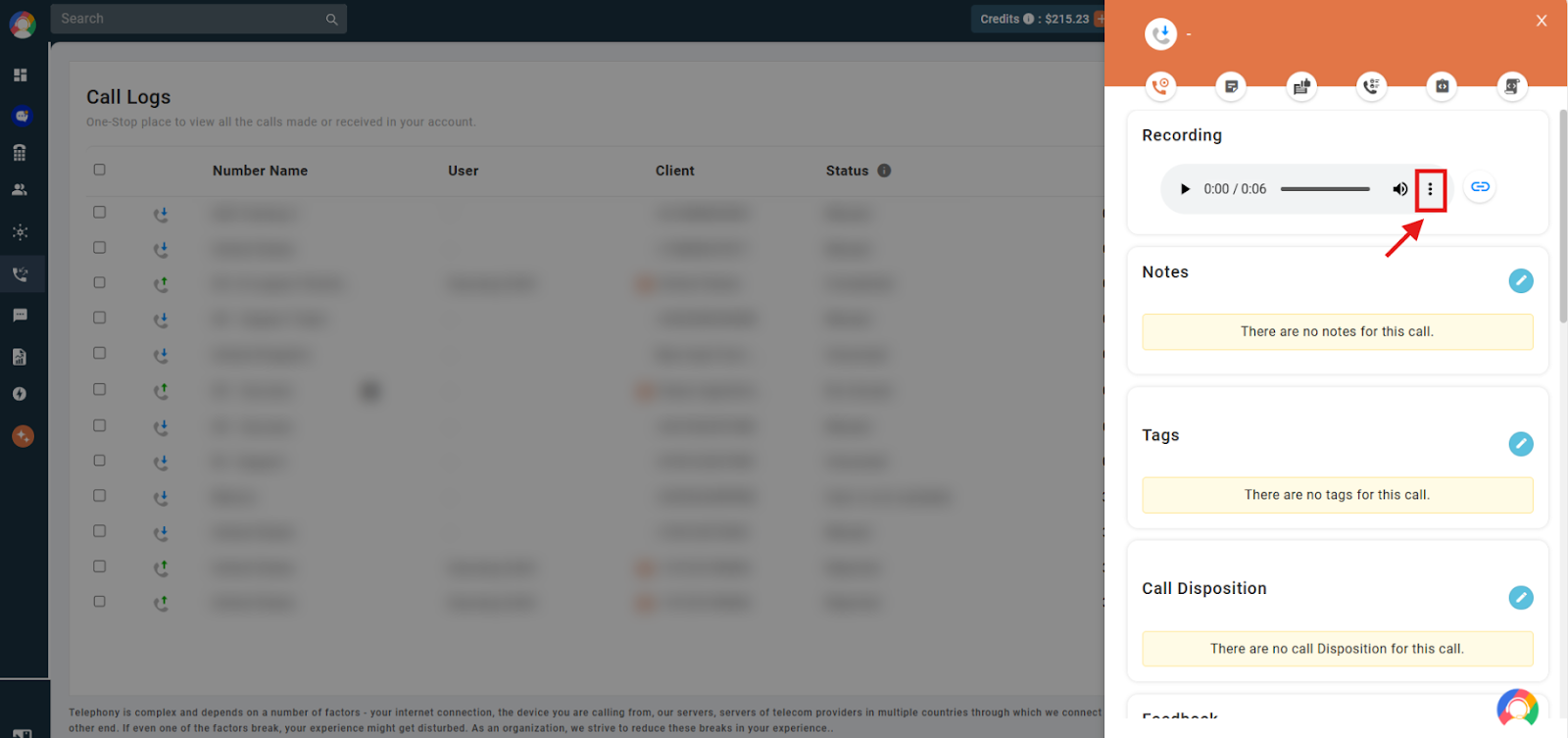
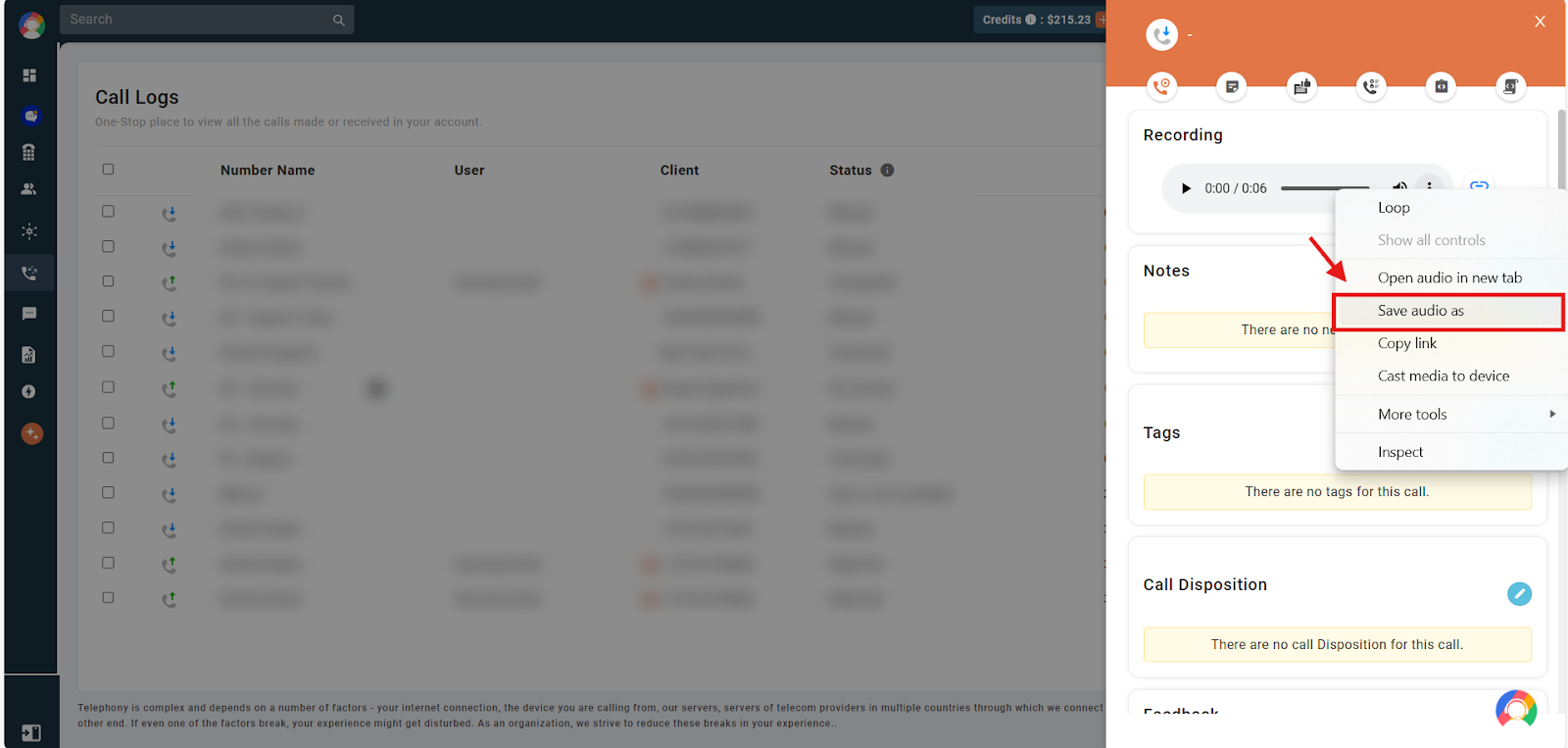
- Right-click the three dots icon on the player to open the dropdown options.
- Click Save audio as from the dropdown.
- Choose the location, file name, and file type, then click OK. The recording will be downloaded.
Downloading Multiple Recordings at Once
If you need several recordings, CallHippo also supports bulk download of up to 100 call recordings at a time, delivered as a single ZIP archive. Select the calls in the Call Logs section using the checkboxes, then use the download icon to export them together.
For any more queries about downloading recordings, contact us via live chat or email at [email protected].