
Managing your contacts in CallHippo means being able to move them in and out of the system whenever you need to. Whether you are exporting your list for a backup, migrating to another platform, or syncing with a CRM, CallHippo makes it simple. Here is how to export your contacts step by step.
How to export contacts in CallHippo
- Log in to your CallHippo Dashboard.
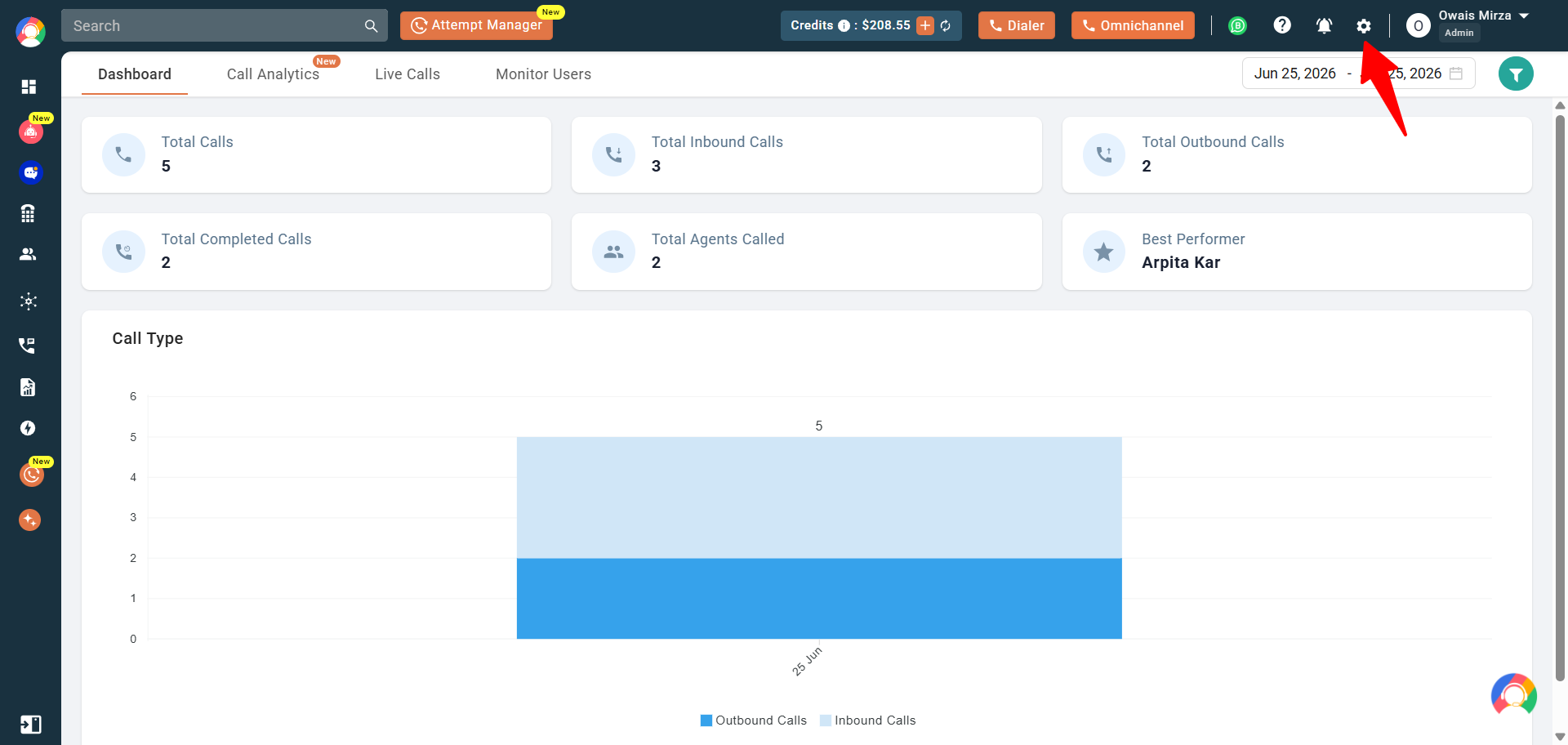
- Navigate to the top right-hand side of the page and click on the settings icon.
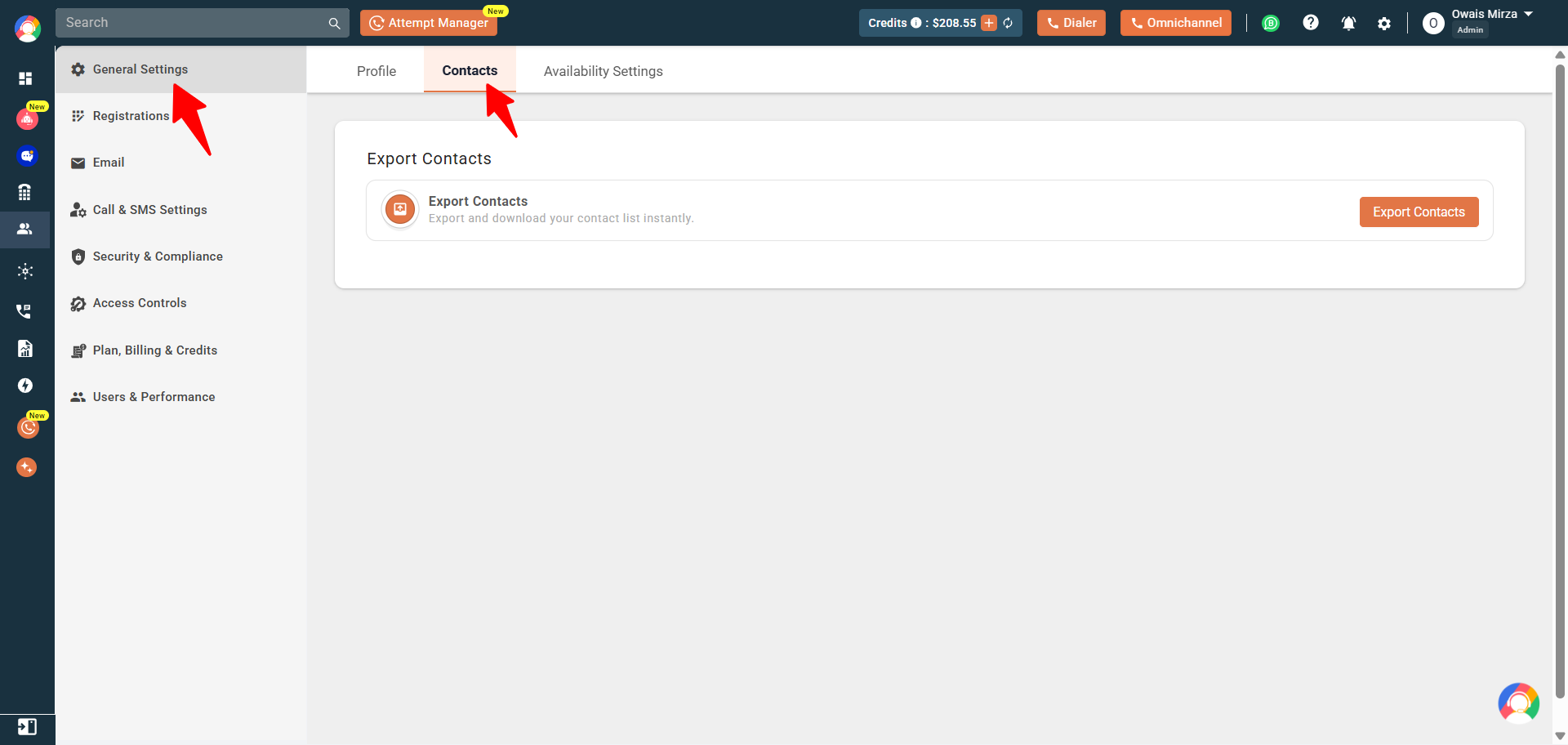
- Select the General Settings option, then open the Contacts tab.
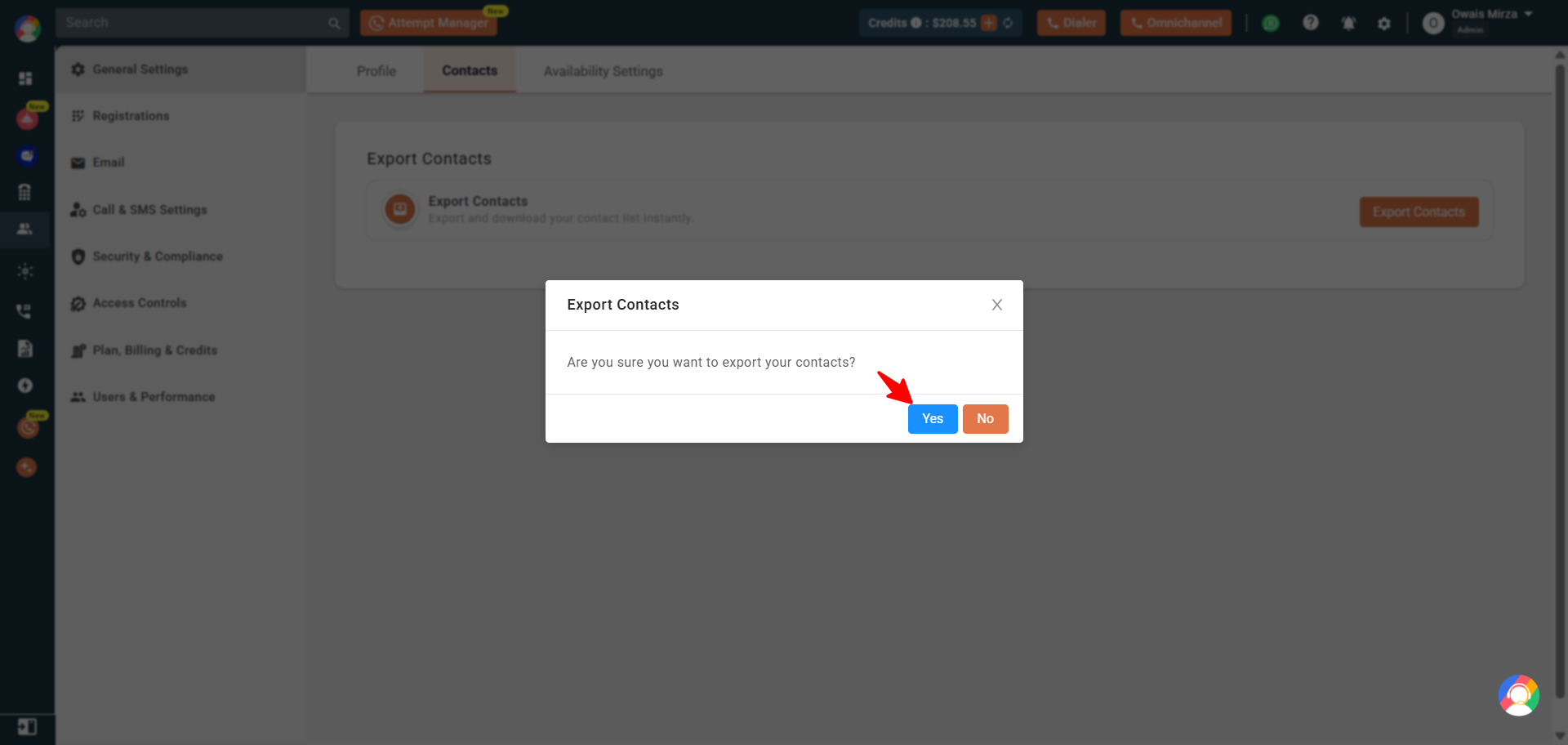
- You will land on a page where you can choose to export your contacts. Click Export Contacts and confirm by clicking Yes.
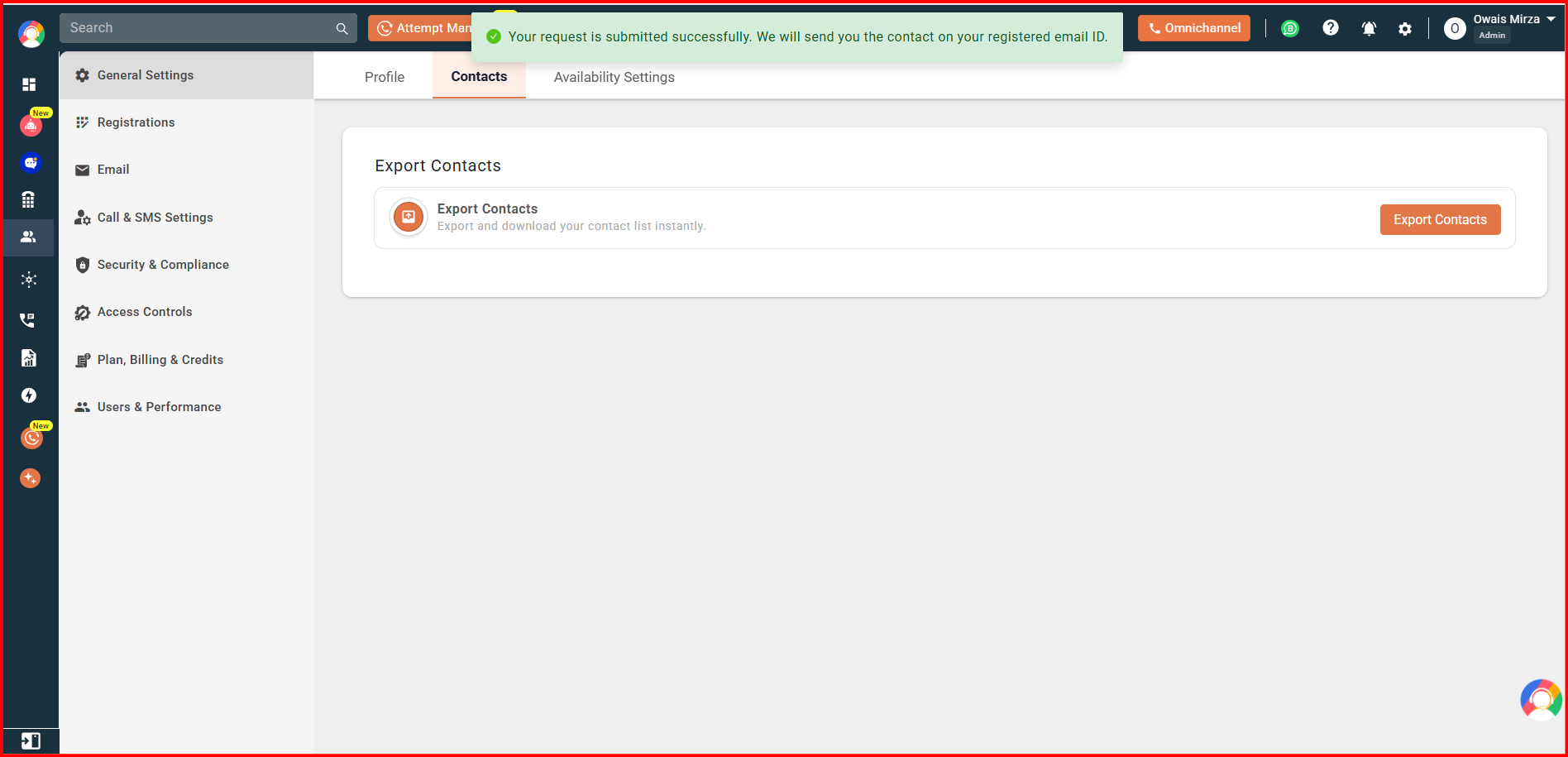
- Once you click Yes, your contact list will be sent to your registered email ID.
Note: The exported data will be downloaded in .csv format. To import contacts, upload a CSV file that follows the system-provided template from the import section.
Business use cases
Efficient contact management for sales and support teams
- Sales teams can quickly upload bulk lead data, reducing manual entry.
- Customer support teams can maintain a structured contact list for quick access.
Smooth CRM integration
- Businesses using external CRM tools can easily import contacts for seamless calling.
- Contacts can be exported from CallHippo and uploaded into other platforms for analysis.
Backup and data security
- Ensures contact data is backed up and retrievable in case of system updates or migration.
- Enables businesses to keep offline records for compliance and auditing.
Marketing and outreach campaigns
- Contact lists can be imported for outbound marketing campaigns.
- After campaigns, contacts can be exported for reporting and further segmentation.
Onboarding new teams
- New agents can quickly access pre-uploaded contacts instead of manually entering details.
- Teams can import customer databases when expanding into new markets.
FAQs about managing contacts in CallHippo
Q: What file format is required for importing contacts?
A: Contacts must be uploaded in CSV format, following the system-provided template.
Q: How do I ensure my contact list is formatted correctly before importing?
A: Download the template file from the import section and structure your contacts accordingly.
Q: Can I import contacts with additional details like email and company name?
A: Yes, the system allows additional fields like email and company name.
Q: Will my exported contacts include call history and notes?
A: No, only basic contact details (name, phone number, and email) are included in the exported CSV file.
Q: How frequently can I import or export contacts?
A: There is no limit — you can import or export contacts anytime based on your business needs.
Q: What should I do if my contact import fails?
A: Ensure the following:
- The file is in CSV format.
- The headers match the template.
- The phone numbers are correctly formatted.
Q: Can I edit contacts after importing them?
A: Yes, imported contacts can be edited manually in the CallHippo dashboard.
We hope this helps. If you still have questions, feel free to reach out at [email protected].