
CallHippo lets team members leave internal feedback on individual calls, making it easy to share insights, flag issues, and support ongoing training. Whether you are noting a missed opportunity, highlighting a technical glitch, or sharing suggestions for improvement, feedback can be added by any user and is visible to everyone on the team. This keeps things transparent and helps maintain a consistent standard of communication across your organization.
When to use call feedback
Leaving internal feedback on calls can help in several scenarios:
- Training and coaching: Highlight examples of good communication or suggest improvements for new team members.
- Error tracking: Document technical issues or call-handling mistakes, such as dropped or missed calls.
- Follow-up coordination: Share context or next steps for follow-ups so other team members stay aligned.
- Quality monitoring: Flag calls that may need further review or action from managers or QA teams.
- Knowledge sharing: Record customer insights or uncommon queries that could help others handle similar calls in the future.
Leave feedback for a call
- Log in to your CallHippo dashboard.
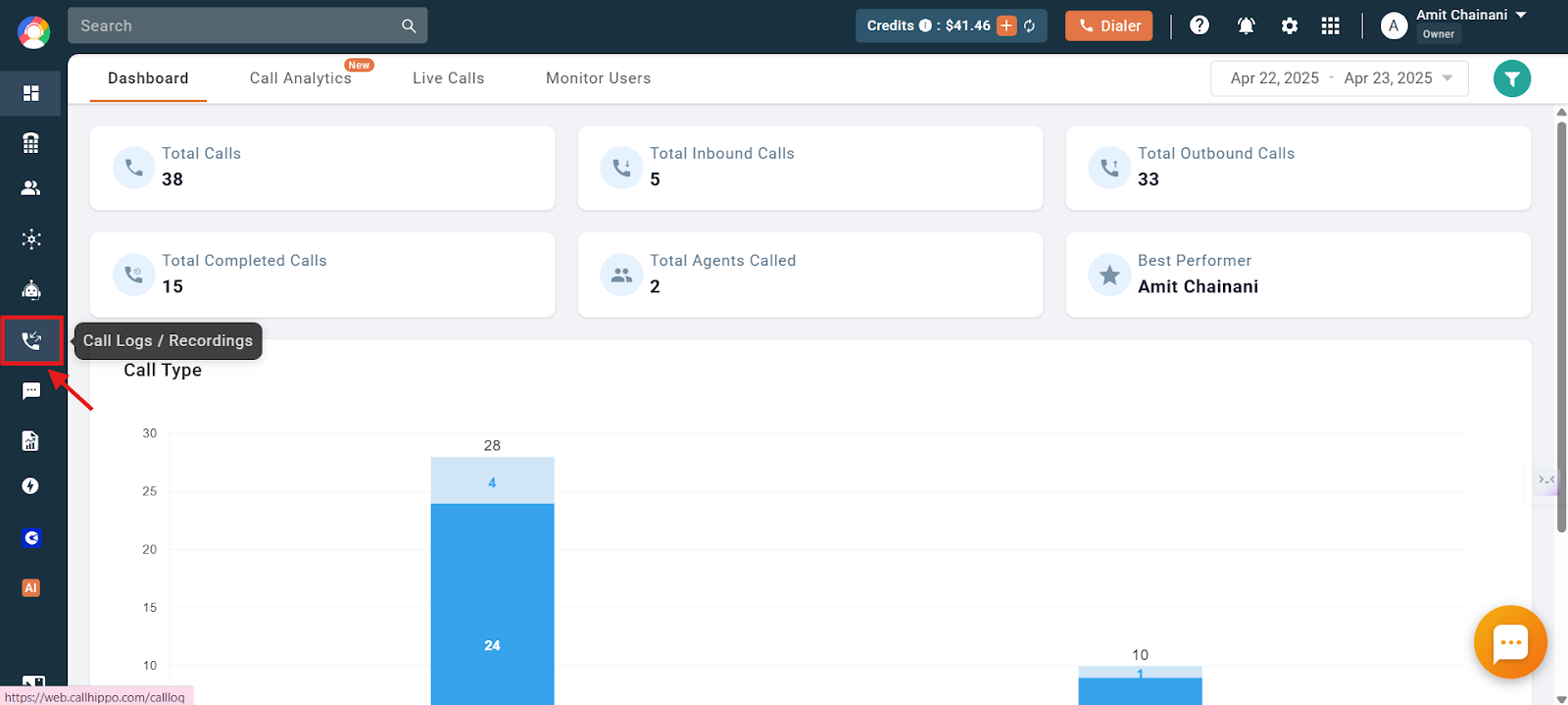
- Click the Call Logs / Recordings section on the left side of the dashboard.
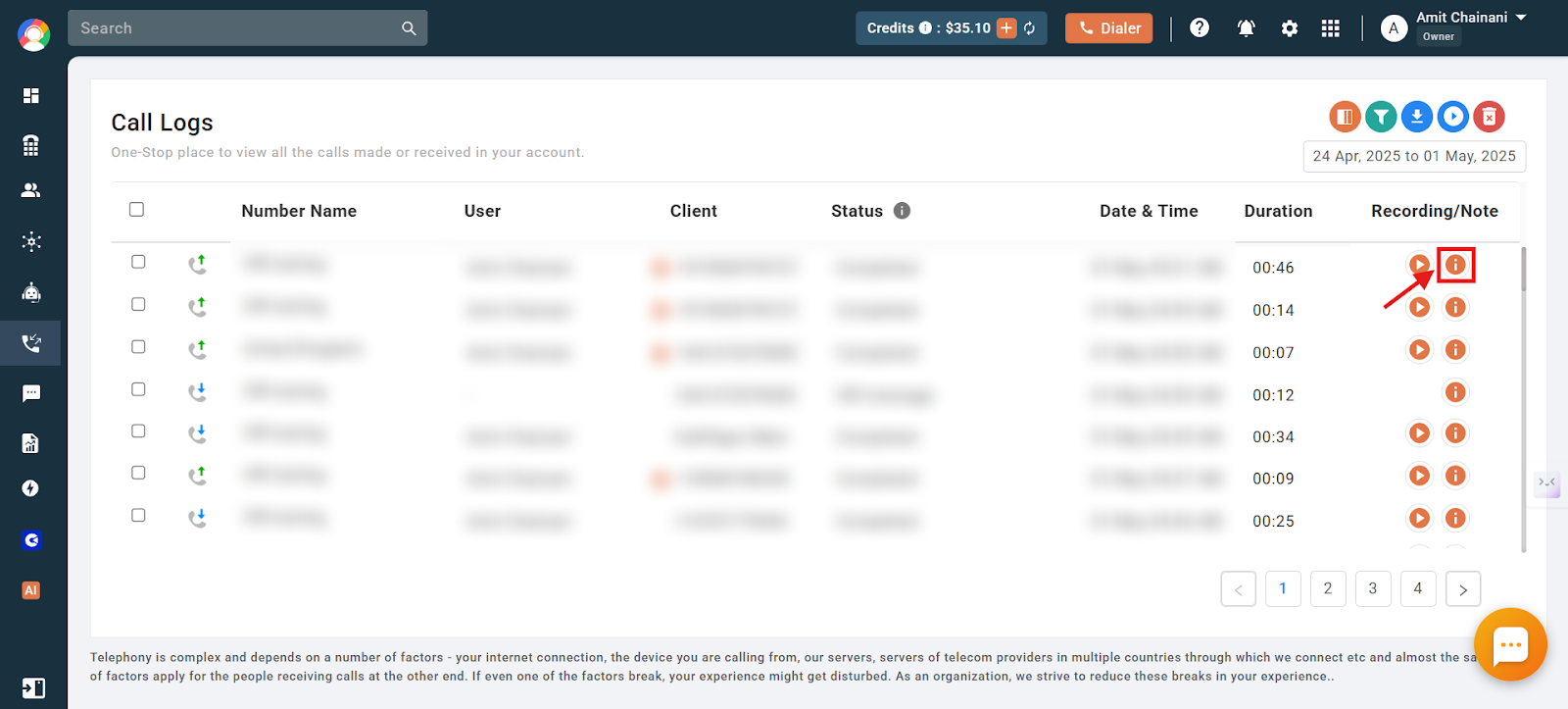
- Click the “i” (info) icon next to the call log you want to add feedback for.
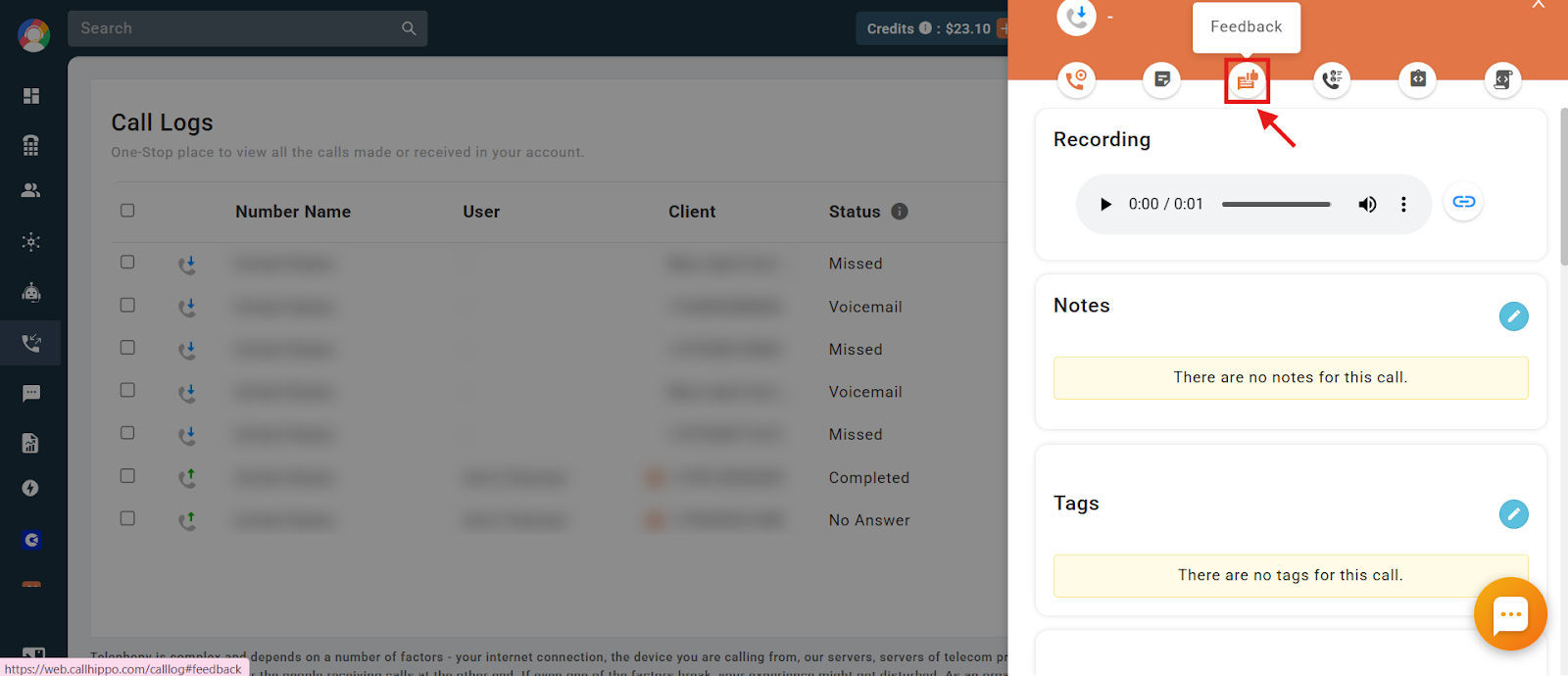
- Click the Feedback option.
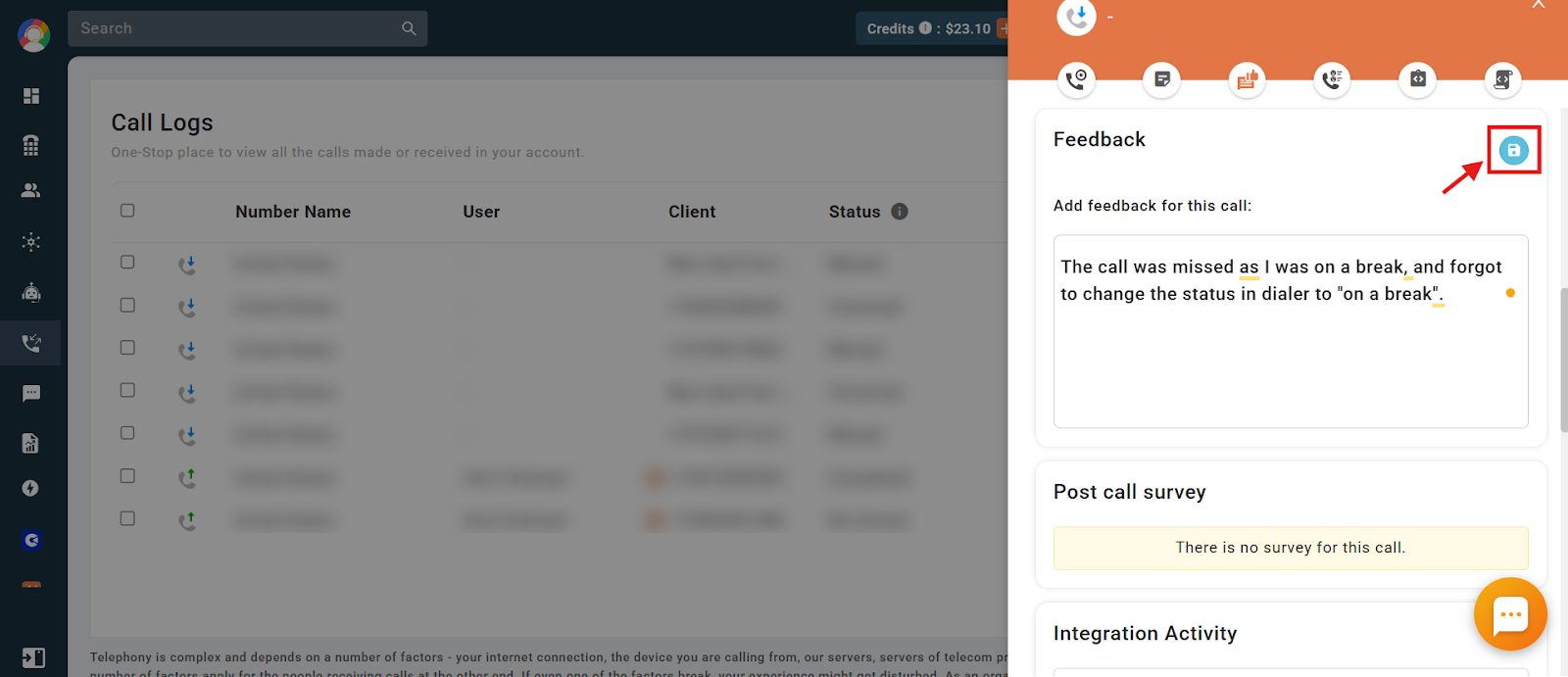
- Click the blue edit icon to add feedback.
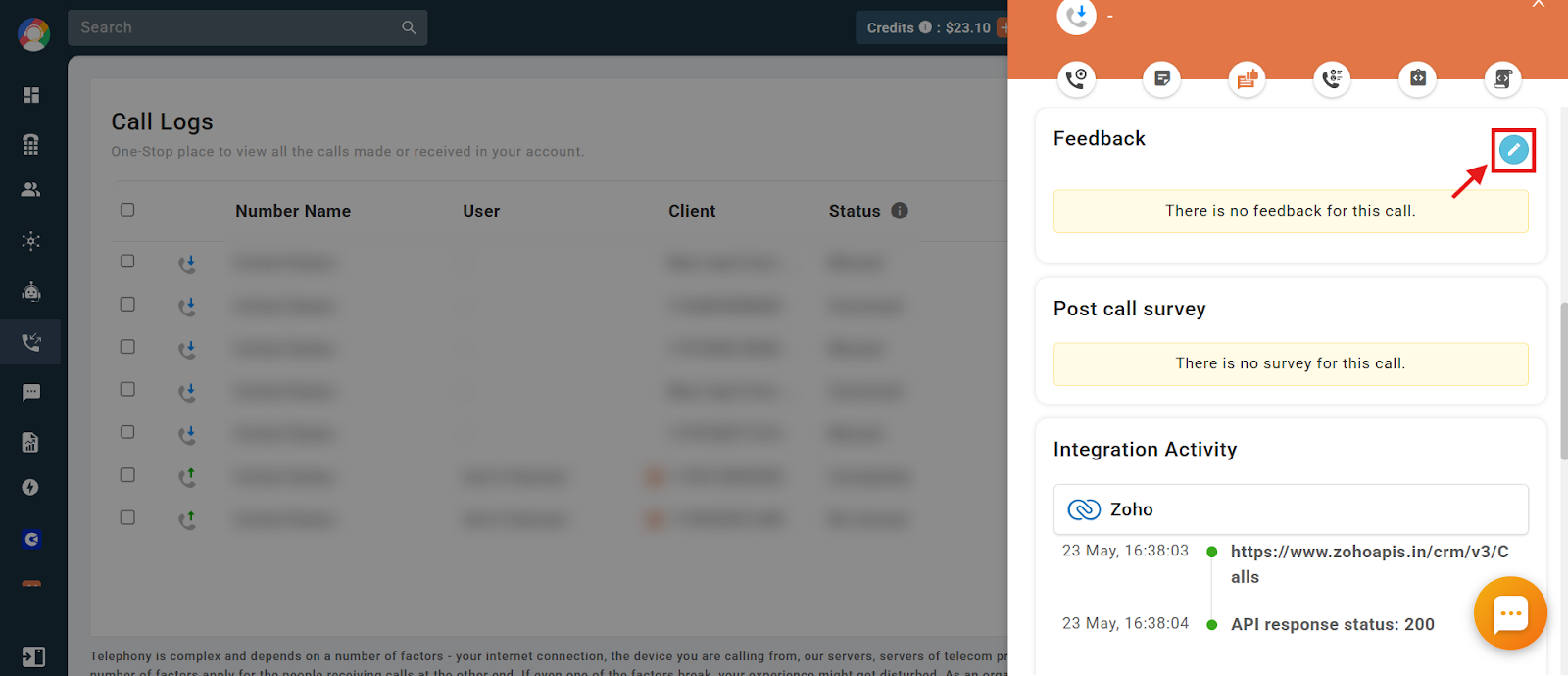
- Type your comment, then click the save icon to save the feedback. The updated notes are now saved.
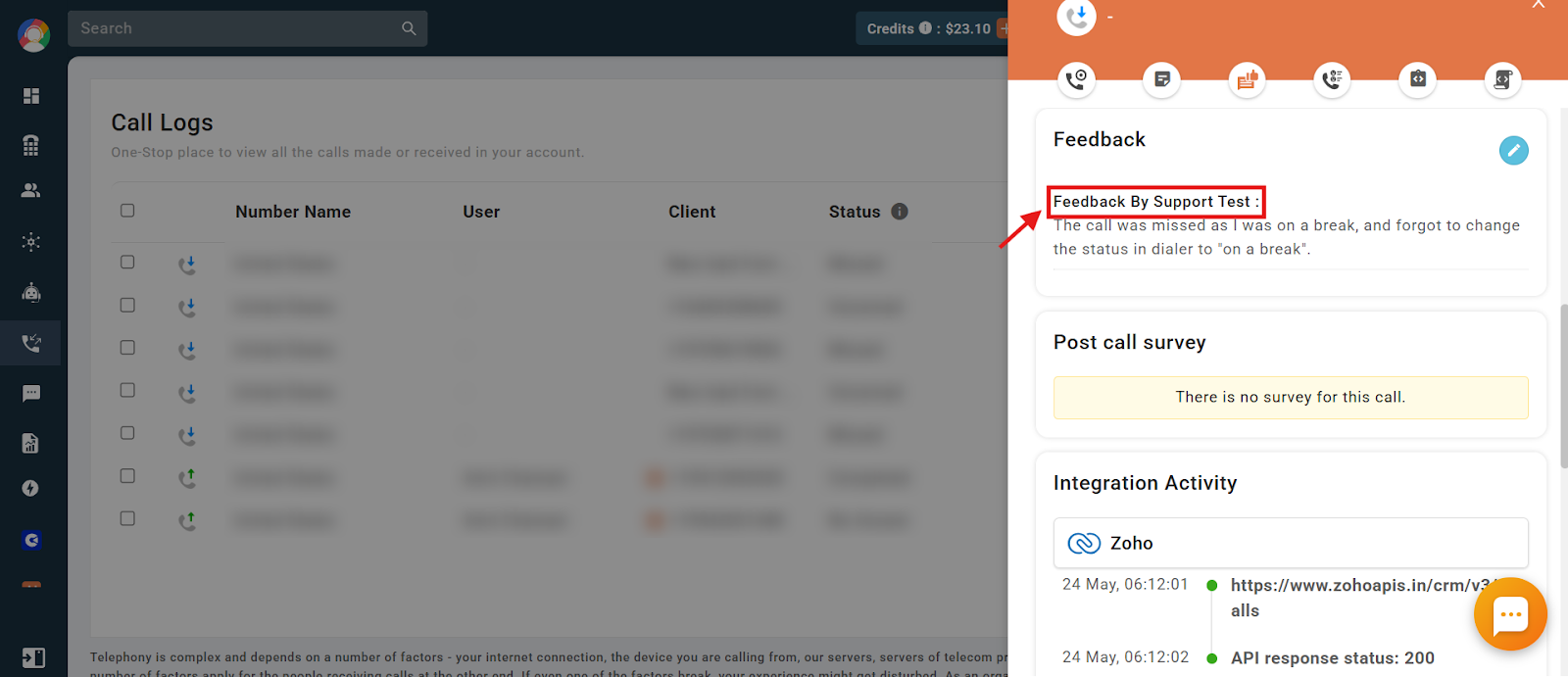
- Once feedback is added by a user, their username is displayed alongside it.
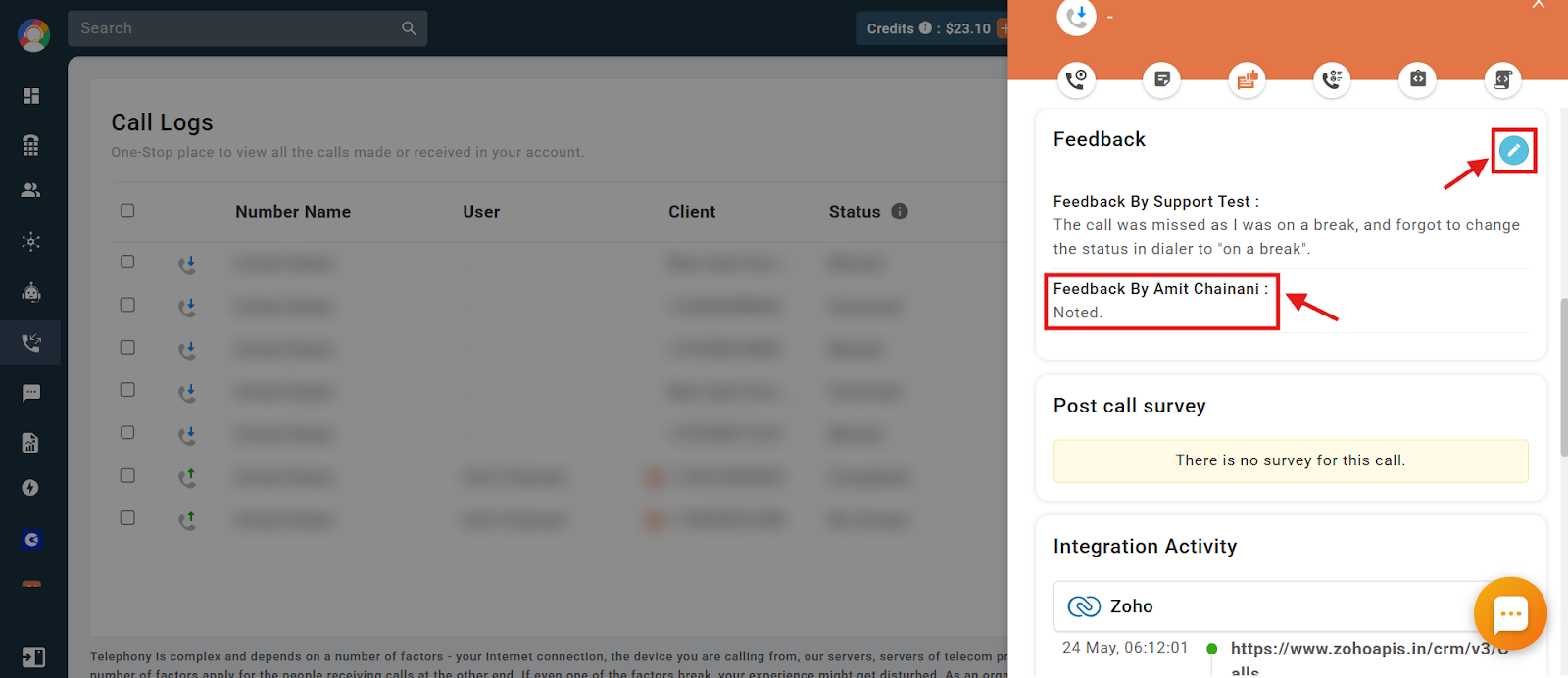
- Multiple users can add multiple pieces of feedback to a single call log.
Important points:
- Once feedback is added and saved, it cannot be deleted or edited.
- All users in your account can add feedback to calls.
- All users in your account can see the feedback that has been added.
Filter feedback calls in the dialer
You can identify the calls where users have shared feedback directly from the CallHippo dialer. Follow these steps to filter and view only the calls with feedback.
- Log in to your CallHippo dialer.
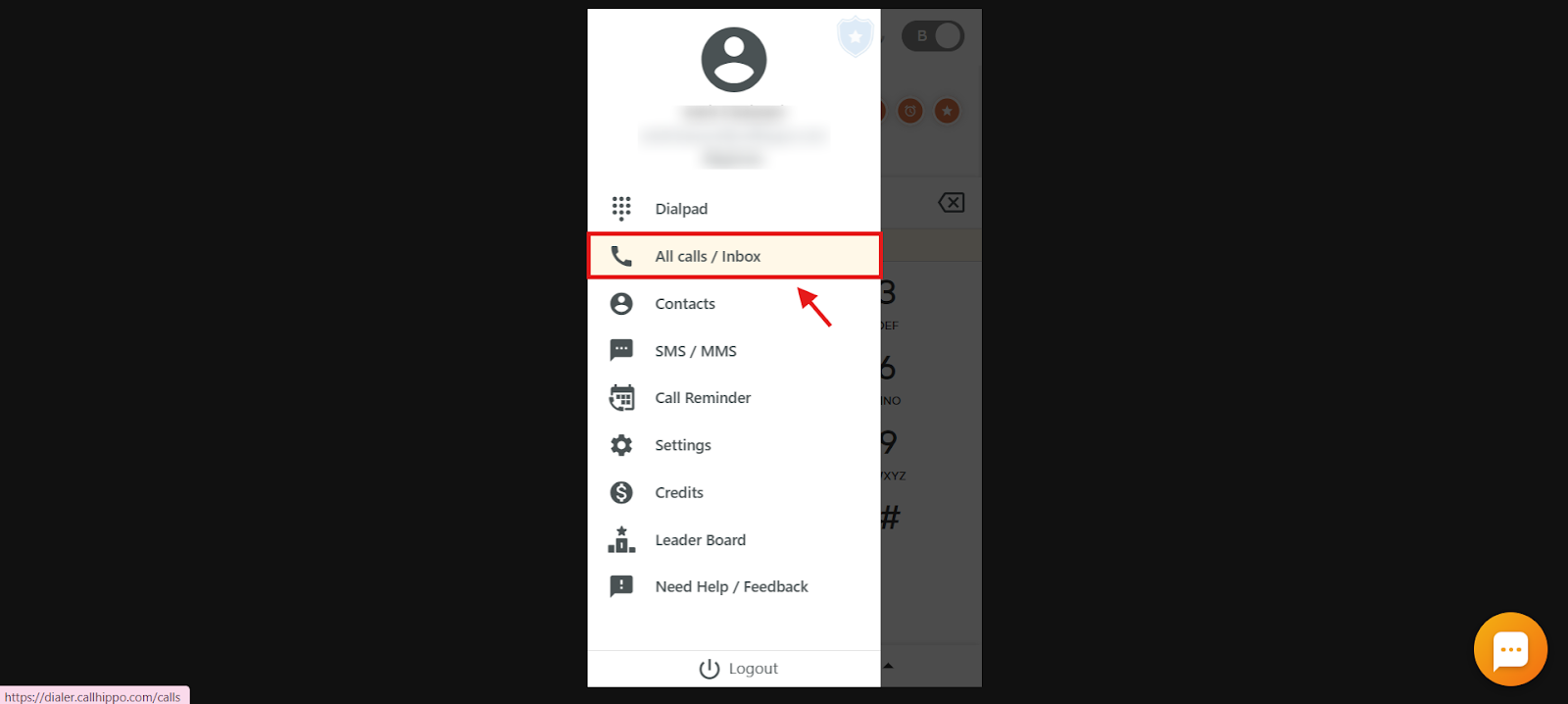
- Click the Main Menu icon.
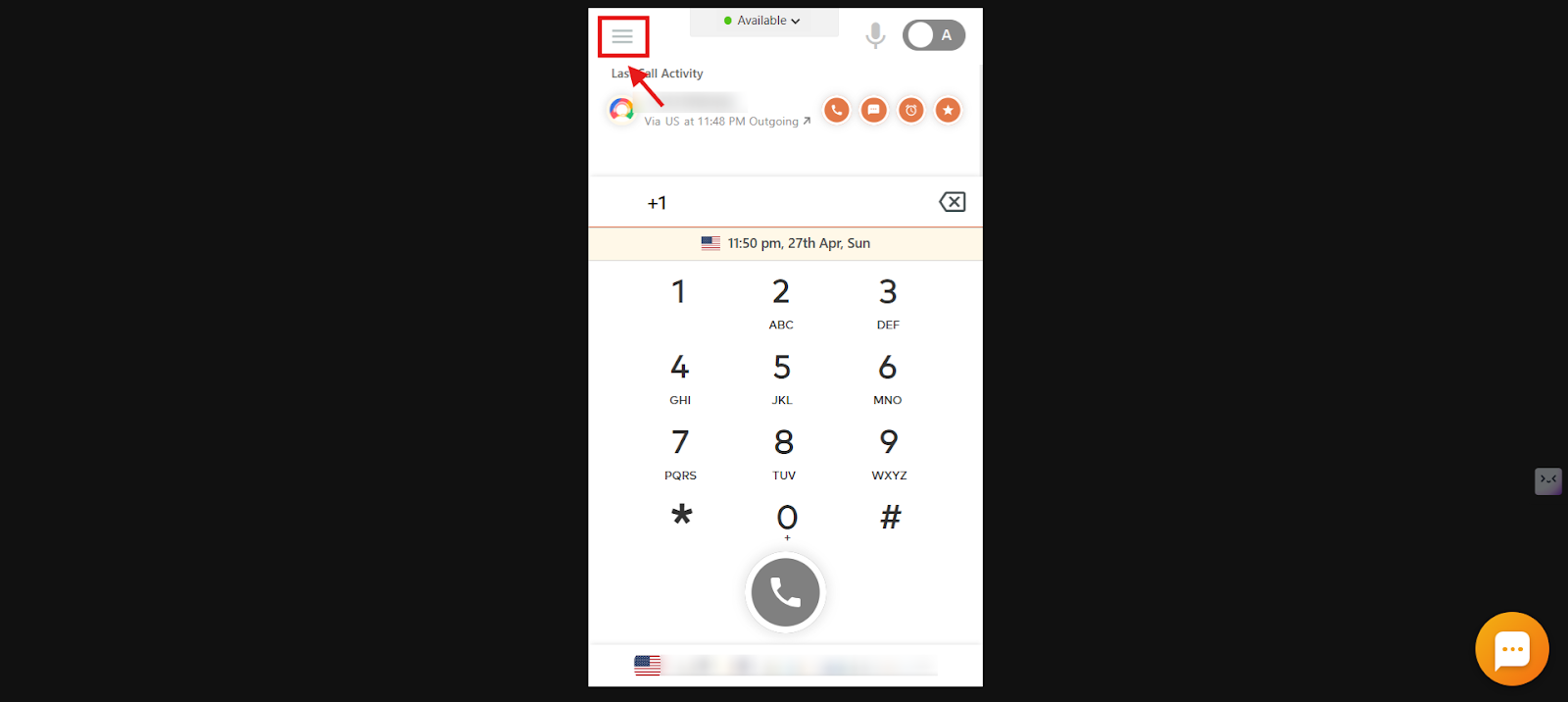
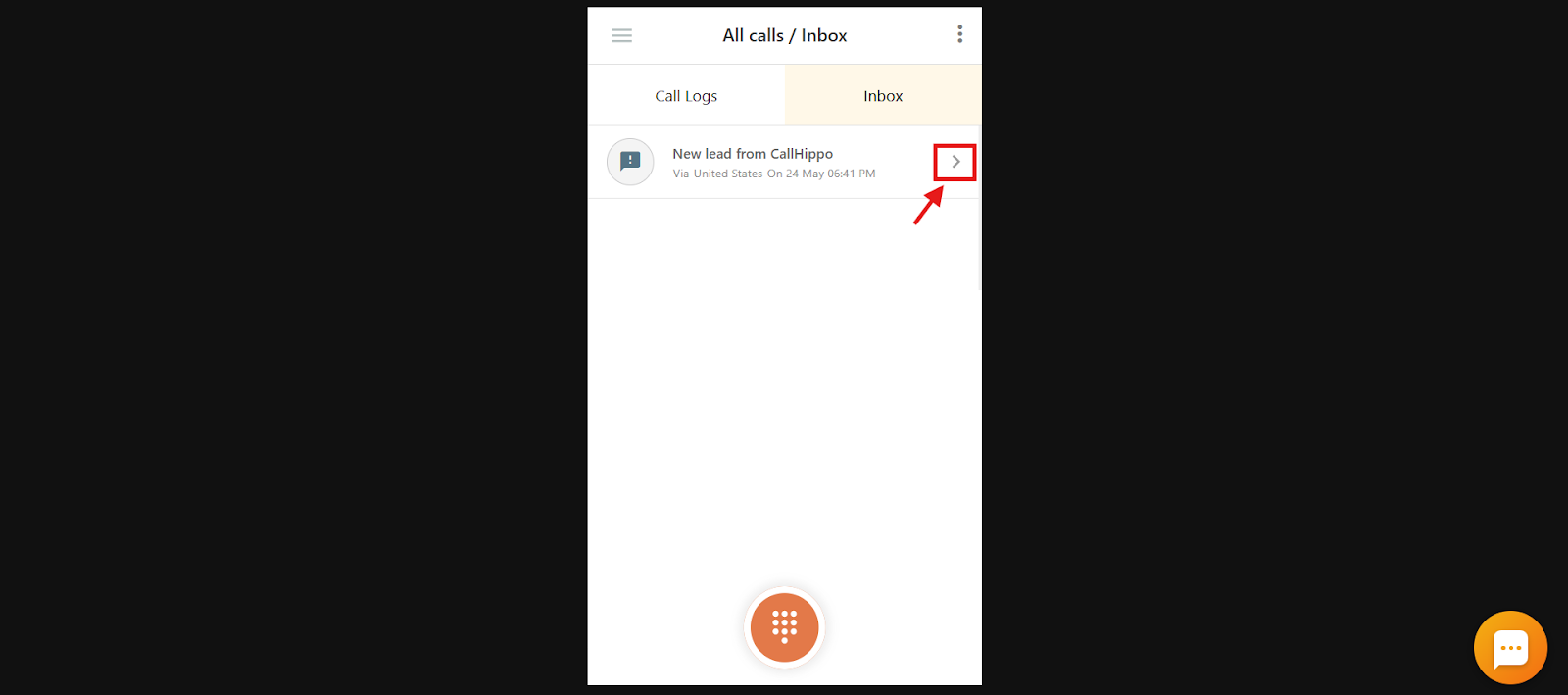
- Click the All calls / Inbox option.
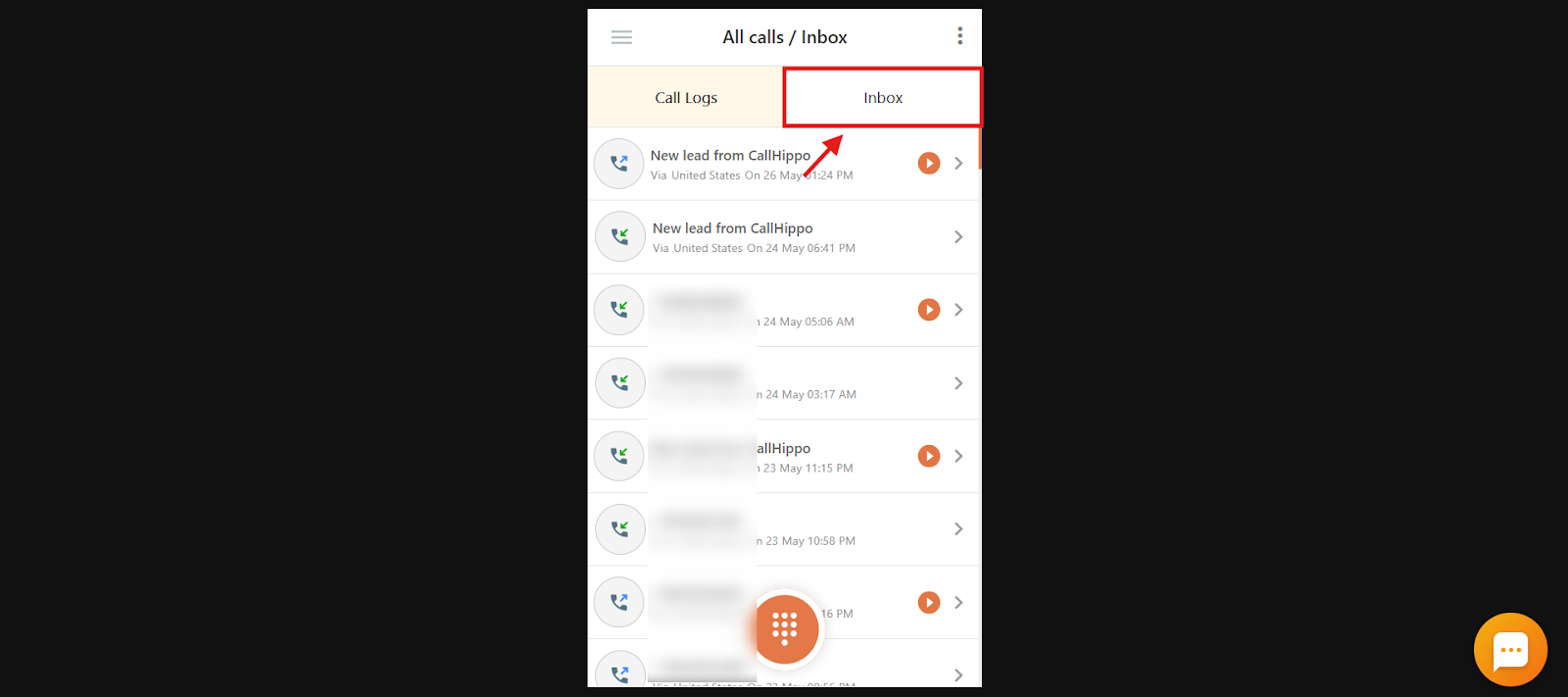
- Click the Inbox tab.
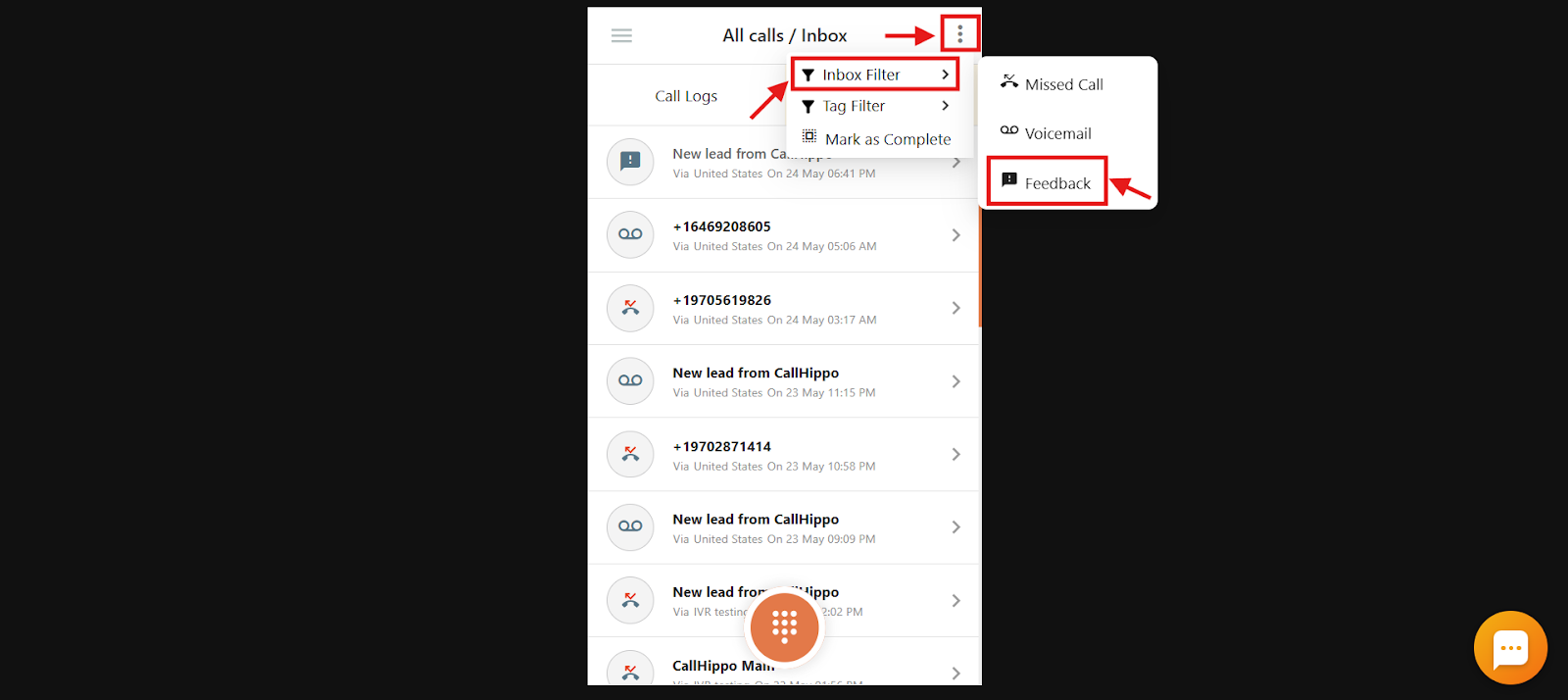
- Click the three dots in the top-right corner, select Inbox Filter, and then click Feedback.
- You will now see only the calls for which feedback has been added by any user.
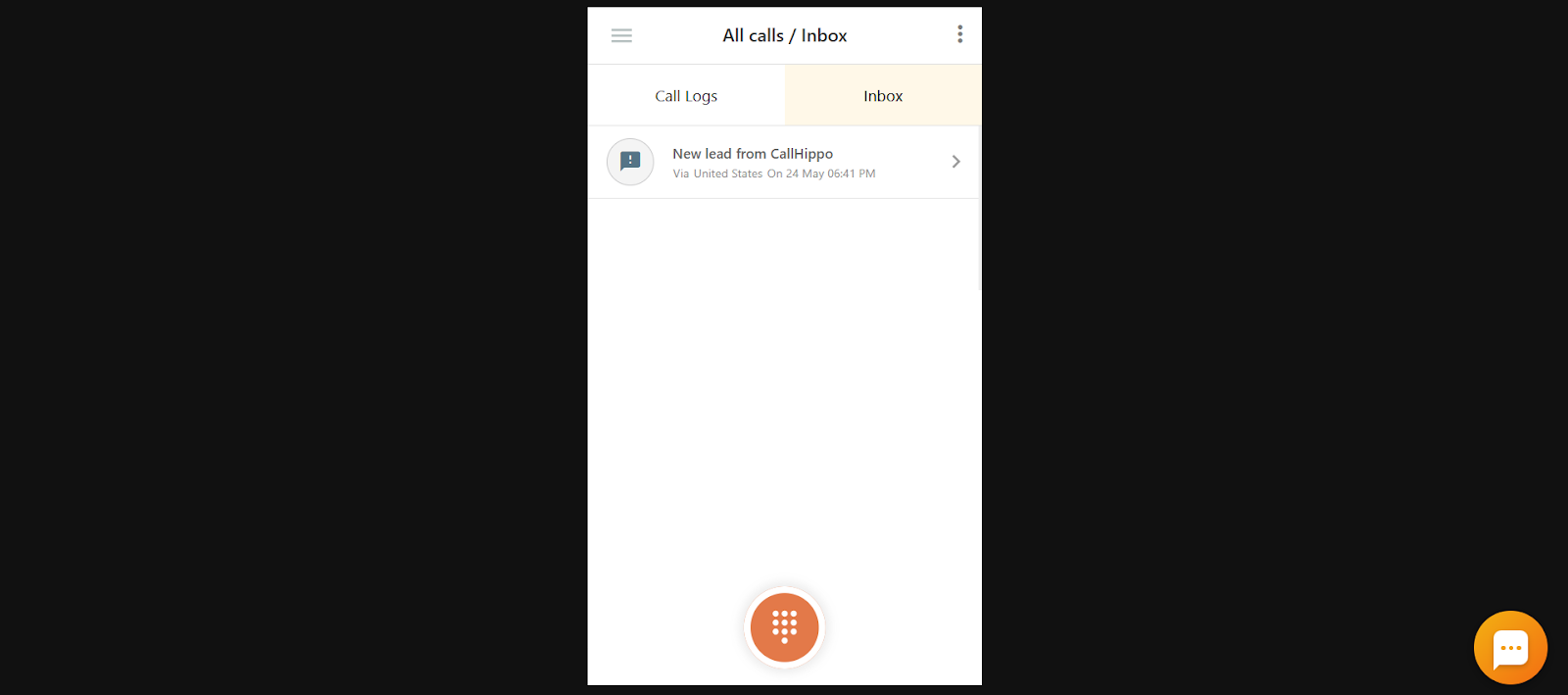
- Click the arrow icon next to the call whose feedback you want to view.
- Open the Feedback tab to see the feedback that was added.
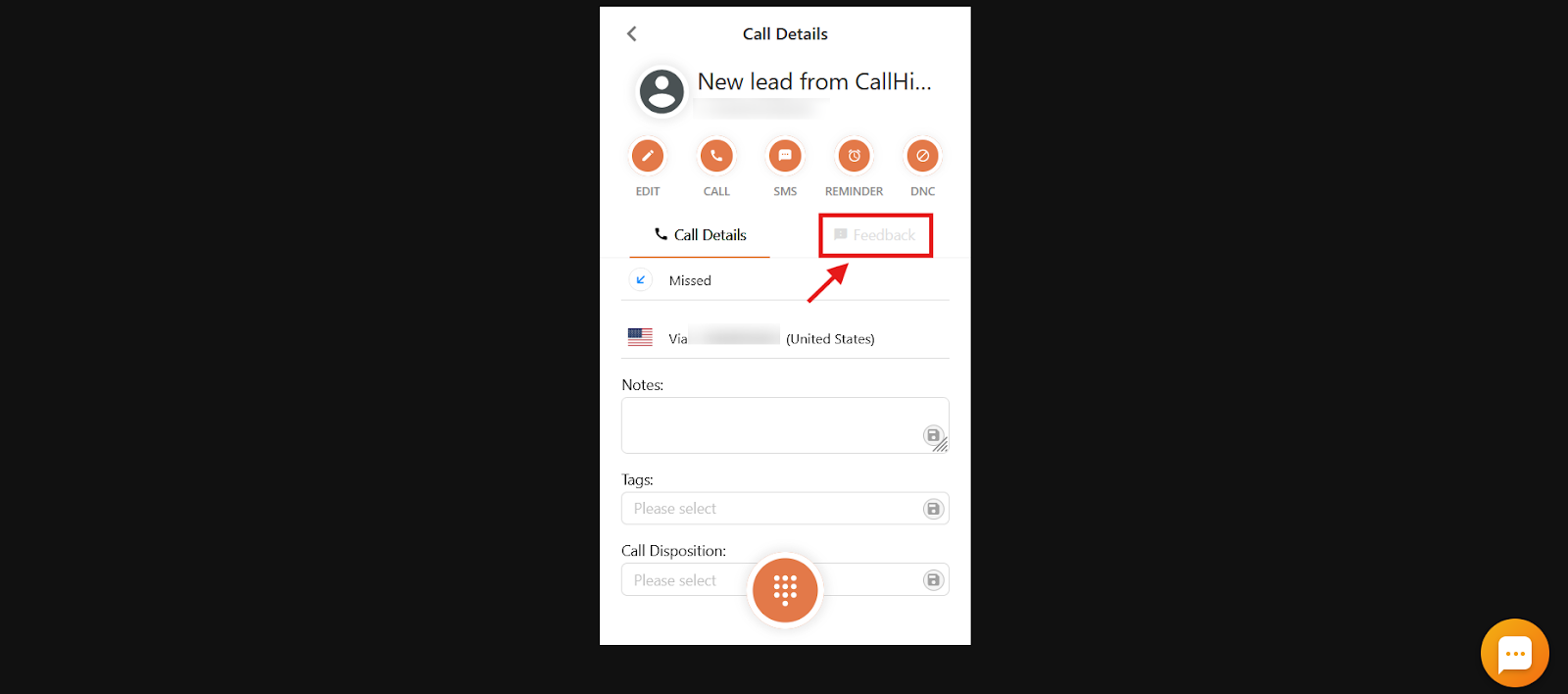
Note: You can only view feedback from the CallHippo dialer. To add feedback, you must do it from the CallHippo dashboard.
Frequently asked questions
Can I remove or edit feedback after I have saved it?
No. Once feedback is added and saved, it cannot be deleted or edited. Make sure to review your comment before clicking the save icon.
Who can see the feedback I leave on a call?
All users in your account can view the feedback left on a call. Feedback is visible to your entire team, supporting transparency and collaboration.
Do other users get notified when I leave feedback on a call?
No, other users do not receive notifications when feedback is added. However, the feedback is visible to everyone in the account when they view the specific call log.
We hope this helps. If you still have questions, feel free to reach out at [email protected].