
Voicemail keeps you connected to your callers even when you are unavailable — during meetings, after business hours, or when calls go unanswered. This guide walks you through how CallHippo voicemail works, how to enable it for both numbers and users, how to turn on voicemail transcription, and how to listen to and read your voicemails.
Understanding voicemail and why it matters
In a busy business environment, unanswered calls can lead to missed opportunities. Voicemail ensures your callers can always leave a message whenever you are unavailable. With CallHippo’s VoIP voicemail, you stay connected, maintain a professional presence, and respond at your convenience.
Example: A potential client calls after hours with an urgent inquiry. Instead of reaching a dead end, they are greeted by a custom voicemail message and leave their details. First thing in the morning, your team listens to the message via email or app notification and follows up immediately — making a great impression and possibly closing the deal.
When are voicemails played?
Voicemail is triggered under two sets of circumstances — based on the user and based on the number.
User conditions:
- The user is unavailable based on their availability preference (for example, Always Closed).
- The user has set up Custom Availability and a call comes in outside business hours — the call goes to voicemail.
- The user has manually enabled the Voicemail toggle in the User section, so they receive voicemails when unavailable.
- A call comes in during business hours while the user is logged out of the web dialer or mobile app.
Number conditions:
- Custom Availability is set for a number and a call comes in outside business hours, with the After Work Hours feature enabled and set to voicemail.
- A call comes in during business hours with the Call Queue feature on, but is not answered within the queue timeline, and number voicemail is enabled.
- The Voicemail toggle has been manually enabled in the Number section for that number.
User voicemail vs. number voicemail
CallHippo offers two types of voicemail so your callers always receive a professional response, even when you are unavailable:
- User Voicemail — personalized to a specific user.
- Number Voicemail — associated with a specific phone number.
The golden rule: The deciding factor is whether the incoming call reaches the user’s dialer (web or mobile app).
- If the call does NOT land on the dialer, Number Voicemail plays.
- If the call lands on the user’s dialer but goes unanswered — and user voicemail is enabled — User Voicemail plays.
When does number voicemail play?
Number voicemail is triggered when the system cannot reach the user’s dialer, for example:
- The user is logged out, or the dialer status is set to anything other than “Available,” and user voicemail has not been set up.
- The number has Custom Availability and the call comes in outside business hours with “After Work Hours” voicemail enabled.
- The Call Queue times out and voicemail is enabled for that number.
- The Voicemail toggle is turned on under the Number settings.
- A custom hour is set for the number, but the dialer is not open for any user.
- The call is unanswered by any user.
When does user voicemail play?
User voicemail comes into play only when the call actually lands on the user’s dialer but the user does not answer. This could happen if:
- The user misses or ignores the call while the app is open.
- The user has set Custom Availability and the call comes in outside those hours.
- The user is marked as unavailable (for example, “Always Closed”).
- The Voicemail toggle is turned on under the User settings.
- The call lands, but the user is not responsive.
How to enable number voicemail
- Log in to your CallHippo dashboard.
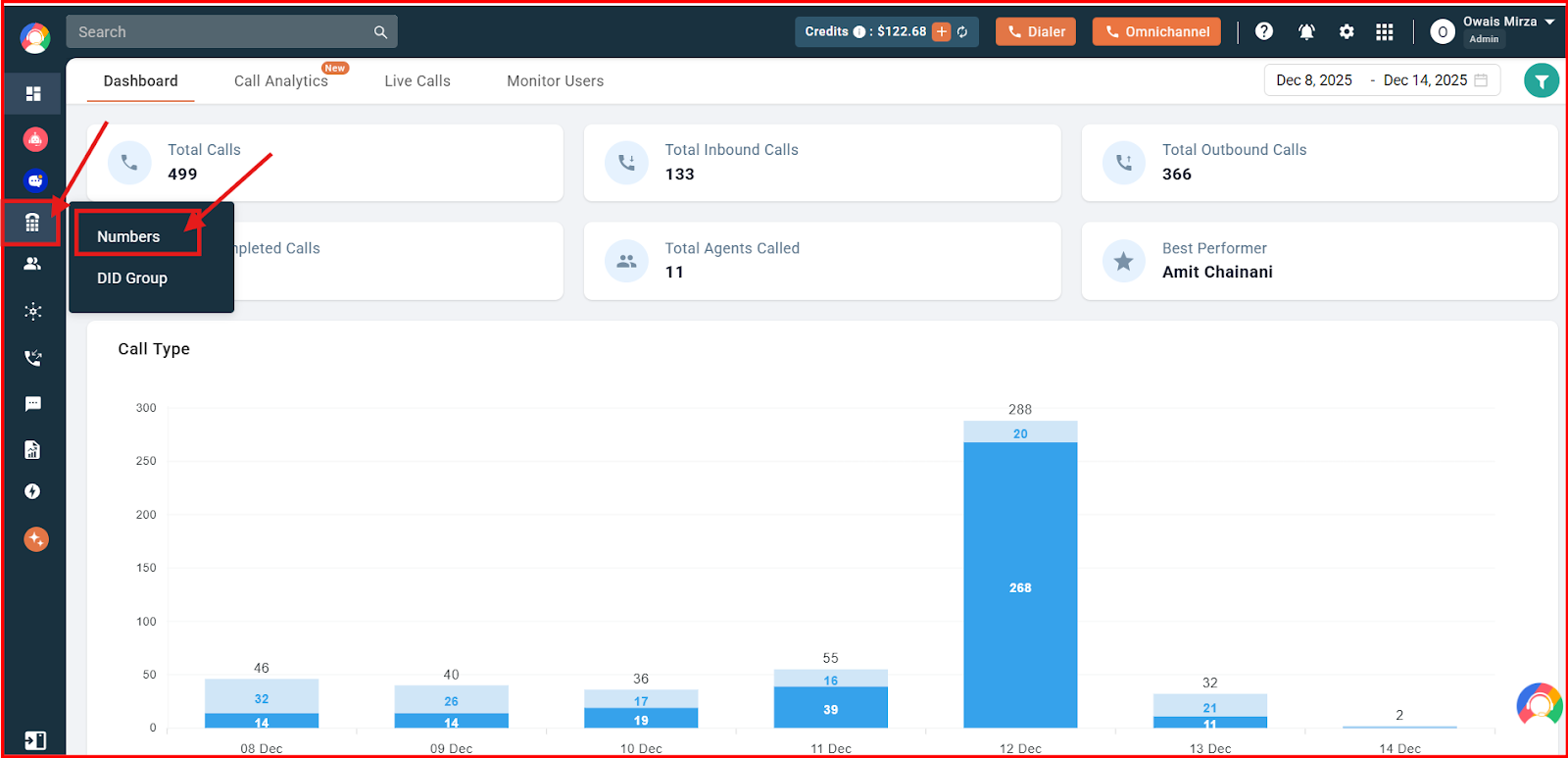
- Navigate to the Numbers and DID section on the left side of the screen, then click Numbers.
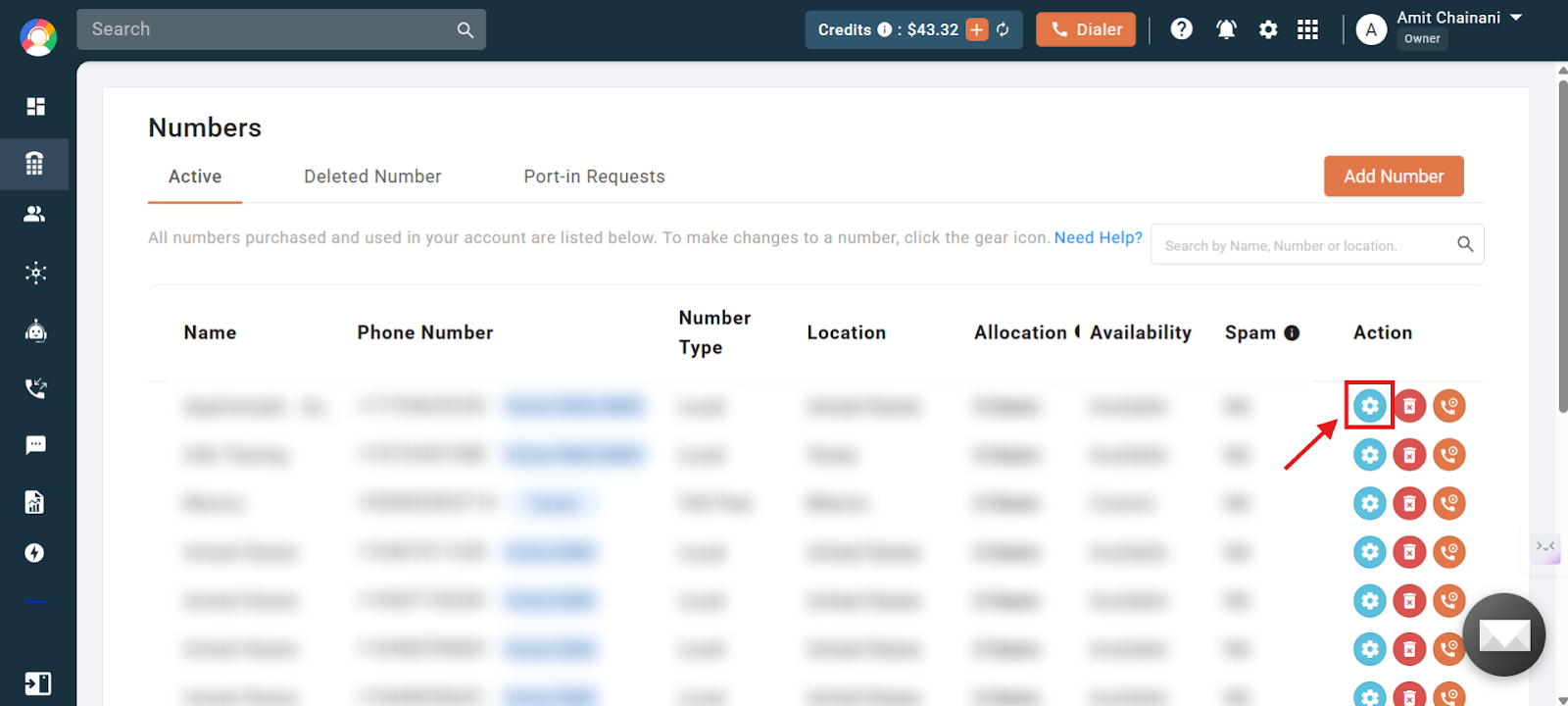
- Click the settings icon of the number you want to set the voicemail for.
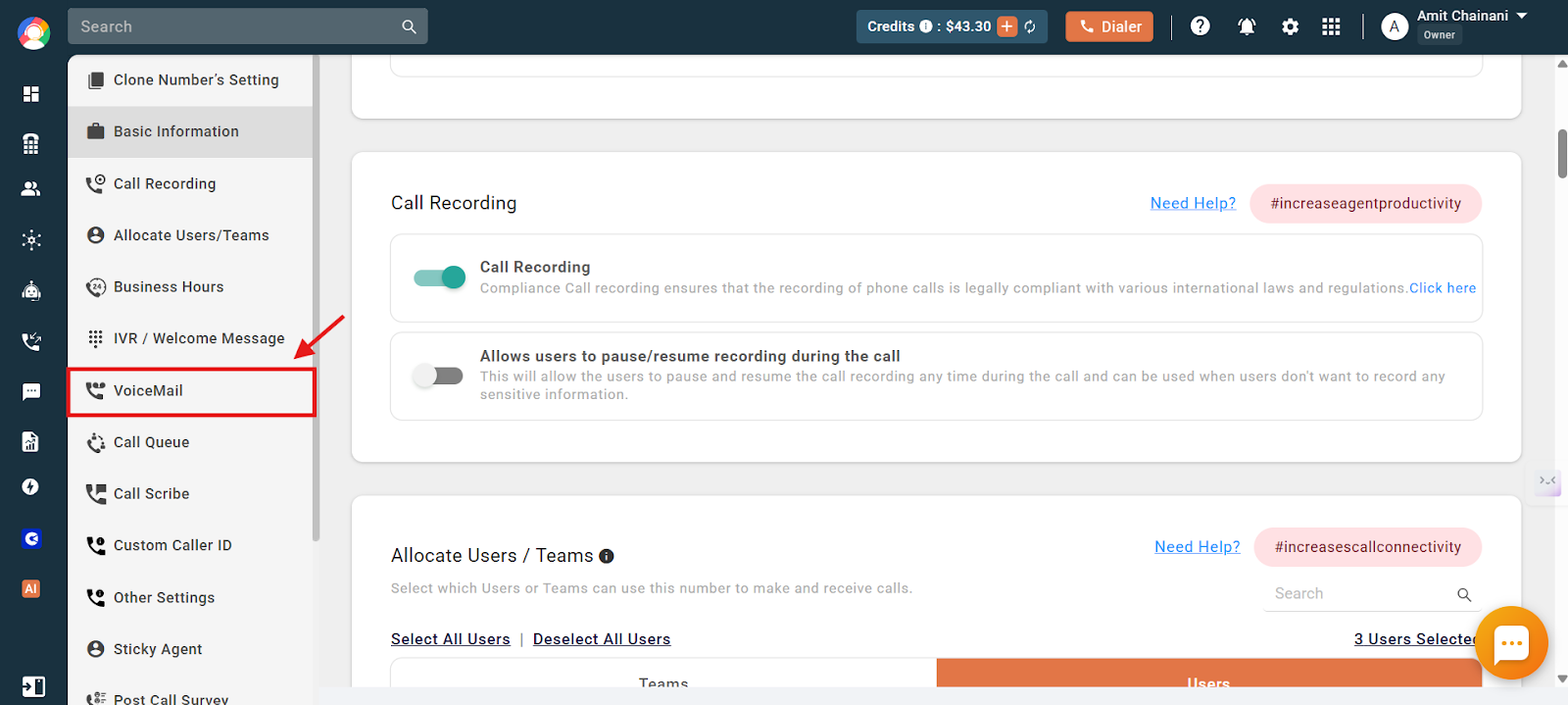
- Click the Voicemail option in the left side of the dashboard.
- Click the voicemail toggle to enable it.
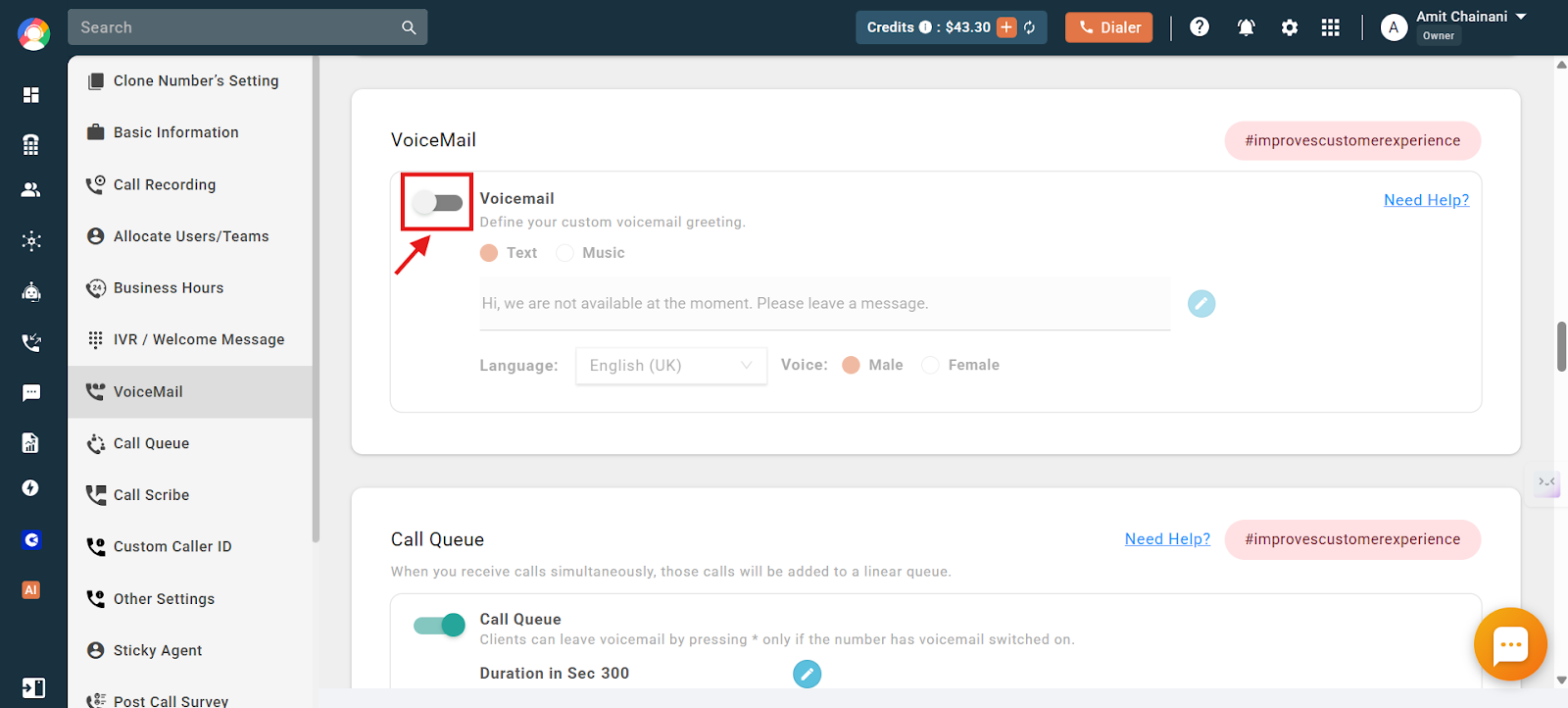
- Choose between two options for your voicemail message: write the message text yourself, or upload a pre-recorded audio file.
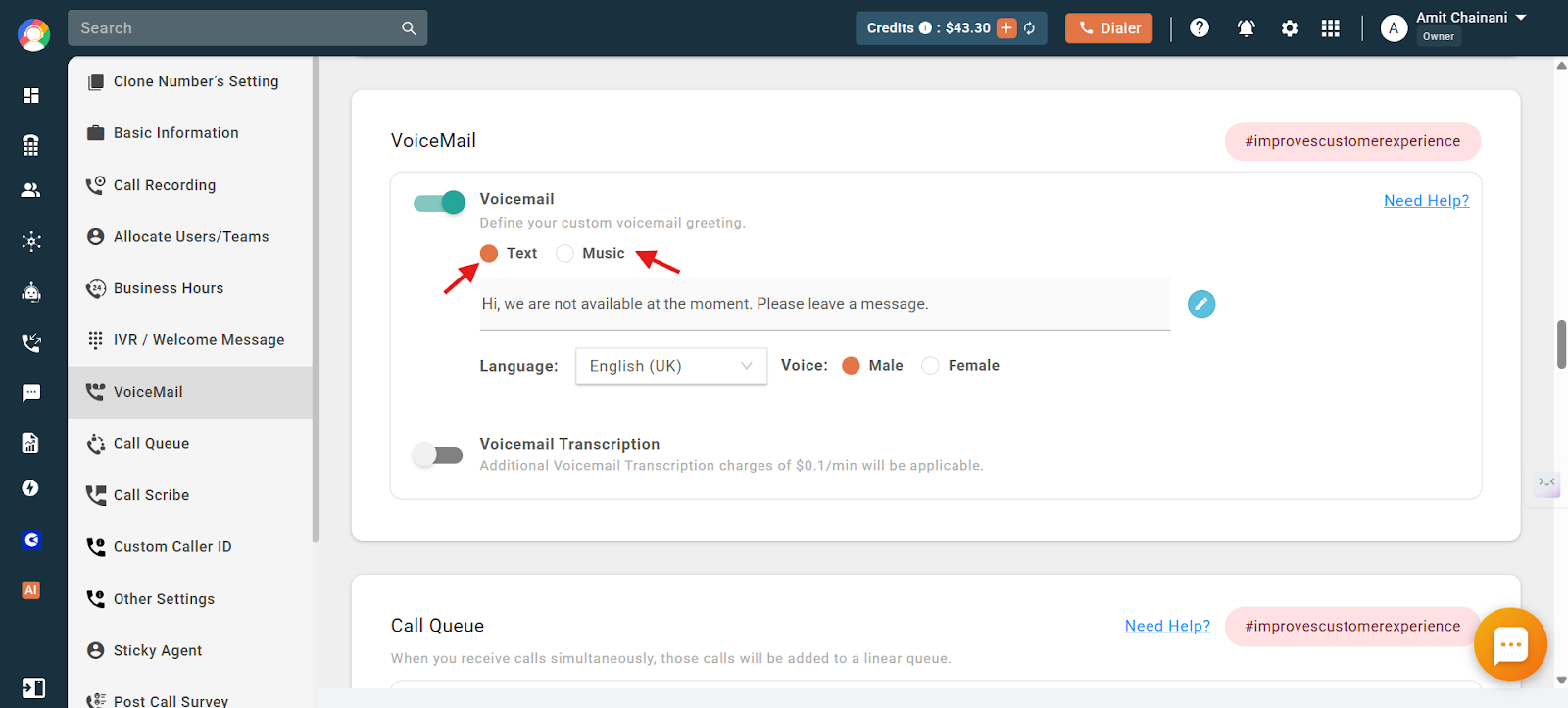
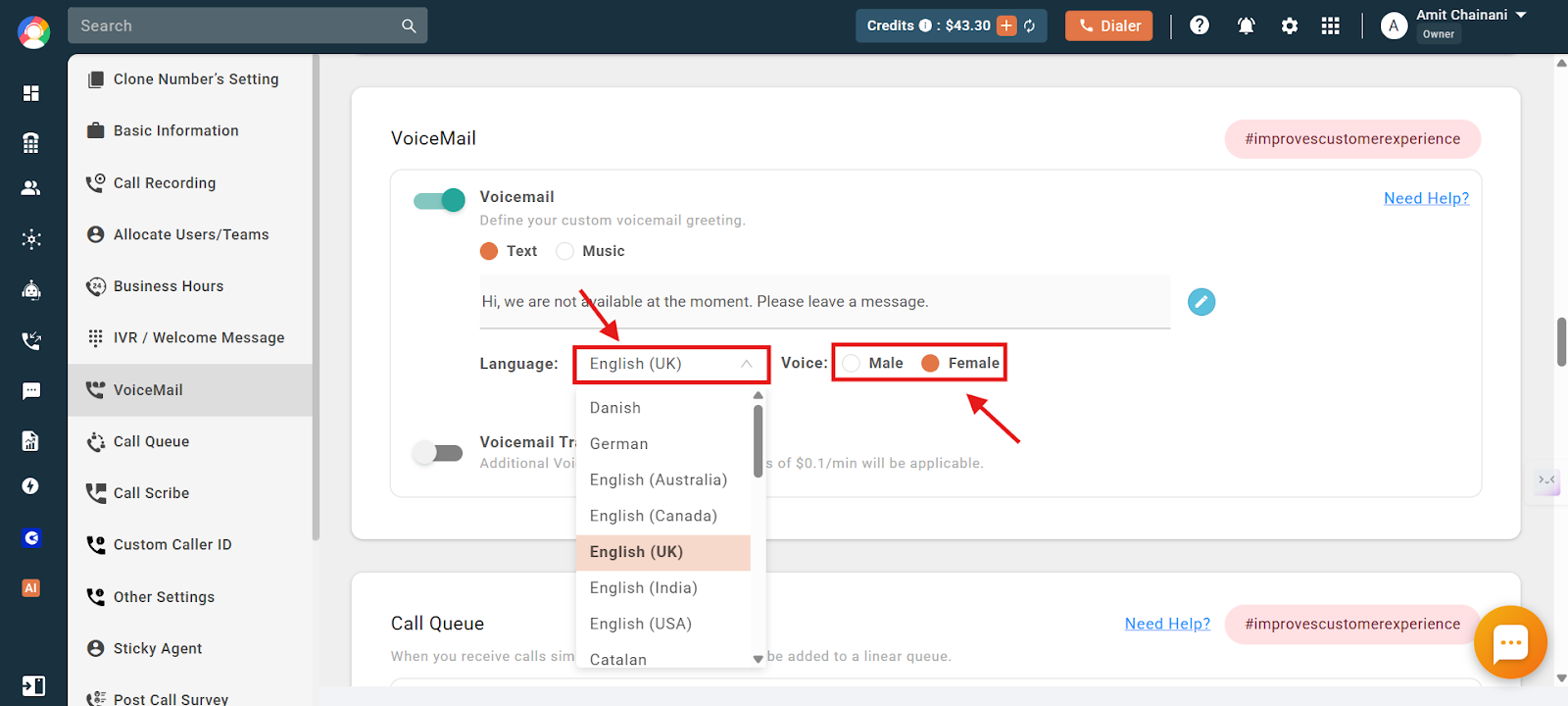
- If you select Text, it is played to the customer as an AI voice prompt. You can choose a male or female voice and select from a range of available accents.
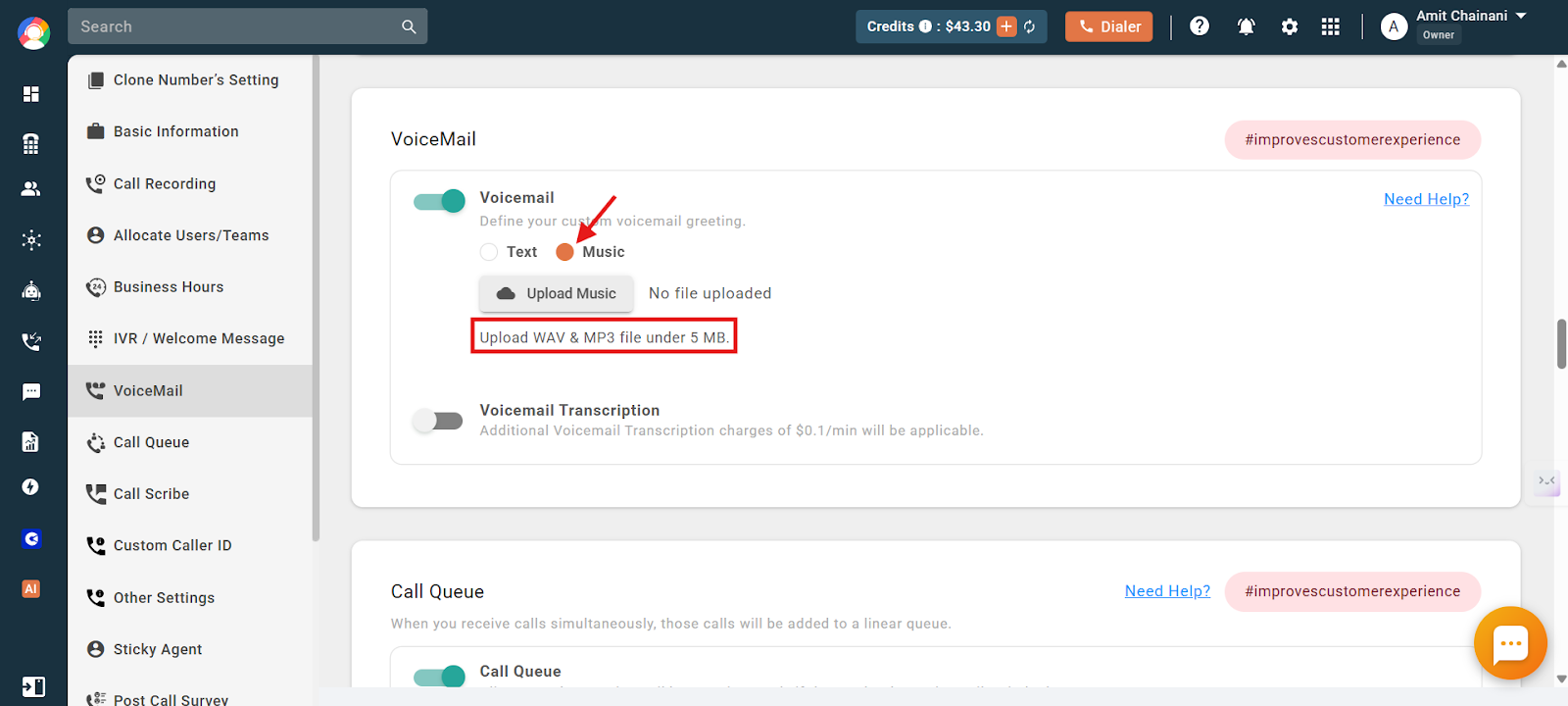
- If you select Music, you can upload your own audio file to be played as the voicemail message. Note: only .mp3 and .wav files under 5 MB can be uploaded.
Voicemail transcription
Voicemail transcription converts the audio of voicemail messages into text, so you can read the content of your voicemails rather than listen to them. This is useful for quickly scanning messages and identifying important information without playing each voicemail.
Availability, pricing and conditions:
- Voicemail transcription is available only on select plans. You can view its availability across plans on our pricing page.
- Voicemail transcription costs $0.1 per minute, deducted from the calling credits available in your account.
- If you have no calling credits, or your credits are exhausted, the voicemail transcription feature will not work.
To enable voicemail transcription, click the Voicemail Transcription toggle to turn it on for your account.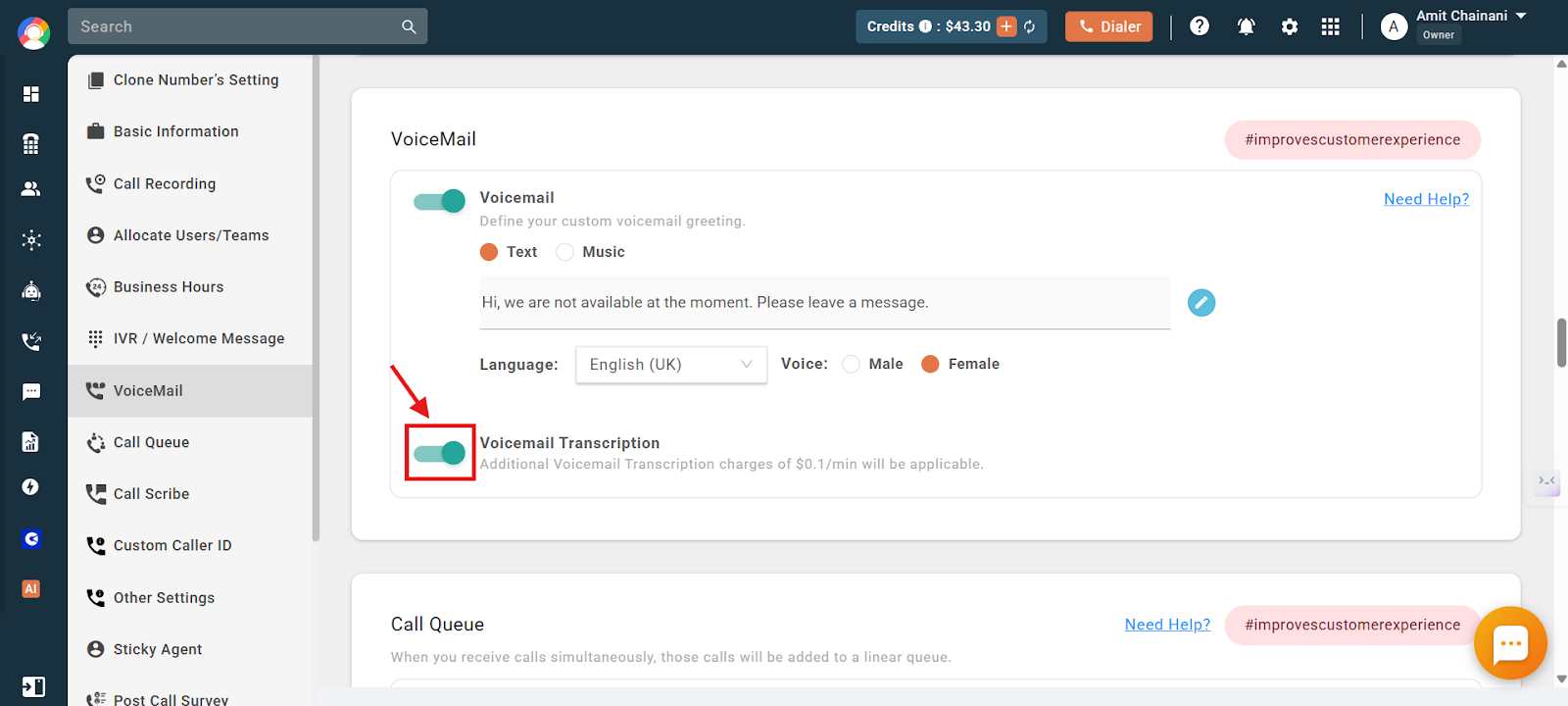
How to enable user voicemail
- Log in to your CallHippo dashboard.
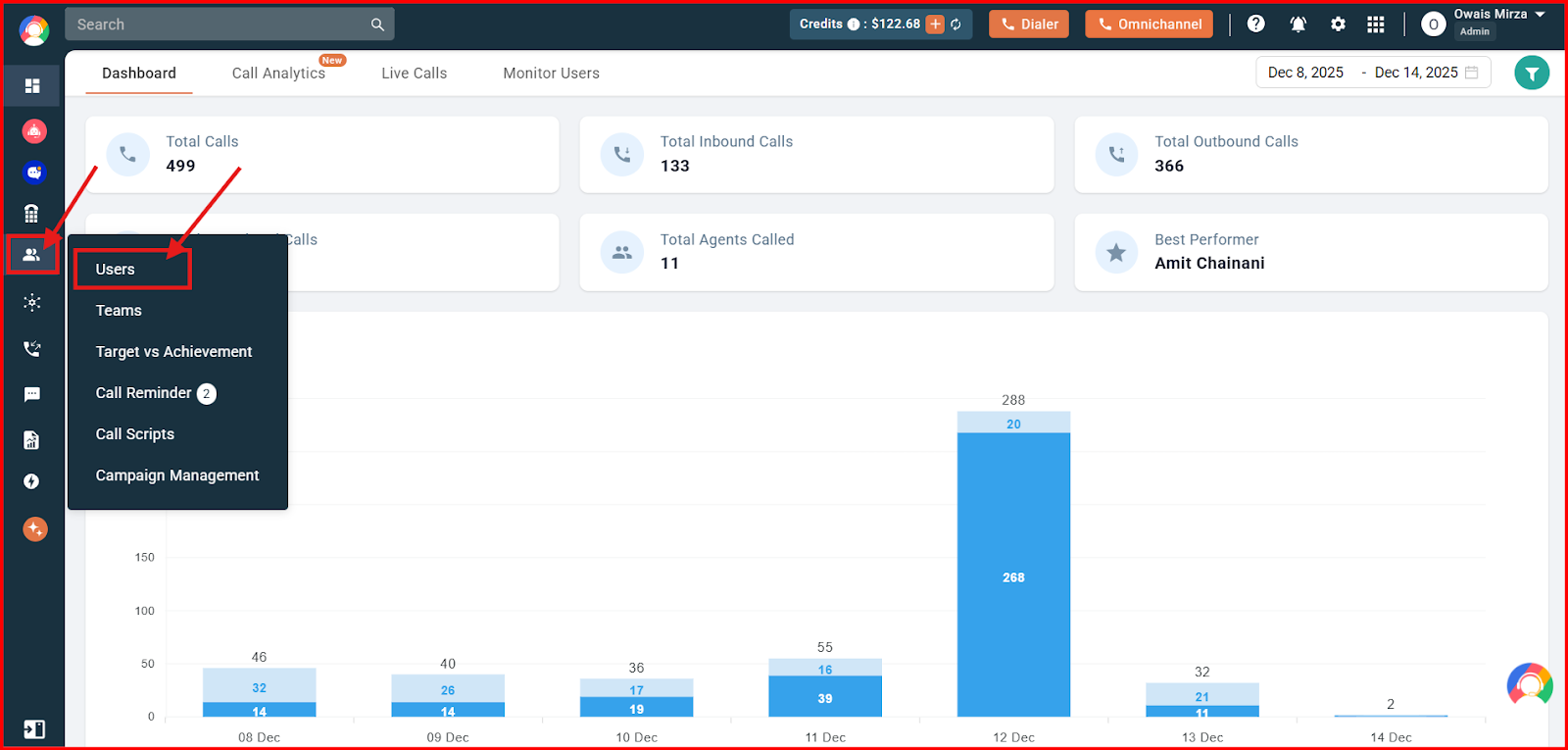
- Navigate to the Users and Performance section on the left side of the screen, then click Users.
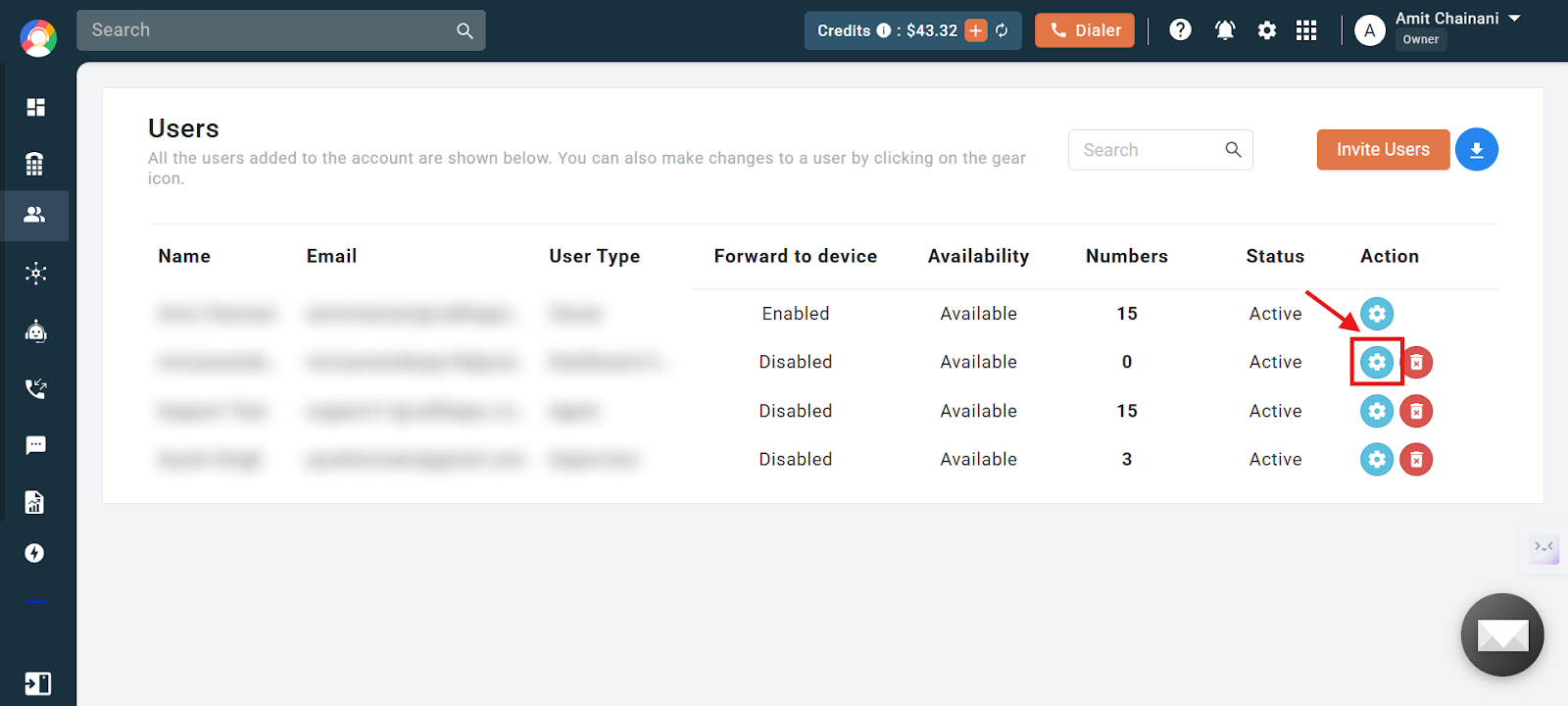
- Click the settings icon of the user you want to enable the voicemail feature for.
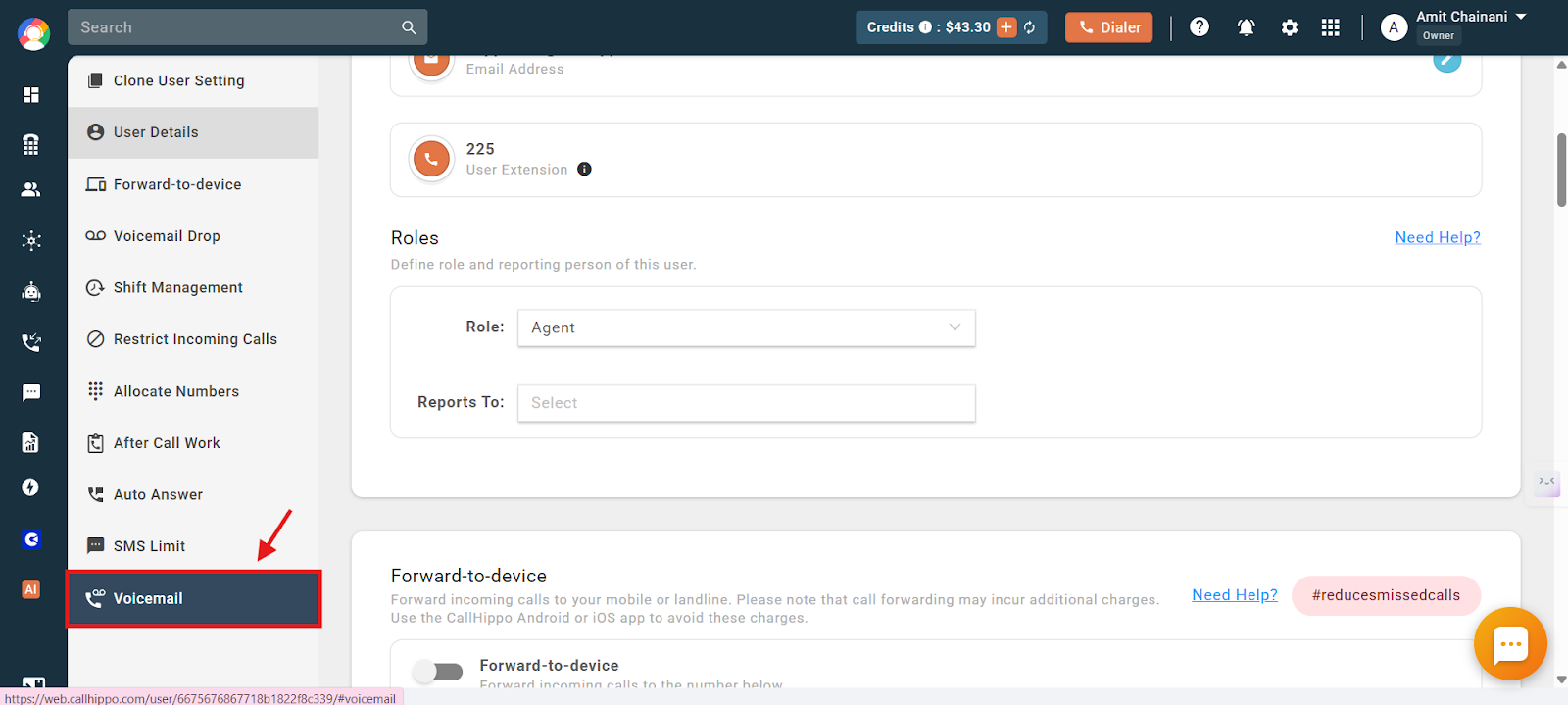
- Click the Voicemail option on the left side of the dashboard.
- Click the voicemail toggle to enable it.
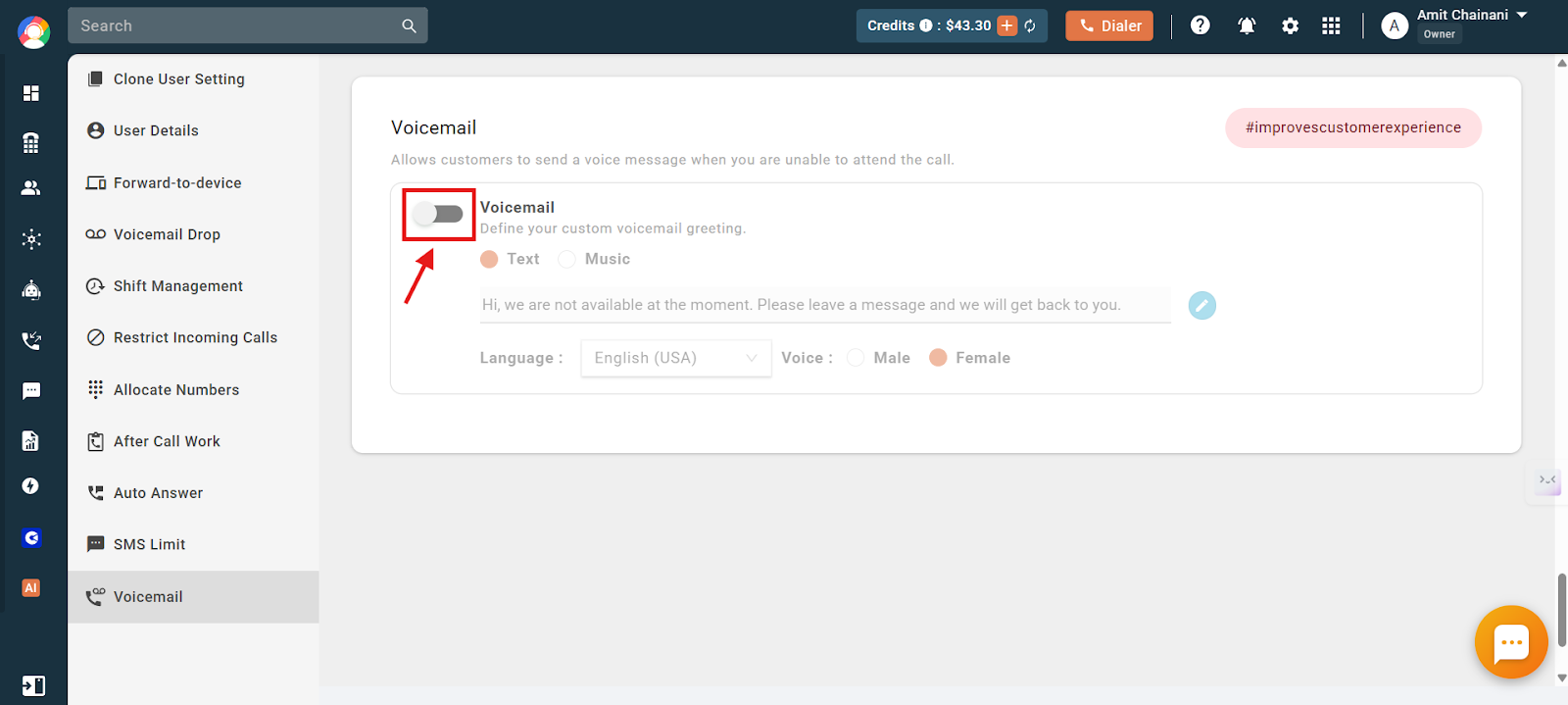
- Choose between two options for your voicemail message: write the message text yourself, or upload a pre-recorded audio file.
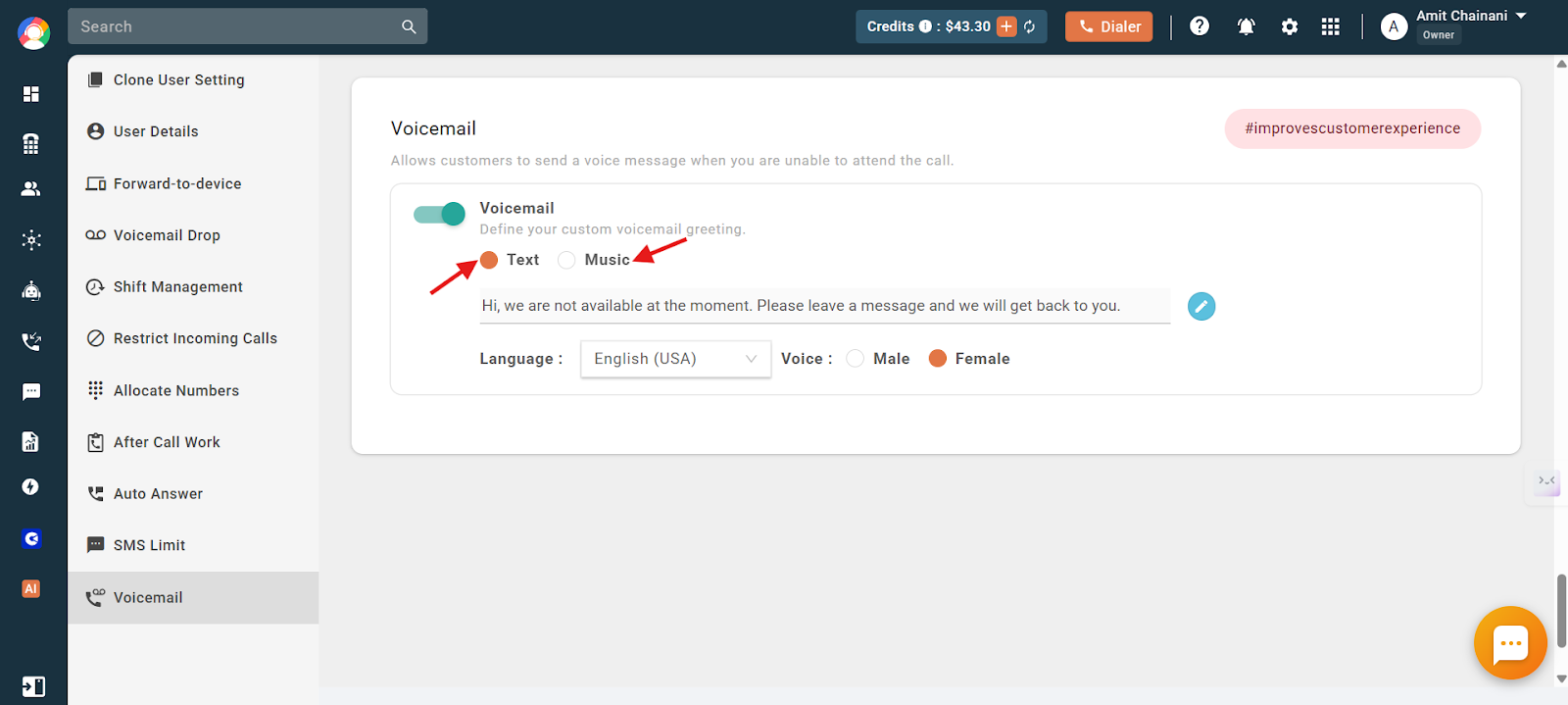
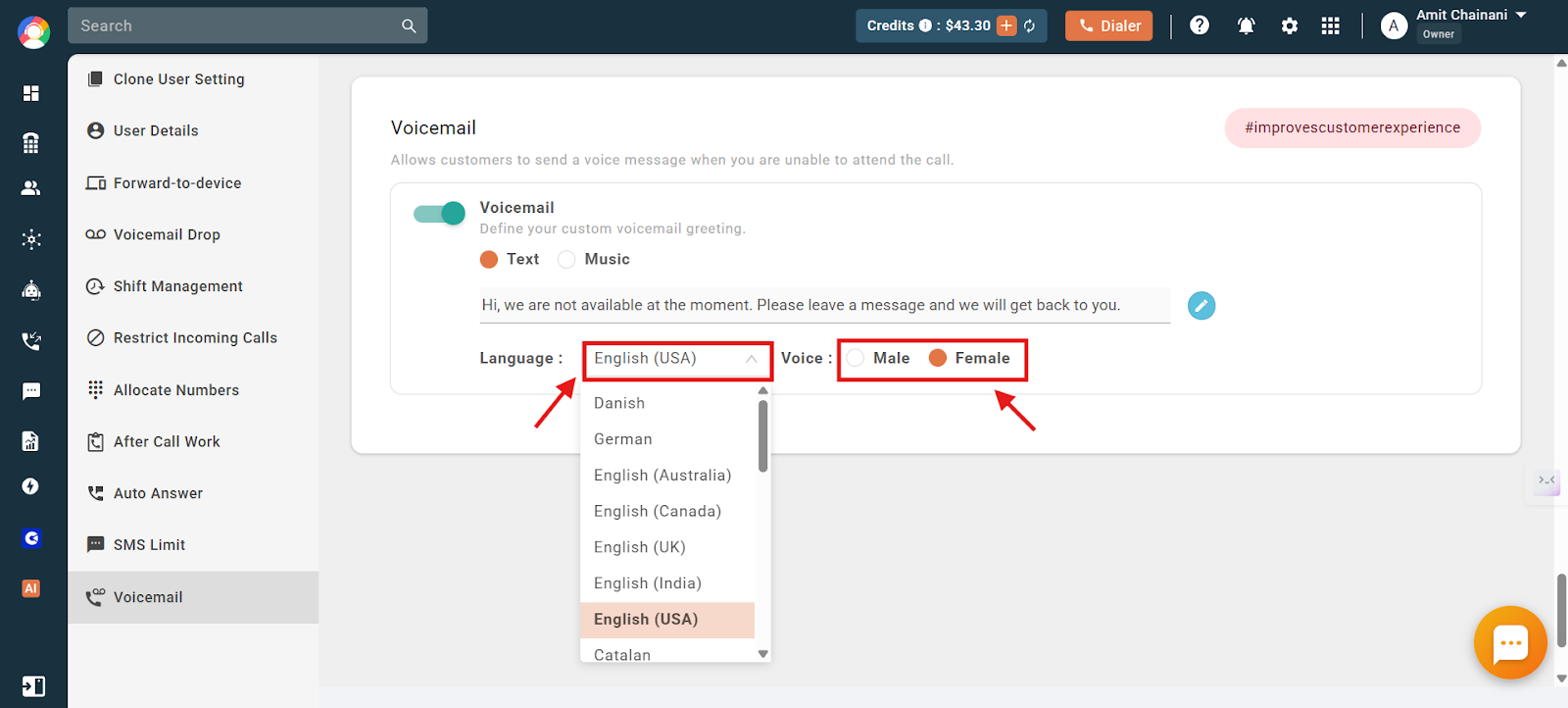
- If you select Text, it is played to the customer as an AI voice prompt. You can choose a male or female voice and select from a range of available accents.
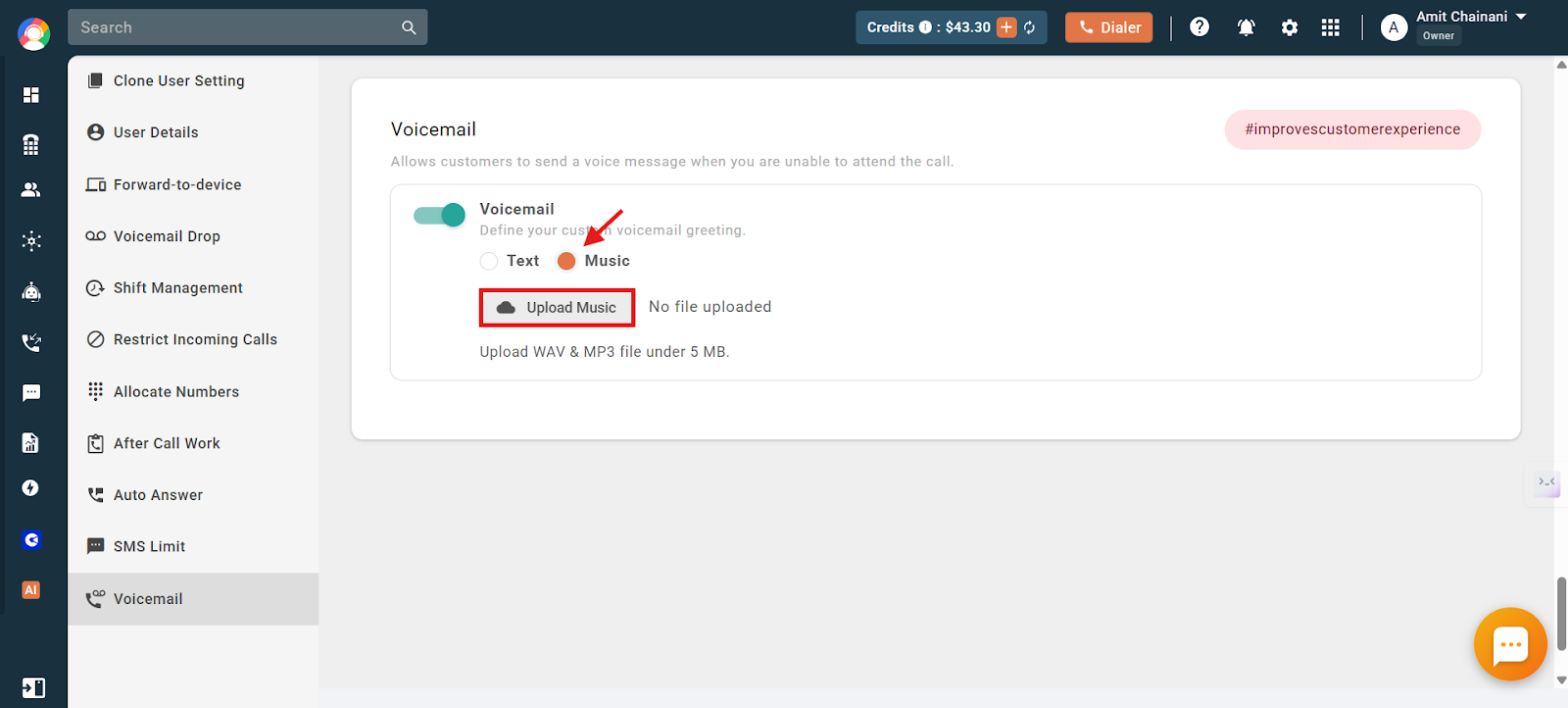
- If you select Music, you can upload your own audio file to be played as the voicemail message. Note: only .mp3 and .wav files under 5 MB can be uploaded.
How to listen to voicemails
From the CallHippo dashboard
- Log in to your CallHippo dashboard.
- Click the Call Logs / Recordings section on the left side of the dashboard.
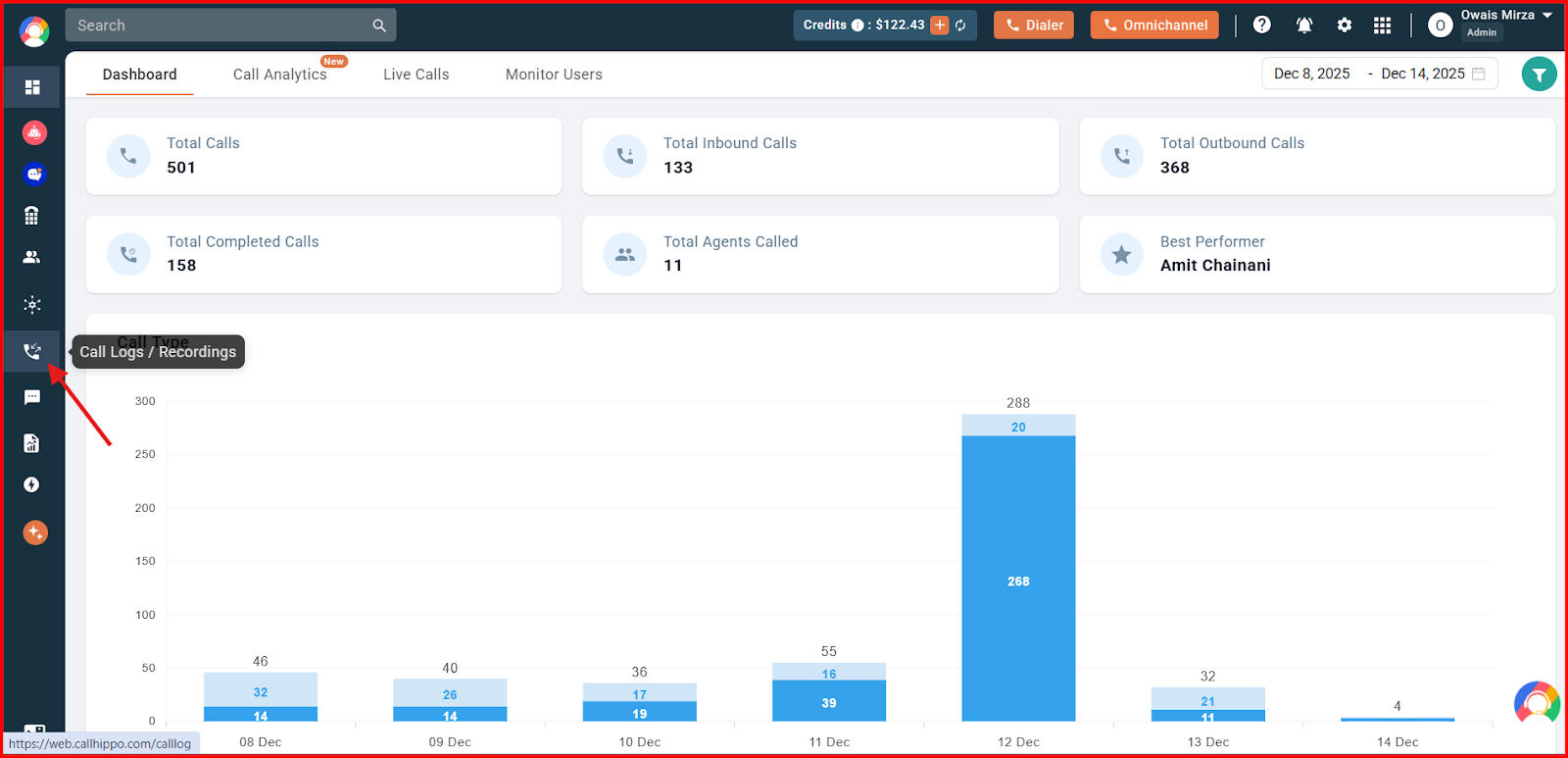
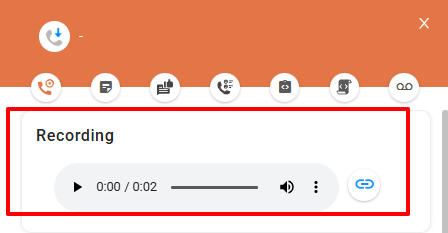
- Calls that have voicemail recordings show a play button beside them. Click the play button to listen to the recording.
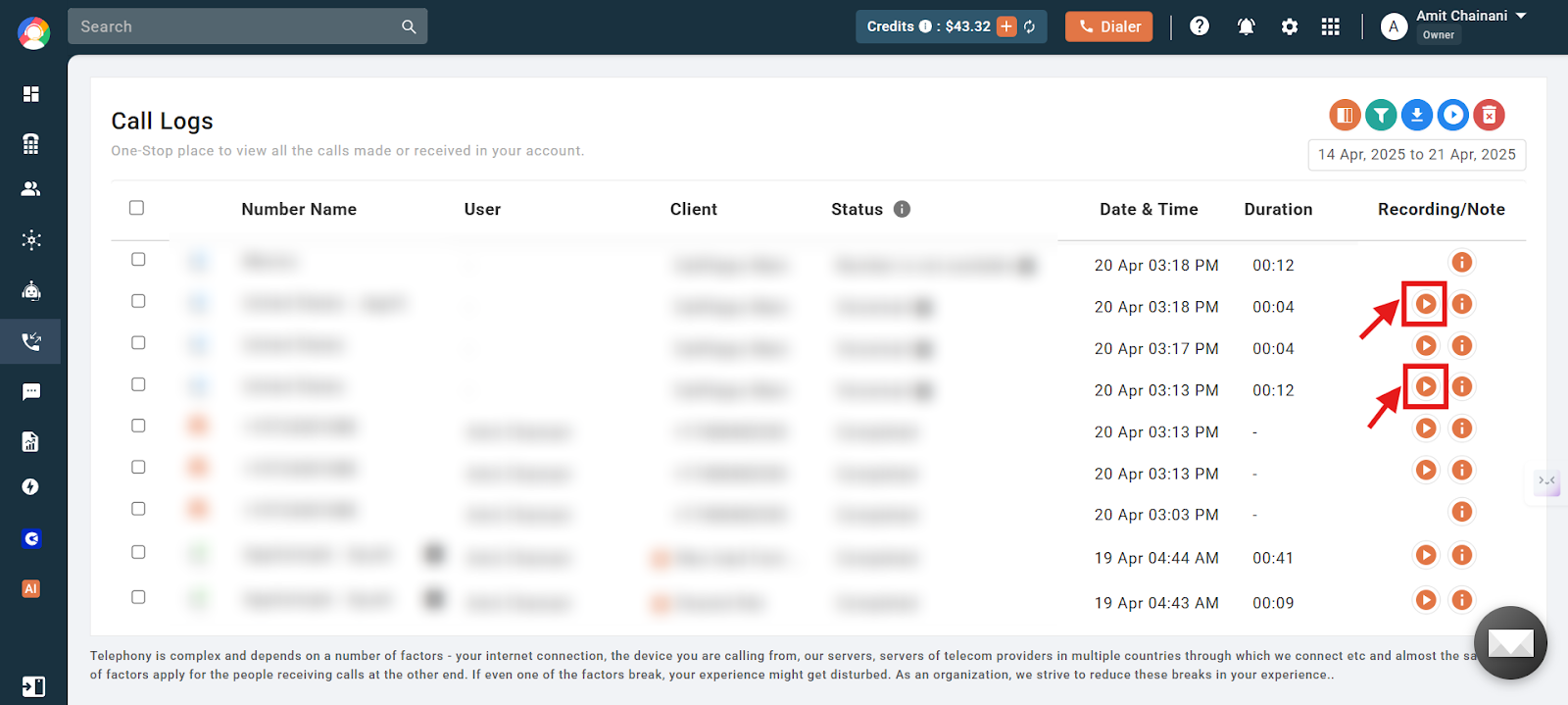
- Alternatively, click the i (info) button and play the recording from there.
From the mobile application
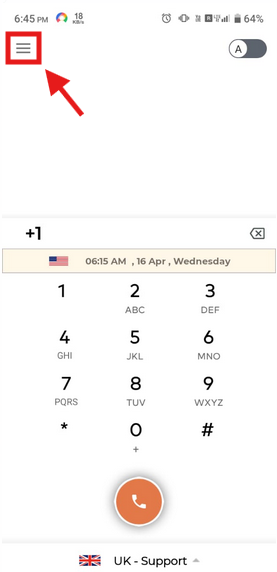
- Log in to your CallHippo mobile application.
- Tap the Main Menu icon.
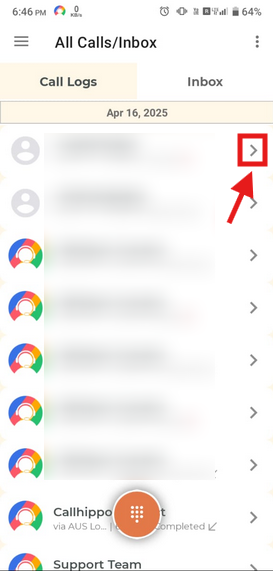
- Tap the All Calls / Inbox option.
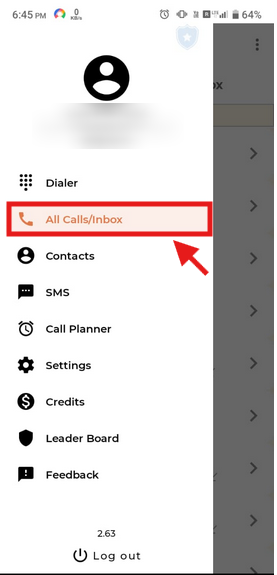
- Tap the arrow icon beside the call whose recording you want to hear.
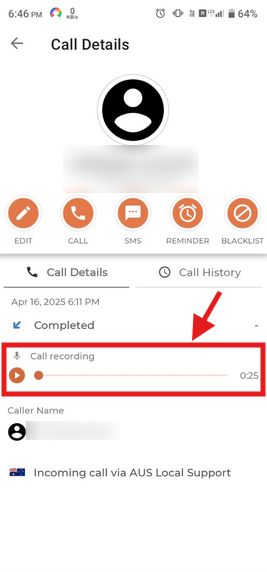
- Tap the play icon on the screen to play the voicemail recording.
How to read voicemail transcriptions
After following the steps above to open a recording, click the Voicemail Transcription button. The transcription of the voicemail left by your client will be displayed.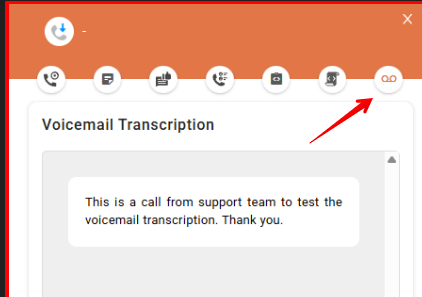
Important:
- You can only read voicemail transcriptions from the CallHippo dashboard.
- Voicemail transcriptions cannot be read using the mobile application.
Frequently asked questions
What is the difference between User Voicemail and Number Voicemail?
User Voicemail is tied to a specific user and plays when a call reaches their dialer but goes unanswered. Number Voicemail is linked to a phone number and plays when the call does not reach any user’s dialer.
Can I customize the voicemail message?
Yes. You can either type a message to be converted into an AI voice prompt, or upload a pre-recorded .mp3 or .wav file under 5 MB.
What is voicemail transcription?
Voicemail transcription converts audio voicemail messages into text so you can read them instead of listening to the audio.
How much does voicemail transcription cost?
It costs $0.1 per minute. Charges are deducted from your calling credits.
Can I read voicemail transcriptions on the mobile app?
No. Voicemail transcriptions are only available on the CallHippo dashboard — they cannot be viewed from the mobile application.
If I add calling credits later, will I get transcripts of voicemails received when I had no credits?
No. Adding credits afterward will not generate transcriptions for past voicemails. Transcriptions are only created at the time the voicemail is received, provided there are enough calling credits in your account.
How can I update my voicemail message?
Access the voicemail settings in either the User or Number section of your dashboard. From there, type a new message to be played as an AI voice prompt, or upload a new .mp3 or .wav file (under 5 MB).
How can I listen to my voicemail messages?
Navigate to the “Call Logs / Recordings” section of your dashboard and click the play button next to the relevant call. You can also access voicemails on the mobile app under “All Calls / Inbox” by selecting the appropriate call.
Can I upload my own recorded voicemail greeting, or am I limited to AI text-to-speech?
Yes, you can upload your own greeting. In the voicemail settings, choose the upload option to add a personal audio file in .mp3 or .wav format (under 5 MB) instead of the AI-generated voice prompt.
What are the steps to upload a voicemail greeting?
Go to the voicemail settings under the User or Number section, enable the voicemail toggle, and choose the upload option. Then upload a pre-recorded .mp3 or .wav file (under 5 MB) to be played for incoming callers.
I am unavailable to take calls — how can I ensure callers hear my own recorded message?
Enable voicemail under your User settings and upload your own recorded message in .mp3 or .wav format. When you are unavailable and a call lands on your dialer unanswered, your custom voicemail message will be played to the caller.
We hope this helps. If you still have questions, feel free to reach out at [email protected].